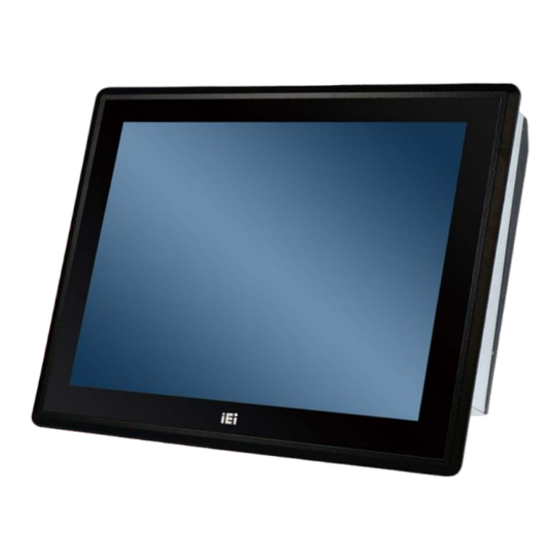

Related Manuals for IEI Technology PPC-F17A-H81


Summary of Contents for IEI Technology PPC-F17A-H81
- Page 1 PPC-FxxA-H81 Panel PC PPC-FxxA-H81 Panel PC MODEL: PPC-FxxA-H81 User Manual Page i Rev. 1.04 – May 25, 2021...
- Page 2 PPC-FxxA-H81 Panel PC Revision Date Version Changes May 25, 2021 1.04 Updated Section 2.2: Packing List February 13, 2018 1.03 Updated product spec September 29, 2016 1.02 Updated Section 1.8.4: PPC-F24A-H81 Dimensions August 8, 2016 1.01 Added Section 3.8: Wireless LAN Module Installation (Optional) June 3, 2015 1.00...
- Page 3 PPC-FxxA-H81 Panel PC Copyright COPYRIGHT NOTICE The information in this document is subject to change without prior notice in order to improve reliability, design and function and does not represent a commitment on the part of the manufacturer. In no event will the manufacturer be liable for direct, indirect, special, incidental, or consequential damages arising out of the use or inability to use the product or documentation, even if advised of the possibility of such damages.
- Page 4 PPC-FxxA-H81 Panel PC Manual Conventions WARNING Warnings appear where overlooked details may cause damage to the equipment or result in personal injury. Warnings should be taken seriously. CAUTION Cautionary messages should be heeded to help reduce the chance of losing data or damaging the product. NOTE These messages inform the reader of essential but non-critical information.
-
Page 5: Table Of Contents
....................8 NTERNAL VERVIEW 1.8 D ......................9 IMENSIONS 1.8.1 PPC-F15A-H81 Dimensions ................9 1.8.2 PPC-F17A-H81 Dimensions ................10 1.8.3 PPC-F22A-H81 Dimensions ................11 1.8.4 PPC-F24A-H81 Dimensions ................12 1.9 S ....................... 13 PECIFICATIONS 2 UNPACKING ......................15 2.1 U ...................... - Page 6 PPC-FxxA-H81 Panel PC 3.8 W LAN M ) ..........32 IRELESS ODULE NSTALLATION PTIONAL RIS-2400 M ................. 36 ODULE NSTALLATION 3.10 AT/ATX M ................... 37 ELECTION 3.11 M ..................38 OUNTING THE YSTEM 3.11.1 Wall Mounting ....................38 3.11.2 Panel Mounting ..................... 41 3.11.3 Rack and Cabinet Installation ...............
- Page 7 PPC-FxxA-H81 Panel PC 5.3.2 RTC Wake Settings ..................67 5.3.3 CPU Configuration ..................69 5.3.4 SATA Configuration ..................71 5.3.5 USB Configuration ..................72 5.3.6 F81866 Super IO Configuration ..............73 5.3.6.1 Serial Port n Configuration ..............74 5.3.7 iWDD H/W Monitor ..................78 5.3.8 Serial Port Console Redirection ..............
- Page 8 PPC-FxxA-H81 Panel PC 7.2.6 Fan Connectors (CPU_FAN1/SYS_FAN1/SYS_FAN2) ........110 7.2.7 Front Panel Connector (F_PANEL1) ............. 110 7.2.8 I C Connector (CN5)..................111 7.2.9 IPMI Active LED Connector (LEDCN1) ............111 7.2.10 Keyboard and Mouse Connector (KBMS1) ..........111 7.2.11 Keypad Connector (HOTKEY_CN1) ............111 7.2.12 LAN Active LED Connectors (LED_LAN1/LED_LAN2) ......
- Page 9 PPC-FxxA-H81 Panel PC C SAFETY PRECAUTIONS ..................131 C.1 S ..................132 AFETY RECAUTIONS C.1.1 General Safety Precautions ................132 C.1.2 Anti-static Precautions ................. 133 C.1.3 Product Disposal ..................134 C.2 M ............. 135 AINTENANCE AND LEANING RECAUTIONS C.2.1 Maintenance and Cleaning ................135 C.2.2 Cleaning Tools ....................
- Page 10 Figure 1-5: PPC-F15A-H81 Internal Components ................ 8 Figure 1-6: PPC-F22A-H81 Internal Components ................ 8 Figure 1-7: PPC-F15A-H81 Dimensions (mm) ................9 Figure 1-8: PPC-F17A-H81 Dimensions (mm) ................10 Figure 1-9: PPC-F22A-H81 Dimensions (mm) ................11 Figure 1-10: PPC-F24A-H81 Dimensions (mm) ................12 Figure 3-1: PPC-F15A-H81 Back Cover Retention Screws ............
- Page 11 Figure 3-29: PPC-F15A-H81 Mounting Bracket Installation ............. 42 Figure 3-30: PPC-F15A-H81 Panel Cutout Dimensions ............42 Figure 3-31: PPC-F17A-H81 Panel Cutout Dimensions ............43 Figure 3-32: PPC-F22A-H81 Panel Cutout Dimensions ............43 Figure 3-33: PPC-F24A-H81 Panel Cutout Dimensions ............44 Figure 3-34: Tighten the Mounting Clamp Screws ..............
- Page 12 PPC-FxxA-H81 Panel PC List of Tables Table 1-1: Model Variations ......................4 Table 1-2: System Specifications ....................14 Table 2-1: Packing List ......................... 17 Table 2-2: Optional Items ......................18 Table 3-1: BIOS Options and Configured USB Ports ..............51 Table 3-2: USB Power Source Setup ..................
- Page 13 PPC-FxxA-H81 Panel PC Table 7-24: USB 2.0 Connector (USB1) Pinouts ..............117 Table 7-25: Rear Panel Connectors ..................117 Table 7-26: HDMI Connector (HDMI1) Pinouts .................118 Table 7-27: RS-232 Serial Port Pinouts ..................118 Table 7-28: USB 2.0 Connector (USB_CON1) Pinouts ............118 Table 7-29: RJ-45 GbE Connector (LAN2_USB2) Pinouts ............119 Table 7-30: USB 2.0 Connector (LAN2_USB2) Pinouts ............119 Table 7-31: RJ-45 GbE Connector (LAN1_USB1) Pinouts ............119 Table 7-32: USB 3.2 Gen 1 Connector (LAN1_USB1) Pinouts ..........120...
-
Page 15: Introduction
PPC-FxxA-H81 Panel PC Chapter Introduction Page 1... -
Page 16: Overview
PPC-FxxA-H81 Panel PC 1.1 Overview Figure 1-1: PPC-FxxA-H81 Panel PC The PPC-FxxA-H81 is a heavy industrial panel PC with rugged and trendy design which can be applied in harsh industrial environments and enriches aesthetic experience at the same time. The PPC-FxxA-H81 not only provides all the features of a PC, but also combines with resistive/projected capacitive touchscreen for mouse and keyboard free data input. -
Page 17: Model Variations
PPC-FxxA-H81 Panel PC 1.2 Model Variations The model numbers and model variations are listed below. Model Touchscreen Power Screen Intel® Pentium® G3220 PPC-F15AA-H81i-P/4G/R Resistive AC input 15” (dual-core, 3.0 GHz, Projected capacitive PPC–F15AA–H81i-P/4G/PC AC input 15” max. TDP=53 W) PPC–F15AA–H81i-i3/4G/R Intel® Core™ i3-4330 Resistive AC input 15”... -
Page 18: Features
PPC-FxxA-H81 Panel PC Model Touchscreen Power Screen Intel® Pentium® G3220 PPC–F24AA–H81i-P/4G/PC Projected capacitive AC input 23.8” (dual-core, 3.0 GHz, max. TDP=53 W) Intel® Core™ i3-4330 PPC–F24AA–H81i-i3/4G/PC Projected capacitive AC input 23.8” (dual-core, 3.5 GHz, max. TDP=54 W) Intel® Core™ i5-4570S PPC–F24AA–H81i-i5/4G/PC Projected capacitive AC input... -
Page 19: Front Panel
PPC-FxxA-H81 Panel PC 1.4 Front Panel The front side of the PPC-FxxA-H81 (Figure 1-2) is a flat panel LCD screen surrounded by an aluminum frame. Figure 1-2: Front View 1.5 Rear Panel The rear panel has a fan vent, four VESA 100x100 mounting holes and several retention screw holes. -
Page 20: Bottom Panel
PPC-FxxA-H81 Panel PC Figure 1-3: PPC-F15A-H81 Rear View 1.6 Bottom Panel The bottom panel has the following interfaces: 1 x Power input connector 1 x Power switch 2 x USB 3.2 Gen 1 (5Gb/s) connectors 4 x USB 2.0 connectors ... -
Page 21: Figure 1-4: Bottom View
PPC-FxxA-H81 Panel PC Figure 1-4: Bottom View WARNING: Ensure to connect the power cord to a socket-outlet with earthing connection. Page 7... -
Page 22: Internal Overview
PPC-FxxA-H81 Panel PC 1.7 Internal Overview An overview picture of the internal components is shown in Figure 1-6 below. Figure 1-5: PPC-F15A-H81 Internal Components Figure 1-6: PPC-F22A-H81 Internal Components Page 8... -
Page 23: Dimensions
PPC-FxxA-H81 Panel PC 1.8 Dimensions 1.8.1 PPC-F15A-H81 Dimensions Figure 1-7: PPC-F15A-H81 Dimensions (mm) Page 9... -
Page 24: Ppc-F17A-H81 Dimensions
PPC-FxxA-H81 Panel PC 1.8.2 PPC-F17A-H81 Dimensions Figure 1-8: PPC-F17A-H81 Dimensions (mm) Page 10... -
Page 25: Ppc-F22A-H81 Dimensions
PPC-FxxA-H81 Panel PC 1.8.3 PPC-F22A-H81 Dimensions Figure 1-9: PPC-F22A-H81 Dimensions (mm) Page 11... -
Page 26: Ppc-F24A-H81 Dimensions
PPC-FxxA-H81 Panel PC 1.8.4 PPC-F24A-H81 Dimensions Figure 1-10: PPC-F24A-H81 Dimensions (mm) Page 12... -
Page 27: Specifications
PPC-FxxA-H81 Panel PC 1.9 Specifications The technical specifications for the PPC-FxxA-H81 system are listed in Table 1-2. PPC-F15A-H81 PPC-F17A-H81 PPC-F22A-H81 PPC-F24A-H81 LCD Display 15” (4:3) 17” (5:4) 21.5” (16:9) 23.8” (16:9) Max. Resolution 1024 (W) x 768 (H) 1280 (W) x 1024 (H) 1920 (W) x 1080 (H) 1920 (W) x 1080 (H) -
Page 28: Table 1-2: System Specifications
PPC-FxxA-H81 Panel PC PPC-F15A-H81 PPC-F17A-H81 PPC-F22A-H81 PPC-F24A-H81 Construction Aluminum front cover and sheet metal rear cover Material Enclosure Color Black 2 x USB 3.2 Gen 1 (5Gb/s) 4 x USB 2.0 4 x RS-232 (COM1 ~ COM4) 1 x RS-232/422/485 (COM5) -
Page 29: Unpacking
PPC-FxxA-H81 Panel PC Chapter Unpacking Page 15... -
Page 30: Unpacking
PPC-FxxA-H81 Panel PC 2.1 Unpacking To unpack the panel PC, follow the steps below: WARNING! The front side LCD screen has a protective plastic cover stuck to the screen. Only remove the plastic cover after the panel PC has been properly installed. -
Page 31: Packing List
PPC-FxxA-H81 Panel PC 2.2 Packing List The PPC-FxxA-H81 panel PC is shipped with the following components: Quantity Item Image PPC-FxxA-H81 Power cord (P/N: varies by regions) Screw kit Touch pen (P/N: 43125-0002C0-00-RS) (resistive type models only) Table 2-1: Packing List If any of the above items are missing or damaged, contact the distributor or sales representative immediately. -
Page 32: Optional Items
PPC-FxxA-H81 Panel PC 2.3 Optional Items The following items are optional accessories for the PPC-FxxA-H81: PPC-F15A-H81 PPC-F17A-H81 PPC-F22A-H81 PPC-F24A-H81 Item ARM-31 Panel mounting kit FPK-04-R10 FPK-05-R10 FPK-06-R10 Rack mounting kit FRK15-R10 FRK17-R10 STAND-A21 STAND-C19 Stand STAND-A19 STAND-A21 STAND-C19 Wall mounting kit... -
Page 33: Installation
PPC-FxxA-H81 Panel PC Chapter Installation Page 19... -
Page 34: Anti-Static Precautions
PPC-FxxA-H81 Panel PC 3.1 Anti-static Precautions WARNING: Failure to take ESD precautions during the maintenance of the PPC-FxxA-H81 series may result in permanent damage to the PPC-FxxA-H81 series and severe injury to the user. Electrostatic discharge (ESD) can cause serious damage to electronic components, including the PPC-FxxA-H81. -
Page 35: Preinstalled Components
PPC-FxxA-H81 Panel PC Mounting: The PPC-FxxA-H81 is a heavy device. When mounting the system onto a rack, panel, wall or arm, please make sure that at least two people are assisting with the procedure. Anti-static Discharge: If a user open the rear panel of the panel PC, to configure the jumpers or plug in added peripheral devices, ground themselves first and wear and anti-static wristband. -
Page 36: Removing The
PPC-FxxA-H81 Panel PC 3.5 Removing the Back Cover Remove all the retention screws on the back cover. Lift the cover up to remove. NOTE: The number of retention screws on the back cover varies by models. Figure 3-1: PPC-F15A-H81 Back Cover Retention Screws Page 22... -
Page 37: Hdd Installation
PPC-FxxA-H81 Panel PC 3.6 HDD Installation 3.6.1 PPC-F15A/F17A-H81 HDD Installation To install a 2.5” HDD into the PPC-F15A/F17A-H81, please follow the steps below: Step 1: Remove the back cover. See Section 3.5. Step 2: Remove the HDD bracket from the PPC-F15A/F17A-H81. The HDD bracket is secured on the panel PC with four retention screws (Figure 3-2). -
Page 38: Figure 3-3: Hdd Retention Screws
PPC-FxxA-H81 Panel PC Figure 3-3: HDD Retention Screws Step 5: Reinstall the HDD bracket into the PPC-FxxA-H81 and fasten the four hard drive bracket screws (Figure 3-4).Step 0: Figure 3-4: Replacing the PPC-F15A/F17A-H81 HDD Bracket Page 24... -
Page 39: Ppc-F22A/F24A-H81 2.5"Hdd Installation
PPC-FxxA-H81 Panel PC 3.6.2 PPC-F22A/F24A-H81 2.5”HDD Installation The PPC-F22A/F24A-H81 allows installation of either a 2.5” or 3.5” HDD. To install a 2.5” HDD into the PPC-F22A/F24A-H81, please follow the steps below: Step 1: Remove the back cover. See Section 3.5. Step 2: Remove the HDD bracket from the PPC-F22A/F24A-H81. -
Page 40: Figure 3-6: Connecting The Hard Drive To The Hdd Bracket
PPC-FxxA-H81 Panel PC Step 3: Attach the hard drive to the bracket. To do this, slide the hard drive onto the bracket until it connects with the SATA connector at the back (Figure 3-6). Figure 3-6: Connecting the Hard Drive to the HDD Bracket Step 4: Secure the hard drive to the bracket. -
Page 41: Ppc-F22A/F24A-H81 3.5" Hdd Installation
PPC-FxxA-H81 Panel PC Figure 3-8: Replacing the PPC-F22A/F24A-H81 HDD Bracket 3.6.3 PPC-F22A/F24A-H81 3.5” HDD Installation The PPC-F22A/F24A-H81 allows installation of either a 2.5” or 3.5” HDD. To install a 3.5” HDD into the PPC-F22A/F24A-H81, please follow the steps below: Step 1: Remove the back cover. -
Page 42: Figure 3-9: Connecting The Hard Drive To The Hdd Bracket
PPC-FxxA-H81 Panel PC Step 3: Attach the hard drive to the bracket. To do this, slide the hard drive onto the bracket until it connects with the SATA connector at the back (Figure 3-9). Figure 3-9: Connecting the Hard Drive to the HDD Bracket Step 4: Secure the hard drive to the bracket. -
Page 43: Msata Module Installation
PPC-FxxA-H81 Panel PC Figure 3-11: Replacing the PPC-F22A/F24A-H81 HDD Bracket 3.7 mSATA Module Installation One of the PCIe Mini card slots on the motherboard of the PPC-FxxA-H81 supports mSATA module. To install an mSATA module, please follow the steps below. Step 1: Remove the back cover. -
Page 44: Figure 3-12: Pcie Mini Card Slot Which Supports Msata
PPC-FxxA-H81 Panel PC Figure 3-12: PCIe Mini Card Slot which supports mSATA Step 3: Remove the retention screws. Remove the two retention screws as shown in Figure 3-13. Figure 3-13: Removing the Retention Screws Page 30... -
Page 45: Figure 3-14: Inserting The Pcie Mini Card Into The Slot At An Angle
PPC-FxxA-H81 Panel PC Step 4: Insert into the socket at an angle. Line up the notch on the card with the notch on the slot. Slide the PCIe Mini card into the socket at an angle of about 20º (Figure 3-14). Figure 3-14: Inserting the PCIe Mini Card into the Slot at an Angle Step 5: Secure the PCIe Mini card. -
Page 46: Wireless Lan Module Installation (Optional)
Remove the back cover. See Section 3.5. Step 2: Remove the two knockouts for antenna installation. The two knockouts are located on the top panel of the PPC-FxxA-H81 as shown in Figure 3-16. PPC-F15A-H81: PPC-F17A-H81: PPC-F22A-H81: PPC-F24A-H81: Figure 3-16: Knockouts for Wireless Antenna Page 32... -
Page 47: Figure 3-17: Pcie Mini Slot Location
PPC-FxxA-H81 Panel PC Step 3: Locate the PCIe Mini slot (Figure 3-17). Figure 3-17: PCIe Mini Slot Location Step 4: Remove the retention screws and the standoffs secured on the motherboard as shown in Figure 3-18. Figure 3-18: Removing the Retention Screws and Standoffs Page 33... -
Page 48: Figure 3-19: Installing The Standoffs
PPC-FxxA-H81 Panel PC Step 5: Install the previously removed standoffs to the screw holes for the WLAN module (Figure 3-19). Figure 3-19: Installing the Standoffs Step 6: Line up the notch on the WLAN module with the notch on the slot. Slide the WLAN module into the slot at an angle of about 20º... -
Page 49: Figure 3-21: Securing Wlan Module And Connecting Rf Cables
PPC-FxxA-H81 Panel PC Step 7: Secure the WLAN module with the retention screws previously removed (Figure 3-21). Step 8: Connect the two RF cables to the antenna connectors on the WLAN module (Figure 3-21). Figure 3-21: Securing WLAN Module and Connecting RF Cables Step 9: Remove the nut and washer from the SMA connector at the other end of the RF cable. -
Page 50: Iris-2400 Module Installation
PPC-FxxA-H81 Panel PC 3.9 iRIS-2400 Module Installation WARNING: The iRIS-2400 module slot is designed to install the iRIS-2400 module only. DO NOT install other modules into the iRIS-2400 module slot. Doing so may cause damage to the PPC-FxxA-H81. To install the iRIS-2400 module, please follow the steps below. Step 1: Remove the back cover. -
Page 51: At/Atx Mode Selection
PPC-FxxA-H81 Panel PC Step 3: Align the iRIS-2400 module with the iRIS-2400 module slot. Align the notch on the module with the notch on the iRIS-2400 module slot (Figure 3-24). Figure 3-24: iRIS-2400 Module Installation Step 4: Insert the iRIS-2400 module. Push the module in at a 20º angle (Figure 3-24). Step 5: Seat the iRIS-2400 module. -
Page 52: Mounting The System
PPC-FxxA-H81 Panel PC Figure 3-25: AT/ATX Mode Selection 3.11 Mounting the System WARNING! When mounting the PPC-FxxA-H81 panel PC, it is advisable to have more than one person help with the installation to prevent accidental damage to the panel and avoid personal injury. The methods of mounting the PPC-FxxA-H81 are: ... -
Page 53: Figure 3-26: Wall-Mounting Bracket
PPC-FxxA-H81 Panel PC Step 5: Secure the mounting bracket to the wall by inserting the retention screws into the four pilot holes and tightening them (Figure 3-26). Figure 3-26: Wall-mounting Bracket Step 6: Insert the four monitor mounting screws provided in the wall mounting kit into the four screw holes on the real panel of the monitor and tighten until the screw shank is secured against the rear panel (Figure 3-27). -
Page 54: Figure 3-27: Mount The Chassis
PPC-FxxA-H81 Panel PC Figure 3-27: Mount the Chassis Step 9: Secure the panel PC with the wall-mounting kit. To do this, stick the protective cushion to the wall-mounting kit first. Then, put the wall-mounting kit on the top panel of the panel PC. Carefully mark the location of the wall-mounting kit screw holes on the wall. -
Page 55: Panel Mounting
PPC-FxxA-H81 Panel PC Figure 3-28: Secure the Chassis 3.11.2 Panel Mounting To mount the PPC-FxxA-H81 panel PC into a panel, please follow the steps below. Step 13: Install the mounting brackets onto the rear panel (Figure 3-29). The required number of mounting brackets may vary by models. Page 41... -
Page 56: Figure 3-29: Ppc-F15A-H81 Mounting Bracket Installation
PPC-FxxA-H81 Panel PC Figure 3-29: PPC-F15A-H81 Mounting Bracket Installation Step 14: Select the position on the panel to mount the PPC-FxxA-H81. Step 15: Cut out a section of the panel that corresponds to the rear panel dimensions of the PPC-FxxA-H81. The recommended cutout sizes are shown below (Figure 3-30, Figure 3-31, Figure 3-32 and Figure 3-33). -
Page 57: Figure 3-31: Ppc-F17A-H81 Panel Cutout Dimensions
PPC-FxxA-H81 Panel PC Figure 3-31: PPC-F17A-H81 Panel Cutout Dimensions Figure 3-32: PPC-F22A-H81 Panel Cutout Dimensions Page 43... -
Page 58: Figure 3-33: Ppc-F24A-H81 Panel Cutout Dimensions
PPC-FxxA-H81 Panel PC Figure 3-33: PPC-F24A-H81 Panel Cutout Dimensions Step 16: Slide the PPC-FxxA-H81 through the hole until the aluminum frame is flush against the panel. Step 17: Insert the mounting clamps into the mounting brackets and pre-formed holes along the edges of the PPC-FxxA-H81, behind the aluminum frame (Figure 3-34). -
Page 59: Rack And Cabinet Installation
PPC-FxxA-H81 Panel PC Figure 3-34: Tighten the Mounting Clamp Screws 3.11.3 Rack and Cabinet Installation The PPC-FxxA-H81 flat panel PC can be installed into a cabinet or rack. The installation procedures are similar to the panel mounting installation. To do this, please follow the steps below: NOTE: When purchasing the cabinet/rack installation bracket, make sure it is... -
Page 60: Figure 3-35: The Rack/Cabinet Bracket
PPC-FxxA-H81 Panel PC Step 1: Install the mounting brackets onto the rear panel (Figure 3-29). The required number of mounting brackets may vary by models. Step 2: Slide the rear of the PPC-FxxA-H81 flat panel PC through the rack/cabinet bracket until the aluminum frame is flush against the front of the bracket (Figure 3-35). -
Page 61: Figure 3-36: Secure The Rack/Cabinet Bracket
PPC-FxxA-H81 Panel PC Figure 3-36: Secure the Rack/Cabinet Bracket Step 5: Slide the PPC-FxxA-H81 with the attached rack/cabinet bracket into a rack or cabinet (Figure 3-37). Page 47... -
Page 62: Arm Mounting
PPC-FxxA-H81 Panel PC Figure 3-37: Install into a Rack/Cabinet Step 6: Once the flat panel PC with the attached rack/cabinet bracket has been properly inserted into the rack or cabinet, secure the front of the rack/cabinet bracket to the front of the rack or cabinet (Figure 3-37).Step 0: 3.11.4 Arm Mounting The PPC-FxxA-H81 is VESA (Video Electronics Standards Association) compliant and... -
Page 63: Stand Mounting
PPC-FxxA-H81 Panel PC Step 2: Once the mounting arm has been firmly attached to its surface, lift the PPC-FxxA-H81 panel PC onto the interface pad of the mounting arm. Step 3: Align the retention screw holes on the mounting arm interface with those in the PPC-FxxA-H81 panel PC. -
Page 64: Reset The System
PPC-FxxA-H81 Panel PC Figure 3-39: Stand Mounting Retention Screw Holes Step 2: Align the bracket with the screw holes. Step 3: To secure the bracket to the PPC-FxxA-H81, insert the retention screws into the screw holes and tighten them.S t e p 0 : 3.12 Reset the System The reset button enables users to reboot the system when the system is turned on. -
Page 65: Clear Cmos
PPC-FxxA-H81 Panel PC 3.13 Clear CMOS If the PPC-FxxA-H81 fails to boot due to improper BIOS settings, the clear CMOS button clears the CMOS data and resets the system BIOS information. To do this, push the clear CMOS button for three seconds, and then restart the system. The clear CMOS button location is shown in Figure 3-47. -
Page 66: Ipmi Setup Procedure
PPC-FxxA-H81 Panel PC 3.15 IPMI Setup Procedure The PPC-FxxA-H81 features Intelligent Platform Management Interface (IPMI) that helps lower the overall costs of server management by enabling users to maximize IT resources, save time and manage multiple systems. The PPC-FxxA-H81 supports IPMI 2.0 through the optional iRIS-2400 module. -
Page 67: Figure 3-48: Iei Iman Web Address
PPC-FxxA-H81 Panel PC Step 2: On the remote management console, open a web browser. Enter the managed system IP address in the web browser (Figure 3-48). Figure 3-42: IEI iMAN Web Address Step 3: The login page appears in the web browser. Step 4: Enter the user name and password to login the system. -
Page 68: System Maintenance
PPC-FxxA-H81 Panel PC Chapter System Maintenance Page 54... -
Page 69: System Maintenance Introduction
PPC-FxxA-H81 Panel PC 4.1 System Maintenance Introduction The following system components may require maintenance. Motherboard Memory module Cooling fans If these components fail, they must be replaced. Please contact the system reseller or vendor to purchase replacement parts. Replacement instructions for the above listed components are described below. -
Page 70: So-Dimm Replacement
PPC-FxxA-H81 Panel PC To access the panel PC internal components, the back cover must be removed. To remove the back cover, please refer to Section 3.5 for back cover removal instructions. 4.4 SO-DIMM Replacement Please read the warnings at the beginning of the previous section before attempting to access any PPC-FxxA-H81 internal components. -
Page 71: System Cooling Fan Replacement
PPC-FxxA-H81 Panel PC Step 6: Once aligned, press down until the SO-DIMM is properly seated. Clip the two handles into place. Step 0: Figure 4-2: SO-DIMM Module Installation 4.5 System Cooling Fan Replacement If the system cooling fans have been damaged, they must be replaced. To replace the system cooling fans, please follow the steps below. -
Page 72: Install The New System Cooling Fans
PPC-FxxA-H81 Panel PC Step 2: Disconnect the system cooling fans from the motherboard (Figure 4-3). Figure 4-3: System Cooling Fans Motherboard Connectors Step 3: Remove the system cooling fan retention screws from the left panel (Figure 4-4). Figure 4-4: System Cooling Fan Retention Screws Step 4: Remove the system cooling fans from the chassis. - Page 73 PPC-FxxA-H81 Panel PC Step 2: Rebundle the new fan wires and tie them to the chassis like the old fan wires. Step 3: Reconnect the new fan connector to the motherboard. Step 4: Replace the back cover.Step 0: Page 59...
-
Page 74: Bios Setup
PPC-FxxA-H81 Panel PC Chapter BIOS Setup Page 60... -
Page 75: Introduction
PPC-FxxA-H81 Panel PC 5.1 Introduction The BIOS is programmed onto the BIOS chip. The BIOS setup program allows changes to certain system settings. This chapter outlines the options that can be changed. NOTE: Some of the BIOS options may vary throughout the life cycle of the product and are subject to change without prior notice. -
Page 76: Getting Help
PPC-FxxA-H81 Panel PC Function Decrease the numeric value or make changes Page up Move to the next page Page down Move to the previous page Main Menu – Quit and do not save changes into CMOS Status Page Setup Menu and Option Page Setup Menu -- Exit current page and return to Main Menu General help, only for Status Page Setup Menu and Option Page Setup Menu... - Page 77 PPC-FxxA-H81 Panel PC Security – Sets User and Supervisor Passwords. Save & Exit – Selects exit options and loads default settings The following sections completely describe the configuration options found in the menu items at the top of the BIOS screen and listed above. Page 63...
-
Page 78: Main
PPC-FxxA-H81 Panel PC 5.2 Main The Main BIOS menu (BIOS Menu 1) appears when the BIOS Setup program is entered. The Main menu gives an overview of the basic system information. Aptio Setup Utility – Copyright (C) 2012 American Megatrends, Inc. Main Advanced Chipset... -
Page 79: Advanced
PPC-FxxA-H81 Panel PC The Main menu has two user configurable fields: System Date [xx/xx/xx] Use the System Date option to set the system date. Manually enter the day, month and year. System Time [xx:xx:xx] Use the System Time option to set the system time. Manually enter the hours, minutes and seconds. -
Page 80: Acpi Settings
PPC-FxxA-H81 Panel PC Aptio Setup Utility – Copyright (C) 2012 American Megatrends, Inc. Main Advanced Chipset Boot Security Save & Exit System ACPI Parameters > ACPI Settings > RTC Wake Settings > CPU Configuration > SATA Configuration ---------------------- > USB Configuration : Select Screen >... -
Page 81: Rtc Wake Settings
PPC-FxxA-H81 Panel PC ACPI Sleep State [S1 only (CPU Stop Clock)] Use the ACPI Sleep State option to specify the sleep state the system enters when it is not being used. S1 only (CPU Stop The system enters S1(POS) sleep state. The EFAULT Clock) system appears off. - Page 82 PPC-FxxA-H81 Panel PC Wake system with Fixed Time [Disabled] Use the Wake system with Fixed Time option to enable or disable the system wake on alarm event. Disabled The real time clock (RTC) cannot generate a wake EFAULT event ...
-
Page 83: Cpu Configuration
PPC-FxxA-H81 Panel PC 5.3.3 CPU Configuration Use the CPU Configuration menu (BIOS Menu 5) to view detailed CPU specifications and configure the CPU. Aptio Setup Utility – Copyright (C) 2012 American Megatrends, Inc. Advanced CPU Configuration Number of cores to enable in each processor package. -
Page 84: Active Processor Cores [All]
PPC-FxxA-H81 Panel PC CPU Speed: Lists the CPU processing speed. Processor Cores: Lists the number of the processor core Intel HT Technology: Indicates if Intel HT Technology is supported by the CPU. Intel VT-x Technology: Indicates if Intel VT-x Technology is supported by the CPU. -
Page 85: Sata Configuration
PPC-FxxA-H81 Panel PC EIST [Enabled] Use the EIST option to enable or disable the Enhanced Intel® SpeedStep Technology (EIST). Disables Enhanced Intel® SpeedStep Technology Disabled Enables Enhanced Intel® SpeedStep Technology Enabled EFAULT 5.3.4 SATA Configuration Use the SATA Configuration menu (BIOS Menu 6) to change and/or set the configuration of the SATA devices installed in the system. -
Page 86: Usb Configuration
PPC-FxxA-H81 Panel PC SATA Mode Selection [IDE] Use the SATA Mode Selection option to determine how SATA devices operate. Configures SATA devices as normal IDE device. EFAULT Configures SATA devices as AHCI device. AHCI 5.3.5 USB Configuration Use the USB Configuration menu (BIOS Menu 7) to read USB configuration information and configure the USB settings. -
Page 87: F81866 Super Io Configuration
PPC-FxxA-H81 Panel PC does not become available until a USB compatible operating system is fully booted with all USB drivers loaded. When this option is enabled, any attached USB mouse or USB keyboard can control the system even when there is no USB driver loaded onto the system. -
Page 88: Serial Port N Configuration
PPC-FxxA-H81 Panel PC 5.3.6.1 Serial Port n Configuration Use the Serial Port n Configuration menu (BIOS Menu 9) to configure the serial port n. Aptio Setup Utility – Copyright (C) 2012 American Megatrends, Inc. Advanced Serial Port n Configuration Enable or Disable Serial Port (COM) Serial Port [Enabled]... -
Page 89: Change Settings [Auto]
PPC-FxxA-H81 Panel PC IO=3F8h; Serial Port I/O port address is 3F8h and the interrupt IRQ=3, 4 address is IRQ3, 4 Serial Port I/O port address is 2C0h and the interrupt IO=2C0h; address is IRQ3, 4 IRQ=3, 4 IO=2C8h;... -
Page 90: Change Settings [Auto]
PPC-FxxA-H81 Panel PC 5.3.6.1.3 Serial Port 3 Configuration Serial Port [Enabled] Use the Serial Port option to enable or disable the serial port. Disabled Disable the serial port Enable the serial port Enabled EFAULT Change Settings [Auto] Use the Change Settings option to change the serial port IO port address and interrupt address. - Page 91 PPC-FxxA-H81 Panel PC Change Settings [Auto] Use the Change Settings option to change the serial port IO port address and interrupt address. Auto The serial port IO port address and interrupt address EFAULT are automatically detected. Serial Port I/O port address is 2E8h and the interrupt IO=2E8h;...
-
Page 92: Iwdd H/W Monitor
PPC-FxxA-H81 Panel PC Auto The serial port IO port address and interrupt address EFAULT are automatically detected. Serial Port I/O port address is 2D0h and the interrupt IO=2D0h; address is IRQ10 IRQ=10 IO=2C0h; Serial Port I/O port address is 2C0h and the interrupt address is IRQ10, 11 IRQ=10, 11 ... -
Page 93: Pc Health Status
PPC-FxxA-H81 Panel PC Aptio Setup Utility – Copyright (C) 2012 American Megatrends, Inc. Advanced PC Health Status > Smart Fan Mode Configuration CPU temperature : +53 C System temperature : +45 C CPU_FAN1 Speed : 1908 RPM --------------------- : Select Screen SYS_FAN1 Speed : 160 RPM ↑... -
Page 94: Serial Port Console Redirection
PPC-FxxA-H81 Panel PC 5.3.8 Serial Port Console Redirection The Serial Port Console Redirection menu (BIOS Menu 11) allows the console redirection options to be configured. Console redirection allows users to maintain a system remotely by re-directing keyboard input and text output through the serial port. Aptio Setup Utility –... -
Page 95: Terminal Type [Ansi]
PPC-FxxA-H81 Panel PC Aptio Setup Utility – Copyright (C) 2012 American Megatrends, Inc. Advanced COM1 Emulation: ANSI: Extended Console Redirection Settings ASCII char set. VT100: ASCII char set. VT100+: Terminal Type [ANSI] Extends VT100 to support Bits per second [115200] color, function keys, etc. -
Page 96: Data Bits [8]
PPC-FxxA-H81 Panel PC Data Bits [8] Use the Data Bits option to specify the number of data bits. Sets the data bits at 7. Sets the data bits at 8. EFAULT Parity [None] Use the Parity option to specify the parity bit that can be sent with the data bits for detecting the transmission errors. -
Page 97: Iei Feature
PPC-FxxA-H81 Panel PC 5.3.9 iEi Feature Use the iEi Feature menu (BIOS Menu 12) to configure One Key Recovery function. Aptio Setup Utility – Copyright (C) 2012 American Megatrends, Inc. Advanced iEi Feature Auto Recovery Function Reboot and recover Auto Recovery Function [Disabled] system automatically within 10 min, when OS... -
Page 98: Chipset
PPC-FxxA-H81 Panel PC 5.4 Chipset Use the Chipset menu (BIOS Menu 14) to access the PCH and System Agent (SA) configuration menus. WARNING! Setting the wrong values for the Chipset BIOS selections in the Chipset BIOS menu may cause the system to malfunction. Aptio Setup Utility –... -
Page 99: Pch-Io Configuration
PPC-FxxA-H81 Panel PC 5.4.1 PCH-IO Configuration Use the PCH-IO Configuration menu (BIOS Menu 15) to configure the PCH IO settings. Aptio Setup Utility – Copyright (C) 2012 American Megatrends, Inc. Chipset Auto Power Button Function [Disabled (ATX)] Select AC power state when power is re-applied after Restore AC Power Loss [Last State]... -
Page 100: Table 5-2: Bios Options And Configured Usb Ports
PPC-FxxA-H81 Panel PC USB SW1 Power [+5V DUAL] Use the USB Power SW1 BIOS option to configure the USB power source for the corresponding USB connectors (Table 5-2). Sets the USB power source to +5V +5V DUAL Sets the USB power source to +5V dual EFAULT ... -
Page 101: Pci Express Configuration
PPC-FxxA-H81 Panel PC 5.4.1.1 PCI Express Configuration Use the PCI Express Configuration menu (BIOS Menu 16) to configure the PCI Express slots. Aptio Setup Utility – Copyright (C) 2012 American Megatrends, Inc. Chipset PCI Express Configuration MINI-PCIE1 Setting > MINI-PCIE1 >... -
Page 102: Pch Azalia Configuration
PPC-FxxA-H81 Panel PC PCIe Speed [Auto] Use this option to select the support type of the PCIe Mini slots. The following options are available: Auto Default Gen1 Gen2 Detect Non-Compliance Device [Disbled] Use the Detect Non-Compliance Device option to enable or disable detecting if a non-compliance PCI Express device is connected to the PCI Express slot. -
Page 103: Azalia (Hd Audio) [Enabled]
PPC-FxxA-H81 Panel PC Aptio Setup Utility – Copyright (C) 2012 American Megatrends, Inc. Chipset PCH Azalia Configuration Control Detection of the Azalia device. Azalia (HD Audio) [Enabled] Disabled = Azalia will be unconditionally disabled Enabled = Azalia will be unconditionally Enabled Auto = Azalia will be enabled if present, disabled otherwise. -
Page 104: System Agent (Sa) Configuration
PPC-FxxA-H81 Panel PC 5.4.2 System Agent (SA) Configuration Use the System Agent (SA) Configuration menu (BIOS Menu 19) to configure the System Agent (SA) parameters. Aptio Setup Utility – Copyright (C) 2012 American Megatrends, Inc. Chipset VT-d [Disabled] Check to enable VT-d function on MCH. -
Page 105: Graphics Configuration
PPC-FxxA-H81 Panel PC 5.4.2.1 Graphics Configuration Use the Graphics Configuration menu (BIOS Menu 20) to configure the graphics settings Aptio Setup Utility – Copyright (C) 2012 American Megatrends, Inc. Chipset Graphics Configuration Select which of IGFX/PEG/PCI Graphics Primary Display [Auto] device should be Primary DVMT Pre-Allocated [256M]... -
Page 106: Primary Igfx Boot Display [Vbios Default]
PPC-FxxA-H81 Panel PC 256M EFAULT 512M DVMT Total Gfx Mem [MAX] Use the DVMT Total Gfx Mem option to specify the maximum amount of memory that can be allocated for the internal graphics device. Configuration options are listed below. ... -
Page 107: Memory Configuration
PPC-FxxA-H81 Panel PC Primary IGFX Boot Display [VBIOS Default] Use the Primary IGFX Boot Display option to select the display device used by the system when it boots. Configuration options are listed below. VBIOS Default EFAULT HDMI ... -
Page 108: Boot
PPC-FxxA-H81 Panel PC 5.5 Boot Use the Boot menu (BIOS Menu 23) to configure system boot options. Aptio Setup Utility – Copyright (C) 2012 American Megatrends, Inc. Main Advanced Chipset Boot Security Save & Exit Boot Configuration Select the keyboard Bootup NumLock State [On] NumLock state... -
Page 109: Quiet Boot [Enabled]
PPC-FxxA-H81 Panel PC Quiet Boot [Enabled] Use the Quiet Boot BIOS option to select the screen display when the system boots. Normal POST messages displayed Disabled OEM Logo displayed instead of POST messages Enabled EFAULT Option ROM Messages [Force BIOS] Use the Option ROM Messages option to set the Option ROM display mode. -
Page 110: Security
PPC-FxxA-H81 Panel PC 5.6 Security Use the Security menu (BIOS Menu 24) to set system and user passwords. Aptio Setup Utility – Copyright (C) 2012 American Megatrends, Inc. Main Advanced Chipset Boot Security Save & Exit Password Description Set Administrator Password If ONLY the Administrator’s password is set, then this only limits access to Setup and is... -
Page 111: Save Changes And Reset
PPC-FxxA-H81 Panel PC Aptio Setup Utility – Copyright (C) 2012 American Megatrends, Inc. Main Advanced Chipset Boot Save & Exit Save Changes and Reset Exit the system after Discard Changes and Reset saving the changes. Restore Defaults Save as User Defaults Restore User Defaults --------------------- : Select Screen... -
Page 112: Driver Installation
PPC-FxxA-H81 Panel PC Chapter Driver Installation Page 98... -
Page 113: Available Drivers
PPC-FxxA-H81 Panel PC 6.1 Available Drivers All the drivers for the PPC-FxxA-H81 are available on IEI Resource Download Center (https://download.ieiworld.com). Type PPC-FxxA-H81 and press Enter to find all the relevant software, utilities, and documentation. Figure 6-1: IEI Resource Download Center 6.2 Driver Download To download drivers from IEI Resource Download Center, follow the steps below. - Page 114 PPC-FxxA-H81 Panel PC Step 3: Click the driver file name on the page and you will be prompted with the following window. You can download the entire ISO file ( ), or double click an individual item to find its driver file and click the file name to download ( NOTE: To install software from the downloaded ISO image file in Windows 8, 8.1 or 10, double-click the ISO file to mount it as a virtual drive to view...
-
Page 115: Calibrating The Resistive Type Touchscreen
PPC-FxxA-H81 Panel PC 6.3 Calibrating the Resistive Type Touchscreen To calibrate the resistive type touchscreen, please follow the steps below. Step 1: Click the icon on the Windows notification area. Step 2: Click Control Panel from the menu (Figure 6-2). :... -
Page 116: Figure 6-4: Select Calibration Type
PPC-FxxA-H81 Panel PC Figure 6-4: Select Calibration Type Step 5: The calibration window in Figure 6-5 appears. The user is asked to touch the screen at five specified points, if Standard Calibration is selected. Follow the screen guide to touch and hold each red square in the calibration window until it shows “Lift off to proceed”. -
Page 117: Keypad Ap
PPC-FxxA-H81 Panel PC Step 6: When the calibration is complete, the setup returns to the control panel. Click OK to exit. 6.4 Keypad AP The Keypad AP is an OSD control tool developed by IEI. To use the Keypad AP, the user must connect an audio device to the line-out port on the bottom panel. -
Page 118: Interface Connectors
PPC-FxxA-H81 Panel PC Chapter Interface Connectors Page 104... -
Page 119: Peripheral Interface Connectors
PPC-FxxA-H81 Panel PC 7.1 Peripheral Interface Connectors The PPC-FxxA-H81 panel PC motherboard comes with a number of peripheral interface connectors and configuration jumpers. The connector locations are shown in Figure 6-1 and Figure 6-2. The Pin 1 locations of the on-board connectors are also indicated in the diagrams. -
Page 120: Internal Peripheral Connectors
PPC-FxxA-H81 Panel PC Figure 7-2: Main Board Layout Diagram (Solder Side) 7.2 Internal Peripheral Connectors Internal peripheral connectors are found on the motherboard and are only accessible when the motherboard is outside of the chassis. The table below shows a list of the peripheral interface connectors on the PPC-FxxA-H81 motherboard. -
Page 121: Table 7-1: Peripheral Interface Connectors
PPC-FxxA-H81 Panel PC Connector Type Label Fan connectors (system) 4-pin wafer SYS_FAN1, SYS_FAN2 Front panel connector 14-pin header F_PANEL1 C connector 4-pin wafer Internal power button connector Push button PWR_SW1 IPMI active LED connector 2-pin header LEDCN1 iRIS module slot iRIS-2400 slot IPMI1 Keyboard and mouse connector... -
Page 122: Power Source Connector (Cpu12V1)
PPC-FxxA-H81 Panel PC 7.2.1 +12V Power Source Connector (CPU12V1) PIN NO. DESCRIPTION +12V +12V Table 7-2: +12V Power Source Connector ( CPU12V1) Pinouts 7.2.2 ATX Power Connector (ATX1) PIN NO. DESCRIPTION PIN NO. DESCRIPTION +3.3V +3.3V +3.3V -12V PS_ON Power good 5VSB +12V +12V... -
Page 123: Dio Connector (Dio1)
PPC-FxxA-H81 Panel PC LPC_AD0 LPC_AD1 LPC_AD2 LPC_AD3 INT_SERIRQ +3.3V Table 7-4: Debug Port (DBG_PORT1) Pinouts 7.2.4 DIO Connector (DIO1) PIN NO. DESCRIPTION PIN NO. DESCRIPTION Output 3 Output 2 Output 1 Output 0 Input 3 Input 2 ... -
Page 124: Fan Connectors (Cpu_Fan1/Sys_Fan1/Sys_Fan2)
PPC-FxxA-H81 Panel PC EC_EPP_PD4 EC_EPP_PD5 EC_EPP_BUSY EC_EPP_PD6 EC_EPP_KSI5 EC_EPP_PD7 EC_EPP_KSI4 Table 7-6: EC Debug Port (LPT_DB1) Pinouts 7.2.6 Fan Connectors (CPU_FAN1/SYS_FAN1/SYS_FAN2) PIN NO. DESCRIPTION +12V FANIO Table 7-7: Fan Connector Pinouts 7.2.7 Front Panel Connector (F_PANEL1) FUCNTION PIN NO. DESCRIPTION FUCNTION PIN NO. -
Page 125: I 2 C Connector (Cn5)
PPC-FxxA-H81 Panel PC 7.2.8 I C Connector (CN5) PIN NO. DESCRIPTION PCH_GP38 PCH_GP39 Table 7-9: I C Connector (CN5) Pinouts 7.2.9 IPMI Active LED Connector (LEDCN1) PIN NO. DESCRIPTION IPMI_LED+ IPMI_LED- Table 7-10: IPMI Active LED Connector (LEDCN1) Pinouts 7.2.10 Keyboard and Mouse Connector (KBMS1) PIN NO. -
Page 126: Lan Active Led Connectors (Led_Lan1/Led_Lan2)
PPC-FxxA-H81 Panel PC VOL+ VOL- BRIGHT+ BRIGHT- LCD ON_OFF Table 7-12: Keypad Connector (HOTKEY_CN1) Pinouts 7.2.12 LAN Active LED Connectors (LED_LAN1/LED_LAN2) PIN NO. DESCRIPTION LINK_ACT+ LINK_ACT- Table 7-13: LAN Active LED Connectors (LED_LAN1/LED_LAN2) Pinouts 7.2.13 LVDS Connector (LVDS1) PIN NO. DESCRIPTION PIN NO. -
Page 127: Panel Power Supply Connector (Inverter1)
PPC-FxxA-H81 Panel PC PIN NO. DESCRIPTION PIN NO. DESCRIPTION +LCD Vcc +LCD Vcc +LCD Vcc +LCD Vcc Table 7-14: LVDS Connector (LVDS1) Pinouts 7.2.14 Panel Power Supply Connector (INVERTER1) PIN NO. DESCRIPTION +12V +12V Backlight ON/OFF Backlight Brightness Control Table 7-15: Panel Power Supply Connector (INVERTER1) Pinouts 7.2.15 PCIe Mini (MINI_PCIE1) and mSATA (MSATA1) Card Slots PIN NO. -
Page 128: Resistive Touchscreen Connector (Touch1)
PPC-FxxA-H81 Panel PC PIN NO. DESCRIPTION PIN NO. DESCRIPTION PERP2(SATA_RX4-) 1.5V SMBCLK PETN2(SATA_TX4-) SMBDATA PETP2(SATA_TX4+) USBD- USBD+ SATA_DET4_R_N 1.5V MSATA_SEL# VCC3 Table 7-16: PCIe Mini (MINI_PCIE1) and mSATA (MSATA1) Card Pinouts 7.2.16 Resistive Touchscreen Connector (TOUCH1) PIN NO. 8-Wire 4-Wire 5-Wire Right Sense Left Sense... -
Page 129: Sata 6Gb/S Connectors (S_Ata1/S_Ata2)
PPC-FxxA-H81 Panel PC 7.2.17 SATA 6Gb/s Connectors (S_ATA1/S_ATA2) PIN NO. DESCRIPTION SATA_TX+ SATA_TX- SATA_RX- SATA_RX+ Table 7-18: SATA 6Gb/s Connectors (S_ATA1/S_ATA2) Pinouts 7.2.18 SATA Power Connectors (SATA_PWR1/SATA_PWR2) PIN NO. DESCRIPTION +V12S +V5S Table 7-19: SATA Power Connectors (SATA_PWR1/SATA_PWR2) Pinouts 7.2.19 SMBus Connector (CN1) PIN NO. -
Page 130: Spi Flash (Ec) Connector (Jspi2)
PPC-FxxA-H81 Panel PC +V3.3M_SPI_CON SPI_CS SPI_SO_SW SPI_CLK_SW SPI_SI_SW Table 7-21: SPI Flash Connector (JSPI1) Pinouts 7.2.21 SPI Flash (EC) Connector (JSPI2) PIN NO. DESCRIPTION +V3.3M_SPI_CON_EC SPI_CS#0_CN_EC SPI_SO_SW_EC SPI_CLK_SW_EC SPI_SI_SW_EC Table 7-22: SPI Flash (EC) Connector (JSPI2) Pinouts 7.2.22 U3 Firmware Programming Connector (JP1) PIN NO. -
Page 131: Usb 2.0 Connector (Usb1)
PPC-FxxA-H81 Panel PC 7.2.23 USB 2.0 Connector (USB1) PIN NO. DESCRIPTION PIN NO. DESCRIPTION USB_DATA- USB_DATA+ Table 7-24: USB 2.0 Connector (USB1) Pinouts 7.3 External Interface Panel Connectors The table below lists the rear panel connectors on the PPC-FxxA-H81 motherboard. Pinouts of these connectors can be found in the following sections. -
Page 132: Hdmi Connector (Hdmi1)
PPC-FxxA-H81 Panel PC 7.3.1 HDMI Connector (HDMI1) PIN NO. DESCRIPTION PIN NO. DESCRIPTION HDMI_DATA2+ HDMI_CLK# HDMI_DATA2#- HDMI_DATA1+ HDMI_SCL HDMI_DATA1#- HDMI_SDA HDMI_DATA0+ +5VCC HDMI_DATA0#- HDMI_HPD HDMI_CLK+ Table 7-26: HDMI Connector (HDMI1) Pinouts 7.3.2 RS-232 Serial Ports (COM1/COM2, COM3/COM4) PIN NO. DESCRIPTION PIN NO. -
Page 133: Gbe And Usb 2.0 Connectors (Lan2_Usb2)
PPC-FxxA-H81 Panel PC 7.3.4 RJ-45 GbE and USB 2.0 Connectors (LAN2_USB2) PIN NO. DESCRIPTION PIN NO. DESCRIPTION TRD2P0 TRD2P2 TRD2N0 TRD2N2 TRD2P1 TRD2P3 TRD2N1 TRD2N3 Table 7-29: RJ-45 GbE Connector (LAN2_USB2) Pinouts PIN NO. DESCRIPTION PIN NO. DESCRIPTION USB_DATA- USB_DATA- USB_DATA+ USB_DATA+ Table 7-30: USB 2.0 Connector (LAN2_USB2) Pinouts... -
Page 134: Rs-422/485 Serial Port And Vga Connector (Com5/Vga1)
PPC-FxxA-H81 Panel PC USB3_TX- USB3_TX- USB3_TX+ USB3_TX+ Table 7-32: USB 3.2 Gen 1 Connector (LAN1_USB1) Pinouts 7.3.6 RS-422/485 Serial Port and VGA Connector (COM5/VGA1) PIN NO. DESCRIPTION RS422_TX- (RS485_D-) RS422_TX+ (RS485_D+) RS422_RX+ RS422_RX- Table 7-33: RS-422/485 Serial Port (COM5) Pinouts PIN NO. -
Page 135: Preconfigured Jumpers
PPC-FxxA-H81 Panel PC 7.4 Preconfigured Jumpers The following jumpers are preconfigured for the PPC-FxxA-H81. Users should not change these jumpers (Table 7-35). It is only for reference. Jumper Name Label Type Flash descriptor security override J_FLASH1 3-pin header LVDS panel resolution selection DIP switch Panel voltage selection JLCD_PWR1... -
Page 136: Panel Voltage Selection Jumper (Jlcd_Pwr1)
PPC-FxxA-H81 Panel PC SW1 (4-3-2-1) Description 1010 1400x1050 24-bit D 1011 1600x900 24-bit D 1100 1680x1050 24-bit D 1101 1600x1200 24-bit D 1110 1920x1080 24-bit D 1111 1920x1200 24-bit D Table 7-37: LVDS Panel Resolution Selection 7.4.3 Panel Voltage Selection Jumper (JLCD_PWR1) Description Short 1-2 +3.3V (Default) -
Page 137: A Regulatory Compliance
PPC-FxxA-H81 Panel PC Appendix Regulatory Compliance Page 123... - Page 138 PPC-FxxA-H81 Panel PC DECLARATION OF CONFORMITY This equipment is in conformity with the following EU directives: EMC Directive 2014/30/EU Low-Voltage Directive 2014/35/EU RoHS II Directive 2015/863/EU If the user modifies and/or install other devices in the equipment, the CE conformity declaration may no longer apply.
- Page 139 PPC-FxxA-H81 Panel PC Español [Spanish] IEI Integration Corp declara que el equipo cumple con los requisitos esenciales y cualesquiera otras disposiciones aplicables o exigibles de la Directiva 1999/5/CE. Ελληνική [Greek] IEI Integration Corp ΔΗΛΩΝΕΙ ΟΤΙ ΕΞΟΠΛΙΣΜΟΣ ΣΥΜΜΟΡΦΩΝΕΤΑΙ ΠΡΟΣ ΤΙΣ ΟΥΣΙΩΔΕΙΣ ΑΠΑΙΤΗΣΕΙΣ ΚΑΙ ΤΙΣ ΛΟΙΠΕΣ ΣΧΕΤΙΚΕΣ ΔΙΑΤΑΞΕΙΣ ΤΗΣ ΟΔΗΓΙΑΣ 1999/5/ΕΚ.
- Page 140 PPC-FxxA-H81 Panel PC Româna [Romanian] IEI Integration Corp declară că acest echipament este in conformitate cu cerinţele esenţiale şi cu celelalte prevederi relevante ale Directivei 1999/5/CE. Slovensko [Slovenian] IEI Integration Corp izjavlja, da je ta opreme v skladu z bistvenimi zahtevami in ostalimi relevantnimi določili direktive 1999/5/ES.
- Page 141 PPC-FxxA-H81 Panel PC FCC WARNING This equipment complies with Part 15 of the FCC Rules. Operation is subject to the following two conditions: This device may not cause harmful interference, and This device must accept any interference received, including interference that may cause undesired operation.
-
Page 142: B Bios Configuration Options
PPC-FxxA-H81 Panel PC Appendix BIOS Configuration Options Page 128... -
Page 143: Bios Configuration Options
PPC-FxxA-H81 Panel PC BIOS Configuration Options Below is a list of BIOS configuration options described in Chapter 5. System Date [xx/xx/xx] ......................65 System Time [xx:xx:xx] ....................... 65 ACPI Sleep State [S1 only (CPU Stop Clock)] ..............67 Wake system with Fixed Time [Disabled] ................68 Active Processor Cores [All] .................... - Page 144 PPC-FxxA-H81 Panel PC Power Saving Function(ERP) [Disabled] ................85 USB SW1 Power [+5V DUAL] ....................86 USB SW2 Power [+5V DUAL] ....................86 PCIe Speed [Auto] ........................ 88 Detect Non-Compliance Device [Disbled] ................. 88 Azalia (HD Audio) [Enabled] ....................89 VT-d [Disabled] ........................
-
Page 145: C Safety Precautions
PPC-FxxA-H81 Panel PC Appendix Safety Precautions Page 131... -
Page 146: Safety Precautions
PPC-FxxA-H81 Panel PC WARNING: The precautions outlined in this chapter should be strictly followed. Failure to follow these precautions may result in permanent damage to the PPC-FxxA-H81 series. C.1 Safety Precautions Please follow the safety precautions outlined in the sections that follow: C.1.1 General Safety Precautions Please ensure the following safety precautions are adhered to at all times. -
Page 147: Anti-Static Precautions
PPC-FxxA-H81 Panel PC C.1.2 Anti-static Precautions WARNING: Failure to take ESD precautions during the installation of the PPC-FxxA-H81 series may result in permanent damage to the PPC-FxxA-H81 series and severe injury to the user. Electrostatic discharge (ESD) can cause serious damage to electronic components, including the PPC-FxxA-H81 series. -
Page 148: Product Disposal
PPC-FxxA-H81 Panel PC C.1.3 Product Disposal CAUTION: Replacement of a battery with an incorrect type that can defeat a safeguard (for example, in the case of some lithium battery types); Disposal of a battery into fire or a hot oven, or mechanically crushing or cutting of a battery, that can result in an explosion;... -
Page 149: Maintenance And Cleaning Precautions
PPC-FxxA-H81 Panel PC C.2 Maintenance and Cleaning Precautions When maintaining or cleaning the PPC-FxxA-H81 series, please follow the guidelines below. C.2.1 Maintenance and Cleaning Prior to cleaning any part or component of the PPC-FxxA-H81 series, please read the details below. ... - Page 150 PPC-FxxA-H81 Panel PC PPC-FxxA-H81 series as they may damage the plastic parts. Vacuum cleaner – Using a vacuum specifically designed for computers is one of the best methods of cleaning the PPC-FxxA-H81 series. Dust and dirt can restrict the airflow in the PPC-FxxA-H81 series and cause its circuitry to corrode.
-
Page 151: D Watchdog Timer
PPC-FxxA-H81 Panel PC Appendix Watchdog Timer Page 137... - Page 152 PPC-FxxA-H81 Panel PC NOTE: The following discussion applies to DOS environment. IEI support is contacted or the IEI website visited for specific drivers for more sophisticated operating systems, e.g., Windows and Linux. The Watchdog Timer is provided to ensure that standalone systems can always recover from catastrophic conditions that cause the CPU to crash.
- Page 153 PPC-FxxA-H81 Panel PC NOTE: When exiting a program it is necessary to disable the Watchdog Timer, otherwise the system resets. Example program: ; INITIAL TIMER PERIOD COUNTER W_LOOP: AX, 6F02H ;setting the time-out value BX, 05 ;time-out value is 5 seconds ;...
-
Page 154: E Hazardous Materials Disclosure
PPC-FxxA-H81 Panel PC Appendix Hazardous Materials Disclosure Page 140... -
Page 155: Rohs Ii Directive (2015/863/Eu)
PPC-FxxA-H81 Panel PC E.1 RoHS II Directive (2015/863/EU) The details provided in this appendix are to ensure that the product is compliant with the RoHS II Directive (2015/863/EU). The table below acknowledges the presences of small quantities of certain substances in the product, and is applicable to RoHS II Directive (2015/863/EU). -
Page 156: China Rohs
PPC-FxxA-H81 Panel PC E.2 China RoHS 此附件旨在确保本产品符合中国 RoHS 标准。以下表格标示此产品中某有毒物质的含量符 合中国 RoHS 标准规定的限量要求。 本产品上会附有”环境友好使用期限”的标签,此期限是估算这些物质”不会有泄漏或突变”的 年限。本产品可能包含有较短的环境友好使用期限的可替换元件,像是电池或灯管,这些 元件将会单独标示出来。 部件名称 有毒有害物质或元素 壳体 显示 印刷电路板 金属螺帽 电缆组装 风扇组装 电力供应组装 电池 O: 表示该有毒有害物质在该部件所有物质材料中的含量均在 SJ/T11364-2014 與 GB/T26572-2011 标准规定的限量要求以下。 X: 表示该有毒有害物质至少在该部件的某一均质材料中的含量超出 SJ/T11364-2014 與 GB/T26572-2011 标准规定的限量要求。 Page 142...
Need help?
Do you have a question about the PPC-F17A-H81 and is the answer not in the manual?
Questions and answers