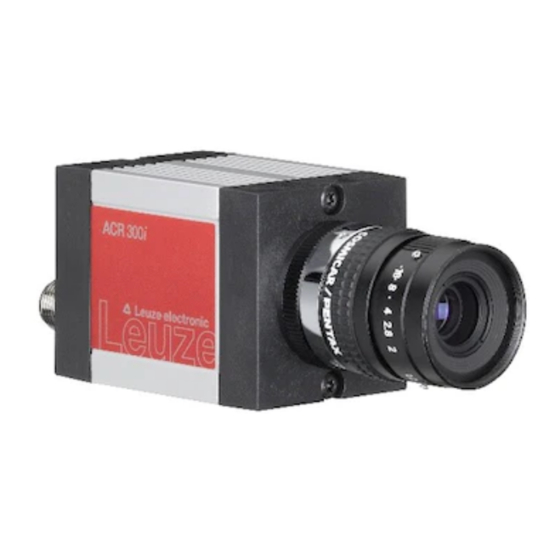

Related Manuals for Leuze electronic ACR 300i


Summary of Contents for Leuze electronic ACR 300i
- Page 1 ACR 300i Product Description CONNECTING AND OPERATING INSTRUCTIONS Original Instructions...
- Page 2 No part of this document may be reproduced, published or stored in information retrieval systems or data bases in any manner whatsoever, nor may illustrations, drawings and the layout be copied without prior written permission from Leuze electronic Inc.. We accept no responsibility for printing errors and mistakes which occurred in drafting these document. Subject to delivery and technical alterations.
- Page 3 Open Source Licences The ACR 300i software makes use of a couple of third party software packages that come with various licenses. This section is meant to list all these packages and to give credit to those whose code helped in the creation of the ACR 300i software.
-
Page 4: Table Of Contents
3.3.1 Basic settings for PC and ACR 300i 3.3.2 Direct Connection - Setting the IP Address of the PC 3.3.3 Network Connection - Setting the IP address of the ACR 300i 4 ACR 300i – Operating- and configuration software 4.1 ACR 300i – Operating- and configuration software - Overview 4.1.1 Structure of PC software... - Page 5 4.3.4 Output, I/O and data output 4.3.5 Result 4.3.6 Start sensor 4.4 ACR300iView, display images and results 4.5 ACR 300i – Operating- and configuration software – ACR300iFind, all functions 4.5.1 Active sensors 4.5.2 Sensors for simulation mode 4.5.3 Find / Add active sensor 4.5.4 Configuring a connected sensor...
- Page 6 5.1.1.2 Ethernet example 2: commands (requests) from PC / PLC to ACR 300i 5.1.2 RS422 5.1.2.1 RS422 example 1: Data output from ACR 300i to PC / PLC, and commands (requests) to the ACR 300i 5.1.2.2 Settings to connect the “I/O-Box” for I/O- extension or ejector control to the ACR 300i 5.1.3 PC- Archiving (ACR300iView)
- Page 7 5.5.6 Access to ACR 300i via Internet / World Wide Web 5.6 ACR 300i, PROFINET, Introduction 5.6.1 Electrical connection ACR 300i in the PROFINET network 5.6.2 Configuration of ACR 300i via Leuze electronic ACR300iConfig for the use with PROFINET 5.6.2.1 Settings in ACR300iFind 5.6.2.2 Setting of IP and name 5.6.2.3 Open ACR300iConfig...
- Page 8 5.6.5.5 Module 5: “Response” (From ACR 300i to PLC) 5.6.5.6 Start- / End- criteria per each PROFINET command 5.6.6 Timing diagrams to the ACR 300i PROFINET communication with a PLC 5.6.6.1 Case: Trigger ok 5.6.6.2 Case: Trigger not possible (not ready) 5.6.6.3 Case: Jobchange ok...
- Page 9 7.4 C-Mount Filters 7.5 Mounting accessories 7.6 Cables 8 Addendum 8.1 Telegram, tab Data output 8.1.1 Overview ACR 300i telegram: 8.1.1.1 ACR 300i control 8.1.1.2 ACR 300i job settings 8.1.1.3 ACR 300i calibration 8.1.1.4 ACR 300i visualization 8.1.1.5 Data output 8.1.2 Serial Communication ASCII...
-
Page 10: General Information And Safety
The ACR 300i is not a safety-critical component and its use is prohibited under conditions where the safety of per- sons may depend on its function. The IP address set for the ACR 300i should be marked on the enclosed label. After installation, stick the label on the sensor in a clearly visible position. -
Page 11: Intended Use
2 Intended Use 2.1 Field of application The ACR 300i is an optical sensor and uses several evaluation methods according to the version: pattern recognition, contrast detection, brightness, BLOB, caliper, gray level, contour detection, barcode or Data Matrix code reading, Optical Character Recognition. -
Page 12: Functions Overview
2.2 Functions overview 2.2.1 Characteristics ACR 300i: Code Reader Code Reader Function Prof. Frames per second Number of Jobs Alignment Calibration in world coordinates Measurement: Scaling Measurement: Calibration plate Robotic: Point pair list Number of detectors Pattern matching (X-, Y- translation) -
Page 13: Characteristics Acr 300I: Acr 398I
Sensor monitoring by Viewer, Job-Upload Sensor monitoring by ACR300iWeb (Webviewer) I/O- Extension (with Encoder- control / Profibus- Interface) ACR 3 integrated 12 mm Version with C-Mount 2.2.2 Characteristics ACR 300i: ACR 398i Monochrome Color Function ACR 398i ACR 398i Advanced Advanced... - Page 14 4 digital outputs, 2 inputs, PNP or NPN Free definable digital In- / Outputs, PNP or NPN Free shape of ROI Timeout, specified time response Variable resolutions Illumination quadrant controlled Image recorder Encoder input Ethernet interface Leuze electronic ACR 300i...
- Page 15 ACR 398i Advanced Advanced PROFINET RS422 / RS232 interface EtherNet/IP interface Sensor monitoring by Viewer, Job-Upload Sensor monitoring by ACR300iWeb (Webviewer) I/O- Extension (with Encoder-control / Profibus- Interface) ACR 3 integrated 12 mm Version with C-Mount Leuze electronic ACR 300i...
-
Page 16: Sensor Types
*1 For longer operating distances (from approx. 200 mm) external illumination may be necessary. *2 When the C-Mount version of ACR 300i is in use, a C-Mount lens with a 5 mm intermediate ring (delivered sep- arately) or a C-Mount protective case is required. - Page 17 *1 For longer operating distances (from approx. 200 mm) external illumination may be necessary. *2 When the C-Mount version of ACR 300i is in use, a C-Mount lens with a 5 mm intermediate ring (delivered sep- arately) or a C-Mount protective case is required.
-
Page 18: Field Of View / Depth Of View
2.4 Field of view / Depth of view Field of view ACR 300i 12mm lens, internal Fig. 1: Field of view ACR 300i 12mm lens, internal Depth of view ACR 300i 12mm lens internal, normal Leuze electronic ACR 300i... - Page 19 Fig. 2: Depth of view ACR 300i 12mm lens internal, normal Leuze electronic ACR 300i...
-
Page 20: Installation
I/O cables with cable binders to prevent crushing or slipping. Select a position for the ACR 300i in which interfering factors such as slight differences in the position of the object or variations in illumination have little or no effect. -
Page 21: Arrangement For Bright-Field Illumination
Observe the object clearance given in the table Field of View / Working Distance. To avoid interfering reflection from the detection object, align the ACR 300i at an angle of approx. 10°- 15° with reference to the optical axis. Fine adjustment Important: Fine adjustment of the ACR 300i should not be carried out until after electrical connection and start-up (PC software installation). -
Page 22: Alignment For A Vertical Illumination
3.1.3 Alignment for a vertical illumination In order to assure the absolutely vertical alignment of the ACR 300i to the object surface, put a piece of reflective foil or a mirror on top of the object and start the ACR 300i operating software. For an image that is continually updated, select trigger mode “Free run”... -
Page 23: Assembly Acr 300I - Mounting Bracket Mb-2 300
For fixing the ACR 300i on a fixing system / machine housing, slide the provided dovetail Mounting bracket MB-2 300 on the dovetail guide at the bottom side of the ACR 300i and fix it at the desired position with the hexagon socket in the cross hole of the mounting bracket. -
Page 24: Connection Possibilities
For electrical installation, connect wires as follows: *A: LED display *B: Focussing screw *C: 24 VDC, I/O- M12 connection socket *D: Data (RS422) M12 socket *E: LAN M12 connection socket Fig. 7: Connectors ACR 300i Fig. 8: Connection ACR 300i 3.2.1.1 LED Display Name Color Meaning Pwr. -
Page 25: Focussing Screw
3.2.1.4.1 Direct connection of the ACR 300i to a PC (recommended) Fig. 9: Direct connection ACR 300i ↔ PC 3.2.1.4.2 Connection of the ACR 300i to a PC via a network: Fig. 10: Connection via a network 3.2.1.5 Data Connection M12 Connection socket for DATA serial interface, RS422 / RS232. -
Page 26: Plug Connections
*4 All LED´s are set without taking into account any timing function (e.g. Trigger delay) *5 Not available with all Standard types For shielded cables use shield, extensively connected. 3.2.1.6.2 PIN assignment, connection LAN (M12) 4 pin Signal TxD+ RxD+ TxD- RxD- Leuze electronic ACR 300i... - Page 27 TxD- gray For shielded cables use shield. 3.2.1.6.4 Exemplary connection plan and software settings for the following setup: Power supply Trigger 1x digital output Encoder Ethernet to PC or PLC Fig. 11: Exemplary connection plan Leuze electronic ACR 300i...
- Page 28 Fig. 12: Electrical connection, supply voltage 24VDC in cabinet with shield 3.2.1.6.6 Electrical connection PNP / NPN Fig. 13: Connection example ACR 300i in PNP mode. In-/outputs switch to +24V Fig. 14: Connection example ACR 300i in NPN mode As the inputs refer to ground, an additional pull-up resistor may be required in order to increase the input voltage to 24V when unswitched.
-
Page 29: Network Settings, Short Reference
3.3.1 Basic settings for PC and ACR 300i To configure the ACR 300i with a PC it is essential that a network board and the TCP/IP LAN- connection is installed on the PC (This also applies when the PC is not connected to a network). The ACR 300i supports the automatic recognition of the Ethernet transmission rate, but 100 MBit at the most. -
Page 30: Direct Connection - Setting The Ip Address Of The Pc
3.3.2 Direct Connection - Setting the IP Address of the PC To connect the ACR 300i to a PC via Ethernet the IP addresses of both devices have to correspond. The default IP of the ACR 300i is 192.168.100.100 with Subnet mask = 255.255.255.0. To establish a direct connection, the PC must be set to a corresponding, fixed IP address like follows. -
Page 31: Network Connection - Setting The Ip Address Of The Acr 300I
2. Connection via the network can then be carried out. First ensure electrical connection and installation of PC software has been completed. To set the IP address on the ACR 300i, the following steps are to be carried out in the PC software: a. - Page 32 Fig. 17: ACR 300i IP Setup If an ACR 300i with DHCP is switched on in a network without a DHCP server, the ACR 300i automatically sets the IP address to 0.0.0.0. This can be the case, e.g. in the case of power/server failure or the restart of the system after...
- Page 33 DHCP server may boot slower than the ACR 300i. Make sure that the ACR 300i is only switched on when the DHCP server is available. Leuze electronic ACR 300i...
-
Page 34: Acr 300I – Operating- And Configuration Software
“ACR300iConfig” tool, or display (monitoring) with the “ACR300iView” tool. Also system settings such as IP addresses, firmware updates can be modified with the “Set” tool. ACR300iConfig: Complete set of functions to configure and test ACR 300i for one or several inspection tasks (jobs) in six simple logical operating steps. ACR300iView: For the display and monitoring of images and results from connected sensors, as well as job switch and job upload. -
Page 35: Acr 300I– Operating- And Configuration Software – Short Introduction
4.2.1 ACR 300i, Short introduction, Starting the software This short guide explains step by step the procedure for setting an example inspection task on the ACR 300i To start the ACR 300i application click to the desktop icon “ACR 300i”. - Page 36 Fig. 20: ACR300iFind Overview A) Active sensors This list displays all of the ACR 300i vision sensors available on the network that can be controlled from the PC. B) Sensors for simulation mode All the sensors available for offline simulation are displayed here.
-
Page 37: Passwords
Worker all functions, Config none password including Job Upload and Image Recorder Settings Update User all functions except only display of images, (without any none inspection results and statistics Config password) Leuze electronic ACR 300i... - Page 38 Allocating an empty password means the password can be confirmed without any further entry. Activation of the “Deactivate password request” checkbox, permanently deactivates password request. If passwords have been assigned and then forgotten, it is possible to reset passwords to delivery status by rein- stalling the software on the local PC. Leuze electronic ACR 300i...
-
Page 39: Acr300Iconfig: Setting Sensor, Job
4.3 ACR300iConfig: Setting sensor, Job With this program, you can configure your ACR 300i for one or several jobs in six simple logical operating steps. Fig. 25: ACR300iConfig The fields are: A) Menu and tool bar B) Setup Navigation / Operating steps... -
Page 40: Job Setup
Changing variable content relating to action in set-up navigation, for setting of associated parameters. H) Status bar Different status information including Mode / Name of ACR 300i / Active job. In Run Mode: Cycle time / cursor x/y location and pixel intensity / individual I/O on /off indication (like configured in “Output/Digital output”). -
Page 41: Alignment Settings
If the angular rotation of the object can vary also, the contour method must be used. Fig. 27: ACR300iConfig Alignment Leuze electronic ACR 300i... -
Page 42: Detector Settings
Detector 1: contact found (brightness value is in defined range as the shiny metal contact is mounted) result pos- itive. Detector 2: contact not found (brightness value out of defined range, as only weak reflection from the black plastic housing background) result negative. Leuze electronic ACR 300i... -
Page 43: Output, I/O And Data Output
Select and activate the interfaces in the different tabs. Logically connect detector results and assign to the available I/O´s. In order to enable the output of serial result data, select the required interface and compose data string. Leuze electronic ACR 300i... - Page 44 Selection of: binary or ASCII protocol, header and/or trailer, standard contents and/or flexible, combinable, spe- cial individual data from the individual detectors. Any number of individual results from all the defined detectors can be freely arranged in an output string. Leuze electronic ACR 300i...
-
Page 45: Result
“Statistics” is updated here. If using “triggered mode” then a trigger will be required from the external con- trol system, alternatively a ‘software’ trigger can be sent using the “Trigger” button the left hand side of the image area. Leuze electronic ACR 300i... - Page 46 Fig. 32: Start sensor Leuze electronic ACR 300i...
-
Page 47: Acr300Iview, Display Images And Results
PC, with or without numerical result data. With “Rec. images” the last 10 images can be retrieved from the ACR 300i. In the tab “Job”, it is possible to switch between jobs present on the sensor. -
Page 48: Acr 300I – Operating- And Configuration Software – Acr300Ifind, All Functions
4.5 ACR 300i – Operating- and configuration software – ACR300iFind, all functions In this program you can select a sensor or sensor simulation for configuration or display (monitoring) and carry out dif- ferent basic settings: Active sensors (Page 48) Sensors for simulation mode (Page 50) - Page 49 If no entries are shown in the list, even though a sensor is connected, you can refresh the list with the “Find” but- ton or manually “Add” the IP address of the ACR 300i product. If no sensor is connected, simulations of different sensor applications are available in the...
-
Page 50: Sensors For Simulation Mode
To search for sensors which are connected directly to the PC, or which are available in the network, click button “Find”. Basic understanding of PC networking is required this is not covered within the scope of supply from Leuze electronic. Leuze electronic ACR 300i... -
Page 51: Configuring A Connected Sensor
See chapter: ACR 300i – Operating- and configuration software – ACR300iConfig, all functions 4.5.5 Display images and result data Mark a sensor in the list and click on the “View” button. The ACR300iView program is opened up and images and measurement results from the active jobs are displayed on screen. -
Page 52: Update / Firmware Update
The appropriate firmware update file must first have been obtained via download from the Leuze electronic website or from Leuze electronic Support. Select the appropriate firmware file in the file dialogue box that opens and follow the instructions. Do not disconnect the power to the sensor during this process unless prompted by the onscreen instructions. -
Page 53: User Administration / Passwords
Fig. 38: Backup, save job set 4.5.8 User administration / Passwords The ACR 300i configuration distinguishes between three user groups, which have different authorisations: Fig. 39: ACR300iFind, Password input Password level ACR300iFind ACR300iConfig ACR300iView Administrator all functions all functions all functions... -
Page 54: Auto Start Up
4.5.9 Auto Start Up Auto Start Up enables the automatic start of the ACR 300i Software. For this purpose, a batch file is created, which can be stored in the windows system folder “Startup” so that it can be called up automatically every time the PC is started. - Page 55 Parameter Function ACR300iView Modules of the ACR 300i Software which are to be opened automatically in the Auto Start Up file. ACR300iConfig For the start of the simulation mode, the model variant which is currently selected in ACR300iFind (marked in blue) is used.
-
Page 56: Acr 300I – Operating- And Configuration Software – Acr300Iconfig, All Functions
4.6 ACR 300i – Operating- and configuration software – ACR300iCon- fig, all functions With this programme, you can configure your ACR 300i for one or several jobs in six logical operating steps. Jobs (Inspection tasks) (Page 56) Alignment (Page 81) -
Page 57: Creation, Modification And Administration Of Jobs
Saves the selected job on the PC Delete Deletes the selected job from the list Delete all Deletes all the jobs in the list All the functions described can also be carried out using the File menu. Leuze electronic ACR 300i... -
Page 58: Loading And Saving Jobs And Job Sets
1. Select “Load job ...” or “Load job set (Backup) ...” from the File menu. 2. Activate the button “Start Sensor” to transfer jobs to the sensor. All the jobs stored on the sensor are deleted when a new job / job set is loaded ! Leuze electronic ACR 300i... -
Page 59: Parameters For Image Acquisition
Fig. 45: ACR300iConfig, Load / save job 4.6.1.3 Parameters for image acquisition The basic parameters for image acquisition are determined in the tab Image acquisition. Set image sharpness with the focus setting screw on the back of the ACR 300i. Parameters Functions and setting possibilities Standard resolution is VGA (640x480), but a lower resolution (QVGA) can be selected with time-critical applications or for compatibility reasons. -
Page 60: Job, Tab White Balance
Mean value of green channel in image Blue Mean value of blue channel in image Execution of white balance, for white balance there has to be a homo- Teach geneous, white area below the camera. Reset Reset values Leuze electronic ACR 300i... -
Page 61: Preprocessing, Filter For Image Improvement
Each gray value is replaced by the range value (maximum gray level − minimum gray level) of the pixels found inside the filter mask (e.g. 3x3). Typical applications include Range the detection and enhancement of edges and the improvement of local image contrasts. (starting with firmware 1.5.x.x) Leuze electronic ACR 300i... -
Page 62: Calibration
The function “Calibration” transforms the image coordinates (pixel) into world coordinates (e.g. millimeter). When activated all position and distance data is calculated in the selected unit. 4.6.1.6.1 Select the calibration method The calibration methods are divided into two application areas: “Measurement” and “Robotics”. Leuze electronic ACR 300i... - Page 63 Example: Determination of distances between two objects in mm. (Limited accur- acy) Additional information: Calibration method Scaling (Measurement) (Page 65) The calibration method “Calibration plate (Measurement)” serves relative cal- Calibration plate culations of distances in world coordinates (e.g. mm). This is done by image cap- Leuze electronic ACR 300i...
- Page 64 As soon as a calibration method is selected, on the left side in tab “Calibration” the status LED is shown. If calibration is active other functions like detectors can only be processed successfully, if calibration is valid. Color significance status LED Leuze electronic ACR 300i...
- Page 65 The calibration method “Scaling (Measurement)” serves relative calculations of distances in world coordinates (mm). This is realized with a simple factor. There is only one factor for both coordinate axis X and Y. The advantage is the very simple function of the scaling process, although accuracy is limited. Leuze electronic ACR 300i...
- Page 66 Please take care that the optical axis of the sensor is aligned perpendicularly to the measurement plane. This avoids different distortion in x and y axis. Errors caused by tilt angle against perpendicular view to the meas- urement plane or by lens distortion are not corrected using this method. Leuze electronic ACR 300i...
- Page 67 Sequence calibration via calibration plate Previously the focus and the shutter of the sensor, and the desired unit must be selected. 1. Select calibration model (-with/without correction of lens distortion), and - if necessary - set z-offset. Leuze electronic ACR 300i...
- Page 68 Advices on the optimized use of the calibration plate / boundary conditions can be found at: Calibration plate, red = minimum field of view, at a minimum two of the blue regions must be visible. (Page 73). Types / sizes of calibration plates Leuze electronic ACR 300i...
- Page 69 200mm x 151.7mm 15 x 13 In the installation folder: Leuze electronic/ACR 300i/Documentation/... the available calibration plates can be found as .pdf-file. This can be printed on paper or any other medium. Please consider the setting “actual size”, that print out is not scaled.
- Page 70 Alternatively: use “Snap- Function”, that means: right click somewhere inside the calibration part. This way the center of gravity of the calibration part is automatically determined. Preferably use point symmetric calibration parts, as then the center of gravity is independent from orientation. Leuze electronic ACR 300i...
- Page 71 A test point can be set in the image, whose world coordinate values for test and control Test point purposes are displayed in the Test point window. “>” / “<” Go to next / previous step Note: Leuze electronic ACR 300i...
- Page 72 The plate must be illuminated homogeneously over the entire field of view and must not be overexposed. The bright regions should have a gray value of at least 100 and below 255. The contrast between bright and dark Leuze electronic ACR 300i...
- Page 73 Calibration works correctly only if the focus and position of the sensor does not change in relation to the meas- urement plane. The diameter of a white circle should be minimum 20 pixel. Fig. 53: Calibration plate, red = minimum field of view, at a minimum two of the blue regions must be visible. Leuze electronic ACR 300i...
- Page 74 Here, if required, the Z-offset between calibration- and measurement level in Z-direction can be set and com- pensated. Also, if desired, the calibration- and deviation parameters for optimization can be displayed. This kind of calibration is suitable for standard lenses, integrated or C-mount. However it does not work for telecentric lenses. Leuze electronic ACR 300i...
- Page 75 All three calculated values of translation of the calibration object. I.e. in x-, y- and Translation of calibration object z-direction. All three calculated values of rotation of the calibration object. I.e. the angles: Rotation of calibration object alpha, beta and gamma. Deviation Mean Average error of calculated positions against input. Leuze electronic ACR 300i...
- Page 76 Fig. 57: Delta “D” / Z- Offset = positive! In case of: Z-to top, and calibration plane higher than measurement plane! Fig. 58: Delta “D” / Z- Offset = positive! In case of: Z-to bottom, and calibration plane lower than measurement plane! Leuze electronic ACR 300i...
- Page 77 4.6.1.6.6 Calibration via telegrams Various interface telegrams are available for the calibration, see chapter: Overview ACR 300i telegram: (Page 335). The telegrams can be used for recalibration if a drift in the production process has occurred or if the mounting position of the sensor has changed.
- Page 78 Leuze electronic ACR 300i...
- Page 79 (IF). The zero point is located in the upper left corner of the field of view. Fig. 62: Origin WF ≙ Origin IF Point pair list (Robotics) The origin of the world system (WF) is given by the coordinates (WF and IF) for the crosshair points. Leuze electronic ACR 300i...
-
Page 80: Tab Cycle Time
Fig. 63: Origin WF = Given by the coordinates of the crosshair points 4.6.1.7 Tab Cycle time In tab Cycle time the timing conditions of the ACR 300i can be defined. Fig. 64: Setup Job, tab Cycle time Parameter Function and possibilities Parameter to control the minimum and maximum time of a cycle. -
Page 81: Alignment
As alignment requires an extra calculation step, it should only be used if required by the application. 4.6.2.1 Selection and configuration of an Alignment Select alignment detector: 1. Click on the button Alignment. 2. Select a detection method in the configuration window “Method”: Detection Description, Selection method None Alignment deactivated Leuze electronic ACR 300i... -
Page 82: Alignment Pattern Matching
In the color channel tab, a color image (3 channel) can be converted to a gray value image (1 channel). In contrast to the gray value image of a monochrome ACR 300i, contrasts can be significantly increased. The highlighting of a color can be set individually for each detector. - Page 83 By editing the ROI parts can be masked out of the search area. The parts which are not relevant for Edit pattern the examination can be painted out like using an eraser. Masks can also be inverted, meaning that parts that are of interest can be marked. Leuze electronic ACR 300i...
- Page 84 Free selectable position (graphically or by value input, e.g. for robot gripper use) X: Offset in X- direction (ref. ROI center) Offset Y: Offset in Y- direction (ref. ROI center) Angle: angle offset (ref. ROI orientation) Fig. 67: Result offset Leuze electronic ACR 300i...
-
Page 85: Alignment Edge Detector
In the color channel tab, a color image (3 channel) can be converted to a gray value image (1 channel). In contrast to the gray value image of a monochrome ACR 300i, contrasts can be significantly increased. The highlighting of a color can be set individually for each detector. - Page 86 If edges are blurred: increase smoothing value If interfering edges such as scratches are detected: increase switching threshold or / and smoothing value If edge is not vertical to search direction: increase search stripes Effect of Number “search stripes” Leuze electronic ACR 300i...
-
Page 87: Alignment Contour Detection
In the color channel tab, a color image (3 channel) can be converted to a gray value image (1 channel). In contrast to the gray value image of a monochrome ACR 300i, contrasts can be significantly increased. The highlighting of a color can be set individually for each detector. - Page 88 Lock / Unlock Pattern: In locked status the taugth pattern is protected against (unintentional / acci- Lock dential) changing. By e.g. modification of the teach region. Unlock to modify taught pattern. Leuze electronic ACR 300i...
- Page 89 Accurate - fast Small value: late rejection = slower = less risky In case of false results this value can be decreased. Fig. 71: Detector contour, tab angle Angle, direction The rotational direction of “Angle” is as follows: Leuze electronic ACR 300i...
- Page 90 Sensitivity of search throughout the selected scale range. Number of search levels: Accurate - fast High value: faster = riskier (candidates may be overlooked) Small value: slower = less risky (all candidates) Fig. 73: Detector contour, Scaling tab Leuze electronic ACR 300i...
- Page 91 Settings in result offset tab: Parameters Functions None Automatically determines the of the Region Of Interest or ROI. Free selectable position (graphically or by value input, e.g. for robot gripper use) Offset X: Offset in X- direction (ref. ROI center) Leuze electronic ACR 300i...
-
Page 92: Detectors
“View/all drawings”. With “View/drawings of current detector only”, all drawings on the screen can be deac- tivated with the exception of the detector currently being processed. For information to the meaning and adjustment of the different frames see chapter: Search and parameter zones Leuze electronic ACR 300i... -
Page 93: Creating And Adjusting Detectors
1. Click on “New” button under the selection list in the configuration window and select the type of detector required. A new detector entry appears in the selection list. 2. Edit the name of the detector by double clicking on “Name” Leuze electronic ACR 300i... -
Page 94: Selecting A Suitable Detector
The following detectors are available in ACR300iConfig Type of detectors Description Pattern matching Part detection using pattern matching, X- and Y- translational Contour detection Part detection using object contour, up to 360° rotation Contrast Evaluation of contrast in selected search zone Leuze electronic ACR 300i... -
Page 95: Detector Pattern Matching
Output of color values 4.6.3.3 Detector Pattern matching This detector is suitable for the detection of patterns of any shape, even with shapes that do not have distinctive edges or contours. Fig. 77: Detector Pattern matching Leuze electronic ACR 300i... - Page 96 In the color channel tab, a color image (3 channel) can be converted to a gray value image (1 channel). In contrast to the gray value image of a monochrome ACR 300i, contrasts can be significantly increased. The highlighting of a color can be set individually for each detector.
- Page 97 Free selectable position (graphically or by value input, e.g. for robot gripper use) X: Offset in X- direction (ref. ROI center) Offset Y: Offset in Y- direction (ref. ROI center) Angle: angle offset (ref. ROI orientation) Leuze electronic ACR 300i...
- Page 98 In this example a metal contact (left side) in a black plastic part is taught as pattern. It is detected with a high score value, as the metal contact is mounted. (Threshold near 100%) Fig. 80: Pattern matching, application example, positive result Leuze electronic ACR 300i...
- Page 99 By Teaching the pattern inside the red frame, it gets stored in the sensor as reference pattern. Size and position of the reference pattern is defined by the red frame. In Run mode the ACR 300i tries the find the best fit of the reference with any region in the image.
- Page 100 Outer and inner contour lines as well as holes will not be considered, but all defects in the surface of the object are rel- evant. In this example only the non-marked regions inside of the ROI of the detector are relevant. The yellow masked regions are no longer relevant for the evaluation. Leuze electronic ACR 300i...
- Page 101 These regions are included = relevant, or excluded (yellow) in the search area. To use the function “Mask” the following settings are necessary for the different detector types. Leuze electronic ACR 300i...
- Page 102 In the following examples the creation of a masked search region is shown. Example 1 Circles with relevant zones. Fig. 87: Mask pattern 2 Created by one adding and one removing circle in front of the before reset mask. Leuze electronic ACR 300i...
- Page 103 Example 2 Only surface defects are relevant, object contour lines have to be masked. Fig. 89: BLOB without function Mask, with a BLOB detector the surface defects and the outer and inner contour lines are detected. Leuze electronic ACR 300i...
- Page 104 Fig. 90: Function Mask: masking contour lines shall not be considered. Fig. 91: BLOB with function Mask, only surface defects are detected, all contour lines are not relevant as they are now masked. Leuze electronic ACR 300i...
-
Page 105: Detector Contour
In the color channel tab, a color image (3 channel) can be converted to a gray value image (1 channel). In contrast to the gray value image of a monochrome ACR 300i, contrasts can be significantly increased. The highlighting of a color can be set individually for each detector. - Page 106 Changing size of the cursor Add pixels / Remove pixels Select if the cursor adds or removes pixels Add all Adds all pixels Remove all Removes all pixels Invert all Inverts all pixels Undo Undo function – last action Leuze electronic ACR 300i...
- Page 107 In the following examples the creation of a masked search region is shown. Example 1 Circles with relevant zones. Fig. 94: Mask pattern 2 Created by one adding and one removing circle in front of the before reset mask. Leuze electronic ACR 300i...
- Page 108 Example 2 Only surface defects are relevant, object contour lines have to be masked. Fig. 96: BLOB without function Mask, with a BLOB detector the surface defects and the outer and inner contour lines are detected. Leuze electronic ACR 300i...
- Page 109 Fig. 97: Function Mask: masking contour lines shall not be considered. Fig. 98: BLOB with function Mask, only surface defects are detected, all contour lines are not relevant as they are now masked. Leuze electronic ACR 300i...
- Page 110 Accurate - fast Small value: late rejection = slower = less risky In case of false results this value can be decreased. Fig. 99: Detector contour, tab angle Angle, direction The rotational direction of “Angle” is as follows: Leuze electronic ACR 300i...
- Page 111 Sensitivity of search throughout the selected scale range. Number of search levels: Accurate - fast High value: faster = riskier (candidates may be overlooked) Small value: slower = less risky (all candidates) Fig. 101: Detector contour, Scaling tab Leuze electronic ACR 300i...
- Page 112 Settings in result offset tab: Parameters Functions None Automatically determines the of the Region Of Interest or ROI. Free selectable position (graphically or by value input, e.g. for robot gripper use) Offset X: Offset in X- direction (ref. ROI center) Leuze electronic ACR 300i...
-
Page 113: Detector Contrast
The position of the single bright or dark pixels here is not relevant. The contrast is just depending on the bandwidth between darkest and brightest pixels and their quantity. Highest contrast value with 50% gray value “0” (= black) AND 50% gray value “255” (=white). Leuze electronic ACR 300i... - Page 114 In the color channel tab, a color image (3 channel) can be converted to a gray value image (1 channel). In contrast to the gray value image of a monochrome ACR 300i, contrasts can be significantly increased. The highlighting of a color...
- Page 115 Color channel The selected color channel is used as a gray value image. Fig. 105: Color channel (default) 4.6.3.5.2 Contrast application In the example the presence of a metal contact is checked with a contrast detector. Leuze electronic ACR 300i...
- Page 116 The presence of a shiny metal contact, in the middle of a surrounding black plastic housing, is checked with a con- trast detector. As in this configuration contrast is pretty high, the contrast detector delivers a high score, and in com- bination with alignment the whole job works reliably. Leuze electronic ACR 300i...
- Page 117 Function detector Contrast The dark and the bright pixels are evaluated according to the quantity and their intensity / brightness. The position of the bright or dark pixels is not relevant. Fig. 108: Contrast examples Leuze electronic ACR 300i...
-
Page 118: Detector Gray
Masks can also be inverted, mean- region ing parts which are interesting can be marked. Also see chapter: Function: Mask Overlay On- / Off of display of edited search region. search Leuze electronic ACR 300i... - Page 119 In the color channel tab, a color image (3 channel) can be converted to a gray value image (1 channel). In contrast to the gray value image of a monochrome ACR 300i, contrasts can be significantly increased. The highlighting of a color can be set individually for each detector.
- Page 120 4.6.3.6.3 Gray level application Fig. 111: Gray level, application example, positive result. The contact is present in search area. Shiny metal contact shows gray values > 192, that means inside the limits of threshold = result positive. Leuze electronic ACR 300i...
- Page 121 Example: (when the gray level slider is set to very dark values): Both images produce exactly the same result with the gray level detector, as in each case 9 of the 25 pixels are detec- ted as dark. Leuze electronic ACR 300i...
-
Page 122: Detector Brightness
In the color channel tab, a color image (3 channel) can be converted to a gray value image (1 channel). In contrast to the gray value image of a monochrome ACR 300i, contrasts can be significantly increased. The highlighting of a color can be set individually for each detector. - Page 123 The selected color channel is used as a gray value image. Fig. 115: Color channel (default) 4.6.3.7.2 Brightness application The detector Brightness calculates the average value of the gray values of all pixels within the search area. Leuze electronic ACR 300i...
- Page 124 The contact is present within the position searched for; therefore the average value of the gray values in the search area has a high score (near 100%). This means the current value is within the requested threshold limits and the res- ult is positive = contact present. Leuze electronic ACR 300i...
- Page 125 (near 0%). This means the current value is not within the requested threshold limits and the result is negative = contact not present. Examples: Brightness value as average value of the gray values. Fig. 118: Brightness, examples Leuze electronic ACR 300i...
-
Page 126: Detector Blob, Introduction
Fig. 119: Screws 1. Binarization, 2. detected as BLOB / object Typical applications Count objects Differentiation / classification of objects in the image by: Size, area, contour Form, geometry Position, orientation Face up/ down Surface inspection Leuze electronic ACR 300i... - Page 127 In the color channel tab, a color image (3 channel) can be converted to a gray value image (1 channel). In contrast to the gray value image of a monochrome ACR 300i, contrasts can be significantly increased. The highlighting of a color...
- Page 128 Binarization is the first step of BLOB processing. It is used to distinguish relevant objects from the background of the image, by converting the gray image into a pure black and white / binary image. Binarization can be done by two different binarization methods. Leuze electronic ACR 300i...
- Page 129 “Edit search region / Function: Mask” (even masked zones inside the image / search region). Detector BLOB, Boundary BLOBs (Page 131) Search region can be set to: “Rectangle”, “Circle” or “Free shape”. In mode “Free shape” the Search region Leuze electronic ACR 300i...
- Page 130 Parameters with selection “Dynamic Threshold” Parameter Function Dynamic threshold is automatically set to an statistically optimised position in order to dis- Dynamic threshold tinguish between fore- and background. Brightness Definition if BLOB is brighter or darker compared to the background. Leuze electronic ACR 300i...
- Page 131 Function: Mask” (even if masked zones are inside the image / search region). Example 1: Boundary BLOBs, touching outer search region. Fig. 124: Boundary BLOB example 1/1: BLOB is touching outer yellow search region, it is not considered as valid BLOB as setting “Boundary BLOBs” is NOT active. Leuze electronic ACR 300i...
- Page 132 Fig. 125: Boundary BLOB example 1/2: BLOB is touching outer yellow search region, but it is considered as valid BLOB, as setting “Boundary BLOBs” is ACTIVE now! Example 2, Boundary BLOBs, touching inner “Mask” region. Leuze electronic ACR 300i...
- Page 133 In this window the Histogram of the gray values inside the yellow ROI, and the chosen thresholds are shown. In the here shown example there are clear maxima for foreground and background. The binarization threshold is adjusted to approximately the center in between. Fig. 128: Detector BLOB, tab Binarization, Histogram Leuze electronic ACR 300i...
- Page 134 (pixel) inside a valid (green) BLOB, the lim- Pipette- button (Feature) its of the selected feature are adjusted automatically to +/-10% of the value of the selected BLOB. Leuze electronic ACR 300i...
- Page 135 Some features are calculated based on a given geometric model, e.g. eccentricity is based on an ellipse fit to the object Enclosing rectangle parallel to Y- axis and X- axis. Outliers are not eliminated. Rectangle, paraxial (R1) Leuze electronic ACR 300i...
- Page 136 R2, E1 east, counterclockwise). See also: Feature Angle (Page 137) Orientation of width of object in degrees (range: -180 ... +180°, 0° = east, coun- Angle (360) R2, E1 terclockwise). See also: Feature Angle (Page 137) Leuze electronic ACR 300i...
- Page 137 Fig. 130: Rotational direction of “Angle 180” The “Angle (360)” feature depends on the selected geometric model (e.g. E1 Ellipse, R2 Rectangle min. area, etc). It has a rotational range of -180° to +180°, as shown in the following figure. Leuze electronic ACR 300i...
- Page 138 180° ...-90°; 90°...180°) is determined by the half plane in which the vector lies. The following figures show two examples of the angle determination of the feature “Angle (360)”. Fig. 132: Example 1: Angle (360) = +45° Leuze electronic ACR 300i...
- Page 139 OK. The image in the middle shows the same object face up and is considered not OK. The right image dis- plays both objects in the image and only the one with face up is considered OK. Leuze electronic ACR 300i...
- Page 140 Y) of the BLOB with the largest area will be transmitted first. Fig. 135: Detector BLOB, tab Sorting Settings in tab Sorting Parameter Function Sorting criteria As a sorting criteria any feature explained in tab “Features” can be selected. Order Sorting order “Descending” or “Ascending”. Leuze electronic ACR 300i...
-
Page 141: Detector Caliper
In the color channel tab, a color image (3 channel) can be converted to a gray value image (1 channel). In contrast to the gray value image of a monochrome ACR 300i, contrasts can be significantly increased. The highlighting of a color can be set individually for each detector. - Page 142 The bigger the number of search stripes, stripes the more probable the very first edge will be found. (Finer detection - longer execution time). Results Opens result and histogram display Leuze electronic ACR 300i...
- Page 143 Mean (Average): All touching points are arithmetically averaged. If there are outliers these are also used for the calculation, and do influence the result. Median: The values of the touching point are sorted ascending and the middle (central) value in the list is chosen. Outliers do not influence the result. Leuze electronic ACR 300i...
- Page 144 Green line: detected overall result edge Probe (x) Green crosses: detected edge transition per search ray Light blue zone: display of “Selected search ray” Histogram with: Edge strength Blue line: contrast gradient in image, depending on “Selected search ray” Leuze electronic ACR 300i...
-
Page 145: Detector Barcode
Maximum number of codes to be read inside the search area. If this value is set higher than neces- ber of codes sary, the reading time may increase slightly. Number of Number of expected characters in the barcode. Codes with a different number of characters are Leuze electronic ACR 300i... - Page 146 This text or regular expression is taken for verification. Here can be entered characters or regular expressions. Ref. string If codes with a certain reference string are to be found under several codes, then the parameter “Max. Leuze electronic ACR 300i...
- Page 147 '\'. *Allows 0 or more repetitions of preceding literal or group +Allows 1 or more repetitions ?Allows 0 or 1 repetitions {n,m}Allows n to m repetitions {n}Allows exactly 'n' repetitions |Separates alternative search expressions Leuze electronic ACR 300i...
- Page 148 “Minimal reflectance” is set to 4 if the lowest reflectance value in the scan reflectance profile is lower or equal to 0.5 of the maximal reflectance value. Otherwise a value of 0 is assigned. “Edge contrast” is the contrast between any two adjacent elements, either bar-to-space or space-to- Leuze electronic ACR 300i...
- Page 149 COMPOSITE: Q12 Decode Q13 Rap Overall COMPOSITE RAP: Q14 Contrast Q15 Minimal Reflectance Q16 Minimal Edge Contrast Q17 Modulation Q18 Defects Q19 Decodability Q20 Codeword Yield Q21 Unused Error Correction Q22 Modulation Q23 Decodability Q24 Defects Leuze electronic ACR 300i...
- Page 150 Maximal size of bar code elements, i.e. the maximal width of bars and spaces. This value Maximum size should be adequate low such that two neighbouring bar codes are not fused into a single one. Leuze electronic ACR 300i...
- Page 151 Search zone for position (yellow frame) sufficiently large? Contrasts for model and image suitably set? (for model visible in sample) Are thresholds set correctly? Code size sufficient in the field of view? Width of barcode line sufficient? Leuze electronic ACR 300i...
- Page 152 If 'slanted = 'Auto' the sensor tries first ‘On’ and then ‘Auto’, this setting can increase reading time. List of values: 'Off', 'Auto', 'On'; Default: 'Off' Leuze electronic ACR 300i...
-
Page 153: Detector Datacode
Minimum number of codes to be read inside the search area. of codes Max. num- Maximum number of codes to be read inside the search area. If this value is set higher than neces- ber of codes sary, the reading time may increase slightly. Leuze electronic ACR 300i... - Page 154 Search zone for position (yellow frame) sufficiently large? Contrasts for model and image suitably set? (for model visible in sample Are thresholds set correctly? 4.6.3.11.2 Detector Datacode, tab Ref. String Fig. 146: Detector Datacode, tab Ref. String Leuze electronic ACR 300i...
- Page 155 You can use the '-' character as in '[A-Z0-9]' to select character ranges. Other characters lose their special meaning in brackets, except '\'. * Allows 0 or more repetitions of preceding literal or group + Allows 1 or more repetitions ? Allows 0 or 1 repetitions Leuze electronic ACR 300i...
- Page 156 Degradation or damage of the fixed pattern, or the respective quiet zones, is assessed with the fixed pattern damage quality. The decode quality always takes the grade 4, meaning that the code could be decoded. Naturally, codes which cannot be decoded cannot be assessed concerning print quality either. Leuze electronic ACR 300i...
- Page 157 This setting determines how the grades should be displayed. It affects the display on screen as well Quality res- as the output over the interfaces. ult type The assignment is the following: A B C D F 4 3 2 1 0 4.6.3.11.4 Detector Datacode, tab Advanced Leuze electronic ACR 300i...
- Page 158 Parameters Function Symbol size Only QR-Code: Size of symbol inside picture in pixel. Only ECC200 and PDF 417: Number of rows including finder pattern. Column Only ECC200 and PDF 417: Number of columns including finder pattern. Leuze electronic ACR 300i...
- Page 159 Only ECC200 and QR-Code: allowed gap between rows, i.e. at dot peened codes which have no Module row gap full size modules. Module column Only ECC200 and QR-Code: allowed gap between columns. 4.6.3.11.7 Detector Datacode, tab miscellaneous Fig. 151: Detector datacode, tab miscellaneous Settings in tab Miscellaneous Leuze electronic ACR 300i...
-
Page 160: Detector Ocr
To set up an OCR Detector please follow these steps. As some steps base on the results of the one which was pro- cessed before, for a correct processing the sequence of the steps must be as described. Leuze electronic ACR 300i... - Page 161 Parameter “Groups of characters” may support segmentation by specification of the number of characters per group. Parameter “Max. deviation from base line” specifies, how much the vertical character position may be different from the base line of the font. Value is in percent of character height. Leuze electronic ACR 300i...
- Page 162 Fig. 154: Segmentation with value “3 3” for parameter “Groups of characters”: Only the both groups of 3 characters are found. Fig. 155: Segmentation without preset for parameter “Groups of characters”: The segmentation for the first character “1” failed, as it´s contrast to background is much lower than all others. Leuze electronic ACR 300i...
- Page 163 Fig. 157: Segmentation with parameter “Text orientation” = “Font horizontal in image”: No characters are segmented as there are no characters with horizontal orientation in the image. Fig. 158: Segmentation with parameter “Text orientation” = “Font horizontal in ROI”: Segmentation works as char- acters are horizontal relative to ROI (search area). Leuze electronic ACR 300i...
- Page 164 (confidence) is specified in: “No. of cor- rections”. 2. Manipulation of detector result: A minimum quality for complete string is specified (Threshold). If quality is below the threshold, detector result will be “false”. Leuze electronic ACR 300i...
- Page 165 Switch on and off overlay rectangle for size of letters. size Overlay segmentation Switch on and off colored overlay for segmentation of characters. For newly generated detectors, all parameters are preset as standard values, suitable for many applications. Leuze electronic ACR 300i...
- Page 166 Max. deviation from base line between first and last character. This function may be used if characters are not prin- ted on a horizontal line. 4.6.3.12.4 Detector OCR, tab classification Definition of basic settings of characters to read. Leuze electronic ACR 300i...
- Page 167 '8', the near characters could be 6,9,0,B,R,D,O,S and only the closest matching atives 'x' number of near alternatives will be considered. This command controls how many characters with in the string can be changed when using a regular No. of cor- Leuze electronic ACR 300i...
- Page 168 Allows 0 or more repetitions of preceding literal or group + Allows 1 or more repetitions ? Allows 0 or 1 repetitions {n,m} Allows n to m repetitions Allows exactly n repetitions | Separates alternative search expressions 4.6.3.12.4.1 Detector OCR, available fonts Overview of fonts: Leuze electronic ACR 300i...
- Page 169 Semi Dot print Handwritten Industrial MICR Leuze electronic ACR 300i...
- Page 170 OCRA OCRB Pharma Leuze electronic ACR 300i...
- Page 171 In the image window the search- and feature areas and the result bar graphs are displayed – if set up. Fig. 165: Detector OCR, Result display The parameters displayed vary according to the type of detector selected: Leuze electronic ACR 300i...
-
Page 172: Detector Color Value
By selection of single color channels specific zones can be intensified or weakend. Monochrome chip: Display always black/ white Color chip + Color detector: Display always colored Color chip + All other detectors: Monochrome image, display depending on selected color model and color chan- Leuze electronic ACR 300i... - Page 173 Function setting of color model)detector Red (Hue / Lightness)1 Threshold for selected channel min. / max. Green (Saturation / A) Threshold for selected channel min. / max. Blue (Value/ B) Threshold for selected channel min. / max. Leuze electronic ACR 300i...
-
Page 174: Detector Color Area
By selection of single color channels specific zones can be intensified or weakend. Monochrome chip: Display always black/ white Color chip + Color detector: Display always colored Color chip + All other detectors: Monochrome image, display depending on selected color model and color chan- Leuze electronic ACR 300i... - Page 175 Fig. 169: Color area Parameter (Color channel dependent from Function setting of color model)detector Red (Hue / Lightness)1 Threshold for selected channel min. / max. Green (Saturation / A) Threshold for selected channel min. / max. Leuze electronic ACR 300i...
- Page 176 Crossing the limits results in invertion of the selection. If a color can be detected reliable by using only one channel, the other channels have to be set to max./min. limits to avoid disturbing influence to detection. Leuze electronic ACR 300i...
- Page 177 Parameter Function Threshold Threshold for percentage of the area min. / max. Object size Min. / Max. object size (connected area) For newly generated detectors, all parameters are preset as standard values, suitable for many applications. Leuze electronic ACR 300i...
-
Page 178: Detector Color List
Fig. 172: Color channel Parameter Function Color model: RGB, Color model RGB (Page 221), Color model HSV, Color model HSV (Page 222), LAB, Color model LAB (Page 223) Color channel One ore more channels can be selected. Leuze electronic ACR 300i... - Page 179 Masks can also be inverted, means that parts which are inter- esting can be marked. Overlay search region Activate overlays for free shape search regions. Color marking of pixels inside or outside of specified color range. This is a Overlay Leuze electronic ACR 300i...
- Page 180 Crossing the limits results in invertion of the selection. If a color can be detected reliable by using only one channel, the other channels have to be set to max./min. limits to avoid disturbing influence to detection. Fig. 174: Color histogram Leuze electronic ACR 300i...
-
Page 181: Output Of Inspection Results
4.6.4 Output of inspection results Here you define the assignment and logical connection of the digital signal outputs as well as the interfaces and out- put data of your ACR 300i. I/O mapping (Page 181) Output signals (Digital outputs / Logic) (Page 187) - Page 182 No function, no function, not used undefined Functions which are used already are displayed in gray, because they cannot be used any more. All inputs need a minimum signal length of 2ms. Fig. 176: Output, Inputs Leuze electronic ACR 300i...
- Page 183 External illu- If this setting is selected (via pin 09 RD available only), a external illumination can be connected / mination triggered No function, no function, not used undefined Fig. 178: Outputs There are 2 predefined outputs: Leuze electronic ACR 300i...
-
Page 184: Functions Of The Programmable, Digital Inputs
The change of the logic levels of the according inputs must happen at the same time (during maximum 10ms all inputs must have a stable logic level) Job change by function: Job 1 or 2: Leuze electronic ACR 300i... - Page 185 During Job Change over binary inputs there must not be sent any trigger signal. Pulse length for job change should be 5 ms pulse and 5 ms delay. If possible job change should be made by binary coded signals like in fig. 2, this is the faster way. Leuze electronic ACR 300i...
- Page 186 Ready is set to low and remains low until teaching has been completed. Storage is either temporary (only in RAM), or permanent (in flash) according to the setting. Fig. 182: Input timing, Teach Attention! The functions Job 1 or 2, Job 1 ... n or teach temp. /perm. can only be used in trigger mode Leuze electronic ACR 300i...
-
Page 187: Output Signals (Digital Outputs / Logic)
4.6.4.3 Output signals (Digital outputs / Logic) In this tab, you define the switching behaviour and logical connection of the digital outputs. Number of outputs depends from settings in tab IO mapping. Additionally an IO-extension can be connected over the serial interface. Leuze electronic ACR 300i... - Page 188 1. Select the logical operator to be used for connecting the detectors in the selection list, from the operator win- dow. 2. Activate the detector in the selection list which is to contribute to the result (tick in the Active column). By activation the “Inverted” column, you can individually invert the respective detector result. Leuze electronic ACR 300i...
-
Page 189: Interfaces
“!” for NOT Examples: Logical expressions of any complexity can be created, e.g.: (D1&D2)|(D3&D4) !((D1|D2)&(D3|D4)) (D1|D2)&(D3|D4)&(D5|D6) etc. 4.6.4.4 Interfaces In this tab you select and activate the digital inputs/outputs used and the interfaces for data output: Leuze electronic ACR 300i... - Page 190 ACR 300i, EtherNet/IP, Introduction (Page 302) Field bus PROFINET for data output, PLC communication. The ACR 300i starts the PROFINET-Stack as soon as a job with PROFINET is selected. Due to this the cycle time is slightly extended. Switching into a job without PROFINET does not stop the PROFINET- stack.
- Page 191 Parameter Function Activates the webserver on the ACR 300i. Similar like in the local installed module “ACR300iView” now via “ACR300iWeb” images and result data can be displayed via webbrowser. Following browsers are supported: Microsoft Internet Explorer ® ab IE10, Google Chrome ®...
- Page 192 Switch off help window. Zoom of image. A click into the images brings back the original, smaller view. On / off of result bargraph. On / off of overlays. Store current image as a file. Switches between languages Leuze electronic ACR 300i...
- Page 193 Status of outputs Fig. 188: ACR300iWeb / Statistics Fig. 189: ACR300iWeb / Job To start ACR300iWeb: Activate ACR300iWeb, at Output/Interfaces/ACR300iWeb “Start sensor” (press button in ACR300iConfig) Leuze electronic ACR 300i...
-
Page 194: Timing
Firefox ® . With http://192.168.100.100/zoom.html (IP address of the sensor) a zoomed view is directly accessible. Per one ACR 300i only one browser connection is allowed. 4.6.4.5 Timing In this tab, you determine the time response of the selected signal output. If encoder was selected the delays are entered in encoder steps. - Page 195 All the described examples are in the operation mode “PNP”. If the setting “NPN” is used, the examples are valid, but with inverted signal levels. S. ACR300iConfig/Output/Interfaces/Internal I/O 4.6.4.5.1 The following cases for output timing are available: 4.6.4.5.1.1 Normal trigger, no delays: Sequence: (Signalling here: Change in result) Leuze electronic ACR 300i...
- Page 196 Consequence of Trigger = high: Ready = low, and Valid = low After the ACR 300i has evaluated the image and the results are valid the defined outputs change to the according logical states. Ready and Valid are set to high again (ready for next task, outputs valid).
- Page 197 The result delay (if for all outputs or for ejector only) is used to fine tune the ejector point in time, independent from the evaluation time, as the evaluation time of the “job” can have slight variations. Sequence: Leuze electronic ACR 300i...
- Page 198 In this operation mode the Ready signal only is reset to high level after Trigger delay + Evaluation time is elapsed. (Ready = high: Ready for next evaluation). This make sense as the ACR 300i independent from the later setting of the other outputs, is now already available for the next evaluation task.
- Page 199 This mode of operation is used, if between trigger / evaluation for part A and it´s ejection is so much time / distance, that the ACR 300i already has to check n (up to 20 parts possible) further parts which also has to be ejected later.
-
Page 200: Telegram, Data Output
Configuration of data output via serial interfaces RS 422 and Ethernet as well as for archiving in .csv. files. Here all settings can be done, which result data of the ACR 300i should be transferred via the before selected interface. - Page 201 Available detector results (select from drop-down menu) Define the minimum length of the Value box; if the actual length is smaller than that specified, Min. length the box is filled with spaces (ASCII) or zeros (binary) No. of results BLOB only! Leuze electronic ACR 300i...
- Page 202 BINARY (Page 370), chapter: Data Output in ASCII/Binary 4.6.4.6.1 Possibilities of data output of ACR 300i (see also chapter: Communication) 4.6.4.6.1.1 (Ethernet-) port 2005 / RS422 Numerical data, which has been defined under Output/Telegram, now can be transferred in ASCII- or Binary- format.
-
Page 203: Parameters For Image Transmission
The symbol “exclamation mark” inside life picture means, that image display / transfer on PC is slower than image processing on ACR 300i. Not all images are transferred and displayed on the PC. This may cause lost images during archiving. If this symbol occurs often, PC-programs running in background should be closed in order to improve PC performance. - Page 204 Max. num- Access Description ber of Image filter Drawings images Images stored in run-mode on ACR 300i can be like pre- Image recorder in ACR transferred by ACR300iConfig or defined in set- 300i (Ram) ACR300iView to a PC. tings “Filter”...
-
Page 205: Parameters Archiving
(*.flm) or as bitmap (*.bmp) on hard ACR300iConfig tering disc of PC. Last image is stored in ram disk of ACR 300i Last image in ACR 300i without fil- and can be taken by FTP from directory (Ram Disk) tering /tamp/results. - Page 206 Cyclic: after reaching maximum number of files the older files are replaced by the newer ones. Maximum number of file sets (image+protocol) which are allowed to be stored in the tar- Max. number of files get directory. Expression Description Example TIME HHhMMmSSsSSSms 09h05m11s034ms HOUR Leuze electronic ACR 300i...
-
Page 207: Result
In “Run” mode the results of the detector marked in the detector list are displayed. In the image window – if adjusted – the image, the search- and feature-frames, and the result- graphs are displayed. Leuze electronic ACR 300i... - Page 208 Caliper Pattern match- Contour Edge detector Position X 1 ... n Position found X (x-coordinate). [1/1000] *1) Caliper Datacode Barcode Pattern match- Position Y 1 ... n Position found Y (y-coordinate). [1/1000] *1) Contour Edge detector Leuze electronic ACR 300i...
- Page 209 Color value Value for color parameter, signed integer [1/1000] *1) S(aturation) Color list Color value Value for color parameter, signed integer [1/1000] *1) V(alue) Color list Value for color parameter, signed integer [1/1000] *1) L(uminanz) Color value Leuze electronic ACR 300i...
- Page 210 Contents of Code, depending from code string length may change, if a fix Datacode string length is needed, parameters minimum string length (detector spe- String Barcode cific data output) and maximum string length (detector parameters) have to be used. String length Length of Code in Bytes Datacode Leuze electronic ACR 300i...
-
Page 211: Correction Number Of Modules Corrected By Error Corrections
Caliper- detector the result value “Score”, “Score 1” and “Score 2” have the following meaning: Score 1 / Score 2: value of Edge strength in gray values, normalised to 100 (hight of maximum in histogram). Score: smaller value of both: Score 1 or Score 2. Leuze electronic ACR 300i... -
Page 212: Start Sensor
To display the inspection results for another detector, mark it in the selection list or click on its graphic representation in the display window. Quitting job execution: Click on the “Stop Sensor” button. You are now back in configuration mode and can edit your job. Leuze electronic ACR 300i... -
Page 213: Further Topics Of Acr300Iconfig
Select the required trigger mode in the job settings in the “General” tab: Parameters Functions Triggered Operation with external trigger, or trigger button in the interface Free run Operation with automatically running self-trigger; the sensor supplies images with the maximum pos- Leuze electronic ACR 300i... -
Page 214: Connection Mode: Switching Between Online And Offline Mode
You can create and test your configuration without a sensor being connected using stored film strips (= series of images). Simulation can be worthwhile to prepare a configuration or to improve a configuration carried out online. Information: Leuze electronic ACR 300i... -
Page 215: Creating Filmstrips
4.6.7.4.2 Loading filmstrips and individual images from PC: 1. Select option button “Offline” in the window Mode of connection. 2. Select configure filmstrip in the File menu or click on the icon filmstrip in the tool bar. Leuze electronic ACR 300i... - Page 216 The image counter indicates the number of the current image as well as the number of images in the active filmstrip. 4.6.7.4.4.2 Image section and enlargement: Fig. 208: Zoom Leuze electronic ACR 300i...
-
Page 217: Image Recorder
Select “Get images from sensor” from the File menu or click on the button “Rec.images” (only in ACR300iView). A display window appears in which you can load images stored in the sensor's RAM on to the PC and then examine and save them: Leuze electronic ACR 300i... - Page 218 If you only want to record a single image with or without overlay, you can use the function save current image in the file menu, instead of using the recorder. Images will get a time stamp when loading them from ACR 300i. Leuze electronic...
-
Page 219: Displays In Image Window
Drawings in the screen (yellow, red frames etc.) can be activated or deactivated for any detector or category in the menu item “View/all drawings”. With “View/drawings of current detector only”, all drawings on the screen can be deac- tivated with the exception of the detector currently being processed. Leuze electronic ACR 300i... - Page 220 Only the frame of the currently active detector, selected in the image or detector list, is shown with thick lines and adjustment handles, all other frames which are not selected are shown with thin or dotted lines (alignment detector). Leuze electronic ACR 300i...
-
Page 221: Color Models
View menu. 4.6.7.8 Color models For description of colors there are available color models. ACR 300i Color is able to work on different color models. The following color models can be selected: Color model RGB (Page 221) - Page 222 Example: Doubling the shutter time leads to doubling of RGB values, if all other illumination conditions remain stable. 4.6.7.8.2 Color model HSV HSV color model is the most similar to describe what the human eye sees. Fig. 214: Color model HSV Leuze electronic ACR 300i...
-
Page 223: Application Examples
In Menu “File” “Examples” predefined examples can be loaded. A filmstrip is loaded together with a job-file. 4.7 ACR 300i – Operating- and configuration software – ACR300iView, all functions This program enables the monitoring of the image from the camera and the inspection results. -
Page 224: Image Display
An exclamation mark in the top right hand corner of the live picture means, that image processing on PC is slower than image processing on ACR 300i i.e. Not all images are transferred to PC. This may cause lost images in images archiving. If this symbol occurs often, PC-programs running in background should be closed in order to improve PC performance. -
Page 225: Commands / Freeze Image
(FIFO buffer). The recorded images can then be called-up and displayed with a PC, or stored on a PC or on an external storage medium, and are then available for analysis or simulation purposes in offline mode. Leuze electronic ACR 300i... - Page 226 Fig. 217: Image recorder Parameter Function Back Displays the previous image Next Displays the next image Save Saves the image displayed on the PC or an external storage medium Save all Saves all images Information: Leuze electronic ACR 300i...
-
Page 227: Archiving Test Results And Images
Images will get a time stamp when loading them from ACR 300i. Loading images from the sensor on to the PC deletes data on the sensor. If the recorder window is closed without images having been saved, they will also be deleted from the PC. - Page 228 In this drop-down menu it is possible to specify which images (all images or only good or itation (max.) bad images) are to be stored. Type of images Specifies, whether all, good or bad pictures have to be stored. Graphics, Bar Choice of graphics to be archived in the image. graph result Leuze electronic ACR 300i...
-
Page 229: Statistics
Detailed inspection results from the detector marked in the selection list are displayed in run mode. The image, search and parameter zones and result graphs appear – when set – in the display window. The parameters displayed vary according to the type of detector selected: Leuze electronic ACR 300i... - Page 230 Mean value green RGB) Blue (Color model Color list, Color value Mean value blue RGB) Hue (Color model HSV) Color list, Color value Hue value of color Saturation (Color model Color list, Color value Saturation of color Leuze electronic ACR 300i...
-
Page 231: Changing Active Job
In the Job tab, the jobs available on the sensor are displayed in the selection list. Here you can switch between dif- ferent jobs stored on the sensor. The use of functions which stop an active sensor may require password entry (User group user, see user admin- istration). Password levels Fig. 220: Password levels Leuze electronic ACR 300i... -
Page 232: Upload
“Invert” inverts the default setting and also the result. Ready and Valid: Ready and Valid show at Job change and at change of operation mode from Run to Config, that the ACR 300i is not ready and that results are not valid (Low level). 4.7.8 Upload You can load new jobs or entire job sets from the PC to the sensor memory in the Upload tab. - Page 233 Select a job or job set from the list and load it on to the sensor with the “Upload” button. This action deletes all jobs previously stored on the sensor! Leuze electronic ACR 300i...
-
Page 234: Communication
The ACR 300i is able to communicate and exchange data via different communication channels with a PLC, I/O extension or a PC. It´s possible to send data on request or cyclical from the ACR 300i to a PLC/PC. But the PLC/PC can also actively communicate with the ACR 300i, for e.g. - Page 235 Fig. 224: Data output, configuration of output data Step 3: After starting the Ethernet tool “Hercules” the tab “TCP-Client” must be selected to communicate via Ethernet with the socket- server ACR 300i. Leuze electronic ACR 300i...
- Page 236 Here the IP address of the des ACR 300i and the correct port number must be set up to receive data. The IP address of the ACR 300i you find in ACR300iFind. Please look at the first line in the window “Active Sensors”...
- Page 237 Therefore the following settings are made in Hercules: Module IP = 192.168.60.199, Port = 2005. The rest of all settings remain on default. With a click to the button “Connect” the connection to the ACR 300i is estab- lished and shown in the main window in green letters.
- Page 238 Fig. 227: Figure 168 Data output, Ethernet Tool / 2 Step 5: The ACR 300i now needs to be started form the PC application with “Start sensor”. (Later in autonomous operation the ACR 300i directly starts after power on, and sends data, if configured this way).
- Page 239 Fig. 228: Data output, Ethernet, Start sensor Fig. 229: Data output, Ethernet, Tool / 3 Then here visible data are displayed (as set up in “Output”): Leuze electronic ACR 300i...
-
Page 240: Ethernet Example 2: Commands (Requests) From Pc / Plc To Acr 300I
Step 2 To send commands / requests to the ACR 300i, a second instance of Hercules is started. This time with Port 2006 as input port of the ACR 300i, where it can receive commands. All telegrams (commands and response strings) to and... - Page 241 “Send”. This command is shown as soon as it´s sent in the main window in red let- ters. The ACR 300i responds via port 2006 as a acknowledge to the command with “TRG”, and in this case with “P” for a positive result for detector 1, both in black letters, also in the right Hercules window.
- Page 242 For this example Job 1 was set up with the below visible data output: Start: “010” Trailer: “xxx” Fig. 233: Data output, Ethernet, Job switch Job 1 Job 2 was set up with detector 1 and data output: Start: “020” Overall result of detector 1 Trailer: “yyy” Leuze electronic ACR 300i...
- Page 243 Here the application Hercules is started two times again. First with port 2005 (to receive results like defined under “Output”) and port 2006 (commands and response), as the input port of the ACR 300i to receive commands. All telegrams (commands and response strings) to and from ACR 300i you find in chapter...
- Page 244 “TRG”. The ACR 300i responds with the acknowledge “TRGP” (repetition of the command “TRG” and “P” for positive) In the window to the left (port 2005) the ACR 300i, where currently Job 2 is active, sends the according result string which was defined under “Output” in Job 2 with “020Pyyy”.
-
Page 245: Rs422
*B: Port 2006, both directions: Sensor <> PC, commands / requests to the ACR 300i, with acknowledge, + all response data to the request (no payload data !). Fig. 238: Ethernet- ports 5.1.2 RS422 Numerical data that has been defined under Output/Telegram, now can be transferred in ASCII- or Binary- format. - Page 246 Fig. 240: Data output RS422, configuration of output data Step 3: The ACR 300i now needs to be started form the PC application with “Start sensor”. (Later in autonomous operation the ACR 300i directly starts after power on, and sends data, if configured this way).
- Page 247 ACR 300i. Fig. 242: Data output, RS422 tool / 1 Now the corresponding settings for baud rate like in ACR 300i must be done. Also the correct serial port COMx must be set up her to receive data. The baud rate you see in tab Output/Interfaces. The number of the serial COM port (COM x of the PC) you find out in Windows at: Start/Control Panel/Performance and Maintenance/System/Hardware/Device Manager, at Universal Serial Bus Controllers.
- Page 248 Fig. 243: Data output, RS422 COMx Step 5: With a click to button “Send” the command “TRG” is sent to the ACR 300i. It responds with “TRG”, followed by “P” for positive and the payload data “010Pxxx”. Leuze electronic ACR 300i...
- Page 249 In the following example the command “SST041000” (SetShutterTemporary, 04 = number of letters of shutter value, 1000 = shutter value in microseconds) is sent and the ACR 300i responds with SSTP (SetShutterTemporary, P = pos- itive). All available telegrams you find in chapter Serial Communication ASCII and are used in analogue way.
- Page 250 Fig. 245: Data output, RS422, tool / 3 5.1.2.1.1 RS422 example 1.1: command Job switch from PC / PLC to ACR 300i With response / data outputs from ACR 300i Step 1 Here the same setting for Job and Output are used as in “Ethernet Example 2.1”.
- Page 251 Fig. 246: Data output, RS422, Job switch, Job 1 Job 2 was set up with detector 1 and data output: Start: “020” Overall result of detector 1 Trailer: “yyy” Leuze electronic ACR 300i...
- Page 252 After start of Serial- tool Hercules, tab “Serial” must be selected to communicate via RS422 with the socket server ACR 300i. Now the corresponding settings for baud rate like in ACR 300i must be done. Also the correct serial port COMx must be set up here to receive data.
- Page 253 Fig. 248: Data output, RS422, Job switch tool / 1 Step 4 With the command “CJB002” (ChangeJoB, Job Nr. 002, s. below line2, “Send”) the ACR 300i now switches to Job 2. The response: “CJBPT002” (repetition of command “CJB”, “P” for positive, “T” = Triggered, 002 Job number switched to) is sent and displayed in main window.
- Page 254 After the next Trigger command TRG (s. below line 1, “Send”) the command “TRG” the next evaluation is performed and the response “TRGP” (repetition of command “TRG” and “P” for positive) is sent. Also, as now Job 2 is active, the result string “020Pyyy” like in Job 2 defined is transmitted. Leuze electronic ACR 300i...
-
Page 255: Settings To Connect The "I/O-Box" For I/O- Extension Or Ejector Control To The Acr 300I
Fig. 250: Data output, RS422, Job switch tool / 3 5.1.2.2 Settings to connect the “I/O-Box” for I/O- extension or ejector con- trol to the ACR 300i To operate the I/O-Box with the ACR 300i the following settings in Output/ Interfaces/External I/O extension must be done. Setting 1: 8Inputs_32Outputs Enable: Mark checkbox in column “Enable”... -
Page 256: Pc- Archiving (Acr300Iview)
ACR300iView is started. The conditions for a correct image display are the settings: Free run (set in Job/Image acquisition) or At least one trigger happened Image transmission active (set in Job/Image transmission) Step 2 Select in menu: File/Archiving Leuze electronic ACR 300i... -
Page 257: Start/End Archiving
If “record with” is activated, numerical result data such as coordinate values etc. are archived in an additional .csv file. Numerical results Setting ACR 300i determines the format of storage, at ACR 300i contents can be defined in “Output / Telegram” Select the required options and confirm your choice with OK. -
Page 258: Archiving Via Ftp Or Smb
5.1.4.1 Example: Archiving via ftp In this example with the ftp- server freeware “Quick´n Easy FTP Server” a ftp communication was established and image- and result data are stored on the hard disc of the PC. Leuze electronic ACR 300i... - Page 259 Fig. 255: FTP Server In ACR300iConfig now at: Output/Archiving the according settings for the ftp server on the ACR 300i must be done. This are:...
-
Page 260: Example: Archiving Via Smb
As soon as this settings are done and transferred to the ACR 300i (with “Start Sensor”), the image and result data are transferred and stored into the specified folder on the PC, without any of the applications ACR300iFind, ACR300iCon- fig or ACR300iView active. - Page 261 3. In the dialog “Advanced Sharing” activate “Share this folder”. As “Share name” the name of the folder “Test_ SMB” is suggested. Here any other name can be set. In this example the suggested folder name is used. Important: This “Share name” must be set later in the ACR 300i- SMB- Interface! Leuze electronic...
- Page 262 Fig. 260: Set Share name. 4. With a click to “Permissions” the following dialog appears. Leuze electronic ACR 300i...
- Page 263 5. In the window “Permissions for Test_SMB”, select a user (here “fsc”), (for which user name and password is known). User name and password are necessary later to be set in the ACR 300i- SMB- Interface. 6. Activate “Full control”, and close the dialog with “Apply” and “OK”.
- Page 264 Storage mode: Limit: after reaching maximum number of files transmission is stopped. Unlimited: files are stored, until target drive is full. Cyclic: after reaching maximum number of files the older files are replaced by the newer ones. Leuze electronic ACR 300i...
-
Page 265: Ram Disk (On The Sensor)
This function is activated in “Job/Image transmission”. To access these data an ftp client connection must be established to the sensor. ACR300iConfig/Job/Image transmission/Ram Disk is activated in the ACR 300i always the last image (any, pass, failed parts) are stored. File: image.bmp in folder /tmp/results/... - Page 266 ACR300iConfig/Output/Telegram data has been specified this are also stored in format .csv, on the ACR 300i in folder “/tmp/results”. Fig. 265: Ram Disk To access this data an ftp client connection like follows e.g. with Windows Explorer is established via: ftp://”IPAdr_...
-
Page 267: Backup
First change to the folder on the PC where the data should be stored. With ftp “IP_Adr_ACR 300i” a connection to ACR 300i is established. User name: user Password: user Go to folder: /tmp/results on theACR 300i. There are the both files: image.bmp and results.csv (if in Output/Telegram a data string was defined), as image and result data of the latest evaluation. -
Page 268: Exchange Acr 300I
Backup creation). By exchanging one ACR 300i against another please consider that the sensors are not calibrated optically or mechanically. That means the new sensor must be: installed mechanically and electrically like described in chapter Installation. And also must be optically focused and set up correctly to work in the network. -
Page 269: Job 1..N Via Pulses
5.3.2 Job switch via Ethernet See chapter: Ethernet example 2.1 command job switch from PC/PLC to ACR 300i 5.3.3 Job switch via Serial See chapter: RS422 example 1.1: command Job switch from PC / PLC to ACR 300i Leuze electronic ACR 300i... -
Page 270: Job Switch Via Acr300Iview
RS422 / Profibus converter described in document: “Anybus Profibus operating instruction” in: Startmenue/Leuze electronic/ACR 300i/Tools/Anybus Profibus/... 5.4.2 Example Siemens S7 The connection to a Siemens S7 PLC and it´s parameter settings is described in document: “Siemens S7 operating instruction” in: Startmenue/Leuze electronic/ACR 300i/Tools/SPS/PLC/... Leuze electronic ACR 300i... -
Page 271: Example Beckhoff Cx 1020
5.5.1 Installation of ACR 300i into a network / gateway In ACR300iFind/Active sensors, all ACR 300i sensors, which are installed in the same network segment as the PC which runs ACR300iFind are displayed as list. To update this list press the button “Find”, to see sensors which e.g. -
Page 272: Proceeding/Troubleshooting - Network Connection
Fig. 271: Direct connection sensor / PC, proceeding / troubleshooting 5.5.3 Proceeding/Troubleshooting - Network Connection Establishing an operational Ethernet connection between ACR 300i and PC Leuze electronic ACR 300i... -
Page 273: Used Ethernet- Ports
5.5.4 Used Ethernet- Ports If the ACR 300i should be installed into a network, the following ports must be enabled, if so by the network admin- istrator. This is necessary only in case that this specific ports have been locked e.g. in a company network by a fire- wall installed on a PC. -
Page 274: Access To Acr 300I Via Network
Port 2003, TCP Port 2004, TCP To communicate between PLC (PLC- PC also) and the ACR 300i the following ports are used. Port 2005, TCP (Implicit results, that means, user configured result data) Port 2006, TCP (Explicit requests, e.g. trigger or job switch) If the ports 2005 or 2006 are changed in ACR300iConfig, the according ports also must be enabled in the firewall by the administrator. -
Page 275: Access To Acr 300I Via Internet / World Wide Web
Exemplary values for IP etc. Access from PC 1 (company network 1), via Word Wide Web, into company network 2 to ACR 300i 1. Add the IP- WAN of router 2 (company network 2) in PC1 (company network 1) in ACR300iFind under “Add active sensor”... -
Page 276: Acr 300I, Profinet, Introduction
1.12.x.x. For data communication between ACR 300i and PLC via PROFINET the following topics are explained: electrical connection, settings in ACR 300i and PLC (as example for Siemens S7), available telegrams formats and the tele- gram timing. -
Page 277: Electrical Connection Acr 300I In The Profinet Network
5.6.1 Electrical connection ACR 300i in the PROFINET network The ACR 300i is connected via a Ethernet TCP/IP connection and a PROFINET switch to the network, and so to the PROFINET environment. Fig. 275: Connection of ACR 300i via PROFINET switch 5.6.2 Configuration of ACR 300i via Leuze electronic ACR300iConfig... -
Page 278: Settings In Acr300Ifind
Fig. 277: Setting of IP and name Here the IP address of the ACR 300i and it’s name is set. If here a name is set which shall be used permanently, the identical name must be used in the PLC as well. -
Page 279: Open Acr300Iconfig
The ACR 300i name must be identical in PLC and sensor The IP address of ACR 300i and PLC must correspond (same address range) IP address and name of the ACR 300i can be set in different ways: Either via ACR 300i software ACR300iFind, or Via PLC interface, here Siemens TIA. -
Page 280: Select Interface "Profinet
5.6.2.5.1 Definition of the output data The output data itself are configured identically as the data output via Ethernet TCP/IP or RS422 in: ACR300iCon- fig/Output/Telegram. The description you find in the ACR 300i user manual in chapter Telegram, Data output (Page 200) under: ACR300iConfig/Help/Manual. -
Page 281: Start Sensor, Data Output
5.6.2.6 Start sensor, data output With “Start sensor” the configuration data are transferred to the ACR 300i. The sensor gets started and now the out- put data are transferred as defined. Fig. 282: Start sensor 5.6.3 PROFINET configuration of PLC, example Siemens S7-1200 TIA 5.6.3.1 Create a new project... -
Page 282: Select Gsd File
First a PROFINET PLC must be added to the project. To use the PROFINET functions of the ACR 300i, the GSD file for the ACR 300i must be installed in it´s latest ver- sion. This is done at: Options/Install general station description file. -
Page 283: Adding Acr 300I To Project
Fig. 285: Add ACR 300i to the project 5.6.3.4 Connect ACR 300i to PLC With drag and drop a ACR 300i module can be put into the Network view. Now connect the ACR 300i via PROFINET to the PLC (Tab. Network view). -
Page 284: Definition Of I/O Data
Fig. 286: Connect ACR 300i to PLC 5.6.3.5 Definition of I/O data In the tab “Device view” as default the modules CTRL (Control) and STAT (Status) are active. As an option the mod- ule DATA (Data module) can be added with a certain size of payload. - Page 285 5.6.3.6 Set IP address of ACR 300i in the project (Option 1) The IP address of the ACR 300i can be set via the project. Select option “Set IP address in the project” and set IP address. Address from the field “IP address” is written into the ACR 300i. The IP address of the PLC and of the ACR 300i must not be the same, but must correspond, what means they have to be in the same address range.
-
Page 286: Set The Name With Tia Interface
(names must be DNS com- patible, see also chapter: 3.2). If a name for the ACR 300i is set via this option, in each case it must be written to the sensor with the “Assign PROFINET device name”-Tool (as described in chapter 4.9). -
Page 287: Write Name Into Acr 300I
Fig. 290: Set name in project 5.6.3.9 Write name into ACR 300i In case that the PROFINET name in the ACR 300i has to be updated, it´s necessary to write the name into the sensor to establish a communication. This is done with the tool: Online/Assign PROFINET device name. Select the device in the list (ACR 300i) and with “Assign name”... -
Page 288: Translate Project And Write To Plc
The following PLC example programs show some basic functions. 5.6.4.1 PLC Example 1: Trigger when ACR 300i Ready Fig. 293: Trigger when ACR 300i Ready, (without error handling) 5.6.4.2 SPS Example 2: Send Job number to ACR 300i Fig. 294: Send Job number... -
Page 289: Plc Example 3: Switch To Run When Acr 300I In Configuration Mode
5.6.4.3 PLC Example 3: Switch to Run when ACR 300i in configuration mode Fig. 296: Switch to Run when ACR 300i in configuration mode (without error handling) 5.6.4.4 PLC Example 4, Data transfer PLC data module, Set variables Variable “Data Array” (Type: Array of Byte) Length(34 Byte) = Payload(32) + 2Byte (Header) (Module “Data”... - Page 290 “PLC-Tags”. Conversion of data of the read codes into a string of variable lenght. Fig. 298: Data transfer 5.6.4.4.2 PLC Example 4.2, ACR 300i telegram settings Fig. 299: Settings in example telegram in ACR 300i Leuze electronic ACR 300i...
-
Page 291: Profinet- Telegram Description Acr 300I
5.6.5 PROFINET- telegram description ACR 300i 5.6.5.1 Module1: “Control” (From PLC to ACR 300i) Name in PLC “CTRL (3 bytes)” Byte- Size Position Member Data- Meaning in Mod- name Type number Bytes Reset Reset Error clears 4bit Errorcode in Module: “Status”. -
Page 292: Module 2: "Status" (From Acr 300I To Plc)
Bytes ACR 300i is ready to receive trigger. Ready = 1. Caution: The Ready Bit is reserved to indicate that the ACR 300i is ready for the next evaluation cycle. It is not suitable to indicate that a evaluation cycle is finished or the results are valid! - Page 293 “Output” - tab “Digital output”, column “Logical Expression” in ACR300iConfig. If not selected as result output pin or not having a valid logical expression, value of output bit is 0. Reserve 1 Bit Reserve 1 Bit Job number Number of current job: Jobnumber: 1-255 Leuze electronic ACR 300i...
- Page 294 Job number Image ID Error 4 bit, Trigger mode etc. Example 2.2: Module 2 “Status”: Change job acknowledge is set Change job ack. is set to 1 (Change job received) Ready is set to 0 (Busy) Leuze electronic ACR 300i...
-
Page 295: Module 3: "Data" (From Acr 300I To Plc)
Byte 3 Byte 4 Byte 5 Job number Image ID Error 4 bit, Trigger mode etc. 5.6.5.3 Module 3: “Data” (From ACR 300i to PLC) Name in PLC “DATA (2 + 8/16/… bytes) Byte-Pos- Member Data- ition in Size in Bytes... -
Page 296: Module 4: "Request" (From Plc To Acr 300I)
5.6.5.4 Module 4: “Request” (From PLC to ACR 300i) Name in PLC “REQU (4 + 8/16/… bytes)” Byte-Pos- Member Data- ition in Mod- Size in Bytes Meaning name Type number Request key (Request counter) Byte Reserve Reserve Byte Reserve Reserve... -
Page 297: Start- / End- Criteria Per Each Profinet Command
Job Nr. changed Switch to run Operation Mode = Low Switch to run Ack = High Operation Mode = High 5.6.6 Timing diagrams to the ACR 300i PROFINET communication with a PLC 5.6.6.1 Case: Trigger ok Fig. 300: Timing Trigger ok... -
Page 298: Case: Trigger Not Possible (Not Ready)
5.6.6.2 Case: Trigger not possible (not ready) Fig. 301: Timing Trigger not ready 5.6.6.3 Case: Jobchange ok Fig. 302: Timing Jobchange ok Leuze electronic ACR 300i... -
Page 299: Case: Jobchange Delayed
5.6.6.4 Case: Jobchange delayed Fig. 303: Timing Jobchange delayed 5.6.6.5 Case: Jobchange not possible (e.g. wrong job number) Fig. 304: Timing Jobchange not possible Leuze electronic ACR 300i... -
Page 300: Case: Switch To Run Ok
Note that completion of action cannot be safely detected by low-high transition of READY because long exchange rates between PLC and ACR 300i, e.g. 32ms, may result in READY not getting low. 3. READY should be high before sending trigger request. -
Page 301: Request Sequences
5.6.6.9.4 Switch-To-Run Request Sequence 1. Check Ready Bit high and Operation Mode Bit low (Config mode) in Status module. 2. Set Switch-to-Run Request Bit high in Control Module. 3. Wait and Check Switch-to-Run Ack Bit high. Leuze electronic ACR 300i... -
Page 302: Acr 300I, Ethernet/Ip, Introduction
This chapter explains the use of the Vision Sensor with EtherNet/IP. For data communication betweenACR 300i and PLC via EtherNet/IP the following topics are explained: electrical connection, settings in ACR 300i and PLC (as example for Rockwell RSLogix), available telegrams formats and the telegram timing. -
Page 303: Configuration Of Acr 300I For The Use With Ethernet/Ip
Fig. 307: Connection of Vision Sensor via EtherNet/IP switch 5.7.2 Configuration of ACR 300i for the use with EtherNet/IP In this example the configuration of the ACR 300i is described. 5.7.2.1 Settings in ACR300iFind Fig. 308: ACR 300i is displayed and selected in ACR300iFind. -
Page 304: Setting Of Ip And Name
When ACR300iFind launches or by clicking the “Find” button, all active sensors are listed in the upper window called “Active sensors”. You can change the IP address, subnet mask and other parameters on the ACR 300i by clicking the “Set” button. This displays the following dialog box. -
Page 305: Definition Of The Telegram
ACR300iConfig/Help/Manual. Fig. 312: Data output, protocol: Binary 5.7.2.6 Start sensor, data output With “Start sensor” the configuration data are transferred to the ACR 300i. The sensor get´s started and now the out- put data are transferred as defined. Leuze electronic... -
Page 306: Ethernet/Ip Protocol
It is possible with selected code, to choose between: Trigger, Change job and Set reference string. Trigger: To make a trigger (to take a new picture), the code is: 0x01 Change job: to send the command to change a job, the code is: 0x02 Leuze electronic ACR 300i... - Page 307 Length of Ref. Detector Parameter Parameter NumInt structure string String number number type Storage unKey unId NumChar NumInt Char Int[0] Int[1] Int[2] Byte position Request pat- 0x41 Count 0x06 0x02 0x03 0x01 0x65 0x0A tern 0x42 Leuze electronic ACR 300i...
-
Page 308: Assembly Response
5.7.3.1.1 Sensor Ready information / signaling and handshake Over hardware IO the ACR 300i offers a “Ready” signal. Sending a Trigger is allowed only if “Ready” signal is high. When hardware ready signal is not connected to the PLC it is very easy to find out the ready status just over Ether- Net/IP. - Page 309 Integer: byte 244 (pnInt) Example Trigger Handshake Fig. 316: EtherNet/IP, Trigger handshake Response and request bytes Fig. 317: EtherNet/IP, Response and request bytes A complete documentation of the assemblies can be found in the end of this chapter. Leuze electronic ACR 300i...
-
Page 310: Eds File
5.7.4 EDS file Leuze electronic provides an EDS file for easy implementation into controllers which support EDS files. Concerning installation and use of EDS files please use the documentation of the controller. Example: Installation of EDS file in RSLogix: 1.) Use dialog for installation of EDS files: Fig. -
Page 311: Ethernet/Ip Appendix
AssemblyRequest Assembly request ACR 300i receives a data frame of 344 bytes. To release commands to the sensor, proceed as follow: Each byte corresponds to values which are sent from the PLC to the sensor. The position defines the byte to use and the size defines the length of this command. - Page 312 Example: I want to make a trigger on the ACR 300i. The default code of the request key is 0x0 0x0. After Trigger configuration (description follows), I increment the request key to engage the trigger. The request key code is now: 0x0 0x2.
- Page 313 The code is: 0x0 0x9 on position 2. To active this command, you have to launch two trigger to catch a new picture and you have to increment the request key. Position 2: Byte 3 Byte 2 Always on 0 0000 1001 Summary of available commands: Commands Position Size Code Leuze electronic ACR 300i...
-
Page 314: Assembly Response
Example: I want to make a trigger, I write the code: 0x0 0x1 on position 2, I modify the request key on position 0: 0x0 0x2 => 0x0 0x4. The ACR 300i take a new picture. Attention: Don’t forget to increment the request key to valid the commands. - Page 315 Average execution time of last processed image. (To unExecutionTime active this data, select in ACR300iConfig: Execution time) Status : ACR 300i mode (To active this data, select in ACR300iConfig: Status) Free run: The sensor takes a new picture when the processing is finished.
- Page 316 00XX Always Always 0000 0000 000X 01XX Run : The job is downloaded in the ACR 300i memory. The sensor works stand alone. Byte “57”, bit “0” shows the sensor ready status Byte Byte 59 Byte 58 Byte 57 Always...
- Page 317 83..87 BYTE_LOGIC] 0000 0000 0000 Result 0000 0000 0000 0000 1011 (To active this data, select in ACR300iConfig: Logical outputs) According to: Byte 3 ... n, of “Logical outputs”, in “Serial communication / Data output Binary” Leuze electronic ACR 300i...
- Page 318 (bitwise) as configured in HMI (list- IMPL_NUM_ box) BYTE_BOOL] punStringLength [RPNS_IMPL_ lengths of strings included in pcValueChar NUM_STRING] pucStringTruncated [RPNS_IMPL_ indicates for each string whether it has been trun- NUM_BYTE_ cated (bitwise) STRING_ Leuze electronic ACR 300i...
-
Page 319: Acr300Irescue
: 5.8 ACR300iRescue The utility “ACR300iRescue” is used to reset ACR 300i sensors, which no longer can be found by ACR300iFind, to a default status to be able to be accessed via ACR300iFind and ACR300iConfig again. Start ACR300iRescue (leave empty field “Mac address of Sensor”). - Page 320 Now the below shown Mac address can be entered into the field “Mac address of Sensor”. Into the lines below, all the network settings like, IP address, Subnet Mask etc., which the ACR 300i should have after the next Restart (Power off/on), can be entered.
- Page 321 Fig. 321: ACR300iRescue / 2 Leuze electronic ACR 300i...
-
Page 322: Image Settings And Accessories
Version with Infrared illumination A further elegant way to get independent from the environmental light is to use the according ACR 300i version with Infrared illumination. Here the scene get´s illuminated with the built in powerful IR- illumination. The receiver is equipped with the according filter. - Page 323 Anschluss Ringlicht - Anschlussadapter - Sensor / Connection ring light - connection adapter - sensor / Raccordement lumière ronde - adapteur de raccordement - capteur Fig. 322: Connection of external illumination Leuze electronic ACR 300i...
-
Page 324: The Most Important Types Of Illumination Are: Bright Field, Dark Field And Diffuse Illumination
By the direct reflection of the highly reflective (shiny) metal part, even before a white background, this is possible to be distinguished and recognized with Bright field illumination! With Dark field illumination it´s not possible to dis- tinguish between shiny metal part and white background! Leuze electronic ACR 300i... -
Page 325: Dark Field Illumination
This type of illumination functions with wide angle ranges and depends little on the object’s surface. With Bright field / With Dark field Fig. 326: Example, Dark field Edges are clearly accentuated with Dark field illumination. Leuze electronic ACR 300i... -
Page 326: Diffuse Illumination (External Only)
Via the IO-Box the digital in- and outputs can be extended (8 inputs, 32 outputs), or an encoder controlled ejector can be realized. The connection and parameter setting of the I/O-Box is described in document: “IO-Mounting and oper- ating instructions” in: Startmenue/Leuze electronic/ACR 300i/Documentation/... Leuze electronic ACR 300i... -
Page 327: Technical Data
Readiness delay Typ. 13 s after power on Optical data Number of pixels , chip size, pixel size ACR 300i- ACR 3...: 1280 (H) x 1024 (V), 1/1.8", 5,5 um square Technology CMOS (mono / color) Integrated scan illumination 8 LEDs (except C-Mount) - Page 328 40 ms one evaluation Coder reading, 10 ms per character OCR ACR 398i Number of jobs / detectors ACR 300i ACR 3-ACR 398i ... : max. 255 / max. 255 • alignment • contour match with/without position detection • pattern match with/without position detection •...
- Page 329 • Barcode Interleaved 2 of 5, Code 39, EAN13-Gruppe (EAN8, EAN13, UPC-A, UPC-E), EAN128 (Codes A, B, C), PDF417 • OCR Optical character recognition (Professional) • position and size of field of view freely adjustable • logic operation of single configuration (AND, OR = sorting) • verify Leuze electronic ACR 300i...
-
Page 330: Type Key
7 Type key Leuze electronic ACR 300i... -
Page 331: Product Offering
High-resolution C-mount compact lens CP M30.5 50117050 6 mm x 0.5 V-LENS-K-C-12-F1,4- High-resolution C-mount compact lens CP M27 x 50117055 12 mm 1/2-01 12-M V-LENS-K-C-16-F1,4- High-resolution C-mount compact lens CP M27 x 50117051 16 mm 2/3-01 16-M Leuze electronic ACR 300i... -
Page 332: C-Mount Filters
7.6 Cables Part No. Part designation Description M12 socket (12-pin, A-coded), axial connector, open cable end, shielded, UL 50130281 KD S-M12-CA-P1-020 PWR connection cable, length 2 m 50130282 KD S-M12-CA-P1-050 PWR connection cable, length 5 m Leuze electronic ACR 300i... - Page 333 KS ET-M12-4A-P7-150 Ethernet connection cable, length 15 m 50135077 KS ET-M12-4A-P7-300 Ethernet connection cable, length 30 m M12 plug (4-pin, D-coded), angled connector, open cable end, shielded, UL 50134942 KS ET-M12-4W-P7-050 Ethernet connection cable, length 5 m Leuze electronic ACR 300i...
- Page 334 M12 plug (5-pin, A-coded), Serial BUS IN/BUS OUT Interconnection cable to M12 socket, shielded, UL 50133890 KDS S-M12-5A-M12-5A-P1-020 BUS OUT Interconnection cable, length 2 m 50133892 KDS S-M12-5A-M12-5A-P1-050 BUS OUT Interconnection cable, length 5 m BUS OUT Interconnection cable, length 10 m 50133893 KDS S-M12-5A-M12-5A-P1-100 Leuze electronic ACR 300i...
-
Page 335: Addendum
8 Addendum 8.1 Telegram, tab Data output This topic describes the telegrams available for the ACR 300i. These telegrams can be sent to ACR 300i via different interfaces. Serial interface RS422/RS232 Ethernet TCP/IP PROFINET (request/response modul) The telegrams are available in ASCII and Binary format. The format can be selected in the modul “ACR300iConfig”, in tab “data output”... -
Page 336: Acr 300I Calibration
8.1.1.4 ACR 300i visualization Get image (Get image (ASCII) (Page 362)/Get image (BINARY) (Page 401)) With the telegram “Get image” the image from ACR 300i will be received. 8.1.1.5 Data output (Data output in ASCII (Page 364)/Data output in BINARY (Page 403)) This section provides information about the data output, especially, which format the individual results receive. - Page 337 2005.) P: Pass F: Fail Example: TRGP Additional information Accepted in run mode: Accepted in configuration mode: Accepted when ready low: Status of ready signal during processing: End of telegram: Max. 4 byte (option) Leuze electronic ACR 300i...
- Page 338 Length of following result data (m) n+9... m Result data Additional information Accepted in run mode: Accepted in configuration mode: Accepted when Ready Low: Status of Ready signal during processing: End of telegram Max. 4 byte (option) Leuze electronic ACR 300i...
- Page 339 6 - 8 Job number CJBPT005 Example 1: Example 2: CJBFF005 Additional information: Accepted in run mode: Accepted in configuration mode: Accepted when Ready Low: Status of Ready signal during processing: End of telegram Max. 4 byte (option) Leuze electronic ACR 300i...
- Page 340 P Pass F Fail Example: SSPP Additional information Accepted in run mode: Accepted in configuration mode: Accepted when Ready Low: Status of Ready signal during pro- cessing: End of telegram: Max. 4 byte (option) Leuze electronic ACR 300i...
- Page 341 Example run mode: GSHP41200 Example configuration mode: GSHF0 Additional information Accepted in run mode: Accepted in configuration mode: Accepted when Ready Low: Status of Ready signal during processing: Not altered End of telegram: Max. 4 byte (option) Leuze electronic ACR 300i...
- Page 342 F Fail 5 - 9 Current gain Example SGAP02000 Additional information Accepted in run mode: Accepted in configuration mode: Accepted when Ready Low: Status of Ready signal during pro- cessing: End of telegram Max. 4 byte (option) Leuze electronic ACR 300i...
- Page 343 Current gain (in value * 1000), e.g.. 1,0 = 01000 Example GGAP01000 Additional information: Accepted in Run mode Accepted in Config mode Accepted when Ready is Low Status of Ready signal during processing Not altered End of telegram Max. 4 byte (option) Leuze electronic ACR 300i...
- Page 344 Length of reference string / value in Bytes (n) 15 ... n Reference string / value Example SPP0010010044196 Set parameter (ASCII) response string from sensor Byte No. Contents ASCII Significance Set parameter P Permanent T Temporary P Pass F Fail Leuze electronic ACR 300i...
- Page 345 *1) Byte No. 7: Command: set reference string / value: Detector Function Command Threshold Min Threshold Max Alignment Pattern matching ResultOffsetPos_X ResultOffsetPos_Y ResultOffsetAngle Threshold Min Threshold Max Alignment Contour ResultOffsetPos_X ResultOffsetPos_Y ResultOffsetAngle Threshold Min Alignment Edge Threshold Max Transition_Horizontal Leuze electronic ACR 300i...
- Page 346 Contrast Threshold Max Threshold Min Brightness Threshold Max Barcode Reference String Datacode Reference String Reference String ColorMinChannel1 ColorMaxChannel1 ColorInvertChannel1 ColorMinChannel2 Color Value ColorMaxChannel2 ColorInvertChannel2 ColorMinChannel3 ColorMaxChannel3 ColorInvertChannel3 ColorMinChannel1 ColorMaxChannel1 ColorInvertChannel1 ColorMinChannel2 ColorArea ColorMaxChannel2 ColorInvertChannel2 ColorMinChannel3 ColorMaxChannel3 Leuze electronic ACR 300i...
- Page 347 Detector Function Command ColorInvertChannel3 GrayAbsoluteMin BLOB GrayAbsoluteMax GrayAbsoluteInvert Leuze electronic ACR 300i...
- Page 348 DOBL - Double STRG - String BOOL - Boolean SP08 - Special Signed 8 UDEF - Undefined IARR - Integer Array ZERO - Default Zero Parameter Length of Reference strings / value (n) 9 - 13 e.g. 00005 Leuze electronic ACR 300i...
- Page 349 ResultOffsetPos_X ResultOffsetPos_Y ResultOffsetAngle Threshold Min Threshold Max Alignment Edge Transition_Horizontal Transition_Vertical Threshold Min Threshold Max Pattern matching ResultOffsetPos_X ResultOffsetPos_Y ResultOffsetAngle Threshold Min Threshold Max Contour ResultOffsetPos_X ResultOffsetPos_Y ResultOffsetAngle Threshold Min Threshold Max Gray Level GrayMin GrayMax Leuze electronic ACR 300i...
- Page 350 Brightness Threshold Max Barcode Reference String Datacode Reference String Reference String ColorMinChannel1 ColorMaxChannel1 ColorInvertChannel1 ColorMinChannel2 Color Value ColorMaxChannel2 ColorInvertChannel2 ColorMinChannel3 ColorMaxChannel3 ColorInvertChannel3 ColorMinChannel1 ColorMaxChannel1 ColorInvertChannel1 ColorMinChannel2 ColorArea ColorMaxChannel2 ColorInvertChannel2 ColorMinChannel3 ColorMaxChannel3 ColorInvertChannel3 GrayAbsoluteMin BLOB GrayAbsoluteMax GrayAbsoluteInvert Leuze electronic ACR 300i...
- Page 351 Angle (not at circle / ellipse) (in ° * 1000), e.g. 180° = 51 - 58 00180000 SRP0000005500100020016000000120000000800000004000000180000 Example: Length 55, Detector=1, yellow ROI, rectangle, center X=160, center Y=120, half width= 80, half height=40 Set ROI (ASCII) response string from sensor Byte No. Contents Significance Leuze electronic ACR 300i...
- Page 352 Accepted in run mode: Accepted in configuration mode: Accepted when Ready Low: Status of Ready signal during processing: End of telegram Max. 4 byte (option) The parameter are given in alignment frames and not in Parameter image frames. Leuze electronic ACR 300i...
- Page 353 Detector No. 13 - 15 e.g. 001 ROI Index = 00 for yellow ROI 16 - 17 = 01 for red ROI = 02 for position control ROI shape 01=circle 18 - 19 02=rectangle 03=ellipse 04=free shape Leuze electronic ACR 300i...
- Page 354 (Length= 55, detector 1, search region, rectangle, Centre X=160, Centre Y=120, half width =80, half height =40, angle = 90) Additional information Accepted in run mode: Accepted in configuration mode: Accepted when Ready Low: Status of Ready signal during processing: End of telegram Max. 4 byte (option) Leuze electronic ACR 300i...
- Page 355 P = Pass F = Fail Example: TEDP Additional information Accepted in run mode: Accepted in configuration mode: Accepted when Ready Low: Status of Ready signal during pro- cessing: End of telegram Max. 4 byte (option) Leuze electronic ACR 300i...
- Page 356 CAPP000010064000000512000 (Index 1; Bild-X=640; Bild-Y=512) Additional information Accepted in Run mode Accepted in Config mode Accepted when Ready is Low Status of Ready signal during processing Not altered Supported Interfaces UserApp End of telegram Max. 4 byte (option) Leuze electronic ACR 300i...
- Page 357 In “Output/Telegram/Payload” as first and Necessary settings in requesting job second value the X- and Y- value of the find- ing position must be set. Leuze electronic ACR 300i...
- Page 358 F: Fail Example CCDP Additional information Accepted in Run mode Accepted in Config mode Accepted when Ready is Low Status of Ready signal during processing Not altered Supported Interfaces UserApp End of telegram Max. 4 byte (option) Leuze electronic ACR 300i...
- Page 359 18 - 25 Mean 26 - 33 34 - 41 Example CCLP0001012345678123456781234567812345678 Additional information Accepted in Run mode Accepted in Config mode Accepted when Ready is Low Status of Ready signal during processing Not altered Supported Interfaces UserApp Leuze electronic ACR 300i...
- Page 360 End of telegram Max. 4 byte (option) Leuze electronic ACR 300i...
- Page 361 34 - 41 Example CVLP0001012345678123456781234567812345678 Additional information Accepted in Run mode Accepted in Config mode Accepted when Ready is Low Status of Ready signal during processing Not altered Supported Interfaces UserApp End of telegram Max. 4 byte (option) Leuze electronic ACR 300i...
- Page 362 Image result 1 - good image 0 - failed image No of rows 8 - 11 e.g. 0480 / 0200 No of columns 12 - 15 e.g. 0640 / 0320 16 - 19 End of message string Leuze electronic ACR 300i...
- Page 363 Accepted in run mode: Accepted in configuration mode: Accepted when Ready Low: Status of Ready signal during pro- cessing: End of telegram Max. 4 byte (option) Error code Description Success Recorder Off No Matching Image of requested type Leuze electronic ACR 300i...
- Page 364 Following Bytes: number of detectors Following Bytes: Detector results, “P” = Pass, Detector result “F” = Fail, last byte is first detector Following Bytes: Detector results, "P" = Pass, "F" = Fail, last byte is first detector Leuze electronic ACR 300i...
-
Page 365: Payload
Detector res- P = Pass All detect- Boolean detector result F = Fail Score value 1 All detect- Score (0..100%) ... n Execution All detect- Execution time of individual detector in [msec]. time Leuze electronic ACR 300i... - Page 366 DeltaPos X Contour Edge detector Pattern matching Delta position X between object taught and object found [1/1000] DeltaPos Y Contour Edge detector Pattern matching Contour Angle Orientation of object found (0°..360°) [1/1000] *1) Edge detector Datacode Leuze electronic ACR 300i...
- Page 367 Value for color parameter, signed integer [1/1000] *1) V(alue) value Color list Color Value for color parameter, signed integer [1/1000] *1) L(uminanz) value Color list Color Value for color parameter, signed integer [1/1000] *1) value Color list Leuze electronic ACR 300i...
- Page 368 [1/1000] *1) Orientation of width of object in degree (range: -180 ... +180°, 0° = Angle (360) BLOB east, counterclockwise), signed integer [1/1000] *1) Eccentricity numerical (range 0,0 ... 1,0), signed integer [1/1000] Eccentricity BLOB Leuze electronic ACR 300i...
- Page 369 5 ... n Output of the confidence values o f the individual characters Degree of similarity between the read string and the reference Result string from 0 to 100% Min. Quality Minimum required quality was achieved Leuze electronic ACR 300i...
-
Page 370: Serial Communication Binary
User defined, max. 8 characters End of string (Trailer) All detector-specific data with decimal places are transmitted as integers (multiplied by 1000) and must therefore be divided by 1000 after data reception. 8.1.3 Serial communication BINARY Leuze electronic ACR 300i... -
Page 371: 0X00
Unsigned 6 - 7 0xXX Error code(s. table below) Short Additional information Accepted in run mode: Accepted in configuration mode: Accepted when Ready Low: Status of Ready signal during pro- cessing: Error code Description Success Error Leuze electronic ACR 300i... -
Page 372: Unsigned 0X00
9 ... n 0xXX Data of request command Char Operating mode Unsigned n + 1 0xXX 0 = Config mode Char 1 = Run mode n + 2 Unsigned 0xXX Length of following result data (m) Leuze electronic ACR 300i... - Page 373 + 6 Unsigned 0xXX Result data ... m Additional information Accepted in run mode: Accepted in configuration mode: Accepted when Ready Low: No Status of Ready signal dur- ing processing: Error code Description Success Error Leuze electronic ACR 300i...
-
Page 374: 0X09
0xXX 0 = triggered 1 = free-run Unsigned Char 0xXX Job no, XX = 1- n Additional information Accepted in run mode: Accepted in configuration mode: Accepted when ready low: Status of ready signal during processing: Leuze electronic ACR 300i... - Page 375 Error code Description Success Error Leuze electronic ACR 300i...
-
Page 376: Unsigned
Set shutter speed permanent Char Unsigned 6 - 7 0xXX Error code (s. table below) Short Additional information Accepted in run mode: Accepted in configuration mode: Accepted when Ready Low: Status of Ready signal during pro- cessing: Leuze electronic ACR 300i... - Page 377 Error code Description Success Error Leuze electronic ACR 300i...
-
Page 378: Unsigned Short
Error code (s. table below) 8 - 11 Unsigned int 0xXX Shutter value Additional information Accepted in run mode: Accepted in configuration mode: Accepted when Ready Low: Status of Ready signal during processing: Not altered Error code Description Success Error Leuze electronic ACR 300i... -
Page 379: Unsigned Int
Error code (s. table below) 8 - 11 Unsigned Int 0xXX Current gain value (value *1000) Additional information Accepted in run mode: Accepted in configuration mode: Accepted when ready low: Status of ready signal during processing: Not altered Leuze electronic ACR 300i... - Page 380 Error code Description Success Error Leuze electronic ACR 300i...
- Page 381 Current gain (in value * 1000), e.g. 1,0 = 01000 Additional information Accepted in run mode: Accepted in configuration mode: Accepted when Ready Low: Status of Ready signal during processing: Not altered Error code Description Success Error Leuze electronic ACR 300i...
- Page 382 ID set reference string permanent Unsigned Char 0x06 ID set reference string temporary Unsigned 6 - 7 0xXX Error code (s. table below) Short Unsigned Char 0x0A Parameter type string Additional information Accepted in run mode: Accepted in configuration mode: Leuze electronic ACR 300i...
- Page 383 Threshold Min Threshold Max Alignment Edge Transition_Horizontal Transition_Vertical Threshold Min Threshold Max Pattern matching ResultOffsetPos_X ResultOffsetPos_Y ResultOffsetAngle Threshold Min Threshold Max Contour ResultOffsetPos_X ResultOffsetPos_Y ResultOffsetAngle Threshold Min Threshold Max Gray Level GrayMin GrayMax Contrast Threshold Min Leuze electronic ACR 300i...
- Page 384 Length of following data Threshold Max Barcode Reference String Datacode Reference String Reference String ColorMinChannel1 ColorMaxChannel1 ColorInvertChannel1 ColorMinChannel2 ColorValue ColorMaxChannel2 ColorInvertChannel2 ColorMinChannel3 ColorMaxChannel3 ColorInvertChannel3 ColorMinChannel1 ColorMaxChannel1 ColorInvertChannel1 ColorMinChannel2 ColorArea ColorMaxChannel2 ColorInvertChannel2 ColorMinChannel3 ColorMaxChannel3 ColorInvertChannel3 GrayAbsoluteMin BLOB GrayAbsoluteMax GrayAbsoluteInvert Leuze electronic ACR 300i...
-
Page 385: 0X07
Length of parameter (n) 11... n + n Unsigned Char 0xXX Reference string / value Additional information Accepted in run mode: Accepted in configuration mode: Accepted when Ready Low: Status of Ready signal during processing: Not altered Leuze electronic ACR 300i... - Page 386 Threshold Min Threshold Max Pattern matching ResultOffsetPos_X ResultOffsetPos_Y ResultOffsetAngle Threshold Min Threshold Max Contour ResultOffsetPos_X ResultOffsetPos_Y ResultOffsetAngle Threshold Min Threshold Max Gray Level GrayMin GrayMax Threshold Min Contrast Threshold Max Barcode Reference String Datacode Reference String Leuze electronic ACR 300i...
- Page 387 Detector Function Command Length of following data Reference String ColorMinChannel1 ColorMaxChannel1 ColorInvertChannel1 ColorMinChannel2 ColorValue ColorMaxChannel2 ColorInvertChannel2 ColorMinChannel3 ColorMaxChannel3 ColorInvertChannel3 ColorMinChannel1 ColorMaxChannel1 ColorInvertChannel1 ColorMinChannel2 ColorArea ColorMaxChannel2 ColorInvertChannel2 ColorMinChannel3 ColorMaxChannel3 ColorInvertChannel3 GrayAbsoluteMin BLOB GrayAbsoluteMax GrayAbsoluteInvert Leuze electronic ACR 300i...
- Page 388 ROI Parameter: width / radius Y (in Pixels* 1000) 29 - 32 Unsigned Int 0xXX ROI Parameter: Angle in ° (in ° * 1000) Set ROI (Binary) Response String from Sensor Byte No. Data Type Contents Significance Leuze electronic ACR 300i...
- Page 389 Accepted in run mode: Accepted in configuration mode: Accepted when ready low: Status of ready signal during processing: Parameter: The parameter are given in alignment frames and not in image frames. Error code Description Success Error Leuze electronic ACR 300i...
- Page 390 ROI Info Length in Bytes from Byte 8 to end Unsigned Char 0xXX Detector No. ROI Index 00 = yellow ROI Unsigned Char 0x00 01 = Teach 02 = Position control ROI shape 01=circle Unsigned Char 0xXX 02=rectangle 03=ellipse 04=free shape Leuze electronic ACR 300i...
- Page 391 Unsigned Int 0xXX ROI Parameter: Angle in ° (in ° * 1000) Additional information Accepted in run mode: Accepted in configuration mode: Accepted when Ready Low: Status of Ready signal during processing: Error code Description Success Error Leuze electronic ACR 300i...
-
Page 392: Unsigned Char 0X1F
Unsigned Char 0x18 Teach detector 6 - 7 Unsigned Short 0xXX Error code (s. table below) Additional information Accepted in run mode: Accepted in configuration mode: Accepted when ready low: Status Ready signal during processing: No altered Leuze electronic ACR 300i... - Page 393 Error code Description Success Error Leuze electronic ACR 300i...
- Page 394 14 - 17 Unsigned Int 0xXX Image Y (in px * 1000) Additional information Accepted in run mode: Accepted in configuration mode: Accepted when ready low: Status of ready signal during processing: Not altered Supported interfaces: UserApp, PROFINET Leuze electronic ACR 300i...
- Page 395 In “Output/Telegram/Payload” as first and second value the X- Necessary settings in requesting job: and Y- value of the finding position must be set. Error code Description Success Error Leuze electronic ACR 300i...
- Page 396 Error code (s. table below) Additional information Accepted in run mode: Accepted in configuration mode: Accepted when Ready Low: Status of Ready signal during processing: Not altered Supported interfaces UserApp, PROFINET Error code Description Success Error Leuze electronic ACR 300i...
-
Page 397: Unsigned Short 0Xxx
0xXX Mean 18 - 21 Unsigned Int 0xXX 22 - 25 Unsigned Int 0xXX Additional information Accepted in run mode: Accepted in configuration mode: Accepted when Ready Low: Status of Ready signal during processing: Not altered Leuze electronic ACR 300i... - Page 398 Error code Description Success Error Leuze electronic ACR 300i...
-
Page 399: Accepted In Run Mode
0xXX Mean 18 - 21 Unsigned Int 0xXX 22 - 25 Unsigned Int 0xXX Additional information Accepted in run mode: Accepted in configuration mode: Accepted when Ready Low: Status of Ready signal during processing: Not altered Leuze electronic ACR 300i... - Page 400 Error code Description Success Error Insufficient parameter data Leuze electronic ACR 300i...
- Page 401 01 - Good image Char 00 - Failed image Unsigned No. of rows 10 - 11 0xXX short e.g. 01 E0 = 480 Unsigned No. of columns 12 - 13 0xXX e.g. 02 80 = 640 short Leuze electronic ACR 300i...
- Page 402 Binary image data (rows * columns) Char Additional information Accepted in run mode: Accepted in configuration mode: Accepted when ready low: Status of ready signal during processing: Error code Description Success Error Recorder Off No Matching Image of requested type Leuze electronic ACR 300i...
- Page 403 Following Bytes: number of detectors Following Bytes: Detector results, “P” = Pass, Detector result “F” = Fail, last byte is first detector Following Bytes: Detector results, “P” = Pass, “F” = Fail, last byte is first detector Leuze electronic ACR 300i...
-
Page 404: Detector Specific
All detect- P = Pass Boolean detector result F = Fail Score value 1 All detect- Score (0..100%) ... n Execution All detect- Execution time of individual detector in [msec]. time Calculated distance, [1/1000] *1) Distance Caliper Leuze electronic ACR 300i... - Page 405 [1/1000] *1) Edge detector Pattern matching Delta position X between object taught and object found DeltaPos Y Contour [1/1000] *1) Edge detector Pattern matching Contour Edge Angle Orientation of object found (0°..360°) [1/1000] *1) detector Datacode Barcode Leuze electronic ACR 300i...
- Page 406 Value for color parameter, signed integer [1/1000] *1) L(uminanz) value Color list Color Value for color parameter, signed integer [1/1000] *1) value Color list Color Value for color parameter, signed integer [1/1000] *1) value Color list Leuze electronic ACR 300i...
-
Page 407: Face Up/- Down, Area
= east, counterclockwise), signed integer [1/1000] *1) Eccentricity numerical (range 0,0 ... 1,0), signed integer Eccentricity BLOB [1/1000] *1) Face up/- Face up/down discrimination, based on area, indicated by sign, BLOB signed integer [1/1000] *1) down, area Leuze electronic ACR 300i... -
Page 408: Maximum Length
Degree of similarity between the read string and the reference Result string from 0 to 100% Min. Quality Minimum required quality was achieved <CHKSUM> Name Number of bytes ASCII contents / example Significance /Comments Checksum XOR checksum of all bytes in telegram Leuze electronic ACR 300i... -
Page 409: Further Explanations To Edge Detector (Alignment)
Big Endian and Little Endian and refer to the order in which the bytes are stored in memory, in the case of the ACR 300i architecture the data is stored Big End In first) Example: “Score” Value (Binary protocol) In ACR300iConfig/ACR300iView “Score”... - Page 410 Fig. 329: Edge detection with “Number search rays” = 1. The dominating edge, perpendicular to the search direction is found. Leuze electronic ACR 300i...
- Page 411 “Sigma” (smoothing). With sharp edges the edge strength is not increased with increasing sigma. But with blurred edges the edge strength is increased by increasing sigma value. Fig. 331: Edge detection of sharp edge. High edge strength with low sigma value (smoothing). Leuze electronic ACR 300i...
- Page 412 Fig. 332: Edge detection of blurred edge. Low edge strength with low sigma value. Fig. 333: Edge detection of blurred edge. High edge strength with high sigma value. Leuze electronic ACR 300i...
- Page 413 This can be used to eliminate residual edges, by choosing a sigma value which is high enough. Fig. 334: Edge detection with sigma value = 1. Residual edge is not eliminated. Leuze electronic ACR 300i...
-
Page 414: Care And Maintainance
8.3 Care and maintainance 8.3.1 Cleaning The ACR 300i is to be cleaned with a clean, dry cloth. Dirt on the front panel is to be cleaned with a soft cloth and a small amount of plastic cleaner if necessary. - Page 415 Adresse / Adress / Endereço Leuze electronic Inc. 55395 Lyon Industrial Drive New Hudson, MI 48165 Tel: (248) 486-4466 Fax: (248) 486-6699 info@leuzeusa.com www.leuze.com/en/usa...
Need help?
Do you have a question about the ACR 300i and is the answer not in the manual?
Questions and answers