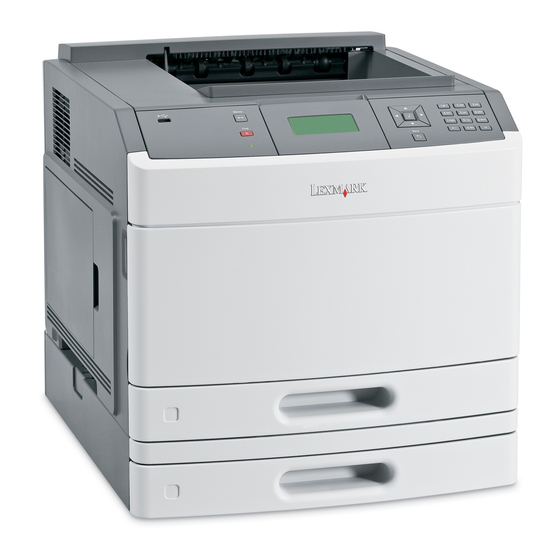
Lexmark T650 Service Manual
Service manual
Hide thumbs
Also See for T650:
- Service manual (588 pages) ,
- User manual (219 pages) ,
- Instructions manual (19 pages)
Table of Contents
Advertisement
Quick Links
Edition: September 17, 2009
™
Lexmark
T650, T650n, T652dn,
T654dn & T656dne Printer
4062-XXX
• Table of contents
• Start diagnostics
• Safety and notices
• Trademarks
• Index
Lexmark and Lexmark with diamond design are
trademarks of Lexmark International, Inc., registered
in the United States and/or other countries.
Advertisement
Table of Contents

Related Manuals for Lexmark T650


Summary of Contents for Lexmark T650
- Page 1 T654dn & T656dne Printer 4062-XXX • Table of contents • Start diagnostics • Safety and notices • Trademarks • Index Lexmark and Lexmark with diamond design are trademarks of Lexmark International, Inc., registered in the United States and/or other countries.
- Page 2 Lexmark, Lexmark with diamond design, and MarkNet are trademarks of Lexmark International, Inc., registered in the United States and/or other countries. PCL® is a registered trademark of the Hewlett-Packard Company.
-
Page 3: Table Of Contents
4062-XXX Table of contents Table of contents ............iii Notices and safety information . - Page 4 Available tests ..............3-3 Exiting Diagnostics mode (models T650, T652, and T654) .......3-5 REGISTRATION .
- Page 5 EXIT DIAGNOSTICS (models T650, T652, and T654) ........
- Page 6 Exit Config Menu (models T650, T652, and T654) ....... . .
- Page 7 Model T650 with duplex, paper path, rolls, and sensors .......
- Page 8 Model T650 paper path, rolls, and sensors ........
- Page 9 Alignment assembly removal (T650, T652, T654) ........4-8 Connection access cover, rear removal (T650, T652, T654) ......4-11 Connection bezel assembly, rear removal (T650) .
- Page 10 Fuser drive release linkage removal (T650, T652, T654) ....... .4-23...
- Page 11 4062-XXX Option removals ..............4-83 5-bin mailbox rear door assembly removal .
- Page 12 4062-XXX High capacity stacker sensor (deflector gate HP) removal ......4-147 Installing / Removing the RFID UHF option .........4-148 Lower interface cable assembly removal .
- Page 13 ............. . 7-2 Assembly 2: T650, T652, and T654 Operator panel .
- Page 14 4062-XXX Service Manual...
-
Page 15: Notices And Safety Information
4062-XXX Notices and safety information The following laser notice labels may be affixed to this printer. Laser notice The printer is certified in the U.S. to conform to the requirements of DHHS 21 CFR Subchapter J for Class I (1) laser products, and elsewhere is certified as a Class I laser product conforming to the requirements of IEC 60825-1. - Page 16 4062-XXX Avisos sobre el láser Se certifica que, en los EE.UU., esta impresora cumple los requisitos para los productos láser de Clase I (1) establecidos en el subcapítulo J de la norma CFR 21 del DHHS (Departamento de Sanidad y Servicios) y, en los demás países, reúne todas las condiciones expuestas en la norma IEC 60825-1 para productos láser de Clase I (1).
- Page 17 4062-XXX Laserilmoitus Tämä tulostin on sertifioitu Yhdysvalloissa DHHS 21 CFR Subchapter J -standardin mukaiseksi luokan I (1) - lasertuotteeksi ja muualla IEC 60825-1 -standardin mukaiseksi luokan I lasertuotteeksi. Luokan I lasertuotteita ei pidetä haitallisina. Tulostimen sisällä on luokan IIIb (3b) laser, joka on nimellisteholtaan 5 mW:n galliumarsenidilaser ja toimii 770 - 795 nanometrin aallonpituuksilla.
- Page 18 4062-XXX Avís sobre el Làser Segons ha estat certificat als Estats Units, aquesta impressora compleix els requisits de DHHS 21 CFR, apartat J, pels productes làser de classe I (1), i segons ha estat certificat en altres llocs, és un producte làser de classe I que compleix els requisits d’IEC 60825-1.
- Page 19 4062-XXX Notices and safety information...
- Page 20 4062-XXX Service Manual...
-
Page 21: Lithium Warning
4062-XXX Lithium warning CAUTION This product contains a lithium battery. THERE IS A RISK OF EXPLOSION IF THE BATTERY IS REPLACED BY AN INCORRECT TYPE. Discard used batteries according to the battery manufacturer’s instructions and local regulations. Safety information • The safety of this product is based on testing and approvals of the original design and specific components. - Page 22 4062-XXX Sicherheitshinweise • Die Sicherheit dieses Produkts basiert auf Tests und Zulassungen des ursprünglichen Modells und bestimmter Bauteile. Bei Verwendung nicht genehmigter Ersatzteile wird vom Hersteller keine Verantwortung oder Haftung für die Sicherheit übernommen. • Die Wartungsinformationen für dieses Produkt sind ausschließlich für die Verwendung durch einen Wartungsfachmann bestimmt.
- Page 23 4062-XXX Informació de Seguretat • La seguretat d'aquest producte es basa en l'avaluació i aprovació del disseny original i els components específics. El fabricant no es fa responsable de les qüestions de seguretat si s'utilitzen peces de recanvi no autoritzades. •...
-
Page 24: Preface
4062-XXX Preface This manual contains maintenance procedures for service personnel. It is divided into the following chapters: General information contains a general description of the printer and the maintenance approach used to repair it. Special tools and test equipment, as well as general environmental and safety instructions, are discussed. -
Page 25: General Information
4062-XXX 1. General information The Lexmark™ laser printers are letter-quality page printers designed to attach to personal computers and to most computer networks. The Lexmark laser printers are available in the following models: Machine type Model Configuration 4062-01A T650n Network... -
Page 26: Options
— IPDS and SCS/TNe — PrintCryption — PRESCRIBE • Printer hard disk • Lexmark™ Internal Solutions Ports (ISP) — RS-232-C serial interface ISP — Parallel 1284-B interface ISP — MarkNet N8150 802.11 b/g/n Wireless ISP — MarkNet N8130 10/100 Thick Fiber ISP —... -
Page 27: Printer Configurations
4062-XXX Printer configurations Basic model The following illustration shows the basic printer model. Feature Paper Capacity Standard exit bin 250- or 550-sheet Printer control panel Multipurpose feeder 100 sheets Standard tray (Tray 1) 250- or 550-sheets Based on 75 g/m (20 lb.) paper. -
Page 28: Fully Configured Model
You must use either a printer stand or printer base if you are using a 2000-sheet tray, a duplex unit, and an input option, or more than one input option. For more information, see www.lexmark.com/publications/furniture_safety. Service Manual... - Page 29 The printer supports up to three output expander units, or one output expander combined with one 5- bin mailbox, one high capacity output expander (not depicted), or one stapler unit (not depicted). Optional external duplex unit for the T650 model. All other models are available with or without internal duplex unit.
-
Page 30: Supported Paper Sizes, Types, And Weights
4062-XXX Supported paper sizes, types, and weights The following tables provide information on standard and optional paper sources and the types of paper they support. Note: For an unlisted paper size, select the closest larger listed size. Paper sizes supported by the printer 250-or 550-sheet Optional Multipurpose... -
Page 31: Paper Types And Weights Supported By The Printer
4062-XXX 250-or 550-sheet Optional Multipurpose Paper size Dimensions trays (standard 2000-sheet Duplex unit feeder or optional tray Other Envelope 98 x 162 mm (3.9 x 6.4 in.) to 176 x 250 mm (6.9 x 9.8 in.) This size appears in the Paper Size menu only when the paper source does not support size sensing or when size sensing is turned off. -
Page 32: Tools Required
4062-XXX The finisher supports 60-176 g/m2 (16-47 lb) paper weights. Optional hardware Output Expander (550 Standard exit bin StapleSmart II Paper type sheets) or High 5-Bin Mailbox (350 or 550 sheets) Finisher Capacity (500 sheets) (500 sheets) Output stacker (1850 sheets) Paper •... -
Page 33: Acronyms
4062-XXX Acronyms BLDC Brushless DC motor Customer Replaceable Unit Customer setup DIMM Dual Inline Memory Module DRAM Dynamic Random Access Memory Digital multimeter Enhanced Data Out EEPROM Electrically Erasable Programable Read-Only Memory Electrophotographic process EPROM Erasable Programmable Read-Only Memory Electrostatic Discharge Field Replaceable Unit Gigabyte HCIT... - Page 34 4062-XXX 1-10 Service Manual...
-
Page 35: Diagnostic Information
4062 2. Diagnostic information Start CAUTION: Unplug the power cord from the electrical outlet before you connect or disconnect any cable electronic board or assembly. CAUTION: If the printer is kept on, never touch the conductive parts if not specifically required. The power switch and inlet of the low voltage power supply card (LVPS card) assembly is live even while the power supply is cut off. -
Page 36: Confirm The Installation Status
The following is an example of the events that occur during the POR sequence: 1. Turn the machine on. 2. The Lexmark splash screen appears with a progress bar in the center until the code is loaded. 3. The fuser cooling fan turns on. -
Page 37: User Attendance Messages
3. Replace the print cartridge ID connector assembly if problem remains. Go to “Print cartridge ID connector assembly removal (T650, T652, T654)” on page 4-59. 32.XX Cartridge part number Error 32 displays when the top Install the proper print... - Page 38 4062 Error code or Error contents Description/Action Possible repair actions message Res Save Off This IR is displayed when the This message displays when Deficient Memory printer lacks sufficient memory the printer lacks sufficient to enable Resource Save. This memory to enable Resource message usually indicates the Save.
- Page 39 4062 Error code or Error contents Description/Action Possible repair actions message Insufficient Memory This message displays when The following actions may be the printer memory used to taken: restore the Print and Hold jobs from the disk and found that •...
- Page 40 4062 Error code or Error contents Description/Action Possible repair actions message 44.01 RFID Error Bad tag error: a tag has failed 1. Retest using new RFID to program, or the “Retry media. Count” has been exceeded. 2. Check the RFID firmware card, RFID interface card, Note: This error is not a data RFID cable, and RFID...
- Page 41 4062 Error code or Error contents Description/Action Possible repair actions message 44.26 RFID Error Based on tag location 1. These error codes most parameters: tag is not likely indicate a problem compatible with printer with the customer’s datastream, and not the 44.27 RFID Error Unsupported SA Code...
- Page 42 4062 Error code or Error contents Description/Action Possible repair actions message 44.36 RFID Error Invalid X/Y Position 1. This error code most likely indicates a problem with the customer’s datastream, and not the RFID Option itself. Ensure there is nothing wrong with the customer’s datastream.
- Page 43 4062 Error code or Error contents Description/Action Possible repair actions message Flash Full This message displays when Press to clear the the printer detects an message. The flash is marked unformatted flash at power on. as bad and normal operation continues.
- Page 44 4062 Error code or Error contents Description/Action Possible repair actions message Serial Port [x] This error displays when data Go to network service check. Disabled is sent to the printer across an “Network service check” serial port, but the port has on page 2-177.
- Page 45 4062 Error code or Error contents Description/Action Possible repair actions message Too Many Disks This error code displays when 1. Turn off and unplug the Installed too many disks are attached to printer. the printer. 2. Remove the excess disks. 3.
- Page 46 4062 Error code or Error contents Description/Action Possible repair actions message Incompatible Output An incompatible output bin is 1. Turn off and unplug the Bin [x] installed. For Output Bin x, x=1, printer. 2, or 3. 2. Remove the incompatible output option.
- Page 47 4062 Error code or Error contents Description/Action Possible repair actions message Cartridge Low This IR is displayed when Replace the print cartridge. cartridge low occurs and the cartridge low alarm is activated. If cartridge alarm is not activated, this is not an intervention condition.
-
Page 48: Error Code Table 1
4062 Error code table Error code or Error contents Description/Action Possible repair actions message 200.00 Sensor (input) area The media is jammed in the 1. Fan the media and check for sensor (input) area. obstructions. 2. Go to sensor (input) service check. - Page 49 3. Replace the main drive motor assembly if problem remains. Go to “Output cover assembly removal (T650, T652, T654)” on page 4-54. 200.10 Printhead motor The printhead motor is not 1. Remove all media present synchronization error synchronized when media in media path.
- Page 50 3. Check all connections on the system card assembly. 4. Replace the main drive motor assembly if problem remains. Go to “Output cover assembly removal (T650, T652, T654)” on page 4-54. 200.17 Sensor (input) The media reached the sensor Go to sensor (input) lingering...
- Page 51 4062 Error code or Error contents Description/Action Possible repair actions message 200.19 Sensor (input) The media reached the sensor Go to sensor (input) lingering lingering jam (input) but did not clear it within jam service check. the specified time. Source = Tray 1 “Sensor (input) lingering Tray level = Empty jam service check.”...
- Page 52 4062 Error code or Error contents Description/Action Possible repair actions message 200.38 Sensor (input) The media reached the sensor Go to sensor (input) lingering lingering jam (input) but did not clear it within jam service check. the specified time. Source = Tray 3 “Sensor (input) lingering Tray level = Low jam service check.”...
- Page 53 3. Replace the main drive motor assembly if problem remains. Go to “Output cover assembly removal (T650, T652, T654)” on page 4-54. 201.02 Sensor (fuser output) The media is late reaching the Go to sensor (fuser output) late late jam.
- Page 54 3. Replace the main drive motor assembly if problem remains. Go to “Output cover assembly removal (T650, T652, T654)” on page 4-54. 201.27 Sensor (fuser output) The media is late reaching the Go to sensor (fuser output) late late jam.
- Page 55 3. Replace the main drive motor assembly if problem remains. Go to “Output cover assembly removal (T650, T652, T654)” on page 4-54. 201.52 Sensor (fuser output) The media is late reaching the Go to sensor (fuser output) late...
- Page 56 4. Replace the main drive motor assembly if problem remains. Go to “Output cover assembly removal (T650, T652, T654)” on page 4-54. 201.77 Sensor (fuser output) The media is late reaching the Go to sensor (fuser output) late...
- Page 57 3. Replace the printhead assembly if problem remains. 4. Replace the system card assembly if problem remains. “System card Go to assembly removal (T650, T652, T654, T656)” on page 4-76. 201.79 Sensor (narrow The media is late reaching the...
- Page 58 4062 Error code or Error contents Description/Action Possible repair actions message 202.00 Paper jam around Page may be jammed in fuser 1. Remove all media present fuser exit or redrive exit or redrive area. in media path. area. 2. Check media for proper installation.
- Page 59 4062 Error code or Error contents Description/Action Possible repair actions message 202.10 Sensor (fuser output) Media reached the sensor Go to sensor (fuser output) lingering jam. (fuser output) but did not clear lingering jam service check. it in the specified time. Destination is output “Sensor (fuser output) option.
- Page 60 4062 Error code or Error contents Description/Action Possible repair actions message 202.27 Sensor (fuser output) Media reached the sensor Go to sensor (fuser output) lingering jam. (fuser output) but did not clear lingering jam service check. it in the specified time. Type 2 fuser “Sensor (fuser output) lingering jam service check.”...
- Page 61 4062 Error code or Error contents Description/Action Possible repair actions message 202.37 Sensor (fuser output) Media reached the sensor Go to sensor (fuser output) lingering jam. (fuser output) but did not clear lingering jam service check. it in the specified time. Destination is output “Sensor (fuser output) option.
- Page 62 4062 Error code or Error contents Description/Action Possible repair actions message 202.54 Sensor (fuser output) The sensor (fuser output) Go to sensor (fuser output) bounce rebounded once the trailing service check. edge of the media passed. Type 1 fuser “Sensor (fuser output) service check”...
- Page 63 4062 Error code or Error contents Description/Action Possible repair actions message 202.63 Sensor (fuser output) Media remains on the sensor 1. Go to sensor (fuser output) static jam (fuser output) and the sensor static jam service check. “Sensor (fuser (narrow media) during the warm up sequence.
- Page 64 4062 Error code or Error contents Description/Action Possible repair actions message 202.81 Sensor (fuser output) Media remains on the sensor Go to sensor (fuser output) static jam (fuser output) during the warm static jam service check. up sequence. Type 2 fuser “Sensor (fuser output) static jam service check”...
- Page 65 The system does not recognize Replace the fuser unit the ID chip on the fuser unit. assembly. Go to “Fuser unit assembly removal (T650, T652, T654)” on page 4-23, 203.00 Paper jam around Page may be jammed in 1. Remove all media present redrive area.
- Page 66 4. Check all connections on the system card assembly. 5. Replace the redrive motor assembly if problem remains. Go to “Redrive assembly removal (T650, T652, T654)” on page 4-62. 203.18 Redrive motor The redrive motor assembly 1.
- Page 67 4062 Error code or Error contents Description/Action Possible repair actions message 230.02 Sensor (duplex input) Media is late reaching the Go to sensor (duplex input) late late jam sensor (duplex input) within the jam service check. specified time. Source = Internal “Sensor (duplex input) duplex late jam service check.”...
- Page 68 4062 Error code or Error contents Description/Action Possible repair actions message 230.10 Internal duplex drive The internal duplex drive motor 1. Remove all media present motor control failure. motor does not reach the in media path. proper operating speed at the 2.
- Page 69 4062 Error code or Error contents Description/Action Possible repair actions message 230.20 Internal duplex drive The internal duplex drive motor 1. Remove all media present motor lost encoder is not reporting pulses back to in media path. failure the engine. 2.
-
Page 70: Service Checks
4062 Error code or Error contents Description/Action Possible repair actions message 234.00 Sensor (duplex exit) Media is late reaching the 1. Remove all media present late jam sensor (duplex exit) within the in media path. specified time. 2. Check media for proper Source = External installation. - Page 71 4062 Error code or Error contents Description/Action Possible repair actions message 237.07 Paper jam around Page may be jammed in 1. Remove all media present external duplex external duplex area. in media path. 2. Check media for proper Source = External installation.
- Page 72 4062 Error code or Error contents Description/Action Possible repair actions message 238.04 Sensor (duplex Media remains on the sensor 1. Remove all media present double-feed) static (duplex double-feed) during the in media path. warm up sequence. 2. Replace the external duplex assembly if problem Source = External remains.
- Page 73 4062 Error code or Error contents Description/Action Possible repair actions message 239.01 External duplex Mechanical feed error or timing 1. Remove all media present assembly error error. in media path. 2. Check media for proper Source = External installation. duplex 3.
- Page 74 4062 Error code or Error contents Description/Action Possible repair actions message 239.04 Input device ready Mechanical feed error or timing 1. Remove all media present response error. error. in media path. 2. Check media for proper Source = External installation. duplex 3.
- Page 75 4062 Error code or Error contents Description/Action Possible repair actions message 239.07 Select output device Mechanical feed error or timing 1. Remove all media present error. error. in media path. 2. Check media for proper Source = External installation. duplex 3.
- Page 76 4-49. 6. Replace system card assembly if problem remains. Go to “System card assembly removal (T650, T652, T654, T656)” on page 4-76. 241.06 Sensor (input) late The media is late reaching the Go to sensor (input) late jam sensor (input) within the service check.
- Page 77 4-49. 7. Replace system card assembly if problem remains. Go to “System card assembly removal (T650, T652, T654, T656)” on page 4-76. 241.10 Sensor (input) late The media is late reaching the Go to sensor (input) late jam sensor (input) within the service check.
- Page 78 4-49. 6. Replace system card assembly if problem remains. Go to “System card assembly removal (T650, T652, T654, T656)” on page 4-76. 241.20 Tray 1 pick motor lost The pick motor is not reporting 1. Check all connections on encoder failure pulses back to the engine.
- Page 79 4062 Error code or Error contents Description/Action Possible repair actions message 242.03 Sensor (pass through) The media is late reaching the Go to sensor (pass through) late jam sensor (pass through) within late jam service check. the specified time. Source = Tray 2 “Sensor (pass through) late jam service check”...
- Page 80 4. Replace the switch (media size) if problem remains. Go to “Switch (media size) assembly removal (T650, T652, T654)” on page 4-74. 242.34 Empty tray pick The pick arm attempted to pick 1. Check the media out attempted with no media in the tray.
- Page 81 4062 Error code or Error contents Description/Action Possible repair actions message 242.39 Media tray pulled jam A media tray above the source 1. Remove all media present tray was pulled during the in media path. printing process. 2. Close all media trays. 242.40 Sensor (pass through) Media reached the sensor...
- Page 82 4-49. 7. Replace system card assembly if problem remains. Go to “System card assembly removal (T650, T652, T654, T656)” on page 4-76. 242.66 Pick motor The pick motor does not rotate 1. Remove all media present underspeed failure at the specified speed.
- Page 83 4-49. 6. Replace system card assembly if problem remains. Go to “System card assembly removal (T650, T652, T654, T656)” on page 4-76. 242.68 Pick motor stop error Pick motor stop error detected 1. Remove all media present by options tray x in media path.
- Page 84 4-49. 6. Replace system card assembly if problem remains. Go to “System card assembly removal (T650, T652, T654, T656)” on page 4-76. 243.00 Media tray 3 area jam The media is jammed in the 1. Remove all media present media tray 3 area.
- Page 85 4. Replace the switch (media size) if problem remains. Go to “Switch (media size) assembly removal (T650, T652, T654)” on page 4-74. 243.34 Empty tray pick The pick arm attempted to pick 1. Check the media out attempted with no media in the tray.
- Page 86 4062 Error code or Error contents Description/Action Possible repair actions message 243.35 Pick page received Media remains on the sensor Go to sensor (pass through) while POR not yet (input) during the warm up static jam service check. done. sequence. “Sensor (pass through) Source = Tray 3 static jam service check”...
- Page 87 Go to “Operator panel door assembly removal (models X651, X652, X654, and X656)” on page 4-49. 7. Replace system card assembly if problem remains. Go to “System card assembly removal (T650, T652, T654, T656)” on page 4-76. 2-53 Diagnostic information...
- Page 88 4-49. 6. Replace system card assembly if problem remains. Go to “System card assembly removal (T650, T652, T654, T656)” on page 4-76. 243.67 Pick motor overspeed The pick motor does not rotate 1. Remove all media present failure at the specified speed.
- Page 89 4-49. 6. Replace system card assembly if problem remains. Go to “System card assembly removal (T650, T652, T654, T656)” on page 4-76. 243.69 Pick motor control The pick motor does not reach 1. Remove all media present failure.
- Page 90 4062 Error code or Error contents Description/Action Possible repair actions message 244.04 Sensor (pass through) The media is late reaching the Go to sensor (pass through) late jam sensor (pass through) within late jam service check. the specified time. Source = Tray 4 “Sensor (pass through) late jam service check”...
- Page 91 4. Replace the switch (media size) if problem remains. Go to “Switch (media size) assembly removal (T650, T652, T654)” on page 4-74. 244.34 Empty tray pick The pick arm attempted to pick 1. Check the media out attempted with no media in the tray.
- Page 92 4062 Error code or Error contents Description/Action Possible repair actions message 244.49 HCIT tray lift motor The HCIT tray lift motor has 1. Ensure the HCIT media tray stalled failure stalled or has become assembly is properly inserted obstructed. into the machine. Source = Tray 4 2.
- Page 93 4-49. 7. Replace system card assembly if problem remains. Go to “System card assembly removal (T650, T652, T654, T656)” on page 4-76. 244.66 Pick motor The pick motor does not rotate 1. Remove all media present underspeed failure at the specified speed.
- Page 94 4-49. 6. Replace system card assembly if problem remains. Go to “System card assembly removal (T650, T652, T654, T656)” on page 4-76. 244.68 Pick motor stop error Pick motor stop error detected 1. Remove all media present by options tray x in media path.
- Page 95 4-49. 6. Replace system card assembly if problem remains. Go to “System card assembly removal (T650, T652, T654, T656)” on page 4-76. 245.00 Media tray 5 area jam The media is jammed in the 1. Remove all media present media tray 5 area.
- Page 96 4. Replace the switch (media size) if problem remains. Go to “Switch (media size) assembly removal (T650, T652, T654)” on page 4-74. 245.34 Empty tray pick The pick arm attempted to pick 1. Check the media out attempted with no media in the tray.
- Page 97 4062 Error code or Error contents Description/Action Possible repair actions message 245.35 Pick page received Media remains on the sensor Go to sensor (pass through) while POR not yet (input) during the warm up static jam service check. done. sequence. “Sensor (pass through) Source = Tray 5 static jam service check”...
- Page 98 Go to “Operator panel door assembly removal (models X651, X652, X654, and X656)” on page 4-49. 7. Replace system card assembly if problem remains. Go to “System card assembly removal (T650, T652, T654, T656)” on page 4-76. 2-64 Service Manual...
- Page 99 4-49. 6. Replace system card assembly if problem remains. Go to “System card assembly removal (T650, T652, T654, T656)” on page 4-76. 245.67 Pick motor overspeed The pick motor does not rotate 1. Remove all media present failure at the specified speed.
- Page 100 4-49. 6. Replace system card assembly if problem remains. Go to “System card assembly removal (T650, T652, T654, T656)” on page 4-76. 245.69 Pick motor control The pick motor does not reach 1. Remove all media present failure.
- Page 101 4062 Error code or Error contents Description/Action Possible repair actions message 250.07 Sensor (input) late The media is late reaching the Go to sensor (input) late jam sensor (input) within the service check. specified time. Source = MPF “Sensor (input) late jam service check.”...
- Page 102 6. Check all connections on the system card assembly. 7. Replace the envelope feeder assembly if problem remains. 8. Replace system card assembly if problem remains. Go to “System card assembly removal (T650, T652, T654, T656)” on page 4-76. 2-68 Service Manual...
- Page 103 4062 Error code or Error contents Description/Action Possible repair actions message 260.07 Sensor (input) late The media is late reaching the Go to sensor (input) late jam sensor (input) within the service check. specified time. Source = Envelope “Sensor (input) late jam feeder service check.”...
- Page 104 4062 Error code or Error contents Description/Action Possible repair actions message 271.04 Sensor (output pass The media is late reaching the “Sensor (output pass through) late jam sensor (output pass through) through) late jam service x = bin check” on page 2-150.
- Page 105 4062 Error code or Error contents Description/Action Possible repair actions message 27x.50 Sensor (output pass The media reached the sensor “Sensor (output pass through) lingering jam (output pass through) but did through) lingering jam x = bin service check” on not clear it in the specified time.
- Page 106 4062 Error code or Error contents Description/Action Possible repair actions message 27x.53 Sensor (mailbox The media is late reaching the “Sensor (mailbox empty) empty) late jam sensor (mailbox empty) within late jam service check” on x = bin page 2-153 the specified time.
- Page 107 4062 Error code or Error contents Description/Action Possible repair actions message 28x.30 Page ID complete not A software failure has occurred 1. Turn the machine off/on. clear with the output option. x = bin 2. Replace the output option if number Applies to: problem remains.
- Page 108 4062 Error code or Error contents Description/Action Possible repair actions message 28x.36 Stapler drive motor The stapler assembly has 1. Check all the connections on jammed jammed while stapling or the the controller card and the x = bin stapler drive motor has failed. stapler assembly.
- Page 109 4062 Error code or Error contents Description/Action Possible repair actions message 28x.39 Staple ready home The sensor (self priming) within 1. Check all the connections on position jam the stapler assembly does not the controller card and the x = bin detect a ready staple in the stapler assembly.
- Page 110 4062 Error code or Error contents Description/Action Possible repair actions message 28x.41 Left tamper does not The sensor (left tamper HP) 1. Check all the connections on move to home does not detect that the tamper the output option controller x = bin position failure.
- Page 111 4062 Error code or Error contents Description/Action Possible repair actions message 28x.43 Right tamper does not The sensor (right tamper HP) 1. Check all the connections on move to home does not detect that the tamper the output option controller x = bin position failure.
- Page 112 4062 Error code or Error contents Description/Action Possible repair actions message 28x.48 Deflector gate The sensor (deflector gate HP) 1. Check all the connections on transition to output does not detect transition of the the output option controller x = bin option not detected deflector gate to the output card.
- Page 113 4062 Error code or Error contents Description/Action Possible repair actions message 28x.51 Right tamper home The right tamper home position 1. Check all the connections on position jam is not detected by the sensor the output option controller x = bin (right tamper HP) card.
- Page 114 4062 Error code or Error contents Description/Action Possible repair actions message 28x.58 Sensor (stapler pass The media is late reaching the “Sensor (output pass through) late jam sensor (stapler pass through) through) late jam service x = bin check” on page 2-150.
- Page 115 4062 Error code or Error contents Description/Action Possible repair actions message 28x.64 Bin clamp motor A software failure has occurred 1. Turn the machine off/on. control timer error with the output option. x = bin 2. Replace the output option if during tray holder number problem remains.
- Page 116 4062 Error code or Error contents Description/Action Possible repair actions message 28x.69 Staple ready home The sensor (self priming) within 1. Check all the connections on position jam the stapler assembly does not the controller card and the x = bin detect a ready staple in the stapler assembly.
- Page 117 3. Replace the system card assembly if problem remains. Go to “System card assembly removal (T650, T652, T654, T656)” on page 4-76. 901xx System software error Code detected unusual event 1. POR the machine and print or timing.
- Page 118 3. Replace the system card assembly if problem remains. Go to “System card assembly removal (T650, T652, T654, T656)” on page 4-76. 903.xx Paperport link driver Code detected unusual event 1. POR the machine and print error or timing.
- Page 119 3. Replace the system card assembly if problem remains. Go to “System card assembly removal (T650, T652, T654, T656)” on page 4-76. 910.00 Pick arm motor stalled The pick arm motor has stalled 1. Check all the connections on failure or become obstructed.
- Page 120 4062 Error code or Error contents Description/Action Possible repair actions message 914.00 Pick arm motor no The pick arm motor encoder 1. Check all the connections on encoder not detected detection is lost during normal the pick arm assembly. failure operation 2.
- Page 121 2. Ensure the proper voltage fuser is installed in the machine. 3. Replace the fuser unit assembly if problem remains. Go to “Fuser unit assembly removal (T650, T652, T654)” on page 4-23. 920.01 Fuser warm-up failure The fuser hot roll took too long 1.
- Page 122 (T650, T652, T654)” on page 4-23. 6. Replace the LVPS card assembly if problem remains. Go to “System card assembly removal (T650, T652, T654, T656)” on page 4-76 “LVPS card assembly removal (T652, T654)” on page 4-31. 2-88 Service Manual...
- Page 123 (T650, T652, T654)” on page 4-23. 5. Replace the LVPS card assembly if problem remains. Go to “System card assembly removal (T650, T652, T654, T656)” on page 4-76 “LVPS card assembly removal (T652, T654)” on page 4-31. 920.25 Fuser under Fuser does not maintain proper 1.
- Page 124 2. Ensure the proper voltage fuser is installed in the machine. 3. Replace the fuser unit assembly if problem remains. Go to “Fuser unit assembly removal (T650, T652, T654)” on page 4-23. 920.28 Fuser warm-up failure The fuser hot roll is too cool 1.
- Page 125 T652, T654)” on page 4-23. 5. Replace the LVPS card assembly if problem remains. Go to “System card assembly removal (T650, T652, T654, T656)” on page 4-76 “LVPS card assembly removal (T652, T654)” on page 4-31. 920.32 Fuser warm-up failure The fuser hot roll temperature 1.
- Page 126 Replace the fuser unit below desired temperature assembly if problem remains. Fuser type = 1 “Fuser unit assembly while in standby control. Go to removal (T650, T652, T654)” Fuser page count has on page 4-23. exceeded life. 920.53 Fuser warm-up failure...
- Page 127 Replace the fuser unit does not increase while the assembly if problem remains. Fuser type = 2 “Fuser unit assembly lamp is turned on. Go to removal (T650, T652, T654)” Fuser page count has on page 4-23. exceeded life. 920.82 Fuser warm-up failure...
- Page 128 T652, T654)” on page 4-23. 5. Replace the LVPS card assembly if problem remains. Go to “System card assembly removal (T650, T652, T654, T656)” on page 4-76 “LVPS card assembly removal (T652, T654)” on page 4-31. 922.04 Fuser warm-up failure The fuser hot roll has timed out 1.
- Page 129 T652, T654)” on page 4-23. 5. Replace the LVPS card assembly if problem remains. Go to “System card assembly removal (T650, T652, T654, T656)” on page 4-76 “LVPS card assembly removal (T652, T654)” on page 4-31. 922.07 Fuser warm-up failure The fuser hot roll does not 1.
- Page 130 (T650, T652, T654)” on page 4-23. 5. Replace the LVPS card assembly if problem remains. Go to “System card assembly removal (T650, T652, T654, T656)” on page 4-76 “LVPS card assembly removal (T652, T654)” on page 4-31. 2-96 Service Manual...
- Page 131 T652, T654)” on page 4-23. 5. Replace the LVPS card assembly if problem remains. Go to “System card assembly removal (T650, T652, T654, T656)” on page 4-76 “LVPS card assembly removal (T652, T654)” on page 4-31. 922.29 Fuser warm-up failure The fuser hot roll has timed out 1.
- Page 132 T652, T654)” on page 4-23. 5. Replace the LVPS card assembly if problem remains. Go to “System card assembly removal (T650, T652, T654, T656)” on page 4-76 “LVPS card assembly removal (T652, T654)” on page 4-31. 922.32 Fuser warm-up failure The fuser hot roll does not 1.
- Page 133 “final lamp detection” assembly if problem remains. Fuser type = 1 “Fuser unit assembly parameter but not in the Go to specified time. removal (T650, T652, T654)” Fuser page count has on page 4-23. exceeded life. 922.54 Fuser warm-up failure...
- Page 134 Fuser over The fuser hot roll has Replace the fuser unit temperature failure. exceeded the proper operating assembly if problem remains. temperature. Go to “Fuser unit assembly Fuser type = 1 removal (T650, T652, T654)” on page 4-23. 2-100 Service Manual...
- Page 135 “Fuser unit assembly temperature. Go to Fuser type = 1 removal (T650, T652, T654)” on page 4-23. 923.75 Fuser over The fuser hot roll has Replace the fuser unit temperature failure.
- Page 136 The fuser thermistor has failed. Replace the fuser unit check failure. assembly if problem remains. “Fuser unit assembly Go to Fuser type = 2 removal (T650, T652, T654)” on page 4-23. Fuser page count has exceeded life. 925.00 Incorrect fuser or The machine detected a 115 V 1.
- Page 137 2. Ensure the proper voltage fuser is installed in the machine. 3. Replace the fuser unit assembly if problem remains. Go to “Fuser unit assembly removal (T650, T652, T654)” on page 4-23. 925.27 Incorrect fuser or The machine detected a 115 V 1.
- Page 138 3. Replace the fuser unit assembly if problem remains. Go to “Fuser unit assembly removal (T650, T652, T654)” on page 4-23. 925.75 Incorrect fuser or The machine detected a 115 V 1. Turn the machine off/on fuser lamp detected.
- Page 139 2. Check the connections on the main cooling fan. 3. Replace the main cooling fan. Go to “Output cover assembly removal (T650, T652, T654)” on page 4-54. 927.02 Print cartridge cooling The cooling fan is obstructed or 1.
- Page 140 2. Check the connections on the main cooling fan. 3. Replace the main cooling fan. Go to “Output cover assembly removal (T650, T652, T654)” on page 4-54. 927.11 Print cartridge cooling The print cartridge cooling fan 1.
- Page 141 A non supported printhead is Replace the printhead intermittent Hsync installed. Hsync signal is assembly. Go to “Printhead intermittent or noisy. Printhead assembly removal (T650)” on ID resistor circuit is not to spec. page 4-60 “Printhead assembly removal (T652, T654)” on page 4-61.
- Page 142 Polygon mirror motor The hsync signal is missing or Replace the printhead locked. No first laser not at the correct voltage. assembly. Go to “Printhead assembly removal (T650)” on H sync received. page 4-60 “Printhead assembly removal (T652, T654)” on page 4-61.
- Page 143 T654)” on page 4-54. 4. Replace the system card assembly if problem remains. Go to “System card assembly removal (T650, T652, T654, T656)” on page 4-76. 936.21 Main drive motor The main drive motor assembly 1. Check all connections on assembly failure may be faulty or has failed.
- Page 144 T654)” on page 4-54. 4. Replace the system card assembly if problem remains. Go to “System card assembly removal (T650, T652, T654, T656)” on page 4-76. 936.60 Main drive motor The main drive motor assembly 1. Check all connections on assembly failure may be faulty or has failed.
- Page 145 T654)” on page 4-54. 4. Replace the system card assembly if problem remains. Go to “System card assembly removal (T650, T652, T654, T656)” on page 4-76. 936.91 Main drive motor The main drive motor assembly 1. Check all connections on assembly failure may be faulty or has failed.
- Page 146 T654)” on page 4-54. 4. Replace the system card assembly if problem remains. Go to “System card assembly removal (T650, T652, T654, T656)” on page 4-76. 937.50 Main drive motor The main drive motor assembly 1. Check all connections on assembly failure may be faulty or has failed.
- Page 147 3. Replace the main drive motor assembly. Go to “Output cover assembly removal (T650, T652, T654)” on page 4-54. 4. Replace the system card assembly if problem remains. Go to “System card assembly removal (T650, T652, T654, T656)” on page 4-76. 2-113 Diagnostic information...
- Page 148 3. Replace the main drive motor assembly. Go to “Output cover assembly removal (T650, T652, T654)” on page 4-54. 4. Replace the system card assembly if problem remains. Go to “System card assembly removal (T650, T652, T654, T656)” on page 4-76. 2-114 Service Manual...
- Page 149 T654)” on page 4-54. 4. Replace the system card assembly if problem remains. Go to “System card assembly removal (T650, T652, T654, T656)” on page 4-76. 937.81 Main drive motor The main drive motor assembly 1. Check all connections on assembly failure may be faulty or has failed.
- Page 150 Go to “Operator panel door assembly removal (T650, T652, T654)” on page 4-44. If problem remains, replace the fuser unit assembly. Go to “Fuser unit assembly removal (T650, T652, T654)” on page 4-23. 2-116 Service Manual...
- Page 151 NVRAM failure Replace the system card NVRAM chip failure with assembly. system card assembly. Go to “System card assembly removal (T650, T652, T654, T656)” on page 4-76. 955.xx NVRAM failure The Code ROM or NAND flash Replace the system card failed the Cyclic Redundancy assembly.
- Page 152 (CRC) detected a failure. download emulation into the firmware card again. 2. Replace the system card assembly if problem remains. Go to “System card assembly removal (T650, T652, T654, T656)” on page 4-76. 975.xx Network Error The system detected an...
- Page 153 Communication Paper port communication Replace the system card failure device detected a validation assembly. failure. Go to “System card assembly removal (T650, T652, T654, T656)” on page 4-76. 982.02 Communication Paper port communication Replace the system card failure device detected a framing error assembly.
- Page 154 983.00 Communication Invalid command received by Replace the system card failure the paper port device. assembly. Go to “System card assembly removal (T650, T652, T654, T656)” on page 4-76. 984.00 Communication Invalid command parameter Replace the system card failure received by the paper port assembly.
- Page 155 4062 Error code or Error contents Description/Action Possible repair actions message 985.03 Service engine RFID Radio having problems 1. Check the RFID firmware communications communicating with printer card, RFID interface card, RFID cable, and RFID option for correct installation. Go to “High capacity input tray (HCIT) pick arm bracket...
- Page 156 4062 Error code or Error contents Description/Action Possible repair actions message 985.05 Service engine RFID Internal radio problem 1. Check the RFID firmware communications card, RFID interface card, RFID cable, and RFID option for correct installation. Go to “High capacity input tray (HCIT) pick arm bracket assembly removal”...
- Page 157 990.02 Paperport failure Invalid paperport parameter Replace the system card assembly. Go to “System card assembly removal (T650, T652, T654, T656)” on page 4-76. 990.03 Paperport failure Invalid paperport protocol Replace the system card assembly. Go to “System card...
- Page 158 Possible repair actions message 990.10 Paperport failure Paperport overrun error Replace the system card assembly. Go to “System card assembly removal (T650, T652, T654, T656)” on page 4-76. 990.11 Paperport failure Paperport parity error Replace the system card assembly. Go to “System card...
- Page 159 991.00 System card failure Device system card failed Replace the system card basic assurance test. assembly. Go to “System card assembly removal (T650, T652, T654, T656)” on page 4-76. 991.05 Checksum failure Bad checksum Replace the system card assembly.
-
Page 160: Sensor (Input) Service Check
Go to step 2. Replace the sensor (input). Is the above component free from damage? Go to “Sensor (input) removal (T650, T652, T654)” on page 4-71. 1. Enter the diagnostic mode The sensor is Go to step 2. working properly 2. -
Page 161: Sensor (Narrow Media) Service Check
Go to step 2. Replace the fuser unit assembly. Is the above component free from damage? Go to “Fuser unit assembly removal (T650, T652, T654)” on page 4-23. 1. Enter the diagnostic mode The sensor is Go to step 2. -
Page 162: Sensor (Duplex Input) Service Check (External Duplex Only)
4062 Step Check Check the above sensor for proper connection. Replace the Replace the duplex input connection. Is the above sensor connected properly? sensor assembly (internal duplex only). Go to “Duplex input sensor assembly removal (T652, T654)” on page 4-20 or replace the external duplex unit assembly... -
Page 163: Sensor (Pass Through) Service Check
4062 Sensor (pass through) service check Step Check 1. Enter the diagnostic mode The sensor is Go to step 2. working properly 2. Select Input tray tests 3. Select Sensor test 4. Select the appropriate tray number 5. Observe the line item “pass through” for the appropriate media tray Does the display on the operator panel, change every time the sensing area of the above sensor is interrupted or... - Page 164 Is the above component free of excess wear and assembly. contamination? Go to “MPF pick roll assembly removal (T650, T652, T654)” on page 4-38. Perform a MPF print test and check the MPF pick solenoid Go to step 17. Replace the MPF for proper operation.
- Page 165 Are the above components free of excess wear and contamination? Go to “Pick roll assembly removal (T650, T652, T654)” on page 4-57 Check the aligner assembly for obstructions. Go to step 18. Remove obstructions. Is the above component free from obstructions? Check the sensor (input) for proper operation.
-
Page 166: Sensor (Input) Lingering Jam Service Check
Replace the main drive motor Is the media properly transported and able to reach the assembly. Go to sensor (input)? “Output cover assembly removal (T650, T652, T654)” on page 4-54. Perform a print test. Contact next Problem solved. highest level of Does the problem remain? tech support. -
Page 167: Sensor (Input) Early Jam Service Check
Replace the sensor (input). connection. Is the above sensor connected properly? Go to “Sensor (input) removal (T650, T652, T654)” on page 4-71. Check the sensor (fuser output) for proper operation. Go to step 8. Go to step 7. 1. Enter the diagnostic mode 2. - Page 168 Is the above component free of excess wear and assembly. contamination? Go to “MPF pick roll assembly removal (T650, T652, T654)” on page 4-38. Perform a MPF print test and check the MPF pick solenoid Go to step 4. Replace the MPF for proper operation.
-
Page 169: Sensor (Input) Static Jam Service Check
Check the above sensor for proper connection. Replace the Replace the Sensor (input). connection. Is the above sensor connected properly? Go to “Sensor (input) removal (T650, T652, T654)” on page 4-71. Perform a print test. Contact next Problem solved. highest level of Does the problem remain? tech support. - Page 170 Replace the fuser Replace the unit assembly. connection. Is the above sensor connected properly? Go to “Fuser unit assembly removal (T650, T652, T654)” on page 4-23. Check the aligner assembly for obstructions. Go to step 8. Remove obstructions. Is the above component free from obstructions? Check the transfer roll assembly for damage.
-
Page 171: Sensor (Fuser Output) Lingering Jam Service Check
Is the above component damaged or has it exceeded life? Go to “Fuser unit assembly removal (T650, T652, T654)” on page 4-23. Check the sensor (fuser output) for proper operation. Go to step 7. Go to step 6. -
Page 172: Sensor (Fuser Output) Static Jam Service Check
Replace the for proper operation. redrive motor assembly. Does the above component operate properly? Go to “Redrive assembly removal (T650, T652, T654)” on page 4-62. Perform a print test. Contact next Problem solved. highest level of Does the problem remain? tech support. -
Page 173: Sensor (Narrow Media) Late Jam Service Check
Go to step 4. expiration. unit assembly. Is the above component damaged or has it exceeded life? Go to “Fuser unit assembly removal (T650, T652, T654)” on page 4-23. Check the fuser unit assembly for obstructions. Go to step 5. Remove obstructions. -
Page 174: Sensor (Narrow Media) Static Jam Service Check
Replace the main drive motor Is the media properly transported and able to reach the assembly. sensor (fuser output)? Go to “Output cover assembly removal (T650, T652, T654)” on page 4-54. Perform a print test. Contact next Problem solved. highest level of Does the problem remain? tech support. -
Page 175: Sensor (Duplex Input) Late Jam Service Check
Does the above component operate properly? Go to “Redrive assembly removal (T650, T652, T654)” on page 4-62. Perform a print test and check the duplex drive motor Go to step 8 Replace the assembly for proper operation. -
Page 176: Sensor (Duplex Input) Lingering Jam Service Check
4062 Step Check Check the above sensor for proper connection. Replace the Replace the Sensor (duplex connection. Is the above sensor connected properly? input). Go to “Sensor (duplex input) removal (T652, T654)” on page 4-68. Perform a print test and check the duplex drive motor Go to step 14. - Page 177 4062 Step Check Check the duplex guide assembly, front for damage. Go to step 4. Replace the duplex guide Is the above component free from damage? assembly, front. Go to “Duplex guide assembly, front removal (T652, T654)” on page 4-21. Check the sensor (duplex input) for proper operation.
-
Page 178: Sensor (Duplex Input) Static Jam Service Check
4062 Sensor (duplex input) static jam service check. Use this procedure for the following jams: • 230.13 • 238.01 • 238.03 • 238.05 • 238.07 Step Check Check media origination. Go to step 2 Go to step 5 Did the media originate from the internal duplex? Check the media path for partially fed or jammed media. -
Page 179: Sensor (Pass Through) Late Jam Service Check
Are the above components free of excess wear and contamination? Go to “Pick roll assembly removal (T650, T652, T654)” on page 4-57 Check the appropriate media tray sensor (pass through) for Go to step 7. Go to step 6. -
Page 180: Sensor (Pass Through) Lingering Jam Service Check
Is the media properly transported through the pass through assembly. areas of the media trays? Go to “Output cover assembly removal (T650, T652, T654)” on page 4-54. Perform a print test using the appropriate input tray. Replace the input Problem solved. -
Page 181: Sensor (Pass Through) Static Jam Service Check
Is the media properly transported through the pass through assembly. areas of the media trays? Go to “Output cover assembly removal (T650, T652, T654)” on page 4-54. Perform a print test using the appropriate input tray. Replace the input Problem solved. -
Page 182: Sensor (Stapler Pass Through) Late Jam Service Check
4062 Step Check Check the appropriate media tray sensor (pass through) for Go to step 5. Go to step 4. proper operation. 1. Enter the diagnostic mode 2. Select Input tray tests 3. Sensor test 4. Select the appropriate tray number 3. -
Page 183: Sensor (Stapler Pass Through) Lingering Jam Service Check
4062 Step Check Perform a print test using the output option. Replace the output Problem solved. option. Does the error continue? Sensor (stapler pass through) lingering jam service check Step Check Check the output option for proper installation. Go to step 2. Remove then reinstall the output Is the above component properly installed? -
Page 184: Sensor (Output Pass Through) Late Jam Service Check
4062 Step Check Check the sensor (stapler pass through) for proper Go to step 4. Go to step 3. operation. 1. Enter the diagnostic mode 2. Select Finisher sensor test 3. Select Sensor test 4. Select pass & media 5. Observe the line item “passthru” Does the display on the operator panel, change every time the sensing area of the above sensor is interrupted or blocked. -
Page 185: Sensor (Output Pass Through) Lingering Jam Service Check
4062 Step Check Check the above sensor for proper connection. Replace the Replace the sensor (output connection. Is the above sensor connected properly? pass through). Go to “High capacity stacker sensor (pass through) removal” on page 4-144. Go to “5-bin mailbox sensor (pass through) removal”... -
Page 186: Sensor (Output Pass Through) Static Jam Service Check
4062 Step Check Check the above sensor for proper connection. Replace the Replace the sensor (output connection. Is the above sensor connected properly? pass through). Go to “High capacity stacker sensor (pass through) removal” on page 4-144. Go to “5-bin mailbox sensor (pass through) removal”... -
Page 187: Sensor (Mailbox Empty) Late Jam Service Check
4062 Step Check Check the above sensor for proper connection. Replace the Replace the sensor (output connection. Is the above sensor connected properly? pass through). Go to “High capacity stacker sensor (pass through) removal” on page 4-144. Go to “5-bin mailbox sensor (pass through) removal”... -
Page 188: Sensor (Mailbox Empty) Lingering Jam Service Check
4062 Sensor (mailbox empty) lingering jam service check Step Check Check the output option for proper installation. Go to step 2. Remove then reinstall the output Is the above component properly installed? option Check for obstructions in the media path between the Go to step 3. -
Page 189: Nvram Mismatch Failure (950.00 Through 950.29) Service Check
Is the above sensor connected properly? empty). Go to “Sensor (toner empty) removal (T650, T652, T654)” on page 4-71. NVRAM mismatch failure (950.00 through 950.29) service check Warning: When replacing any of the following components: • Operator panel assembly •... - Page 190 Replace the current system card assembly with the original Go to step 6. Problem solved. system card assembly. Go to “System card assembly removal (T650, T652, T654, T656)” on page 4-76. If problem continues, replace the original operator panel Contact the next Problem solved.
-
Page 191: Image Quality Trouble
4062 Image quality trouble Printer Related Troubleshooting Note: First, get a printout as a base, and follow the symptom table to identify the possible failing FRU’s. Image quality symptoms • Faint print (low contrast)– “Faint print (Low contrast)” on page 2-158. -
Page 192: Image Quality
Is the above component free of excess wear and contamination? Go to “Transfer roll assembly removal (T650, T652, T654)” on page 4-78. Check the print cartridge for proper installation. Go to step 5. Inspect, clean and reinstall... - Page 193 Check the printhead assembly for proper connection. Replace the Replace the printhead connections. Is the above component properly connected? assembly. Go to “Printhead assembly removal (T650)” on page 4-60 “Printhead assembly removal (T652, T654)” on page 4-61. Perform a print test. Contact next Problem solved.
-
Page 194: Blank Print (No Print)
Replace the left and or right Are the above components free from damage? transfer roll brackets. Go to “Printhead assembly removal (T650)” on page 4-60 “Printhead assembly removal (T652, T654)” on page 4-61. Check the transfer roll assembly for contamination and Go to step 6. - Page 195 Replace the Replace the HVPS card connections. Is the above component properly connected? assembly. Go to “HVPS card assembly removal (T650, T652, T654)” on page 4-24. Check the printhead assembly for proper connection. Replace the Replace the printhead connections. Is the above component properly connected? assembly.
-
Page 196: Solid Black
Replace the Replace the HVPS card connection. Is the above component properly connected? assembly. Go to “HVPS card assembly removal (T650, T652, T654)” on page 4-24. Check the system card assembly for proper connection. Replace the Replace the system card connections. -
Page 197: Vertical Lines And Bands (Process Direction)
Replace the wear. transfer roll assembly. Is the above component free of excess wear and contamination? Go to “Transfer roll assembly removal (T650, T652, T654)” on page 4-78. Check the printhead assembly for proper connection. Replace the Replace the printhead connections. -
Page 198: Horizontal White Stripes Or Bands (Side To Side Direction)
Replace the wear. transfer roll assembly. Is the above component free of excess wear and contamination? Go to “Transfer roll assembly removal (T650, T652, T654)” on page 4-78. Check the printhead assembly for proper connection. Replace the Replace the printhead connections. -
Page 199: Vertical Stripes (Process Direction)
Is the above component free of excess wear and contamination? Go to “Access door removal (T650, T652, T654)” on page 4-8. Check the transfer roll assembly for contamination and Go to step 5. Replace the wear. -
Page 200: Horizontal Stripes (Side To Side Direction)
Remove the fuser unit assembly. assembly. CAUTION: : Allow Go to “Fuser the fuser unit unit assembly assembly to cool removal (T650, T652, T654)” on down. page 4-23. Is there contamination or cracks on the heat roll and/or pressure roll? Perform a print test. - Page 201 Is the above component free of excess wear and contamination? Go to “Access door removal (T650, T652, T654)” on page 4-8. Check the transfer roll assembly for contamination and Go to step 6. Replace the wear.
-
Page 202: Partial Lack
Is the above component free of excess wear and contamination? Go to “Transfer roll assembly removal (T650, T652, T654)” on page 4-78. Check the printhead installation. Go to step 6. Reinstall and adjust the Is the above component properly installed? printhead assembly. -
Page 203: Spots
Is the above component free of excess wear and contamination? Go to “Access door removal (T650, T652, T654)” on page 4-8. Check the transfer roll assembly for contamination and Go to step 6. Replace the wear. - Page 204 Remove the fuser unit assembly. assembly. CAUTION: : Allow Go to “Fuser the fuser unit unit assembly assembly to cool removal (T650, T652, T654)” on down. page 4-23. Is there contamination or cracks on the heat roll and/or pressure roll? Check the printhead installation.
-
Page 205: After Image
Remove the fuser unit assembly. assembly. CAUTION: : Allow Go to “Fuser the fuser unit unit assembly assembly to cool removal (T650, T652, T654)” on down. page 4-23. Is there contamination or cracks on the heat roll and/or pressure roll? Perform a print test. -
Page 206: Background (Fog)
Is the above component free of excess wear and contamination? Go to “Transfer roll assembly removal (T650, T652, T654)” on page 4-78. Check the HVPS card assembly for proper connection. Go to step 6. Replace the connections. -
Page 207: Skew
Check the transfer roll assembly for contamination and Go to step 5. Replace the wear. transfer roll assembly. Is the above component free of excess wear and contamination? Go to “Transfer roll assembly removal (T650, T652, T654)” on page 4-78. 2-173 Diagnostic information... -
Page 208: Media Damage
“Alignment assembly adjustment” on assembly. page 4-4. Go to “Output Does the problem remain? cover assembly removal (T650, T652, T654)” on page 4-54. Perform a print test. Contact next Problem solved. highest level of Does the problem remain? tech support. - Page 209 Is the above component free of excess wear and contamination? Go to “Transfer roll assembly removal (T650, T652, T654)” on page 4-78. Check the aligner assembly for proper adjustment. Go to step 6. Replace the aligner assembly.
-
Page 210: No Fuse
CAUTION: : Allow Go to “Fuser the fuser unit unit assembly assembly to cool removal (T650, T652, T654)” on down. page 4-23. Is there contamination or cracks on the heat roll and/or pressure roll? Check the LVPS card assembly for proper connection. -
Page 211: Network Service Check
Have the network administrator verify that the device is using the correct SSID, and wireless security protocols. For more network troubleshooting information, consult the Lexmark Network Setup Guide. Step... - Page 212 Replace the system card. Contact the network network drop for activity. Go to “System card administrator. assembly removal (T650, Is the drop functioning properly? T652, T654, T656)” on page 4-76. Is the printer on the same wireless network as Go to step 17.
-
Page 213: Diagnostic Aids
4062-XXX 3. Diagnostic aids This chapter explains the tests and procedures to identify printer failures and verify repairs have corrected the problem. Understanding the printer control panel (models T650, T652, and T654) Item Description Display Shows messages and pictures that communicate the status of the printer. -
Page 214: Accessing Service Menus (Models T650, T652, And T654)
Insert a flash drive into the front of the printer to print saved files. Note: Only the front USB port supports flash drives. Accessing service menus (models T650, T652, and T654) There are different test menus that can be accessed during POR to identify problems with the printer. -
Page 215: Diagnostics Mode (Models T650, T652, And T654)
4062-XXX Diagnostics mode (models T650, T652, and T654) Entering Diagnostics mode (models T650, T652, and T654) 1. Turn the printer off. 1. Press and hold 2. Turn the printer on. 3. Release the buttons after 10 seconds. Available tests The tests display on the operator panel in the order shown: REGISTRATION “REGISTRATION”... - Page 216 4062-XXX DUPLEX TESTS (if installed) Quick Test “Quick Test (duplex)” on page 3-12 Top Margin “Top Margin (duplex)” on page 3-13 Sensor Test “Sensor Test (duplex)” on page 3-13 Motor Test “Motor Test (duplex)” on page 3-14 Duplex Feed 1 “Duplex Feed 1”...
-
Page 217: Exiting Diagnostics Mode (Models T650, T652, And T654)
Clear Log “Clear Log” on page 3-24 EXIT DIAGNOSTICS Exiting Diagnostics mode (models T650, T652, and T654) Select Exit Diagnostics to exit the Diagnostics menu. Resetting the Printer displays, the printer performs a POR, and returns to Ready mode. REGISTRATION Print registration makes sure the printing is printed properly aligned on the page. -
Page 218: Quick Test
4062-XXX The print registration range is: Variable Description Value Direction of change Top margin -25 to +25 Each increment causes A positive change moves the image approximately 4 pels shift (at 600 down the page and increases the dpi). top margin. A negative change moves the image up and decreases the top margin. -
Page 219: Print Tests
4062-XXX PRINT TESTS Input source tests The purpose of the diagnostic Print Tests is to verify that the printer can print on media from each of the installed input options. The contents of the Print Test Page varies depending on the media installed in the selected input source. -
Page 220: Hardware Tests
4062-XXX NVRAM. The CONFIG MENU print quality test pages are identical to the DIAGNOSTIC print quality test pages with the exception of the first page. The first print quality test page from the CONFIG MENU does not include EP or Printer setup. HARDWARE TESTS Select the following Hardware Tests from this menu: •... -
Page 221: Usb Hs Test Mode
4062-XXX USB HS Test Mode 1. Select USB HS Test Mode from HARDWARE TESTS. 2. Press until the appears next to the Port to be tested, and then press 3. Select the desired Test, and then press Port Test Appears on the display Port 0 Test J USB High Speed... -
Page 222: Rfid Option Test
4062-XXX RFID Option Test This test confirms that the RFID firmware and hardware are working properly. In the event that the test fails, it is recommended that the test be repeated to confirm that the problem is not intermittent or caused by a single failed piece of RFID media. - Page 223 4062-XXX 2. Reload RFID media in Tray 2 with the RFID media that was just printed in step 1, and then press continue. The test page will be printed. Note: The sheet should be placed face down with the arrow pointing toward the front of the printer. If the page looks like this: If the page looks like this: If the page looks like this:...
-
Page 224: Duplex Tests
4062-XXX 3. Load plain media in Tray 2, and then press Continue. The test page will be printed. If the page looks like this: If the page looks like this: T65x RFID Option Test T65x RFID Option Test Step 3. Step 3. -
Page 225: Top Margin (Duplex)
4062-XXX duplexed pages (Continuous) until Stop is pressed. For information about changing the margin, see “Top Margin (duplex)” on page 3-13. Note: Before you set the duplex top margin, be sure to set the registration. See “REGISTRATION” on page 3-5. The paper you choose to print the page on should be either Letter or A4. -
Page 226: Motor Test (Duplex)
4062-XXX • Duplex input sensor • Duplex exit sensor 3. Press Back or Stop to exit the test. Motor Test (duplex) This test lets you test the duplex option paper feed drive system, and verify that the power and velocity values are acceptable. -
Page 227: Sensor Test (Input Tray)
4062-XXX Feed Tests (input tray) This test lets the servicer observe the paper path as media is feeding through the printer. A blank sheet of paper feeds through the printer as the laser turns off during this test. The only way to observe the paper path is to open the lower front door that is used to access the envelope or multipurpose feeder. -
Page 228: Feed To All Bins
4062-XXX Use these tests to verify that media can be fed to a specific output bin. Media is fed from the default input source to the selected output bin. No information is printed on the media fed to the output bin because the printhead is not engaged during this test. -
Page 229: Sensor Test (High Capacity Output Stacker)
4062-XXX To run the Sensor Test for the standard bin: 1. Select Sensor Test from OUTPUT BIN TESTS. 2. Select Standard Bin from Sensor Tests. 3. Standard Bin Testing displays briefly, and then Bin Empty empty displays. 4. Select NearFull or Full sensor to test. The following screen is displayed: Standard Bin x Full=Open NearFull=Open... -
Page 230: Sensor Tests (5-Bin Mailbox)
4062-XXX Sensor Tests (5-bin mailbox) 1. Select Sensor Tests from OUTPUT BIN TESTS. 2. Select Output Bin x (x=number of the output option to be tested). The following screen is displayed: Output Bin x P1=OP P2=OP L=NL • passThru–5-bin mailbox pass thru sensor shows Open or Closed •... -
Page 231: Base Sensor Test
4062-XXX To run the Finisher Sensor Test: 1. Select Sensor Test from FINISHER TESTS. 2. Select one of the four tests to perform:. Each of the tests displays the individual sensors that can be manually actuated, and the display shows Open or Closed. •... -
Page 232: Perm Page Count (Permanent Page Count)
4062-XXX The page count can only be viewed and cannot be changed. To view the page count: 1. Select Page Count from PRINTER SETUP. 2. Press Back to return to PRINTER SETUP. Perm Page Count (permanent page count) The permanent page count can only be viewed and cannot be changed. To view the permanent page count: 1. -
Page 233: Edge To Edge
4062-XXX • To change a digit or character, press to increase or to decrease the value. • When the last digit is changed, press to validate the Configuration ID 1. If Invalid ID appears, the entry is discarded, and the previous Configuration ID 1 is displayed on the screen. -
Page 234: Print Contrast
4062-XXX Print Contrast The print contrast setting controls the developer voltage offset. The print contrast can be adjusted to Low, Medium, or High. The default setting is Medium. Charge Roll The charge roll can be adjusted to Low, Medium, or High. The default setting is Medium. Gap Adjust The setting adjusts the minimum gap between sheets. -
Page 235: Reports
4062-XXX REPORTS Prints a Menu Settings Page. To print the Menu Settings Page: 1. Select Menu Settings Page from REPORTS. 2. Press Back to return to DIAGNOSTICS. EVENT LOG Display Log The event log provides a history of printer errors. It contains the 12 most recent errors that have occurred on the printer. -
Page 236: Clear Log
4062-XXX • Additional debug information in some cases The printed event log can be faxed to Lexmark or your next level of support for verification or diagnosis. To print the event log: Select Print Log from EVENT LOG. Press Back to return to EVENT LOG. -
Page 237: Configuration Menu (Config Menu) (Models T650, T652, And T654)
4062-XXX Configuration menu (CONFIG MENU) (models T650, T652, and T654) Entering Configuration Menu (models T650, T652, and T654) 1. Turn off the printer. 2. Press and hold 3. Turn on the printer. 4. Release the buttons after ten seconds. The message CONFIG MENU displays on the top line of the operator panel. -
Page 238: Maintenance Page Counter Reset (Reset Cnt)
4062-XXX To view the maintenance page count: 1. Select Maint Cnt Value from CONFIG MENU. 2. Press to view the value. Press Back to return to the main Configuration menu. Maintenance page counter reset (Reset Cnt) After scheduled maintenance, the servicer needs to reset the page counter. To reset the maintenance page count to zero: Select Reset Cnt from the Configuration menu, and then select Reset. -
Page 239: Size Sensing
4062-XXX To print the Event Log, select Reports from CONFIG MENU, and then Event Log. The message Printing EVENT LOG is displayed. The event log provides a history of printer errors. The event log can only be printed in CONFIG MENU. SIZE SENSING This setting controls whether the printer automatically registers the size of paper installed in an input source with size sensing. -
Page 240: Factory Defaults
• Settings in the NETWORK/PORTS MENU group. LES Applications This disables all installed Lexmark Embedded Solution applications. Settings are Disable and Enable. The default is Enable. Energy Conserve This menu controls what values appear on the Power Saver menu. If Off is selected in Energy Conserve menu, then Disabled appears in the Power Saver menu and Power Saver can be turned off. -
Page 241: Best Speed
Settings are For short jobs and For long jobs. Make a setting change, and then press . Submitting selection appears on the display. Exit Config Menu (models T650, T652, and T654) Press to exit the CONFIG MENU. The message Resetting the Printer displays, and the printer performs a POR and restarts in normal mode. -
Page 242: Accessing Service Menus (Model T656)
4062-XXX Item Description Indicator light Indicates the printer status: • Off–The power is off. • Blinking green–The printer is warming up, processing data, or printing. • Solid green–The printer is on, but idle. • Blinking red–Operator intervention is needed. Stop Stops all printer activity A list of options is offered once Stopped appears on the display. -
Page 243: Entering Diagnostics Menu (Model T656)
4062-XXX Diagnostics Menu (model T656) Entering Diagnostics Menu (model T656) 1. Turn off the printer. 2. Press and hold 3 and 6 buttons simultaneously. 3. Turn on the printer. 4. Release the buttons after 10 seconds. Available tests The tests display on the operator panel in the order shown: Note: Some menus are not available, depending on the configuration of the printer. - Page 244 4062-XXX Diagnostics Menu tests (Continued) Tray 1 Tray 2 (if installed) Tray 3 (if installed) Tray 4 (if installed) Tray 5 (if installed) Envelope Feeder MP Feeder Sensor Tests “Sensor Test (input tray)” on page 3-41 Tray 1 Tray 2 (if installed) Tray 3 (if installed) Tray 4 (if installed) Tray 5 (if installed)
-
Page 245: Registration (Printer)
4062-XXX Diagnostics Menu tests (Continued) Warm Up Time “Warm Up Time” on page 3-46 Transfer “Transfer” on page 3-46 Print Contrast “Print Contrast” on page 3-46 Charge Roll “Charge Roll” on page 3-46 Gap Adjust “Gap Adjust” on page 3-47 Auto Dark Adjust “Auto Dark Adjust”... -
Page 246: Quick Test
4062-XXX Description Value Direction of change Left Margin -25 to +25 A positive change moves the image right, and a negative change moves the image left. No compression occurs. Right Margin -10 to +10 A positive change moves the image right, and a negative change moves the image left. -
Page 247: Input Source Tests
4062-XXX The message Quick Test Printing… appears on the display. Once the Quick Test Page completes printing, the Registration screen displays again. 3. Touch Back to return to the Diagnostics Menu. PRINT TESTS Selections on the screen vary since only installed input sources are listed, followed by Printing Quality Test Pages. -
Page 248: Panel Test
4062-XXX • Contents of the EVENT LOG from DIAGNOSTICS. • Configuration information, including printer serial number, controller code level, engine code level, operator panel code level, font versions, and cartridge information. • Default values for the QUALITY MENU settings used to print the pages. HARDWARE TESTS Select the following Hardware Tests from this menu: •... -
Page 249: Dram Test
4062-XXX DRAM Test The purpose of this test is to check the validity of DRAM memory, both standard and optional. The test writes patterns of data to DRAM to verify that each bit in memory can be set and read correctly. To run the DRAM Test: 1. -
Page 250: Quick Test (Duplex)
4062-XXX Port Test Appears on the display Single Step USB High Speed Get Device Certification Testing... Descriptor Single Step USB High Speed Set Feature Certification Testing... To stop testing before completion, turn the printer off. DUPLEX TESTS Quick Test (duplex) This test prints a duplex version of the Quick Test that can be used to verify that the correct placement of the top margin on the back side of a duplex page. -
Page 251: Left Margin (Duplex)
4062-XXX • An increase moves the top margin down and widens the top margin. A decrease moves the top margin upward and narrows the top margin. 4. Touch Submit. 5. Print the Quick Test (duplex) again to verify the adjustment. Repeat if necessary. Left Margin (duplex) To set the Left Margin (duplex): 1. -
Page 252: Duplex Feed 1
4062-XXX 2. When the motor stops, the results are displayed. Listed below is an example of such results: Duplex Motor Test Test Passed Avg. PWM of High-Speed Test: 1d Avg. PWM of Low-Speed Test: Oe Max. PWM of Low-Speed Test: 00 Min. -
Page 253: Output Bin Tests
4062-XXX Sensor Test (input tray) This test is used to determine if the input tray sensors are working correctly. To run the Input Tray Sensor Test: 1. Touch to select the Sensor Test from INPUT TRAY TESTS. 2. Touch to select the input source from the sources displayed on the Sensor Test menu. All installed sources are listed. -
Page 254: Base Sensor Test
4062-XXX To run the Sensor Test for the standard bin: 1. Touch to select Sensor Test from OUTPUT BIN TESTS. 2. Touch to select Standard Bin from Sensor Tests. 3. Manually actuate the bin sensor by moving the flag in and out of the sensor, and the display changes. The following screen is displayed: Bin Empty: empty or Bin Empty: full. -
Page 255: Device Tests
4062-XXX DEVICE TESTS Quick Disk Test This test performs a non-destructive read/write on one block per track on the disk. The test reads one block on each track, saves the data, and proceeds to write and read four test patterns to the bytes in the block. If the block is good, the saved data is written back to the disk. -
Page 256: Printer Setup
4062-XXX PRINTER SETUP PRINTER SETUP Defaults Printed Page Count Permanent Page Count Serial Number xxxxxxx Engine Setting 1 Engine Setting 2 Submit Back The triangles pointing up or down indicate whether there are additional menus. Touch the up or down arrows to display these additional menus. -
Page 257: Configuration Id
4062-XXX Configuration ID The two configuration IDs are used to communicate information about certain areas of the printer that cannot be determined using hardware sensors. The configuration IDs are originally set at the factory when the printer is manufactured, however, the servicer may need to reset Configuration ID 1 or Configuration ID 2 whenever you replace the system board. -
Page 258: Ep Defaults
4062-XXX The triangles pointing up or down indicate whether there are additional menus. Touch the up or down arrows to display these additional menus. Note: If you make changes, touch Submit to make the change effective. EP Defaults This setting is used to restore each printer setting listed in EP SETUP to its factory default value. Sometimes this is used to help correct print quality problems. -
Page 259: Gap Adjust
4062-XXX Touch Back to return to Diagnostics Menu. Gap Adjust The setting adjusts the minimum gap between sheets. Increasing this value may reduce curl of some printed media and eliminate some output bin stacking problems. However, increasing this value also results in slower overall performance, measured in pages per minute. -
Page 260: Print Log
Page counts for most errors • Additional debug information in some cases The printed event log can be faxed to Lexmark or your next level of support for verification or diagnosis. To print the event log: Touch to select Print Log from EVENT LOG. -
Page 261: Configuration Menu (Config Menu) (Model T656)
4062-XXX Configuration menu (CONFIG MENU) (model T656) Entering Configuration Menu (model T656) 1. Turn off the printer. 2. Press and hold 2 and 6 buttons simultaneously. 3. Turn on the printer. 4. Release the buttons after 10 seconds. Available menus Note: Some menus are not available, depending on the configuration of the printer. -
Page 262: Reset Maintenance Counter
4062-XXX The current value for the maintenance page counter is displayed. This counter tracks printer usage. A print job containing a single page increments the counter by one and a duplex page by two. At 300,000, the customer is reminded that the printer requires scheduled maintenance. This counter is reset by the servicer after an 80 Scheduled Maintenance message displays and a maintenance kit is installed. -
Page 263: Print Quality Pages
4062-XXX Print Quality Pages The print quality test pages can be printed from either the Diagnostics Menu or Configuration Menu (CONFIG MENU). When printed from the Diagnostics Menu, additional information is included, and the print cartridge lockout is bypassed. See “Print quality pages (Prt Quality Pgs)”... -
Page 264: Panel Menus
4062-XXX 3. Touch Back to return to EVENT LOG. Note: An event log printed from the CONFIG MENU will not contain debug information or secondary codes for 900 service errors. However, the event log printed from DIAGNOSTICS mode does include this information. SIZE SENSING This setting controls whether the printer automatically registers the size of paper installed in an input source with size sensing. - Page 265 4062-XXX To change the PPDS Emulation setting: 1. Touch to select PPDS Emulation from the Configuration Menu. 2. The panel displays the setting's name in the header and [setting's current value] below the header row. Touch to change the setting. The selections are Deactivate and Activate. The default is Deactivate.
-
Page 266: Energy Conserve
Factory Defaults This setting enables a user to restore all the printer settings to the original factory settings. Selections are Restore Base, Restore STD NET, or Restore LES. Restore LES enables you to remove all Lexmark Embedded Solutions applications (LES). -
Page 267: Paper Prompts
4062-XXX Paper Prompts When a tray is out of the indicated paper size, a prompt is sent to the user to load paper in a tray. This setting controls the tray the user is directed to fill. 1. Touch to select Paper Prompts from the Configuration Menu. The panel displays the setting's name in the header and [setting's current value] below the header... -
Page 268: Disk Encryption
4062-XXX Disk Encryption If a hard disk is installed, Disk Encryption selects whether the data on the disk is encrypted or not. The values are Disable and Enable. This setting determines if the printer encrypts the information that it writes to the hard disk. -
Page 269: Wipe Disk
4062-XXX Wipe Disk This setting provides you with a tool for erasing the contents of a disk. Warning: Wipe Disk removes a disk's data in such a way that it cannot be recovered. To change this setting: 1. Touch to select Wipe Disk from Configuration Menu. Note: If an advanced password has been established, you must enter this password in order to change the setting. -
Page 270: Les Applications
4062-XXX LES Applications This disables all installed Lexmark Embedded Solution applications. The default is Enable. To change this setting: 1. Touch to select LES Applications from the Configuration Menu. Note: If an advanced password has been established, you must enter this password in order to change the setting. -
Page 271: Usb Speed
4062-XXX USB speed To change this setting: 1. Touch to select USB speed from the Configuration Menu. 2. Touch to change the value. The values are Auto (default) and Full. 3. Touch Submit to save the change. Touch Back to cancel and return to the Configuration Menu. Exit Configuration Menu (model T656) Touch Exit Config Menu to exit the Configuration Menu. -
Page 272: Printer Overview
4062-XXX Printer overview CAUTION: Do not set up this product or make any electrical or cabling connections, such as the power cord or options and features, during a lightning storm. Basic model The following illustration shows the basic printer model. Feature Paper Capacity Standard exit bin... -
Page 273: Printer Theory
4062-XXX Printer theory Model T650 with duplex, paper path, rolls, and sensors Standard bin full actuator and sensor (standard bin full) Sensor (input) PC drum PC cartridge Diverter Sensor (fuser output) Sensor (narrow media) Sensor (duplex input) Sensor (option pass through) -
Page 274: Models T652 And T654 Paper Path Rolls And Sensors
4062-XXX Models T652 and T654 paper path rolls and sensors Standard bin full actuator and sensor (standard bin full) Sensor (input) PC drum Diverter PC cartridge Sensor (fuser output) Sensor (narrow media) Sensor (option pass through) Sensor (duplex input) Pick arm assembly Functions of main components •... -
Page 275: Media Tray Assembly
4062-XXX The rear media tray guide assembly can be adjusted to different media sizes by moving it to the front or rear. The rear guide should come into contact with the media and hold it in position. Side guide The media tray assembly is designed so it can adapt to the media width in the media feed direction by moving the side guide to the left or right. -
Page 276: Pick Arm Assembly
4062-XXX The media size set for the media tray assembly is transmitted to the switch (media size) by moving these guides. The media size is detected by the on/off information of these switches. Pick arm assembly Sensor (media empty) Media out actuator Sensor (media low) Pick roll assemblies Sensor (media empty) -
Page 277: Switch (Media Size)
4062-XXX Switch (media size) This switch (media size) sets the size of media supplied from each media tray assembly. A signal indicating the media size is transmitted as a voltage to the printer system card assembly. Sensor (media empty) If media runs out in a media tray assembly, the actuator lowers and the actuator flag, unlocks the sensing area of the sensor (media empty). -
Page 278: Paper Sizes Supported By The Printer
4062-XXX Supported paper sizes, types, and weights The following tables provide information on standard and optional paper sources and the types of paper they support. Note: For an unlisted paper size, select the closest larger listed size Paper sizes supported by the printer 250-or 550-sheet Optional Multipurpose... -
Page 279: Registration
4062-XXX 250-or 550-sheet Optional Multipurpose Paper size Dimensions trays (standard 2000-sheet Duplex unit feeder or optional tray Other Envelope 98 x 162 mm (3.9 x 6.4 in.) to 176 x 250 mm (6.9 x 9.8 in.) This size appears in the Paper Size menu only when the paper source does not support size sensing or when size sensing is turned off. -
Page 280: Transfer
4062-XXX Transfer Transfer roll Transfer roll assembly The transfer roll assembly applies charge to the rear surface of the media when the media passes between the transfer roll assembly and photo conductor (drum). Thus, the toner image is transferred from the photo conductor (drum) surface to the media surface. -
Page 281: Polygon Printhead Assembly
4062-XXX Polygon printhead assembly The printhead scans the photo conductor drum surface with a laser beam. It consists of four components: laser diode (LD) card assembly, printhead motor, polygon mirror, and the start of scan card assembly. Polygon printhead 1. LD card assembly – generates the laser beam. The beam is turned on or off according to a print data signal coming from the system card. - Page 282 4062-XXX Conceptual diagram of an image created by scanning Paper Path 600 dots/inch 600 scans/inch 3-70 Service Manual...
-
Page 283: Oscillating Printhead Assembly
4062-XXX Oscillating printhead assembly The oscillating printhead scans the photo conductor drum surface with a laser beam. It consists of four components: laser diode (LD) card assembly, magnetic motor, mirror, and the start of scan card assembly. Oscillating printhead 1. LD card assembly – generates the laser beam. The beam is turned on or off according to a print data signal coming from the system card. -
Page 284: Fuser
4062-XXX Fuser Fuser unit assembly Fuser components Hot roll Fuser lamp Sensor(Fuser ou Sensor(Narrow m Fuser solen 3-72 Service Manual... -
Page 285: Heat Roll
4062-XXX Heat roll The heat roll is a hollow metal tube with a coated surface. This tube is heated by the inner heater lamp. The heat is applied to the media passing between the heat roll and pressure roll, fusing the toner on the media. Pressure roll The pressure roll is used to apply pressure to the media surface for fusing. -
Page 286: Type 2 Fuser Unit Assembly
4062-XXX Type 2 fuser unit assembly In the type 2 fuser unit assembly, the detacs, which are used to prevent the media from sticking to the hot roll, do make full contact with the hot roller. The type 2 fuser unit assembly has a life of 150K. Hot roll Fuser lamp Full contact detac... -
Page 287: Drive
4062-XXX Drive Main drive motor assembly The main drive motor is a DC motor that drives the print cartridge, aligner, MFP and fuser. Redrive motor assembly The redrive motor assembly is a DC motor that drives the redrive assembly that transports the media into the standard bin or output option. -
Page 288: Electrical Components And Controller
4062-XXX Electrical components and controller Main cooling fan LVPS card assembly Duplex System card cooling fan assembly Print cartridge cooling fan HVPS card assembly Switch (printer front door interlock) The switch is a safety switch to cut off a 24 VDC power supply from the LVPS card assembly to the high volt power supply (HVPS) card assembly, printer system card assembly and to the main drive motor assembly, while the printer front door assembly is open. -
Page 289: System Card Assembly
4062-XXX System card assembly The system card assembly controls printing operation based on the communication with the RIP controller and optional peripherals. It also controls toner dispense, fuser control, sensor switch feedback, drive motors, clutches and solenoids Control Printhead control Rotation of printhead motor The on/off control of the printhead motor is performed according to the mode of operation as shown below. -
Page 290: Fuser Warm-Up
4062-XXX Fuser warm-up The fuser warm-up starts at the time of power on, interlock open or close, jam reset, or return from the low power mode, and ends when the ready temperature is attained, when a failure occurs, or when executing diagnosis. -
Page 291: Charge
4062-XXX Charge The Charge Roll places a uniform negative electrostatic charge on the surface of the drum. The drum surface is made of a photoconductive material that holds an electrical charge as long as the drum remains in darkness. Light striking the drum discharges the surface charge. HVPS Charge roll (-VDC) -
Page 292: Development
4062-XXX This discharge/no discharge process creates an invisible, electrostatic image on the surface of the drum. This image is called a latent image. Modulated Laser Beam Printhead DRUM Drum Surface Drum Surface Image Voltage Laser Beam Laser Beam Discharge Level Invisible Latent Image Development The toner contained within the PC Cartridge has an electrical property that causes it to adhere to the... -
Page 293: Transfer
4062-XXX Roll, toner transfers from the Magnet Roll to that point on the drum. There is now a visible toner image on the drum surface. The image is called a developed image. HVPS Developer Metering Roll Blade Toner DRUM -VDC Drum Surface Drum Surface Image... -
Page 294: Cleaning
4062-XXX is now stuck to the photoconductor (drum) due to the relative electrical differences between the negative electrical charge of the inner conductive layer of the drum and the positive electrical charge of the paper. HVPS -VDC DRUM -VDC Transfer roll Sheet of paper Cleaning The Cleaning Blade removes any toner that remains on the drum after the transfer process. -
Page 295: Auto Density Sensing
4062-XXX Auto density sensing Sensor shield assembly Sensor (toner density) The image density sensor assembly uses a reflection type sensor that detects a pre-placed toner patch and image on the photoconductor (drum) and outputs pulses when the central line of the patch image aligns with the central line of the detector. -
Page 296: High Capacity Input Tray (Hcit) Tray Assembly
4062-XXX High Capacity Input Tray (HCIT) tray assembly Rear media tray guide Media end guide Pick arm assembly Media size actuator Sensor (media empty) Sensor (media low) Sensor (pass through) Sensor (tray raised HP) HCF drawer assembly Tray lift drive motor 3-84 Service Manual... -
Page 297: Sheet/550-Sheet Tray Assembly
4062-XXX 250-sheet/550-sheet tray assembly Lockable back restraint Rear media tray guide Media end guide Auto size finger actuator Media size sensing The media size set for the media tray assembly is set by positioning the right media guide, unlocking the slider lock, and sliding the rear paper guide. -
Page 298: Media Level Sensing
4062-XXX Media level sensing The media level for the media tray assembly is triggered by the actuator flag positioned in the two photointerrupter sensors in the pick arm bracket assembly. The actuator flag blocks and unblocks the two sensors in different sequence; it determines whether the paper tray is empty, low, or full. 250-sheet tray Sensor A Sensor B... -
Page 299: Switch (Media Size)
4062-XXX The pick arm assembly (autocompensator) is a paper pick device that generates its own normal force. This force generation is inherent in the fundamental design of the pick arm. If light media is used, it picks very gently. If a heavy media is used, it picks very aggressively. No customer adjustments are necessary, therefore no special trays are needed for card stock or labels. - Page 300 4062-XXX Pick arm assembly Sensor (media empty) Sensor (media low) Sensor (pass through) 550-sheet drawer assembly 3-88 Service Manual...
-
Page 301: Media Transport Path
The following is a cross section of the printer and the tandem tray module, showing the main components directly associated with the media path and transport. Model T650 paper path, rolls, and sensors Standard bin full actuator and sensor (standard bin full) -
Page 302: Models T652 And T654 Paper Path, Rolls, And Sensors
4062-XXX Models T652 and T654 paper path, rolls, and sensors Standard bin full actuator and sensor (standard bin full) Sensor (input) PC drum Diverter PC cartridge Sensor (fuser output) Sensor (narrow media) Sensor (option pass through) Sensor (duplex input) Pick arm assembly Functions of main components When the 250 or 550 sheet input trays are installed under the printer, additional trays are available. -
Page 303: Wear Strips
4062-XXX Wear strips The wear strips are designed to provide a fixed resistance to ensure that a single piece of paper is properly fed out of the media tray. There are several types of wear strips available for custom or hard to feed media. Media tray assembly Rear media guide Bottom plate... -
Page 304: Sensor (Media Low)
4062-XXX If media runs out in a media tray assembly, the actuator lowers and the actuator flag, unlocks the sensing area of the sensor (media empty). The sensor light is transmitted. When the sensing area is blocked (media is present), the signal is off. Sensor (media low) This sensor detects by the actuator position whether media in the media tray assembly is low. -
Page 305: Duplex
4062-XXX Duplex Layout of media transport path The main components associated with the media path and transport with the duplex installed. Model T650 duplex paper path Standard bin full actuator and sensor (standard bin full) Sensor (input) PC drum PC cartridge... -
Page 306: Models T652 And T654 Duplex Paper Path
4062-XXX Models T652 and T654 duplex paper path Standard bin full actuator and sensor (standard bin full) Sensor (input) PC drum Diverter PC cartridge Sensor (fuser output) Sensor (narrow media) Sensor (option pass through) Sensor (duplex input) Pick arm assembly Functions of main components When the duplex is installed, duplex (double-sided) printing is available with the printer. -
Page 307: Duplex Drive Motor Assembly
4062-XXX Duplex drive motor assembly The duplex drive motor assembly transmits driving force to the two duplex media transport roll assemblies and the duplex media center transport roll assembly middle that feeds media. Duplex drive motor assembly Sensor (duplex input) 3-95 Diagnostic aids... -
Page 308: Understanding Jam Numbers And Locations
4062-XXX Understanding jam numbers and locations When a jam occurs, a message indicating the jam location appears. Open doors and covers and remove trays to access jam locations. To resolve any paper jam message, you must clear all jammed paper from the paper path. -
Page 309: And 203 Paper Jams
4062-XXX WARNING: Do not leave the cartridge exposed to light for extended periods. WARNING: The jammed paper may be covered with unfused toner which can stain garments and skin. 5. Remove the jammed paper. CAUTION: The inside of the printer might be hot. To reduce the risk of injury from a hot component, allow the surface to cool before touching. -
Page 310: Paper Jam
4062-XXX 230 paper jam Rear paper jams 1. Remove the standard tray from the printer. 2. Pull down the bottom rear door. 3-98 Service Manual... -
Page 311: Front Paper Jams
4062-XXX 3. Push the tab down. 4. Remove the jammed paper. 5. Close the bottom rear door. 6. Insert the standard tray. 7. Press Front paper jams 1. Remove the standard tray from the printer. 2. Push the tab down. 3. -
Page 312: Paper Jams (Optional External Duplex Unit)
4062-XXX 231-239 paper jams (optional external duplex unit) Rear paper jams 1. Push in and hold the latch while pulling up the rear duplex door. 2. Remove the jammed paper. 3. Close the rear duplex door. 4. Press Front paper jams 1. -
Page 313: Paper Jams
4062-XXX 3. Raise the recessed duplex bar. 4. Remove the jammed paper,. 5. Replace the duplex jam access tray. 6. Insert the standard tray. 7. Press 241–245 paper jams 1. Pull out the tray indicated on the display. 2. Remove any jammed paper, and then insert the tray. 3. -
Page 314: Paper Jam
4062-XXX 250 paper jam 1. Remove the paper from the multipurpose feeder. 2. Flex the sheets of paper back and forth to loosen them, and then fan them. Do not fold or crease the paper. Straighten the edges on a level surface. 3. -
Page 315: Paper Jam
4062-XXX 260 paper jam The envelope feeder feeds envelopes from the bottom of the stack; the bottom envelope will be the one that is jammed. 1. Lift the envelope weight, and then remove all the envelopes. 2. If the jammed envelope has entered the printer and cannot be pulled out, then lift the envelope feeder up and then out of the printer, and then set it aside. -
Page 316: Paper Jam
4062-XXX 280 paper jam 1. Pull down the StapleSmart II Finisher door. 2. Remove the jammed paper. 3. Close the StapleSmart ii Finisher door. 4. Press 3-104 Service Manual... -
Page 317: Paper Jam
4062-XXX 281 paper jam 1. Clear the jam from the stapler output bin. 2. Press 282 paper jam To prevent paper jams, the stapler motor does not run when the stapler door is open. 1. Close the stapler door until it clicks into place. 2. -
Page 318: Staple Jam
4062-XXX 283 staple jam 1. Press the latch to open the stapler door. 2. Pull the latch of the staple cartridge holder down, and then pull the holder out of the printer. 3. Use the metal tab to lift the staple guard, and then remove any loose staples. 3-106 Service Manual... - Page 319 4062-XXX 4. Press down on the staple guard until it snaps into place. 5. Push the cartridge holder firmly back into the stapler unit until the cartridge holder clicks into place. 6. Close the stapler door. 7. Press 3-107 Diagnostic aids...
-
Page 320: Security Reset Jumper
4062-XXX Security Reset Jumper The Security Reset Jumper is available on all high-end printer and MFP models, including the T650, T652, T654, X652, X654, X656, and X658. It functions as described below (excerpt from the RIP Functional Spec): Security Reset Jumper Each device contains a hardware jumper with which an administrator can: •... - Page 321 4062-XXX 3. Remove the small yellow jumper that covers a pair of the jumper’s pins. Rear Front Bottom 4. Replace the small yellow jumper so that it covers the pins adjacent to its original position. 5. Replace and secure the Kensington lock on the card cage (if installed). 6.
- Page 322 4062-XXX 3-110 Service Manual...
-
Page 323: Repair Information
4062-XXX 4. Repair Information WARNING: Read the following before handling electronic parts. Handling ESD-sensitive parts Many electronic products use parts that are known to be sensitive to electrostatic discharge (ESD). To prevent damage to ESD-sensitive parts, follow the instructions below in addition to all the usual precautions, such as turning off power before removing logic boards: •... -
Page 324: Adjustments
4062-XXX Adjustments Polygon and Oscillating printhead mechanical registration adjustment Do the printhead mechanically registration adjustment whenever you remove or replace the printhead or loosen the mounting screws. Install the new printhead with the mounting screws centered in the slots in the printhead frame assembly. Leave the screws loose enough to allow the printhead to move from side to side within the slots. -
Page 325: Oscillating Printhead Assembly Electronic Adjustment
5. Select Quick Test Page. The test page should only be printed on letter or A4 paper from Tray 1. The Quick Test Page consists of alignment diamonds, horizontal lines that can be used for mechanical registration adjustment. An example of the printhead alignment printout is shown below: Lexmark Hd Quick Test Device Information... -
Page 326: Alignment Assembly Adjustment
4062-XXX alignment printout is shown below: Lexmark Hd Quick Test Device Information Page Cou nt 192 MB Installed Memory Processor Speed 467MHz Serial Number 0116413 00 14 FF 00 00 00 00 TDS Calibration Engine ID System Card ID 0004007E24A2... - Page 327 4062-XXX 1. Loosen the locknut on the inside rear of the alignment assembly. 2. Remove the two screws holding the alignment assembly to the left side frame. 3. Back the reference adjustment screw out far enough to allow the alignment assembly to be removed from the printer.
-
Page 328: Fuser Solenoid Adjustment
4062-XXX Step B Print a copy of the Quick Test Page, and check the margin adjustments printed on the test page. These settings should be within the range specified in “Registration” on page 3-67. The reference screw can be adjusted without loosening the locknut. Turn the screw a few turns, and print a copy of the Quick Test Page as you check the diamonds on the left margin. -
Page 329: Removals
4062-XXX Removals Replacement note: To replace a removed part, reverse the order of removal unless noted otherwise. Repair Information... -
Page 330: Access Door Removal (T650, T652, T654)
(C), or jamming will occur. Go to “Alignment assembly adjustment” on page 4-4. 1. Remove the side cover, left. Go to “MPF cam gear removal (T650, T652, T654)” on page 4-37 “Side cover, left removal (T652 and T654)” on page 4-66. - Page 331 4062-XXX 3. Remove the metal cover. 4. Remove the inner deflector. Go to “Inner deflector removal (T650, T652, T654)” on page 4-25. 5. Remove the MPF pick solenoid assembly. Go to “MPF pick solenoid assembly removal (T650, T652, T654)” on page 4-39.
- Page 332 4062-XXX 8. Remove the alignment assembly. Replacement Warning: When replacing the alignment assembly, ensure that the media skew is properly “Alignment assembly adjustment” on adjusted using the adjuster screw (C) or jamming will occur. Go to page 4-4. 4-10 Service Manual...
-
Page 333: Connection Access Cover, Rear Removal (T650, T652, T654)
2. Remove the connection access cover, rear. Connection bezel assembly, rear removal (T650) 1. Remove the side cover, left. Go to “MPF cam gear removal (T650, T652, T654)” on page 4-37. 2. Remove the cover assembly, rear lower. Go to “Cover assembly, rear lower removal (T650)”... -
Page 334: Connection Bezel Assembly, Rear Removal (T652, T654)
4062-XXX Connection bezel assembly, rear removal (T652, T654) 1. Remove the side cover, left. Go to “Side cover, left removal (T652 and T654)” on page 4-66. 2. Remove the cover assembly, rear lower. Go to “Cover assembly, rear lower (T652, T654)” on page 4-13. -
Page 335: Cover Assembly, Rear Lower Removal (T650)
4062-XXX Cover assembly, rear lower removal (T650) 1. Remove the fuser access door assembly. Go to “HVPS card assembly removal (T650, T652, T654)” on page 4-24. 2. Open the rear lower door. 3. Remove the three screws (A) securing the cover assembly, rear lower to the machine. -
Page 336: Charge Roll Assembly Removal (T650, T652, T654)
4062-XXX Charge roll assembly removal (T650, T652, T654) WARNING: When removing the charge roll assembly, avoid touching the charge roll surface. 1. Open the MPF door assembly. 2. Open the operator panel front cover assembly. 3. Detach the left side of the charge roll assembly from the machine. -
Page 337: Door Assembly, Rear Removal (T650, T652, T654)
4062-XXX Door assembly, rear removal (T650, T652, T654) 1. Pull the door assembly, rear away from the machine. 2. Twist the door strap left or right until vertical, and pull the strap out of the slot. 3. Position the door assembly, rear at a 45° angle as shown in the picture. -
Page 338: Duplex Assembly Removal (T652, T654)
4062-XXX 6. Detach the rear duplex guide spring (C). 7. Remove the duplex guide assembly, rear. 8. Remove the screw (D) securing the rear duplex guide handle to the assembly. 9. Remove the duplex guide assembly, rear. Duplex assembly removal (T652, T654) Note: When removing the duplex drive motor assembly, it does not need to be completely removed from the machine. - Page 339 4062-XXX 4. Remove the harnesses (B) from the clamp. 5. Disconnect the connection (C) from the duplex assembly. Note: When removing the duplex assembly, the lower duplex drive belt (D) will become detached. 6. Remove the duplex assembly. Replacement Warning: When replacing the duplex assembly, ensure that the lower duplex drive belt (D) is properly reattached.
-
Page 340: Duplex Cooling Fan Removal (T652, T654)
4062-XXX Duplex cooling fan removal (T652, T654) 1. Remove the side cover, right. Go to “Side cover, right removal (T652, T654)” on page 4-68. 2. Remove the screw (A) securing the duplex cooling fan to the machine. 3. Disconnect the connector (B) from the duplex cooling fan. 4. -
Page 341: Duplex Drive Motor Assembly Removal (T652, T654)
4062-XXX Duplex drive motor assembly removal (T652, T654) 1. Remove the fuser access door. Go to “HVPS card assembly removal (T650, T652, T654)” on page 4-24. 2. Remove the cover assembly, rear lower. Go to “Cover assembly, rear lower (T652, T654)” on page 4-13. -
Page 342: Duplex Input Sensor Assembly Removal (T652, T654)
4062-XXX 7. Remove the harness (E) from the duplex drive motor assembly. Replacement Warning: When replacing the duplex drive motor assembly, ensure that all harnesses are properly re-routed. Replacement Note: Ensure the belt is replaced properly. Duplex input sensor assembly removal (T652, T654) 1. -
Page 343: Duplex Guide Assembly, Front Removal (T652, T654)
4062-XXX Duplex guide assembly, front removal (T652, T654) 1. Remove the media tray. 2. Gently place the printer on its left or right side. 3. Detach the front left duplex guide spring (A) from the duplex guide assembly, front. 4. Detach the front right duplex guide spring (B) from the duplex guide assembly, front. 5. -
Page 344: Fuser Access Door Assembly Removal (T650, T652, T654)
4062-XXX Fuser access door assembly removal (T650, T652, T654) 1. Remove the door assembly, rear. Go to “Door assembly, rear removal (T650, T652, T654)” on page 4-15. 2. Press the two tabs (A) on the fuser access door assembly, and detach it from the machine. -
Page 345: Fuser Drive Release Linkage Removal (T650, T652, T654)
4. Unsnap the fuser access door assembly from the machine. 5. Remove the fuser access door assembly. Fuser drive release linkage removal (T650, T652, T654) 1. Remove the system card assembly. Go to “System card assembly removal (T650, T652, T654, T656)”... -
Page 346: Fuser Wiper Cover Assembly Removal (T650, T652, T654)
Replacement Warning: When replacing the fuser unit assembly, ensure that the electrical connection (B) and the two buttons (A) are properly secured. Fuser wiper cover assembly removal (T650, T652, T654) 1. Press the button (A) securing the fuser wiper cover assembly to the machine. -
Page 347: Inner Deflector Removal (T650, T652, T654)
Note: The MPF lift plate assembly can be detached and allowed to hang by the harness. The connection to the MPF lower deflector assembly does not need to be disconnected. 1. Remove the MPF lift plate assembly. Go to “MPF lift plate assembly removal (T650, T652, T654)” on page 4-37. - Page 348 4062-XXX 2. Release the two hooks (A) securing the lower portion of the inner deflector to the machine. 3. Remove the inner deflector. Replacement Warning: When replacing the inner deflector, ensure that it is properly installed, or jamming will occur. 4-26 Service Manual...
-
Page 349: Laser Cover Removal (T650, T652, T654)
“Fuser wiper cover assembly removal (T650, T652, T654)” on page 4-24. 3. Remove the side cover, left. Go to “MPF cam gear removal (T650, T652, T654)” on page 4-37 “Side cover, left removal (T652 and T654)” on page 4-66. 4. Remove the side cover, right. Go to “Side cover, right removal (T650)”... -
Page 350: Lcd Screen Bezel Removal (T650, T652, T654)
WARNING: When removing the laser cover, ensure that the standard bin actuator assembly does not become damaged. 6. Remove the laser cover. LCD screen bezel removal (T650, T652, T654) Gently detach the LCD screen bezel from the operator panel door assembly. 4-28... -
Page 351: Lvps Card Assembly Removal (T650)
WARNING: When replacing the LVPS card assembly, ensure that the voltage selection switch is set to the proper setting, or damage will occur. 1. Remove the door assembly, rear. Go to “Door assembly, rear removal (T650, T652, T654)” on page 4-15. - Page 352 4062-XXX 6. Disconnect the connector (C) from the LVPS card assembly. 7. Remove the LVPS card assembly. Replacement Warning: When replacing the LVPS card assembly, ensure that all connections are replaced. Replacement Warning: When replacing the LVPS card assembly, ensure that the connector pins (D) properly engage the system card.
-
Page 353: Lvps Card Assembly Removal (T652, T654)
WARNING: When replacing the LVPS card assembly, ensure that the voltage selection switch (E) is set to the proper setting, or damage will occur. 1. Remove the door assembly, rear. Go to “Door assembly, rear removal (T650, T652, T654)” on page 4-15. -
Page 354: Main Cooling Fan Removal (T650, T652, T654)
Main cooling fan removal (T650, T652, T654) “MPF cam gear removal (T650, T652, T654)” on page 4-37 1. Remove the side cover, left assembly. Go to “Side cover, left removal (T652 and T654)” on page 4-66. - Page 355 4062-XXX 2. Remove the six screws (A) securing the metal shield to the machine. 3. Move the metal shield in the direction of the arrow. 4. Remove the metal shield. 5. Remove the two screws (B) securing the fuser cooling fan to the machine. 6.
-
Page 356: Main Drive Motor Assembly Removal (T650, T652, T654)
4062-XXX 7. Remove the fuser cooling fan connection (C). Main drive motor assembly removal (T650, T652, T654) 1. Remove the system card assembly. Go to “System card assembly removal (T650, T652, T654, T656)” on page 4-76. 2. Remove the fuser drive release linkage. Go to “Fuser drive release linkage removal (T650, T652, T654)”... -
Page 357: Media Out Actuator Removal (T650, T652, T654)
Replacement Warning: When replacing the main drive motor assembly, ensure that all gears and drive shafts are properly aligned, or damage will occur. Media out actuator removal (T650, T652, T654) “Operator panel door assembly removal (models X651, X652, 1. Remove the pick arm assembly. Go to X654, and X656)”... -
Page 358: Media Support Removal (T650, T652, T654)
2. Remove the media support. Media turn guide removal (T650, T652, T654) 1. Remove the MPF tray door assembly. Go to “MPF tray door assembly removal (T650, T652, T654)” on page 4-41. 2. Gently bend the left side of the media turn guide to release the hook (A) as shown in the picture. -
Page 359: Mpf Cam Gear Removal (T650, T652, T654)
MPF lift plate assembly removal (T650, T652, T654) 1. Remove the media turn guide. Go to “Media turn guide removal (T650, T652, T654)” on page 4-36. 2. Remove the four screws (A) securing the MPF lift plate assembly to the machine. -
Page 360: Mpf Media Out Actuator Removal (T650, T652, T654)
MPF media out actuator removal (T650, T652, T654) 1. Remove the media turn guide. Go to “Media turn guide removal (T650, T652, T654)” on page 4-36. 2. Gently unsnap the MPF media out actuator from the machine. -
Page 361: Mpf Pick Solenoid Assembly Removal (T650, T652, T654)
“MPF lift plate assembly removal (T650, T652, T654)” on page 4-37. 2. Remove the side cover, left. Go to “MPF cam gear removal (T650, T652, T654)” on page 4-37 “Side cover, left removal (T652 and T654)” on page 4-66. 3. Remove the six screws (A) securing the metal cover to the machine. - Page 362 4062-XXX 5. Remove the screw (B) securing the MPF pick solenoid assembly to the machine. 6. Remove the MPF pick solenoid assembly. 7. Disconnect the connection (C) from the MPF pick solenoid assembly. 4-40 Service Manual...
-
Page 363: Mpf Tray Door Assembly Removal (T650, T652, T654)
4062-XXX MPF tray door assembly removal (T650, T652, T654) 1. Open the operator panel door assembly. 2. Open the MPF tray door assembly, and position it as shown in the picture. 3. Gently release the two bosses (A) from the slots (B). - Page 364 4062-XXX 4. While holding the MPF tray in its uppermost position, swing the MPF tray door assembly away from the machine to detach the MPF tray from the machine. 4-42 Service Manual...
-
Page 365: Operator Panel Latch Assembly Removal (T650, T652, T654)
5. Slide the MPF tray door assembly in the direction of the arrow to detach it from the machine. 6. Remove the MPF tray door assembly. Operator panel latch assembly removal (T650, T652, T654) 1. Open the operator panel door assembly. -
Page 366: Operator Panel Door Assembly Removal (T650, T652, T654)
4062-XXX 3. Release the two hooks (B). 4. Remove the operator panel latch assembly. Operator panel door assembly removal (T650, T652, T654) Warning: When replacing any of the following components: • Operator panel assembly • System card assembly Only replace one component at a time. Replace the required component and perform a POR before replacing a second component listed above. -
Page 367: Operator Panel Hinge Assembly, Left Removal (T650, T652, T654)
6. Remove the two screws (C) securing the USB socket to the assembly. 7. Remove the USB socket. 8. Disconnect the connector (D) from the assembly. Operator panel hinge assembly, left removal (T650, T652, T654) 1. Remove the operator panel door assembly. Go to “Operator panel door assembly removal (T650, T652, T654)”... - Page 368 4062-XXX 5. Remove the harnesses (C) from the operator panel hinge assembly, left. 6. Detach the spring (D) from the operator panel hinge assembly, left. 7. Detach the spring (E) from the operator panel hinge assembly, left. 8. Remove the E-clip (F) from the operator panel hinge assembly, left. 9.
-
Page 369: Operator Panel Hinge Assembly, Right Removal (T650, T652, T654)
4062-XXX 10. Remove the operator panel hinge assembly, left. Operator panel hinge assembly, right removal (T650, T652, T654) 1. Remove the operator panel door assembly. Go to “Operator panel door assembly removal (T650, T652, T654)” on page 4-44. 2. Detach the spring (A) from the operator panel hinge assembly, right. - Page 370 4062-XXX 5. Remove the pin (D) from the operator panel hinge assembly, right. 6. Remove the operator panel hinge assembly, right. 4-48 Service Manual...
-
Page 371: Operator Panel Door Assembly Removal (Models X651, X652, X654, And X656)
4062-XXX Operator panel door assembly removal (models X651, X652, X654, and X656) Warning: When replacing any of the following components: • Operator panel assembly • System card assembly Only replace one component at a time. Replace the required component and perform a POR before replacing a second component listed above. - Page 372 4062-XXX 6. Remove eight screws (E) securing the scanner controller cage cover to the cage. An X658 model is represented in the graphic below, however, the card cage cover removal procedure is similar for all models. 7. Remove the printer controller card cage cover. 8.
- Page 373 4062-XXX 9. Lift the operator panel door assembly out of the machine. 4-51 Repair Information...
-
Page 374: Operator Panel Cover Latch Assembly Removal (Models X651, X652, X654, And X656)
2. Remove the ten screws (A) securing the operator panel cover latch assembly to the operator panel cover assembly. 3. Remove the operator panel cover latch assembly. Option drive shaft removal (T650, T652, T654) 1. Gently place the printer on its left or right side. 2. Using pliers, gently pull the option drive shaft from the machine. - Page 375 4062-XXX 3. Remove the spring. Replacement Warning: When replacing the option drive shaft, ensure that the plastic hook (A) is not damaged, or the option drive shaft will not remain secured. 4-53 Repair Information...
-
Page 376: Output Cover Assembly Removal (T650, T652, T654)
4062-XXX Output cover assembly removal (T650, T652, T654) 1. Unsnap the output cover assembly from the machine. 2. Remove the output cover assembly. Pick arm assembly removal (T650, T652, T654) 1. Remove the media tray from the machine. 2. Place the machine on the left or right side. - Page 377 4062-XXX 4. Remove the two E-clips (B) securing the pick arm assembly to the machine. 4-55 Repair Information...
- Page 378 4062-XXX 5. Remove the screw (C) securing the pick arm assembly to the machine. 6. Remove the band (D) from the pick arm assembly. 7. Remove the cover from the pick arm assembly. 8. Remove the three connections (E) from the pick arm assembly. 9.
-
Page 379: Pick Roll Assembly Removal (T650, T652, T654)
3. Remove the two pick roll assemblies. Replacement Warning: When replacing the pick roll assembly, do not touch the rubber surface. Print cartridge cooling fan removal (T650, T652, T654) 1. Remove the side cover, right. Go to “Side cover, right removal (T650)” on page 4-67 “Side cover,... -
Page 380: Print Cartridge Clamp Assembly Removal (T650, T652, T654)
4062-XXX Print cartridge clamp assembly removal (T650, T652, T654) Note: This procedure can be applied to the left or right printer cartridge hold down assembly. 1. Remove the laser cover. Go to “Laser cover removal (T650, T652, T654)” on page 4-27. -
Page 381: Print Cartridge Id Connector Assembly Removal (T650, T652, T654)
4062-XXX Print cartridge ID connector assembly removal (T650, T652, T654) 1. Remove the print cartridge. 2. Remove the main drive motor assembly. Go to “Output cover assembly removal (T650, T652, T654)” on page 4-54. 3. Release the two hooks (A) securing the print cartridge ID connector assembly to the machine. -
Page 382: Printhead Assembly Removal (T650)
“Alignment assembly adjustment” on page 4-4. 1. Remove the laser cover. Go to “Laser cover removal (T650, T652, T654)” on page 4-27. 2. Remove the six screws (A) securing the metal cover to the machine. 3. Remove the metal cover. -
Page 383: Printhead Assembly Removal (T652, T654)
WARNING: When replacing the printhead assembly, ensure that the printhead skew is properly adjusted, or print quality issues will occur. 1. Remove the laser cover. Go to “Laser cover removal (T650, T652, T654)” on page 4-27. 2. Remove the six screws (A) securing the metal cover to the machine. -
Page 384: Redrive Assembly Removal (T650, T652, T654)
Replacement Warning: When replacing the printhead assembly, ensure that the printhead skew is properly adjusted, or print quality issues will occur. Redrive assembly removal (T650, T652, T654) 1. Remove the door assembly, rear. Go to “Door assembly, rear removal (T650, T652, T654)” on page 4-15. 2. Open the fuser access door. -
Page 385: Redrive Motor Assembly Removal (T652, T654)
5. While pressing the two tabs (B), pull the redrive assembly from the machine. Redrive motor assembly removal (T652, T654) 1. Remove the laser cover. Go to “Laser cover removal (T650, T652, T654)” on page 4-27. 2. Remove the six screws (A) securing the metal cover to the machine. - Page 386 4062-XXX 3. Remove the metal cover. 4. Disconnect the connection (B) from the redrive motor assembly. 5. Disconnect the connection (C) from the sensor (standard media bin full). 4-64 Service Manual...
-
Page 387: Side Cover, Left Removal (T650)
7. Detach the output option cable assembly. 8. Remove the two screws (E) securing the redrive motor assembly to the machine. 9. Remove the redrive motor assembly. Side cover, left removal (T650) 1. Open the MPF tray door assembly. 2. Open the operator panel door assembly. -
Page 388: Side Cover, Left Removal (T652 And T654)
4062-XXX “Cover assembly, rear lower removal (T650)” on 3. Remove the cover assembly, rear lower. Go to page 4-13. 4. Remove the four screws (A) securing the side cover, left to the machine. 5. Swing the side cover, left away from the machine. -
Page 389: Side Cover, Right Removal (T650)
Side cover, right removal (T650) 1. Open the operator panel door assembly. 2. Open the MPF tray door assembly. 3. Remove the cover assembly, rear lower. Go to “Cover assembly, rear lower removal (T650)” on page 4-13. 4-67 Repair Information... -
Page 390: Side Cover, Right Removal (T652, T654)
4062-XXX 4. Remove the five screws (A) securing the side cover, right to the machine. 5. Remove the side cover, right. Side cover, right removal (T652, T654) 1. Open the operator panel door assembly. 2. Open the MPF tray door assembly. 3. - Page 391 4062-XXX 2. Release the hooks (A) securing the senor (duplex media path) to the bracket. 3. Remove the sensor (duplex input). 4-69 Repair Information...
-
Page 392: Sensor (Media Out) Removal (T650, T652, T654)
4062-XXX Sensor (media level) removal (T650, T652, T654) 1. Remove the pick arm assembly. Go to “Operator panel door assembly removal (models X651, X652, X654, and X656)” on page 4-49. 2. Release the hooks (A) securing the sensor (media level) to the assembly. -
Page 393: Sensor (Input) Removal (T650, T652, T654)
4062-XXX Sensor (toner empty) removal (T650, T652, T654) 1. Remove the HVPS card assembly. Go to “HVPS card assembly removal (T650, T652, T654)” on page 4-24. 2. Remove the screw (A) securing the sensor (toner empty) to the machine. 3. Remove the sensor (toner empty). -
Page 394: Sensor Shield Assembly Removal (T650, T652, T654)
4. Disconnect the connection (B) from the sensor (input). Sensor shield assembly removal (T650, T652, T654) 1. Remove the inner deflector. Go to “Inner deflector removal (T650, T652, T654)” on page 4-25. 2. Gently unsnap the sensor shield assembly from the machine. -
Page 395: Sensor (Toner Density) Removal (T650, T652, T654)
4062-XXX Sensor (standard bin exit) removal (T650, T652, T654) 1. Remove standard bin actuator assembly. Go to “Sensor (standard bin exit) removal (T650, T652, T654)” on page 4-73. 2. Release the hooks (A) securing the sensor (standard bin exit) to the assembly. -
Page 396: Switch (Media Size) Assembly Removal (T650, T652, T654)
4. Remove the standard bin actuator assembly. Switch (media size) assembly removal (T650, T652, T654) 1. Remove the side cover, left. Go to “MPF cam gear removal (T650, T652, T654)” on page 4-37 “Side cover, left removal (T652 and T654)” on page 4-66. - Page 397 4062-XXX 6. Release the two hooks (B) securing the switch (media size) assembly to the machine. 7. Remove the switch (media size) assembly. 8. Disconnect the connection (C) from the switch (media size) assembly. 4-75 Repair Information...
-
Page 398: System Card Assembly Removal (T650, T652, T654, T656)
IS REPLACED BY AN INCORRECT TYPE. Discard used batteries according to the battery manufacturer’s instructions and local regulations. 1. Remove the side cover, left. Go to “MPF cam gear removal (T650, T652, T654)” on page 4-37 “Side cover, left removal (T652 and T654)” on page 4-66. - Page 399 4062-XXX 4. Remove the metal shield. WARNING: When disconnecting all the electrical connections, ensure that the connectors and harnesses do not become damaged. 5. Disconnect all connections from the system card assembly. Note: There are two fine thread screws and four course thread screws securing the system card assembly to the machine, ensure that these screws are properly reinstalled.
-
Page 400: Transfer Roll Assembly Removal (T650, T652, T654)
Replacement Warning: When replacing the system card assembly, ensure that the LVPS assembly connections (C) are properly aligned and inserted into the system card assembly, or damage will occur. Transfer roll assembly removal (T650, T652, T654) 1. Open the operator panel door assembly. -
Page 401: Transfer Roll Bracket Assembly, Left Removal (T650, T652, T654)
4. Remove the transfer roll assembly. Replacement Warning: When replacing the transfer roll assembly, do not touch the foam surface. Transfer roll bracket assembly, left removal (T650, T652, T654) 1. Remove the transfer roll assembly. Go to “Transfer roll assembly removal (T650, T652, T654)” on page 4-78. -
Page 402: Transfer Roll Bracket Assembly, Right Removal (T650, T652, T654)
Replacement Warning: When reinstalling the transfer roll bracket assembly, left, ensure that the bushing (C), spring (D), and ground wire (F) are properly replaced. Transfer roll bracket assembly, right removal (T650, T652, T654) 1. Remove the transfer roll assembly. Go to “Transfer roll assembly removal (T650, T652, T654)”... -
Page 403: Tray Roller Catch Assembly Removal (T650, T652, T654)
5. Remove the ground wire. Replacement Warning: When replacing the transfer deflector, ensure that the ground wire is properly replaced. Tray roller catch assembly removal (T650, T652, T654) 1. Remove the media tray. 2. Remove the HVPS card assembly. Go to “HVPS card assembly removal (T650, T652, T654)”... - Page 404 4062-XXX 4. Remove the tray roller catch assembly from the machine. 4-82 Service Manual...
-
Page 405: Option Removals
4062-XXX Option removals 4-83 Repair Information... -
Page 406: Bin Mailbox Rear Door Assembly Removal
4062-XXX 5-bin mailbox rear door assembly removal 1. Open the rear door assembly and twist the rear door strap vertical and remove the strap. 2. Pry the rear door hinges out of the bottom hinges and remove. 4-84 Service Manual... -
Page 407: Bin Mailbox Left Outer Cover Removal
4062-XXX 5-bin mailbox left outer cover removal 1. Open the rear door assembly. 2. Grasp the upper rear corner of the left outer cover and pull it off the 5-bin mailbox assembly. 5-bin mailbox left inner cover removal 1. Remove the 5-bin mailbox rear door assembly. Go to “5-bin mailbox rear door assembly removal”... -
Page 408: Bin Mailbox Right Outer Cover Removal
4062-XXX 3. Remove the single screw (A) on the top and the four screws (B) on the inside of the left inner cover. 4. Remove the 5-bin mailbox left inner cover. 5-bin mailbox right outer cover removal 1. Open the rear door assembly. 2. -
Page 409: Bin Mailbox Right Inner Cover Removal
4062-XXX 5-bin mailbox right inner cover removal 1. Remove the 5-bin mailbox rear door assembly. Go to “5-bin mailbox rear door assembly removal” on page 4-84. 2. Remove the 5-bin mailbox right outer cover. Go to “5-bin mailbox right outer cover removal” on page 4-86. -
Page 410: Bin Mailbox Top Cover Removal
4062-XXX 5-bin mailbox top cover removal 1. Open the rear door assembly. 2. Remove the cable cover panel by lifting up on the right side and pull to the right and out. 3. Remove the two screws (A) on each side of the top cover. 4. -
Page 411: Bin Mailbox Media Bin Full Actuator Removal
4062-XXX 5-bin mailbox media bin full actuator removal 1. Remove the 5-bin mailbox left inner cover. Go to “5-bin mailbox left inner cover removal” on page 4-85. 2. Grasp the media bin full actuator and pull the pins from the bosses. 4-89 Repair Information... -
Page 412: Bin Mailbox Sensor (Pass Through) Removal
4062-XXX 5-bin mailbox sensor (pass through) removal 1. Remove the 5-bin mailbox left outer cover. Go to “5-bin mailbox left outer cover removal” on page 4-85. 2. If the lower pass through sensor needs to be removed, first remove the 5-bin mailbox rear door assembly. Go to “5-bin mailbox rear door assembly removal”... -
Page 413: Bin Mailbox Sensor (Media Bin Empty) Removal
4062-XXX 5-bin mailbox sensor (media bin empty) removal 1. Remove the 5-bin mailbox left outer cover. Go to “5-bin mailbox left outer cover removal” on page 4-85. 2. Release the connecting tabs on the sensor (media bin empty) and remove from its bracket. 3. -
Page 414: Bin Mailbox Controller Card Assembly Removal
4062-XXX 5-bin mailbox controller card assembly removal 1. Remove the 5-bin mailbox left outer cover. Go to “5-bin mailbox left outer cover removal” on page 4-85. 2. Disconnect all the harnesses from the 5-bin mailbox controller card assembly. 3. Remove the two screws (A) securing the controller card assembly to the 5-bin mailbox assembly. 4. -
Page 415: Bin Mailbox Static Brush Mylar Assembly Removal
4062-XXX 5-bin mailbox static brush mylar assembly removal 1. Remove the 5-bin mailbox top cover. Go to “5-bin mailbox top cover removal” on page 4-88. 2. Carefully flex the 5-bin mailbox static brush mylar assembly to detach the hinges on each side. 3. -
Page 416: Bin Mailbox Media Bin Fifth Deflector Removal
4062-XXX 5-bin mailbox media bin fifth deflector removal 1. Remove the rear door assembly. Go to “5-bin mailbox rear door assembly removal” on page 4-84. 2. With a spring hook, carefully remove the upper deflector gate spring and for ease of reassembly, temp 3. -
Page 417: Bin Mailbox Media Bin First Through Fourth Deflector Removal
4062-XXX 5-bin mailbox media bin first through fourth deflector removal 1. Remove the rear door assembly. Go to “5-bin mailbox rear door assembly removal” on page 4-84. 2. Using a springhook, remove the deflector spring from the deflector. 3. Unsnap each side of the deflector and remove. Replacement Note: The static brush mylar assembly is attached to the media bin fifth deflector. -
Page 418: Bin Mailbox Media Bin Extension Assembly Removal
4062-XXX 5-bin mailbox media bin extension assembly removal 1. Fully extend the media bin extension. 2. Release the two tabs on the underside of the extension and pull out the rest of the way. 5-bin mailbox deflector gate solenoid removal 1. - Page 419 4062-XXX 4. Remove the screw (A) securing the appropriate 5-bin mailbox deflector gate solenoid. 5. Remove and unroute the cable to the deflector gate solenoid. 6. Disconnect the proper deflector gate solenoid harness from the controller card. Note: To ease the cable unrouting, cut the appropriate cable. 4-97 Repair Information...
-
Page 420: Bin Mailbox Transport Solenoid Removal
4062-XXX 5-bin mailbox transport solenoid removal 1. Remove the 5-bin mailbox left outer cover. Go to “5-bin mailbox left outer cover removal” on page 4-85. 2. Disconnect J15 at the controller card. 3. Remove the screw (A) securing the 5-bin mailbox transport solenoid to the left frame. 4. -
Page 421: Bin Mailbox Sensor (Deflector Gate Hp) Removal
4062-XXX 5-bin mailbox sensor (deflector gate HP) removal 1. Remove the 5-bin left inner cover. Go to “5-bin mailbox left inner cover removal” on page 4-85. 2. Remove the following harnesses from the controller card: J14 A and B, J2, and J11. 3. - Page 422 4062-XXX 4. Remove the four screws (B) securing the left frame assembly to the 5-bin mailbox assembly. 5. Move the left frame assembly out of the way. 6. Remove the 5-bin mailbox sensor (deflector gate HP) by pressing the tabs. 4-100 Service Manual...
-
Page 423: Sheet Option Tray Assembly
4062-XXX 7. Disconnect the harness from the 5-bin mailbox sensor (deflector gate HP). 250-sheet option tray assembly Note: Carefully remove the base machine from the input option tray assembly before proceeding. 250-sheet media tray assembly removal Note: This removal procedure can be applied to 250-sheet option drawer assembly. 4-101 Repair Information... -
Page 424: Sheet Pick Arm Bracket Assembly Removal
4062-XXX Remove the 250-sheet media tray assembly from the 250-sheet option drawer assembly. 250-sheet pick arm bracket assembly removal Note: Carefully remove the base machine from the input option tray assembly before proceeding. 1. Disconnect the two 250-sheet pick arm bracket assembly cable connectors from the 250-sheet controller card assembly. - Page 425 4062-XXX 3. Remove the three screws (A) securing the 250-sheet pick arm bracket assembly to the drawer. 4. Remove the 250-sheet pick arm bracket assembly. 4-103 Repair Information...
-
Page 426: Sheet Media Out Actuator Removal
4062-XXX 250-sheet media out actuator removal Note: Carefully remove the base machine from the input option tray assembly before proceeding. 1. Remove the 250-sheet pick arm bracket assembly. Go to “250-sheet pick arm bracket assembly removal” on page 4-102. 2. Release the hook (A) securing the 250-sheet media out actuator to the 250-sheet pick arm bracket assembly. - Page 427 4062-XXX 4. Remove the four screws (A) securing the 250-sheet frame assembly to the drawer. 5. Remove the 250-sheet frame assembly. 4-105 Repair Information...
-
Page 428: Sheet Controller Card Assembly Removal
4062-XXX 250-sheet controller card assembly removal 1. Remove the 250-sheet frame assembly. Go to “250-sheet frame assembly removal” on page 4-104. 2. Disconnect the three connectors from the 250-sheet controller card assembly. 3. Remove the three screws (B) securing the 250-sheet controller card assembly to the 250-sheet frame. 4. -
Page 429: Sheet Media Tray Assembly Removal
4062-XXX 550-sheet option tray assembly Note: Carefully remove the base machine from the input option tray assembly before proceeding. 550-sheet media tray assembly removal Note: This removal procedure can be applied to 550-sheet option drawer assembly. Remove the 550-sheet media tray assembly from the 550-sheet option drawer assembly. 4-107 Repair Information... -
Page 430: Sheet Pick Arm Bracket Assembly Removal
4062-XXX 550-sheet pick arm bracket assembly removal 1. Remove the 550-sheet media tray assembly. Go to “Media out actuator removal (models T652 and T654)” on page 4-158. 2. Remove the two 550-sheet pick arm bracket assembly cable connectors (A) from the 550-sheet controller card assembly. -
Page 431: Sheet Bellcrank Recoil Spring Removal
4062-XXX 550-sheet bellcrank recoil spring removal 1. Remove the 550-sheet pick arm bracket assembly. Go to “550-sheet pick arm bracket assembly removal” on page 4-108. 2. Remove the 550-sheet bellcrank recoil spring from the 550-sheet pick arm bracket assembly. 550-sheet frame assembly removal Note: The 550-sheet frame assembly is not a FRU. - Page 432 4062-XXX 4. Remove the four screws (A) securing the 550-sheet frame assembly to the drawer. 4-110 Service Manual...
-
Page 433: Sheet Controller Card Assembly Removal
4062-XXX 5. Remove the 550-sheet frame assembly. 550-sheet controller card assembly removal 1. Remove the 550-sheet frame assembly. Go to “Media size actuator removal” on page 4-159. 2. Disconnect the three connectors from the 550-sheet controller card assembly. 4-111 Repair Information... - Page 434 4062-XXX 3. Remove the three screws (A) securing the 550-sheet controller card assembly to the 550-sheet frame. 4. Remove the 550-sheet controller card assembly. 4-112 Service Manual...
-
Page 435: Sheet Option Drive Shaft With Spring Removal
4062-XXX 550-sheet option drive shaft with spring removal 1. Remove the 550-sheet frame assembly. Go to “Media size actuator removal” on page 4-159. 2. Pinch the two hooks (A) on the cap, and detach it from the 550-sheet frame. 3. Pull the drive roll gear (B), the shaft with spring (C), and the bevel out through the opening. 4. -
Page 436: High Capacity Input Tray (Hcit)
4062-XXX 2. Turn the drawer upside down, and unsnap the two hooks (A) securing the anti-tip latch assembly to the drawer with a flathead screwdriver. Note: The hooks might break when detaching the anti-tip assembly from the drawer. 3. Remove the anti-tip latch assembly. High capacity input tray (HCIT) Note: Carefully remove the HCIT from the base machine and the caster base before proceeding. -
Page 437: High Capacity Input Tray (Hcit) Media Tray Assembly Removal
4062-XXX High capacity input tray (HCIT) media tray assembly removal 1. Open the HCIT media tray assembly until it reaches a stop. 2. Press the latches (A) on the left and right sides of the HCIT tray slides. 3. Slide the HCIT media tray assembly out of the drawer. 4-115 Repair Information... -
Page 438: High Capacity Input Tray (Hcit) Tray Cover, Front Removal
4062-XXX High capacity input tray (HCIT) tray cover, front removal 1. Open the HCIT media tray assembly until it reaches a stop. 2. Remove the six screws (A) securing the HCIT tray cover, front to the HCIT media tray assembly. 4-116 Service Manual... - Page 439 4062-XXX 3. Remove the HCIT tray cover, front. 4-117 Repair Information...
-
Page 440: High Capacity Input Tray (Hcit) Cover, Rear Removal
4062-XXX High capacity input tray (HCIT) cover, rear removal 1. Remove the HCIT media tray assembly. Go to “High capacity input tray (HCIT) media tray assembly removal” on page 4-115. 2. Remove the four screws (A) securing the HCIT cover, rear to the drawer. 4-118 Service Manual... - Page 441 4062-XXX 3. Remove the HCIT cover, rear. 4-119 Repair Information...
-
Page 442: High Capacity Input Tray (Hcit) Cover, Right Removal
4062-XXX High capacity input tray (HCIT) cover, right removal Note: Carefully remove the base machine from the HCIT tray assembly before proceeding. Note: Before removing the HCIT right cover, first remove the right side anti-tip latch assembly. Go to “High capacity input tray (HCIT) anti-tip latch assembly removal”... - Page 443 4062-XXX 3. Remove the HCIT cover, right. 4-121 Repair Information...
-
Page 444: High Capacity Input Tray (Hcit) Cover, Left Removal
4062-XXX High capacity input tray (HCIT) cover, left removal Note: Carefully remove the base machine from the HCIT tray assembly before proceeding. Note: Before removing the HCIT cover, left, first remove the left side anti-tip latch assembly. Go to “High capacity input tray (HCIT) anti-tip latch assembly removal”... -
Page 445: High Capacity Input Tray (Hcit) Anti-Tip Latch Assembly Removal
4062-XXX 3. Remove the HCIT cover, left. High capacity input tray (HCIT) anti-tip latch assembly removal Note: Carefully remove the base machine from the HCIT tray assembly before proceeding. The left and right anti-tip latch assemblies are the same, and only one is in a package. The instructions below are for removing the left latch;... -
Page 446: High Capacity Input Tray (Hcit) Drawer Slide Assembly Removal
4062-XXX “High capacity input tray (HCIT) cover, left removal” on page 4-122. 1. Remove the HCIT cover, left. Go to Note: The left side anti-tip assembly will come off when removing the HCIT cover, left. High capacity input tray (HCIT) drawer slide assembly removal The left and right drawer slide assemblies are the same, and only one is in a package. -
Page 447: High Capacity Input Tray (Hcit) Tray Lift Drive Motor Assembly Removal
4062-XXX 3. Remove the HCIT drawer slide. High capacity input tray (HCIT) tray lift drive motor assembly removal Note: Carefully remove the base machine from the HCIT tray assembly before proceeding. 1. Remove the HCIT cover, right. Go to “High capacity input tray (HCIT) cover, right removal” on page 4-120. -
Page 448: High Capacity Input Tray (Hcit) Controller Card Assembly Removal
4062-XXX 5. Remove the HCIT tray lift drive motor assembly. High capacity input tray (HCIT) controller card assembly removal Note: Carefully remove the base machine from the HCIT tray assembly before proceeding. 1. Remove the HCIT cover, left. Go to “High capacity input tray (HCIT) cover, left removal”... -
Page 449: High Capacity Input Tray (Hcit) Media Size Actuator Assembly Removal
4062-XXX 3. Remove the three screws (A) securing the HCIT controller card assembly. 4. Remove the HCIT controller card assembly and the shield. High capacity input tray (HCIT) media size actuator assembly removal Note: Carefully remove the base machine from the HCIT tray assembly before proceeding. 1. - Page 450 4062-XXX 4. Snap loose the actuator switch (C) and remove. 5. Remove the four screws (D) securing the card mount option with the media size actuator to the frame. 4-128 Service Manual...
- Page 451 4062-XXX 6. Remove the card mount option with the media size actuator. Re-installation note: 1. Re-install the card mount option with the media size actuator to the frame by inserting the leftmost part of it through the hole, and then securing it with the four screws. 2.
-
Page 452: High Capacity Input Tray (Hcit) Pick Arm Bracket Assembly Removal
4062-XXX High capacity input tray (HCIT) pick arm bracket assembly removal Note: Carefully remove the base machine from the HCIT tray assembly before proceeding. 1. Remove the HCIT cover, left. Go to “High capacity input tray (HCIT) cover, left removal” on page 4-122. - Page 453 4062-XXX 4. Remove the five screws (A) securing the HCIT pick arm bracket assembly. 5. Remove the HCIT pick arm bracket assembly from the drawer by slightly lifting and removing it. 4-131 Repair Information...
-
Page 454: High Capacity Input Tray (Hcit) Tray Closed Latch With Spring Removal
4062-XXX High capacity input tray (HCIT) tray closed latch with spring removal The left and right tray closed latches with springs are the same, and only one is in a package. The instructions below are for removing the left latch; removing the right latch has similar instructions. 1. - Page 455 4062-XXX 3. Remove the rear door assembly from the hinges by gently prying the hinges off the bosses. 4-133 Repair Information...
-
Page 456: High Capacity Stacker Right Cover Removal
4062-XXX High capacity stacker right cover removal 1. Remove the high capacity stacker rear door assembly. Go to “High capacity stacker rear door assembly removal” on page 4-132. 2. Using a #1 phillips screwdriver, remove the three screws (A) securing the right cover to the high capacity stacker assembly. -
Page 457: High Capacity Stacker Left Cover Removal
4062-XXX High capacity stacker left cover removal 1. Remove the high capacity stacker rear door assembly. Go to “High capacity stacker rear door assembly removal” on page 4-132. 2. Using a #1 phillips screwdriver, remove the three screws (A) securing the left cover to the high capacity stacker assembly. -
Page 458: High Capacity Stacker Media Output Bin Assembly Removal
4062-XXX High capacity stacker media output bin assembly removal 1. Remove both the high capacity stacker media output bin recoil springs. 2. Remove the high capacity stacker standard output bin LED. 3. Carefully spread the left side of the high capacity stacker assembly and maneuver the media output bin from the assembly. -
Page 459: High Capacity Stacker Controller Card Cover Panel Removal
4062-XXX High capacity stacker controller card cover panel removal 1. Remove the media output bin assembly. Go to “High capacity stacker media output bin assembly removal” on page 4-136. 2. Remove the two screws (A) securing the controller card cover panel on the rear of the assembly. 3. -
Page 460: High Capacity Stacker Switch (Media Bin Hp) Removal
4062-XXX High capacity stacker switch (media bin HP) removal 1. Remove the high capacity stacker controller card cover panel. Go to “High capacity stacker controller card cover panel removal” on page 4-137. 2. Remove the two screws (A) securing the high capacity stacker switch (media bin HP) to the left frame. 3. -
Page 461: High Capacity Stacker Sensor (Media Bin Full) Assembly Removal
4062-XXX High capacity stacker sensor (media bin full) assembly removal 1. Remove the high capacity stacker controller card cover panel. Go to “High capacity stacker controller card cover panel removal” on page 4-137. 2. Release the tabs securing the high capacity stacker sensor (media bin full) assembly to the left frame. 3. -
Page 462: High Capacity Stacker Controller Card Assembly (Upper And Lower) Removal
4062-XXX 3. Remove the bracket from the frame and disconnect the sensor (media bin full) and media bin full actuator. High capacity stacker controller card assembly (upper and lower) removal 1. Remove the high capacity stacker controller card cover panel. Go to “High capacity stacker controller card cover panel removal”... -
Page 463: High Capacity Stacker Right Frame Removal
4062-XXX High capacity stacker right frame removal 1. Remove the right media output bin recoil spring. 2. Remove the four screws (A) securing the right frame to the high capacity stacker assembly. 3. Carefully remove the right frame. Note: When installing the right frame, make sure the media output bin assembly is aligned properly. 4-141 Repair Information... -
Page 464: High Capacity Stacker Left Frame Removal
4062-XXX High capacity stacker left frame removal 1. Remove the left media output bin recoil spring. 2. Remove the two screws (A) securing the switch (media bin HP) to the left frame. 3. Remove the high capacity stacker standard output bin LED. 4. -
Page 465: High Capacity Stacker Upper Deflector Gate Removal
4062-XXX Note: When installing the left frame, make sure the media output bin assembly is aligned properly. High capacity stacker upper deflector gate removal 1. Remove the rear door assembly. Go to “High capacity stacker rear door assembly removal” on page 4-132. -
Page 466: High Capacity Stacker Sensor (Pass Through) Removal
4062-XXX 3. Unsnap each side of the deflector gate and remove. High capacity stacker sensor (pass through) removal 1. Remove the rear door assembly. Go to “High capacity stacker rear door assembly removal” on page 4-132. 2. Using needle-nose pliers or your finger, pull out and downward on the sensor (pass through) until the sensor unsnaps. - Page 467 4062-XXX 4. Disconnect the sensor (pass through) harness from the controller card and remove the sensor. 4-145 Repair Information...
-
Page 468: High Capacity Stacker Left Mounting Bracket Removal
4062-XXX High capacity stacker left mounting bracket removal 1. Remove the high capacity stacker left cover. “High capacity stacker left cover removal” on page 4-135. 2. Remove the eight screws (A) securing the high capacity stacker left mounting bracket. 3. Pull the bracket up and let it rest on the assembly with the cables intact. 4-146 Service Manual... -
Page 469: High Capacity Stacker Sensor (Deflector Gate Hp) Removal
4062-XXX High capacity stacker sensor (deflector gate HP) removal 1. Remove the high capacity stacker left mounting bracket. Go to “High capacity stacker left mounting bracket removal” on page 4-146. 2. Remove the harness from the sensor. 3. Unclip the sensor tabs and remove. 4-147 Repair Information... -
Page 470: Installing / Removing The Rfid Uhf Option
4062-XXX Installing / Removing the RFID UHF option 1. RFID UHF option components: 1. RFID UHF Option 2. Firmware card 3. User Flash card 4. Fuser wiper 5. Interface card, plastic tee, screw 6. RFID cable 7. Documentation CD 2. Unplug the power cord from the electrical outlet, and then disconnect all cables from the printer. 4-148 Service Manual... - Page 471 4062-XXX 3. Open the system board door, and loosen the screw on the system board cover. Remove the cover. 4. Install the firmware card into the system board. 4-149 Repair Information...
- Page 472 4062-XXX 5. Install the flash card into the system board. 4-150 Service Manual...
- Page 473 4062-XXX 6. Remove the metal cover from the system card opening. 7. Locate the interface card mounting area on the system board. 4-151 Repair Information...
- Page 474 4062-XXX 8. Snap the plastic tee card holder into place on the system board. 9. Angle the interface card through the connector opening. 10. Insert the interface card into the plastic tee card holder. 4-152 Service Manual...
- Page 475 4062-XXX 11. Insert the long thumbscrew into the hole in the interface card. Turn it just enough to hold the card in place. Do not tighten yet. 12. Insert the screws to secure the mounting bracket to the system board. 13.
- Page 476 4062-XXX 14. Replace the system board cover. 15. Lift the printer off the 250/550 sheet optional drawer, place the RFID option on top of the drawer, and place the printer on top of the RFID option. 4-154 Service Manual...
- Page 477 4062-XXX 16. Unpack the RFID cable, and attach between the RFID option and the interface card. Reconnect all printer cables. 17. Remove the old fuser wiper (or blank). 4-155 Repair Information...
-
Page 478: Lower Interface Cable Assembly Removal
4062-XXX 18. Install the new wiper. Turn the printer on. 19. To remove the RFID UHF option, reverse the order of installation. Lower interface cable assembly removal 1. Remove the 550-sheet frame assembly. Go to “Media size actuator removal” on page 4-159. -
Page 479: Media Size Actuator Removal
4062-XXX Media size actuator removal Note: Carefully remove the base machine from the input option tray assembly before proceeding. 1. Remove the 250-sheet controller card assembly. Go to “250-sheet controller card assembly removal” on page 4-106. 2. Remove the screw (A) securing the media size actuator to the 250-sheet frame. 3. -
Page 480: Media Tray Catch Spring Removal
4062-XXX Media tray catch spring removal 1. Remove the 250-sheet frame assembly. Go to “250-sheet frame assembly removal” on page 4-104. 2. Turn the drawer upside down to access the media tray catch spring. 3. Release the media tray catch spring. Media out actuator removal (models T652 and T654) 1. -
Page 481: Media Tray Roller Catch Assembly Removal
4062-XXX Media size actuator removal 1. Remove the 550-sheet controller card assembly. Go to “550-sheet controller card assembly removal” on page 4-111. 2. Remove the screw (A) securing the media size actuator to the 550-sheet frame. 3. Remove the media size actuator. Media tray catch spring removal 1. - Page 482 4062-XXX “Media tray catch spring removal” on page 4-159. 1. Remove the media tray catch spring. Go to 2. Remove the tray roller catch assembly from the drawer. 4-160 Service Manual...
-
Page 483: Output Expander Rear Door Assembly Removal
4062-XXX Output expander rear door assembly removal 1. Open the rear door assembly. 2. Hold the door to approximately 45° angle, and force out the left hinge and slide the right hinge out to remove the door. Output expander left outer cover removal 1. -
Page 484: Output Expander Left Inner Cover Removal
4062-XXX Output expander left inner cover removal 1. Remove the output expander left outer cover. Go to “Output expander left outer cover removal” on page 4-161. 2. Remove the screw (A) securing the left inner cover. 3. Holding the rear of the left inner cover, pull out while simultaneously separating it from the option. Output expander right outer cover removal 1. -
Page 485: Output Expander Right Inner Cover Removal
4062-XXX Output expander right inner cover removal 1. Remove the output expander right outer cover. Go to “Output expander right outer cover removal” on page 4-162. 2. Remove the screw (A) securing the right inner cover to the unit. 3. At the rear of the right inner cover, pull out from the option and remove the right inner cover. Output expander media bin latch (left and right) removal 1. -
Page 486: Output Expander Media Output Bin Assembly Removal
4062-XXX Output expander media output bin assembly removal 1. Remove the left and right output expander media bin latches. Go to “Output expander media bin latch (left and right) removal” on page 4-163. 2. Remove the standard output bin LED. Go to “Output expander sensor (pass through) removal”... -
Page 487: Output Expander Sensors (Media Bin Full) Assembly Removal
4062-XXX Output expander sensors (media bin full) assembly removal 1. Remove the output bin left inner cover. Go to “Output expander left inner cover removal” on page 4-162. 2. Untwist the sensor harnesses from the cable guide. 3. Release the tabs securing the sensors (media bin full) and remove. Replacement Note: Be sure to replace the sensors in the correct order. -
Page 488: Output Expander Sensor (Media Bin Full) Bracket Assembly Removal
4062-XXX Output expander sensor (media bin full) bracket assembly removal 1. Remove the output expander left inner cover. Go to “Output expander left inner cover removal” on page 4-162. 2. Grasp the sensor bracket and pull away from the option while releasing the tab. 3. - Page 489 4062-XXX 2. Remove the screw (A) on the back side of the option. 3. Remove the grounding screw (B) on the right output option frame guide the grounding cable through the hole in the frame. 4. Carefully flex the panel from the lower middle and pull the four tab (C) out of the frame and remove. 4-167 Repair Information...
-
Page 490: Output Expander Controller Card Removal
4062-XXX Output expander controller card removal 1. Remove the output expander controller card cover panel. Go to “Output expander controller card cover panel removal” on page 4-166. 2. Disconnect all harnesses from the controller card. 3. Remove the two screws (A) securing the controller card to the frame. 4. -
Page 491: Output Expander Sensor (Pass Through) Removal
4062-XXX Output expander sensor (pass through) removal 1. Remove the output expander controller card cover panel. Go to “Output expander controller card cover panel removal” on page 4-166. 2. Release the tabs securing the sensor (pass through). 3. Remove the sensor harness from the controller card. 4. -
Page 492: Output Expander Deflector Gate Removal
4062-XXX Output expander deflector gate removal 1. Use a spring hook to disconnect the upper end of the deflector gate spring. 2. Temporarily hook the upper end of the deflector gate spring to the left frame. 3. Pull the deflector gate out of its hinges and remove. 4-170 Service Manual... -
Page 493: Output Expander Sensor (Deflector Gate Hp) Removal
4062-XXX Output expander sensor (deflector gate HP) removal 1. Remove the output expander left inner cover. Go to “Output expander left inner cover removal” on page 4-162. 2. Remove the four screws securing the left frame assembly to the option. 3. -
Page 494: Sfp Stapler Assembly Rear Door Assembly Removal
4062-XXX SFP stapler assembly rear door assembly removal 1. Open the rear door assembly. 2. Force the left hinge out of the slot by pushing the door to the right. 3. Once the left hinge has been disengaged, pull the right hinge out. 4. -
Page 495: Sfp Stapler Assembly Left Cover Removal
4062-XXX SFP stapler assembly left cover removal 1. Remove the two screws (A) on the inside of the exit bin compartment securing the left cover. 2. Pull out on the front side of the left cover to disengage the tabs. 3. -
Page 496: Sfp Stapler Assembly Top Cover Removal
4062-XXX SFP stapler assembly top cover removal 1. Remove the left and right cover. Go to “SFP stapler assembly left cover removal” on page 4-173 “SFP stapler assembly right cover removal” on page 4-172. 2. Remove the two screws (A) from the left and right side of the top cover. 3. -
Page 497: Sfp Stapler Assembly Handle Cover Removal
4062-XXX SFP stapler assembly handle cover removal 1. Remove the left and right cover. Go to “SFP stapler assembly left cover removal” on page 4-173 “SFP stapler assembly right cover removal” on page 4-172. 2. Remove two screws (A) from each side of the SFP stapler assembly. 3. -
Page 498: Sfp Stapler Assembly Led Sensor Cover Removal
4062-XXX SFP stapler assembly LED sensor cover removal 1. Remove the screw (A) securing the LED sensor cover to the underside of the output bin. 2. Remove the output bin LED. Go to “SFP stapler assembly standard output bin LED and LED clear lens removal”... -
Page 499: Sfp Stapler Assembly Sensor (Finisher Bin Media Present) Removal
4062-XXX 4. Remove the LED sensor cover. SFP stapler assembly sensor (finisher bin media present) removal “SFP stapler assembly LED sensor cover removal” on 1. Remove the LED sensor cover. Go to page 4-176. 2. Using a flat-blade screwdriver, release the tabs (A) on the sensor and remove it from the sensor cover. 3. -
Page 500: Sfp Stapler Assembly Standard Output Bin Led And Led Clear Lens Removal
4062-XXX SFP stapler assembly standard output bin LED and LED clear lens removal 1. Remove the LED sensor cover. Go to “SFP stapler assembly LED sensor cover removal” on page 4-176. 2. Remove the two screws (A) securing the LED to the cover. 3. -
Page 501: Sfp Stapler Assembly Tamper Drive Belt Removal
4062-XXX SFP stapler assembly tamper drive belt removal 1. Remove the tamper recoil spring. Go to “SFP stapler assembly tamper drive belt removal” on page 4-179. 2. Pull the belt out the tamper belt holder and remove the belt from the pulley. 4-179 Repair Information... -
Page 502: Sfp Stapler Assembly Tamper Drive Motor Assembly Removal
4062-XXX SFP stapler assembly tamper drive motor assembly removal 1. Remove the top cover. Go to “SFP stapler assembly top cover removal” on page 4-174. 2. Pull slack in the tamper drive belt and remove the belt from the tamper drive belt pulley. 3. -
Page 503: Sfp Stapler Assembly Media Stack Flap And Media Stack Flap Actuator Removal
4062-XXX SFP stapler assembly media stack flap and media stack flap actuator removal 1. Remove the handle cover. Go to “SFP stapler assembly handle cover removal” on page 4-175. 2. Release the locking tab and slide the media stack flap actuator to the right and remove. 4-181 Repair Information... -
Page 504: Sfp Stapler Assembly Stapler Unit Assembly Removal
4062-XXX SFP stapler assembly stapler unit assembly removal 1. Remove the right cover. Go to “SFP stapler assembly right cover removal” on page 4-172. 2. Remove the four cable harnesses attached to the stapler unit assembly. 3. Remove the three screws (A) securing the stapler unit assembly. 4. -
Page 505: Sfp Stapler Assembly Paddle Drive Motor Assembly Removal
4062-XXX SFP stapler assembly paddle drive motor assembly removal 1. Remove the left cover. Go to “SFP stapler assembly left cover removal” on page 4-173. 2. Disconnect the paddle motor harness from the controller card. 3. Remove the cable from the harness clip. 4. -
Page 506: Sfp Stapler Assembly Sensor (Media Stack) Removal
4062-XXX SFP stapler assembly sensor (media stack) removal 1. Remove the top cover. Go to “SFP stapler assembly top cover removal” on page 4-174. 2. Disconnect the harness to the sensor (media stack). 3. Using your fingers, pinch tab (A) securing the sensor (media stack) and remove. 4-184 Service Manual... -
Page 507: Sfp Stapler Assembly Sensor (Paddle Hp) Removal
4062-XXX SFP stapler assembly sensor (paddle HP) removal 1. Remove the left cover. Go to “SFP stapler assembly left cover removal” on page 4-173. 2. Disconnect the harness to the sensor (paddle home position). 3. Using your fingers, pinch tab (A) securing the sensor (paddle home position) and remove. 4-185 Repair Information... -
Page 508: Sfp Stapler Assembly Sensor (Stapler Access Door Interlock) Removal
4062-XXX SFP stapler assembly sensor (stapler access door interlock) removal 1. Remove the right cover. Go to “SFP stapler assembly right cover removal” on page 4-172. 2. Disconnect the harness to the sensor (stapler access door interlock). 3. Using your fingers, pinch tab (A) securing the sensor (stapler access door interlock) and remove. 4-186 Service Manual... -
Page 509: Sfp Stapler Assembly Sensor (Tamper Hp Left And Right) Removal
4062-XXX SFP stapler assembly sensor (tamper HP left and right) removal 1. Remove the SFP stapler assembly top cover. Go to “SFP stapler assembly top cover removal” on page 4-174. 2. Disconnect the harness to the SFP stapler assembly sensor (tamper HP left and right). 3. -
Page 510: Sfp Stapler Assembly Sensor (Bin Full Send) Removal
4062-XXX SFP stapler assembly sensor (bin full send) removal 1. Remove the stapler/stacker controller card assembly. Go to “Stapler/stacker controller card assembly removal” on page 4-192. 2. Remove the two screws (A) securing the staple finisher sensor (bin full send). 3. -
Page 511: Sfp Stapler Assembly Sensor (Media In Stapler) Removal
4062-XXX SFP stapler assembly sensor (bin full receive) removal 1. Remove the right cover. Go to “SFP stapler assembly right cover removal” on page 4-172. 2. Remove the two screws (A) securing the sensor (bin full receive). 3. Disconnect the harness and remove. SFP stapler assembly sensor (media in stapler) removal 1. -
Page 512: Sfp Stapler Assembly Sensor (Deflector Hp) Removal
4062-XXX 3. Using needlenose pliers, carefully grip the sensor and pull it out and disconnect the harness. Replacement Notes: Using needlenose pliers, place the rear most tab in the sensor bracket first. Then push on the rear face of the sensor until the other two tabs snap into place. SFP stapler assembly sensor (deflector HP) removal 1. - Page 513 4062-XXX 3. Release the tabs (A) securing the sensor to the unit. Note: The tabs may be difficult to access. The use of a spring hook or flat-blade screwdriver may be necessary to release the tabs. 4-191 Repair Information...
-
Page 514: Stapler/Stacker Controller Card Assembly Removal
4062-XXX Stapler/stacker controller card assembly removal 1. Remove the left cover. Go to “SFP stapler assembly left cover removal” on page 4-173. 2. Disconnect all harnesses to the controller card. 3. Remove the three screws (A) securing the stapler/stacker controller card assembly. 4. - Page 515 4062-XXX 2. Disconnect the sensor (HCIT tray raised HP) cable connector from the HCIT controller card assembly. Note: Remove the cable from the restraints, and observe the routing for reinstallation. 4-193 Repair Information...
- Page 516 4062-XXX 3. Remove the screw (A) securing the sensor to the rear frame. 4. Release the hooks (B) securing the sensor to the rear frame. 5. Remove the sensor (HCIT tray raised HP). 4-194 Service Manual...
-
Page 517: Sensor (Hcit Pass Through) With Cable Removal
4062-XXX Sensor (HCIT pass through) with cable removal Note: Carefully remove the base machine from the HCIT tray assembly before proceeding. 1. Remove the HCIT cover, left. Go to “High capacity input tray (HCIT) cover, left removal” on page 4-122. 2. -
Page 518: Sensor (Pass Through) With Cable Removal
4062-XXX Sensor (pass through) with cable removal 1. Remove the 250-sheet frame assembly. Go to “250-sheet frame assembly removal” on page 4-104. 2. Disconnect the sensor (pass through) cable connector from the 250-sheet controller card. 3. Remove the sensor (pass through) with cable. Sensor (pass through) with cable removal 1. -
Page 519: Tray Roller Catch Assembly Removal
4062-XXX 2. Remove the tray roller catch assembly from the drawer. Tray roller catch assembly removal 1. Remove the media tray catch spring. Go to “Media tray catch spring removal” on page 4-158. 2. Remove the tray roller catch assembly from the drawer. Upper interface cable assembly removal 1. - Page 520 4062-XXX 3. Release the two hooks (B) securing the options auto connect to the 550-sheet frame. 4. Remove the upper interface cable assembly. 4-198 Service Manual...
-
Page 521: Connector Locations And Connections
4062-XXX 5. Connector locations and connections Connections A wiring diagram showing connector locations will be inserted here at a later date. Connector locations and connections... - Page 522 4062-XXX Service Manual...
-
Page 523: Preventive Maintenance
Damaged, missing, or altered parts, especially in the area of the on/off switch and the power supply. • Damaged, missing, or altered covers, especially in the area of the top cover and the power supply cover. • Possible safety exposure from any non-Lexmark attachments. Lubrication specifications No requirements for this printer. Individual maintenance part expected life... -
Page 524: Scheduled Maintenance
4062-XXX Scheduled maintenance Maintenance kit The operator panel displays the message 80 Scheduled Maintenance at required maintenance intervals. It is necessary to replace the fuser assembly, transfer roller, charge roll, and pick tires at this interval to maintain the print quality and reliability of the printer. The parts are available as a maintenance kit with the following part numbers: Maintenance Description... -
Page 525: Parts Catalog
4062-XXX 7. Parts catalog How to use this parts catalog The following legend is used in the parts catalog: Units/mach Units/ Asm- Part - OR - kit or Description Index number Units/option • Asm-index: identifies the assembly and the item in the diagram. For example, 3-1 indicates Assembly 3 and the item number 1. -
Page 526: Assembly 1: Covers
4062-XXX Assembly 1: Covers Service Manual... - Page 527 Connection bezel assembly, rear (T650) 40X4629 Connection bezel assembly, rear (T652, T654, and T656) 40X4320 Laser cover assembly, 250 sheet output (T650 and T652) 40X4321 Laser cover assembly, 500 sheet output (T654) 40X7031 Laser cover assembly, 500 sheet output (T656)
-
Page 528: Assembly 2: T650, T652, And T654 Operator Panel
4062-XXX Assembly 2: T650, T652, and T654 Operator panel Service Manual... - Page 529 Operator panel door assembly (T650, T652, and T654) 40X4380 Counterbalance spring (T650, T652, and T654) 40X4397 Operator panel hinge assembly, right (T650, T652, and T654) 40X4616 Operator panel latch assembly (T650, T652, and T654) 40X4396 Operator panel hinge assembly, left (T650, T652, and T654)
-
Page 530: Assembly 3: T656Dne Operator Panel, Mpf And Smart Card
4062-XXX Assembly 3: T656dne Operator panel, MPF and smart card Service Manual... - Page 531 4062-XXX Assembly 3: T656 Operator panel, MPF and smart card Asm- Part Units/ Units/ kit Description Index number mach or pkg 40X7039 Card reader cable assembly (T656) 40X1972 Inner cover, right (T656) 40X2045 Operator panel cable assembly (T656) 40X2089 MPF tray door assembly (T656) 40X2077 Counterbalance spring (T656) 40X2078...
-
Page 532: Assembly 4: Drive Motor Assemblies And Duplex
4062-XXX Assembly 4: Drive motor assemblies and duplex Service Manual... - Page 533 Duplex drive belt, lower (T652, T654, and T656) 40X4354 Duplex drive belt, upper (T652, T654, and T656) 40X4302 Aligner assembly with ground strap and adj. screw (T650) 40X4303 Aligner assembly with ground strap and adj. screw (T652, T654, and T656) 40X1863...
-
Page 534: Assembly 5: Media Path And Ducts
4062-XXX Assembly 5: Media path and ducts 7-10 Service Manual... - Page 535 40X1868 Print cartridge clamp assembly 40X4389 LVPS cooling duct 40X4391 Main cooling duct (T650) 40X4392 Main cooling duct (T652, T654, and T656) 40X4319 Fuser access door assembly (T650) 40X4318 Fuser access door assembly (T652, T654, and T656) 7-11 Parts catalog...
-
Page 536: Assembly 6: Printhead, Charge, And Transfer
4062-XXX Assembly 6: Printhead, charge, and transfer 7-12 Service Manual... - Page 537 Printhead with cable assembly (T652 and T654) 40X7040 Printhead with cable assembly (T656) 40X1865 Printhead cable (T652, T654, and T656) 40X4463 Printhead with cable assembly (T650) 40X4367 Printhead cable assembly (T650) 40X4317 Charge roll link spring, right 40X1893 Charge roll arm assembly with cable, right...
-
Page 538: Assembly 7: Pick Arm Assembly, Trays, And Mpf
4062-XXX Assembly 7: Pick arm assembly, trays, and MPF 7-14 Service Manual... - Page 539 MPF tray door assembly (T652) 40X1884 MPF tray door assembly (T654) 40X4313 Pick arm sensor cable assembly 40X4304 Pick arm assembly with spring, 250 sheet (T650) 40X4305 Pick arm assembly with spring, 500 sheet (T652, T654, and T656) 40X4306 Pick arm spring (T650) 40X4308...
-
Page 540: Assembly 8: Lvps, Fuser And Electrical Cables 1
4062-XXX Assembly 8: LVPS, fuser and electrical cables 1 7-16 Service Manual... - Page 541 4062-XXX Assembly 8: LVPS, fuser and electrical cables 1 Asm- Part Units/ Units/ kit Description Index number mach or pkg 40X1870 100V type 1 fuser assembly 40X4418 110V type 1 fuser assembly 40X1871 220V type 1 fuser assembly 40X5853 100V type 2 fuser assembly 40X5854 110V type 2 fuser assembly 40X5855...
-
Page 542: Assembly 9: Hvps, System Card, And Electrical Cables 2
4062-XXX Assembly 9: HVPS, system card, and electrical cables 2 7-18 Service Manual... - Page 543 Envelope / input option tray cable assembly 40X5911 System card assembly (T654) 40X7036 System card assembly (T656) 40X4375 System card assembly (T650) 40X4474 System card assembly (T652) 40X4376 Output option interface cable assembly Warning: When replacing any of the following components: •...
-
Page 544: Assembly 10: 250 Sheet Option Tray Assembly
4062-XXX Assembly 10: 250 Sheet option tray assembly 7-20 Service Manual... - Page 545 4062-XXX Assembly 10: 250 Sheet option tray assembly Asm- Part Units/ Units/ kit Description Index number mach or pkg 40X4569 Complete 250 sheet option tray assembly 40X3447 250 Sheet pick arm bracket assembly 40X3448 250 Sheet bellcrank recoil spring 40X4308 Pick roll assembly (2) 40X4369 Sensor (media low)
-
Page 546: Assembly 11: 550 Sheet Option Tray Assembly
4062-XXX Assembly 11: 550 Sheet option tray assembly 7-22 Service Manual... - Page 547 4062-XXX Assembly 11: 550 Sheet option tray assembly Asm- Part Units/ Units/ kit Description Index number mach or pkg 40X4576 Complete 550 sheet option tray assembly 40X3454 550 Sheet pick arm bracket assembly 40X4307 550 Sheet bellcrank recoil spring 40X4308 Pick roll assembly (2) 40X4369 Sensor (media low)
-
Page 548: Assembly 12: Hcit Sheet Option Tray Assembly
4062-XXX Assembly 12: HCIT Sheet option tray assembly 7-24 Service Manual... - Page 549 4062-XXX Assembly 12: HCIT Sheet option tray assembly Asm- Part Units/ Units/ kit Description Index number mach or pkg 40X4579 Complete HCIT option tray assembly 40X4590 HCIT pick arm bracket assembly 40X4595 Pick arm sensor cable assembly 40X4591 HCIT bellcrank recoil spring 40X4308 Pick roll assembly (2) 40X4369...
-
Page 550: Assembly 13: Sfp Stapler Assembly #1
4062-XXX Assembly 13: SFP stapler assembly #1 7-26 Service Manual... - Page 551 4062-XXX Assembly 13: SFP stapler assembly # 1 Asm- Part Units/ Units/ kit Description Index number mach or pkg 40X5547 SFP stapler assembly (comes completely assembled) 7-27 Parts catalog...
-
Page 552: Assembly 14: Sfp Stapler Assembly #2
4062-XXX Assembly 14: SFP stapler assembly #2 7-28 Service Manual... - Page 553 4062-XXX Assembly 14: SFP stapler assembly #2 Asm- Part Units/ Units/ kit Description Index number mach or pkg 40X4612 Handle cover 40X4613 Rear door assembly 40X5910 Stapler cover 40X4610 Right cover 40X5544 Sensor (bin full receive) 40X4617 Finisher bin spring 40X5545 Standard output bin LED 40X5727...
-
Page 554: Assembly 15: Sfp Stapler Assembly #3
4062-XXX Assembly 15: SFP stapler assembly #3 7-30 Service Manual... - Page 555 4062-XXX Assembly 15: SFP stapler assembly #3 Asm- Part Units/ Units/ kit Description Index number mach or pkg 40X4645 Media stack flap actuator 40X4646 Media stack flap 40X4369 Sensor (media stack) 40X4621 Left tamper motor assembly 40X4622 Right tamper motor assembly 40X4624 Tamper recoil spring 40X4369...
-
Page 556: Assembly 16: Sfp Stapler Assembly #4
4062-XXX Assembly 16: SFP stapler assembly #4 7-32 Service Manual... - Page 557 4062-XXX Assembly 16: SFP stapler assembly #4 Asm- Part Units/ Units/ kit Description Index number mach or pkg 40X4641 Stapler assembly 40X5909 Sensor (media in stapler) 7-33 Parts catalog...
-
Page 558: Assembly 17: 5-Bin Mailbox #1
4062-XXX Assembly 17: 5-bin mailbox #1 7-34 Service Manual... - Page 559 4062-XXX Assembly 17: 5-bin mailbox #1 Asm- Part Units/ Units/ kit Description Index number mach or pkg 40X5550 Complete 5 bin mailbox unit assembly 40X5708 Top cover 40X5709 Rear door assembly 40X5712 Right outer cover 40X5713 Right inner cover 40X5756 Output bin LED bracket 40X5717 Output bin LED assembly...
-
Page 560: Assembly 18: 5-Bin Mailbox #2Io
4062-XXX Assembly 18: 5-bin mailbox #2io 7-36 Service Manual... - Page 561 4062-XXX Assembly 18: 5-bin mailbox #2 Asm- Part Units/ Units/ kit Description Index number mach or pkg 40X5550 Complete 5 bin mailbox unit assembly 40X0028 Spring (top) 40X2036 Deflector gate (top) 40X4772 Static brush mylar assembly 40X2037 Deflector gate 40X2065 Spring 40X3242 Sensor (pass through)
-
Page 562: Assembly 19: High Capacity Stacker
4062-XXX Assembly 19: High capacity stacker 7-38 Service Manual... - Page 563 4062-XXX Assembly 19: High capacity stacker Asm- Part Units/ Units/ kit Description Index number mach or pkg 40X5730 Complete high capacity stacker assembly 40X5737 Rear door assembly 40X1988 Deflector gate 40X3264 Sensor (pass through) 40X5733 High capacity output controller card assembly 40X5734 Right frame 40X5735...
-
Page 564: Assembly 20: Output Expander
4062-XXX Assembly 20: Output expander 7-40 Service Manual... - Page 565 4062-XXX Assembly 20: Output expander Asm- Part Units/ Units/ kit Description Index number mach or pkg 40X5719 Complete output expander assembly 40X5722 Rear door assembly 40X1988 Deflector gate 40X3264 Sensor (pass through) 40X1991 Output expander media bin latch 40X5726 Right inner cover 40X5725 Right outer cover 40X5755...
-
Page 566: Assembly 21: Envelope Feeder And External Duplex
4062-XXX Assembly 21: Envelope feeder and external duplex 7-42 Service Manual... - Page 567 4062-XXX Assembly 21: Envelope feeder and external duplex Asm- Part Units/ Units/ kit Description Index number mach or pkg 40X5739 Envelope feeder (T650, T652, and T654 only - will not fit the T656) 40X5904 External duplex 7-43 Parts catalog...
-
Page 568: Assembly 22: Rfid Uhf Option Assembly
4062-XXX Assembly 22: RFID UHF Option assembly Asm- Part Units/ Units/ kit Description Index number mach or pkg 40X1483 US RFID UHF option assembly including: A. RFID UHF option B. Firmware card C. User flash card D. Fuser wiper E. Interface card, plastic tee, screw F. -
Page 569: Assembly 23: Miscellaneous
Lexmark N4050e (1 port USB) wireless 802.11g (US/Americas) 40X1593 MarkNet N7000e Fash Ethernet 10/100BaseTX-USB 40X1594 MarkNet N7002e Fast Ethernet 10/100BaseTX - Parallel 40X1592 Lexmark MarkNet N7020e (4 port USB) ethernet 10base T/100Base TX/1000BaseT 40X4819 RS-232C serial interface card 7-45 Parts catalog... - Page 570 4062-XXX Asm- Part Units/ Units/ kit Description Index number mach or pkg 40X4823 Parallel 1284-B interface card 40X1367 10-Foot parallel printer cable 40X2665 Fuser oil wiper (black housing) 40X2666 Fuser wax wiper (gray housing) 40X1368 2-Meter USB printer cable 40X1462 Locking universal media drawer with tray, 200 sheet 40X1463 Locking media drawer with tray, 550 sheet...
-
Page 571: Assembly 24: Power Cords
4062-XXX Assembly 24: Power cords Asm- Part Units/ Units/ kit Description Index number mach or pkg 40X0269 Power cord LV, USA & Canada, Latin America 40X0288 Power cord HV, Argentina 40X1766 Power cord HV, Bolivia & Peru 40X0273 Power cord HV, Chile, Uruguay 40X3141 Power cord HV, Paraguay, Austria, Belgium, France, Germany, Italy, Netherlands, Bluemark, Czech &... -
Page 572: Assembly 25: Universal Trays And Accessories
4062-XXX Assembly 25: Universal trays and accessories Asm- Part Units/ Units/ kit Description Index number mach or pkg 40X5857 Universal media drawer with tray, 200 sheet 40X5858 Universal media tray, 200 sheet 40X5859 Universal media drawer with tray, 400 sheet 40X5860 Universal media tray, 400 sheet 40X5945... - Page 573 4062-XXX Index Numerics diagnostic information confirm the installation status 5-bin mailbox Power-on Reset sequence 3-18 output sensor test diagnostics 2-14 error code table 3-89 diagnostics menu acronyms 3-30 accessing adjustments 3-31 available tests fuser solenoid 3-42 BASE SENSOR TEST gap adjustment DEVICE TESTS 3-43 Disk Test/Clean...
- Page 574 4062-XXX 3-33 3-37 REGISTRATION DRAM Test 3-34 3-93 Quick Test Duplex diagnostics mode duplex tests 3-14 3-40 accessing Duplex Feed 1 3-14 3-40 available tests Duplex Feed 2 3-19 3-39 BASE SENSOR TEST Left Margin 3-14 3-39 DUPLEX TESTS Motor Test 3-14 3-12 3-38...
- Page 575 3-39 duplex 3-65 sensor (feed-out) 3-58 LES Applications 3-65 3-87 3-92 sensor (media level) 3-58 Lexmark Embedded Solution 3-65 3-87 3-91 sensor (media out) ii-xxi 4-76 lithium battery 3-65 3-87 3-91 switch (media size) lubrication specifications...
- Page 576 4062-XXX 3-13 3-38 duplex 3-33 simplex (front side) 3-88 unique tools upper front cover parts catalog 3-59 USB speed 3-21 3-46 warm up time 3-57 Wipe Disk 3-58 Wiper Message Service Manual...
-
Page 577: Part Number Index
Lexmark MarkNet N7002e (1 port parallel) ethernet 10baseT/100BaseTX - - - - - - - - - - - - - - - - - - - - - 7-45 40X1594 Lexmark MarkNet N7002e (1 port parallel) ethernet 10base T/100Base TX - - - - - - - - - - - - - - - - - - - - 7-45 40X1766 Power cord HV, Bolivia &... - Page 578 Aligner assembly with ground strap and adj.
- Page 579 Inner cover, right (T650, T652, and T654) - - - - - - - - - - - - - - - - - - - - - - - - - - - - - - - - -...
- Page 580 Printhead with cable assembly (T650) - - - - - - - - - - - - - - - - - - - - - - - - - - - - - - - - - - -...
- Page 581 Connection bezel assembly, rear (T650) - - - - - - - - - - - - - - - - - - - - - - - - - - - - - - - - - - -...
- Page 582 Rear door assembly - - - - - - - - - - - - - - - - - - - - - - - - - - - - - - - - - - - - - - - - - - - - - - - - - - - - - - - - - - - 7-39 40X5739 Envelope feeder (T650, T652, and T654 only - will not fit the T656dne) - - - - - - - - - - - - - - - - - - - - - - 7-43 40X5746...
- Page 583 7-45 56P2744 Lexmark N4050e (1 port USB) wireless 802.11g (US/Americas) - - - - - - - - - - - - - - - - - - - - - - - - - - - - 7-45 56P4191...
- Page 584 4062-XXX I-12 Service Manual...
- Page 585 Print defects guide Page 1 of 1 Print defects guide Match a set of repeating defects on a print job to the marks on one of the vertical lines. The line that best matches the defects on the print job indicates which particular part may be causing the defect. For example, the distance between these two marks represents a repeating defect that occurs every 28.3 mm (1.11 in.), which means the charge rollers may need to be replaced.
Need help?
Do you have a question about the T650 and is the answer not in the manual?
Questions and answers
why does the printer keep saying jam in tray 1 when there is no jam?
The Lexmark T650 printer may indicate a jam in tray 1 when there is no actual jam due to one or more of the following reasons:
1. The paper is not loaded correctly.
2. The paper guides are not aligned with the edges of the paper.
3. The paper tray is not properly closed or installed.
4. The paper feed rollers are not turning to advance paper.
5. The elevator tray (for 2000-sheet trays) is not functioning properly or the printer is not correctly connected to it.
Resetting the printer and ensuring correct tray installation may resolve the issue.
This answer is automatically generated