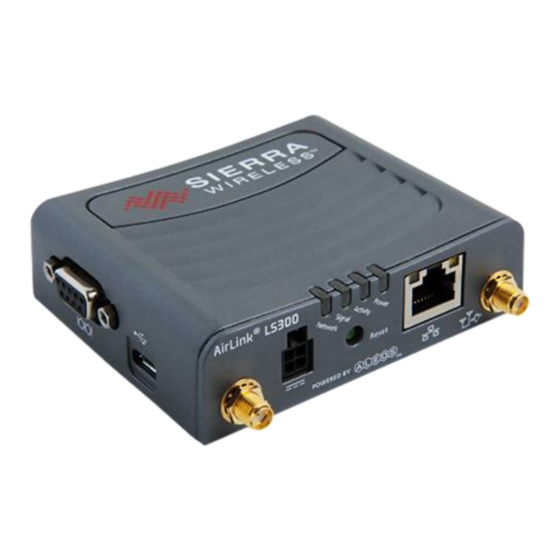

Related Manuals for Campbell LS300G-EU


Summary of Contents for Campbell LS300G-EU
- Page 1 LS300G-EU GSM/GPRS/EDGE/HSPA+ Sierra Wireless Cellular Modem Issued: 4.8.15 Copyright © 2014-2015 Campbell Scientific Inc. Printed under licence by Campbell Scientific Ltd. CSL 1082...
- Page 3 Quotations for repairs can be given on request. It is the policy of Campbell Scientific to protect the health of its employees and provide a safe working environment, in support of this policy a “Declaration of Hazardous Material and Decontamination”...
-
Page 5: About This Manual
PLEASE READ FIRST About this manual Please note that this manual was originally produced by Campbell Scientific Inc. primarily for the North American market. Some spellings, weights and measures may reflect this origin. Some useful conversion factors: Area: 1 in (square inch) = 645 mm 1 lb (pound weight) = 0.454 kg... - Page 7 • Periodically (at least yearly) check electrical ground connections. WHILE EVERY ATTEMPT IS MADE TO EMBODY THE HIGHEST DEGREE OF SAFETY IN ALL CAMPBELL SCIENTIFIC PRODUCTS, THE CUSTOMER ASSUMES ALL RISK FROM ANY INJURY RESULTING FROM IMPROPER INSTALLATION, USE, OR MAINTENANCE OF TRIPODS, TOWERS, OR ATTACHMENTS TO TRIPODS AND TOWERS...
-
Page 9: Table Of Contents
5. Overview ..............8 6. Specifications ............8 LS300G-EU Specifications ..............8 7. Installation ..............9 Base Station Requirements for LS300G-EU ........9 Datalogger Site Equipment ..............9 Wiring and Connections ..............10 7.3.1 Modem Connection to the RS-232 Port ........10 7.3.2... - Page 10 RoHS Compliance ................F-3 Figures 4-1. SIM card installation ................2 7-1. 9528 Antenna for use with the LS300G-EU modem ......10 7-2. Connections using pn #18663 Null Modem Cable ......11 7-3. Connections using the SC105 ............12 7-4.
-
Page 11: Introduction
See Section 4.1, Establish Cellular Service , for more information. (p. 2) For additional information on the LS300G-EU modem, see the Support section of the Sierra Wireless website. Before using the LS300G-EU, please study ... -
Page 12: Quickstart
IP Address and APN for GSM/GPRS/EDGE/HSPA+ service Install the SIM Card The SIM in the LS300G-EU is a smartcard that securely stores the key identifying a mobile subscriber. You will only need to install the SIM once in the life of the modem. -
Page 13: Configure Ls300G-Eu
LoggerNet) and select LS300 from the Cellular Modem group in the left panel. In the lower left, select the correct Communication Port. Select the Baud Rate. If unsure of the baud rate, click Find Baud Rate. For a new LS300G-EU, 115200 is the correct baud rate. Click Connect. - Page 14 LS300G-EU GSM/GPRS/EDGE/HSPA+ Sierra Wireless Cellular Modem On the Settings tab: Set the RS-232 Baud Rate appropriate to the datalogger being used: 115.2K for CR800 Series, CR1000, CR3000, and CR6 Series 9600 for all others Enter I2GOLD (or your custom APN) in the APN field.
-
Page 15: Set Up Loggernet
Add a datalogger to the IPPort (PakBus® dataloggers, for example the CR1000, require a PakBusPort). Select the IPPort in the Network Map. Enter the LS300G-EU IP address (or domain name) and port number. The IP address and port number are input in the Internet IP Address field separated by a colon. - Page 16 LS300G-EU GSM/GPRS/EDGE/HSPA+ Sierra Wireless Cellular Modem Example settings for a static IP address: For PakBus® dataloggers, leave the default settings for the PakBusPort. PakBus Port Always Open should not be checked.
-
Page 17: Set Up Hardware
Set Up Hardware The simplest hardware setup for modern dataloggers is to connect a null modem cable (CSI pn #18663) between the RS-232 ports of the datalogger and the LS300G-EU. See Section 7.3, Wiring and Connections (p. 10) Test the Connection After the Network Map has been configured, test the cellular connection using the Connect screen as shown below. -
Page 18: Overview
LS300G-EU GSM/GPRS/EDGE/HSPA+ Sierra Wireless Cellular Modem Overview The LS300G-EU modem may be configured in one of two ways, depending on the communications type and needs of the user. For many applications that just need a connection for data collection and datalogger maintenance or monitoring, setup as a serial server is sufficient. -
Page 19: Installation
PRCRN, R&TTE, FCC, Industry Canada, CE, RoHS Compliant, Class 1 Div 2 Installation Base Station Requirements for LS300G-EU PC running Campbell Scientific’s LoggerNet or PC400 software with access to the Internet. Datalogger Site Equipment LS300G-EU modem with power cable (included with modem). -
Page 20: Wiring And Connections
LS300G-EU GSM/GPRS/EDGE/HSPA+ Sierra Wireless Cellular Modem Figure 7-1. 9528 antenna for use with the LS300G-EU modem (other antennae are available) Power Supply (see Section 7.4, Power Considerations (p. 14) Environmental Enclosure — ENC10/12, ENC12/14, or ENC16/18. Wiring and Connections 7.3.1 Modem Connection to the RS-232 Port... -
Page 21: Modem Connections To Cs I/O Port Using The Sc105
User Manual Wiring: 12V (or switched 12V) Black White Same as Red Green No connection Figure 7-2. Connections using pn #18663 Null Modem Cable 7.3.2 Modem Connections to CS I/O Port Using the SC105 The SC105 interface is used to connect the modem to a datalogger CS I/O port, and is recommended for dataloggers with the PakBus®... -
Page 22: Connections Using The Sc105
LS300G-EU GSM/GPRS/EDGE/HSPA+ Sierra Wireless Cellular Modem Wiring: 12V (or switched 12V) Black White Same as Red Green No connection Figure 7-3. Connections using the SC105 SC105 Settings: CS I/O Mode: SDC Address 7, 8, 10, or 11 RS-232 Mode: Modem Baud Rate: 115.2K or 9600 baud depending on datalogger model... -
Page 23: Modem Connection To The Cs I/O Port Using The Sc932A
User Manual 7.3.3 Modem Connection to the CS I/O Port Using the SC932A The SC932A interface is used to connect the modem to the CS I/O port, and is recommended for dataloggers with the mixed-array operating system (for example, the CR10X). Wiring: 12V (or switched 12V) -
Page 24: Power Considerations
BP12 battery, CH150 charger/regulator, and SP10 solar panel. AceManager and Template Files Section 4, Quickstart , describes how to set up the LS300G-EU in serial server (p. 2) mode using DevConfig. AceManager along with template files can be used to set up the LS300G-EU in serial server mode or PPP. - Page 25 User Manual After entering the password and pressing enter (or clicking Log In), the following status screen is displayed. Template files from Campbell Scientific’s website (www.campbellsci.com/downloads) are used to configure the LS300G-EU modem using AceManager. Template files for the LS300G-EU Description...
- Page 26 LS300G-EU GSM/GPRS/EDGE/HSPA+ Sierra Wireless Cellular Modem Click the Template link in the top right of the screen. When prompted for a template file name, select LS300G-EU Template 115200 or LS300G-EU Template 9600. The following screen shows the settings under the Serial tab after the 115200 baud template file has been loaded.
-
Page 27: Enabling Ppp Mode
Enabling PPP Mode The first step in enabling PPP mode is using the template file to configure the LS300G-EU as described in Section 7.5, AceManager and Template Files (p. 14) After configuring the modem, you must use DevConfig to configure the datalogger for PPP mode. - Page 28 LS300G-EU GSM/GPRS/EDGE/HSPA+ Sierra Wireless Cellular Modem For the Config/Port Used, use the drop-down list to select the datalogger port you wish to use for PPP. RS-232 is the standard choice, but any port in the drop-down list can be used.
-
Page 29: Operation
Port , for more information. (p. D-1) LED Indicator Lights When your LS300G-EU is connected to power and an antenna, there is a specific pattern to the lights to indicate its operation mode. LED Colour Coding: Off – No activity ... -
Page 30: Reset Button
LS300G-EU GSM/GPRS/EDGE/HSPA+ Sierra Wireless Cellular Modem Power LED – monitors power and GPS status Off – no power or power outside operating range Red – not operational Yellow – entering low power mode or boot Green – power within range and normal operation ... -
Page 31: Can't Connect
User Manual Figure 9-1. Can’t Connect…... -
Page 32: Can't Connect, Network Light Is Green
LS300G-EU GSM/GPRS/EDGE/HSPA+ Sierra Wireless Cellular Modem Figure 9-2. Can’t Connect, Network Light is Green…... -
Page 33: One Computer Can Connect, Other(S) Cannot
User Manual Figure 9-3. One computer can connect, other(s) cannot…... - Page 34 LS300G-EU GSM/GPRS/EDGE/HSPA+ Sierra Wireless Cellular Modem...
-
Page 35: Controlling Power To The Ls300G-Eu
Campbell Scientific, Inc. Therefore, it may be necessary to use the datalogger to control power to the LS300G-EU. The following program examples show how to control power to the LS300G-EU using the switched 12V terminal on the datalogger. - Page 36 Appendix A. Controlling Power to the LS300G-EU The next program, also created by Short Cut, performs the same function as the first program (turn on SW12 for 15 minutes every 60 minutes between 9:00 a.m. and 5:00 p.m.) without using the TimeIsBetween instruction. This method should be used for CR1000, CR300 and CR800 operating systems prior to version 28.
-
Page 37: Emailsend Using The Gmail Outgoing Smtp Server
Appendix B. EmailSend Using the Gmail Outgoing SMTP Server The datalogger has a mail client in it similar to a mail client on a computer. For the datalogger to send an email, it needs an SMTP server to send through like any other mail client. -
Page 38: Sending A Text Message To A Phone
B.4 EmailSend Program Example The following example sends an email message when an alarm condition is True. Both the CR1000 and LS300G-EU modem must be configured as PPP as described in Section 7.5, AceManager and Template Files , and Section 7.6, (p. - Page 39 Appendix B. EmailSend Using the Gmail Outgoing SMTP Server BeginProg Scan (1,Sec,3,0) Battery (Batt) PanelTemp (RefTemp,250) TCDiff (Temp,1,mV2_5C,1,TypeT,RefTemp,True ,0,250,1.0,0) CallTable TenSecData NextScan SlowSequence Delay (1,1,Sec) 'Approximately every 1 second, check for an email alarm condition 'If the temperature has transitioned from below 27 degC to 'to above 28 degC, send an email alarm message If AlarmTrigger = False Then If Temp >...
- Page 40 Appendix B. EmailSend Using the Gmail Outgoing SMTP Server...
-
Page 41: Configuring The Ls300G-Eu For Dynamic Ip
LS300G-EU can be contacted by name as if it had a static IP. IP Manager is a free service provided by Sierra Wireless for the LS300G-EU to translate a dynamic IP address into a fully-qualified domain name, so it can be contacted directly on the Internet. - Page 42 Appendix C. Configuring the LS300G-EU for Dynamic IP Restrictions for Device Name: Must begin with a letter or number Can include a hyphen (-) Cannot contain spaces Must be no longer than 20 characters total Verify that the Domain, IP Manager Server 1, and IP Manager Server 2 are the same as above.
-
Page 43: Serial Server Mode With Dynamic Ip
Appendix C. Configuring the LS300G-EU for Dynamic IP Figure C-1. Serial Server Mode with Dynamic IP... - Page 44 Appendix C. Configuring the LS300G-EU for Dynamic IP...
-
Page 45: Using The Ls300G-Eu Ethernet Port
The following example can be used to communicate with a CR1000 / NL121 via the LS300G-EU Ethernet port. Port forwarding in the LS300G-EU needs to be enabled and specific ports need to be forwarded to the CR1000 (in this case ports 80 and 6785). - Page 46 CR1000 via LoggerNet using the public IP address of the LS300G-EU and port 6785. You can also open a web browser and enter the public IP address of the LS300G-EU to see the default web...
-
Page 47: Ls300G-Eu Settings
Appendix E. LS300G-EU Settings All of the LS300G-EU settings available from the Settings Editor in DevConfig are described below. E.1 Modem Status Tab Model (read only) Specifies the model for this phone modem. Modems Phone Number (read only) Shows the modems phone number associated with the account. -
Page 48: Settings Tab
Appendix E. LS300G-EU Settings Modems IP Address (read only) Reports the IP address currently assigned to the modem by the cellular network. This value will always be assigned by the network. In the case of a static IP address, the network will issue the same address each time that the modem connects. - Page 49 Appendix E. LS300G-EU Settings IP Manager Specifies whether the modem will support dynamic DNS with eairlink.com using the value provided by the Modem Name setting. This value will be set to Disabled when Load CSI Settings is used. IP Manager Server 1 Update (Min) Specifies the interval, in minutes, at which the modem will send an IP address update notification to the first IP Manager server.
- Page 50 Appendix E. LS300G-EU Settings...
-
Page 51: Regulatory Information
Appendix F. Regulatory Information This information provided by Sierra Wireless. F.1 Important Information for North American Users NOTE This equipment has been tested and found to comply with the limits for a Class A digital device, pursuant to part 15 of the FCC Rules. These limits are designed to provide reasonable protection against harmful interference when the equipment is operated in a commercial environment. -
Page 52: Declaration Of Conformity
Appendix F. Regulatory Information F.3 EU Sierra Wireless hereby declares the AirLink LS300 devices is in compliance with the essential requirements and other relevant provisions of Directive 1999/5/EC. The LS300 displays the CE mark. WARNING Changes or modifications to this device not expressly approved by Sierra Wireless could void the user’s authority to operate this equipment. -
Page 53: Rohs Compliance
Appendix F. Regulatory Information F.6 RoHS Compliance... - Page 54 CAMPBELL SCIENTIFIC COMPANIES Campbell Scientific, Inc. (CSI) 815 West 1800 North Logan, Utah 84321 UNITED STATES www.campbellsci.com info@campbellsci.com Campbell Scientific Africa Pty. Ltd. (CSAf) PO Box 2450 Somerset West 7129 SOUTH AFRICA www.csafrica.co.za sales@csafrica.co.za Campbell Scientific Australia Pty. Ltd. (CSA)
Need help?
Do you have a question about the LS300G-EU and is the answer not in the manual?
Questions and answers