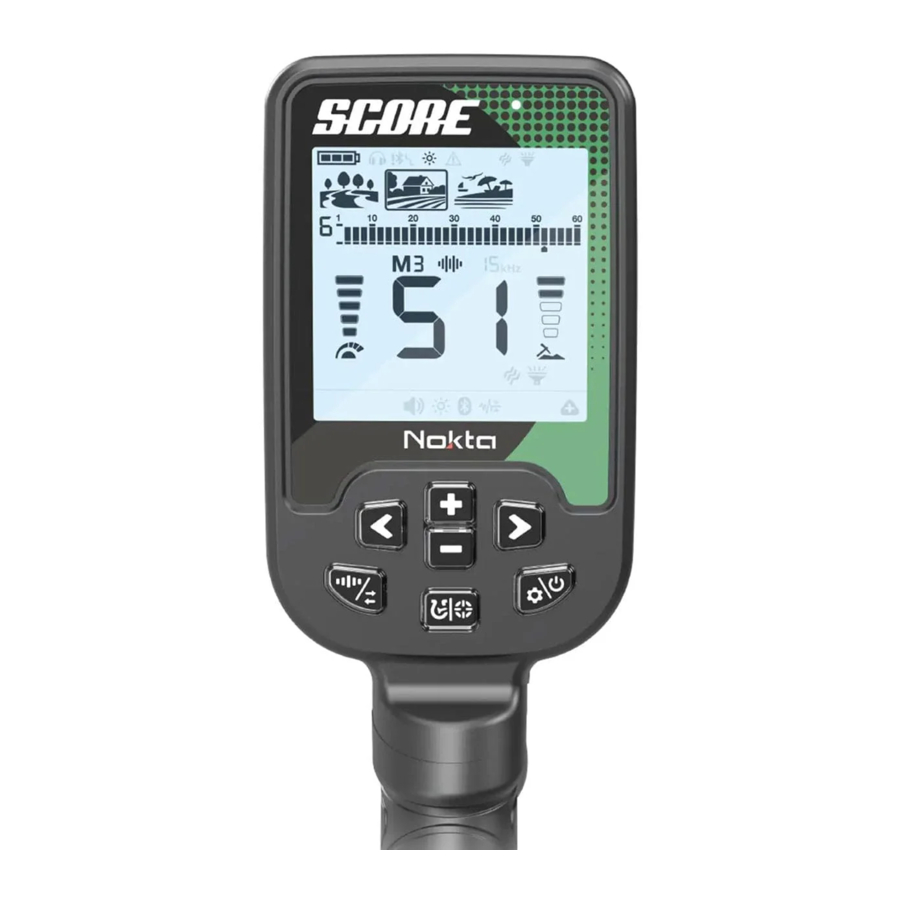
Advertisement
- 1 ASSEMBLY
- 2 INTRODUCTION TO THE DEVICE
- 3 DISPLAY
- 4 BATTERY INFORMATION
- 5 CORRECT USE
- 6 QUICK GUIDE
- 7 COMMON AND MODE-BASED SETTINGS
- 8 SEARCH MODES
- 9 SENSITIVITY
- 10 DEPTH INDICATOR
- 11 FREQUENCY
- 12 NOISE CANCELLATION
- 13 TARGET ID
- 14 DISCRIMINATION PATTERNS
- 15 PINPOINT
- 16 SETTINGS
- 17 REVERTING BACK TO FACTORY DEFAULTS
- 18 WARNING MESSAGES
- 19 SOFTWARE UPDATE
- 20 SAFETY WARNINGS
- 21 Documents / Resources
ASSEMBLY
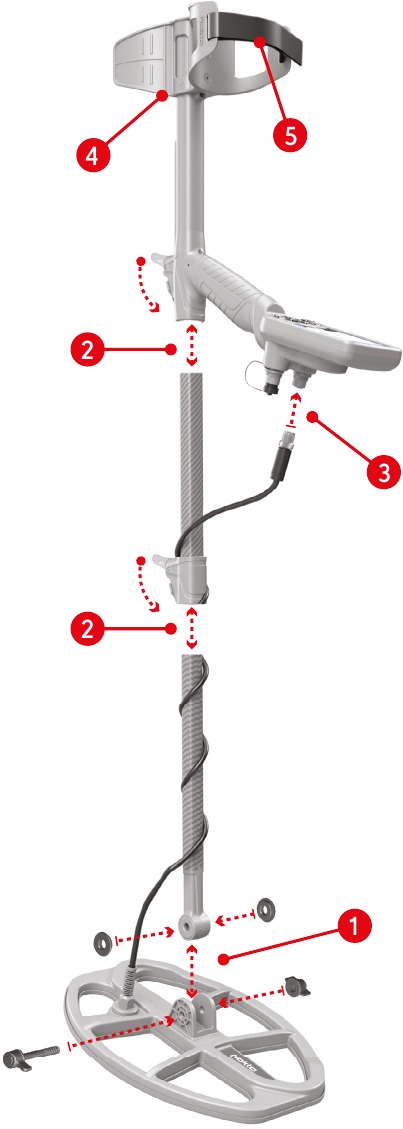
- After inserting the washers on the lower shaft, place the lower shaft in its location on the search coil. Secure by tightening the screw and nut. Do not overtighten.
- To join the middle rod with the upper and lower rods, open the lever latches and engage the pieces together. After adjusting the length of the device to your height, press the latches to secure.
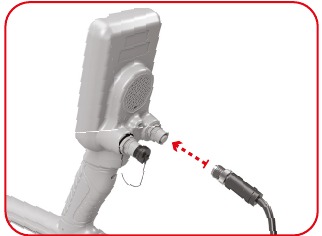
- Wind the search coil cable on the shaft without stretching too much. Then, plug the connector to the search coil input socket on the system box and secure by tightening the nut. While tightening, you may hear clicks indicating that the connector is secured.

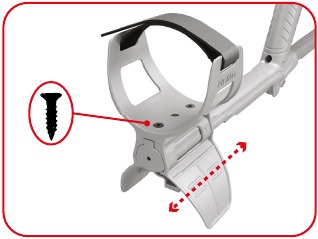
- If you want to adjust the armrest, first remove the screws. After sliding the armrest up or down one level, align the holes and secure by tightening the screws.
You can attach the spare screw to the empty hole if you do not want to lose it.

- Insert the armrest strap as shown in the picture and adjust it to your arm size and tighten.
INTRODUCTION TO THE DEVICE
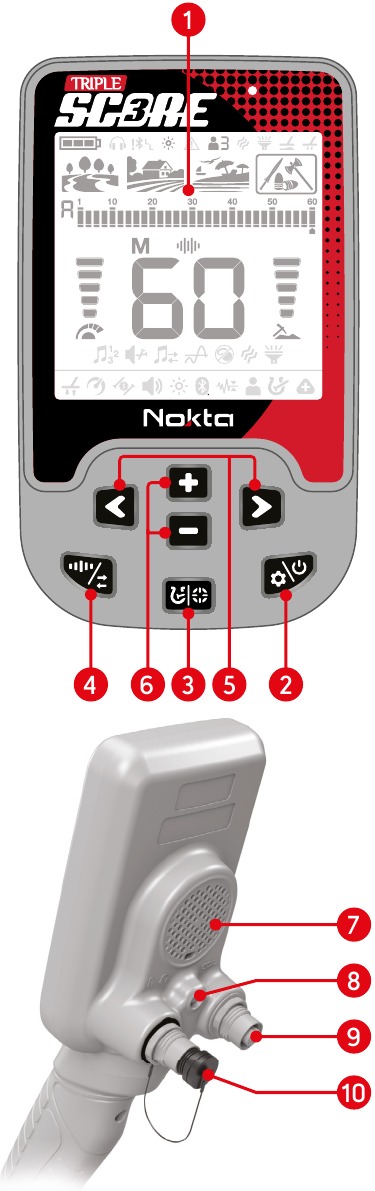
- LCD Screen
- Power & Settings Button To turn the device on, press the button for 3 seconds. To enter or exit settings, press once. To turn the device off, press and hold.
![warning]() Note: While in settings, pressing the button long will not turn the device off.
Note: While in settings, pressing the button long will not turn the device off. - Pinpoint & Discrimination Button Long pressing this button on the main screen is used for pinpoint. Short pressing this button allows you to switch between different discrimination options.
- Frequency & Noise Cancellation Button Short pressing this button allows you to select the operating frequency amongst the multi and single frequencies. Long pressing this button allows you to noise cancel automatically.
- Right & Left Buttons On the main screen, they are used to navigate between the modes and in the settings menu, they are used to navigate through the settings.
- Plus (+) & Minus (-) Buttons On the main screen, they are used to increase or decrease the sensitivity and in the settings menu, they are used to change the level of a setting.
- Speaker
- LED Flashlight
- Search Coil Input Socket
- Wired Headphones and Charging Input Socket I
![]()
If no headphones or charging cable is plugged in the socket, please keep it closed with the screw cap.
 Note: While in settings, pressing the button long will not turn the device off.
The highest model TRIPLE SCORE is used throughout this manual for illustration purposes. Some of the features and settings shown are NOT present in the SCORE and DOUBLE SCORE models.
DISPLAY
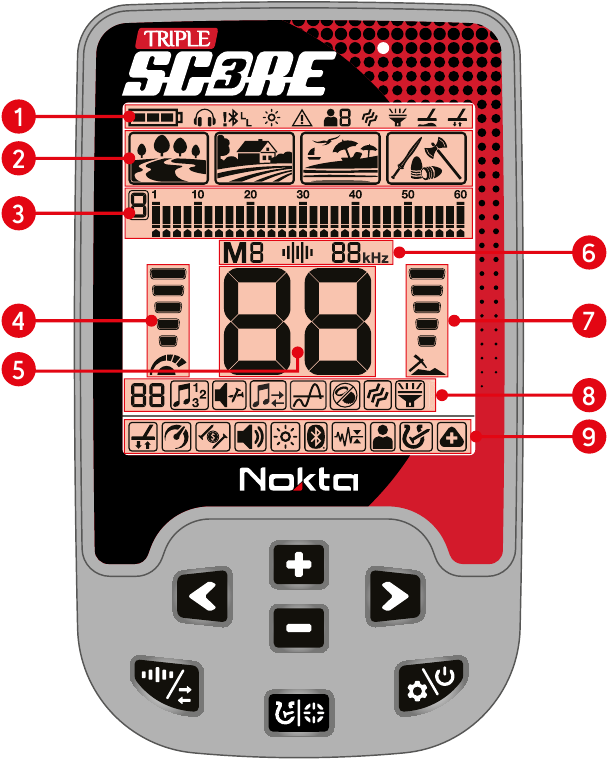
- Info Bar
- Search Modes
- Target ID Scale and Rejected IDs and Pinpoint Indicator
- Sensitivity Indicator
- Target ID
- Operating Frequency
- Depth Indicator
- Sub-settings
- Settings
BATTERY INFORMATION
SCORE has an internal 3250mAh Lithium Polymer battery.
Battery runtime varies between 5-12 hours. Factors such as operating frequency, usage of speaker or wired/wireless headphones, display backlight, LED flashlight etc. will affect battery runtime.
Charging
Charge the SCORE before initial use.
Charging an empty battery will take approximately 3-4 hours.
To charge the battery, insert one of the ends of the cable supplied with the device to the wired headphones / charger input socket and the other end to the charging adapter.
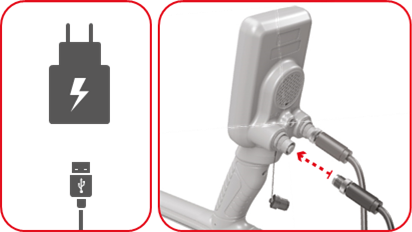
You can use a regular, 5V 2A (minimum) USB power adapter to charge the device. The charging time will increase if you charge the device through the USB port on a PC.
The green LED light flashes when the device is charging. When charging is complete, the green LED lights up steady and the battery icon shows 3 bars indicating full charge.
Operating with a Powerbank
You can also power and charge the battery with a powerbank. To do this, just insert one of the ends of the cable supplied with the charger to the wired headphones / charger input socket and the other end to the powerbank. Please note that you will not be able to attach wired headphones to the device when a powerbank is attached to the device.
Do NOT use the detector underwater while connected to a power bank.
WATERPROOF REPLACEABLE SPARE BATTERY
Optionally available separately, this waterproof and rechargeable battery can be used when the device's internal Lithium Polymer battery is depleted and you are unable to charge the battery.
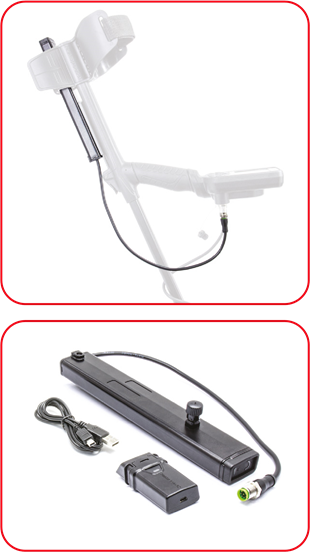
Low Battery Level
Battery icon on the display shows the battery life status. When the charge decreases, the bars inside the battery icon decrease, too.

When battery is depleted, ''Lo'' message appears on display and the device shuts down.
BATTERY WARNINGS
Do not expose the device to extreme temperatures (for example a car's trunk or glove compartment)
Do not charge the battery in temperatures over 35°C (95°F) or below 0°C ( 32°F).
SCORE battery can only be replaced by Nokta Detectors or its authorized service centers.
CORRECT USE
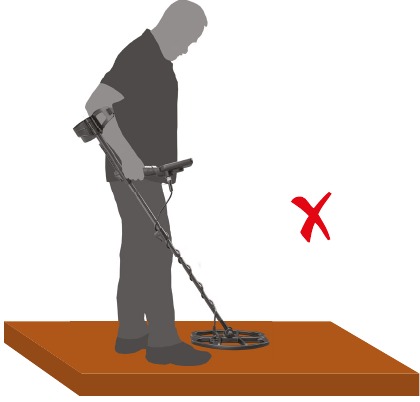
While detecting, the device may detect the metal objects you're carrying or your shoes and generate false signals.
While detecting, the device will not detect the metal objects you're carrying or your shoes and it will not generate false signals.
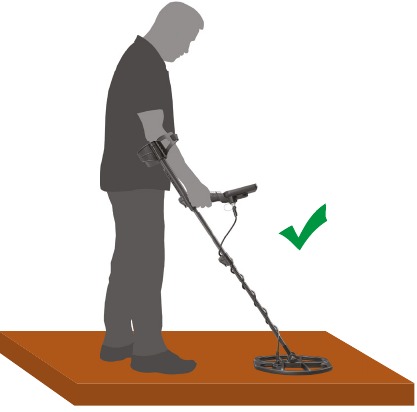
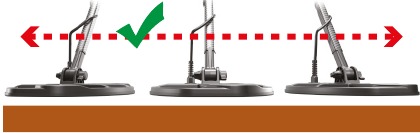
CORRECT WAY OF SWEEPING
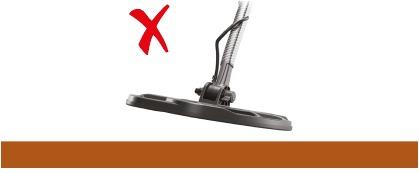
Wrong search coil angle
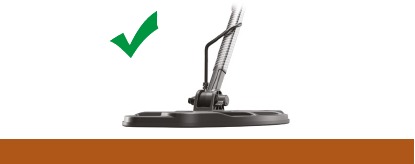
Correct search coil angle
Correct way of sweeping
The search coil must be parallel to the ground at all times.
QUICK GUIDE
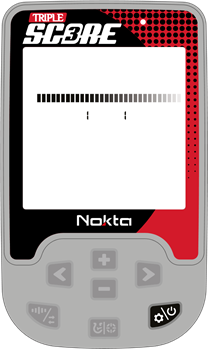
- Press and hold the Power & Settings Button for 3 seconds to turn on the device. A loading bar and the software version below it will appear on the screen.
![]()
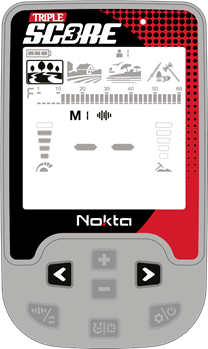
- When the device is turned on, it will start in the Park mode and in Multi frequency. You can change the mode based on ground conditions. You can find more details on search modes and frequencies further in this manual.
![]()
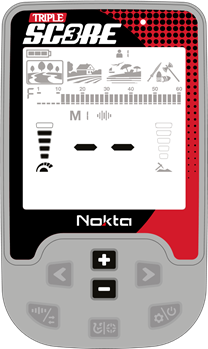
- You can increase the sensitivity using the Plus (+) & Minus (-) Buttons if needed. Increasing the sensitivity will offer you greater depth. However, if the surroundings or the ground cause excessive noise in the device, you need to lower the sensitivity setting.
![]()
- If the device receives noise when you increase the sensitivity setting, you can turn on the Noise Cancellation by long pressing the Frequency & Noise Cancellation button before decreasing the sensitivity setting.
![]()
- You can start detecting!
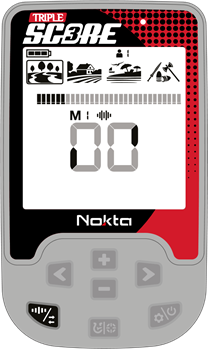
COMMON AND MODE-BASED SETTINGS
Certain settings are common to all modes; changes in these settings will take effect in all modes.
Most of the settings are mode based and they only affect the mode currently selected; changes made in one mode do not affect the others.
Common settings and mode-based settings are shown below:
Common Settings

Sensitivity

Volume

Backligh

Bluetooth

Vibration

LED Flashlight
Mode-Based Settings

Custom Discrimination Pattern

Frequency / Noise Cancellation

Ground Balance

Recovery Speed

Deep Target Identification (dt)

Iron Filter

Iron Reject (Ir)

Ground Suppressor

Audio Gain (AG)

Notch

Number of Tones

Iron Volume

Tone Break

Threshold

Bottle Cap Rejection
SEARCH MODES
SCORE and DOUBLE SCORE has 3, TRIPLE SCORE has 4 search modes designed for different terrains and targets.

Navigating Through Search Modes
You can navigate through the modes easily by using the Right & Left Buttons. The selected mode will be framed.
PARK

Designed for coin and jewelry hunting in urban areas and parks where there are lots of modern trash (aluminum foil, pull-tabs, bottle caps etc.) present. There are 3 tones in Park Mode in SCORE and DOUBLE SCORE models. Device produces a low tone for ferrous targets with 01-10 IDs, a medium tone for gold and non-ferrous metals with IDs 11-41 and a high tone for non-ferrous metals with IDs 41-60 such as silver, brass and copper. In TRIPLE SCORE the default Number of Tones is set to 2 but in this model the user can change the Number of Tones.
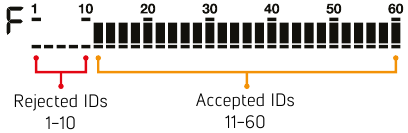
This mode is optimized for mid to large coins and jewelry. The default discrimination is set to reject Target IDs up to and including 10 to eliminate ferrous targets.
To avoid targets such as aluminum, you can utilize the Custom Discrimination Pattern. In this pattern, the default discrimination is set to reject Target IDs up to and including 12.
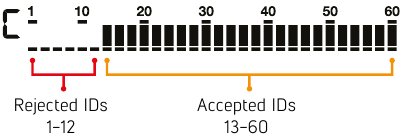
Gold targets may fall between 11-12 IDs. When this pattern is selected, you cannot detect targets with 11-12 IDs.
Aluminum foil typically generates a Target ID of 11. However, depending on the shape, its ID can go up to 20.
Both single frequencies and multi frequency can be used in this mode. Based on target type, you can choose the frequency you want. Multi frequency in Park mode will allow for maximum depth and separation. Thus, a slight noise can be experienced.
Bottle caps are unwanted targets for detectorists and they are mostly detected as non-ferrous targets by metal detectors. Bottle Cap Rejection setting is added to the Park mode by default in SCORE and DOUBLE SCORE models. This features enables you to discriminate bottle caps as iron. This feature works in Multi frequency only. In the TRIPLE SCORE model, Bottle Cap Rejection can be adjusted by the user and the default value is set to zero (0).
FIELD

Recommended for coin and relic hunting in pasture and cropped/plowed fields.
These fields may contain ferrous trash and coke. To detect coins and relics more easily amongst these trash items, you can use the Custom Discrimination Pattern. In this pattern, the default discrimination is set to reject Target IDs up to and including 12. There are 2 tones in this mode and the tone break point is set to 12 in SCORE and DOUBLE SCORE models. The Number of Tones and the Tone Break point levels are set to 2-tone and 12 respectively in Field mode in SCORE and DOUBLE SCORE models and cannot be changed by the user. In the TRIPLE SCORE model, the Number of Tones and the Tone Break points can be adjusted by the user.
Both single frequencies and multi frequency can be used in this mode. Multi frequency in Field mode will allow for maximum depth and separation.
The ID resolution of IDs 11-15 is different in Park versus the Field mode. You may get a different ID in each mode for targets that fall within this ID range.
Park and Field modes offer 3 different Multi frequencies as Multi-1 (M1), Multi-2 (M2) and Multi-3 (M3). For details, please refer to the Frequency section.
In Park and Field modes different algorithms are run in M3 Multi frequency. In trashy sites, M3 Multi frequency in Park mode should be preferred. When a target is isolated underground, the ID will be the same in both modes. However, if the target is next to trash such as aluminum foil, Multi 3 in Park mode will generate a more accurate ID for the target.
BEACH

This mode is optimized for use on dry or wet beach sand as well as for underwater use up to 5m. (16ft.).
The salt typically present in beach sand and sea causes the sand and water to be very conductive generating noise and false signals. Single frequency detectors cannot work in these environments or they under-perform. Multi frequency can minimize this noise allowing for maximum performance in these environments.
For these reasons, single frequency cannot be used in the Beach mode. When Beach mode is selected, the device automatically switches to Multi frequency and single frequency cannot be selected.
In SCORE and DOUBLE SCORE models, Number of Tones in Beach mode is set to 2-tone and the Tone Break point level is set to 10, and it cannot be changed by the user. In the TRIPLE SCORE model, the Number of Tones and the Tone Break point can be adjusted by the user.
Black Sand
Some beaches are covered with black sand which contains natural iron. These types of beaches make metal detection almost impossible. Beach mode senses black sand automatically and displays a warning icon on the top of the screen in the info section.

When this icon disappears, the device resumes its normal operation.
After submerging the device underwater and taking it out, the speaker cover may be filled with water and the device's audio may be muffled. This is normal. In such a case, shake off the water that's inside the speaker cover lightly and the audio will go back to normal.
RELIC

Very deep targets may have values close to the surrounding soil and therefore may not be detected. Relic mode allows you to detect targets at depths that cannot be detected in other modes. This mode resets the ground balanced soil, allowing deep coins and large masses to be detected by the detector. However, in this mode, targets at fringe depths may not give an ID or their ID may be unstable.
Only Multi frequency works in Relic mode.
In Relic mode, the volume and frequency of the sound in target detection change in proportion to the strength of the signal. Therefore, in Relic mode, there are no settings for the Number Tones, Iron Volume, or Tone Break Point. Relic mode also lacks the Iron Filter, Ground Suppressor, and Bottle Cap Rejection features found in other modes. Relic mode has Iron Reject (Ir) and Audio Gain (AG) features that are not available in other modes.
Differences Between Search Modes in SCORE and DOUBLE SCORE Models:
In Park mode, the Number of Tones is set to 3-tone, while in Field and Beach modes, the Number of Tones is set to 2-tone.
In Park mode, the Bottle Cap Rejection feature is set to level 6, while in Field and Beach modes, it is set to level 0.
In the SCORE, Iron Filter feature is set to a higher level (8) in the Park and Beach modes, and in the Field mode to a lower level (3) by default.
SENSITIVITY

Sensitivity is the depth setting of the device. It is also used to eliminate the ambient electromagnetic signals from the surrounding environment and noise signals transmitted from ground.
The sensitivity setting is 15 levels in TRIPLE SCORE, 10 levels in DOUBLE SCORE and 5 levels fin SCORE.
Sensitivity setting is a personal preference. However, It is important to set the sensitivity to the highest level possible where no major popping sounds are heard to avoid missing smaller and deeper targets.
Sensitivity is a common setting for all modes and changes to this setting will affect them all.
Adjusting the Sensitivity
On the main screen, use the Plus (+) & Minus (-) Buttons to increase or decrease the sensitivity level. Single click to change the levels one by one or hold down to change them rapidly. The sensitivity level is displayed in the Target ID display.
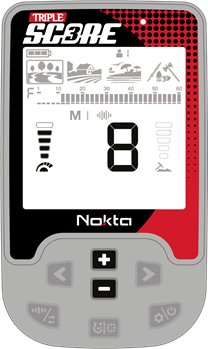
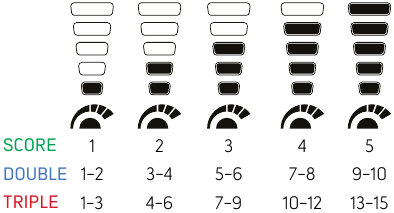
The Sensitivity Indicator is located on the left side of the Target ID. The indicator consists of 5 bars. Each bar represents 3 levels of sensitivity for TRIPLE SCORE, 2 levels of sensitivity for DOUBLE SCORE and 1 level of sensitivity for SCORE.
The sensitivity values corresponding to each level on the Sensitivity Indicator are shown below:
The device always starts with the last adjusted sensitivity level.
To obtain maximum depth performance, to eliminate the noise caused by electromagnetic interference, try noise canceling automatically first before decreasing the sensitivity level.
DEPTH INDICATOR

The device provides an estimated target depth according to the signal strength during detection.
Depth Indicator shows the target's proximity to the surface in 5 levels during detection. As the target gets closer, the levels decrease and vice versa.
Depth detection is adjusted presuming that the target is a 2.5cm (1'') coin. Actual depth varies according to the size of the target. For instance, the detector will indicate more depth for a target smaller than a 2.5cm (1'') coin and less depth for a larger target.
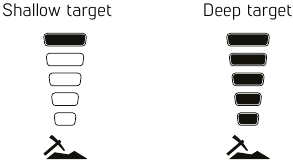
As the operating frequency of the device has a direct impact on the device, the estimated depth may vary for the same target during frequency changes.
FREQUENCY

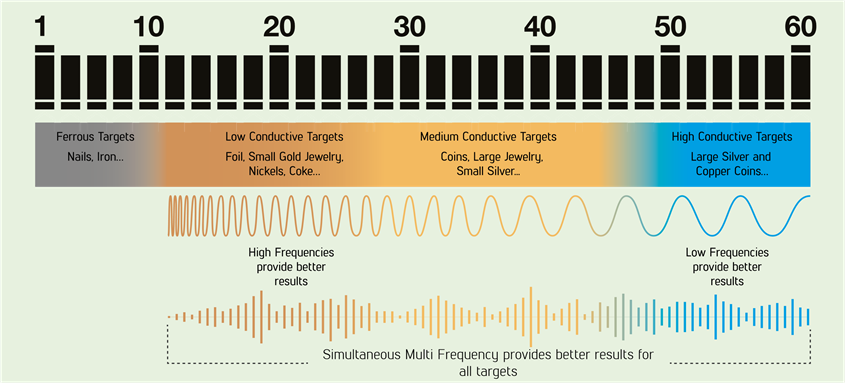
SCORE offers Multi frequency (M1/M2/M3), where a wide range of frequencies work simultaneously, as well as single frequencies. In SCORE and DOUBLE SCORE models, only 15 kHz is available as a single frequency. In the TRIPLE SCORE model, the user can select 4 kHz, 15 kHz, and 20 kHz frequencies.

You can switch between frequencies easily by short pressing the Frequency & Noise Cancellation Button. Noise cancellation can be performed by long pressing the same button.
It is recommended to use Multi frequency in all modes. When Multi frequency is selected the letter ''M'' appears on the screen. When a single frequency is selected, the frequency is shown numerically on the screen.
Frequency only affects the mode currently selected; changes made in one mode do not affect the others.
In areas where there is electromagnetic interference, single frequencies may be less noisy compared to Multi frequency. However, they will be less sensitive to many targets at the same time.
Multi Frequency
Multi frequency which runs multiple frequencies simultaneously gives the user the advantage of covering a broader range of targets on all types of terrains.
In addition, it offers maximum depth for a large range of metals with different sizes on wet salt beach sand and underwater by minimizing ground noise.
Modes and Frequencies
Different than the Beach and Relic modes, Park and Field modes offer 3 Multi frequencies as Multi-1 (M1), Multi-2 (M2) and Multi-3 (M3). M1 is more sensitive to higher conductors while the M2 detect lower conductors better.
M3 is ideal for humid, wet and/or conductive soils. It reduces the effect of moisture in soils which can cause falses. It also weakens the response of targets generating 10-11 IDs such as coke and aluminum foil.
NOISE CANCELLATION
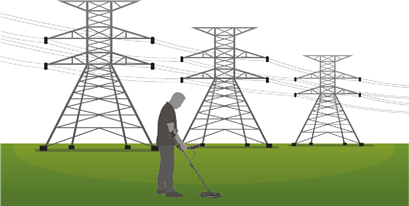
It is used to eliminate the electromagnetic interference that the device receives from another detector which operates in the same frequency range nearby or from the surroundings (high voltage power lines, cellular base stations, wireless radios and other electromagnetic devices).
There are 13 channels available for all frequencies including Multi frequency. The default channel is 1.
Noise Cancellation only affects the mode and frequency currently selected; changes made in one mode does not affect the other modes or frequencies.
If too much noise is received when the search coil is lifted in the air, this may be caused by the local electromagnetic signals or high sensitivity level.
To obtain maximum depth performance, to eliminate the noise caused by electromagnetic interference, try Noise Cancellation first before decreasing the sensitivity level.
Detectors may become noisy due to electrical interference and may exhibit erratic behavior such as loss of depth or unstable target ID. The Noise Cancellation setting allows you to eliminate unwanted noise.
Noise Cancellation
- Before doing a noise cancellation, lift the device up in the air as shown in the picture and hold it still until the process is completed.

- You can start the Noise Cancelling by long pressing the Frequency & Noise Cancellation Button.
![]()
- When the process is done, automatically selected channel number will be displayed and a confirmation sound will be heard.
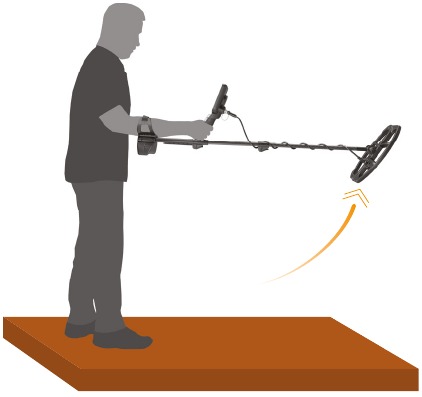
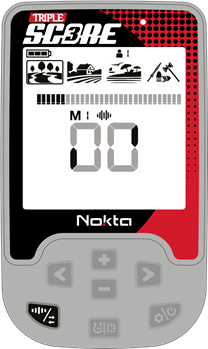
Noise Cancellation selects the quietest channel based on various criteria. However, sometimes the selected channel may still present some noise.
TARGET ID
Target ID (2-Digit number in the middle of the screen) is the number produced by the metal detector based on the conductivity of the metals and gives an idea to the user about what the target may be.
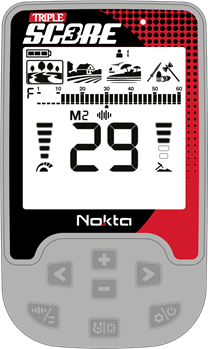
Target ID is shown with two digits on the display and ranges between 01-60.
SCORE's Target ID scale consists of 30 lines and each line represents 2 Target IDs.

In addition to showing the Target ID in the middle of the screen, the ID is also marked with a small cursor under the ID scale.
Ferrous range is 1-10.
Non-ferrous range is 11-60.
In some cases, the device may produce multiple IDs for the same target. In other words, the IDs may be jumpy. This may result from several factors. Target orientation, depth, purity of the metal, corrosion, mineralization level of the soil etc. Even the direction of the search coil swing may cause the device to generate multiple IDs.
In some cases, the device may fail to provide any ID. The device needs to receive a strong and a clear signal from the target in order to provide an ID. Therefore, it may not be able to provide an ID for targets at fringe depths or smaller targets even if the device detects them.
Keep in mind that Target IDs are "probable", in other words, estimated values and it would not be possible to know the properties of a buried object exactly until it is dug out.
IDs of non-ferrous metals such as copper, silver, aluminum and lead are high. Target ID range of gold is wide and may fall within the same range of metal wastes such as foil, screw caps, and pull tabs. Therefore, if you are looking for gold targets, digging out some trash metals is expected.
Coins searched throughout the world are made of different metals and in different sizes in different geographical locations and historical eras. Therefore, in order to learn the Target IDs of the coins in a specific zone, it is suggested to perform a test with the samples of such coins, if possible.
It may take some time and experience to make best use of the Target ID feature in your search area. Different brands and models of detectors produce different Target ID numbers.
DISCRIMINATION PATTERNS

SCORE offers advanced discrimination setting to users for an easier operation.
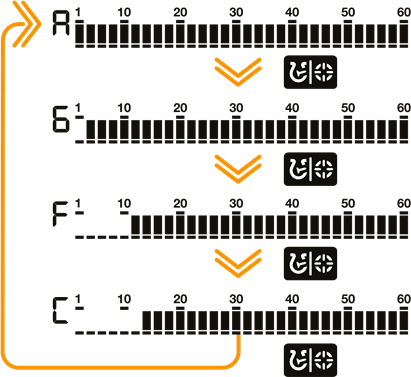
By using the Pinpoint & Discrimination Button, you can select one of the 3 different discrimination pre-set patterns and 1 separation pattern that is completely under the user's control.
The default discrimination pattern for Park, Field, Beach modes is the ''F'' discrimination pattern which stands for Ferrous Off. The default discrimination pattern for Relic mode is the All Metals (A) discrimination pattern.
In SCORE, two IDs are rejected or accepted at the same time.
The discrimination setting only affects the mode currently selected; changes made in one mode do not affect the others.
All Metal Discrimination Pattern

In this pattern all ID's are accepted on the ID scale (1-60). In other words, all the lines on the scale are visible and no ID is rejected. The device will emit an audio response for all metals as well as the ground and their IDs will be displayed on the screen.
Ground Off Discrimination Pattern

In this pattern, the device will not receive ground noise and will not provide any audio or Target ID for it. Target IDs 1 and 2 are turned off (rejected) and the rest are open (accepted).
Ferrous Off Discrimination Pattern

In this pattern, the device will not provide any audio or Target ID for ferrous targets. Target IDs 1 - 10 are turned off (rejected) and the rest are open (accepted).
Custom Discrimination Pattern

This pattern allows users to create their own discrimination pattern according to the type of targets they would like to accept and reject. Rejected IDs will vary based on the search mode.
Accepting and rejecting IDs are also referred to as ''notch'' and this function is available on the TRIPLE SCORE and DOUBLE SCORE models.
The default, accepted and rejected IDs in the Custom Discrimination Pattern for each mode are shown in the table below:
| Search Mode | Rejected IDs | Accepted IDs |
| PARK | 1-12 | 13-60 |
| FIELD | 1-12 | 13-60 |
| BEACH | 1-10 | 11-60 |
| RELIC | 1-10 | 11-60 |
Default Discrimination Patterns
| Search Mode | Discrimination Patterns |
| PARK | Ferrous Off (F) |
| FIELD | Ferrous Off (F) |
| BEACH | Ferrous Off (F) |
| RELIC | All Metal (A) |
Selecting a Discrimination Pattern
The discrimination pattern changes each time you press the Pinpoint & Discrimination Button on the main screen.
PINPOINT

Pinpoint is to find the center or the exact location of a detected target.
SCORE is a motion detector. In other words, you are required to move the search coil over the target or the target over the search coil in order for the device to detect the target. The pinpoint mode is a non-motion mode. The device continues to give a signal when the search coil is kept stationary over the target.
When the Pinpoint & Discrimination Button is pressed, unused icons are cleared from the screen. PP appears on the screen.
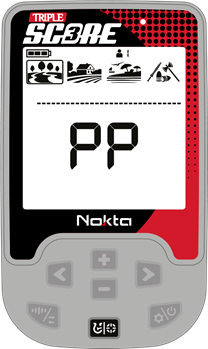
In the pinpoint mode, the device does not discriminate metals or provide Target IDs.
To perform pinpoint:
- After a target is detected, move the search coil aside where there is no target response and push the Pinpoint & Discrimination button.

- Keep the button pressed down and bring the search coil closer to the target slowly and parallel to the ground.

- Signal sound becomes stronger and changes in pitch while getting closer to the target center and the bars in the ID Scale start filling up from the outside to the inside.

- Mark the position which provides the loudest sound using a tool or your foot.

- Repeat the above procedure by changing your direction 90°. Actions to be performed from a couple of different directions will narrow the target area and provide you with the most exact details of the target location.






SETTINGS

To enter the settings menu, press the Power & Settings Button once. Once the button is pressed all the settings will be displayed at the bottom of the screen. The selected setting will be framed. For better visibility, it will flash and its level will be displayed on screen.
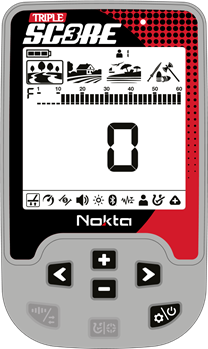
You can navigate through the settings using the Right & Left Buttons.
You can adjust the level of a setting using the Plus (+) & Minus (-) Buttons.
Press the Power & Settings Button once to exit the settings menu.
Ground Balance


SCORE is designed to work without ground balancing on most terrains. However, for experienced users and on highly mineralized grounds, ground balancing will bring extra depth and stability to the device.
Ground balance can be performed in 2 ways: Automatic and Manual.
Ground balance cannot be performed in Relic mode.
Ground balance only affects the mode currently selected; changes made in one mode do not affect the others.
The device ground balances between 0-20 in the Beach mode and within the range of 0-99 in all other modes.
Automatic Ground Balance
Automatic ground balance is performed as follows in all search modes:
- Find a spot where there is no metal.

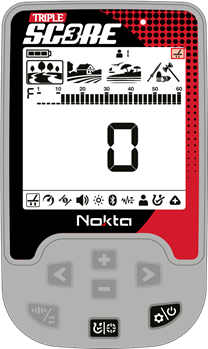
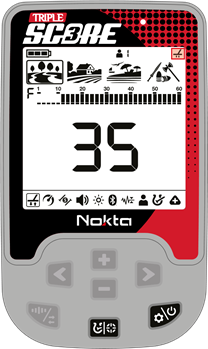
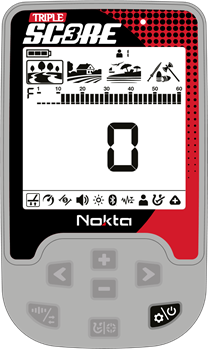
- Press the Power & Settings Button to scroll to the ground balance setting and press and hold the Pinpoint & Discrimination Button. The ground balance icon will start blinking in the info section at the top and the ground balance level will be displayed in the middle of the screen. If no ground balancing has been performed before, this level will always be zero (0).
![]()
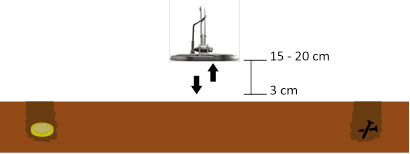
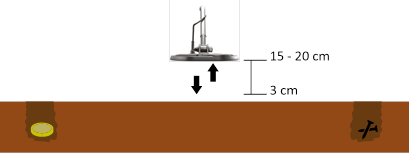
- Start pumping the search coil up and down from about 15-20 cm (~6''- 8'') above the ground down to 3 cm (~1'') off the ground with smooth movements and keeping it parallel to the ground.

- Continue until the audio reduces in response to the ground. Based on ground conditions, it usually takes about 5-6 pumps for the ground balance to be completed.

- Upon completion of the ground balance, ground balance level is shown in the Target ID section on the display. In order to ensure that the ground balance is proper, ground balance at least 2-3 times and check the ground balance levels on the display. In general, the difference between the levels shall not be higher than 1-2 numbers.
![]()
- If you cannot ground balance, it means that either the ground is too conductive or not mineralized or there is a target right below the search coil. In such a case, retry ground balancing at a different spot.
![]()
The device will automatically reset the Ground Balance value to zero (0) when Ground Balance cannot be done in Park and Field modes.
![]()
After performing Automatic Ground Balance in Beach mode, if the Noise Cancellation feature is activated, please Ground Balance again for better detection.

Manual Ground Balance
Allows you to manually modify the ground balance level. It is not preferred mostly because it takes time. However, it is the preferred option in cases where a successful ground balance cannot be performed using other methods or minor corrections are required to the automatic balance.
- Find a clear spot without metals.

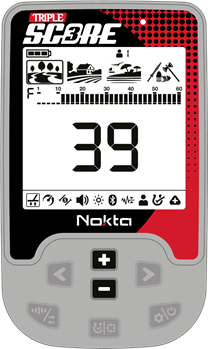
- Press the Power & Settings Button to scroll to the ground balance setting. The ground balance level will be displayed in the middle of the screen.
![]()
- You need to listen to the sounds coming from the ground in order to perform manual ground balance. Pump the search coil up and down from about 15-20 cm (~6''- 8'') above the ground down to 3 cm (~1'') off the ground with smooth movements and keeping it parallel to the ground.

- If you are getting a low tone while pumping the coil, it means that that you should increase the ground balance value using the Plus (+) Button. On the other hand, if you are getting a high tone, you should decrease the ground balance value using the minus (-) button.
![]()
- Continue the above process until the ground response is eliminated.
The ground balance value may vary in single frequency and Multi frequency in certain soil types.
The sound may not be eliminated completely on certain terrains. In this case, if the ground noise is minimized, it means that the ground balance has been done.
Ground Tracking
The device tracks the changes in the ground during detection and updates the ground balance automatically. Ground changes that are not visible to the eye will affect the depth and discrimination performance of the detector.
Press the Power & Settings Button to scroll to the ground balance setting. Press the Pinpoint & Discrimination Button once. In the info section, at the top of the screen, ground tracking icon will appear.
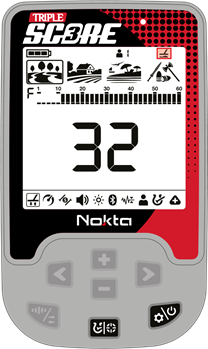
The device updates the ground balance automatically as long as the search coil is swung over the ground. It does not provide any feedback to the user.
Tracking is suitable for use in areas where different soil structures are present within the same land or in fields where mineralized rocks are scattered widely apart. If you use ground tracking in areas where hot rocks are intensely present, the device may not be able to eliminate these highly mineralized rocks or you may miss the smaller or deeper metals.
When the Tracking feature is activated, the ground balance level flashes on the screen. In Relic mode, when the second ground balance (please refer to the next section) is activated while the tracking feature is on, the ground balance level will be shown steady.
Ground Balancing on the Beach
In DOUBLE SCORE and TRIPLE SCORE models, users are provided with a Stability setting in addition to Ground Balance. This setting reduces noise and false signals received from the ground on the beach, allowing for more convenient searches.
Users, if they wish, can achieve the most suitable settings for their surroundings by performing an Automatic Ground Balance. Alternatively, they can adjust the Stability to best fit their detection conditions.
In Beach Mode, users can adjust the Ground Balance between -1 and -5 to select the appropriate Stability level for the environment.
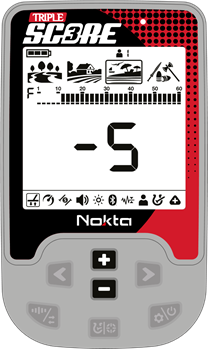
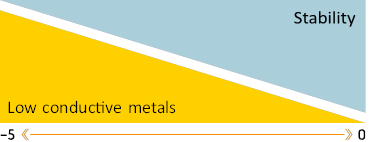
The zero (0) level of the Ground Balance represents the most stable level. Decreasing the Stability level towards -5 may increase the noises originating from beach sand and enhance the probability of detecting weak conductive metals like gold, which give an 11 ID.
Second Ground Balance in the Relic Mode
Due to its configuration, Relic mode may cause the device to give false signals to ground changes and mineralized/ hot rocks. This may cause discomfort to the user during detection. Relic mode offers users a second ground balance feature to overcome mineralized/hot rocks, red bricks and other ground changes in the surrounding environment that have different properties than the soil that's been ground balanced. With the second ground balance, depending on the properties of the hot rock or brick, in some cases, complete silence can be achieved over these falsing targets. In other cases, a broken signal may be heard. Broken sounds indicate that the detected target is a mineralized/hot rock.
To use this feature:
- Press the Power & Settings Button once and select the Ground Balance.
- Then, activate the 2nd ground balance feature by pressing the Frequency button. When the 2nd ground balance is activated, the number "2" appears on the screen above the letters Gb.
![]()
- You can perform the 2nd ground balance by pressing the pinpoint button.
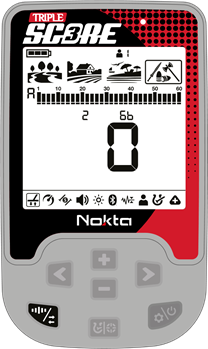
When Relic mode is selected, 1st and 2nd ground balancing can only be performed automatically. Manual ground balancing is not possible.
You can switch from the 2nd ground balance to the first one by pressing the Frequency button again.
Resetting the 1st and 2nd Ground Balance Settings in the Relic Mode
While Relic mode is selected, press the Power & Settings Button once and select the Ground Balance. Long pressing the Plus (+) Button will reset the ground balance. When the button is held down, an animation will be shown on the screen. To reset the 2nd ground balance value, first activate the 2nd ground balance. Reset the 2nd ground balance value by pressing the Plus (+) Button again.
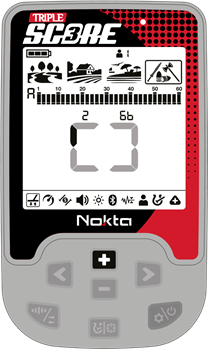
Recovery Speed


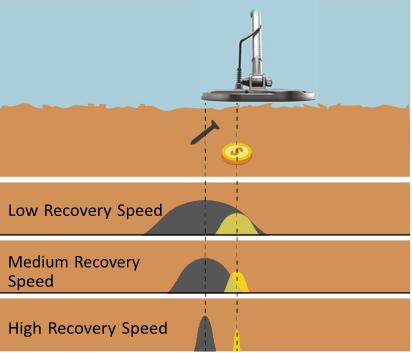
The Recovery Speed setting adjusts the speed of target response.
It allows for separation between multiple targets in close proximity.
Recovery Speed setting enables you to detect smaller targets among trash or ferrous targets.
DOUBLE SCORE Recovery Speed setting can be adjusted between 1 and 3 with 1 being the slowest and 3 being the fastest.
TRIPLE SORE Recovery Speed setting can be adjusted between 1 and 5 with 1 being the slowest and 5 being the fastest.
Recovery Speed setting only affects the mode currently selected; changes made in one mode do not affect the others.
When the Recovery Speed setting is set to a lower number, the ability of the device to detect targets in close proximity decreases but its depth increases.
Similarly, a higher Recovery Speed setting will increase the ability of the device to detect targets in close proximity but will decrease the depth.
It is recommended that you practice with different metals placed close to each other before starting to use this setting.
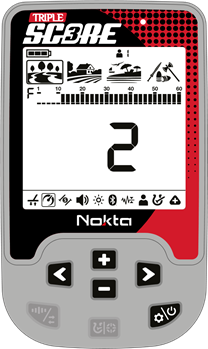
Adjusting the Recovery Speed
Press the Power & Settings Button once. Select the Recovery Speed setting using the Right & Left Buttons. The current level will be displayed on screen. Change the level of the Recovery Speed using the Plus (+) & Minus (-) Buttons.
Press the Power & Settings Button once to go back to the main screen.
Increasing the Recovery Speed level allows for a faster sweep rate with less chance of missing targets. Increasing Recovery Speed level at the same sweep rate will help to eliminate ground noise but it will decrease detection depth.
If you encounter high levels of ground noise on beach sand or underwater, try increasing the Recovery Speed.
Default Recovery Speed Settings
| Search Mode | DOUBLE SCORE | TRIPLE SCORE |
| PARK | 2 | 3 |
| FIELD | 2 | 3 |
| BEACH | 2 | 3 |
| RELIC | - | 2 |
Deep Target Identification (dt)


This feature allows non-ferrous deep targets, which are masked or detected as iron (ferrous), to be detected as non-ferrous.
You can adjust the Deep Target Identification (dt) value between 0-6.
This feature can be used in all modes except the Relic mode with both multi-frequency and single frequencies.
When you increase the value of this setting, the stability of the device may diminish.
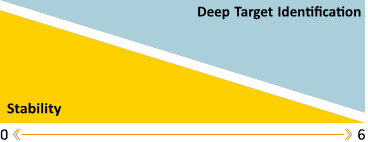
Adjusting the Deep Target Identification
To access this feature, select the Recovery Speed setting and press the pinpoint button. The letters "dt" will appear on the left side of the screen. You can change the value of the dt setting between 1-6 by using the plus (+) and minus (-) buttons. When it is at 0, this feature is off.
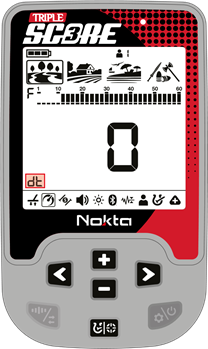
Default Deep Target Identification Settings
| Search Mode | Deep Target Identification |
| PARK | 0 |
| FIELD | 1 |
| BEACH | 0 |
| RELIC | - |
Iron Filter


Iron Filter allows desired non-ferrous targets in trashy sites, previously masked by iron, to be detectable.
Iron Filter (IF) setting ranges between 0-9 in the Park and Field modes and 1-9 in Beach mode. The default value is 3.
This setting only works when Multi Frequency is selected.
Iron Filter setting only affects the mode currently selected; changes made in one mode do not affect the others.
There is no Iron Filter setting in the Relic mode. Iron Reject setting is used instead.
Level 9 will become handy when trying to discriminate some unwanted mid-conductors such as shotgun cartridges as iron.
Lower IF setting will increase the probability of ferrous targets to be classified as non-ferrous targets and vice versa.
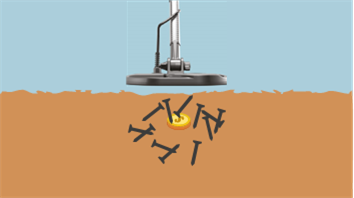
Adjusting Iron Filter
When the device is working in Multi frequency, Press the Power & Settings Button once. Select the Iron Filter feature using the Right & Left Buttons. The display will show the current Iron Filter level. It can be adjusted using the Plus (+) & Minus (-) Buttons.
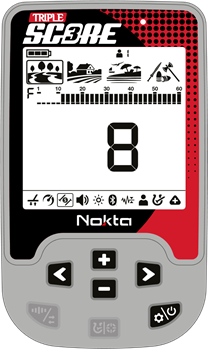
Default Iron Filter Settings
| Search Mode | SCORE* | DOUBLE SCORE TRIPLE SCORE |
| PARK | 8 | 3 |
| FIELD | 3 | 3 |
| BEACH | 8 | 3 |
| RELIC | - | - |
*In SCORE model, the Iron Filter level cannot be changed. The levels set by the factory are used.
Iron Reject (Ir)


n the Relic mode, the volume and the frequency of the sound produced for both non-ferrous and ferrous targets change according to the strength of the received signal. It's possible to distinguish ferrous targets, especially those closer to the surface by using the Iron Reject setting. Depending on the signal strength received from the ferrous target, the device emits a lower tone than that of the non-ferrous targets with the frequency varying according to the strength of the signal.
This feature is only available in Relic mode.
The Iron Reject (Ir) setting varies between 0 and 5, with the default setting being 0.
When the value is increased, the probability of emitting a ferrous tone for deep non-ferrous targets increases.
Adjusting the Iron Reject
Press the Power & Settings Button once. Select the Iron Filter/Iron Reject (Ir)setting using the Right & Left Buttons. The current Iron Reject level will be displayed on screen and the letters "Ir" will appear on the left side of the screen. Change the level of the Iron Reject using the Plus (+) & Minus (-) Buttons. You can change the value of the ''Ir'' setting between 1-5 by using the plus (+) and minus (-) keys.
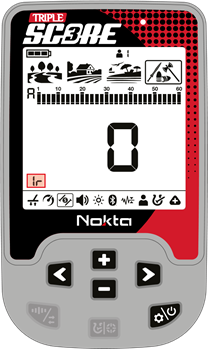
Volume

This control allows you to increase or decrease the device's volume based on your preference and environmental conditions.
Volume setting consists of 6 levels and it is set to 3 by default. When you turn off and on the device, it will start with the last volume level you chose.
This setting is common to all modes; changes will take effect in all modes.
Adjusting the Volume
Press the Power & Settings Button once. Select volume using the Right & Left Buttons. The current level will be displayed on screen. Change the volume level using the Plus (+) & Minus (-) Buttons.
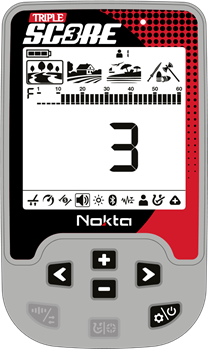
Press the Power & Settings Button once to go back to the main screen.
Because the volume level affects power consumption, we recommend you not to increase it more than necessary.
You can connect wired headphones to the device with the headphones adapter cable sold separately. The volume for the headphones is also adjusted through the volume setting of the device.
When wired headphones are attached, headphones icon will appear in the info section at the top of the screen.

Backlight

It enables you to adjust the display backlight level according to your personal preference.
It ranges from 0 to 5 and A1 to A5. At 0 level, the backlight is off. At 1-5 levels, it will be continuously lit. At A1-A5 levels, it lights up only for a short period of time when a target is detected or while navigating the menu and then it goes off.
This setting is common to all modes; changes will take effect in all modes.
You can adjust the keypad backlight level simultaneously with the display backlight setting. While the backlight setting is selected, you can turn the keypad backlight on/off by pressing the Pinpoint & Discrimination button.
The continuous operation of the backlight will affect power consumption, which is not recommended. The backlight setting is restored to the final saved setting when the device is turned off and on again.
Adjusting the Backlight
Press the Power & Settings Button once. Select Backlight using the Right & Left Buttons. The current level will be displayed on screen. Change the backlight level using the Plus (+) & Minus (-) Buttons.
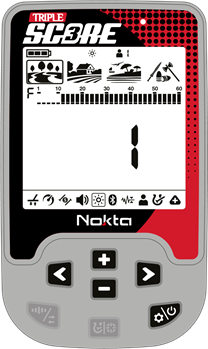
Press the Power & Settings Button once to go back to the main screen.
When the backlight is on, the backlight icon will be displayed in the info section at the top of the screen.

Bluetooth®

This setting is used to turn on and off the wireless Bluetooth® connection.
Bluetooth® setting can be set to 0 (off) or to 1 (on). When you turn off and on the device, it will start with the last setting you chose.
Receiving sound from the speaker and Bluetooth® headset at the same time
Press the Plus (+) Button and select 2 when the Bluetooth® headset is paired.
Turning the Bluetooth® Connection On/Off
Press the Power & Settings Button once. Select Bluetooth® using the Right & Left Buttons. The current value will be displayed on screen. Change the value using the Plus (+) & Minus (-) Buttons.
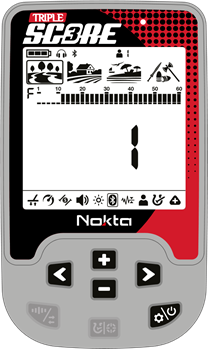
When the wireless connection is turned on, the Bluetooth Headphones icon will start blinking in the info section at the top of the screen.

The device will search for the headphones it has been paired with initially and try to connect to those. This will prevent the device from connecting to other Bluetooth® devices when the Bluetooth® setting is on. If you want to pair the device with different Bluetooth® headphones (other than those it was initially paired with) you must delete them from memory.
Deleting Paired Headphones From Memory
While in Bluetooth® setting, if the Pinpoint & Discrimination Button is pressed long, the letters ''Fd'' will be displayed on screen for 2 seconds and the list of headphones that were paired with the device before will be deleted. If you want to pair a new pair of headphones after this, you must follow the pairing instructions again.
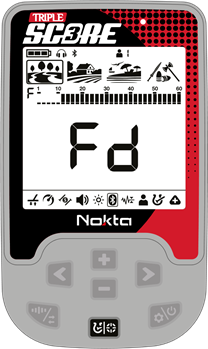
Once it pairs with any Bluetooth® headphones (Nokta BT Headphones or other), one of the icons below will be displayed in the info section:

Standard Bluetooth® headphones connected.

aptX™ Low Latency headphones connected.
For more detailed info about the Nokta BT Headphones, please read the instructions included with the headphones.
Once the headphones are paired with the device, if no sound is transmitted to the headphones for 14 minutes, the headphones will shut down automatically to save power.
Ground Suppressor

It is used to eliminate false ground signals in tough terrains.
This setting can be used both in Multi and single frequencies. It is recommended that you leave this setting at off position unless needed.
You can adjust the Ground Suppressor value between 0-8 and 0 is the default value.
Ground Suppressor setting only affects the mode currently selected; changes made in one mode do not affect the others.
In Relic mode, there is no Ground Suppressor setting. Instead, the Audio Gain (AG) setting is used.
Adjusting the Ground Suppressor
Press the Power & Settings Button once. Use the Right & Left Buttons to select the Ground Suppressor feature. The display will show the current Ground Suppressor level. You can adjust it using the Plus (+) & Minus (-) Buttons.
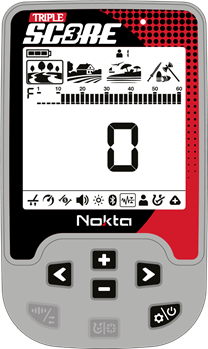
Audio Gain (AG)


Audio Gain setting will increase the volume of weak target responses.
The Audio Gain setting is available in Relic mode only.
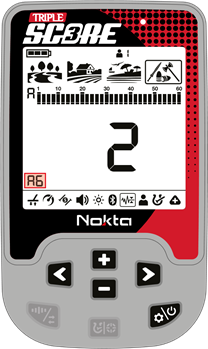
The Audio Gain (AG) setting ranges from 1 to 6, with the default setting being 2.
Adjusting the Audio Gain
Press the Power & Settings Button once. Use the Right & Left Buttons to select the Ground Suppressor/Audio Gain (AG) feature. The current Audio Gain level will be displayed on screen and the letters "AG" will appear on the left side of the screen. Change the level of the Audio Gain using the Plus (+) & Minus (-) Buttons.
User Profile


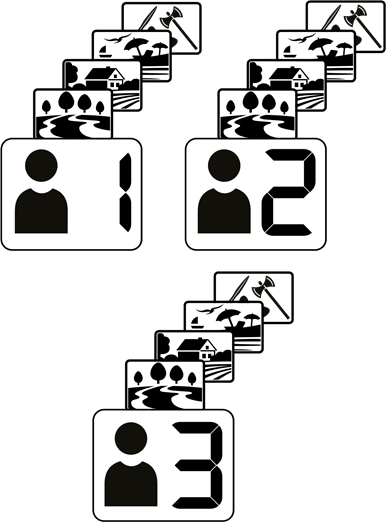
TRIPLE SCORE and DOUBLE SCORE offers user profiles feature where you can save your settings and create different user profiles.
This is a great feature for users to keep their optimized settings and to access them instantly later.
All user profiles have SCORE's default settings. TRIPLE SCORE has 3 and DOUBLE SCORE has 2 user profiles.
User profile 1 is the default user profile.
The active user profile in use is shown in the info section at the top of the screen.

User Profile Setting
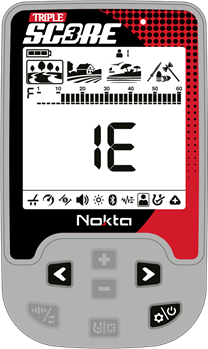
Press the Power & Settings Button once. Select the User Profile setting using the Right & Left Buttons. The number located on the left side indicates the user profile number. The letter E on the right means no profile has been saved and the letter F means that a user profile has been saved.
Changing the Active User Profile
In the User Profile Setting, you can change the user profile by using the Plus (+) & Minus (-) Buttons.
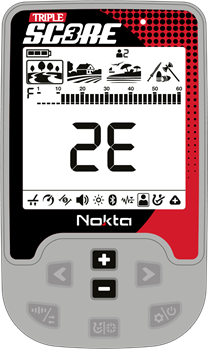
The selected user profile will only become active when you exit the User Profile setting.
Saving a User Profile
TRIPLE SCORE and DOUBLE SCORE track all changes made in the settings and even if you do not save them in a user profile, the device always starts with the last saved settings when you turn it off and on again.
However, if you would like to save your settings for a specific location, you can save them in a user profile.
Once you select the user profile number in the User Profile setting, press and hold the Pinpoint & Discrimination Button to save your settings to the selected user profile. An animation will appear on the screen as follows.
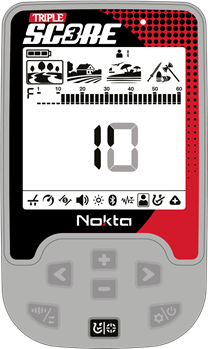
Once the user profile is saved, the User Profile will change from 1E to 1F.
Once you save a user profile, if you use that profile as the active user profile, all changes you make will be saved automatically. To keep your saved settings, you must choose another user profile as the active user profile.
Resetting the User Profile
- In the User Profile setting, use the Plus (+) & Minus (-) Buttons to choose the saved user profile you want to reset.
- If a user profile has been saved before, press and hold the Pinpoint & Discrimination Button to reset that user profile. the User Profile will change from 1F to 1E.
When you save a user profile, all settings in all modes will be saved. You cannot save the settings in a specific mode only.
NOTCH (Accepting and Rejecting IDs)


With the notch feature, you can accept (turn on) and reject (turn off) 2 IDs at the same time.
The lines for the rejected IDs will be erased and these IDs will be blanked out on the ID scale. The device will not provide an audio response or Target IDs for these targets.
Notch setting only affects the mode currently selected; changes made in one mode do not affect the others.
Forming a Customized Discrimination Pattern
There are 2 different ways of forming a Custom Discrimination Pattern: Manual and Automatic.
Manual Notch
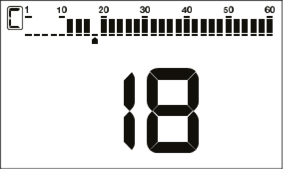
Hold the coil stationary. Press the Power & Settings Button once and use the Right & Left Buttons to select the custom discrimination pattern feature. The last Target ID will be displayed on screen and an arrow cursor will appear under the Target ID scale.
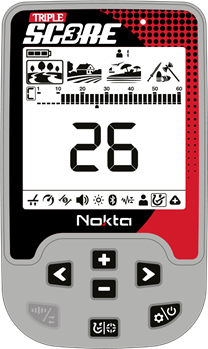
Move the cursor with the Plus (+) & Minus (-) Buttons. Each time you press the button, the Target ID will change on screen. Select the ID you want to turn off (reject) or on (accept).
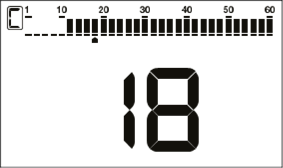
Press the Pinpoint & Discrimination Button. If the ID you selected was turned off (rejected), it will now be turned on (accepted) and vice versa. You can follow the changes on the ID scale.
Automatic Notching
While in the notch setting, swing the coil over the target you want to reject or accept. The cursor underneath the ID scale as well as the Target ID in the middle will show the ID of the target.

To turn off or to turn on the ID press the Pinpoint & Discrimination Button.
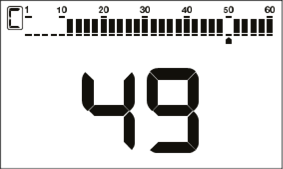
SCORE will not generate an audio response for rejected targets. However, their IDs will be shown in the notch discrimination menu.
The cursor will appear where you last left it the next time you use the notch discrimination setting.
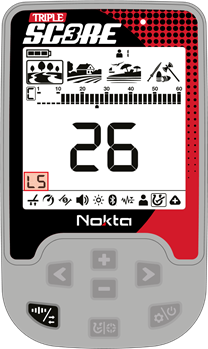
During automatic notching, if the IDs are too jumpy, you can press the Frequency & Noise Cancellation Button to instantly decrease the sensitivity, allowing you to easily turn IDs on/off.
The display will display the letters 'LS', indicating that the sensitivity level has been lowered.
Sub-Settings

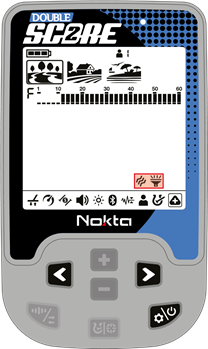
In the SCORE and DOUBLE SCORE models, the
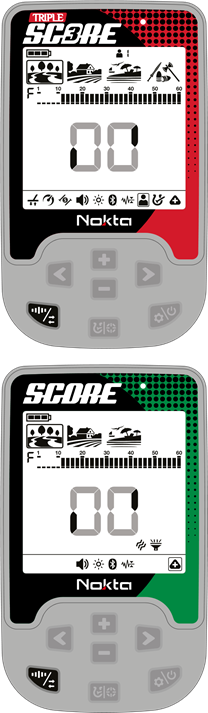
Sub-Settings menu includes only Vibration and LED Flashlight settings, as shown below.\
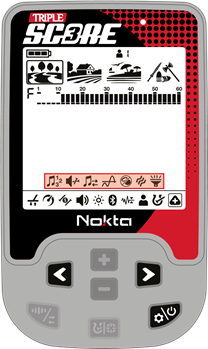
In the TRIPLE SCORE model, in Park, Field, and Beach modes, the Sub-Settings menu includes the following features: Number of Tones, Iron Volume, Tone Break, Threshold, Bottle Cap Rejection, Vibration, and LED Flashlight.
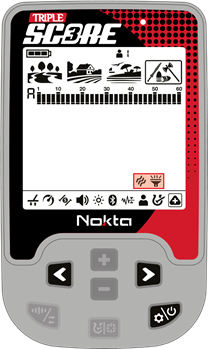
In the TRIPLE SCORE model, when Relic mode is selected, the Sub-Settings menu includes only Vibration and LED Flashlight settings, as shown below.
Number of Tones


TRIPLE SCORE divides the Target ID scale into multiple zones allowing the user to make different tone adjustments for targets that fall in each zone.
By changing the Number of Tones, you can decide on how many zones you will divide the ID scale into. Thanks to this feature, you can assign the same tone for all targets or assign a different tone for each Target ID.
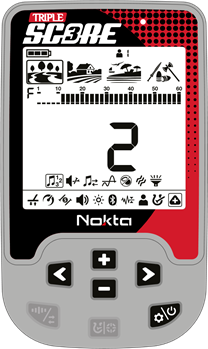
You can set the Number of Tones as 1, 2, 3, 4, 6, 60 or P (Tone Pitch).
The Number of Tones setting only affects the mode currently selected; changes made in one mode do not affect the others.
Adjusting the Number of Tones
Press the Power & Settings Button once. Select the Sub-Settings using the Right & Left Buttons. Press the Plus (+) Button once to enter the upper menu and using the Right & Left Buttons, select the Number of Tones setting. The current Number of Tones will be displayed on the screen. Select the Number of Tones using the Plus (+) or Minus (-) Buttons.
To go back to the previous menu, press the Pinpoint & Discrimination Button once.
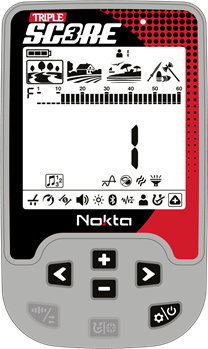
When Number of Tones is selected as 1-Tone, the Iron Volume and Tone Break settings are not displayed in the menu.
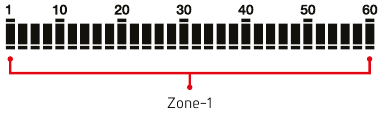
1-Tone
The Target ID scale is not divided into any zones, hence there is only 1 tone zone. SCORE generates the same tone volume and tone frequency for all targets.
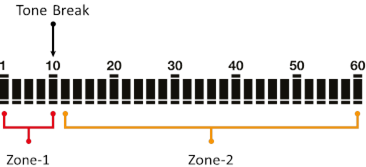
2-Tone
The Target ID scale is divided into 2 zones as ferrous and non-ferrous. The default zones for 2-tone are shown below:
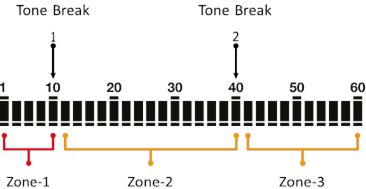
3-Tone
The Target ID scale is divided into 3 zones. The default zones for 3-tone are shown below:
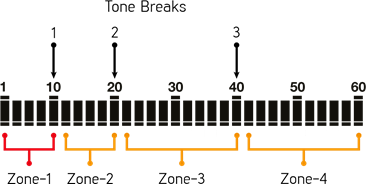
4-Tone
The Target ID scale is divided into 4 zones. The default zones for 4-tone are shown below:
6-Tone
The Target ID scale is divided into 6 zones. The default zones for 6-tone are shown below:
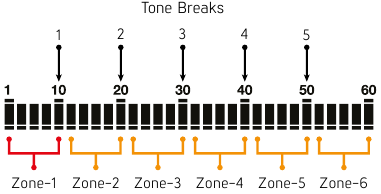
60-Tone
Just like the 2-Tone, the Target ID scale is divided into 2 zones as ferrous and non-ferrous.
The difference between the 2-Tone and 60-Tone is that 60-Tone generates a separate tone with a different frequency for each Target ID.
The device generates lower frequency tones for ferrous range and mid to high frequency tones for non-ferrous metals.
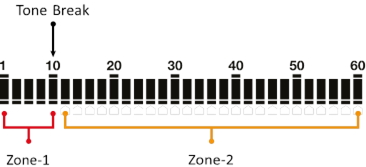
Tone Pitch
The Target ID scale is divided into 2 zones as ferrous and non-ferrous similar to 2-Tone Feature.
In this tone option, the emitted sound frequency changes proportionally with the signal strength.
In the 60-Tone option, the emitted sound frequency is determined based on the target ID value, whereas in this tone option, the emitted sound frequency is determined based on the signal strength. The Target ID value is used to determine which zone the target is in. Targets in Zone-1 produce sounds at lower frequencies, while targets in Zone-2 produce sounds at medium and high frequencies.
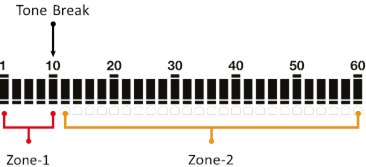
For all tone options, the Tone Break feature can only adjust the break point between Zone-1 and Zone-2.
Default Number of Tones per Search Mode
| Search Mode | SCORE DOUBLE SCORE | TRIPLE SCORE | |
| PARK | 3 | 2 | |
| FIELD | 2 | 2 | |
| BEACH | 2 | 2 | |
| RELIC | - | - | |
Iron Volume


The Iron Volume adjustment allows users to set the audio volume for ferrous targets, making it a wonderful feature in areas with high concentrations of trash metal.
Iron Volume ranges from 0 to 10. Iron Volume is mode specific; changes affect only the selected mode.
This feature is not available in Relic mode.
When Number of Tones is set to 1-Tone, this feature cannot be used and thus is not shown in the menu.
Iron Volume setting is common for different Number of Tones. For example, if Number of Tones is set to 2-Tone and the Iron Volume is decreased, it remains at the reduced level when switching to 3-Tone or another tone setting.
As the Iron Volume is decreased, the device produces a lower sound for ferrous targets. Setting Iron Volume to zero (0) while the ferrous zone is not notched out, the device will detect ferrous targets, the Target ID will be displayed on the screen but the device will not produce any warning tone.
Adjusting the Iron Volume
Press the Power & Settings Button once. Select the Sub-Settings using the Right & Left Buttons. Press the Plus (+) Button once to enter the upper menu and using the Right & Left Buttons, select the Iron Volume setting. The current Iron Volume level will be displayed on the screen. Adjust the Iron Volume using the Plus (+) or Minus (-) Buttons.
To go back to the previous menu, press the Pinpoint & Discrimination Button once.
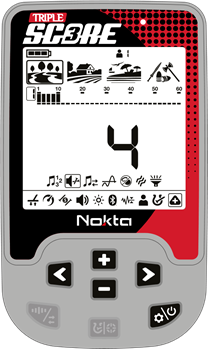
Default Iron Volume Levels per Search Mode
| Search Mode | Iron Volume |
| PARK | 4 |
| FIELD | 3 |
| BEACH | 3 |
| RELIC | 10* |
*In Relic mode, the Iron Volume cannot be changed and the factory-set value is used only when the Iron Reject feature is active.
Tone Break

The Tone Break Point setting allows you to manually control the boundary of the target zone that will produce a ferrous audio response.
The default Tone Break point may not provide you with the distinction you need between the targets you are looking for. With the Tone Break setting, you can adjust the boundaries of the ferrous zone.
Tone Break setting only affects the mode currently selected.
This feature is not available in Relic mode.
When Number of Tones is set to 1-Tone, this feature cannot be used and thus is not shown in the menu.
The Tone Break point is specific to the selected Number of Tones, and only the selected Number of Tones is affected by any changes. For example, if the Number of Tones is set to 2-Tone and the Tone Break point is changed, there will be no changes for the other Number of Tones.
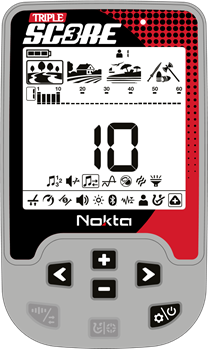
Adjusting the Tone Break
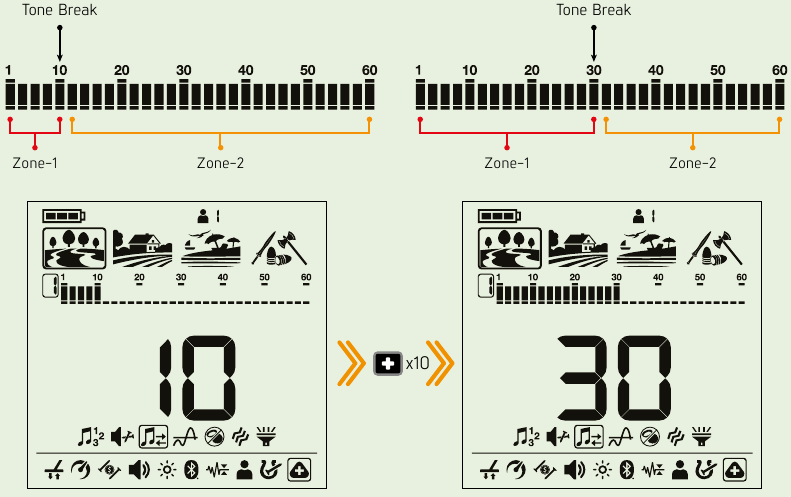
Press the Power & Settings Button once. Select the Sub-Settings using the Right & Left Buttons. Press the Plus (+) Button once to enter the upper menu and using the Right & Left Buttons, select the Tone Break setting. The current Tone Break point will be displayed on the screen. Adjust the Tone Break by using the Plus (+) or Minus (-) Buttons. The level of the Tone Break Point can be adjusted in 2-unit increments (e.g., 10, 12, 14). When the value of the Tone Break point is changed, the boundaries of Zone-1 on the Target ID bar are also updated simultaneously.
To go back to the previous menu, press the Pinpoint & Discrimination Button once.
Default Tone Break points per Search Mode
| Search Mode | Tone Break point |
| PARK | 10 |
| FIELD | 12 |
| BEACH | 10 |
| RELIC | 10* |
*In Relic mode, the Tone Break cannot be changed and the factory-set value is used only when the Iron Reject feature is active.
The minimum and maximum values that the Tone Break setting can take for different Number of Tones are as follows:
| Number of Tones | Minimum Value | Maximum Value |
| 2-Tone | 2 | 58 |
| 60-Tone | 2 | 58 |
| P | 2 | 58 |
| 3-Tone | 2 | 38 |
| 4-Tone | 2 | 18 |
| 6-Tone | 2 | 18 |
When the Tone Break is adjusted, the end level of Tone Zone-1 and the start level of Zone-2 change accordingly. As shown below, when the Tone Break is increased from 10 to 30, Zone-1 expands while Zone-2 narrows.
Threshold

This setting enables the users to identify targets more easily and this feature makes the sounds of weaker signals of small targets such as gold nuggets more hearable.
When the Threshold setting is activated, TRIPLE SCORE generates a sound which is continuously heard in the background and this sound is called the ''threshold sound''.
Threshold range is from 0 to 30.
Threshold setting only affects the mode currently selected; changes made in one mode do not affect the others.
This feature is not available in Relic mode.
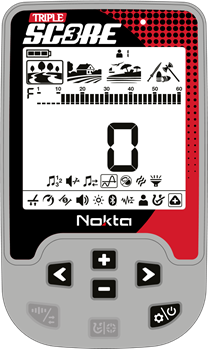
Adjusting the Threshold Level
Press the Power & Settings Button once. Select the Sub-Settings using the Right & Left Buttons. Press the Plus (+) Button once to enter the upper menu and using the Right & Left Buttons, select the Threshold setting. The current Threshold level will be displayed on the screen. Adjust the Threshold by using the Plus (+) or Minus (-) Buttons.
To go back to the previous menu, press the Pinpoint & Discrimination Button once.
Threshold Tone for Rejected Targets
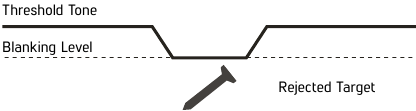
The Threshold tone will blank to indicate detection of a rejected target.
Default Threshold Levels per Search Mode
| Search Mode | Threshold Level |
| PARK | 0 |
| FIELD | 0 |
| BEACH | 0 |
| RELIC | - |
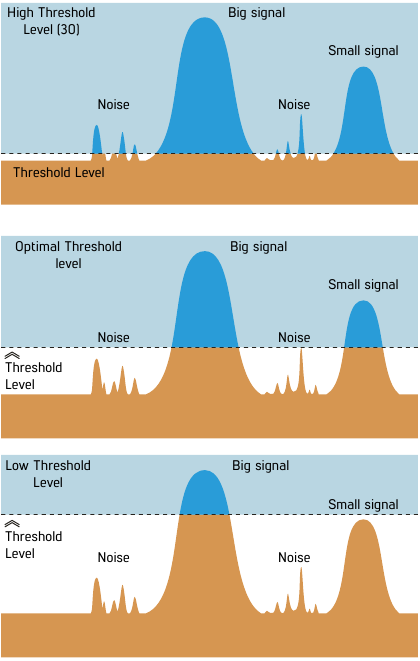
The Threshold Level directly impacts the detection depth of smaller and deeper targets. If the threshold is set too low (0), weak signals of smaller or deeper targets may be missed. On the contrary, if the threshold is set too high (30), the device will be noisier, the threshold sound will be loud and the target responses will not be distinguished. Therefore, it is recommended to adjust it to a level where you can still hear the slight audio variations caused by a target.
Bottle Cap Rejection

Bottle caps are unwanted targets for detectorists and they are mostly detected as non-ferrous targets by metal detectors. With the Bottle Cap Rejection setting, you can discriminate bottle caps as iron.
Bottle Cap Rejection setting can be set between 0 to 8 and the default setting is 0. This setting works in Multi frequency only.
Bottle Cap Rejection setting only affects the mode currently selected; changes made in one mode do not affect the others.
This feature is not available in Relic mode.
Adjusting the Bottle Cap Rejection
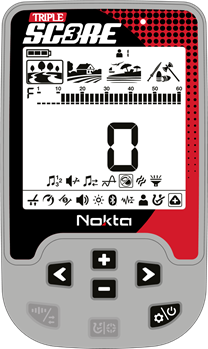
Press the Power & Settings Button once. Select the Sub-Settings using the Right & Left Buttons. Press the Plus (+) Button once to enter the upper menu and using the Right & Left Buttons, select the Bottle Cap Rejection setting. The current level will be displayed on the screen. Adjust it by using the Plus (+) or Minus (-) Buttons.
To go back to the previous menu, press the Pinpoint & Discrimination Button once.
Default Bottle Cap Rejection values per Search Mode
| Search Mode | SCORE DOUBLE SCORE | TRIPLE SCORE |
| PARK | 6 | 0 |
| FIELD | 0 | 0 |
| BEACH | 0 | 0 |
| RELIC | - | - |
Vibration

This feature provides feedback to the user by producing a vibration effect when a target is detected.
It can be used independently or together with the audio response. When audio response is disabled, all responses during target detection are provided to the user as vibration only.
Vibration setting ranges from 0-5. At 0 vibration is off. The magnitude of the vibration effect can vary according to the depth of the target and the swinging speed. This setting is common in all search modes.
This setting is common to all modes; changes will take effect in all modes.
When you turn off and on the device, it will start with the last vibration level you chose.
Adjusting the Vibration
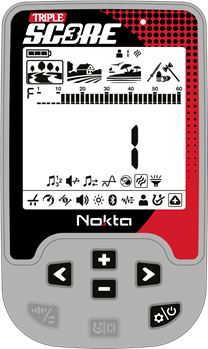
Press the Power & Settings Button once. Select SubSettings using the Right & Left Buttons. Press the Plus (+) Button once to go to the top menu and select the Vibration setting using the Right & Left Buttons. The current vibration level will appear on the display. You can change the level using the Plus (+) & Minus (-) Buttons.
Press the Pinpoint & Discrimination Button once to go back to the sub-menu.
When the vibration is on, the vibration icon will be displayed in the info section at the top of the screen.

Even if the vibration is on, it will not generate a response for targets while in the settings menu but only in the detection screen.
LED Flashlight

It is the headlight used for lighting the area you are scanning while detecting at night or in dark locations.
LED Flashlight does not operate when the device is off. It is recommended to turn it on only when necessary since its operation consumes extra battery power.
LED Flashlight setting can be set to 0 (off) or to 1 (on). The LED Flashlight will be off at each start up.
Turning the LED Flashlight On/Off
Press the Power & Settings Button once. Select SubSettings using the Right & Left Buttons. Go to the top menu by pressing the Plus (+) Button once and select the LED Flashlight setting with the Right & Left Buttons. Turn the flashlight on/off using the Plus (+) & Minus (-) Buttons.
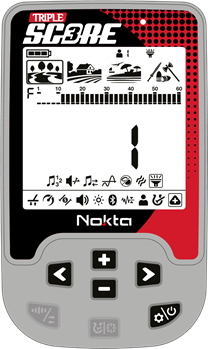
Press the Pinpoint & Discrimination Button once to go back to the main-menu.
When the LED Flashlight is on, the flashlight icon will be displayed in the info section at the top of the screen.

REVERTING BACK TO FACTORY DEFAULTS
In the settings menu, after selecting the user profile
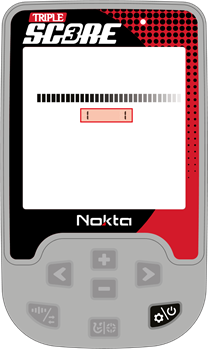
in TRIPLE SCORE and DOUBLE SCORE or subsettings in SCORE, press and hold the Frequency & Noise Cancellation Button until the letters Fd appear on the screen. An animation like below will appear on the screen. Letters Fd will appear on screen indicating that the factory settings are restored. Letters Fd will disappear after 2 seconds.
WARNING MESSAGES
The device will shut down shortly after one of the below messages is displayed on screen:
Check Coil (CC)

It indicates an interruption in the search coil transmitter signal. The search coil connector may be unattached, loose or disconnected. If you own another detector with the same coil connector, please be sure that you have not attached the wrong coil by mistake. If none of the above exists, the search coil or its cable may have a defect. If the issue continues when you change the search coil, there may be an issue in the coil control circuit.
Low Battery (Lo)

When battery is depleted, ''Lo'' message appears on display and the device shuts down.
System Error (SE)

Turn the device back on if the device shuts down after this warning. If the problem persists, reset the device by pressing and holding the Power & Settings Button for 30 seconds. If the problem still exists, contact technical service.
SOFTWARE UPDATE
SCORE has software update capability. All software updates made after the device is released to the market will be announced on the product's web page along with updating instructions. System Version Information:
The software version of SCORE will be displayed under the ID Scale each time you turn the detector on.
If the device does not turn on after the software update is completed, and the charge LED blinks even when the device is not connected to USB, the software installation needs to be redone.
SAFETY WARNINGS
READ CAREFULLY BEFORE OPERATION OF THE DEVICE!

SCORE is a state-of-the-art electronic device. Do not assemble or operate the device before reading the user manual.
Do not store the device and search coil under extremely low or high temperatures for extended periods. (Storage Temperature: - 20°C to 60°C / - 4°F to 140°F)
The device has been designed with IP68 rating as a waterproof unit up to 5 meters / 16ft.
Pay attention to the items below after using the device especially under salty water:
- Wash the system box, shaft and the coil with tap water and be sure no salt water is left in the connectors.
- Do not use any chemicals for cleaning and/or for any other purposes.
- Wipe the screen and the shaft dry with a soft, non-scratch cloth.
Protect the detector against impacts during normal use. For shipping, carefully place detector in original carton and secure with shock resistant packaging.
SCORE metal detector may only be disassembled and repaired by Nokta Authorized Service Centers. Unauthorized disassembly/intrusion into the metal detector control housing for any reason voids the warranty.
Do not use the device indoors. The device may constantly give target signals indoors where there are many metals present. Use the device outdoors, in open fields.
Do not let another detector or an electromagnetic device come in close proximity (10m (30ft.)) to the device.
Do not carry any metal objects while using the device. Keep the device away from your shoes while walking. The device may detect the metals on you or inside your shoes as targets.
Documents / ResourcesDownload manual
Here you can download full pdf version of manual, it may contain additional safety instructions, warranty information, FCC rules, etc.
Download Nokta SCORE, SCORE 2 / 3, TRIPLE SCORE PRO PACK Manual
Advertisement


Need help?
Do you have a question about the SCORE and is the answer not in the manual?
Questions and answers