To connect your monitor to a laptop, first turn off your computer and disconnect the power cable. Then, connect the DisplayPort, HDMI, USB, or Thunderbolt™ 4 cable from your monitor to the computer. Finally, plug the power cables for both your computer and monitor into a nearby outlet. It is recommended to use the Dell-supplied cables for optimal video quality and performance.
The monitor has a Thunderbolt™ 4 upstream port (40 Gbps, PD up to 90 W) and a Thunderbolt™ 4 downstream port (PD 15 W). The upstream port connects to your computer, supporting USB Power Delivery (up to 90 W), data, and DisplayPort video signal. The downstream port supports USB Power Delivery (up to 15 W) and is suitable for video output using Thunderbolt™ daisy chain, allowing you to connect a second monitor or other Thunderbolt™ devices. The monitor also supports daisy chaining through Thunderbolt™ 4.
Yes, the monitor can charge a connected laptop. The Thunderbolt™ 4 upstream port provides power delivery (PD) up to 90 W to a compatible notebook while also receiving video and data signals. The Thunderbolt™ 4 downstream port provides PD up to 15 W. The monitor also has a USB Type-C downstream port with power charging (15W).
The Dell Thunderbolt UltraSharp 34 Monitor's Thunderbolt™ 4 upstream port provides power delivery (PD) up to 90 W. The Thunderbolt™ 4 downstream port provides PD up to 15 W. Additionally, there are USB Type-C downstream ports that offer 15 W power charging.
Yes, you can daisy chain multiple monitors using the Dell Thunderbolt UltraSharp 34 Monitor. It supports daisy chaining through its Thunderbolt™ 4 downstream port (15 W for video + data). To set up a daisy chain connection, refer to the instructions in the manual. The monitor daisy chain only works via the Thunderbolt™ port, and the maximum number of supported external monitors is subject to the bandwidth of Thunderbolt™ 4. For optimal resolution of 3440 x 1440 at 120 Hz on both monitors, set the OSD for "Thunderbolt Daisy Chain" to "Optimized".
If your monitor screen is blank or not displaying anything, and the power LED is off, ensure the video cable connecting the monitor and computer is properly connected and secure. Also, verify the power outlet is functioning and the power button is fully pressed. Make sure the correct input source is selected in the OSD menu. If the power LED is on but there's no picture, perform the monitor self-test feature check, check for bent or broken pins in the video cable connector, and run the built-in diagnostics.
The monitor's Thunderbolt™ 4 upstream port supports video and data signals, along with power delivery up to 90 W, to a compatible notebook. It supports Alternate Mode DP1.4 with a maximum resolution of 3440 x 1440 at 120 Hz. The monitor also has a USB Type-C upstream port (data only) for data transfer at 10 Gbps. When using USB Type-C for video, the source computer needs to have Type-C Alternate Mode capability. You can also specify USB-C Prioritization in the OSD to prioritize high resolution or high data speed when using USB Type-C devices.
To enable split screen or Picture-by-Picture (PBP) mode, navigate to the PIP/PBP menu in the OSD. Here, you can select a PBP or PIP mode from a preset list, which offers different sizes and positions for the sub-window. The default setting is Off. After enabling PBP/PIP mode, you can select a video signal for the PIP/PBP sub-window and use the "Video Swap" function to interchange videos between the main and sub-windows.
You can adjust the monitor's brightness through the On-Screen Display (OSD) menu. Move the joystick on the rear of the monitor to launch the Menu Launcher, then select Brightness/Contrast from the shortcut functions. From there, you can move the joystick up or down to increase or decrease the brightness level (min. 0/max. 100). The monitor also has an Auto Brightness function that automatically adjusts brightness based on ambient light. This function can be turned on or off within the Brightness/Contrast menu.
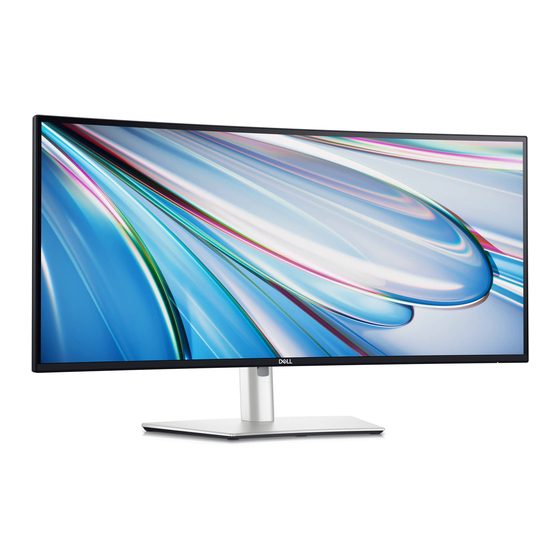
The Dell Thunderbolt UltraSharp 34 Monitor is equipped with the following ports: one HDMI port (HDCP1.4 & 2.2), one DP 1.4 port (HDCP1.4 & 2.2), one Thunderbolt™ 4 downstream port (15 W) for daisy chaining, one Thunderbolt™ 4 upstream port (90 W PD, video + data), one USB Type-C upstream port (data only), four USB Type-A downstream ports (super speed USB 10 Gbps), one Audio line-out port, one RJ45 (2.5GbE) port, one USB Type-A downstream port with BC1.2 power charging, and two USB Type-C downstream ports with power charging (15 W).
If the USB interface is not working, ensure your monitor is turned On. Reconnect the upstream cable to your computer and reconnect the USB peripherals (downstream connector). Try switching the monitor off and then on again, or reboot your computer. Some USB devices requiring higher electric current, like external portable HDDs, might need to be connected directly to the computer system. If Super Speed USB 10 Gbps (USB 3.2 Gen2) interface is slow or not working, ensure your computer is compatible and that the correct USB port is used.
If your monitor is not detected and there is no picture with the power LED off, ensure the video cable connecting the monitor and computer is properly connected and secure. Also, verify the power outlet is functioning and the power button is fully pressed. Make sure the correct input source is selected in the OSD menu. If the power LED is on but there's no picture, perform the monitor self-test feature check, check for bent or broken pins in the video cable connector, and run the built-in diagnostics.
To set up your new monitor, first attach the stand by removing the stand riser and base from the packaging, inserting the base blocks into the stand slot, tightening the screw, and folding the handle flat. Then, lift the protective cover to access the VESA area, fit the two tabs on the upper part of the stand to the groove on the back of the display, and press it down until it snaps into place. Carefully lift the monitor onto a flat surface and remove the protective cover. Finally, connect the monitor to your computer using the appropriate cables (DisplayPort, HDMI, USB, or Thunderbolt™ 4) and plug in the power cables for both the computer and monitor.
The maximum refresh rate of the Dell Thunderbolt UltraSharp 34 Monitor is 120 Hz for DisplayPort and Thunderbolt™ 4 connections, and 100 Hz for HDMI connections.
If your monitor displays 'entering power save mode', it means it is going into Standby mode. To get out of this, you need to activate the computer and wake up the monitor to gain access to the OSD. If the monitor shows "No Thunderbolt Cable" and is about to enter Standby mode, activate your computer to access the OSD.
If there is no sound from the external speakers, try the following solutions: turn off the monitor, unplug the power cord, replug it, and then turn on the monitor; ensure the audio cable is connected correctly between the Audio Line Out port and the external speaker; disconnect and reconnect the audio cable; and reset the monitor to factory settings.
To switch inputs, press the joystick on the rear of the monitor to launch the Menu Launcher. Then, move the joystick to the left or right to toggle through the shortcut functions until "Input Source" is highlighted. Press the joystick to enter its submenu and choose an input source from the list of video signals connected to your monitor, such as Thunderbolt (90W), DP, or HDMI.
Yes, the Dell Thunderbolt UltraSharp 34 Monitor includes built-in speakers (2 x 5 W).
Yes, the monitor offers a "Game" preset mode in the OSD menu, which loads color settings ideal for most gaming applications. It also features a maximum refresh rate of 120 Hz via DisplayPort and Thunderbolt™ 4, and supports a 5 ms (Fast) response time.
If the image on your monitor is appearing blurry or has poor focus, you should eliminate any video extension cables. You can also try resetting the monitor to factory settings or changing the display resolution to the correct aspect ratio.
If the picture does not fill the entire screen, you should check the Aspect Ratio setting in the Display menu OSD. You can also reset the monitor to factory settings. If the issue persists, run the built-in diagnostics for more information. Due to different video formats (aspect ratio) of DVDs, the monitor may display in full screen.
Yes, the Dell Thunderbolt UltraSharp 34 Monitor is compatible with VESA mounting standards. It features VESA 100 mm mounting holes for flexible mounting solutions. You can wall mount the monitor using a VESA-compatible wall mount kit (100 mm x 100 mm). When wall mounting, ensure to use a UL, CSA, or GS-listed wall mount bracket with a minimum weight or load bearing capacity of 31.12 kg.
If your monitor is not detecting a DisplayPort signal, ensure the video cable connecting the monitor and computer is properly connected and secure. Verify the power outlet is functioning and the power button is fully pressed. Make sure the correct input source is selected in the OSD menu. If the power LED is on but there's no picture, perform the monitor self-test feature check, check for bent or broken pins in the video cable connector, and run the built-in diagnostics.
You can perform a factory reset by navigating to the Others menu in the On-Screen Display (OSD). Select "Factory Reset" to restore all preset values to the factory default settings. These settings are also used for ENERGY STAR® tests.
If the monitor is in Standby mode (indicated by a blinking white Power LED), you can activate the computer and wake up the monitor to gain access to the OSD menu. If the monitor displays a "No Thunderbolt Cable" message and is about to enter Standby mode, activate the computer to gain access to the OSD.
The model number of your Dell Thunderbolt UltraSharp 34 Monitor is U3425WE. You can also find the model number, firmware, and service tag by accessing the Display Info option in the OSD menu under "More Information". Additionally, the model number is listed on the regulatory label on the back of the monitor.
To unlock the OSD menu, move and hold the joystick up or down or left or right for about 4 seconds until a menu appears. Then, select the option to unlock and close the pop-up menu. The OSD menu settings can be locked to prevent access, with options to lock only the joystick functions, only the power button, or both.
The Dell Thunderbolt UltraSharp 34 Monitor supports HDMI 2.1.
To remove the stand, place the monitor on a soft cloth or cushion. Then, press and hold the stand release button at the back of the display. Finally, lift the stand assembly up and away from the monitor.
The monitor stand allows for vertical extension up to 150 mm. You can extend the stand vertically to adjust the height of the monitor.
The monitor has an "Auto Select" feature for input sources, which automatically scans for available inputs. The default setting for this is "On". To turn off auto-detect for Thunderbolt or DisplayPort/HDMI inputs, you can set the respective "Options for Thunderbolt" or "Options for DP/HDMI" to "Off" within the OSD menu. This will prevent the monitor from automatically switching to these inputs.
To clean the screen of your Dell Thunderbolt UltraSharp 34 Monitor, first unplug the monitor power cable from the electrical outlet. Use a clean cloth that is slightly dampened with water or a screen-cleaning tissue/solution suitable for Dell monitors. Do not use detergents or other chemicals such as benzene, thinner, ammonia, abrasive cleaners, alcohol, or compressed air, as these can cause damage. Do not spray cleaning solution or water directly onto the monitor surface; instead, apply it to the cloth. After cleaning, ensure the table surface is thoroughly dry before placing the monitor back. Handle the monitor with care to avoid scratches.
Need help?
Do you have a question about the Thunderbolt UltraSharp 34 and is the answer not in the manual?
Questions and answers