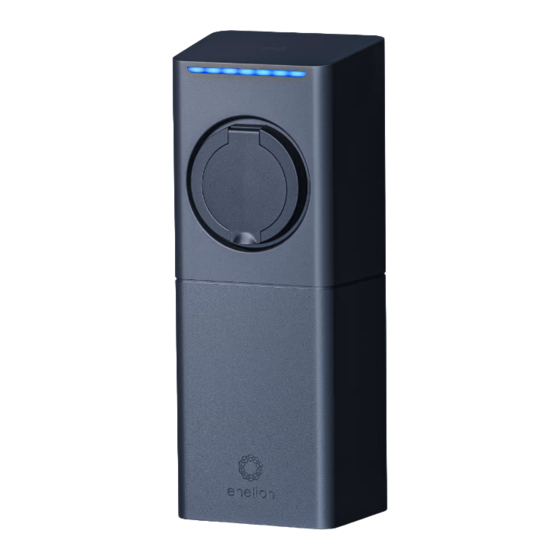
Enelion LUMINA User Manual
Premium charger for electric vehicles
Hide thumbs
Also See for LUMINA:
- User manual (48 pages) ,
- Installation manual (40 pages) ,
- Quick start manual (16 pages)
Table of Contents
Advertisement
Quick Links
Advertisement
Table of Contents

Related Manuals for Enelion LUMINA


Summary of Contents for Enelion LUMINA
- Page 1 User manual LUMINA Premium charger for electric vehicles.
- Page 2 Dear user Congratulations on your purchase of the Enelion charger and thank you for your trust. Please read this manual before installation or prior to the station being commisioned. The manual may change as the product develops. The information provided may not be correct. All rights reserved.
-
Page 3: Table Of Contents
Important information Use of the charging station Preparation for use Charging Completion of charging Emergency stop Procedure in the event of irregularities, faults and fire General rules for safe operation Health and Safety Disposal and environmental protection Device configuration Available variants Initiating the device Changing the configuration LED bar... - Page 4 Charger Overview Mains Authorization Accessories Charging network Overview Settings System Overview Update Users Time Logs Reboot Technical data Maintenance Cleaning Operation Operation and maintenance of charging stations Technical tests Continuity measurement of the protective conductors Effectiveness of electric shock protection measurement...
- Page 5 Testing insulation resistance Testing the insulation resistance of the electrical installation supplying power to the charging station Testing the insulation resistance of the charging station with a charging module Adapter Measurement of the effectiveness of protection against electric shock Testing the operation of residual current devices Functional tests of the device –...
- Page 6 Lumina plug-in electronics. • Do not use the station near strong • Lumina’s network SSID and password are electromagnetic fields or in the immediate required for installation and configuration; vicinity of radio transmitters.
-
Page 7: Use Of The Charging Station
Use of the Preparation for use charging station Before the first use of the charger, make sure that the charger has been correctly installed and poses no danger to the user. More information may be found in the assembly manual available at Charging By default the charger is configured as Freecharge configuration,which means it starts... -
Page 8: Completion Of Charging
fact with the light bar and showing the status on Emergency the display. While charging,the light bar flashes from the center towards the edge. See chapter LED interface for more information. When stop configuring the station as Freecharge, it is possible to disable the locking of the plug in the station before charging. -
Page 9: General Rules For Safe Operation
General The device meets the IP 54 standard. rules for safe operation Due to the IP 54 class of the device, it is forbidden to wash the charger with pressure washers, garden hoses, a shower or any other The device should be used in accordance with the stream of water. -
Page 10: Disposal And Environmental Protection
Disposal and environmental protection Electrical and electronic waste must not be disposed of together with normal household waste. According to the WEEE directive in force in the EU, separate methods of disposal must be used for electrical and electronic waste. In accordance with the provisions on waste electrical and electronic equipment, it is forbidden to put waste equipment (marked with... -
Page 11: Device Configuration
Device Available variants configuration The system of configuring the settings of Enelion Lumina charger is done in the configuration panel. Available variants resulting from the configuration of the device are presented below: Type of power system ► • One–phase power system — only the first phase connected to the device will be used for charging. -
Page 12: Initiating The Device
1. Install the charger according to the fitting • With each card issued for the charger — This instruction available on enelion.com/en/ configuration is used in offline chargers. It help allows to finish the charging process with the 2. -
Page 13: Led Bar
Availability Green flashing Charging (energy Blue flashing from transfer in progress) inside towards the edge The Lumina charging station has an LED interface that provides Charging (no energy Blue flashing the user with basic information: transfer) Warning/minor error Yellow flashing... -
Page 14: Configuration Panel
• Management of access to the charging point • Remote diagnostics and software update Communication Enelion Lumina App available on Lumina charger allows you to connect to the configuration panel using its WiFi hotspot. In order to connect to the WiFi hotspot, use... -
Page 15: Access To The Configuration Panel
There are accounts for the user (user) and available WiFi networks. The broadcast network administrator (admin) in the configuration panel. is named “Enelion-XXXX-XXXX” where X signs The default password for each of these users is stand for the charger’s serial number. Password... -
Page 16: Navigation In The Configuration Panel
Depending on the situation, not all tiles will be visible. The available tiles are: The interface of the configuration panel consists of an upper bar with the Enelion logo, common • WiFi connection status to all subpages, a side menu with the name of the •... -
Page 17: Wifi
05.3 WiFi Enelion Bridge enables WiFi connectivity in Enelion Bridge is equipped with LTE cat 4 module. the 802.11 b / g / n, 2.4 GHz standard. The WiFi To connect the module with GSM internet please, before powering the charging station on, make sure subpage allows you to manage the Bridge’s... -
Page 18: Hotspot
Connection GSM configuration window. 05.4 Hotspot Lumina supports OCPP 1.6 over JSON. To connect to OCPP backend please use the toggle on the right of “OCPP Connection” header. The “Status” and “Connection settings” fields will The hotspot section shows the status of the become active and you will be able to see current emitted WiFi network and its settings. -
Page 19: Configuration Keys
be one Master device in the network. for editing the value of a given configuration key. If the device you are configuring is a Master type, For read-only keys it is not possible to choose Master as device type and fill other change their value. -
Page 20: Mains
In the Overview section, we can check 07 .2 Mains information about the connector status, schedule, start or stop charging. In the Mains section, we can check Mains status and settings like power limit or phase sequence. Mains section of the Charger tab. To change power limit click an Edit icon. -
Page 21: Authorization
Enabling Freecharge option results in charger 07 .3 Authorization not requiring any RFID tag to start charging. Just connect a car and charging will start immediately. If we want to use Freecharge mode with OCPP charging management systems, Authorization section allows us to configure we can choose what idTag is to be used for charger’s lock, enable Freecharge feature and set authorization. -
Page 22: Charging Network
You can see the network network topology in an Overview section. Charging network section allows for managing the network of Enelion devices connected locally to exchange charging, ocpp and maintenance related data. 08.1 Overview In the Overview section, we can check network... -
Page 23: System
3 minutes and then restart with the new software version. In the Overview section, we can check information about the Lumina head and Backplate hardware details. Update section of the System tab. After file upload and verification the Bridge module will present a window with update details to confirm the choice. -
Page 24: Users
Bridge module and synchronize it with case of possible problems with the Bridge module, the time of the device from which you access the will help the Enelion technical support diagnose configuration panel. their causes. -
Page 25: Reboot
09.6 Reboot Reboot button allows you to restart the Bridge module. After two minutes, the configuration panel will display the Dashboard section. Reboot section of the System tab. Technical data Technical data WiFi 2.4 GHz, 802.11 bgn GSM modem LTE Cat 4, Max. 150 Mbps (DL), Max. -
Page 26: Maintenance
The device is designed to operate in temperatures Maintenance from −30 C to 55 C. The manufacturer does not guarantee the proper functioning of the charging station in temperatures outside the specified range. Chargers that are damaged because of exposure to temperatures below −30 C or above C are not covered under the warranty. -
Page 27: Operation
Operation Operation and maintenance of charging stations Service inspection is performed once a year. Mechanical elements such as a socket, charging cable, plug lock, require only a superficial inspection. Solid/durable components are not expected to wear out and to require replacement during the lifetime of station. -
Page 28: Continuity Measurement Of The Protective Conductors
Possibly: The measuring tool can be able to make 02.1 Continuity the measurement in a circuit which contains the residual current device without it’s tripping. measurement It should be checked if the short-circuit current of the protective at the measurement site will be sufficient for the operation of the over-current protection in the conductors required time. -
Page 29: Testing The Insulation Resistance Of The Charging Station With A Charging Module
insulation resistance with a valid calibration 03.2 Testing certificate. The meter can be connected e.g. to the output terminals of the overcurrent circuit the insulation breaker installed in the switchgear, to the bottom resistance of the part of the post or any other convenient place. charging station with a charging module When measuring the insulation resistance,... -
Page 30: Adapter
with the Gossen Metrawatt PROFITEST MXTRA Measurement Insulation Minimum meter and a 2-pole adapter, the measurement configuration resistance acceptable polarization is marked in the photo below. rated value value polarization PE+ L1- 1MΩ 800 kΩ PE+ L2- 1MΩ 800 kΩ PE+ L3- 1MΩ... -
Page 31: Measurement Of The Effectiveness Of Protection Against
(RCD B 30 mA/40 A) or an RCD EV (30 mA/40 A) in the switchgear. It is also possible to use the Enelion RCM B – Residual Current Monitor type B accessory. Enelion RCM B Pin designation of the Type 2 socket of the charging station. -
Page 32: Functional Tests Of The Device - Methods Of Execution
suspended until the user’s action. To reset the system and enable recharging again, pullout the plug from the station socket. For chargers with RFID identification, the identification must be used to open the plug lock. In public chargers – in Free Charge configuration –... -
Page 33: Technical Description
Technical description... - Page 34 IK10 Impact protection (IK rate) UL94-V0 Flammability class Lumina Socket - Type2 Socket, Lumina Cable - Type2 connector with 4,7 m cord Charging connector type Embedded residual current monitor - Enelion RCMB 6 mA DC Residual current protection Integrated 3-phase energy meter >99 % accuracy...
- Page 35 3 x 400 V AC/ 230 V AC ( ±10 % ) (TN/IT) Supply voltage Possibility of connecting the cable from the top, bottom and the back of the station • configuration with no additional tools • remotely controlled schuko outlet (max 2000W/10A)* Other features •...
-
Page 36: Troubleshooting
For detailed error information check Alerts section in the configuration panel. Frequently Asked Questions LUMINA CHARGER DOESN’T CONNECT TO THE WIFI NETWORK Make sure the WiFi password was entered correctly and that the proper security method was chosen (”Authentication type”... - Page 37 Customer service LUMINA CHARGER DOESN’T CONNECT Download the latest user manuals, useful TO THE WIFI NETWORK documents and videos for your product on enelion.com Make sure the GSM network settings were entered correctly and that the charger is in the network signal range.
- Page 38 ENELION sp. z o.o. | 50 Pana Tadeusza St 80–123 | Gdańsk | Poland sales@enelion.com enelion.com...
Need help?
Do you have a question about the LUMINA and is the answer not in the manual?
Questions and answers