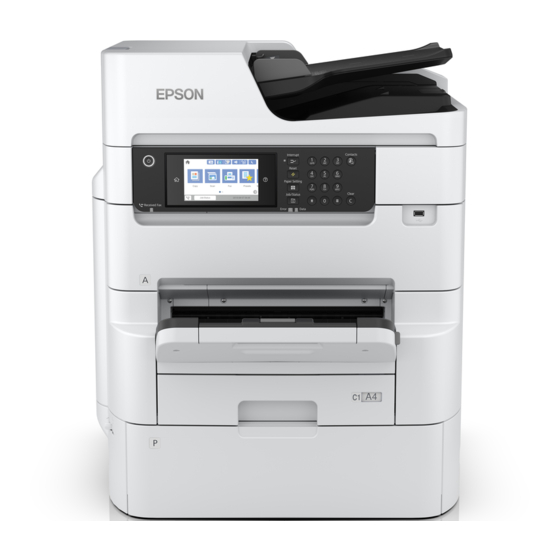
Epson WF-C878R Series User Manual
Hide thumbs
Also See for WF-C878R Series:
- Quick start manual ,
- Hardware setup manual (18 pages) ,
- User manual (541 pages)

Related Manuals for Epson WF-C878R Series


Summary of Contents for Epson WF-C878R Series
- Page 1 User's Guide Printing Copying Scanning Faxing (Fax-Capable Printers Only) Maintaining the Printer Solving Problems NPD6338-01 EN...
-
Page 2: Table Of Contents
Printing Using a Cloud Service....95 Loading Paper Registering to Epson Connect Service from Paper Handling Precautions....35 the Control Panel. - Page 3 Basic Menu Options for Scanning to the Cloud. 118 Copying Advanced Menu Options for Scanning to the Available Copying Methods....98 Cloud....... 119 Copying Originals.
- Page 4 Receiving Faxes on a Computer....160 Preventing Paper Jams....263 Saving Incoming Faxes on a Computer.
- Page 5 Disabling the External Interface... . 488 Epson Open Platform Information..380 Monitoring a Remote Printer....489 Backing Up the Settings.
- Page 6 Technical Support Web Site....529 Contacting Epson Support....529 Before Contacting Epson.
- Page 7 Guide to This Manual Introduction to the Manuals......... . . 8 Searching for Information.
-
Page 8: Guide To This Manual
Searching for Information Introduction to the Manuals The following manuals are supplied with your Epson printer. As well as the manuals, check the various types of help information available from the printer itself or from the Epson software applications. ❏ Important Safety Instructions (paper manual) Provides you with instructions to ensure the safe use of this printer. -
Page 9: Printing Only The Pages You Need
Guide to This Manual > > About This Manual Marks and Symbols Jumping directly from bookmarks Click a title to jump to that page. Click + or > to view the lower level titles in that section. To return to the previous page, perform the following operation on your keyboard. -
Page 10: Notes On Screenshots And Illustrations
Guide to This Manual > > About This Manual Operating System References Important: Instructions that must be observed to avoid damage to your equipment. Note: Provides complementary and reference information. Related Information & Links to related sections. Notes on Screenshots and Illustrations ❏... -
Page 11: Trademarks
EPSON EXCEED YOUR VISION or EXCEED YOUR VISION is a trademark of Seiko Epson Corporation. ❏ Epson Scan 2 software is based in part on the work of the Independent JPEG Group. ❏ libtiff Copyright © 1988-1997 Sam Leffler Copyright ©... -
Page 12: Copyright
Neither Seiko Epson Corporation nor its affiliates shall be liable to the purchaser of this product or third parties for damages, losses, costs, or expenses incurred by the purchaser or third parties as a result of accident, misuse, or abuse of this product or unauthorized modifications, repairs, or alterations to this product, or (excluding the U.S.) - Page 13 > Copyright Seiko Epson Corporation and its affiliates shall not be liable for any damages or problems arising from the use of any options or any consumable products other than those designated as Original Epson Products or Epson Approved Products by Seiko Epson Corporation.
-
Page 14: Important Instructions
Important Instructions Safety Instructions..........15 Printer Advisories and Warnings. -
Page 15: Safety Instructions
❏ Some of the symbols used on your printer are to ensure safety and proper use of the printer. Visit the following Web site to learn the meaning of the symbols. http://support.epson.net/symbols ❏ Use only the power cord supplied with the printer and do not use the cord with any other equipment. Use of other cords with this printer or the use of the supplied power cord with other equipment may result in fire or electric shock. -
Page 16: Safety Instructions For Ink
Important Instructions > > Printer Advisories and Warnings Advisories and Warnings for Setting Up the Printer Safety Instructions for Ink ❏ Be careful when you handle used ink supply units, as there may be some ink around the ink supply port. ❏... -
Page 17: Advisories And Warnings For Using The Printer
Important Instructions > > … Printer Advisories and Warnings Advisories and Warnings for Using the Printer with ❏ Avoid places subject to rapid changes in temperature and humidity. Also, keep the printer away from direct sunlight, strong light, or heat sources. Related Information “Installation Location and Space”... -
Page 18: Advisories And Warnings For Transporting Or Storing The Printer
Important Instructions > Protecting Your Personal Information Advisories and Warnings for Transporting or Storing the Printer ❏ When storing or transporting the printer, avoid tilting it, placing it vertically, or turning it upside down; otherwise ink may leak. ❏ Before transporting the printer, make sure that the print head is in the home (far right) position. Protecting Your Personal Information When you give the printer to someone else or dispose of it, erase all the personal information stored in the printer's memory by selecting Settings >... -
Page 19: Part Names And Functions
Part Names and Functions Front............20 Rear. -
Page 20: Front
Part Names and Functions > Front Front See related information for a description of the optional items. Control panel Allows you to make settings and perform operations on the printer. Also displays the printer’s status. External interface USB port Connects memory devices. Print head Fires ink. - Page 21 Part Names and Functions > Front Paper cassette 1 (C1) Loads paper. Paper cassette 2 (C2) Loads paper. Optional paper casette unit. Use when this option is installed. See related information for more details. Paper cassette 3 (C3) Paper cassette 4 (C4) Printer stand Place the printer on this to prevent it from falling.
- Page 22 Part Names and Functions > Front Cover lock Locks the ink supply unit cover. Ink supply unit cover (P) Open when replacing ink supply units. Document cover Blocks external light while scanning. Scanner glass Place the originals. You can place originals that are not fed from the ADF such as envelopes or thick books.
- Page 23 Part Names and Functions > Front Paper support Supports loaded paper. Paper tray (B) Loads paper. Edge guide Feeds the paper straight into the printer. Slide to the edges of the paper. Feeder guard Prevents foreign substance from entering the printer. Usually keep this guard closed.
-
Page 24: Rear
Part Names and Functions > Rear Rear Important: Note the insertion direction when using a USB 1.0 to 2.0 cable, otherwise the printer may be damaged. Duplexing unit (D2) Remove when removing jammed paper. AC inlet Connects the power cord. Rear cover (D1) Open when replacing the maintenance box or removing jammed paper. - Page 25 Part Names and Functions > Rear Rear cover (D3) Open when removing jammed paper. Rear cover (E) Maintenance box Collects a very small amount of surplus ink during cleaning or printing. Service USB port USB port for future use. Do not remove the sticker. LINE port Connects a phone line.
-
Page 26: Guide To The Control Panel
Guide to the Control Panel Control Panel........... . . 27 Home Screen Configuration. -
Page 27: Control Panel
Guide to the Control Panel > Control Panel Control Panel Turns the printer on or off. Unplug the power cord when the power light is off. Displays the home screen. Logs off from the printer when Access Control is enabled. When Access Control is disabled, this is also disabled. -
Page 28: Home Screen Configuration
Guide to the Control Panel > Home Screen Configuration Home Screen Configuration Displays the Printer Status screen. You can check the approximate ink levels and the approximate service life of the maintenance box. Displays the network connection status. See the following for more details. “Guide to the Network Icon”... -
Page 29: Guide To The Network Icon
Guide to the Control Panel > > Home Screen Configuration Guide to the Network Icon Displays each menu. ❏ Copy Allows you to copy documents. ❏ Fax Allows you to send faxes. ❏ Scan Allows you to scan documents and save them to a memory device or a computer. ❏... -
Page 30: Menu Screen Configuration
Guide to the Control Panel > Menu Screen Configuration Menu Screen Configuration Returns to the previous screen. Switches the list of settings using the tabs. The Basic Settings tab displays frequently used items. The Advanced tab displays other items that you can set as necessary. Displays the list of setting items. -
Page 31: Job/Status Screen Configuration
Guide to the Control Panel > Job/Status Screen Configuration Job/Status Screen Configuration Press the button to display the Job/Status menu. You can check the status of the printer or the jobs. Switches the displayed lists. Filter the jobs by functional. When Active is selected, displays the list of ongoing jobs and jobs waiting to be processed. -
Page 32: Entering Characters
Guide to the Control Panel > Viewing Animations Entering Characters You can enter characters and symbols by using on-screen keyboard when you make network settings, and so on. Indicates the character count. Moves the cursor to the input position. Switches between upper case and lower case or numbers and symbols. Switches the character type. - Page 33 Guide to the Control Panel > Viewing Animations ❏ Select How To at the bottom of the operation screen: Displays the context-sensitive animation. Note that the animation depends on the printer model.
-
Page 34: Loading Paper
Loading Paper Paper Handling Precautions......... . 35 Paper Size and Type Settings. -
Page 35: Paper Handling Precautions
Paper Handling Precautions ❏ Read the instruction sheets supplied with the paper. ❏ To achieve high-quality printouts with genuine Epson paper, use the paper in the environment stated on the sheets supplied with the paper. ❏ Fan and align the edges of the paper before loading. Do not fan or curl photo paper. Doing so may damage the printable side. -
Page 36: Paper Size And Type Settings
List of Paper Type To obtain optimum printing results, select the paper type that suits the paper. Media Name Media Type Control Panel Printer Driver PostScript Printer Epson Universal Printer Driver Driver Epson Business Plain paper Plain paper Plain Plain... -
Page 37: List Of Detected Paper Sizes
Loading Paper > Loading Paper Media Name Media Type Control Panel Printer Driver PostScript Printer Epson Universal Printer Driver Driver Epson Matte Paper- Matte Epson Matte Epson Matte Heavyweight Epson Photo Quality Matte Epson Matte Photo Quality Ink Ink Jet Paper... -
Page 38: Loading Envelopes
Loading Paper > > Loading Paper Loading Pre-punched Paper Loading Envelopes Load envelopes in the center of the paper tray short edge first with the flap facing down, and slide the edge guides to the edges of the envelopes. Loading Pre-punched Paper Load a single sheet of pre-punched paper in the paper tray. -
Page 39: Loading Long Papers
Loading Paper > > Loading Paper Loading Long Papers Loading Long Papers Load long paper in the paper tray by allowing the leading edge of the paper to roll over. Select User-Defined as the paper size setting. ❏ Long paper cannot be held in the output tray. Prepare a box and so on to make sure that paper does not fall on the floor. -
Page 40: Placing Originals
Placing Originals Placing Originals..........41 Detecting the Original Size Automatically. -
Page 41: Placing Originals
Placing Originals > Placing Originals Placing Originals You can place the originals by referring to the animations displayed on the printer's LCD screen. Select , and then select How To > Place Originals. Select the method of placing originals that you want to view. Select Finish to close the animation screen. - Page 42 Placing Originals > Placing Originals Note: ❏ A range of 1.5 mm from the edges of the scanner glass is not scanned. ❏ When originals are placed in the ADF and on the scanner glass, priority is given to the originals in the ADF. ❏...
-
Page 43: Detecting The Original Size Automatically
Placing Originals > Originals that are not Supported by the ADF Detecting the Original Size Automatically When you select Auto Detectas the paper setting, the following types of paper size are identified automatically. ❏ Placing vertically: A4, B5, A5 Place the long edge of the original toward the paper feed entrance of the ADF or the left side of the scanner glass. -
Page 44: Inserting And Removing A Memory Device
Inserting and Removing a Memory Device Inserting an External USB Device........45 Removing an External USB Device. -
Page 45: Inserting An External Usb Device
Inserting and Removing a Memory Device > Sharing Data on a Memory Device Inserting an External USB Device Insert an external USB device into the external interface USB port. Related Information “Memory Device Specifications” on page 388 & Removing an External USB Device Remove the external USB device. - Page 46 Inserting and Removing a Memory Device > Sharing Data on a Memory Device Important: When sharing a memory device inserted in the printer between computers connected by USB or over a network, write access is only allowed to the computers that are connected by the method you selected on the printer. To write to the memory device, enter Settings >...
-
Page 47: Printing
Printing Printing Documents..........48 Printing on Envelopes. -
Page 48: Printing Documents
Printing > > Printing Documents Printing from a Computer - Windows Printing Documents Printing from a Computer - Windows If you cannot change some of the printer driver settings, they may have been restricted by the administrator. Contact your printer administrator for assistance. Printing Using Easy Settings Note: Operations may differ depending on the application. - Page 49 Printing > > Printing Documents Printing from a Computer - Windows 5. Select Preferences or Properties to access the printer driver window. 6. Change the settings as necessary. See the menu options for the printer driver for details. Note: ❏ You can also see the online help for explanations of the setting items. Right-clicking an item displays Help. ❏...
- Page 50 You can add or remove your own presets for frequently used print settings. Select the preset you want to use from the list. Ink Levels: Displays the approximate ink level. You need to install EPSON Status Monitor 3 to enable this feature. You can download it from the Epson website. Show Settings/Hide Settings: Displays a list of items currently set on the Main and More Options tabs.
- Page 51 Printing > > Printing Documents Printing from a Computer - Windows Fit to Page: Automatically reduce or enlarge the document to fit to the paper size selected in Output Paper. Zoom to: Prints with a specific percentage. Center: Prints images in the center of the paper. Paper Type: Select the type of paper on which you print.
- Page 52 Printing > > Printing Documents Printing from a Computer - Windows Reverse Order: Allows you to print from the last page so that the pages are stacked in the correct order after printing. Collate/Uncollated: Select Collate to print multi-page documents collated in order and sorted into sets. Copies: Set the number of copies you want to print.
- Page 53 Printer and Option Information: Displays the number of sheets of paper fed into the printer or the ADF. You need to install EPSON Status Monitor 3 to check the total number of sheets. You can download it from the Epson website.
- Page 54 Printing from a Computer - Windows Software Update: Starts EPSON Software Updater to check for the latest version of applications on the Internet. Technical Support: If the manual is installed on your computer, the manual is displayed. If it is not installed, you can connect to the Epson Web site to check the manual and available technical support.
- Page 55 ❏ Depending on the paper and the data, ink may bleed through to the other side of the paper. ❏ This needs to be installed if you want to check the printing status with EPSON Status Monitor 3. You can download it from the Epson website.
- Page 56 ❏ Depending on the paper and the data, ink may bleed through to the other side of the paper. ❏ This needs to be installed if you want to check the printing status with EPSON Status Monitor 3. You can download it from the Epson website.
- Page 57 Printing > > Printing Documents Printing from a Computer - Windows Related Information “Available Paper and Capacities” on page 332 & “Loading Paper” on page 37 & “Printing Using Easy Settings” on page 48 & Printing Several Pages on One Sheet You can print several pages of data on a single sheet of paper.
- Page 58 Printing > > Printing Documents Printing from a Computer - Windows Printing to Fit the Paper Size Select the paper size you loaded in the printer as the Destination Paper Size setting. 1. On the printer driver's Main tab, make the following settings. ❏...
- Page 59 Printing > > Printing Documents Printing from a Computer - Windows Printing a Reduced or Enlarged Document at any Magnification You can reduce or enlarge the size of a document by a specific percentage. 1. On the printer driver's Main tab, select the document size from the Document Size setting. 2.
- Page 60 Printing > > Printing Documents Printing from a Computer - Windows 1. On the printer driver's Main tab, select 2x1 Poster, 2x2 Poster, 3x3 Poster, or 4x4 Poster as the Multi-Page setting. 2. Click Settings, make the appropriate settings, and then click OK. Note: Print Cutting Guides allows you to print a cutting guide.
- Page 61 Printing > > Printing Documents Printing from a Computer - Windows 1. Prepare Sheet 1 and Sheet 2. Cut off the margins of Sheet 1 along the vertical blue line through the center of the top and bottom cross marks. 2.
- Page 62 Printing > > Printing Documents Printing from a Computer - Windows 3. Cut the taped sheets in two along the vertical red line through the alignment markers (this time, the line to the left of the cross marks). 4. Tape the sheets together from the back. 5.
- Page 63 Printing > > Printing Documents Printing from a Computer - Windows 6. Cut off the margins of Sheet 1 and Sheet 2 along the horizontal blue line through the center of the left and right side cross marks. 7. Place the edge of Sheet 1 and Sheet 2 on top of Sheet 3 and Sheet 4 and align the cross marks, and then temporarily tape them together from the back.
- Page 64 Printing > > Printing Documents Printing from a Computer - Windows 8. Cut the taped sheets in two along the horizontal red line through the alignment markers (this time, the line above the cross marks). 9. Tape the sheets together from the back.
- Page 65 Printing > > Printing Documents Printing from a Computer - Windows 10. Cut off the remaining margins along the outer guide. Printing with a Header and Footer You can print information such as a user name and printing date in headers or footers. 1.
- Page 66 Printing > > Printing Documents Printing from a Computer - Windows 2. Select Settings, select the items you want to print, and click OK. Note: ❏ To specify the first page number, select Page Number from the position you want to print in the header or footer, and then select the number in Starting number.
- Page 67 Printing > > Printing Documents Printing from a Computer - Windows “More Options Tab” on page 52 4. Click Print. Related Information “Loading Paper” on page 37 & “Printing Using Easy Settings” on page 48 & Printing Password-Protected Files Yon can set a password for a print job so that it starts printing only after entering the password on the printer's control panel.
- Page 68 Printing > > Printing Documents Printing from a Computer - Windows Printing Multiple Files Together Job Arranger Lite allows you to combine several files created by different applications and print them as a single print job. You can specify the print settings for combined files, such as multi-page layout, and 2-sided printing. 1.
- Page 69 Printing > > Printing Documents Printing from a Computer - Windows ❏ Paper Type: Plain paper, Copy paper, Letterhead, Recycled paper, Colored paper, Preprinted paper, High quality plain paper, or Thick paper 1 ❏ Quality: Standard or a higher quality ❏...
- Page 70 Printing > > Printing Documents Printing from a Computer - Windows 1. On the printer driver's More Options tab, select the method of color correction from the Color Correction setting. ❏ AutomaticThis setting automatically adjusts the tone to match the paper type and print quality settings. ❏...
-
Page 71: Printing A Document Using The Postscript Printer Driver (Windows)
“List of Paper Type” on page 36 ❏ Quality: Standard, High Epson Photo Quality Ink Jet, Epson Matte, and thick paper up to 151-256g/m² are not compatible with High. Note: Deblurring may not always be possible depending on the circumstances. - Page 72 Printing > > Printing Documents Printing a Document Using the PostScript Printer Driver (Windows) 4. Select Preferences or Properties to access the printer driver window. 5. Change the settings as necessary. See the menu options for the printer driver for details. 6.
- Page 73 Printing > > Printing Documents Printing a Document Using the PostScript Printer Driver (Windows) Paper Source: Select the paper source from which the paper is fed. Select Automatically Select to automatically select the paper source selected in the Paper Setting on the printer. Media: Select the type of paper on which you print.
- Page 74 Printing > > Printing Documents Printing a Document Using the PostScript Printer Driver (Windows) Access Control Settings: Set Access Control Settings. User Registration: Allows you to enter a user name and password. User Name: Enter a user name. Password: Enter a password. Advanced Options Paper/Output: Select the paper size and number of copies.
-
Page 75: Printing From A Computer - Mac Os
Printing > > Printing Documents Printing from a Computer - Mac OS Printer Features: Set the following menu items. Color Mode: Select whether to print in color or in monochrome. Press Simulation: You can select a CMYK ink color to simulate when you print by reproducing the CMYK ink color of the offset press. - Page 76 If the Print Settings menu is not displayed on macOS High Sierra, macOS Sierra, OS X El Capitan, OS X Yosemite, OS X Mavericks, OS X Mountain Lion, the Epson printer driver has not been installed correctly. Enable it from the following menu.
- Page 77 Inverts an image to print as it would appear in a mirror. Menu Options for Color Matching ColorSync/EPSON Color Controls: Select the method for color adjustment. These options adjusts colors between the printer and the computer display to minimize the difference in color.
- Page 78 Printing > > Printing Documents Printing from a Computer - Mac OS Scale to fit paper size: Prints to fit to the paper size you loaded. ❏ Destination Paper Size: Select the paper size to print on. ❏ Scale down only: Select when reducing the size of the document.
- Page 79 Printing > > Printing Documents Printing from a Computer - Mac OS PhotoEnhance: Produces sharper images and more vivid colors by automatically adjusting the contrast, saturation, and brightness of the original image data. Off (No Color Adjustment): Print without enhancing or adjusting the color in any way. Menu Options for Two-sided Printing Settings Two-sided Printing: Prints on both sides of the paper.
- Page 80 Printing > > Printing Documents Printing from a Computer - Mac OS Printing on 2-Sides You can print on both sides of the paper. Note: ❏ If you do not use paper that is suitable for 2-sided printing, the print quality may decline and paper jams may occur. “Paper for 2-Sided Printing”...
- Page 81 Printing > > Printing Documents Printing from a Computer - Mac OS Printing Several Pages on One Sheet You can print several pages of data on a single sheet of paper. 1. Select Layout from the pop-up menu. 2. Set the number of pages in Pages per Sheet, the Layout Direction (page order), and Border. “Menu Options for Layout”...
- Page 82 Printing > > Printing Documents Printing from a Computer - Mac OS 1. Select the size of the paper you set in the application as the Paper Size setting. 2. Select Paper Handling from the pop-up menu. 3. Select Scale to fit paper size. 4.
-
Page 83: Printing Using A Postscript Printer Driver - Mac Os X
If the color is changed or becomes unnatural, print in a mode other than PhotoEnhance. 1. Select Color Matching from the pop-up menu, and then select EPSON Color Controls. 2. Select Color Options from the pop-up menu, and then select one of the available options. - Page 84 Printing > > Printing Documents Printing Using a PostScript Printer Driver - Mac OS X 3. Access the print dialog. 4. Make the following settings. ❏ Printer: Select your printer. ❏ Paper Size: Select the paper size you loaded in the printer. ❏...
- Page 85 Printing > > Printing Documents Printing Using a PostScript Printer Driver - Mac OS X 6. Select Printer Features from the pop-up menu, select Quality as the Feature Sets setting, and then select the type of paper you loaded as the MediaType setting. 7.
- Page 86 Printing > > Printing Documents Printing Using a PostScript Printer Driver - Mac OS X Related Information “Available Paper and Capacities” on page 332 & “Loading Paper” on page 37 & “List of Paper Type” on page 36 & “Menu Options for Printer Features” on page 87 &...
- Page 87 Printing > > Printing Documents Printing Using a PostScript Printer Driver - Mac OS X Page Order: Select to print from the top or the last page. Scale to fit paper size: Prints to fit to the paper size you loaded. Destination Paper Size: Select the paper size to print on.
-
Page 88: Printing Pdf Files From A Memory Device
Printing > > Printing Documents Printing PDF Files from a Memory Device Print Quality: Select the pint quality you want to use for printing. Color: Color Mode: Select whether to print in color or in monochrome. Press Simulation: You can select a CMYK ink color to simulate when you print by reproducing the CMYK ink color of the offset press. -
Page 89: Printing Documents From Smart Devices (Ios)
1. Connect your printer and your smart device using Wi-Fi Direct. “Connecting a Smart Device and Printer Directly (Wi-Fi Direct)” on page 294 2. If Epson iPrint is not installed, install it. “Installing Epson iPrint” on page 345 3. Start Epson iPrint. -
Page 90: Printing Documents From Smart Devices (Android)
1. Connect your printer and your smart device using Wi-Fi Direct. “Connecting a Smart Device and Printer Directly (Wi-Fi Direct)” on page 294 2. If Epson iPrint is not installed, install it. “Installing Epson iPrint” on page 345 3. Start Epson iPrint. -
Page 91: Printing On Envelopes
You can wirelessly print your documents, emails, photos, and web pages right from your Android phone or tablet (Android v4.4 or later). With a few taps, your Android device will discover an Epson printer that is connected to the same wireless network. -
Page 92: Printing Photos
Printing > > Printing Photos Printing JPEG Files from a Memory Device 4. Select the size as the Paper Size setting. 5. Select Print Settings from the pop-up menu. 6. Select Envelope as the Media Type setting. 7. Set the other items as necessary. 8. -
Page 93: Printing Tiff Files From A Memory Device
Printing > > Printing Photos Printing TIFF Files from a Memory Device ❏ Fit Frame Select On to crop the image to fit into the selected print layout automatically. If the aspect ratio of the image data and the paper size is different, the image is automatically enlarged or reduced so that the short sides match the short sides of the paper. -
Page 94: Printing Web Pages
1. Connect your printer and your smart device using Wi-Fi Direct. “Connecting a Smart Device and Printer Directly (Wi-Fi Direct)” on page 294 2. If Epson iPrint is not installed, install it. “Installing Epson iPrint” on page 345 3. Open the web page you want to print in your web browser app. -
Page 95: Printing Using A Cloud Service
Printing Using a Cloud Service By using Epson Connect service available on the Internet, you can print from your smart phone, tablet PC, or laptop, anytime and practically anywhere. To use this service, you need to register the user and the printer in Epson Connect. - Page 96 Registering to Epson Connect Service from the Control Panel 1. Select Settings on the control panel. 2. Select General Settings > Web Service Settings > Epson Connect Services > Unregister to print the registration sheet. 3. Follow the instructions on the registration sheet to register the printer.
- Page 97 Copying Available Copying Methods......... . . 98 Basic Menu Options for Copying.
-
Page 98: Copying
Copying > > Available Copying Methods Copying on 2-Sides Available Copying Methods Place the originals on the scanner glass or the ADF, and then select the Copy menu on the home screen. Copying Originals You can copy the originals of fixed size or custom size by color or monochrome. 1. -
Page 99: Copying By Enlarging Or Reducing
Copying > > Available Copying Methods Copying by Enlarging or Reducing 1. Place all originals face up in the ADF. Important: If you want to copy originals that are not supported by the ADF, use the scanner glass. “Originals that are not Supported by the ADF” on page 43 Note: You can also place the originals on the scanner glass. -
Page 100: Copying Multiple Originals Onto One Sheet
Copying > > Available Copying Methods Copying Multiple Originals onto One Sheet Copying Multiple Originals onto One Sheet You can copy the multiple originals onto a single sheet. 1. Place all originals face up in the ADF. Place them in the direction shown in the illustration. ❏... -
Page 101: Copying In Page Order
Copying > > Available Copying Methods Copying Originals Using Good Quality 4. Specify the layout order and the original orientation. 5. Tap Copying in Page Order When making multiple copies of a multi-page document, you can discharge one copy at a time in page order. 1. -
Page 102: Copying Id Card
Copying > Basic Menu Options for Copying Copying ID card Scans both sides of an ID card and copies onto one side of a paper. 1. Place the originals. “Placing Originals” on page 41 2. Select Copy on the home screen. 3. -
Page 103: Color Mode
Copying > Basic Menu Options for Copying Color Mode: Select whether to copy in color or in monochrome. ❏ B&W Copies the original in black and white (monochrome). ❏ Color Copies the original in color. Density: Increase the level of density when the copying results are faint. Decrease the level of density when ink smears. -
Page 104: 2-Sided
Copying > Advanced Menu Options for Copying 2-Sided: Select 2-sided layout. ❏ 1→1-Sided Copies one side of an original onto a single side of paper. ❏ 2→2-Sided Copies both sides of a double-sided original onto both sides of a single sheet of paper. Select the orientation of your original and the binding position of the original and the paper. -
Page 105: Mixed Size Originals
Copying > Advanced Menu Options for Copying ❏ Collate (Page Order) Copies the originals collated in order and sorted into sets. Mixed Size Originals: You can place the following combination of sizes in the ADF at the same time. A3 and A4; B4 and B5. When using these combinations, originals are copied at the actual size of the originals. -
Page 106: Reduce To Fit Paper
Copying > Advanced Menu Options for Copying Reduce to Fit Paper: Copies the scanned image at a smaller size than the Reduce/Enlarge value to fit within the paper size. If the Reduce/Enlarge value is larger than the paper size, data may be printed beyond the edges of the paper. -
Page 107: Scanning
Scanning Available Scanning Methods......... 108 Scanning Originals to a Network Folder. -
Page 108: Available Scanning Methods
Scanning Directly from Smart Devices You can save scanned images directly to a smart device such as a smart phone or tablet by using the Epson iPrint application on the smart device. “Scanning Originals to a Smart Device” on page 122 Scanning Originals to a Network Folder Check the following before scanning. -
Page 109: Destination Menu Options For Scanning To A Folder
Scanning > > Scanning Originals to a Network Folder Destination Menu Options for Scanning to a Folder Note: Make sure the printer's Date/Time and Time Difference settings are correct. Access the menus from Settings > General Settings > Basic Settings > Date/Time Settings. 1. -
Page 110: Scan Menu Options For Scanning To A Folder
Scanning > > Scanning Originals to a Network Folder Scan Menu Options for Scanning to a Folder ❏ Proxy Server Settings: Select whether or not to use a proxy server. Contacts: Select a destination from the contacts list. You can search for a contact from the contacts list. Enter the search keyword into the box at the top of the screen. -
Page 111: Scanning Originals To An Email
Scanning > Scanning Originals to an Email Mixed Size Originals: You can place the following combination of sizes in the ADF at the same time. A3 and A4; B4 and B5. When using these combinations, originals are scanned at the actual size of the originals. Place your originals by aligning the width of the originals as shown below. -
Page 112: Recipient Menu Options For Scanning To An Email
Scanning > > Scanning Originals to an Email Scan Menu Options for Scanning to an Email ❏ Make sure the printer's Date/Time and Time Difference settings are correct. Access the menus from Settings > General Settings > Basic Settings > Date/Time Settings. 1. - Page 113 Scanning > > Scanning Originals to an Email Scan Menu Options for Scanning to an Email File Format: Select the format in which to save the scanned image. ❏ Compression Ratio: Select how much to compress the scanned image. ❏ PDF Settings: When you have selected PDF as the save format setting, use these settings to protect PDF files.
-
Page 114: Scanning Originals To A Computer
Scanning > Scanning Originals to a Computer ❏ Frame: Remove the shadows at the edge of the original. ❏ Center: Remove the shadows of the binding margin of the booklet. Remove Punch Holes: Remove the punch holes that appear in the scanned image. You can specify the area to erase the punch holes by entering a value in the box on the right. - Page 115 ❏ Install the following applications on your computer. ❏ Document Capture Pro ❏ Epson Scan 2 (application required to use the scanner feature) See the following to check for installed applications. Windows 10: Click on the start button, and then select Windows System-Control Panel-Programs-Programs and Features.
-
Page 116: Scanning Originals To A Memory Device
Scanning > > Scanning Originals to a Memory Device Basic Menu Options for Scanning to a Memory Device Scanning Originals to a Memory Device 1. Place the originals. “Placing Originals” on page 41 2. Insert a memory device into the printer. “Inserting an External USB Device”... -
Page 117: Advanced Menu Options For Scanning To A Memory Device
Scanning > > Scanning Originals to a Memory Device Advanced Menu Options for Scanning to a Memory Device Scan Area: Select the scan area. To scan at the maximum area of the scanner glass, select Max Area. ❏ Orientation (Original): Select the orientation of the original. -
Page 118: Scanning Originals To The Cloud
Add the date to the file name. ❏ Add Time: Add the time to the file name. Scanning Originals to the Cloud Before using this feature, make settings using Epson Connect. See the following Epson Connect portal website for details. https://www.epsonconnect.com/ http://www.epsonconnect.eu (Europe only) 1. -
Page 119: Advanced Menu Options For Scanning To The Cloud
Scanning > > Scanning Originals to the Cloud Advanced Menu Options for Scanning to the Cloud ❏ Orientation (Original): Select the orientation of the original. ❏ Binding(Original): Select the binding direction of the original. Scan Area: Select the scan area. To scan at the maximum area of the scanner glass, select Max Area. ❏... -
Page 120: Scanning Using Wsd
Scanning > > Scanning Using WSD Setting Up a WSD Port Scanning Using WSD Note: ❏ This feature is only available for computers running Windows 10/Windows 8.1/Windows 8/Windows 7/Windows Vista. ❏ If you are using Windows 7/Windows Vista, you need to setup your computer in advance using this feature. “Setting Up a WSD Port”... - Page 121 Note: The printer name you set on the network and model name (EPSON XXXXXX (XX-XXXX)) are displayed on the network screen. You can check the printer's name set on the network from the printer's control panel or by printing a network status sheet.
-
Page 122: Scanning Originals To A Smart Device
Select the printer name when using with WSD. Scanning Originals to a Smart Device Note: ❏ Before scanning, install Epson iPrint on your smart device. ❏ Epson iPrint screens are subject to change without notice. ❏ Epson iPrint contents may vary depending on the product. -
Page 123: Faxing (Fax-Capable Printers Only)
Faxing (Fax-Capable Printers Only) Before Using Fax Features......... . . 124 Overview of this Printer's Fax Features. -
Page 124: Before Using Fax Features
Faxing (Fax-Capable Printers Only) > > Overview of this Printer's Fax Features Feature: Sending Faxes Before Using Fax Features Check the following before you start using the fax features. ❏ The printer and the phone line, and (if necessary) the phone machine are connected correctly ❏... -
Page 125: Feature: Receiving Faxes
Faxing (Fax-Capable Printers Only) > > Overview of this Printer's Fax Features Feature: Receiving Faxes “Recipient” on page 142 “Making Contacts Available” on page 443 Scan Settings when Sending a Fax You can select items such as Resolution or Original Size (Glass) when sending faxes. “Scan Settings:”... - Page 126 Faxing (Fax-Capable Printers Only) > > Overview of this Printer's Fax Features Feature: Receiving Faxes Receiving Faxes by Operating a Connected Phone You can receive faxes by only operating an external phone device. “Basic Settings” on page 361 “Making Settings When You Connect a Phone Device” on page 463 Destinations of Received Faxes ❏...
-
Page 127: Feature: Pc-Fax Send/Receive (Windows/Mac Os)
Faxing (Fax-Capable Printers Only) > > … Overview of this Printer's Fax Features Feature: Status or Logs for Feature: PC-FAX Send/Receive (Windows/Mac OS) PC-FAX Send You can send faxes from a computer. “PC to FAX Function:” on page 364 “Software for Faxing” on page 347 “Sending a Fax from a Computer”... -
Page 128: Feature: Fax Box
Faxing (Fax-Capable Printers Only) > > … Overview of this Printer's Fax Features Features: Other Useful Fea You can check the fax jobs in progress or check the job history. “Checking the Status or Logs for Fax Jobs” on page 153 Feature: Fax Box Inbox and confidential boxes “Inbox/Confidential”... -
Page 129: Sending Faxes Using The Printer
Faxing (Fax-Capable Printers Only) > > Sending Faxes Using the Printer Selecting Recipients Receiving Faxes After Dialing “Receiving Faxes by Making a Phone Call” on page 138 “Polling Receive:” on page 145 Regarding Sending Faxes “Quick Operation Button 1, Quick Operation Button 2, Quick Operation Button 3:” on page 361 “Quick Operation Button:”... -
Page 130: Various Ways Of Sending Faxes
Faxing (Fax-Capable Printers Only) > > Sending Faxes Using the Printer Various Ways of Sending Faxes Entering Fax Number Manually Select Keypad, enter a fax number on the screen displayed, and then tap OK. - To add a pause (pause for three seconds during dialing), enter a hyphen(-). - If you have set an external access code in Line Type, enter "#"... - Page 131 Faxing (Fax-Capable Printers Only) > > Sending Faxes Using the Printer Various Ways of Sending Faxes 5. Tap on the fax top screen to scan, check the scanned document image. 6. Select Start Sending. Otherwise, select Cancel : Moves the screen in the direction of the arrows. : Reduces or enlarges.
- Page 132 Faxing (Fax-Capable Printers Only) > > Sending Faxes Using the Printer Various Ways of Sending Faxes 2. Select Fax on the home screen. 3. Make necessary settings on theFax Settings. “Fax Settings” on page 143 4. When you hear a fax tone, tap , and then hang up the handset.
- Page 133 Faxing (Fax-Capable Printers Only) > > Sending Faxes Using the Printer Various Ways of Sending Faxes Registering a Bulletin Board Box You must register a bulletin board box for storing a document beforehand. Follow the steps below to register the box.
- Page 134 Faxing (Fax-Capable Printers Only) > > Sending Faxes Using the Printer Various Ways of Sending Faxes Sending Many Pages of a Monochrome Document (Direct Send) When sending a fax in monochrome, the scanned document is temporarily stored in the printer's memory. Therefore, sending a lot of pages may cause the printer to run out of memory and stop sending the fax.
- Page 135 Faxing (Fax-Capable Printers Only) > > Sending Faxes Using the Printer Various Ways of Sending Faxes Sending Different Size Documents Using ADF (Continuous Scan(ADF)) Sending faxes by placing originals one by one, or by placing originals by size, you can send them as one document at their original sizes.
- Page 136 Faxing (Fax-Capable Printers Only) > > Sending Faxes Using the Printer Various Ways of Sending Faxes Sending the Same Documents Multiple Times Related Information “Storing a Fax Without Specifying a Recipient (Store Fax Data)” on page 136 & “Sending Faxes Using the Stored Document Feature” on page 136 &...
-
Page 137: Receiving Faxes On The Printer
Faxing (Fax-Capable Printers Only) > > Receiving Faxes on the Printer Receiving Incoming Faxes Receiving Faxes on the Printer If the printer is connected to the phone line and basic settings have been completed using the Fax Setting Wizard, you can receive faxes. There are two ways of receiving faxes. -
Page 138: Receiving Faxes By Making A Phone Call
Faxing (Fax-Capable Printers Only) > > … Receiving Faxes on the Printer Receiving Faxes by Making a Pho Receiving Faxes Using only the Connected Telephone When Remote Receive is set, you can receive faxes by simply entering the Start Code. When the telephone rings, pick up the handset. - Page 139 Faxing (Fax-Capable Printers Only) > > … Receiving Faxes on the Printer Receiving Faxes by Making a Pho Receiving Faxes After Confirming the Sender's Status You can receive a fax while listening to sounds or voices through the printer's speaker while dialing, communicating, and transmitting.
-
Page 140: Saving And Forwarding Received Faxes
Faxing (Fax-Capable Printers Only) > > … Receiving Faxes on the Printer Saving and Forwarding Received Receiving Faxes from a Board with a Subaddress (SEP) and Password (PWD) (Polling Receive) By dialing to a sender, you can receive faxes from a board stored on sender's fax machine with a subaddress (SEP) and password (PWD) feature. -
Page 141: Viewing Received Faxes Saved In The Printer On The Lcd Screen
Faxing (Fax-Capable Printers Only) > > … Receiving Faxes on the Printer Viewing Received Faxes Saved in t ❏ Shared folder on a network ❏ Another fax machine Note: ❏ The fax data is saved as PDF or TIFF format. ❏... -
Page 142: Menu Options For Faxing
Faxing (Fax-Capable Printers Only) > > Menu Options for Faxing Recipient 4. If the inbox, or the confidential box has been password protected, enter the inbox password, the confidential box password, or the administrator password. 5. Select the fax you want to view from the list. The contents of the fax are displayed. -
Page 143: Fax Settings
Faxing (Fax-Capable Printers Only) > > Menu Options for Faxing Fax Settings Fax Settings Select the menus on the control panel as described below. Fax > Fax Settings Quick Operation Button: Assigning up to three frequently used items such as Transmission Log and Original Type in Settings >... - Page 144 Faxing (Fax-Capable Printers Only) > > Menu Options for Faxing Fax Settings printer errors due to a lack of memory. Note that sending using this feature takes longer than not using this feature. See the related information below on this topic. You cannot use this feature when: ❏...
-
Page 145: More
Faxing (Fax-Capable Printers Only) > > Menu Options for Faxing More ❏ Sending a fax using the Batch Send feature ❏ Sending a fax using the Store Fax Data feature Related Information “Sending Different Size Documents Using ADF (Continuous Scan(ADF))” on page 135 &... -
Page 146: Menu Options For Fax Box
Faxing (Fax-Capable Printers Only) > > Menu Options for Fax Box Inbox/Confidential Polling Send/Board: When this is set to On by selecting the polling send box or a bulletin board box, you can scan and store documents to the box you selected by tapping on the Fax Settings tab. - Page 147 Faxing (Fax-Capable Printers Only) > > Menu Options for Fax Box Inbox/Confidential You can use one Inbox and register up to 10 confidential boxes. The box name is displayed on the box. Confidential XX is the default name for each confidential box. Inbox and Confidential Boxes Displays the received faxes list by date received, sender name, and pages.
-
Page 148: Stored Documents
Faxing (Fax-Capable Printers Only) > > Menu Options for Fax Box Stored Documents: Delete All: This is displayed only when there are stored fax documents in the box. Deletes all faxes in the box. Settings: The following items are displayed when you select Inbox > Box Menu > Settings. ❏... -
Page 149: Polling Send/Board
Faxing (Fax-Capable Printers Only) > > Menu Options for Fax Box Polling Send/Board ❏ : Moves to the previous or the next page. To hide the operation icons, tap anywhere on the preview screen except for the icons. Tap again to display the icons. (Preview menu) ❏... - Page 150 Faxing (Fax-Capable Printers Only) > > Menu Options for Fax Box Polling Send/Board Related Information “Sending Faxes on Demand (Using Polling Send/Bulletin Board Box)” on page 132 & Polling Send: You can find Polling Send in Fax Box > Polling Send/Board. Polling Send Box: Displays the setting items and values in Settings in (Menu).
- Page 151 Faxing (Fax-Capable Printers Only) > > Menu Options for Fax Box Polling Send/Board Settings: ❏ Box Open Password: You can set a password or change it. ❏ Delete Document After Sending: Setting this to On deletes the document in the box when the next request from a recipient to send the document (Polling Send) is completed.
- Page 152 Faxing (Fax-Capable Printers Only) > > Menu Options for Fax Box Polling Send/Board Each Registered Bulletin Board You can find bulletin boards in Fax Box > Polling Send/Board. Select the box for which the registered name is displayed. The name displayed on the box is the name registered in Unregistered Bulletin Board. You can register up to 10 bulletin boards.
-
Page 153: Checking The Status Or Logs For Fax Jobs
Faxing (Fax-Capable Printers Only) > > … Checking the Status or Logs for Fax Jobs Displaying Information ❏ Delete Document After Sending: Setting this to On deletes the document in the box when the next request from a recipient to send the document (Polling Send) is completed. ❏... -
Page 154: Checking Fax Jobs In Progress
Faxing (Fax-Capable Printers Only) > > … Checking the Status or Logs for Fax Jobs Checking Fax Jobs in Pr Received Fax Save/Forward Unprocessed Status Setting Saving in an external memory There are received documents that have not been saved in the device because there is device no device containing a folder specifically created to save received documents connected to the printer or for other reasons. -
Page 155: Checking The Fax Job History
Faxing (Fax-Capable Printers Only) > Sending a Fax from a Computer Checking the Fax Job History You can check the history of sent or received fax jobs, such as the date, time and result for each job. 1. Tap Job/Status on the home screen. 2. -
Page 156: Sending Documents Created Using An Application (Windows)
❏ If the FAX Utility is not installed, use one of the following methods and install the FAX Utility. ❏ Using the EPSON Software Updater (application for updating software) “Application for Updating Software and Firmware (EPSON Software Updater)” on page 351 ❏ Using the disc supplied with your printer. (Windows users Only ) Related Information “Enabling Sending Faxes from a Computer”... - Page 157 Faxing (Fax-Capable Printers Only) > > … Sending a Fax from a Computer Sending Documents Created Usi 7. Select Attach a cover sheet checkbox if necessary. 8. Specify a recipient. ❏ Selecting a recipient (name, fax number and so on) from PC-FAX Phone Book: If the recipient is saved in the phone book, do the steps below.
-
Page 158: Sending Documents Created Using An Application (Mac Os)
Faxing (Fax-Capable Printers Only) > > … Sending a Fax from a Computer Sending Documents Created Usi 10. Click Next. ❏ When you have selected Add documents to send checkbox, follow the steps below to add documents in the Document Merging window. Open a document you want to add, and then select the same printer (fax name) in the Print window. - Page 159 Faxing (Fax-Capable Printers Only) > > … Sending a Fax from a Computer Sending Documents Created Usi Note: The following explanation uses Text Edit, a standard Mac OS application as an example. 1. Create the document you want to send by fax in an application. You can send up to 200 pages in monochrome, or 100 pages in color including cover sheet, and up to a size of 2GB, in one fax transmission.
-
Page 160: Receiving Faxes On A Computer
❏ If the FAX Utility is not installed, use one of the following methods and install the FAX Utility. ❏ Using the EPSON Software Updater (application for updating software) “Application for Updating Software and Firmware (EPSON Software Updater)” on page 351 ❏ Using the disc supplied with your printer. (Windows users Only ) Important: ❏... -
Page 161: Canceling The Feature That Saves Incoming Faxes To The Computer
Faxing (Fax-Capable Printers Only) > > Receiving Faxes on a Computer Checking for New Faxes (Windows) Related Information “Receiving Faxes on a Computer” on page 160 & “Making Save to Computer Setting to Also Print on the Printer to Receive Faxes” on page 471 &... -
Page 162: Checking For New Faxes (Mac Os)
Faxing (Fax-Capable Printers Only) > > Receiving Faxes on a Computer Checking for New Faxes (Mac OS) 3. Check the date and the sender in the list, and then open the file received as a PDF or TIFF. Note: ❏ Received faxes are automatically renamed using the following naming format. YYYYMMDDHHMMSS_xxxxxxxxxx_nnnnn (Year/Month/Day/Hour/Minute/Second_sender’s number) ❏... - Page 163 Faxing (Fax-Capable Printers Only) > > Receiving Faxes on a Computer Checking for New Faxes (Mac OS) 1. Click the received fax monitor icon on the Dock to open Fax Receive Monitor. 2. Select the printer and click Open folder, or double click the printer name. 3.
- Page 164 Maintaining the Printer Checking the Consumables Status........165 Improving Paper Feeding Problems for Paper Cassette.
-
Page 165: Checking The Consumables Status
Maintaining the Printer > Improving Paper Feeding Problems for Paper Cassette Checking the Consumables Status You can check the approximate ink levels and the approximate service life of the maintenance box from the printer's control panel. Select on the home screen. u d l r To select an item, use the buttons, and then press the OK button. -
Page 166: Improving Print, Copy, Scan, And Fax Quality
Maintaining the Printer > > Improving Print, Copy, Scan, and Fax Quality Adjusting the Print Quality 2. Wipe the roller using a soft, moist cloth. Important: Using a dry cloth may damage the surface of the roller. 3. Insert the paper cassette. Improving Print, Copy, Scan, and Fax Quality Adjusting the Print Quality If you notice a misaligned vertical lines, blurred images, or horizontal banding, adjust the print quality. -
Page 167: Checking And Cleaning The Print Head
Maintaining the Printer > > Improving Print, Copy, Scan, and Fax Quality Checking and Cleaning the Print Head ❏ This pattern allows you to perform alignment if you see horizontal banding at regular intervals. Find and enter the number for the least separated and overlapping pattern. Checking and Cleaning the Print Head If the nozzles are clogged, the printouts become faint, there is visible banding, or unexpected colors appear. -
Page 168: Running Power Cleaning
Maintaining the Printer > > Improving Print, Copy, Scan, and Fax Quality Running Power Cleaning 4. Check the printed pattern to see if the print head nozzles are clogged. ❏ A: All lines are printed. Select . No further steps are needed. ❏... -
Page 169: Preventing Nozzle Clogging
If print quality has not improved after running Power Cleaning, wait for at least 6 hours without printing, and then print the nozzle check pattern again. Run Print Head Cleaning or Power Cleaning again depending on the printed pattern. If quality still does not improve, contact Epson support. Related Information “Checking and Cleaning the Print Head”... -
Page 170: Cleaning The Paper Path For Ink Smears
Maintaining the Printer > > Improving Print, Copy, Scan, and Fax Quality Cleaning the Scanner Glass 5. Follow the on-screen instructions to align the ruled lines. Find and enter the number for the pattern that has the least misaligned vertical line. Cleaning the Paper Path for Ink Smears When the printouts are smeared or scuffed, clean the roller inside. - Page 171 Maintaining the Printer > > Improving Print, Copy, Scan, and Fax Quality Cleaning the Scanner Glass 1. Open the document cover. 2. Take the cleaning cloth from the cleaning cloth holder. 3. Use the cleaning cloth to clean the surface of the scanner glass.
-
Page 172: Cleaning The Adf
Maintaining the Printer > > Improving Print, Copy, Scan, and Fax Quality Cleaning the ADF Important: ❏ If the glass surface is stained with grease or some other hard-to-remove material, use a small amount of glass cleaner and a soft cloth to remove it. Wipe off all remaining liquid. ❏... - Page 173 Maintaining the Printer > > Improving Print, Copy, Scan, and Fax Quality Cleaning the ADF 1. Open the ADF cover. 2. Use a soft, moist cloth to clean the roller and the interior of the ADF. Important: ❏ Using a dry cloth may damage the surface of the roller. ❏...
- Page 174 Maintaining the Printer > > Improving Print, Copy, Scan, and Fax Quality Cleaning the ADF 3. Close the ADF cover, and then open the document cover. 4. Take the cleaning cloth from the cleaning cloth holder. 5. Use the cleaning cloth to clean the part that is shown in the illustration.
-
Page 175: Adjusting Print Quality Per Paper
Maintaining the Printer > > Improving Print, Copy, Scan, and Fax Quality Adjusting Print Quality per Paper Important: ❏ If the glass surface is stained with grease or some other hard-to-remove material, use a small amount of glass cleaner and a soft cloth to remove it. Wipe off all remaining liquid. ❏... -
Page 176: Saving Power
Maintaining the Printer > > Saving Power Saving Power (Control Panel) Find and enter the number for the least separated and overlapping pattern. Note: When you print the paper that can be adjusted the quality, select Auto Select (plain papers) on Paper Type for printer driver, so adjustment value is automatically applied. -
Page 177: Installing Or Uninstalling Applications Separately
1. Make sure the printer and the computer are available for communication, and the printer is connected to the Internet. 2. Start EPSON Software Updater. The screenshot is an example on Windows. 3. For Windows, select your printer, and then click to check for the latest available applications. - Page 178 Right-click on the Printers folder, and then click Run as administrator > Server Properties. ❏ Windows XP/Windows Server 2003 R2/Windows Server 2003 From the File menu, select Server Properties. Click the Driver tab. If your printer name is displayed in the list, a genuine Epson printer driver is installed on your computer.
-
Page 179: Installing A Postscript Printer Driver
& Checking if a genuine Epson printer driver is installed - Mac OS You can check if a genuine Epson printer driver is installed on your computer by using one of the following methods. Select System Preferences from the Apple menu > Printers & Scanners (or Print & Scan, Print & Fax), and then select the printer. -
Page 180: Adding The Printer (For Mac Os Only)
Follow the on-screen instructions to connect the printer to the computer. 5. Follow the on-screen instructions to install the PostScript printer driver. Installing a PostScript Printer Driver - Mac OS Download the printer driver from the Epson Support website, and then install it. http://www.epson.eu/Support (Europe) http://support.epson.net/... - Page 181 If the User Account Control window is displayed, click Continue. 7. Follow the on-screen instructions. Uninstalling Applications - Mac OS 1. Download the Uninstaller using EPSON Software Updater. Once you have downloaded the Uninstaller, you do not need to download it again each time you uninstall the application.
-
Page 182: Updating Applications And Firmware
Do not turn off the computer or the printer until the update is complete; otherwise, the printer may malfunction. Note: If you cannot find the application you want to update in the list, you cannot update using the EPSON Software Updater. Check for the latest versions of the applications from your local Epson website. http://www.epson.com Related Information “Application for Updating Software and Firmware (EPSON Software Updater)”... - Page 183 You can also update the firmware using Epson Device Admin. You can visually confirm the firmware information on the device list. It is useful when you want to update multiple devices' firmware. See the Epson Device Admin guide or help for more details.
-
Page 184: Moving And Transporting The Printer
Maintaining the Printer > > Moving and Transporting the Printer Moving the Printer Moving and Transporting the Printer Caution: ❏ When carrying the printer, lift it using a stable position. Lifting the printer using an unstable position may result in injury. ❏... -
Page 185: Transporting The Printer
Maintaining the Printer > > Moving and Transporting the Printer Transporting the Printer 7. Remove the output tray. 8. Store the paper support. 9. Set the cover lock to the locked position. The cover lock prevents the ink supply unit cover from being opened. The printer is ready to be moved. -
Page 186: Replacing Maintenance Rollers In Paper Cassette 1
Maintaining the Printer > Replacing Maintenance Rollers in Paper Cassette 1 If print quality has declined the next time you print, clean and align the print head. Related Information “Moving the Printer” on page 184 & “Checking and Cleaning the Print Head” on page 167 &... - Page 187 Maintaining the Printer > Replacing Maintenance Rollers in Paper Cassette 1 2. Remove the new maintenance rollers from their package. Important: ❏ The maintenance rollers for the paper cassette 1 and paper cassette 2 to 4 are different. Check the direction of the arrow at the center of the maintenance rollers, and make sure the maintenance rollers are the ones for paper cassette 1.
- Page 188 Maintaining the Printer > Replacing Maintenance Rollers in Paper Cassette 1 5. Pull out rear cover 2. 6. Remove the cover inside the back of the printer. 7. Slide out the two used maintenance rollers, and remove them. 8. Insert two new maintenance rollers until they click into place. Note: Insert the maintenance rollers by rolling them so that you can insert them smoothly.
- Page 189 Maintaining the Printer > Replacing Maintenance Rollers in Paper Cassette 1 9. Reattach the cover inside the back of the printer. 10. Insert rear cover 2. 11. Close rear cover 1. 12. Release the lever of the paper cassette.
- Page 190 Maintaining the Printer > Replacing Maintenance Rollers in Paper Cassette 1 13. Slide the maintenance roller toward the lever, and then remove them by taking the shaft out of the holder. 14. Insert the shaft of the new maintenance roller into the hole in the holder, and then slide the shaft on the lever side along the slot while it is facing the flat surface at the front.
-
Page 191: Replacing Maintenance Rollers In Paper Cassette 2 To 4
Maintaining the Printer > Replacing Maintenance Rollers in Paper Cassette 2 to 4 Replacing Maintenance Rollers in Paper Cassette 2 to There are two places for replacing the maintenance rollers: on the back of the printer (two rollers) and on the paper cassette (one roller). - Page 192 Maintaining the Printer > Replacing Maintenance Rollers in Paper Cassette 2 to 4 3. Pull out the paper cassette for which you want to replace the rollers. 4. Turn the printer around, and then open the printer's rear cover. 5. Remove the screws by a screwdriver and remove the cover on the rear of inside the printer.
- Page 193 Maintaining the Printer > Replacing Maintenance Rollers in Paper Cassette 2 to 4 6. Slide out two used maintenance rollers, and remove both of them. 7. Insert two new maintenance rollers until they click into place. Note: Insert the maintenance rollers by rolling them so that you can insert them smoothly. 8.
- Page 194 Maintaining the Printer > Replacing Maintenance Rollers in Paper Cassette 2 to 4 9. Close the rear cover. 10. Release the lever. 11. Slide the maintenance roller toward the lever, and then remove them by taking the shaft out of the holder.
- Page 195 Maintaining the Printer > Replacing Maintenance Rollers in Paper Cassette 2 to 4 12. Insert the shaft of the new maintenance roller into the hole in the holder, and then slide the shaft on the lever side along the slot while it is facing the flat surface at the front. 13.
-
Page 196: Solving Problems
Solving Problems The Printer Does Not Work as Expected....... . . 197 A Message is Displayed on the LCD Screen. -
Page 197: The Printer Does Not Work As Expected
The overcurrent protection function was activated. Solutions Unplug and plug in the power cord, and then turn the printer back on. If the problem cannot be cleared, contact Epson support. Power Turns Off Automatically The Power Off Settings or Power Off Timer feature is enabled. -
Page 198: Paper Does Not Feed Or Eject Correctly
Solving Problems > > The Printer Does Not Work as Expected Paper Does Not Feed or Eject Correctly Note: Your product may have the Power Off Settings or Power Off Timer feature depending on the location of purchase. Paper Does Not Feed or Eject Correctly No Paper Feeds The following causes can be considered. - Page 199 Solving Problems > > The Printer Does Not Work as Expected Paper Does Not Feed or Eject Correctly Paper slips when paper dust adheres to the roller. Solutions Clean the roller. “Improving Paper Feeding Problems for Paper Cassette” on page 165 &...
- Page 200 Solving Problems > > The Printer Does Not Work as Expected Paper Does Not Feed or Eject Correctly Several Sheets of Paper are Fed at a Time The following causes can be considered. The installation location is inappropriate. Solutions Place the printer on a flat surface and operate in the recommended environmental conditions. “Environmental Specifications”...
- Page 201 Solving Problems > > The Printer Does Not Work as Expected Paper Does Not Feed or Eject Correctly Paper slips when paper dust adheres to the roller. Solutions Clean the roller. “Improving Paper Feeding Problems for Paper Cassette” on page 165 &...
- Page 202 Solving Problems > > The Printer Does Not Work as Expected Paper Does Not Feed or Eject Correctly Too many originals are loaded in the ADF. Solutions Do not load originals above the line indicated by the triangle symbol on the ADF. The original slips when paper dust adheres to the roller.
-
Page 203: Cannot Print
The cause and solution to the problem differ depending on whether or not they are connected. Checking the Connection Status Use Epson Printer Connection Checker to check the connection status for the computer and the printer. You may be able to solve the problem depending on the results of the check. - Page 204 Solving Problems > > The Printer Does Not Work as Expected Cannot Print When you cannot solve the problem, check the following according to your situation. ❏ The printer is not recognized over a network connection “Cannot connect to a Network” on page 204 ❏...
- Page 205 Solving Problems > > The Printer Does Not Work as Expected Cannot Print Connect the computer or smart device to the same SSID as the printer. A privacy separator on the wireless router is available. Solutions Most wireless routers have a privacy separator feature that blocks communication between connected devices.
- Page 206 Solving Problems > > The Printer Does Not Work as Expected Cannot Print ❏ The communication speed becomes slow. Follow the steps below to disable IEEE802.3az for the printer and then connect. 1. Remove the Ethernet cable connected to the computer and the printer. 2.
- Page 207 There is a problem with the software or data. Solutions ❏ Make sure that a genuine Epson printer driver (EPSON XXXXX) is installed. If a genuine Epson printer driver is not installed, the available functions are limited. We recommend using a genuine Epson printer driver.
- Page 208 Solutions Click EPSON Status Monitor 3 on the printer driver's Maintenance tab, and then check the printer status. You need to install EPSON Status Monitor 3 to enable this feature. You can download it from the Epson website. There is still a job waiting to be printed.
- Page 209 Network connection: EPSON XXXX Series (network) If you install the printer driver multiple times, copies of the printer driver may be created. If copies such as "EPSON XXXX Series (copy 1)" are created, right-click the copied driver icon, and then click Remove Device.
- Page 210 Solving Problems > > The Printer Does Not Work as Expected Cannot Print Something is wrong with the network devices for Wi-Fi connection. Solutions Turn off the devices you want to connect to the network. Wait for about 10 seconds, and then turn on the devices in the following order;...
- Page 211 Network connection: EPSON XXXX Series (network) If you install the printer driver multiple times, copies of the printer driver may be created. If copies such as "EPSON XXXX Series (copy 1)" are created, right-click the copied driver icon, and then click Remove Device.
- Page 212 1. Select System Preferences from the Apple menu > Printers & Scanners (or Print & Scan, Print & Fax), and then select the printer. 2. Click Options & Supplies > Utility > Open Printer Utility. 3. Click EPSON Status Monitor. When the remaining ink levels are displayed, a connection has been successfully established between the computer and the printer.
- Page 213 Solving Problems > > The Printer Does Not Work as Expected Cannot Print When changing the wireless router, the settings do not match the new router. Solutions Make the connection settings again so that they match the new wireless router. “When Replacing the Wireless Router”...
- Page 214 Solving Problems > > The Printer Does Not Work as Expected Cannot Print Check the network connection of the computer. See the documentation provided with the computer for details. The device connected to the USB 3.0 port causes radio frequency interference. Solutions When you connect a device to the USB 3.0 port on a Mac, radio frequency interference may occur.
- Page 215 Solving Problems > > The Printer Does Not Work as Expected Cannot Print 11. Remove the Ethernet cable connected to the computer and the printer. 12. If you disabled IEEE802.3az for the computer in step 2, enable it. 13. Connect the Ethernet cables that you removed in step 1 to the computer and the printer. If the problem still occurs, devices other than the printer may be causing the problem.
- Page 216 There is a problem with the software or data. Solutions ❏ Make sure that a genuine Epson printer driver (EPSON XXXXX) is installed. If a genuine Epson printer driver is not installed, the available functions are limited. We recommend using a genuine Epson printer driver.
- Page 217 Solving Problems > > The Printer Does Not Work as Expected Cannot Print Suddenly the Printer Cannot Print over a Network Connection The problem could be one of the following issues. The network environment has been changed. Solutions When you have changed the network environment, such as the wireless router or provider, try making network settings for the printer again.
- Page 218 Cannot Print Checking the Connection Status Use Epson iPrint to check the connection status for the smart device and the printer. See the following to install Epson iPrint if it is not already installed. “Application for Printing Easily from a Smart Device (Epson iPrint)” on page 344 1.
- Page 219 Solving Problems > > The Printer Does Not Work as Expected Cannot Print When changing the wireless router, the settings do not match the new router. Solutions Make the connection settings again so that they match the new wireless router. “When Replacing the Wireless Router”...
- Page 220 Solving Problems > > The Printer Does Not Work as Expected Cannot Print Check the network connection of the computer. See the documentation provided with the smart device for details. Cannot Print Even Though a Connection has been Established (iOS) The following causes can be considered.
-
Page 221: Cannot Start Scanning
The cause and solution to the problem differ depending on whether or not they are connected. Checking the Connection Status Use Epson Printer Connection Checker to check the connection status for the computer and the printer. You may be able to solve the problem depending on the results of the check. - Page 222 Solving Problems > > The Printer Does Not Work as Expected Cannot Start Scanning When you cannot solve the problem, check the following according to your situation. ❏ The printer is not recognized over a network connection “Cannot connect to a Network” on page 204 ❏...
- Page 223 Solving Problems > > The Printer Does Not Work as Expected Cannot Start Scanning Connect the computer or smart device to the same SSID as the printer. A privacy separator on the wireless router is available. Solutions Most wireless routers have a privacy separator feature that blocks communication between connected devices.
- Page 224 Solving Problems > > The Printer Does Not Work as Expected Cannot Start Scanning ❏ The communication speed becomes slow. Follow the steps below to disable IEEE802.3az for the printer and then connect. 1. Remove the Ethernet cable connected to the computer and the printer. 2.
- Page 225 Solving Problems > > The Printer Does Not Work as Expected Cannot Start Scanning There is a problem with the USB cable or the USB inlet. If the USB cable cannot be recognized, change the port, or change the USB cable. You need to reconfigure the USB connection.
- Page 226 Cannot Start Scanning Checking the Connection Status Use EPSON Status Monitor to check the connection status for the computer and the printer. 1. Select System Preferences from the Apple menu > Printers & Scanners (or Print & Scan, Print & Fax), and then select the printer.
- Page 227 Solving Problems > > The Printer Does Not Work as Expected Cannot Start Scanning When changing the wireless router, the settings do not match the new router. Solutions Make the connection settings again so that they match the new wireless router. “When Replacing the Wireless Router”...
- Page 228 Solving Problems > > The Printer Does Not Work as Expected Cannot Start Scanning Check the network connection of the computer. See the documentation provided with the computer for details. The device connected to the USB 3.0 port causes radio frequency interference. Solutions When you connect a device to the USB 3.0 port on a Mac, radio frequency interference may occur.
- Page 229 Solving Problems > > The Printer Does Not Work as Expected Cannot Start Scanning 11. Remove the Ethernet cable connected to the computer and the printer. 12. If you disabled IEEE802.3az for the computer in step 2, enable it. 13. Connect the Ethernet cables that you removed in step 1 to the computer and the printer. If the problem still occurs, devices other than the printer may be causing the problem.
- Page 230 The cause and solution to the problem differ depending on whether or not they are connected. Checking the Connection Status Use Epson iPrint to check the connection status for the smart device and the printer. See the following to install Epson iPrint if it is not already installed.
- Page 231 Solving Problems > > The Printer Does Not Work as Expected Cannot Start Scanning Something is wrong with the network devices for Wi-Fi connection. Solutions Turn off the devices you want to connect to the network. Wait for about 10 seconds, and then turn on the devices in the following order;...
- Page 232 Solving Problems > > The Printer Does Not Work as Expected Cannot Start Scanning A privacy separator on the wireless router is available. Solutions Most wireless routers have a privacy separator feature that blocks communication between connected devices. If you cannot communicate between the printer and the computer or smart device even if they are connected to the same network, disable the privacy separator on the wireless router.
- Page 233 Solving Problems > > The Printer Does Not Work as Expected Cannot Start Scanning Messages Solutions DNS error. Check DNS settings. Cannnot connect to the computer. Check the following. ❏ Make sure that the address in the contacts list on the printer and the address of the shared folder are the same.
-
Page 234: Cannot Send Or Receive Faxes
Solving Problems > > The Printer Does Not Work as Expected Cannot Send or Receive Faxes Items Operation Error Messages Logging on to the Log on to the computer with the user name and Authentication error. Check the computer the password. authentication method, authenticated account, and authenticated password. - Page 235 Solving Problems > > The Printer Does Not Work as Expected Cannot Send or Receive Faxes Connected to a DSL phone line without DSL filter. Solutions To connect to a DSL phone line, you need to use a DSL modem equipped with a built-in DSL filter, or install a separate DSL filter to the line.
- Page 236 Solving Problems > > The Printer Does Not Work as Expected Cannot Send or Receive Faxes The recipient's fax machine is not ready to receive faxes. Solutions Ask the recipient if the recipient's fax machine is ready to receive a fax. Sending a fax accidently using the subaddress feature.
- Page 237 Solving Problems > > The Printer Does Not Work as Expected Cannot Send or Receive Faxes The Receive Mode is set to Manual while an external phone device is connected to the printer. Solutions If an external phone device is connected to the printer and is sharing a phone line with the printer, select Settings >General Settings >...
- Page 238 Solving Problems > > The Printer Does Not Work as Expected Cannot Send or Receive Faxes The recipient's machine takes a long time to answer. Solutions If the recipient machine does not pick up your call within 50 seconds after the printer has finished dialing, the call ends with an error.
- Page 239 Solving Problems > > The Printer Does Not Work as Expected Cannot Send or Receive Faxes Cannot Receive A3 Size Faxes The following causes can be considered. The paper source setting is wrong. Solutions Check that the paper size setting of the paper source that contains A3 paper has been set to A3, and that the paper source is set for use with the fax feature.
- Page 240 Checking the Connection Status Use Epson Printer Connection Checker to check the connection status for the computer and the printer. You may be able to solve the problem depending on the results of the check.
- Page 241 Solving Problems > > The Printer Does Not Work as Expected Cannot Send or Receive Faxes ❏ The printer is recognized, but printing cannot be performed. “Cannot Print Even Though a Connection has been Established (Windows)” on page 207 Cannot connect to a Network The problem could be one of the following issues.
- Page 242 Solving Problems > > The Printer Does Not Work as Expected Cannot Send or Receive Faxes Connect the computer or smart device to the same SSID as the printer. A privacy separator on the wireless router is available. Solutions Most wireless routers have a privacy separator feature that blocks communication between connected devices.
- Page 243 Solving Problems > > The Printer Does Not Work as Expected Cannot Send or Receive Faxes ❏ The communication speed becomes slow. Follow the steps below to disable IEEE802.3az for the printer and then connect. 1. Remove the Ethernet cable connected to the computer and the printer. 2.
- Page 244 Make sure the printer (fax) is displayed in Devices and Printers, Printer, or Printers and Other Hardware. The printer (fax) is displayed as "EPSON XXXXX (FAX)". If the printer (fax) is not displayed, uninstall and then re-install the FAX Utility. See the following to access Devices and Printers, Printer, or...
- Page 245 Checking the Connection Status Use EPSON Status Monitor to check the connection status for the computer and the printer. 1. Select System Preferences from the Apple menu > Printers & Scanners (or Print & Scan, Print & Fax), and then select the printer.
- Page 246 Solving Problems > > The Printer Does Not Work as Expected Cannot Send or Receive Faxes ❏ The printer is not recognized over a network connection “Cannot connect to a Network” on page 212 ❏ The printer is not recognized using a USB connection “The Printer Cannot Connect by USB (Mac OS)”...
- Page 247 Solving Problems > > The Printer Does Not Work as Expected Cannot Send or Receive Faxes Connect the computer or smart device to the same SSID as the printer. A privacy separator on the wireless router is available. Solutions Most wireless routers have a privacy separator feature that blocks communication between connected devices.
- Page 248 Solving Problems > > The Printer Does Not Work as Expected Cannot Send or Receive Faxes ❏ The communication speed becomes slow. Follow the steps below to disable IEEE802.3az for the printer and then connect. 1. Remove the Ethernet cable connected to the computer and the printer. 2.
- Page 249 Solving Problems > > The Printer Does Not Work as Expected Cannot Send or Receive Faxes There is a problem with the USB cable or the USB inlet. Solutions If the USB cable cannot be recognized, change the port, or change the USB cable. You need to reconfigure the USB connection.
-
Page 250: Error Code Is Displayed On The Status Menu
Solving Problems > > The Printer Does Not Work as Expected Error Code is Displayed on the Status Menu PC-FAX driver is paused. Solutions Select System Preferences from the Apple menu > Printers & Scanners (or Print & Scan, Print & Fax), and then double-click the printer (fax). - Page 251 Solving Problems > > The Printer Does Not Work as Expected Error Code is Displayed on the Status Menu Code Problem Solution Printing quality has been lowered due to a lack of If you do not want to lower the print quality, try the available memory.
- Page 252 Solving Problems > > The Printer Does Not Work as Expected Error Code is Displayed on the Status Menu Code Problem Solution ❏ Print received faxes from Job Status in Job/ The memory is full. Status . ❏ Delete received faxes saved in the inbox from Job Status in Job/Status.
- Page 253 Solving Problems > > The Printer Does Not Work as Expected Error Code is Displayed on the Status Menu Code Problem Solution ❏ Select Settings > General Settings > Network A DNS error has occurred. Settings > Advanced > TCP/IP, and then check the DNS settings.
- Page 254 Solving Problems > > The Printer Does Not Work as Expected Error Code is Displayed on the Status Menu Code Problem Solution ❏ Increase the storage space in the specified folder. There is not enough storage space available in the specified folder.
- Page 255 Solving Problems > > The Printer Does Not Work as Expected Error Code is Displayed on the Status Menu Code Problem Solution ❏ Reinsert the memory device. An error occurred while saving the data to the memory device. ❏ Use a different memory device on which you have created a folder using the Create a folder to save fax data function.
-
Page 256: Cannot Operate The Printer As Expected
Solving Problems > > The Printer Does Not Work as Expected Cannot Operate the Printer as Expected Cannot Operate the Printer as Expected Operations are Slow Printing Is Too Slow The following causes can be considered. Unnecessary applications are running. Solutions Close any unnecessary applications on your computer or smart device. - Page 257 Solving Problems > > The Printer Does Not Work as Expected Cannot Operate the Printer as Expected Drying takes a while for 2-sided printing. Solutions For 2-sided printing, one side of paper is printed and dried, and then the other side is printed. Because the drying time differs depending on the environment, such as temperature or humidity, or the print data, the printing speed may be slower.
- Page 258 Solving Problems > > The Printer Does Not Work as Expected Cannot Operate the Printer as Expected The screen is smeared. Solutions Turn off the printer, and then wipe the screen using a soft, dry cloth. If the screen is smeared, it may not respond.
- Page 259 Solving Problems > > The Printer Does Not Work as Expected Cannot Operate the Printer as Expected There is not enough free space on the memory device. Solutions Delete unnesesary data or insert another memory device. Operation Sounds Are Loud Quiet Mode is disabled on the printer.
- Page 260 Solving Problems > > The Printer Does Not Work as Expected Cannot Operate the Printer as Expected Copies are Made or Faxes are Sent Unintentionally Foreign objects are touching the optical touch panel. Solutions Select Settings > General Settings > Basic Settings > Wake from Sleep, and then turn off Wake with LCD Screen Touch.
-
Page 261: A Message Is Displayed On The Lcd Screen
000181, 000184, 000201, 000204, 000221, 000224 Printer error. Contact Epson Support. Non- The printer may be damaged. Contact Epson support or an authorised printing features are available. Epson service provider to request repairs. However, non-printing features such as scanning are available. -
Page 262: Paper Gets Jammed
1. Connect the computer and the printer with a USB cable. (During recovery mode, you cannot update the firmware over a network connection.) 2. Visit your local Epson website for further instructions. Related Information “Messages are Displayed on the Control Panel” on page 232 &... -
Page 263: Preventing Paper Jams
Storing precautions for ink ❏ Keep the ink supply units out of direct sunlight. ❏ Do not store the ink supply units in high or freezing temperatures. ❏ Epson recommends using the ink supply unit before the date printed on the package. - Page 264 Solving Problems > > It is Time to Replace Ink Supply Units Ink Supply Unit Handling Precautions ❏ For best results, store ink supply unit packages with their bottom down. ❏ After bringing an ink supply unit inside from a cold storage site, allow it to warm up at room temperature for at least 12 hours before using it.
-
Page 265: Replacing Ink Supply Units
The need for replacement of the box does not mean that your printer has ceased to operate in accordance with its specifications. The Epson warranty does not cover the cost of this replacement. It is a user-... -
Page 266: Printing, Copying, Scanning, And Faxing Quality Is Poor
Solving Problems > > Printing, Copying, Scanning, and Faxing Quality is Poor Print Quality is Poor Note: When the maintenance box is full, you cannot print and clean the print head until it is replaced to avoid ink leakage. However, you can perform operations that do not use ink such as scanning. Related Information “Maintenance Box Code”... - Page 267 Solving Problems > > Printing, Copying, Scanning, and Faxing Quality is Poor Print Quality is Poor The print head position is out of alignment. Solutions Align the print head using the Print Quality Adjustment feature. “Adjusting the Print Quality” on page 166 &...
- Page 268 Solving Problems > > Printing, Copying, Scanning, and Faxing Quality is Poor Print Quality is Poor ❏ Mac OS Select System Preferences from the Apple menu > Printers & Scanners (or Print & Scan, Print & Fax), and then select the printer. Click Options & Supplies > Options (or Driver). Select Off as the Bidirectional Printing setting.
- Page 269 Solving Problems > > Printing, Copying, Scanning, and Faxing Quality is Poor Print Quality is Poor Paper is loaded incorrectly. Solutions When horizontal banding (perpendicular to the printing direction) appears, or the top or bottom of the paper is smeared, load paper in the correct direction and slide the edge guides to the edges of the paper. “Loading Paper”...
- Page 270 “Adjusting the Print Quality” on page 166 & Color correction has been applied. Solutions When printing from the control panel or from the Windows printer driver, the Epson auto photo adjustment setting is applied by default depending on the paper type. Try change the setting.
- Page 271 Solving Problems > > Printing, Copying, Scanning, and Faxing Quality is Poor Print Quality is Poor ❏ Control panel Change the Fix Photo setting from Auto to any other option. If changing the setting does not work, select Enhance Off as the Fix Photo setting. ❏...
- Page 272 Solving Problems > > Printing, Copying, Scanning, and Faxing Quality is Poor Print Quality is Poor The following causes can be considered. The USB cable is not connected correctly. Solutions Connect the USB cable securely to the printer and the computer. There is a job waiting to be printed.
- Page 273 Solving Problems > > Printing, Copying, Scanning, and Faxing Quality is Poor Print Quality is Poor Mosaic-Like Patterns in the Prints Images or photos with a low resolution were printed. Solutions When printing images or photos, print using high-resolution data. Images on web sites are often low resolution although they look good enough on the display, and so print quality may decline.
-
Page 274: Copy Quality Is Poor
Solving Problems > > Printing, Copying, Scanning, and Faxing Quality is Poor Copy Quality is Poor Print Quality Is Poor While Using PostScript Printer Driver Color settings have not been made. Solutions You cannot make color settings on the Paper/Quality tab in the printer driver. Click Advanced, and then set the Color Mode setting. - Page 275 Solving Problems > > Printing, Copying, Scanning, and Faxing Quality is Poor Copy Quality is Poor Blurry Copies, Vertical Banding, or Misalignment The following causes can be considered. The print head position is out of alignment. Solutions Align the print head using the Print Quality Adjustment feature. “Adjusting the Print Quality”...
- Page 276 Solving Problems > > Printing, Copying, Scanning, and Faxing Quality is Poor Copy Quality is Poor The print settings and the paper size loaded in the printer are different. Solutions Change the print settings according to the paper size loaded in the paper cassette. Load paper in the paper cassette that matches the print settings.
- Page 277 Solving Problems > > Printing, Copying, Scanning, and Faxing Quality is Poor Copy Quality is Poor The Position, Size, or Margins of the Copies are Incorrect The following causes can be considered. The paper is loaded incorrectly. Solutions Load paper in the correct direction, and slide the edge guide against the edge of the paper. “Loading Paper”...
- Page 278 Solving Problems > > Printing, Copying, Scanning, and Faxing Quality is Poor Copy Quality is Poor Uneven Colors, Smears, Dots, or Straight Lines Appear in the Copied Image The following causes can be considered. The paper path is dirty. Solutions Load and eject paper without printing to clean the paper path.
- Page 279 Solving Problems > > Printing, Copying, Scanning, and Faxing Quality is Poor Copy Quality is Poor Moiré (Cross-Hatch) Patterns Appear in the Copied Image If the original is a printed document such as a magazine or a catalog, a dotted moiré pattern appears.
-
Page 280: Scanned Image Problems
Solving Problems > > Printing, Copying, Scanning, and Faxing Quality is Poor Scanned Image Problems Scanned Image Problems Uneven Colors, Dirt, Spots, and so on Appear when Scanning from the Scanner Glass There is dust or dirt on the originals or the scanner glass. Solutions Remove any dust or dirt that adheres to the originals, and clean the scanner glass. - Page 281 Check the following if you have tried all of the solutions and have not solved the problem. There are problems with the scanning software settings. Solutions Use Epson Scan 2 Utility to initialize the settings for the scanner driver "Epson Scan 2”. Note: Epson Scan 2 Utility is an application that comes with Epson Scan 2.
-
Page 282: The Quality Of The Sent Fax Is Poor
Printing, Copying, Scanning, and Faxing Quality is Poor The Quality of the Sent Fax is Poor ❏ Windows 7/Windows Vista/Windows XP Click the start button, and then select All Programs or Programs > EPSON > Epson Scan 2 > Epson Scan 2 Utility. ❏ Mac OS Select Go >... - Page 283 Solving Problems > > Printing, Copying, Scanning, and Faxing Quality is Poor The Quality of the Sent Fax is Poor Straight Lines Appear when Sending Faxes from the ADF The following causes can be considered. There is dust or dirt on the ADF or originals. Solutions Clean the ADF, and remove any dust or dirt that adheres to the originals.
-
Page 284: Received Fax Quality Is Poor
Solving Problems > > Printing, Copying, Scanning, and Faxing Quality is Poor Received Fax Quality is Poor An Image of the Reverse Side of the Original Appears in the Sent Fax The following causes can be considered. When scanning thin originals, images on the back may be scanned at the same time. Solutions Place the original on the scanner glass and then place a piece of black paper over it. -
Page 285: Cannot Solve Problem After Trying All Solutions
❏ Check that you are using genuine Epson ink supply units. Try to use genuine Epson ink supply units. This product is designed to adjust colors based on the use of genuine Epson ink supply units. The use of non-genuine ink supply units may cause print quality to decline. -
Page 286: Adding Or Replacing The Computer Or Devices
Adding or Replacing the Computer or Devices Connecting to a Printer that has been Connected to the Network....287 Re-setting the Network Connection........288 Connecting a Smart Device and Printer Directly (Wi-Fi Direct). -
Page 287: Connecting To A Printer That Has Been Connected To The Network
Access the following website, and then enter the product name. Go to Setup, and then start setting up. http://epson.sn ❏ Setting up using the software disc (only for the models that come with a software disc and users with Windows computers with disc drives.) -
Page 288: Using A Network Printer From A Smart Device
Access the following website, and then enter the product name. Go to Setup, and then start setting up. http://epson.sn ❏ Setting up using the software disc (only for the models that come with a software disc and users with Windows computers with disc drives.) -
Page 289: When Changing The Computer
You can use the printer from a smart device when you connect the printer to the same Wi-Fi network (SSID) as the smart device. To use the printer from a smart device, set up from the following website. Access to the website from the smart device that you want to connect to the printer. http://epson.sn > Setup When Changing the Computer When changing the computer, make connection settings between the computer and the printer. -
Page 290: Changing The Connection Method To The Computer
Access the following website, and then enter the product name. Go to Setup, and then start setting up. http://epson.sn ❏ Setting up using the software disc (only for the models that come with a software disc and users with Windows computers with disc drives.) - Page 291 Adding or Replacing the Computer or Devices > > … Re-setting the Network Connection Changing t Select Change connection method for printer (for new network router or changing USB to network, etc.) on the Select Your Operation screen, and then click Next. Select the network connection that you want to use, Connect via wireless network (Wi-Fi) or Connect via wired LAN (Ethernet), and then click Next.
-
Page 292: Making Wi-Fi Settings From The Control Panel
Adding or Replacing the Computer or Devices > > … Re-setting the Network Connection Making Wi- Making Wi-Fi Settings from the Control Panel You can make network settings from the printer's control panel in several ways. Choose the connection method that matches the environment and conditions that you are using. - Page 293 Adding or Replacing the Computer or Devices > > … Re-setting the Network Connection Making Wi- Note: ❏ If you do not know the SSID, check if it is written on the label of the wireless router. If you are using the wireless router with its default settings, use the SSID written on the label.
-
Page 294: Connecting A Smart Device And Printer Directly (Wi-Fi Direct)
Adding or Replacing the Computer or Devices > … Connecting a Smart Device and Printer Directly (Wi Making Wi-Fi Settings by PIN Code Setup (WPS) You can automatically connect to an wireless router by using a PIN code. You can use this method to set up if an wireless router is capable of WPS (Wi-Fi Protected Setup). -
Page 295: Connecting To An Iphone, Ipad Or Ipod Touch Using Wi-Fi Direct
❏ Using the standard camera application to scan the QR code ❏ Epson iPrint version 7.0 or later Epson printing app, such as Epson iPrint, is used to print from a smart device. Install Epson printing app on the smart device in advance. - Page 296 Adding or Replacing the Computer or Devices > … Connecting a Smart Device and Printer Directly (Wi 4. Tap iOS. The QR code is displayed on the printer's control panel. 5. On your iPhone, iPad or iPod touch, start the standard Camera app, and then scan the QR code displayed on the printer's control panel in PHOTO mode.
- Page 297 7. Tap Join. 8. On the printer's control panel, select Next. 9. On the iPhone, iPad or iPod touch, start Epson printing app. Examples of Epson printing apps 10. On the Epson printing app screen, tap Printer is not selected..
-
Page 298: Connecting To Android Devices Using Wi-Fi Direct
❏ Android 4.4 or later ❏ Epson iPrint version 7.0 or later Epson iPrint is used to print from a smart device. Install Epson iPrint on the smart device in advance. Note: You only need to make these settings for the printer and the smart device that you want to connect to once. Unless you disable Wi-Fi Direct or restore the network settings to their defaults, you do not need to make these settings again. - Page 299 Connecting a Smart Device and Printer Directly (Wi 4. Tap Android. 5. On the smart device, start Epson iPrint. 6. On the Epson iPrint screen, tap Printer is not selected.. 7. Select the printer that you want to connect to.
-
Page 300: Connecting To Devices Other Than Ios And Android Using Wi-Fi Direct
For smart devices that have been connected to the printer before, select the network name (SSID) on the smart device's Wi-Fi screen to connect them again. Related Information “Application for Printing Easily from a Smart Device (Epson iPrint)” on page 344 & “Connecting to Devices other than iOS and Android using Wi-Fi Direct” on page 300 &... - Page 301 Adding or Replacing the Computer or Devices > … Connecting a Smart Device and Printer Directly (Wi 4. Tap Other OS Devices. The Network Name (SSID) and Password for Wi-Fi Direct for the printer are displayed.
- Page 302 Adding or Replacing the Computer or Devices > … Connecting a Smart Device and Printer Directly (Wi 5. On the smart device's Wi-Fi screen, select the SSID shown on the printer's control panel, and then enter the password. 6. On the printer's control panel, select Next.
- Page 303 For smart devices that have been connected to the printer before, select the network name (SSID) on the smart device's Wi-Fi screen to connect them again. Related Information “Application for Printing Easily from a Smart Device (Epson iPrint)” on page 344 &...
-
Page 304: Disconnecting Wi-Fi Direct (Simple Ap) Connection
Adding or Replacing the Computer or Devices > … Connecting a Smart Device and Printer Directly (Wi Disconnecting Wi-Fi Direct (Simple AP) Connection There are two methods available to disable a Wi-Fi Direct (Simple AP) connection; you can disable all connections by using the printer's control panel, or disable each connection from the computer or the smart device. -
Page 305: Checking The Network Connection Status
Adding or Replacing the Computer or Devices > > … Checking the Network Connection Status Chec Disable Wi-Fi Direct Disable Wi-Fi Direct (simple AP) settings of the printer. When disabling it, all devices connected to the printer in Wi-Fi Direct (Simple AP) connection are disconnected. Restore Default Settings Restore all Wi-Fi Direct (simple AP) settings to their defaults. -
Page 306: Printing A Network Connection Report
Adding or Replacing the Computer or Devices > > … Checking the Network Connection Status Printi Related Information “Guide to the Network Icon” on page 29 & Displaying Detailed Network Information on the Control Panel When your printer is connected to the network, you can also view other network-related information by selecting the network menus you want to check. - Page 307 Adding or Replacing the Computer or Devices > > … Checking the Network Connection Status Printi Messages and Solutions on the Network Connection Report Check the messages and error codes on the network connection report, and then follow the solutions. a.
- Page 308 ❏ If your Wi-Fi connection suddenly disconnects, check for the conditions below. If any of these conditions are applicable, reset your network settings by downloading and running the software from the following website. http://epson.sn > Setup ❏ Another smart device was added to the network using push button setup.
- Page 309 Adding or Replacing the Computer or Devices > > … Checking the Network Connection Status Printi Solutions: Make sure the wireless router’s security type is set to one of the following. If it is not, change the security type on the wireless router, and then reset the printer’s network settings.
- Page 310 If still does not connect your printer and network devices after confirming the above, turn off the wireless router. Wait for about 10 seconds, and then turn it on. Then reset your network settings by downloading and running the installer from the following website. http://epson.sn > Setup Related Information “Making Settings for Connecting to the Computer”...
- Page 311 ❏ Turn off the wireless router. Wait for about 10 seconds, and then turn it on. ❏ Make network settings again using the installer. You can run it from the following website. http://epson.sn > Setup ❏ You can register several passwords on a wireless router that uses WEP security type. If several passwords are registered, check if the first registered password is set on the printer.
-
Page 312: Printing A Network Status Sheet
Adding or Replacing the Computer or Devices > > … Checking the Network Connection Status Chec Message on the Network Environment Message Solution The Wi-Fi environment needs to be After moving the printer closer to the wireless router and removing any improved. - Page 313 Adding or Replacing the Computer or Devices > > … Checking the Network Connection Status Chec ❏ ipconfig command Display the connection status of the network interface that is currently used by the computer. By comparing the setting information with actual communication, you can check whether the connection is correct.
-
Page 314: Using Optional Items
Using Optional Items List of Optional Items..........315 Printer Stand. -
Page 315: List Of Optional Items
Using Optional Items > List of Optional Items List of Optional Items Optional Item Code Overview Optional Cassette Unit C12C932611 Allows you to load up to 500 sheets of plain paper (64 to 90 g/m C12C932621 (For users in India, Bangladesh, Sri Lanka) “Optional Cassette Unit”... -
Page 316: Wiring Codes With Clamps
Using Optional Items > > Printer Stand Installing the Printer Stand Wiring Codes with Clamps Wire codes using clamps as shown below. Printer Stand Important: When installing the printer on the floor, install the printer stand. The printer may fall without the printer stand. ❏... - Page 317 Using Optional Items > > Printer Stand Installing the Printer Stand Caution: ❏ Make sure you turn off the printer, unplug the power cord from the printer, and disconnect any cables before starting installation. Otherwise, the power cord may be damaged resulting in fire or electric shock. ❏...
- Page 318 Using Optional Items > > Printer Stand Installing the Printer Stand 5. Check the items supplied. Note: The shape of the stands may differ from this illustration. 6. Place the stands inside the printer stand's casters. 7. Secure the stands with the attachments and screws. Important: Make absolutely sure both stands are attached securely, otherwise the printer may fall.
- Page 319 Using Optional Items > > Printer Stand Installing the Printer Stand 8. Secure the reinforcing bars with the attachments and screws. 9. Place the printer stand on a flat surface and lock the casters at the front. 10. Seucre the cover to the stands.
- Page 320 Using Optional Items > > Printer Stand Installing the Printer Stand 11. Pull out the ink supply unit tray for black ink and the paper cassette. 12. Lower the printer or a paper cassette unit gently onto the printer stand aligning the corners, and then secure them with the screws.
- Page 321 Using Optional Items > > Printer Stand Installing the Printer Stand 13. Secure the printer or a paper cassette unit at the back with the attachments and screws. 14. Insert the paper cassette. 15. Insert the output tray. 16. Remove the seals, and install the clamps as shown below.
-
Page 322: Moving The Printer While The Printer Stand Is Attached
Using Optional Items > > Printer Stand Moving the Printer While the Printer Stand is Attached 17. Connect the cables and plug in the printer. Note: When uninstalling the printer stand, turn off the printer, unplug the power cord, disconnect any cables, and then perform the installation procedure in reverse. -
Page 323: Printer Stand Specifications
Using Optional Items > > Optional Cassette Unit Installing the Paper Cassette Units Related Information “Moving the Printer” on page 184 & Printer Stand Specifications ❏ Width: 772mm(30.4 in.) Dimensions ❏ Depth: 797 mm (31.4 in.) ❏ Height: 116 mm (4.6in.) (When installing: 83 mm (3.3in.)) Weight Approx. - Page 324 Using Optional Items > > Optional Cassette Unit Installing the Paper Cassette Units 2. Disconnect any connected cables. Note: If other paper cassette units have been installed, uninstall them as well. 3. Remove the output tray. 4. Remove the paper cassette unit from its box, and then remove any protective materials. 5.
- Page 325 Using Optional Items > > Optional Cassette Unit Installing the Paper Cassette Units 7. Pull out the ink supply unit tray for black ink and the paper cassette. 8. If you use multiple paper cassette units, stack all paper cassette units on top of each other, and then secure them with the screws.
- Page 326 Using Optional Items > > Optional Cassette Unit Installing the Paper Cassette Units 9. Lower the printer gently onto the paper cassette unit aligning the corners, and then secure them with the screws. Note: Some screws will be left over after assembly. 10.
- Page 327 Using Optional Items > > Optional Cassette Unit Installing the Paper Cassette Units 11. Insert a label showing the size of the paper to be loaded in the cassette into the holder. 12. Insert the ink supply unit tray for black ink and the paper cassette. 13.
-
Page 328: Setting The Paper Cassette Unit In The Printer Driver
Using Optional Items > > Optional Cassette Unit Setting the Paper Cassette Unit in the Printer Driver 15. Reconnect the power cord and any other cables, and then plug in the printer. 16. Turn on the printer by pressing the button. -
Page 329: Moving The Printer While The Paper Cassette Units Are Attached
Using Optional Items > > Optional Cassette Unit Problems with the Paper Cassette Unit 4. Click OK. Setting the Paper Cassette Unit in the Printer Driver - Mac OS 1. Select System Preferences from the Apple menu > Printers & Scanners (or Print & Scan, Print & Fax), and then select the printer. -
Page 330: Paper Cassette Unit Specifications
Using Optional Items > > Optional Cassette Unit Paper Cassette Unit Specifications Related Information “Setting the Paper Cassette Unit in the Printer Driver” on page 328 & Paper Cassette Unit Specifications Supported Paper Type Plain Paper, Recycled Paper, Thick Paper Size A5 to A3 Weight of Paper... -
Page 331: Product Information
Product Information Paper Information..........332 Consumable Products Information. -
Page 332: Paper Information
Note: ❏ Genuine Epson paper is not available when printing with the Epson universal printer driver. ❏ The availability of paper varies by location. For the latest information on paper available in your area, contact Epson support. ❏ See the following for information on available paper types for 2-sided printing. - Page 333 Size Loading Capacity (Sheets) Paper Paper Paper Tray Cassette 1 Cassette 2 to Epson Ultra Glossy Photo Paper A4, 13x18 cm (5x7in.), 10x15 cm(4x6 in.) Epson Premium Glossy Photo A3+, A3 Paper A4, 13x18 cm (5x7in.), 10x15 cm (4x6 in.)
- Page 334 Product Information > > Paper Information Available Paper and Capacities Plain papers Media Name Size Loading Capacity (Sheets) Paper Cassette Paper Cassette Paper Tray 2 to 4 Plain paper, Copy paper – – Preprinted paper A3, B4 Up to the line Up to the line indicated by the indicated by the...
- Page 335 Product Information > > Paper Information Available Paper and Capacities Thick papers Media Name Size Loading Capacity (Sheets) Paper Cassette 1 Paper Cassette 2 to Paper Tray Thick paper – – (91 to 150 g/m2) 8K (270×390 mm) US B (11×17 in.) Legal Indian-Legal 8.5×13 in...
- Page 336 Product Information > > Paper Information Available Paper and Capacities Media Name Size Loading Capacity (Sheets) Paper Cassette 1 Paper Cassette 2 to Paper Tray Thick paper – – (151 to 200 g/m2) 8K (270×390 mm) US B (11×17 in.) Legal Indian-Legal 8.5×13 in...
- Page 337 Envelope Media Name Size Loading Capacity (Envelopes) Paper Cassette Paper Cassette Paper Tray 2 to 4 Envelope Envelope #10, Envelope – – DL, Envelope C6 Envelope C4 – – Paper for 2-Sided Printing Genuine Epson Paper ❏ Epson Business Paper...
-
Page 338: Unavailable Paper Types
> > Paper Information Unavailable Paper Types ❏ Epson Bright White Paper ❏ Epson Bright White Ink Jet Paper Related Information “Available Paper and Capacities” on page 332 & Commercially Available Paper ❏ Plain paper, Copy paper, Preprinted paper, Letterhead, Color paper, Recycled paper, High quality plain paper ❏... -
Page 339: Consumable Products Information
The following are the codes for genuine Epson ink supply units. Note: ❏ Ink supply unit codes may vary by location. For the correct codes in your area, contact Epson support. ❏ Although the ink supply units may contain recycled materials, this does not affect printer function or performance. -
Page 340: Software Information
Maintenance rollers of paper cassette 1: S210048 Maintenance rollers of paper cassette 2 to 4: S210049 Software Information This section introduces the network services and software products available for your printer from the Epson website or the supplied software disc. Software for Printing Application for Printing from a Computer (Windows Printer Driver) The printer driver controls the printer according to the commands from an application. - Page 341 Product Information > > Software Information Software for Printing ❏ Windows XP/Windows Server 2003 R2/Windows Server 2003 Click the start button, and select Control Panel > Printers and Other Hardware > Printers and Faxes. Right- click on your printer and select Printing preferences. Accessing the printer driver from the printer icon on the task bar The printer icon on the desktop task bar is a shortcut icon allowing you to quickly access the printer driver.
- Page 342 Guide to Mac OS Printer Driver Epson Printer Utility You can run a maintenance feature such as nozzle check and print head cleaning, and by starting EPSON Status Monitor, you can check printer status and error information. Application that can print PostScript Fonts (Windows PostScript Printer...
- Page 343 Product Information > > Software Information Software for Printing ❏ Windows Vista/Windows Server 2008 Click the start button, and select Control Panel > Printers in Hardware and Sound. Right-click on your printer and select Printing preferences. ❏ Windows XP/Windows Server 2003 R2/Windows Server 2003 Click the start button, and select Control Panel >...
- Page 344 Application for Printing Easily from a Smart Device (Epson iPrint) Epson iPrint is an application that allows you to print photos, documents, and web pages from a smart device such as a smartphone or tablet. You can use local print, printing from a smart device that is connected to the same...
-
Page 345: Software For Scanning
Application for Printing Easily from an Android Application (Epson Print Enabler) Epson Print Enabler is an application that allows you to wirelessly print your documents, emails, photos, and web pages right from your Android phone or tablet (Android v4.4 or later). With a few taps, your Android device will discover an Epson printer that is connected to the same wireless network. - Page 346 Application for Controlling the Scanner (Epson Scan 2) Epson Scan 2 is a scanner driver that allows you to control the scanner. You can adjust the size, resolution, brightness, contrast, and quality of the scanned image. You can also start this application from a TWAIN- compliant scanning application.
-
Page 347: Software For Faxing
❏ If Add is grayed out, click Enable Editing. ❏ If the main screen of Epson Scan 2 is displayed, it has already been connected to the scanner. If you want to connect to another network, select Scanner > Settings to open the Scanner Settings screen. -
Page 348: Software For Package Creation
EpsonNet SetupManager is a software to create a package for a simple printer installation, such as installing the printer driver, installing EPSON Status Monitor and creating a printer port. This software allows the administrator to create unique software packages and distribute them among groups. - Page 349 IPv6: http://[2001:db8::1000:1]/ Note: Using the smart device, you can also run Web Config from the maintenance screen of Epson iPrint. Since the printer uses a self-signed certificate when accessing HTTPS, a warning is displayed on the browser when you start Web Config; this does not indicate a problem and can be safely ignored.
- Page 350 Click the start button, and select All Programs or Programs > EpsonNet > EpsonNet Config SE > EpsonNet Config. Starting on Mac OS Go > Applications > Epson Software > EpsonNet > EpsonNet Config SE > EpsonNet Config. Related Information “Installing the Applications Separately” on page 177 &...
-
Page 351: Software For Updating
Click the start button, and then select All Programs (or Programs) > Epson Software > EPSON Software Updater. Note: You can also start EPSON Software Updater by clicking the printer icon on the task bar on the desktop, and then selecting Software Update. Starting on Mac OS Select Go >... - Page 352 Product Information > > Settings Menu List General Settings Settings > General Settings Basic Settings Select the menus on the control panel as described below. Settings > General Settings > Basic Settings You cannot change settings that have been locked by your administrator. LCD Brightness: Adjust the brightness of the LCD screen.
- Page 353 Product Information > > Settings Menu List General Settings ❏ Power Off If Disconnected Select this setting to turn the printer off after 30 minutes when all ports including the LINE port are disconnected. This feature may not be available depending on your region. This setting is disabled when optional ethernet board or fax board is installed.
- Page 354 Product Information > > Settings Menu List General Settings Printer Settings Select the menus on the control panel as described below. Settings > General Settings > Printer Settings You cannot change settings that have been locked by your administrator. Paper Source Settings: Paper Setting: Select the paper source to specify the paper size and paper type you loaded.
- Page 355 Product Information > > Settings Menu List General Settings Left Offset: Adjust the left margin of the paper. Top Offset in Back: Adjust the top margin for the back of the page when performing 2-sided printing. Left Offset in Back: Adjust the left margin for the back margin of the page when performing 2-sided printing.
- Page 356 Product Information > > Settings Menu List General Settings PCL Menu: ❏ Font Source Resident Select to use a font preinstalled on the printer. Download Select to use a font you have downloaded. ❏ Font Number Select the default font number for the default font source. The available number varies depending on the settings you made.
- Page 357 Product Information > > Settings Menu List General Settings ❏ Binary Select On when printing data that contains binary images. The application may send the binary data even if the printer driver setting is set to ASCII, but you can print the data when this feature is enabled.
- Page 358 Product Information > > Settings Menu List General Settings PC Connection via USB: Select Enable to allow a computer to access the printer when connected by USB. When Disable is selected, printing and scanning that is not sent over a network connection is restricted. USB I/F Timeout Setting: Specify the length of time in seconds that must elapse before ending USB communication with a computer after the printer receives a print job from a PostScript printer driver or PCL printer driver.
- Page 359 Product Information > > Settings Menu List General Settings ❏ Change ❏ Change Network Name ❏ Change Password ❏ Disable Wi-Fi Direct ❏ Restore Default Settings Wired LAN Setup: Set up or change a network connection that uses a LAN cable and router. When this is being used, Wi-Fi connections are disabled.
- Page 360 You cannot change settings that have been locked by your administrator. Epson Connect Services: Displays whether the printer is registered and connected to Epson Connect. You can register to the service by selecting Register and follow the instructions. When you have registered, you can change the following settings.
- Page 361 Product Information > > Settings Menu List General Settings Note: ❏ If a password entry screen is displayed, enter the administrator password. ❏ You cannot display this menu on the Web Config screen. Quick Operation Button 1, Quick Operation Button 2, Quick Operation Button 3: Registers up to three shortcuts allowing you to quickly access the menu you use often when sending faxes.
- Page 362 Product Information > > Settings Menu List General Settings Access Code Select Use, and then register an external access code such as 0 or 9. Then, when sending a fax to an outside fax number, enter # (hash) instead of the real code. # (hash) must also be used in Contacts as an external access code.
- Page 363 Product Information > > Settings Menu List General Settings Edit Blocked Number list You can register up to 30 fax numbers to reject the faxes and calls. Enter up to 20 characters using 0-9, *, #, or space. Receiving Paper Size: Select the maximum paper size for faxes that the printer can receive.
- Page 364 Product Information > > Settings Menu List General Settings Note: ❏ On the Web Config screen, you can find the menu below. Fax tab > Send Settings ❏ If a password entry screen is displayed, enter the password. Auto Rotation: An A4 size original placed in the ADF or on the scanner glass with its long edge facing to the left is sent as an A3 size fax.
- Page 365 Product Information > > Settings Menu List General Settings Save/Forward Settings Unconditional Save/Forward: You can find the menu on the printer's control panel below. Settings > General Settings > Fax Settings > Receive Settings > Save/Forward Settings > Unconditional Save/Forward Note: On the Web Config screen, you can find the menu below.
- Page 366 Product Information > > Settings Menu List General Settings ❏ Destination: You can select forwarding destinations from the contacts list you added in advance. If you have selected a shared folder on a network or an email address as the forwarding destination, we recommend that you test if you can send a scanned image to the destination in the scan mode.
- Page 367 Product Information > > Settings Menu List General Settings To switch between enabling or disabling the conditions, tap anywhere on the set item except for Related Information “Making Saving Settings to Receive Faxes with Specific Conditions” on page 467 & “Making Forwarding Settings to Receive Faxes with Specified Conditions”...
- Page 368 Product Information > > Settings Menu List General Settings ❏ Destination: You can select a forwarding destination from the contacts list you added in advance. If you have selected a shared folder on a network or an email address as the forwarding destination, we recommend that you test if you can send a scanned image to the destination in the scan mode.
- Page 369 Product Information > > Settings Menu List General Settings Password Set a permission password in Password. Printing: Allows printing the PDF file. Editing: Allows editing the PDF file. Transmission Report: Prints a transmission report automatically after you save or forward a received fax. Selecting Print on Error prints a report only when you save or forward a received fax and an error occurs.
- Page 370 Product Information > > Settings Menu List General Settings Period Until Deletion: Set a period of days after which the printer will delete the document saved in the inbox. Faxes To Be Deleted: Select the documents that you want to delete from Read, Unread and All. (Menu): You can find the menu on the printer's control panel below: Settings >...
- Page 371 Product Information > > Settings Menu List General Settings By selecting Off, faxes received as landscape-oriented A4 (Letter, B5, or A5) size, which are the same width as A3 (Tabloid, B4, or A4) portrait documents, are assumed to be A3 (Tabloid, B4, or A4) size faxes and printed as such.
- Page 372 Product Information > > Settings Menu List General Settings Report Settings You can find the menu on the printer's control panel below. Settings > General Settings > Fax Settings > Report Settings Note: ❏ On the Web Config screen, you can find the menu below. Fax tab >...
- Page 373 Product Information > > Settings Menu List General Settings Fax Log Output Method: Select an output method for fax reports such as Save to Memory Device. When you select Forward, select Destination from the contacts. Security Settings You can find the menu on the printer's control panel below. Settings >...
- Page 374 Product Information > > Settings Menu List General Settings Selecting Check Fax Connection checks that the printer is connected to the phone line and ready for fax transmission. You can print the check result on A4 size plain paper. Fax Setting Wizard You can find the menu on the printer's control panel below.
- Page 375 Product Information > > Settings Menu List General Settings Settings > General Settings > System Administration Contacts Manager: You can make the following settings for contacts. Register/Delete: Register and/or delete contacts for the Fax, Scan to Email, and Scan to Network Folder/FTP menus.
- Page 376 Program Verification on Start Up: Select On to verify the printer's program when starting up. Customer Research: Select Approve to provide product usage information such as the number of prints to Seiko Epson Corporation. Restore Default Settings: Reset the settings in the following menus to their defaults.
-
Page 377: Print Counter
Product Information > > Settings Menu List Maintenance Related Information “Updating the Printer's Firmware using the Control Panel” on page 182 & Print Counter Select the menus on the control panel as described below. Settings > Print Counter Displays the total number of prints, B&W prints, and color prints including items such as the status sheet from the time you purchased the printer. -
Page 378: Language
Product Information > > Settings Menu List Language Paper Guide Cleaning: Select this feature if there are ink stains on the internal rollers. The printer feeds paper to clean the internal rollers. Remove Paper: Select this feature if there are still some torn pieces of paper inside the printer even after removing jammed paper. -
Page 379: Printer Status/Print
Product Information > > Settings Menu List Contacts Manager Printer Status/Print Select the menus on the control panel as described below. Settings > Printer Status/Print Print Status Sheet: Configuration Status Sheet: Print information sheets showing the current printer status and settings. Supply Status Sheet: Print information sheets showing the status of consumables. -
Page 380: User Settings
Displays the status of the authentication device. Epson Open Platform Information Select the menus on the control panel as described below. Settings > Epson Open Platform Information Displays the status of the Epson Open Platform. Product Specifications Printer Specifications Print Head Nozzle Placement... -
Page 381: Scanner Specifications
Product Information > > Product Specifications Scanner Specifications Even when the paper thickness is within this range, the paper may not feed in the printer or print result may adversely affected depending on the paper property or quality. Printable Area Printable Area for Single Sheets Print quality may decline in the shaded areas due to the printer's mechanism. -
Page 382: Adf Specifications
Product Information > > Product Specifications Fax Specifications (Fax-capable Printers Only) Color Depth Color ❏ 30 bits per pixel internal (10 bits per pixel per color internal) ❏ 24 bits per pixel external (8 bits per pixel per color external) Grayscale ❏... -
Page 383: Using Port For The Printer
Product Information > > Product Specifications Using Port for the Printer Interface RJ-11 Phone Line, RJ-11 Telephone set connection The specifications may differ by country or region. Using Port for the Printer The printer uses the following port. These ports should be allowed to become available by the network administrator as necessary. - Page 384 SMTP SSL/TLS (TCP) SMTP STARTTLS (TCP) POP before SMTP connection (When POP server POP3 (TCP) scan to mail is used from the printer) When Epson Connect is used Epson Connect HTTPS Server XMPP 5222 When ERMS is used...
-
Page 385: Interface Specifications
Product Information > > Product Specifications Network Specifications Sender Destination Protocol Port (Client) (Server) Number Client File sending (When FTP printing is Printer FTP (TCP) computer used from the printer) Discover the printer from an Printer ENPC (UDP) 3289 application such as EpsonNet Config, printer driver, and scanner driver. - Page 386 Product Information > > Product Specifications Network Specifications Australia Table B New Zealand China Hong Kong Taiwan South Korea Table A Standards IEEE802.11b/g/n Frequency Range 2.4 GHz Channels 1/2/3/4/5/6/7/8/9/10/11/12/13 *2*3 Coordination Modes Infrastructure, Wi-Fi Direct (Simple AP) Security Protocols WEP (64/128bit), WPA2-PSK (AES) , WPA3-SAE (AES), WPA2/WPA3-Enterprise Only available for the HT20 Not supported for IEEE 802.11b...
- Page 387 BonjourPrinting (Mac OS) IPv4, IPv6 ✓ IPPPrinting (Windows, Mac IPv4, IPv6 PictBridgePrinting (Wi-Fi) IPv4 Digital camera ✓ Epson Connect (Email Print, IPv4 Remote Print) ✓ AirPrint (iOS, Mac OS) IPv4, IPv6 iOS 5 or later, Mac OS X v10.7 or later...
-
Page 388: Postscript Level 3 Compatibility
Memory Device Specifications Functions Supported Remarks ✓ Network Scanning Epson Scan 2 IPv4, IPv6 Event Manager IPv4 ✓ Epson Connect (Scan to IPv4 Cloud) ✓ AirPrint (Scan) IPv4, IPv6 OS X Mavericks or later ✓ Send a fax IPv4 ✓... -
Page 389: Supported Data Specifications
TIFF 6.0 compliant images as below ❏ RGB full color images (not compressed) ❏ Binary images (not compressed or CCITT encoded) PDF file made by “Scan to Memory Device” of the Epson inkjet printer. Image Size Horizontal: 80 to 10200 pixels... -
Page 390: Electrical Specifications
Power off: Approx. 0.3 W Note: ❏ Check the label on the printer for its voltage. ❏ For European users, see the following Website for details on power consumption. http://www.epson.eu/energy-consumption Environmental Specifications Operation Use the printer within the range shown in the following graph. -
Page 391: Installation Location And Space
Product Information > > Product Specifications Installation Location and Space You can store for one month at 40 °C (104 °F). Installation Location and Space To ensure safe use, place the printer in a location that meets the following conditions. ❏... -
Page 392: System Requirements
Product Information > > Product Specifications System Requirements Secure enough place to install and operate the printer correctly. 1443mm 1276mm 772mm 337mm 52mm 529mm Related Information “Safety Instructions” on page 15 & System Requirements ❏ Windows 10 (32-bit, 64-bit)/Windows 8.1 (32-bit, 64-bit)/Windows 8 (32-bit, 64-bit)/Windows 7 (32-bit, 64- bit)/Windows Vista (32-bit, 64-bit)/Windows XP SP3 or later (32-bit)/Windows XP Professional x64 Edition SP2 or later/Windows Server 2019/Windows Server 2016/Windows Server 2012 R2/Windows Server 2012/ Windows Server 2008 R2/Windows Server 2008/Windows Server 2003 R2/Windows Server 2003 SP2 or later... -
Page 393: Font Specifications
❏ Mac OS may not support some applications and features. ❏ The UNIX File System (UFS) for Mac OS is not supported. Font Specifications The following fonts are available on the Internet. ❏ Epson Barcode Font Available Fonts for PostScript Font Name Family... -
Page 394: Available Fonts For Pcl (Urw)
Product Information > > Font Specifications Available Fonts for PCL (URW) Font Name Family HP Equivalent Nimbus Roman Medium, Bold, Italic, Bold Italic Times URW Chancery Medium Italic ITC Zapf Chancery Italic Symbol Symbol URW Dingbats Wingdings Dingbats ITC Zapf Dingbats Standard Symbol SymbolPS Available Fonts for PCL (URW) - Page 395 Product Information > > Font Specifications Available Fonts for PCL (URW) Font Name Family HP Equivalent Symbol Set for PCL5 URW Bookman Light, Demi, Light Italic, Demi Italic ITC Bookman URW Century Schoolbook Roman, Bold, Italic, Bold Italic New Century Schoolbook Nimbus Roman Medium, Bold, Italic, Bold Italic Times...
-
Page 396: List Of Symbol Sets
Product Information > > Font Specifications List of Symbol Sets List of Symbol Sets Your printer can access a variety of symbol sets. Many of these symbol sets differ only in the international characters specific to each language. When you are considering which font to use, you should also consider which symbol set to combine with the font. Note: Since most software handles fonts and symbols automatically, you will probably never need to adjust the printer's settings. - Page 397 Product Information > > Font Specifications List of Symbol Sets Symbol Set Attribute Font Classification Name ✓ ✓ ✓ ✓ ✓ Math-8 ✓ ✓ ✓ ✓ Roman-8 ✓ ✓ ✓ WiE.Europe ✓ ✓ ✓ Pc1004 ✓ ✓ ✓ ✓ 8859-15ISO ✓...
-
Page 398: Epson Barcode Fonts (Windows Only)
Printing with Epson BarCode Fonts Follow the steps below to create and print bar codes using Epson BarCode Fonts. The application featured in these instructions is Microsoft WordPad in Windows 10. The actual procedure may differ slightly when printing from... - Page 399 Epson BarCode Fonts (Windows Only) 1. Open a document in your application and enter the characters you want to convert into a bar code. 2. Select the characters, then select the Epson BarCode font you want to use, and the font size. Note:...
- Page 400 ❏ To more easily distinguish bar codes from other text in your document, set your application to show text symbols, such as paragraph marks, tabs, etc. ❏ Because special characters such as Start bar and Stop bar are added when an Epson BarCode Font is selected, the resulting bar code may have more characters than were originally input.
- Page 401 Font Specifications Epson BarCode Fonts (Windows Only) Epson BarCode Fonts specifications This section contains details on the character input specifications for each Epson BarCode Font. EPSON EAN-8 ❏ EAN-8 is an eight-digit abbreviated version of the EAN bar code standard.
- Page 402 Product Information > > Font Specifications Epson BarCode Fonts (Windows Only) ❏ Check digit ❏ OCR-B Print sample EPSON EAN-13 EPSON UPC-A ❏ UPC-A is the standard bar code specified by the American Universal Product Code (UPC Symbol Specification Manual).
- Page 403 Product Information > > Font Specifications Epson BarCode Fonts (Windows Only) Font size 60 pt to 96 pt. Recommended sizes are 60 pt and 75 pt (standard). The following codes are inserted automatically and need not be input by hand: ❏...
- Page 404 EPSON ITF ❏ The EPSON ITF fonts conform to the USSInterleaved 2-of-5 standard (American). ❏ Four EPSON ITF fonts are available, allowing you to enable and disable the automatic insertion of check digits and OCR-B. ❏ The height of the bar code is automatically adjusted to 15% or more of its total length, in conformance to the Interleaved 2-of-5 standard.
- Page 405 Font Specifications Epson BarCode Fonts (Windows Only) ❏ Interleaved 2-of-5 treats every two characters as one set. When there are an odd number of characters, EPSON ITF fonts automatically add a zero to the beginning of the character string. Character type...
- Page 406 Product Information > > Font Specifications Epson BarCode Fonts (Windows Only) ❏ Start/Stop character (when not input) ❏ Check digit Print sample EPSON Codabar EPSON Codabar CD EPSON Codabar Num EPSON Codabar CD Num EPSON EAN128 ❏ GS1-128(EAN128) fonts support code sets A, B, and C. When the code set of a line of characters is changed in the middle of the line, a conversion code is automatically inserted.
-
Page 407: Regulatory Information
Manufacturer: Seiko Epson Corporation Type: J26H005 This product conforms to Part 15 of the FCC Rules and RSS-210 of the IC Rules. Epson cannot accept responsibility for any failure to satisfy the protection requirements resulting from a non-recommended modification of the product. Operation is subject to the following two conditions: (1) this device may not cause harmful interference, and (2) this device must accept any interference received, including interference that may cause undesired operation of the device. - Page 408 Netherlands, Italy, Portugal, Spain, Denmark, Finland, Norway, Sweden, Iceland, Croatia, Cyprus, Greece, Slovenia, Malta, Bulgaria, Czech, Estonia, Hungary, Latvia, Lithuania, Poland, Romania, and Slovakia. Epson cannot accept responsibility for any failure to satisfy the protection requirements resulting from a non- recommended modification of the products.
-
Page 409: German Blue Angel
German Blue Angel See the following website to check whether or not this printer meets the standards for the German Blue Angel. http://www.epson.de/blauerengel Restrictions on Copying Observe the following restrictions to ensure the responsible and legal use of the printer. -
Page 410: Administrator Information
Administrator Information Connecting the Printer to the Network........411 Settings to Use the Printer. -
Page 411: Connecting The Printer To The Network
For the following functions, the printer directly connects to the internet . ❏ Epson Connect Services ❏ Cloud services of other companies ❏ Firmware updating... - Page 412 Administrator Information > > Connecting the Printer to the Network Before Making Network Connection Divisions Items Note ❏ Port number to Port number Check the port number used by the printer and computer, then information release release the port that is blocked by a firewall, if necessary. See the following for the port number used by the printer.
-
Page 413: Panel
Administrator Information > > … Connecting the Printer to the Network Connecting to the Network from the When you assign the printer's IP address by using the DHCP function of the DHCP server or router, it is automatically set. The proxy server is placed at the gateway between the network and the Internet, and it communicates to the computer, printer, and Internet (opposite server) on behalf of each of them. - Page 414 Set up the proxy server if both of the following are true. ❏ The proxy server is built for Internet connection. ❏ When using a function in which a printer directly connects to the Internet, such as Epson Connect service or another company's cloud services.
-
Page 415: Settings To Use The Printer
Administrator Information > > Settings to Use the Printer Using the Print Functions Related Information “Changing the Network Connection from Wi-Fi to Ethernet” on page 290 & Connecting to the Wireless LAN (Wi-Fi) You can connect the printer to the wireless LAN (Wi-Fi) in several ways. Choose the connection method that matches the environment and conditions that you are using. - Page 416 Administrator Information > > Settings to Use the Printer Using the Print Functions Features: ❏ The print job starts immediately because the print job is sent to the printer directly. ❏ You can print as long as the printer runs. Server / Client Connection Settings This is the connection that the server computer shares with the printer.
- Page 417 Administrator Information > > Settings to Use the Printer Using the Print Functions 1. Open the devices and printers screen. Desktop > Settings > Control Panel > Hardware and Sound or Hardware > Devices and Printers. 2. Add a printer. Click Add printer, and then select The printer that I want isn't listed.
- Page 418 Administrator Information > > Settings to Use the Printer Using the Print Functions Click Continue when the User Account Control screen is displayed. Note: If you specify the printer name on the network where the name resolution is available, the IP address is tracked even if printer's IP address has been changed by DHCP.
- Page 419 Administrator Information > > Settings to Use the Printer Using the Print Functions ❏ For LPR Check that LPR is selected in Protocol. Enter "PASSTHRU" in Queue name from LPR Settings. Select LPR Byte Counting Enabled, and then click OK. Sharing the Printer (Windows only) When using the printer under the server / client connection (printer sharing using the Windows server), set up the printer sharing from the print server.
- Page 420 Administrator Information > > Settings to Use the Printer Using the Print Functions Setting the Paper Source Set the size and type of paper to be loaded in each paper source. 1. Access Web Config and select the Print tab > Paper Source Settings. 2.
- Page 421 Administrator Information > > Settings to Use the Printer Using the Print Functions 3. Check the settings, and then click OK. Setting Errors Set the displaying error for the device. 1. Access Web Config and select the Print tab > Error Settings. 2.
- Page 422 Administrator Information > > Settings to Use the Printer Using the Print Functions PDL Print Configuration You can specify settings for PCL or PostScript printing. This item is displayed on a PCL or PostScript compatible printer. Common Settings Items Explanation Paper Size Select the paper size on which you want to print.
-
Page 423: Setting Up Airprint
Administrator Information > > Settings to Use the Printer Configuring a Mail Server Items Explanation Binary Set whether to accept the binary data or not. PDF Page Size Set the paper size for PDF printing. Setting Up AirPrint Set when using AirPrint printing and scanning. Access Web Config and select the Network tab >... - Page 424 Administrator Information > > Settings to Use the Printer Configuring a Mail Server Note: ❏ When you use the mail server on the Internet, confirm the setting information from the provider or website. ❏ You can also set the mail server from the printer’s control panel. Access as below. Settings >...
- Page 425 Administrator Information > > Settings to Use the Printer Configuring a Mail Server Items Settings and Explanation Authentication Method Specify the authentication method for the printer to access the mail server. Set when the mail server does not need authentication. SMTP AUTH Authenticates on the SMTP server (outgoing mail server) when sending the email.
- Page 426 Administrator Information > > Settings to Use the Printer Configuring a Mail Server Checking a Mail Server Connection You can check the connection to the mail server by performing the connection check. 1. Access Web Config and select the Network tab > Email Server > Connection Test. 2.
-
Page 427: Setting A Shared Network Folder
Administrator Information > > Settings to Use the Printer Setting a Shared Network Folder Messages Cause Connection to SMTP server failed. This message appears when an SMTP mismatch occurs between a server and a Change Secure Connection to None. client, or when the server does not support SMTP secure connection (SSL connection). - Page 428 Administrator Information > > Settings to Use the Printer Setting a Shared Network Folder Important: When a multi-byte character is included in the computer name, saving the file to the shared folder may fail. In that case, change to the computer that does not include the Multi-byte character in the name or change the computer name.
- Page 429 Administrator Information > > Settings to Use the Printer Setting a Shared Network Folder Related Information “Example of Configuration for File Servers” on page 429 & “Example of Configuration for a Personal Computer” on page 434 & Example of Configuration for File Servers This explanation is an example for creating the shared folder on the root of the drive on the shared computer, such as the file server under the following condition.
- Page 430 Administrator Information > > Settings to Use the Printer Setting a Shared Network Folder 5. Click Advanced Sharing on the Sharing tab.
- Page 431 Administrator Information > > Settings to Use the Printer Setting a Shared Network Folder 6. Select Share this folder, and then click Permissions. 7. Select Everyone group of Group or user names, select Allow on Change, and then click OK.
- Page 432 Administrator Information > > Settings to Use the Printer Setting a Shared Network Folder 8. Click OK. 9. Select Security tab, and then select Authenticated Users on the Group or user names. "Authenticated Users" is the special group that includes all users who can log in to the domain or computer. This group is displayed only when the folder is created just below the root folder.
- Page 433 Administrator Information > > Settings to Use the Printer Setting a Shared Network Folder 10. Check that Allow on Modify is selected in Permissions for Authenticated Users. If it is not selected, select Authenticated Users, click Edit, select Allow on Modify in Permissions for Authenticated Users, and then click OK.
- Page 434 Administrator Information > > Settings to Use the Printer Setting a Shared Network Folder 11. Select Sharing tab. The network path of the shared folder is displayed. This is used when registering to the contacts of the printer. Please write it down. 12.
- Page 435 Administrator Information > > Settings to Use the Printer Setting a Shared Network Folder ❏ Folder path: C:\Users\xxxx\Desktop\scan_folder ❏ Access permission via network (Share Permissions): Everyone ❏ Access permission on file system (Security): do not add, or add User/Group names to permit access 1.
- Page 436 Administrator Information > > Settings to Use the Printer Setting a Shared Network Folder 5. Click Advanced Sharing on the Sharing tab.
- Page 437 Administrator Information > > Settings to Use the Printer Setting a Shared Network Folder 6. Select Share this folder, and then click Permissions. 7. Select Everyone group of Group or user names, select Allow on Change, and then click OK.
- Page 438 Administrator Information > > Settings to Use the Printer Setting a Shared Network Folder 8. Click OK. 9. Select Security tab. 10. Check the group or the user in the Group or user names. The group or the user that is displayed here can access the shared folder. In this case, the user who logs in to this computer and the Administrator can access the shared folder.
- Page 439 Administrator Information > > Settings to Use the Printer Setting a Shared Network Folder 11. Select Sharing tab. The network path of the shared folder is displayed. This is used when registering to the printer's contact. Please write it down. 12.
- Page 440 Administrator Information > > Settings to Use the Printer Setting a Shared Network Folder 3. Click Edit.
- Page 441 Administrator Information > > Settings to Use the Printer Setting a Shared Network Folder 4. Click Add under the Group or user names. 5. Enter the group or user name that you want to permit access, and then click Check Names. An underline is added to the name.
- Page 442 Administrator Information > > Settings to Use the Printer Setting a Shared Network Folder 6. Click OK. 7. On the Permission screen, select the user name that is entered in Group or user names , select the access permission on Modify, and then click OK. 8.
-
Page 443: Making Contacts Available
Administrator Information > > Settings to Use the Printer Making Contacts Available 5. Confirm the settings, and then click OK. 6. Enter the following on the computer's explorer, and then press the Enter key. Check whether there is a network folder and that you can access it. \\Printer's IP address Example : \\192.0.2.111 Related Information... - Page 444 Destination for scan data and fax forwarding data Network Folder/FTP Contacts Configuration Comparison There are three tools for configuring the printer's contacts: Web Config, Epson Device Admin, and the printer’s control panel. The differences between three tools are listed in the table below. Features...
- Page 445 Administrator Information > > Settings to Use the Printer Making Contacts Available 3. Enter Name and Index Word. 4. Select the destination type as the Type option. Note: You cannot change the Type option after registration is complete. If you want to change the type, delete the destination and then register again.
- Page 446 Administrator Information > > Settings to Use the Printer Making Contacts Available Items Settings and Explanation Subaddress (SUB/SEP) Set the sub address that is appended when fax is sent. Enter within 20 characters or less using 0-9, *, # or spaces. If you do not specify this, leave it blank. Password (SID/PWD) Set the password for the sub address.
- Page 447 Administrator Information > > Settings to Use the Printer Making Contacts Available 3. Select a group from Type. 4. Click Select for Contact(s) for Group. The available destinations are displayed. 5. Select the destination that you want to register to the group, and then click Select. 6.
- Page 448 Contacts data may be lost due to a printer malfunction. We recommend that you make a backup of the data whenever you update the data. Epson shall not be responsible for the loss of any data, for backing up or recovering data and/or settings even during a warranty period.
- Page 449 3. Select the Contacts checkbox, and then click Next. Export and Bulk Registration of Contacts Using Tool If you use Epson Device Admin, you can back up just the contacts and edit the exported files, then register them all at once.
- Page 450 You can import the files saved in SYLK format or csv format or the backed-up binary file that includes the security items. 1. Start Epson Device Admin. 2. Select Devices on the side bar task menu. 3. Select the device you want to configure from the device list.
- Page 451 Administrator Information > > Settings to Use the Printer Making Contacts Available ❏ Read more file Click when you want to import multiple files. 10. Click Import, and then click OK on the import completion screen. Return to the device's property screen. 11.
- Page 452 Administrator Information > > Settings to Use the Printer Making Contacts Available Items Settings and Explanation Search Timeout (sec) Set the length of time for searching before timeout occurs between 5 and 300. Authentication Method Select one of the methods. If you select Kerberos Authentication, select Kerberos Settings to make settings for Kerberos.
- Page 453 Administrator Information > > Settings to Use the Printer Making Contacts Available LDAP Server Search Setting Items Items Settings and Explanation Search Base (Distinguished Name) If you want to search an arbitrary domain, specify the domain name of the LDAP server.
-
Page 454: Preparing To Scan
Administrator Information > > Settings to Use the Printer Preparing to Scan Messages Explanation Connection test failed. This message appears for the following reasons: ❏ The LDAP server address or the port number is incorrect. Check the settings. ❏ A timeout has occurred. ❏... - Page 455 Install it on the server computer. For more information on Document Capture Pro Server, contact your local Epson office. Setting Server Mode To use Document Capture Pro Server, set up as follows.
-
Page 456: Making Fax Features Available (Fax-Capable Printers Only)
It is installed on the client computer. The jobs registered on a network computer where Document Capture Pro/ Document Capture is installed can be called and run from the deivce's control panel. You can scan over the network from a computer. Epson Scan 2 is required to scan. Confirming that Network Scan is Enabled You can set the network scan service when you scan from a client computer over the network. - Page 457 Administrator Information > > … Settings to Use the Printer Making Fax Features Available (Fax-Capable Printe Related Information “Connecting the Printer to a Phone Line” on page 457 & “Making the Printer Ready to Send and Receive Faxes” on page 460 &...
- Page 458 Administrator Information > > … Settings to Use the Printer Making Fax Features Available (Fax-Capable Printe Connecting to a Standard Phone Line (PSTN) or PBX Connect a phone cable from the telephone wall jack or PBX port to the LINE port on the back of the printer. Connecting to DSL or ISDN Connect a phone cable from the DSL modem or the ISDN terminal adapter to the LINE port on the back of the printer.
- Page 459 Administrator Information > > … Settings to Use the Printer Making Fax Features Available (Fax-Capable Printe Connecting Your Phone Device to the Printer When using the printer and your telephone on a single phone line, connect the telephone to the printer. Note: ❏...
- Page 460 Administrator Information > > … Settings to Use the Printer Making Fax Features Available (Fax-Capable Printe Note: When sharing a single phone line, make sure you connect the phone device to the EXT. port of the printer. If you split the line to connect the phone device and the printer separately, the phone and the printer do not work correctly.
- Page 461 Administrator Information > > … Settings to Use the Printer Making Fax Features Available (Fax-Capable Printe Making the Printer Ready to Send and Receive Faxes Using Fax Setting Wizard 1. Select Settings on the home screen on the printer's control panel, and then select General Settings > Fax Settings >...
- Page 462 Administrator Information > > … Settings to Use the Printer Making Fax Features Available (Fax-Capable Printe “Receive Mode:” on page 362 & “Making Settings to Receive Faxes Operating Only a Connected Phone” on page 463 & “Basic Settings” on page 361 &...
- Page 463 Administrator Information > > … Settings to Use the Printer Making Fax Features Available (Fax-Capable Printe 6. Select OK to apply the settings. The access code is stored in the printer. Making Settings When You Connect a Phone Device Making Settings to Use an Answering Machine You need settings to use an answering machine.
- Page 464 Administrator Information > > … Settings to Use the Printer Making Fax Features Available (Fax-Capable Printe Making Settings to Save and Forward Received Faxes The printer is set to print received faxes by default. Besides printing, you can set the printer to save and/or forward received faxes.
- Page 465 Administrator Information > > … Settings to Use the Printer Making Fax Features Available (Fax-Capable Printe ❏ To save received faxes to an external memory device: Insert a memory device into the printer's external interface USB port. Select Save to Memory Device. Select Yes.
- Page 466 Administrator Information > > … Settings to Use the Printer Making Fax Features Available (Fax-Capable Printe 1. Select Settings on the printer's control panel, then select General Settings > Fax Settings. 2. Select Receive Settings > Save/Forward Settings > Unconditional Save/Forward. When a message is displayed, check the content, and then tap OK.
- Page 467 Administrator Information > > … Settings to Use the Printer Making Fax Features Available (Fax-Capable Printe Making Settings to Save and Forward Received Faxes with Specific Conditions You can save and/or forward received faxes under set conditions. Note: ❏ The printer is set to print received faxes by default. ❏...
- Page 468 Administrator Information > > … Settings to Use the Printer Making Fax Features Available (Fax-Capable Printe ❏ Receiving Time: The printer saves and forwards received faxes during the specified time period. Enable the Receiving Time setting and then set the time in Start Time and End Time. 5.
- Page 469 Administrator Information > > … Settings to Use the Printer Making Fax Features Available (Fax-Capable Printe Related Information “Save/Forward Settings” on page 365 & “Viewing Received Faxes Saved in the Printer on the LCD Screen” on page 141 & Making Forwarding Settings to Receive Faxes with Specified Conditions You can make forwarding settings to a destination, an email address, shared folders or another fax machine from a specified sender or at a specified time.
- Page 470 Administrator Information > > … Settings to Use the Printer Making Fax Features Available (Fax-Capable Printe 5. Select Save/Forward Destination, and then make settings for a forwarding destination. Select Forward. Select Yes. To print the documents automatically while forwarding them, select Yes and Print instead. Select Destination >...
- Page 471 Administrator Information > > … Settings to Use the Printer Making Fax Features Available (Fax-Capable Printe Making Settings for Blocking Junk Faxes You can block junk faxes. 1. Select Settings on the home screen on the printer's control panel. 2. Select General Settings > Fax Settings > Basic Settings > Rejection Fax. 3.
-
Page 472: Making Basic Operation Settings For The Printer
Administrator Information > > Settings to Use the Printer Making Basic Operation Settings for the Printer 2. Select General Settings > Fax Settings > Receive Settings. 3. Select Save/Forward Settings > Unconditional Save/Forward > Save to Computer > Yes and Print. - Page 473 Administrator Information > > Settings to Use the Printer Making Basic Operation Settings for the Printer Power Saving Settings During Inactivity You can set up the time to shift to the power saving mode or to turn the power off when the printer’s control panel is not operated for a certain period of time.
- Page 474 Administrator Information > > Settings to Use the Printer Making Basic Operation Settings for the Printer Synchronizing the Date and Time with Time Server When synchronizing with the time server (NTP server), you can synchronize the time of the printer and the computer on the network.
-
Page 475: Problems When Making Settings
Administrator Information > > Settings to Use the Printer Problems when Making Settings Problems when Making Settings Hints to Solving Problems ❏ Checking the error message When trouble has occurred, first check whether there are any messages on the printer's control panel or driver screen. -
Page 476: Managing The Printer
192.168.1.*: Local address 192.168.1.XXX, subnet mask 255.255.255.0 192.168.*.*: Local address 192.168.XXX.XXX, subnet mask 255.255.0.0 Managing the Printer Introduction of Product Security Features This section introduces the security function of the Epson Devices. Feature name Feature type What to set What to prevent... -
Page 477: Administrator Settings
When you set the administrator password, you can prevent the users from changing system management settings. You can set and change the administrator password using either Web Config, the printer's control panel, or Epson Device Admin. When using Epson Device Admin, see the Epson Device Admin guide or help. - Page 478 Administrator Information > > Managing the Printer Administrator Settings 1. Select Settings on the printer's control panel. 2. Select General Settings > System Administration > Security Settings > Admin Settings. 3. Select Admin Password > Register. 4. Enter the new password. 5.
- Page 479 Administrator Information > > Managing the Printer Administrator Settings 3. Select On on Lock Setting. Check that is displayed on the home screen. Enabling the Lock Setting from a Computer 1. Access Web Config and click the Administrator Login. 2. Enter the user name and password, and then click OK. 3.
- Page 480 Administrator Information > > Managing the Printer Administrator Settings General Settings menu Panel Lock LCD Brightness Sounds ✓ Sleep Timer Wake from Sleep ✓ Power Off Timer or Power Off Settings ✓ Date/Time Settings ✓ Country/Region ✓ Language ✓ Start-up Screen ✓...
- Page 481 Link Speed & Duplex ✓ Redirect HTTP to HTTPS ✓ Disable IPsec/IP Filtering ✓ Disable IEEE802.1X ✓ iBeacon Transmission General Settings menu Panel Lock ✓ Web Service Settings ✓ Epson Connect Services General Settings menu Panel Lock ✓ Fax Settings...
- Page 482 Administrator Information > > Managing the Printer Administrator Settings General Settings menu Panel Lock ✓ Quick Operation Button ✓ Basic Settings ✓ Send Settings ✓ Receive Settings ✓ Report Settings ✓ Security Settings ✓ Check Fax Connection ✓ Fax Setting Wizard General Settings menu Panel Lock ✓...
- Page 483 Administrator Information > > Managing the Printer Administrator Settings General Settings menu Panel Lock ✓ Contacts Manager ✓ *1*4 Register/Delete ✓ Frequent ✓ Print Contacts ✓ View Options ✓ Search Options ✓ Clear Internal Memory Data ✓ Security Settings ✓ Restrictions ✓...
- Page 484 Administrator Information > > Managing the Printer Administrator Settings Other Lock Setting Items Besides the General Settings menu, Lock Setting would be enabled to the items below. ❏ Presets ❏ Add New ❏ Delete ❏ Rename ❏ Add or remove to Home screen ❏...
- Page 485 Administrator Information > > Managing the Printer Administrator Settings ❏ Access to Recent of Scan to Email : Scan > Email > Recipient > History Control the display of the history for the scan to mail function. Select On to display the history. ❏...
-
Page 486: Restricting Available Features
2. Click Add for the number you want to register. Important: When using the printer with the authentication system of Epson or other companies, register the user name of the restriction setting in number 2 to number 10. Application software such as the authentication system uses number one, so that the user name is not displayed... - Page 487 Administrator Information > > Managing the Printer Restricting Available Features 3. Set each item. ❏ User Name : Enter the name displayed on the user name list between 1 and 14 characters long using alphanumeric characters. ❏ Password : Enter a password between 0 and 20 characters long in ASCII (0x20-0x7E). When initializing the password, leave it blank.
-
Page 488: Disabling The External Interface
Administrator Information > > Managing the Printer Disabling the External Interface Return to the user setting list after a specific length of time. Related Information “Application for Configuring Printer Operations (Web Config)” on page 348 & Enabling Access Control When enabling access control, only the registered user will be able to use the printer. 1. -
Page 489: Monitoring A Remote Printer
Administrator Information > > Managing the Printer Monitoring a Remote Printer 4. Check that the disabled port cannot be used. ❏ Memory Device Confirm that there is no response when connecting a storage device such as USB memory to the external interface USB port. - Page 490 Administrator Information > > Managing the Printer Monitoring a Remote Printer Receiving Email Notifications When Events Occur About Email Notifications This is the notification function that, when events such as printing stop and printer error occur, send the email to the specified address.
-
Page 491: Backing Up The Settings
Administrator Information > > Managing the Printer Backing Up the Settings Items for Email Notification Items Settings and Explanation Ink supply unit(s) to be replaced Notice when the ink is expended. Ink low Notice when the ink is nearing expended. Maintenance box: end of service life Notice when the maintenance box is full. -
Page 492: Advanced Security Settings
Administrator Information > > Advanced Security Settings Security Settings and Prevention of Danger 4. Click Export. Important: If you want to export the printer’s network settings such as the device name and IPv6 address, select Enable to select the individual settings of device and select more items. Only use the selected values for the replacement printer. - Page 493 For printers that do not have access protection from the outside, it will be possible to read the print job logs that are stored in the printer from the Internet. In order to avoid this risk, Epson printers have a variety of security technologies. Set the printer as necessary according to the environmental conditions that have been built with the customer's environment information.
-
Page 494: Controlling Using Protocols
Administrator Information > > Advanced Security Settings Controlling Using Protocols Also, you can use Web Config by connecting the printer directly to the computer using an Ethernet cable, and then entering the IP address into a web browser. The printer can be connected in a secure environment after the security settings have been completed. - Page 495 Administrator Information > > Advanced Security Settings Controlling Using Protocols Protocol Description LLMNR Settings You can enable or disable the LLMNR function. When this is enabled, you can use name resolution without NetBIOS even if you cannot use DNS. LPR Settings You can specify whether or not to allow LPR printing.
- Page 496 Administrator Information > > Advanced Security Settings Controlling Using Protocols Items Setting value and Description Enable SLP Select this to enable the SLP function. This is used such as network searching in EpsonNet Config. WSD Settings Items Setting value and Description Enable WSD Select this to enable adding devices using WSD, and print and scan from the WSD port.
- Page 497 Administrator Information > > Advanced Security Settings Controlling Using Protocols RAW(Custom Port) Settings Items Setting value and Description Allow RAW(Custom Port) Printing Select to allow printing from the RAW port (custom port). Port Number Enter the port number for RAW printing between 1024 and 65535 (except for 9100, 1865, 2968).
- Page 498 Administrator Information > > Advanced Security Settings Controlling Using Protocols Items Setting value and Description Access Authority Set the access authority when SNMPv1/v2c is enabled. Se- lect Read Only or Read/Write. Community Name (Read Only) Enter 0 to 32 ASCII (0x20 to 0x7E) characters. Community Name (Read/Write) Enter 0 to 32 ASCII (0x20 to 0x7E) characters.
-
Page 499: Using A Digital Certificate
Administrator Information > > Advanced Security Settings Using a Digital Certificate Using a Digital Certificate About Digital Certification ❏ CA-signed Certificate This is a certificate signed by the CA (Certificate Authority.) You can obtain it to apply to the Certificate Authority. - Page 500 Administrator Information > > Advanced Security Settings Using a Digital Certificate 1. Access Web Config, and then select the Network Security tab. Next, select SSL/TLS > Certificate or IPsec/IP Filtering > Client Certificate or IEEE802.1X > Client Certificate. Whatever you choose, you can obtain the same certificate and use it in common. 2.
- Page 501 Administrator Information > > Advanced Security Settings Using a Digital Certificate Items Settings and Explanation Organization/ Organizational Unit/ You can enter between 0 and 64 characters in ASCII (0x20-0x7E). You can divide Locality/ State/Province distinguished names with commas. Country Enter a country code in two-digit number specified by ISO-3166. Sender's Email Address You can enter the sender's email address for the mail server setting.
- Page 502 Administrator Information > > Advanced Security Settings Using a Digital Certificate 4. Click OK. A completion message is displayed. Note: Click Confirm to verify the certificate information. Related Information “Application for Configuring Printer Operations (Web Config)” on page 348 & CA-signed Certificate Importing Setting Items Items Settings and Explanation...
- Page 503 Administrator Information > > Advanced Security Settings Using a Digital Certificate Related Information “Application for Configuring Printer Operations (Web Config)” on page 348 & Updating a Self-signed Certificate Because the Self-signed Certificate is issued by the printer, you can update it when it has expired or when the content described changes.
-
Page 504: Ssl/Tls Communication With The Printer
Administrator Information > > Advanced Security Settings SSL/TLS Communication with the Printer 2. Click Import. 3. Specify the CA Certificate you want to import. 4. Click OK. When importing is complete, you are returned to the CA Certificate screen, and the imported CA Certificate is displayed. -
Page 505: Encrypted Communication Using Ipsec/Ip Filtering
Administrator Information > > Advanced Security Settings Encrypted Communication Using IPsec/IP Filtering 3. Click Next. A confirmation message is displayed. 4. Click OK. The printer is updated. Related Information “Application for Configuring Printer Operations (Web Config)” on page 348 & Configuring a Server Certificate for the Printer 1. - Page 506 Administrator Information > > Advanced Security Settings Encrypted Communication Using IPsec/IP Filtering Configuring Default Policy To filter traffic, configure the default policy. The default policy applies to every user or group connecting to the printer. For more fine-grained control over users and groups of users, configure group policies. 1.
- Page 507 Administrator Information > > Advanced Security Settings Encrypted Communication Using IPsec/IP Filtering ❏ IKE Version Select IKEv1 or IKEv2 for IKE Version. Select one of them according to the device that the printer is connected ❏ IKEv1 The following items are displayed when you select IKEv1 for IKE Version. Items Settings and Explanation Authentication Method...
- Page 508 Administrator Information > > Advanced Security Settings Encrypted Communication Using IPsec/IP Filtering Items Settings and Explanation Remote Authentication Method To select Certificate, you need to obtain and import a CA-signed certificate in advance. ID Type If you select Pre-Shared Key for Authentication Method, select the type of ID for the device that you want to authenticate.
- Page 509 Administrator Information > > Advanced Security Settings Encrypted Communication Using IPsec/IP Filtering ❏ Algorithm Settings It is recommended that you select Any for all settings or select an item other than Any for each setting. If you select Any for some of the settings and select an item other than Any for the other settings, the device may not communicate depending on the other device that you want to authenticate.
- Page 510 Administrator Information > > Advanced Security Settings Encrypted Communication Using IPsec/IP Filtering Group Policy Setting Items Items Settings and Explanation Enable this Group Policy You can enable or disable a group policy. Access Control Configure a control method for traffic of IP packets. Items Settings and Explanation Permit Access...
- Page 511 Administrator Information > > Advanced Security Settings Encrypted Communication Using IPsec/IP Filtering ❏ Local Port If you select Port Number for Method of Choosing Port and if you select TCP or UDP for Transport Protocol, enter port numbers to control receiving packets, separating them with commas. You can enter 10 port numbers at the maximum.
- Page 512 Administrator Information > > Advanced Security Settings Encrypted Communication Using IPsec/IP Filtering ❏ IKEv2 The following items are displayed when you select IKEv2 for IKE Version. Items Settings and Explanation Local Authentication Method If you select IPsec for Access Control, select an option. Used certificate is common with a default policy.
- Page 513 Administrator Information > > Advanced Security Settings Encrypted Communication Using IPsec/IP Filtering Items Settings and Explanation Transport Mode If you only use the printer on the same LAN, select this. IP packets of layer 4 or later are encrypted. Tunnel Mode If you use the printer on the Internet-capable network such as IPsec-VPN, select this option.
- Page 514 Admin, a printer driver and the a scanner driver SNMP Any port Acquiring and configuring of MIB from applications such as Epson Device Admin, the Epson printer driver and the Epson scanner driver Any port Forwarding LPR data RAW (Port9100) 9100...
- Page 515 HTTP(S) server (forwarding data of Web Config and WSD) HTTPS (Local) Any port HTTP (Remote) Any port HTTP(S) client (communicating between Epson Connect, firmware HTTPS (Remote) Any port updating and root certificate updating) Configuration Examples of IPsec/IP Filtering Receiving IPsec packets only This example is to configure a default policy only.
- Page 516 Administrator Information > > Advanced Security Settings Encrypted Communication Using IPsec/IP Filtering ❏ Authentication Method: Pre-Shared Key ❏ Pre-Shared Key: Enter up to 127 characters. Group Policy: Do not configure. Receiving printing data and printer settings This example allows communications of printing data and printer configuration from specified services. Default Policy: ❏...
-
Page 517: Connecting The Printer To An Ieee802.1X Network
Administrator Information > > Advanced Security Settings Connecting the Printer to an IEEE802.1X Network 2. Import the certificate in Client Certificate. If you have already imported a certificate published by a Certification Authority, you can copy the certificate and use it in IPsec/IP Filtering. To copy, select the certificate from Copy From, and then click Copy. Related Information “Application for Configuring Printer Operations (Web Config)”... - Page 518 Administrator Information > > Advanced Security Settings Connecting the Printer to an IEEE802.1X Network Items Settings and Explanation EAP Type Select an option for an authentication method between the printer and a RADIUS server. EAP-TLS You need to obtain and import a CA-signed certificate. PEAP-TLS EAP-TTLS You need to configure a password.
- Page 519 Administrator Information > > Advanced Security Settings Connecting the Printer to an IEEE802.1X Network Related Information “Application for Configuring Printer Operations (Web Config)” on page 348 & “Configuring a CA-signed Certificate” on page 499 & “Configuring a CA Certificate” on page 503 &...
-
Page 520: Solving Problems For Advanced Security
Administrator Information > > Advanced Security Settings Solving Problems for Advanced Security Solving Problems for Advanced Security Restoring the Security Settings When you establish a highly secure environment such as IPsec/IP Filtering or IEEE802.1X, you may not be able to communicate with devices because of incorrect settings or trouble with the device or server. - Page 521 Administrator Information > > Advanced Security Settings Solving Problems for Advanced Security Security Methods Algorithms IKE authentication algorithm SHA-1, SHA-256, SHA-384, SHA-512, MD5 IKE key exchange algorithm DH Group1, DH Group2, DH Group5, DH Group14, DH Group15, DH Group16, DH Group17, DH Group18, DH Group19, DH Group20, DH Group21, DH Group22, DH Group23, DH Group24, DH Group25, DH Group26, DH Group27*, DH Group28*, DH Group29*, DH Group30* ESP encryption algorithm...
- Page 522 Administrator Information > > Advanced Security Settings Solving Problems for Advanced Security Cannot Create the Secure IPP Printing Port The correct certificate is not specified as the server certificate for SSL/TLS communication. If the specified certificate is not correct, creating a port may fail. Make sure you are using the correct certificate. The CA certificate is not imported to the computer accessing the printer.
- Page 523 Administrator Information > > Advanced Security Settings Solving Problems for Advanced Security CA-signed Certificate is more than 5KB. You cannot import a CA-signed Certificate that is more than 5KB. The password for importing the certificate is incorrect. Enter the correct password. If you forget the password, you cannot import the certificate. Re-obtain the CA-signed Certificate.
- Page 524 Administrator Information > > Advanced Security Settings Solving Problems for Advanced Security Warning Relating to a Digital Certificate Appears Messages Cause/What to do Enter a Server Certificate. Cause: You have not selected a file to import. What to do: Select a file and click Import. CA Certificate 1 is not entered.
- Page 525 Administrator Information > > Advanced Security Settings Solving Problems for Advanced Security Messages Cause/What to do Cannot use the Server Certificates that Cause: include more than three CA The certificate file in PKCS#12 format contains more than 3 CA certificates. certificates.
-
Page 526: Using Epson Open Platform
You can acquire the logs of each device and user in cooperation with the server, and configure restrictions on the device and functions that can be used for each user and group. It can be used with Epson Print Admin (Epson Authentication System) or a third-party authentication system. - Page 527 Administrator Information > > Advanced Security Settings Using Epson Open Platform Configuring the Authentication Device You can configure the authentication device used in the authentication system from the Device Management tab > Card Reader. For more information, see the manual of the authentication system.
-
Page 528: Where To Get Help
Contacting Epson Support........ -
Page 529: Technical Support Web Site
Depending on the product, the dial list data for fax and/or network settings may be stored in the product’s memory. Due to breakdown or repair of a product, data and/or settings may be lost. Epson shall not be responsible for the loss of any data, for backing up or recovering data and/or settings even during a warranty period. -
Page 530: Help For Users In Australia
Epson Helpdesk Phone: 1300-361-054 Epson Helpdesk is provided as a final backup to make sure our clients have access to advice. Operators on the Helpdesk can aid you in installing, configuring and operating your Epson product. Our Pre-sales Helpdesk staff can provide literature on new Epson products and advise where the nearest dealer or service agent is located. -
Page 531: Help For Users In Indonesia
Phone: 0800 237 766 Epson Helpdesk is provided as a final backup to make sure our clients have access to advice. Operators on the Helpdesk can aid you in installing, configuring and operating your Epson product. Our Pre-sales Helpdesk staff can provide literature on new Epson products and advise where the nearest dealer or service agent is located. - Page 532 Where to Get Help > > Contacting Epson Support Help for Users in Indonesia Province Company Name Address Phone E-mail WEST JAWA ESC BANDUNG Jl. Cihampelas No. 48 A Bandung Jawa (+6222) 4207033 Barat 40116 bdg-admin@epson- indonesia.co.id ESC YOGYAKARTA YAP Square, Block A No. 6 Jl. C Simanjutak...
-
Page 533: Help For Users In Malaysia
Fax: 603-5628 8388/603-5621 2088 Help for Users in the Philippines To obtain technical support as well as other after sales services, users are welcome to contact the Epson Philippines Corporation at the telephone, fax numbers and e-mail address below: World Wide Web http://www.epson.com.ph... -
Page 534: Help For Users In Singapore
Epson Philippines Corporation Trunk Line: +632-706-2609 Fax: +632-706-2663 Help for Users in Singapore Sources of information, support, and services available from Epson Singapore are: World Wide Web http://www.epson.com.sg Information on product specifications, drivers for download, Frequently Asked Questions (FAQ), Sales Enquiries, and Technical Support via e-mail are available. -
Page 535: Help For Users In India
To obtain technical support as well as other after-sales services, users are welcome to contact Epson Hong Kong Limited. Internet Home Page http://www.epson.com.hk Epson Hong Kong has established a local home page in both Chinese and English on the Internet to provide users with the following information: ❏ Product information ❏ Answers to Frequently Asked Questions (FAQs) ❏...
Need help?
Do you have a question about the WF-C878R Series and is the answer not in the manual?
Questions and answers