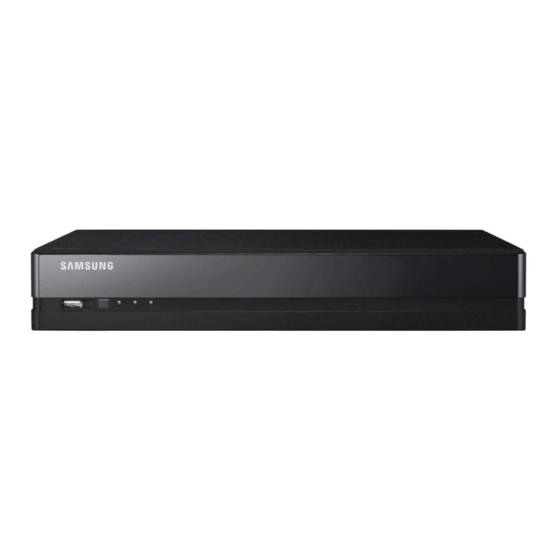
Samsung SDS-P3042 User Manual
4/8/16 channel dvr
Hide thumbs
Also See for SDS-P3042:
- Brochure & specs (2 pages) ,
- Quick start manual (12 pages) ,
- Quick start manual (242 pages)
Table of Contents
Advertisement
Advertisement
Table of Contents

Related Manuals for Samsung SDS-P3042


Summary of Contents for Samsung SDS-P3042
-
Page 1: User Manual
4/8/16 CHANNEL DVR User Manual SDS-P3042/P4042/P4082/P5082/P5102/P5122... - Page 2 Disclaimer Samsung Techwin makes the best to verify the integrity and correctness of the contents in this document, but no formal guarantee shall be provided. Use of this document and the subsequent results shall be entirely on the user's own responsibility. Samsung Techwin reserves the right to change the contents of this document without prior notice.
-
Page 3: Important Safety Instructions
overview ImporTAnT SAfeTy InSTruCTIonS Read these operating instructions carefully before using the unit. Follow all the safety instructions listed below. Keep these operating instructions handy for future reference. Read these instructions. Keep these instructions. Heed all warnings. Follow all instructions. Do not use this apparatus near water. - Page 4 8. If this product fails to operate normally, contact the nearest service center. Never disassemble or modify this product in any way. (SAMSUNG is not liable for problems caused by unauthorized modifications or attempted repair.) 9. When cleaning, do not spray water directly onto parts of the product. Doing so may cause fire or electric shock.
-
Page 5: Before Start
• SAMSUNG retains the copyright on this manual. • This manual cannot be copied without SAMSUNG’s prior written approval. • We are not liable for any or all losses to the product incurred by your use of non-standard product or violation of instructions mentioned in this manual. -
Page 6: Table Of Contents
overview ConTenTS overvIeW Important Safety Instructions Before Start Contents Features Part Names and Functions (Front) Part Names and Functions (Rear) Remote Control ConneCTInG WITh oTher devICe installation Checking the Installation Environment Connecting External Devices Connecting the USB Connecting External SATA HDD Connecting the Camera (SDC-7340BC) Connecting the RS-485 Device Connecting the Network... - Page 7 SeArCh & pLAy Search Playback WeB vIeWer Introducing Web Viewer Connecting Web Viewer (Windows) Using Live Viewer (Windows) Using Search Viewer Viewer Setup 106 About 107 Connecting Web Viewer (Mac) 108 Using Live Viewer (Mac) 110 Mobile Viewer BACKup vIeWer 111 SEC Backup Viewer AppendIx 113 Product Specification (Camera)
- Page 8 overview feATureS The DVR employs H.264 video encoding for 4, 8 or 16 channel inputs and G.711 audio encoding for 4, 8 or 16 channels while simultaneously supports hard disc recording and playback. These DVRs also supports network connectivity, providing remote monitoring from a remote PC transferring video and audio data.
-
Page 9: Package Contents
Manual CD (1EA) Quick Start Guide (1EA) Warranty Card (1EA) Model SDC-7340BC Adapter/Power cable Camera Cable Expansion pipe and Screw Camera Power cable SDS-P3042 60FT: 4EA 12EA/12EA 5 splitter 1EA SDS-P4042 60FT: 4EA 12EA/12EA 9 splitter 1EA SDS-P4082 60FT: 6EA, 90FT: 2EA... -
Page 10: Part Names And Functions (Front)
overview pArT nAmeS And funCTIonS (fronT) POWER NETWORK Part Names Functions USB Port Connects the USB devices. Remote Control Input the remote control signal. Receiver POWER : Displays the power ON/OFF status. LED Indicator REC : Lights on when recording is in progress. NETWORK : Displays both network connection and data transfer status. -
Page 11: Part Names And Functions (Rear)
pArT nAmeS And funCTIonS (reAr) eSATA eSATA HDMI RS485 DC 12 V VIDEO IN AUDIO IN AUDIO OUT Sdr-5102 HDMI DC 12 V RS485 VIDEO IN AUDIO IN AUDIO OUT eSATA eSATA CH10 CH11 CH12 CH13 CH14 CH15 CH16 HDMI RS485 DC 12 V VIDEO IN... -
Page 12: Remote Control
overview remoTe ConTroL SeArCh BACKup Displays the search menu. Displays the Backup Menu. mode Changes the screen mode. poWer Activates the DVR function. Displays the Exit pop up screen. numBer [0~+10] Used as the numeric input keys, or displays a single channel. - Page 13 Changing the remote Control Id 1. Press the [Id] button of the remote control and check the ID displayed on the DVR screen. The factory default ID of the remote control is 00. 2. Enter 2 digits of your selection in order, while pressing the system [Id] button. 3.
-
Page 14: Connecting With Other Device
[Figure 1] Life (Unit: HOURS) The followings are the recommendations when Samsung DVR is installed on a rack. [Figure 1] 1. Please ensure that the rack inside is not sealed. 2. Please ensure the air is circulated through the inlet/outlet as shown in the picture. -
Page 15: Connecting External Devices
ConneCTInG exTernAL devICeS IN 1 V ID E O IN IN 2 e S A T L A N V G A IN 3 IN 4 A U D IO A U D IO O U T H D M R S 4 U S B D C 1... -
Page 16: Connecting The Camera (Sdc-7340Bc)
connecting with other device ConneCTInG The CAmerA (SdC-7340BC) Equipped with the IR LED and the illumination sensor, enables you to monitor at night as well as in daytime. The camera is suitable for both internal and external use. Please make sure not to fully expose the camera to rain. The camera must be installed under a shelter to avoid exposure to excessive rain or moisture. - Page 17 Connecting with dvr The following figures are based on Model SDR-5102. IN 1 VI D EO IN 2 eS AT LA N VG A IN 3 IN 4 AU DI O IN AU DI O O UT H D M R S 48 U S B D C 12...
-
Page 18: Connecting The Rs-485 Device
connecting with other device ConneCTInG The rS-485 devICe Connect the rear [rS-485 +, –] port to the PTZ camera. You can connect and control the PTZ camera which supports the RS-485 communication. Check if the RS-485 device is compatible with the product first. RS485 Pay attention not to change the polarity (+/-) of the RS-485 device when connecting it. - Page 19 Connecting to the network using the router IN 1 V ID E O IN IN 2 eS A TA L A N V G A IN 3 IN 4 A U D IO A U D IO O U T H D M R S 48 U S B...
-
Page 20: Getting Started
live GeTTInG STArTed Starting the system 1. Connect the power cable of the DVR to the wall outlet. It takes about 10 seconds to display the start screen after booting. 2. You will see the initialization screen. The initialization process will last about 1 minute. If a new HDD is installed, the initialization process may take longer. -
Page 21: Locking All Buttons
Login To access a DVR or restricted menu, you should have logged in to the DVR. 1. In live mode, right-click any area of the screen. You will see the context sensitive menu as in the right 2013-01-01 01:10:25 Scene Mode figure. -
Page 22: Live Screen Configuration
live LIve SCreen ConfIGurATIon Icons on the Live Screen You can check the status or operation of the DVR with the icons on the live screen. 2013-01-01 00:00:01 CAM 01 Name Description Current Date, Time Displays the current time and date. Login Information When you are logged in, the “LOG ON”... - Page 23 Name Description Camera Name/ Channel Displays the camera name and the changed channel, if any. Displayed in PTZ setting, and highlighted yellow if PTZ is in operation. Displays AUDIO ON/MUTE. Not displayed in video mode if deactivated. Displayed if a motion detected in the condition that the motion detection is set to Camera Operation <ON>.
-
Page 24: Live
live Split mode menu The context sensitive menu in split mode differs, depending on the login/logout status. 2013-01-01 01:10:25 Scene Mode Audio Off Freeze Stop Alarm Record Play Search Backup Main Menu Shutdown Hide Launcher Logout Menu Description Scene Mode Refer to “Live Mode”. - Page 25 Single mode menu The single mode menu is available only in Single Mode. The context sensitive menu for the One Channel mode, in Split mode is different from that of the Single mode. 2013-01-01 01:10:25 Full Screen PTZ Control Zoom In Audio On Freeze Stop Alarm...
-
Page 26: View The Launcher Menu
live view the Launcher menu The Launcher menu appears on the bottom of the live screen. 1. In Live mode, right-click to display the context menu and select <Show Launcher>. 2013-01-01 01:10:25 2. Move the cursor to the bottom and click a desired item in the Launcher menu. -
Page 27: Live Mode
LIve mode SDR-5102 display Live images from 16 channels in a total of 8 layout of split screens. Switching the screen mode CH10 CH11 CH12 CH13 CH14 CH15 CH16 To switch the split mode, select a screen mode in the launcher menu, or right-click to select a screen mode in the context menu. - Page 28 live In Single mode, If you have set <SEQ-Dwell Time> in “Setting the Device > Camera”, Auto Sequence will be conducted CH19 at the set interval. (Page 44) CH10 CH11 CH12 CH13 In a split mode, If you have set <Multi CH SEQ Time> in “Setting the Device > Monitor”, Auto Sequence will be conducted at the set interval.
- Page 29 CH10 CH11 CH12 CH10 CH11 CH12 CH10 CH11 CH12 CH13 CH13 CH14 CH14 CH15 CH15 CH16 CH16 CH13 CH14 CH15 CH16 CH10 CH11 CH12 Channel Setting CH10 CH13 CH14 CH13 CH14 CH15 CH19 CH19 You can display the channel in a desired area of a split screen. CH11 CH12 CH15...
-
Page 30: Zoom
live Zoom This is available only in Single Live mode. In Single mode, select a desired area and use the Zoom function to enlarge it twice. 1. Select <Zoom In> in the right-click menu. Press the [Zoom] button on the remote control, or simply click < >... -
Page 31: Event Monitoring
evenT monITorInG This will display the channel in sync with a specific event (Motion/Tampering/Video Loss) if it occurs. In “monitor > event display”, set the event monitoring to ON/OFF and specify the event display time. (Page 51) • If multiple events occur simultaneously, the screen will switch to a split mode. - 2~4 events : 4-split mode - 5~9 events : 9-split mode - 10~16 events : 16-split mode... -
Page 32: Main Menu
main menu You can setup the system properties, devices, and options for recording, event, backup and network. SYSTEM SETUP You can setup Date/Time/Language, Permission, System Properties and Log. Date/Time/Language You can check and setup the current Date/Time and time related properties, as well as the language used for the interface on the screen. - Page 33 • Date : Sets the date that will appear on the screen. Date/Time/Language You can select the date format. Date/Time/Language Holiday • Time : Sets the time and its format that will appear on the screen. Date 2013-01-01 YYYY-MM-DD Select either one from <24 Hours, 12 Hours (AM/PM)>.
-
Page 34: Using The Calendar
main menu Setting Holiday You can set specific dates to Holidays according to your preferences. Holidays are applied to <Recording Schedule> and <Alarm Schedule> too. Using the mouse may help make setup easier. 1. Use the up/down buttons (▲▼) in <Date/Time/Language> window to select <Date/Time/Language>, and press the [ENTER] button. - Page 35 Permission Management You can set permissions of each user over the DVR's specific function and settings. Setting the Administrator You can set and change Administrator’s ID and password. The administrator can use and set all menu items and functions. Using the mouse may help make setup easier. 1.
-
Page 36: Setting The Group
main menu Setting the Group You can create user groups and setup permissions for those user groups. You can register a user for each group in <User>. Using the mouse may help make setup easier. 1. Use the up/down buttons (▲▼) in <System> window to move to <Permission Management>, and press Permission Management Group... -
Page 37: To Change The User Password
To restrict the user permissions If the admin restricts all permissions of an added group, the users belonging to that group can access only the default minimum menus and can change the user’s own password only. 1. Start the DVR. If all permissions are restricted, only the Login dialog should appear. -
Page 38: Setting The User
main menu Setting the User Users can be added only if a group was created in <Group> menu. Using the mouse may help make setup easier. 1. Use the up/down buttons (▲▼) in <System> window to move to <Permission Management>, and press Permission Management User Admin... -
Page 39: Setting Permissions
Setting Permissions You can set restricted access for all general users. Items with restrictions will require logging in for use. Using the mouse may help make setup easier. 1. Use the up/down buttons (▲▼) in <System> window to move to <Permission Management>, and press Permission Management Setup [ENTER] button. -
Page 40: System Management
main menu System Management You can check the system version, update to a newer version, as well as data backup and initialization. Checking the System Information You can check the current system version, broadcasting system, MAC address. You can update the system. Using the mouse may help make setup easier. - Page 41 6. When the updating is done, it automatically restarts. Do not turn the power off until it finishes restarting. If “Upgrade Failed” appears, retry from the step 4. When you experience continued failure, consult the service center for assistance. When you perform S/W update remotely using Smart Viewer, it may take a max of 3 minutes to complete the update since Smart Viewer popped up a confirmation message.
-
Page 42: Log Information
main menu Settings You can copy and import the DVR settings by using a storage media. Using the mouse may help make setup easier. 1. Use the up/down buttons (▲▼) in <System> window to move to <System Management>, and press [ENTER] System Management Settings button. -
Page 43: Event Log
Event Log Event log shows recorded events on alarms, motion detections and video loss. It also shows the log and its timestamp. Using the mouse may help make setup easier. 1. Use the up/down buttons (▲▼) in <System> window to move to <Log Information>, and press [ENTER] button. -
Page 44: Setting The Device
main menu SETTING THE DEVICE You can configure the settings of: Camera, Storage Device, Remote Device and Monitor. Camera Setting the Camera You can set Video, Audio, Channel Name and Dwell Time of a Camera. Using the mouse may help make setup easier. 1. - Page 45 • Screen Setup : The video appeared on the screen may vary depending on the channel’s camera, configure the DVR display to your preferences. (Brightness)>, Select a channel and adjust the < (Contrast)>, and < (Color)> of the selected channel. <...
-
Page 46: Setting The Ptz
main menu Setting the PTZ To use Camera’s PTZ functions, ID and protocols of each camera and DVR should be matched. For other settings, refer to the <Remote Device> settings. (Page 50) Using the mouse may help make setup easier. 1. -
Page 47: Storage Device
Storage Device You can check information on storage devices. Confirming Devices You can check storage devices and their free space, usage as well as status. Devices available are HDD, and USB devices (Memory, HDD). Using the mouse may help make setup easier. 1. - Page 48 main menu Formatting You can format a storage device. Using the mouse may help make setup easier. 1. Use the up/down buttons (▲▼) in <Device> window to move to <Storage Device>, and press [ENTER] button. Storage Device Format Device HDD Alarm 2.
- Page 49 HDD Alarm You can set alarm settings for HDD defects such as Check Alarm Output Port, Replace Alarm Output Port, and its duration. Using the mouse may help make setup easier. 1. Use the up/down buttons (▲▼) in <Device> window to move to <Storage Device>, and press [ENTER] button.
- Page 50 main menu Remote Devices You can set the RS-485 communication for use of PTZ Camera and system keyboard with the DVR. Using the mouse may help make setup easier. 1. Use the up/down buttons (▲▼) in <Device> window to move to <Remote Device>, and press [ENTER] button. Remote Device 2.
-
Page 51: Screen Setup
Monitor You can configure information to be displayed and its format for Spot Out monitor. Setting the Monitor Using the mouse may help make setup easier. 1. Use the up/down buttons (▲▼) in <Device> window to move to <Monitor>, and press [ENTER] button. Monitor Monitor Mode... -
Page 52: Setting The Screen Mode
main menu Setting the Screen Mode You can configure the Live screen and Split Screens. Using the mouse may help make setup easier. 1. Use the up/down buttons (▲▼) in <Device> window to move to <Monitor>, and press [ENTER] button. Monitor Mode Monitor... -
Page 53: Setting The Recording
SETTING THE RECORDING You can setup scheduled recording, event recording and other recording related settings. Recording Schedule Make your reservation on a date and time to schedule the recording on specified time. Using the mouse may help make setup easier. 1. -
Page 54: Event Record Duration
main menu Recording Color Tags Color Part Names Functions White No Recording No schedule / event recording Orange Continuous Scheduled recording only Blue Event Event recording only Green Both(Cont&Evnt) Both scheduled / event recordings Each press of a selected cell will cycle through <No Recording>-<Continuous>-<Event>- <Both(Cont&Evnt)>. -
Page 55: Record Option
Setting Event Recording Properties You can set each channel’s resolution, quality and FPS for event recordings. Using the mouse may help make setup easier. 1. Use the up/down buttons (▲▼) in <Record> window to move to <REC Quality & Resolution>, and press REC Quality &... -
Page 56: Setting The Event
main menu SETTING THE EVENT You can set recording options when motion, image loss detection or tampering event occurs. Motion Detection You can set target detection region and motion, as well as the alarm signal output. When the motion detection region is set, it detects motion within the area. Using the mouse may help make setup easier. -
Page 57: Video Loss Detection
Video Loss Detection You can set the alarm to be generated on a camera disconnection, which causes a video loss. Using the mouse may help make setup easier. 1. Use the up/down buttons (▲▼) in <Event> window to move to <Video Loss Detection>, and press [ENTER] Video Loss Detection button. -
Page 58: Backup
main menu Alarm Schedule You can set the conditions and operating hours for scheduled alarms. Using the mouse may help make setup easier. 1. Use the up/down buttons (▲▼) in <Event> window to move to <Alarm Schedule>, and press [ENTER] button. Alarm Schedule BEEP 2. - Page 59 If you need to install a codec in Windows, run the x264_dvr.exe file in the codec folder that is created when you back up an AVI file. - SEC : Saves data in the Samsung’s proprietary format with built-in viewer, which supports immediate playback on a PC.
-
Page 60: Network Configuration
main menu NETwORK CONFIGURATION It provides networked monitoring of Live screen from a remote place, and supports mail forwarding function with events. You can configure the network environment which enables such functions. Connection Mode You can set the network connection route and protocol. Setting the Connection Sets the protocol and environment of the network. - Page 61 Setting the Port 1. Use the up/down buttons (▲▼) in <Network> window to move to <Connection Mode>, and press [ENTER] Connection Mode Port Interface button. Protocol Type 2. Select <Port>. Device Port 4520 4524 UDP Port 8000 ~ 8160 3.
- Page 62 main menu Notification In a multi-browser environment, the <HTTP Port> should be set to 80 (private port). Select one between 4505 and 4530 for RTSP • Network Overview Router (External IP: 109.112.92.133, Cable/ADSL Modem Local IP: 192.168.1.1 Internet DDNS Server (www.samsungipolis.com) POWER NETWORK...
- Page 63 • 1st Set Port Forwarding Setting Port Forwarding is 4520~4524 (4520, 4521, 4522, 4523, 4524) Port Forwarding is 80 SDR-5102 SDR-5102 192. 168. 1. 192. 168. 1. • 2nd Set Port Forwarding Setting Port Forwarding is 4525~4529 (4525, 4526, 4527, 4528, 4529) Port Forwarding is 81 SDR-5102 SDR-5102...
-
Page 64: Connecting And Setting The Network
main menu Connecting and Setting the Network Networking may differ from the connection method, check your environment before setting the connection mode. when no router is used • Static mode - Internet connection : Static PPPoE, leased line, and LAN environments allows connection between the DVR and remote user. - Page 65 when a router is used To avoid IP address conflict with the DVR's static IP, check followings : • Setting the DVR with a static IP - Internet connection : You can connect the DVR to a router which is connected to an PPPoE/Cable modem or a router in a Local Area Network (LAN) environment.
-
Page 66: Ddns
main menu • Setting Router’s Port Forwarding 1. Set the protocol to <TCP>. Connection Mode 2. External Port Range : Enter the TCP Port set in the Port Interface <Device Port> in <Port> menu of the connected DVR. Protocol Type If more than one DVRs are connected to the router, the ... -
Page 67: Ddns Setting
DDNS Site : iPOLiS • DDNS Settings of the Router Select the corresponding menu for the network transfer protocol of the router. • SETTING UP SAMSUNG iPOLiS DDNS Go to Your PC 1. Open your browser and go to http://www.samsungipolis.com and click <LOGIN>. - Page 68 Not Used DDNS Host Address http://www.samsungipolis.com/ Cancel 3. Under Product ID, enter the product ID you created on the DDNS Samsung iPOLiS website. Under Quick Connect, select <Use> and click <OK>. DDNS Site iPOLiS Server Name www.samsungipolis.com ...
-
Page 69: Live Transfer
Live Transfer Sets the quality of the image that is transferred from the DVR to the network. Using the mouse may help make setup easier. 1. Use the up/down buttons (▲▼) in <Network> window to move to <Live Transfer>, and press [ENTER] button. Live Transfer The Live Transfer window appears. -
Page 70: Mailing Service
main menu Mailing Service You can send an e-mail to a DVR-registered user at a specific time interval, or if an event occurs. If an event occurs with a channel where the camera’s video is set to <OFF> or the remaining recording count is set to <OFF>, only the text notification will be sent to the applicable email address. -
Page 71: Event Setting
Event Setting You can set the interval and type of the event that will be sent to the user. Using the mouse may help make setup easier. 1. Use the up/down buttons (▲▼) in <Network> window to move to <Mailing Service>, and press [ENTER] button. Mailing Service Event SMTP... -
Page 72: Recipient Setting
main menu Recipient Setting You can add/remove a recipient(s) to/from the specified group and edit the group if necessary. Using the mouse may help make setup easier. 1. Use the up/down buttons (▲▼) in <Network> window to move to <Mailing Service>, and press [ENTER] button. Mailing Service Recipient SMTP... -
Page 73: Controlling A Ptz Device
CONTROLLING A PTZ DEVICE The DVR enables you to adjust the settings of a PTZ camera as well as an ordinary one to your preference. PTZ Device The PTZ device can be activated only if a channel in connection with the PTZ camera is selected. Getting started with PTZ The PTZ camera is available, only if a channel is selected, in the following way : Using the remote control buttons... -
Page 74: Using The Ptz Camera
main menu Using the PTZ camera You can use one camera to perform all functions of PAN, TILT and ZOOM for monitoring multiple places and set the preset to your preference in a desired mode. 1. Launch the <PTZ Control> menu. 2013-01-01 01:10:25 As the <... -
Page 75: Camera Setting
2013-01-01 01:10:25 The camera-specific menu appears. You can configure the settings of only those cameras that support the protocols of Samsung, Pelco D/P, AD and Panasonic. If you are setting Auto Pan or Pattern in the camera menu, press Camera Setup and hold the appropriate button for a certain time so that the button operation can be different from that in normal PTZ setting. -
Page 76: Search & Play
search & play search & play SEARCH You can perform the search for recorded data by the time or by the search criteria such as an event. You can access the <Search> menu directly in Live mode. 1. In Live mode, right-click any area of the screen. The Live menu appears. -
Page 77: Event Search
It will switch in the sequence of 24 hours - 16 hours - 8 hours Time Search - 4 hours. Go to First 2013-01-01 Go to Last • Zoom Out : The map will switch in the reverse order of the Overlapped Data List1 Zoom In Zoom Out... -
Page 78: Motion Search
search & play Motion Search If a motion is detected in each channel, you can set a desired area to perform the search. You can use the mouse to select the related items. 1. Select <Motion Search> in the <Search> menu. Motion Search 2. -
Page 79: Playback
PLAYBACK Play You can play data stored in the HDD and backup a desired portion of the data. Using the mouse may help make setup easier. 1. In Live mode, click <Play> in the right-click menu or < > in the launcher menu, or press the Play button on 2013-01-01 01:10:25 Scene Mode ... - Page 80 search & play Using the Playback Button Part Names Functions Play Timeline Indicates the current playback point, and can be used to move. Skip Backward Moves backward by unit time. (Move by 10 minutes) Backward Fast Used for quick backward playback. (2 - 64x speed) Play Backward Slow Used for backward frame-by-frame search while in PAUSE.
-
Page 81: Web Viewer
web viewer IntroducIng Web VIeWer What is Web Viewer? Web Viewer allows remote access to your DVRs. You have access to li ve video, archived video, PTZ control (if configured), etc. Product Features Network • Remote access from a standard browser • Supports PTZ camera controls • Supports 1, 4, 9, 16 camera viewing formats (maximum of 16 cameras in the list). -
Page 82: Connecting Web Viewer (Windows)
web viewer connectIng Web VIeWer (Windows) 1. Open your web browser and type the IP address or URL of DVR into the URL address box. “192.168.1.200” is set to IP by default. Set to an available IP address in "Network > Connection Mode”. - Page 83 5. When a program installation wizard window appears, press the [Install] button to install the program. 6. When the program installation is complete, the Explorer window closes. Open the web viewer window again to log in. Live Viewer's main screen appears when you log in successfully after installing the program.
-
Page 84: Using Live Viewer (Windows)
web viewer uSIng LIVe VIeWer (Windows) The Live Viewer screen consists of following : Menu Functions Menu Selection Switches into corresponding menu screen by clicking each menu. Address, Name, Time Displays the IP, model name, time, etc. of connected DVR. Select <DVR Time>... - Page 85 Menu Functions Display Pane Displays the video of camera connected to DVR. User ID, Logout Displays the user's ID. Click Logout icon for logout. oSd Information display a The channel number of the connected DVR are displayed. b Either the <dVr time> or the <Pc time> will be displayed as the current date and time, according to your configuration.
- Page 86 web viewer Split-Screen Click split mode selection button to switch to the corresponding screen mode. SINGLE MODE QUAD MODE NINE MODE SIXTEEN MODE to switch to full screen mode Click < >. Current split screen appears in full screen. Press the [eSc] key to exit the full screen mode. 86_ web viewer...
- Page 87 changing the Live Screen Mode 16-split mode does not support “Sequence”, “Previous” and “Next”. : When this button is clicked, the previous screen appears. • - In SINGLE MODE, the channel numbers are switched in reverse order. - In QUAD MODE, the screens are changed like 1st 4 channels (1~4) ...
- Page 88 web viewer to print a screen 1. Click < > button. 2. Print current camera’s video image with the printer connected to the PC operating the Web Viewer. to save as AVI 1. Click < > button. When “AVI Setup” window appears, select the record saving path and capacity.
-
Page 89: Controlling A Connected Ptz Camera
controLLIng A connected PtZ cAMerA controlling PtZ If PTZ camera is connected, the < > icon appears on screen. When selecting corresponding camera channel, the PTZ tab is provided to allow you to control the PTZ. Part Names Functions Direction Adjustment Adjusts the direction of a camera. - Page 90 web viewer to set a preset 1. Click < > button to display “Preset” window. 2. Click < > to select a desired preset number. 3. Enter the name of preset. 4. Use direction keys to adjust the direction which camera aims at.
- Page 91 controlling oSd Menu If connected PTZ camera supports the OSD menu, press the < > to enter camera’s menu screen to change its settings. Part Names Functions Direction Adjustment You can go to a desired menu. ENTER Selects a desired item. Menu On/Off You can On/Off camera’s OSD menu settings.
-
Page 92: Using Search Viewer
web viewer uSIng SeArch VIeWer The Search Viewer screen consists of following : Up to 3 users can access simultaneously. Menu Functions Menu Selection Switches to the corresponding menu screen by clicking each menu. Address, Name, Time Displays the IP, model name, time, etc. of connected DVR. Split Mode Selection Selects the type of split screen and selects the channel displayed in Display Pane. -
Page 93: Searching The Recorded Video In The Calendar
Menu Functions Play Control Adjusts current video’s playback speed and played time position. Displays the corresponding color depending on recorded data type if you place your Recording Color mouse cursor on that area. Display Pane Plays corresponding data on the screen if you select a search result. User ID, Logout Displays the user's ID. - Page 94 web viewer names and Functions of Play buttons a Moves backward by 10 minutes from the current playing point. b Plays in reverse at doubled speed. The playback speed is doubled up to 64x speed. c Moves backward by 1 second from current playing point. d Moves forward by 1 second from current playing point.
-
Page 95: Viewer Setup
VIeWer SetuP You can configure the DVR settings remotely on the network. To configure the DVR settings, click <Setup>. System You can configure the various settings of the DVR system. date/time/Language For more information, refer to <date/time/Language> in the <System Setup> menu. (Page 32) 1. - Page 96 web viewer holiday You can set specific dates to Holidays according to your preferences. For more information, refer to <Setting holiday> in the <System Setup> menu. (Page 32) Permission Management For more information, refer to <Permission Management> in the <System Setup> menu. (Page 35) • Admin You can change the admin ID or the password.
- Page 97 • user You can add, change or remove a user or users. • Setup You can set the user permission. System Management For more information, refer to <System Management> in the <System Setup> menu. (Page 40) • System Information You can see information of the current system. Check the Software Version, Broadcast Format, MAC Address, DVR name and S/W Upgrade.
- Page 98 web viewer device You can check a list of devices that are connected to the DVR and configure the necessary settings. Click <device> in the menu screen. For more information, refer to “Setting the device”. (Page 44) camera • camera You can configure the settings of the camera that is connected to the DVR.
-
Page 99: Remote Device
Storage device You can check and change the settings of the storage device. • device You will see a list of storage devices that are connected to the DVR. You can check the type, used/total, usage and status of the device. • hdd Alarm You can set the alarm output channel and the alarm duration for an error. - Page 100 web viewer Monitor • Monitor You can configure the monitoring screen settings and set the output system. • Mode You can switch between live mode and play mode. 100_ web viewer...
-
Page 101: Recording Schedule
record For more information, refer to <Setting the recording>. (Page 53) recording Schedule If you set a recording schedule for a specific date and time, the recording will start at that specific time. - Apply to All CH : Click <Apply to All ch> to display the confirmation window. -
Page 102: Motion Detection
web viewer rec Quality & resolution • Standard/event You can set the resolution, frame rate and recording quality for each channel. record option You can set the Disk End Mode. event For more information, refer to <Setting the event>. (Page 56) Motion detection You can set the motion detection mode and the sensitivity as well as the alarm output type and the duration. - Page 103 • Motion region Set the target motion detection area. Video Loss detection You can set the alarm output time if a video loss occurs. tampering detection You can set whether to generate alarm and its dwell time for video tampering events. English _103...
-
Page 104: Alarm Schedule
web viewer Alarm Schedule You can schedule the alarm output according to the day of the week and the time. The default setting is Event Sync, which activates the alarm only if an event occurs. network For more information, refer to <network configuration>. (Page 60) connection Mode A remote user can access the DVR via the network to check the current mode and the IP address. - Page 105 DDNS You can check the DDNS settings. Live Transfer Sets the quality of the image that is transferred from the DVR to the network. • Live Transfer A remote user can set the image resolution of the transferred data. Mailing Service You can specify the SMTP server that sends a mail if an event occurs and set the recipient group and users.
-
Page 106: About
web viewer • group You can add a group to receive the mail if an event occurs and set the permission to receive the event mail for each group. • recipient You can add a user or users who will receive the mail. About Click <About>. -
Page 107: Connecting Web Viewer (Mac)
connectIng Web VIeWer (Mac) Safari on MAc. If you want to use DVR Web Viewer with Safari Browser on a Mac, please refer to this user guide and install Multi Viewer with firmware upgrade if necessary. • Mac OS versions available : 10.6 or later version • Silverlight : 5 or later • Safari : 5 or later 1. - Page 108 web viewer ~ If Microsoft Silverlight plug-in is already installed 1. Use a web browser to connect to the DVR. 2. If Silverlight plug-in is already installed, you will see the login screen as shown. 3. If the login screen does not appear, check if the DVR set is connected properly with a valid IP address.
-
Page 109: Using Live Viewer (Mac)
uSIng LIVe VIeWer (Mac) The Live Viewer screen consists of following : Menu Functions Name, Address Displays a connected DVR’s IP address and model name. Menu Selection Consists of < LIVE > ,< ABOUT > and < LOGOUT > menu. These buttons are used for the screen split and full screen mode. -
Page 110: Mobile Viewer
web viewer MobILe VIeWer What is Mobile Viewer? Mobile Viewer is management software that enables you to connect to DVR (Digital Video Recorder) remotely and control the video playback and PTZ operations (if configured) in real time. Key Features • Remote access via Smart phone • Voice Recognition • 1-split and 4-split modes supported in Live Viewer • Supports single channel search function... -
Page 111: Backup Viewer
backup viewer Sec bAcKuP VIeWer You can play a file that is backed up in the format of SEC. Backup in SEC format produces backup data file, library file and self-executable viewer file. If you run the backup file viewer, the backup data file will be automatically played. d e f Sdr-5102_cAM 01 recommended System requirements... - Page 112 backup viewer Part Names Functions Set the screen’s aspect ratio to be displayed. Split Screen The screen switches to the selected split screen mode. Saves the current video’s image as in an image file. Supports jpeg file format. Screen Printout Prints out the current screen.
-
Page 113: Product Specification (Camera)
Product SPecIFIcAtIon (cAMerA) Sdc-7340bc Details Item SDC-7340BCN SDC-7340BCP Electrical Input Voltage DC 12V Power Consumption Video Imaging Device 1/3'' CMOS Active Pixels 976 x 496 Scanning System Interlace Synchronization Internal Frequency H: 15,734 Hz, V: 59.94 Hz H: 15,625 Hz, V: 50 Hz Horizontal Resolution 720TVL 700TVL... -
Page 114: Product Specification(Dvr)
Product SPecIFIcAtIon (dVr) Details Item SDR-5102 SDR-4102 Inputs 16(8) composite video 0.5–1 Vpp, 75 ohm Video Resolution 960x480 NTSC, 960x576 PAL / 720x480 NTSC, 720x576 PAL Frame rate 480fps NTSC, 400fps PAL 240fps NTSC, 200fps PAL Live Resolution 960x480 NTSC, 960x576 PAL Multi Screen display 1/4/7/9/13/16/16(A)/Sequence/ PIP 1/4/7/9/13/Sequence/ PIP... - Page 115 Details Item SDR-5102 SDR-4102 960H/4CIF/2CIF/CIF(480fps NTSC, 960H/4CIF/2CIF/CIF(240fps NTSC, Transmission speed 400fps PAL) 200fps PAL) Up to (32)Mbps, Unlimited(32M)/2/1.5/ Up to (16)Mbps, Unlimited(16M)/2/1.5/ Bandwidth 1 Mbps/800/600/500/400/300/200/ 1 Mbps/800/600/500/400/300/200/ 100/50 kbps 100/50 kbps Bandwidth control Automatic Network (IPv4) Stream H.264(4CIF/2CIF/CIF Selectable) Remote users 10 Persons (Search up to (3), Live Unicast/Live Multicast available) Maximum Protocol support...
- Page 116 USB 2.0, 2 ports (Front/Rear) Connections e-SATA 1 External SATA port Application Supoort Mouse, Remote Controller Protocol support Samsung-E/Samsung-T/Pelco-D/Pelco-p/Panasonic/ Phillips/ AD/ VICON//GE Coax Pelco-C, CCVC General Input Voltage /Current 12V DC Adaptor, 100~240V AC, 50/60Hz Electrical Power consumption Max. 36 W (with 1x HDD)
- Page 117 Product SPecification (dvr) Details Item SDR-3102 Inputs 4 composite video 0.5–1 Vpp, 75 ohm automatic termination Video Resolution 960x480 NTSC, 960x576 PAL / 720x480 NTSC, 720x576 PAL Frame rate 120fps NTSC, 100fps PAL Live Resolution 960x480 NTSC, 960x576 PAL Multi Screen display 1 / 4 / PIP / Sequence Performance Embedded...
- Page 118 Remote notification Notification via e-mail Ethernet 1 RJ45 10/100 Base-T Serial interface RS-485 for PTZ USB 2.0, 2 ports (Front/Rear) Connections e-SATA 1 External SATA port Application Supoort Mouse, Remote Controller Protocol support Samsung-E/Samsung-T/Pelco-D/Pelco-p/Panasonic/ Phillips/ AD/ VICON//GE COAX – 118_ appendix...
- Page 119 Details Item SDR-3102 General Input Voltage / Current 12V DC Adaptor, 100~240V AC, 50/60Hz Electrical Power consumption Max. 10W (With 1x HDD) Operating Environmental Temperature / +0°C to +40°C (+32°F to +104°F) / 20% to 85% RH Humidity Dimension (W x H x D) W315 x H52 x D235 mm (12.4"...
-
Page 120: Product Overview
appendix Product oVerVIeW • Sdr-5102 unit : mm (inches) 315 (12.4’’) 120_ appendix... - Page 121 • Sdr-4102 unit : mm (inches) 315 (12.4’’) English _121...
- Page 122 appendix • Sdr-3102 unit : mm (inches) 315 (12.4’’) 122_ appendix...
-
Page 123: Default Setting
deFAuLt SettIng This returns the factory default settings. The settings are made as follows; • Use System/Load Factory Default in MENU The default settings are based on SDR-5102. The initial administrator ID is “admin” and the password should be set when logging in for the first time. Please change your password every three months to safely protect personal information and to prevent the damage of the information theft. - Page 124 appendix Category Details Factory Default Baudrate 9600 Parity None Remote Device Data Stop bit Remote Control ON(0) Event Display Device Display Monitor Multi CH SEQ Time 5 sec Monitor VGA/HDMI 1280X1024 HDMI Resolution Auto Detection Live Screen Mode Play Screen Recording Schedule CH1~CH16 Both(Cont&Evnt)
- Page 125 Category Details Factory Default IP Type Static Transfer Bandwidth 2Mbps IP Address 192.168.1.200 Interface Gateway 192.168.1.1 Subnet Mask 255.255.255.0 Connection Mode 168.126.63.1 Protocol Type Device Port 4520~4524 Port HTTP Port Secure Video Transmission Network DDNS DDNS Site Resolution Live Transfer Quality Server Port...
-
Page 126: Troubleshooting
appendix troubLeShootIng Symptom Countermeasures The system does not turn on and the indicator on the y Check if the power supply system is properly connected. front panel does not work at all. y Check the system for the input voltage from the power source. y If the problem persists even after you have taken the above actions, check the power supplier and replace it with a new one if neccessary. - Page 127 Symptom Countermeasures A message of “Need to reset date/time.” Is displayed y This message is displayed if there occurs a problem with the time on the screen. setting of the internal clock or an error in the clock itself. Contact the retailer or the service center for more information. The time bar is not displayed in Search mode.
- Page 128 appendix Symptom Countermeasures Recording does not work. y If your player does not display a Live image at all, that indicates recording does not work so first check if you see an image on the screen. y Recording does not work if the recording settings are not properly configured.
-
Page 129: Gnu General Public License
The software included in this product contains copyrighted software that is licensed under the GPL/LGPL. You may obtain the complete Corresponding Source code from us for a period of three years after our last shipment of this product by sending email to help.cctv@samsung.com If you want to obtain the complete Corresponding Source code in the physical medium such as CD-ROM, the cost of physically performing source distribution might be charged. - Page 130 c) Accompany it with the information you received as to the offer to of this License, you may choose any version ever published by the Free distribute corresponding source code. (This alternative is allowed Software Foundation. only for noncommercial distribution and only if you received the 10.
-
Page 131: Terms And Conditions
consider it more useful to permit linking proprietary applications with the computer or modifying a private copy. Propagation includes copying, library. If this is what you want to do, use the GNU Lesser General distribution (with or without modification), making available to the public, Public License instead of this License. - Page 132 4. conveying Verbatim copies. A separable portion of the object code, whose source code is excluded from the Corresponding Source as a System Library, need not be You may convey verbatim copies of the Program’s source code as you included in conveying the object code work. receive it, in any medium, provided that you conspicuously and appropriately publish on each copy an appropriate copyright notice;...
- Page 133 permits relicensing or conveying under this License, you may add to a In the following three paragraphs, a “patent license” is any express covered work material governed by the terms of that license document, agreement or commitment, however denominated, not to enforce a provided that the further restriction does not survive such relicensing or patent (such as an express permission to practice a patent or covenant conveying.
- Page 134 15. disclaimer of Warranty. Finally, software patents pose a constant threat to the existence of any free program. We wish to make sure that a company cannot effectively THERE IS NO WARRANTY FOR THE PROGRAM, TO THE EXTENT restrict the users of a free program by obtaining a restrictive license from PERMITTED BY APPLICABLE LAW.
- Page 135 You may charge a fee for the physical act of transferring a copy, and layouts and accessors, and small macros and small inline functions (ten you may at your option offer warranty protection in exchange for a fee. lines or less in length), then the use of the object file is unrestricted, regardless of whether it is legally a derivative work.
-
Page 136: Openssl License
END OF TERMS AND CONDITIONS acceptance of this License to do so, and all its terms and conditions for copying, distributing or modifying the Library or works based on it. 10. Each time you redistribute the Library (or any work based on the how to Apply these terms to Your new Libraries Library), the recipient automatically receives a license from the original licensor to copy, distribute, link with or modify the Library subject to... - Page 137 1.3. “Covered Software” means (a) the Original Software, or (b) with Netscapes SSL. This library is free for commercial and non- commercial use as long as the following conditions are aheared to. The Modifications, or (c) the combination of files containing Original Software following conditions apply to all code found in this distribution, be it the with files containing Modifications, in each case including portions RC4, RSA, lhash, DES, etc., code;...
- Page 138 b) under Patent Claims infringed by the making, using, or selling of version will be given a distinguishing version number. Except as Modifications made by that Contributor either alone and/or in provided in Section 4.3, no one other than the license steward has the combination with its Contributor Version (or portions of such right to modify this License.
- Page 139 DAMAGES, SO THIS EXCLUSION AND LIMITATION MAY NOT APPLY • You may not pretend that you wrote this software. If you use it, or TO YOU. only parts of it, in a program, you must acknowledge somewhere in your documentation that you have used the FreeType code. (`credits’) 8.
- Page 140 For more additional information, send email to help.cctv@samsung.com. THIS SOFTWARE IS PROVIDED BY THE COPYRIGHT HOLDERS AND CONTRIBUTORS “AS IS” AND ANY EXPRESS OR IMPLIED...
- Page 141 BSD 2.0 http://www.opensource.org/licenses/bsd-license.html 4. Neither the name of the University nor of the Department may be For more additional information, send email to help.cctv@samsung.com. used to endorse or promote products derived from this software copyright (c) 1998-2000 university college London without specific prior written permission.
- Page 142 Part 4: Sun Microsystems, Inc. copyright notice THIS SOFTWARE IS PROVIDED BY THE COPYRIGHT HOLDERS AND CONTRIBUTORS “AS IS” AND ANY EXPRESS OR IMPLIED (bSd) WARRANTIES, INCLUDING, BUT NOT LIMITED TO, THE IMPLIED WARRANTIES OF MERCHANTABILITY AND FITNESS FOR A Copyright ©...
- Page 143 License urL miniupnpc 1.5 BSD 2.0 http://miniupnp.free.fr/ For more additional information, send email to help.cctv@samsung.com. THIS SOFTWARE IS PROVIDED BY THE COPYRIGHT HOLDERS AND CONTRIBUTORS “AS IS” AND ANY EXPRESS OR IMPLIED copyright (c) 2005-2009, thomas bernArd WARRANTIES, INCLUDING, BUT NOT LIMITED TO, THE IMPLIED WARRANTIES OF MERCHANTABILITY AND FITNESS FOR A PARTICULAR PURPOSE ARE DISCLAIMED.
- Page 144 copyright (c) 1984-2000 carnegie Mellon university. 3. The name(s) of the authors of this software must not be used to endorse or promote products derived from this software without prior written permission. All rights reserved. THE AUTHORS OF THIS SOFTWARE DISCLAIM ALL WARRANTIES Redistribution and use in source and binary forms, with or without WITH REGARD TO THIS SOFTWARE, INCLUDING ALL IMPLIED modification, are permitted provided that the following conditions are...
- Page 145 El símbolo Eco representa el compromiso de Samsung Techwin de fabricar productos que respeten el medio ambiente e indica a la vez que este equipo cumple con la Directiva de la Unión Europea EU RoHS.
- Page 146 SAMSUNG TECHWIN AMERICA Inc. SAMSUNG TECHWIN EUROPE LTD. 100 Challenger Rd. Suite 700 Ridgefield Park, NJ 07660 Samsung House, 1000 Hillswood Drive, Hillswood Business Toll Free : +1-877-213-1222 Direct : +1-201-325-6920 Park Chertsey, Surrey, UNITED KINGDOM KT16 OPS Fax : +1-201-373-0124 TEL : +44-1932-45-5300 FAX : +44-1932-45-5325 www.samsungcctvusa.com...
Need help?
Do you have a question about the SDS-P3042 and is the answer not in the manual?
Questions and answers
how to find network on samsung sdh c75100