Download Print this page
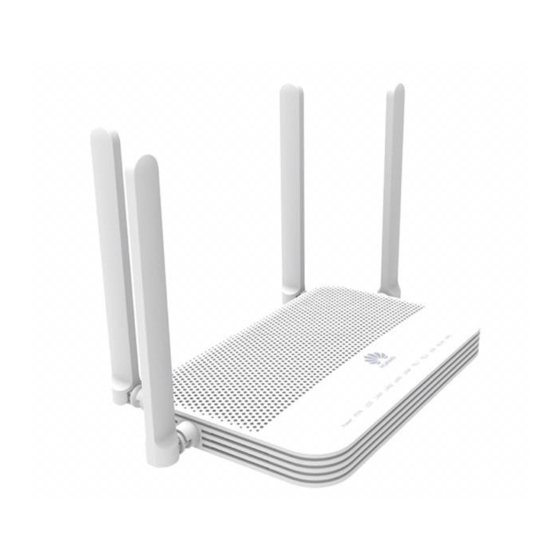
EchoLife HG8245W5-6T
Quick Start for QR code
Issue
05
Date
2022-12-08
HUAWEI TECHNOLOGIES CO., LTD.
loading

Frequently Asked Questions (8)

  • Why is my Huawei HG8245W5-6T Wi-Fi signal weak?

    Your Wi-Fi signal may be weak due to several factors:

    • Interference from house structures, indoor obstacles, or other electrical appliances.
    • Load-bearing walls, floors, and metal-coated glass can block Wi-Fi signals.
    • Insufficient signal strength in common usage areas, typically if the signal is lower than -72dBm.

    For more information, see page 15 of the manual.
    Was this helpful?
  • How do I perform a factory reset on the Huawei HG8245W5-6T?
  • What can I do to extend the Wi-Fi range of my Huawei HG8245W5-6T?

    To extend the Wi-Fi range of your Huawei HG8245W5-6T:

    • Optimize the deployment position of the ONT by placing it in the middle of your planned coverage area, ensuring no obstacles, and positioning it at a high location. Keep it far away from interference sources like TVs, refrigerators, cordless phones, and Bluetooth devices.
    • Avoid or reduce obstacles such as load-bearing walls, floors, and metal-coated glass between the ONT and Wi-Fi devices, as these can block Wi-Fi signals.
    • Add repeaters to enhance Wi-Fi coverage, especially for areas like outdoor yards, large balconies, or compound rooms, or if the signal strength is insufficient (e.g., lower than -72dBm).
    • Use the correct radio channel. While the Huawei ONT generally selects the optimal channel automatically, you can use a Wi-Fi scanner (like Wi-Fi Stumbler or Wi-Fi Analyzer) to find the best channel if your network is slow.

    For more information, see page 15 of the manual.
    Was this helpful?
  • Where can I find the default login password for the Huawei HG8245W5-6T?

    You can find the default login username and password on the product nameplate.


    For more information, see pages 12 and 13 of the manual.
    Was this helpful?
  • What are the initial setup steps for the Huawei HG8245W5-6T?

    The initial setup involves placing the device and connecting cables.

    • Placing the Device:
      • The ONT can be mounted onto a wall or placed on a desk.
      • Ensure 10 cm clearance on all sides for adequate ventilation.
      • It is recommended to keep the device away from electric appliances that generate strong magnetic or electric fields.
    • Connecting Cables:
      • Connect the optical port for upstream transmission.
      • Connect the power adapter.
      • Connect PCs or IP set-top boxes to LAN ports.
      • Connect telephones or fax machines to TEL ports.
      • Connect USB storage devices to the USB port.
    Was this helpful?
  • What do the different LED indicators on the Huawei HG8245W5-6T signify?

    The LED indicators on the Huawei HG8245W5-6T signify the following:

    • Power:
      • Steady on: The ONT is powered on.
      • Off: The power supply is cut off.
    • PON/LOS:
      • Blinks once every 2 seconds (LOS Status 5): The ONT is not connected to fibers or does not receive optical signals.
      • Blinks once every 2 seconds (LOS Status 6): The hardware is faulty.
    • LAN1-LAN4:
      • Steady on: The Ethernet connection is in the normal state.
      • Blinking: Data is being transmitted over the Ethernet port.
      • Off: The Ethernet connection is not set up.
    • TEL1-TEL2:
      • Steady on: The ONT is registered with the softswitch but no service flows are transmitted.
      • Blinks twice a second: The ONT is registered with the softswitch, and data is being transmitted on the port.
      • Blinks once every 2 seconds: The ONT fails to be registered with the softswitch.
      • Off: The POTS port is disabled.
    • USB:
      • Steady on: The USB port is connected and working in the host mode, but no data is transmitted.
      • Blinking: Data is being transmitted on the USB port.
      • Off: The system is not powered on or the USB port is not connected.
    • WLAN:
      • Steady on: The WLAN function is enabled.
      • Blinking: Data is being transmitted over the WLAN port.
    • WPS:
      • Steady on: The WPS function is enabled.
      • Blinking: A Wi-Fi terminal is accessing the system.
      • Off: The WPS function is disabled.
    Was this helpful?
  • How many Ethernet ports are available on the Huawei HG8245W5-6T?

    The Huawei HG8245W5-6T has 4 Ethernet ports.

    Was this helpful?
  • What is the function of the WPS button on the Huawei HG8245W5-6T?
Need help?

Need help?

Do you have a question about the EchoLife HG8245W5-6T and is the answer not in the manual?

Questions and answers

Vesna Samardžić
June 4, 2025

how to activate port mirroring on lan1 port

احمد الغامدي
January 30, 2025

how to disable the reset button or keep the password even after reseting or maybe changing the Default password and username

Summary of Contents for Huawei EchoLife HG8245W5-6T

  • Page 1 EchoLife HG8245W5-6T Quick Start for QR code Issue Date 2022-12-08 HUAWEI TECHNOLOGIES CO., LTD.
  • Page 2 Notice The purchased products, services and features are stipulated by the contract made between Huawei and the customer. All or part of the products, services and features described in this document may not be within the purchase scope or the usage scope. Unless otherwise specified in the contract, all statements, information, and recommendations in this document are provided "AS IS"...
  • Page 3: Table Of Contents

    EchoLife HG8245W5-6T Quick Start for QR code Contents Contents 1 Placing the Device........................1 2 Connecting Cables........................4 3 Indicator Description......................6 4 Technical Specifications......................8 5 FAQs............................9 Issue 05 (2022-12-08) Copyright © Huawei Technologies Co., Ltd.
  • Page 4: Placing The Device

    ● It is recommended that the computer and ONT be put far away from electric appliances that generate strong magnetic or electric fields, such as microwave ovens. Mounting an ONT on the desk The figure below shows an ONT that is horizontally placed on a desk. Issue 05 (2022-12-08) Copyright © Huawei Technologies Co., Ltd.
  • Page 5 Use a screwdriver to fasten the screws into the expansion bolts, reserving 5 mm ends out of the wall, and mount the ONT onto the screws. Issue 05 (2022-12-08) Copyright © Huawei Technologies Co., Ltd.
  • Page 6 1 Placing the Device NO TE It is recommended that the screw be about 4 mm in diameter and longer than 20 mm. The screw head should be between 6mm and 9mm in diameter. Issue 05 (2022-12-08) Copyright © Huawei Technologies Co., Ltd.
  • Page 7: Connecting Cables

    EchoLife HG8245W5-6T Quick Start for QR code 2 Connecting Cables Connecting Cables Issue 05 (2022-12-08) Copyright © Huawei Technologies Co., Ltd.
  • Page 8 NOTE Reset Huawei ONTs with caution. Otherwise, the ONTs may fail to access the Internet. If an ONT cannot access the Internet after a reset, contact your Internet service provider.
  • Page 9: Indicator Description

    Data is being transmitted on the USB port. The system is not powered on or the USB port is not connected. WLAN Steady on The WLAN function is enabled. Blinking Data is being transmitted over the WLAN port. Issue 05 (2022-12-08) Copyright © Huawei Technologies Co., Ltd.
  • Page 10 The ONT is not connected to fibers or does once not receive optical signals. every 2 seconds Blinks once Blinks The hardware is faulty. every 2 once seconds every 2 seconds Issue 05 (2022-12-08) Copyright © Huawei Technologies Co., Ltd.
  • Page 11: Technical Specifications

    ● Dimensions (H x W x D): 32 mm x 200 mm x 127 mm (without external antenna and pads) ● Weight: About 400g ● Maximum system power consumption: 18 W Issue 05 (2022-12-08) Copyright © Huawei Technologies Co., Ltd.
  • Page 12: Faqs

    ● Wireless login Connect your mobile phone, pad, or PC to the Wi-Fi network of the Huawei ONT. Enter the IP address in the address box of a browser and press Enter. On the displayed login page, enter the username and password.
  • Page 13 ● Wired login Use a network cable to connect a PC to the Huawei ONT. Set the IP address of the PC in the same subnet as the web address of the For example, if the web address of the Huawei ONT is Huawei ONT.
  • Page 14 How do I change the Wi-Fi password? Log in to the Huawei ONT web page using your mobile phone, pad, or PC. For details, see "How do I log in to the Huawei ONT web page?" Choose the Advanced Configuration > WLAN tab and choose 2.4G Basic Network Settings.
  • Page 15 ONT positions or add new repeaters to enhance the Wi-Fi coverage. 3. Using the correct radio channel. Generally, the Huawei ONT automatically selects the optimal channel. If the network is slow or the quality turns poor from time to time, you can use a Wi-Fi scanner such as Wi-Fi Stumbler or Wi-Fi Analyzer to search for the optimal channel.
  • Page 16 How do I restore the Huawei ONT to factory setting? Press Reset by using a needle-type object for longer than 10s to restore factory defaults and reset the Huawei ONT. If the indicator is off and then is lit, the system restarts successfully.

This manual is also suitable for:

Hg8245w5-6t