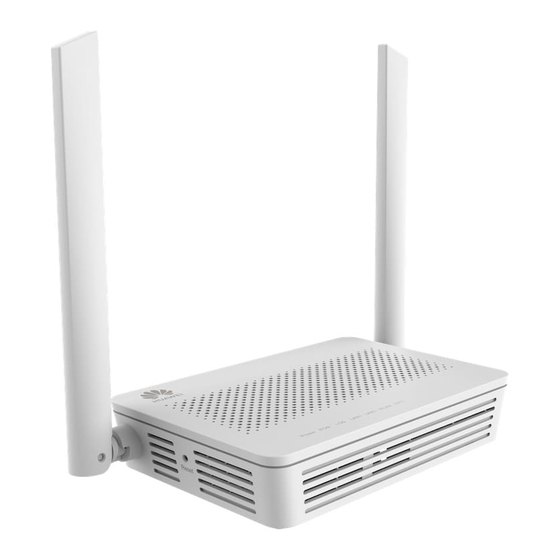
EchoLife EG8021V5
Quick Start for QR code
Issue
01
Date
2024-01-31
HUAWEI TECHNOLOGIES CO., LTD.
Table of Contents
loading

Frequently Asked Questions (10)

  • How can I access the configuration interface of my EG8021V5?

    You can access the configuration interface via wireless or wired login:

    • Wireless login:
    1. Connect your mobile phone, pad, or PC to the Wi-Fi network of the Huawei ONT.

    2. Enter the IP address in a browser's address box and press Enter. On the login page, enter the username and password (found on the product nameplate).

    • Wired login:
    1. Use a network cable to connect a PC to the Huawei ONT.

    2. Set the IP address of the PC in the same subnet as the web address of the Huawei ONT (e.g., if the ONT's web address is 192.168.a.b, set the PC's IP to 192.168.a.c).


    For more information, see page 13 of the manual.
    Was this helpful?
  • How do I configure Wi-Fi settings (SSID, password) on the EG8021V5?

    To configure Wi-Fi settings, including SSID and password, you need to log in to the Huawei ONT web page:

    1. Log in to the Huawei ONT web page using your mobile phone, pad, or PC. (Refer to "How do I log in to the Huawei ONT web page?" for details).
    2. Choose the Advanced > WLAN tab and then select 2.4G Basic Network Settings. If configuring 5 GHz Wi-Fi, choose 5G Basic Network Settings. You can then modify the SSID and password.

    For more information, see page 14 of the manual.
    Was this helpful?
  • How do I reset my Huawei EchoLife EG8021V5 to factory settings?

    To restore the device to its default settings, press the Reset button for a long time (longer than 10 seconds).


    For more information, see page 9 of the manual.
    Was this helpful?
  • Why is my internet connection slow when using the Huawei EchoLife EG8021V5?

    Internet connection speed depends on the bandwidth provided by your Internet Service Provider (ISP). Wi-Fi speed is also affected by Wi-Fi signal strength and quality. To improve speed:

    • Consider upgrading to faster broadband with your ISP.
    • Optimize Wi-Fi signal by placing the ONT in the middle of a planned coverage area with no obstacles and at a high position.
    • Ensure the ONT is far away from interference sources like TVs, refrigerators, cordless phones, and Bluetooth devices.
    • Avoid or reduce obstacles like load-bearing walls, floors, and metal-coated glass between the ONT and Wi-Fi devices.
    • If signal strength is insufficient (generally lower than -72dBm) in common access areas, consider adding repeaters to enhance coverage.

    For more information, see page 15 of the manual.
    Was this helpful?
  • How can I optimize Wi-Fi performance on my Huawei EchoLife EG8021V5?

    To optimize Wi-Fi performance:

    • Consider upgrading to faster broadband as Wi-Fi speed is dependent on ISP bandwidth.
    • Improve Wi-Fi signal strength and quality by:
      • Placing the ONT in the middle of a planned coverage area and at a high position, ensuring no obstacles.
      • Keeping the ONT far away from interference sources like TVs, refrigerators, cordless phones, and Bluetooth devices.
      • Avoiding or reducing obstacles such as load-bearing walls, floors, and metal-coated glass between the ONT and Wi-Fi devices.
      • For large areas like outdoor yards, balconies, or compound rooms, add repeaters to enhance Wi-Fi coverage.
      • For common access areas, evaluate signal strength; if it's insufficient (below -72dBm), consider optimizing the layout or adding repeaters.

    For more information, see page 15 of the manual.
    Was this helpful?
  • What do the status indicator lights on the Huawei EG8021V5 mean?

    The status indicator lights on the Huawei EG8021V5 have the following meanings:

    • Power:
      • Steady on: The ONT is powered on.
      • Off: The power supply is cut off.
    • PON/LOS:
      • PON Status Off, LOS Status Off: The ONT is prohibited by the upper-layer device or blinks abnormally. Contact the service provider for help.
      • PON Status Blinks twice a second, LOS Status Off: The ONT attempts to set up a connection with its upper-layer device.
      • PON Status Steady on, LOS Status Off: A connection is set up between the ONT and its upper-layer device.
      • PON Status Off, LOS Status Blinks once every 2 seconds: The ONT is not connected to fibers or does not receive optical signals.
      • PON Status Blinks once every 2 seconds, LOS Status Blinks once every 2 seconds: The hardware is faulty.
    • LAN1-LAN2:
      • Steady on: The Ethernet connection is in the normal state.
      • Blinking: Data is being transmitted over the Ethernet port.
      • Off: The Ethernet connection is not set up.
    • WLAN:
      • Steady on: The WLAN function is enabled.
      • Blinking: Data is being transmitted over the WLAN port.
      • Off: The WLAN function is disabled.
    • WPS:
      • Steady on: The WPS function is enabled.
      • Blinking: A Wi-Fi terminal is accessing the system.
      • Off: The WPS function is disabled.

    For more information, see page 10 of the manual.
    Was this helpful?
  • What is the difference between a soft reset and a hard reset on the EG8021V5?

    A soft reset involves pressing the Reset button for a short time to reset the device. A hard reset involves pressing the Reset button for a long time (longer than 10s) to restore the device to its default settings and reset it.


    For more information, see page 9 of the manual.
    Was this helpful?
  • What kind of internet service is compatible with the Huawei EchoLife EG8021V5?

    The Huawei EchoLife EG8021V5 is an Optical Network Terminal (ONT) and is compatible with internet services that utilize a fiber connection for upstream transmission. It connects to an optical port on the wall.

    Was this helpful?
  • How do I use the WPS button on the Huawei EchoLife EG8021V5?

    When the WLAN is on, press the WPS button (> 3s) and release it to start Wi-Fi Protected Setup (WPS) negotiation.

    Was this helpful?
  • How many Ethernet ports does the Huawei EchoLife EG8021V5 have?

    The Huawei EchoLife EG8021V5 has 2 Ethernet ports.

    Was this helpful?
Need help?

Need help?

Do you have a question about the EchoLife EG8021V5 and is the answer not in the manual?

Questions and answers

H-2
March 28, 2025

not able to log in the default password Epuser/userEp

1 comments:
Mr. Anderson
March 28, 2025

To log in to the Huawei EchoLife EG8021V5 with the default password Epuser/userEp:

1. Open a browser on your mobile phone, tablet, or PC.
2. In the address bar, enter the web address printed on the nameplate of the Huawei ONT, then press Enter.
3. Enter the default username and password (Epuser/userEp) printed on the nameplate.
4. Click "Log In".

Note: If there’s no activity for five minutes, you’ll be logged out. After three incorrect login attempts, the system locks for one minute. Change the initial password after first login.

This answer is automatically generated

Edna lyn
February 4, 2025

How to get back my internet connection excellent

User image 67a1a79775906
1 comments:
Mr. Anderson
February 10, 2025

To restore an excellent internet connection on the Huawei EchoLife EG8021V5, follow these steps:

1. Check Power and Indicators: Ensure the ONT is powered on and check the indicator lights:
- Power: Should be steady on.
- PON: Should be steady on.
- LOS: Should be off.
- LAN/WLAN: Should blink when data is being transmitted.

2. Restart the ONT: Power off the device, wait for about 10 seconds, and turn it back on.

3. Check Cable Connections: Ensure all cables are securely connected, including the power adapter, fiber optic cable, and Ethernet cables.

4. Verify Network Settings: Log in to the ONT web page using a supported browser (Chrome 58, Edge 14, Firefox 54, Safari 10, or Opera 55 or later). Check for any misconfigurations.

5. Reconnect to Wi-Fi: If using Wi-Fi, disconnect and reconnect to the network.

6. Reset the ONT (if needed): If the issue persists, reset the ONT to factory settings by pressing and holding the reset button for about 10 seconds.

7. Contact Service Provider: If the PON and LOS indicators are abnormal (e.g., both blinking), contact your internet service provider for assistance.

These steps should help restore a stable internet connection.

This answer is automatically generated

Summary of Contents for Huawei EchoLife EG8021V5

  • Page 1 EchoLife EG8021V5 Quick Start for QR code Issue Date 2024-01-31 HUAWEI TECHNOLOGIES CO., LTD.
  • Page 2 Notice The purchased products, services and features are stipulated by the contract made between Huawei and the customer. All or part of the products, services and features described in this document may not be within the purchase scope or the usage scope. Unless otherwise specified in the contract, all statements, information, and recommendations in this document are provided "AS IS"...
  • Page 3 Security Declaration Vulnerability Vul. Response Process. For Huawei's regulations on product vulnerability management are subject to the details about this process, visit the following web page: https://www.huawei.com/en/psirt/vul-response-process For vulnerability information, enterprise customers can visit the following web page: https://securitybulletin.huawei.com/enterprise/en/security-advisory Issue 01 (2024-01-31)
  • Page 4: Table Of Contents

    EchoLife EG8021V5 Quick Start for QR code Contents Contents 1 Placing the Device........................1 2 Connecting Cables........................4 3 Indicator Description......................6 4 Technical Specifications......................8 5 FAQs............................9 Issue 01 (2024-01-31) Copyright © Huawei Technologies Co., Ltd.
  • Page 5: Placing The Device

    Internet cafes, studios, enterprises, or other densely populated scenarios. Mounting an ONT on the desk The figure below shows an ONT that is horizontally placed on a desk. Issue 01 (2024-01-31) Copyright © Huawei Technologies Co., Ltd.
  • Page 6 Use a screwdriver to fasten the screws into the expansion bolts, reserving 5 mm ends out of the wall, and mount the ONT onto the screws. Issue 01 (2024-01-31) Copyright © Huawei Technologies Co., Ltd.
  • Page 7 NO TE It is recommended that the screw be about 4 mm in diameter and longer than 20 mm. The screw head should be between 6 mm and 9 mm in diameter. Issue 01 (2024-01-31) Copyright © Huawei Technologies Co., Ltd.
  • Page 8: Connecting Cables

    EchoLife EG8021V5 Quick Start for QR code 2 Connecting Cables Connecting Cables Issue 01 (2024-01-31) Copyright © Huawei Technologies Co., Ltd.
  • Page 9 NOTE Reset Huawei ONTs with caution. Otherwise, the ONTs may fail to access the Internet. If an ONT cannot access the Internet after a reset, contact your Internet service provider.
  • Page 10: Indicator Description

    The WPS function is disabled. Status Description Status Status The ONT is prohibited by the upper-layer device or blinks abnormally. Contact the Blinks Blinks service provider for help. twice a twice a second second Issue 01 (2024-01-31) Copyright © Huawei Technologies Co., Ltd.
  • Page 11 The hardware is faulty. every 2 once seconds every 2 seconds NO TE If the ONT is not powered on or the power switch is turned off, all indicators are off. Issue 01 (2024-01-31) Copyright © Huawei Technologies Co., Ltd.
  • Page 12: Technical Specifications

    Dimensions (H x W x D): 30 mm x 155 mm x 105 mm (without external antenna and pads) ● Weight: About 196 g ● Maximum system power consumption: 11.6 W Issue 01 (2024-01-31) Copyright © Huawei Technologies Co., Ltd.
  • Page 13: Faqs

    ● Wireless login Connect your mobile phone, pad, or PC to the Wi-Fi network of the Huawei ONT. Enter the IP address in the address box of a browser and press Enter. On the displayed login page, enter the username and password.
  • Page 14 ● Change the initial password after logging in to the web page for the first time. How do I change the Wi-Fi password? Log in to the Huawei ONT web page using your mobile phone, pad, or PC. For details, see "How do I log in to the Huawei ONT web page?"...
  • Page 15 5 FAQs What can I do if I cannot connect to the Wi-Fi network? How to improve the Wi-Fi speed of a Huawei ONT? 1. Wi-Fi speed relies on the bandwidth provided by the ISP, so the simplest way is to upgrade to faster broadband.
  • Page 16 How do I restore the Huawei ONT to factory setting? Press Reset by using a needle-type object for longer than 10s to restore factory defaults and reset the Huawei ONT. If the indicator is off and then is lit, the system restarts successfully.

Table of Contents