Advertisement
Before you start
Disconnect all connections from TK-CAT508.
A laptop or a computer with keyboard and mouse connected directly.
Download and unzip the firmware file to to a laptop or a computer.
USB type A to type B cable (included in the TK-CAT508 packaging).
A paper clip.
Procedure
1. Using paper clip to press and hold the button.
2. Connected the power adapter to TK-CAT508.
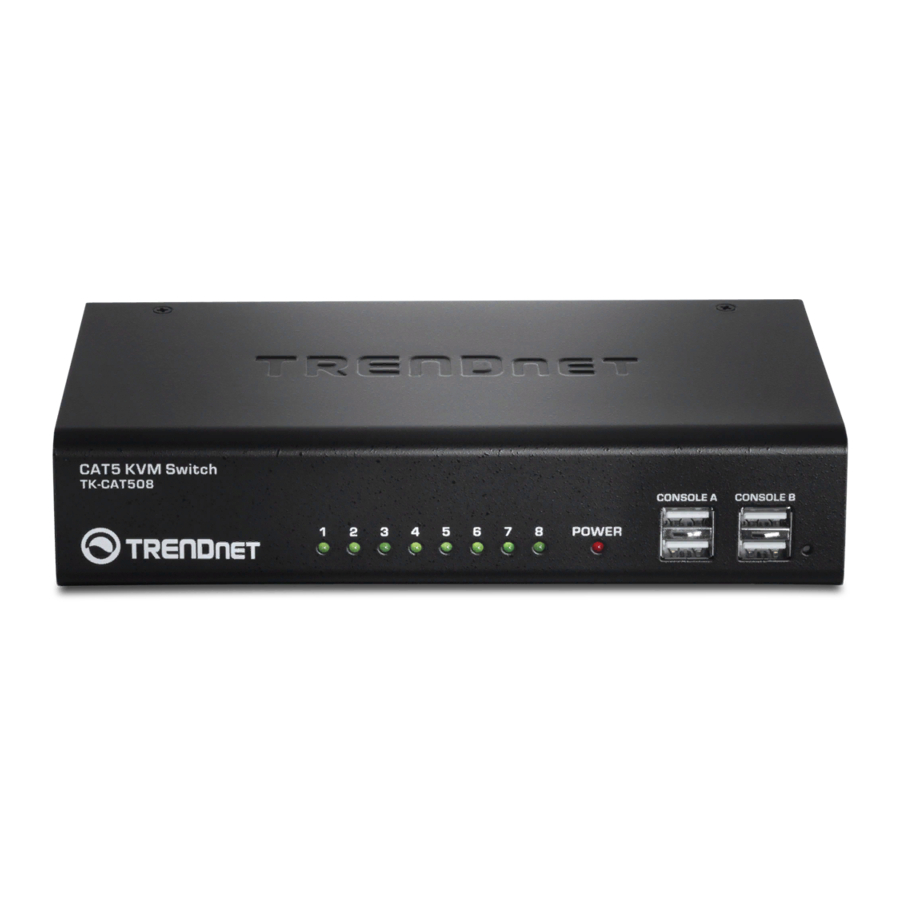
3. The LEDs should be light up. Released paper clip from the button.
TK-CAT508 Firmware Upgrade Procedure
Advertisement
Table of Contents

Related Manuals for TRENDnet TK-CAT508


Summary of Contents for TRENDnet TK-CAT508
- Page 1 A laptop or a computer with keyboard and mouse connected directly. Download and unzip the firmware file to to a laptop or a computer. USB type A to type B cable (included in the TK-CAT508 packaging). A paper clip. Procedure 1.
- Page 2 4. Connect one end of USB type B cable into TK-CAT508. 5. Connect the other end of USB type A cable into the computer. A removable disk, firmware, should appear under My Computer. If you do not see the firmware disk appears, please refresh My Computer or press F5.
- Page 3 7. Drag the firmware the firmware file into firmware disk. 8. You are now finish the firmware upgrading. The KVM will restart itself automatically. 9. Verify the firmware by repeat the procedure from step 1 to 6. The firmware information should change.
Need help?
Do you have a question about the TK-CAT508 and is the answer not in the manual?
Questions and answers