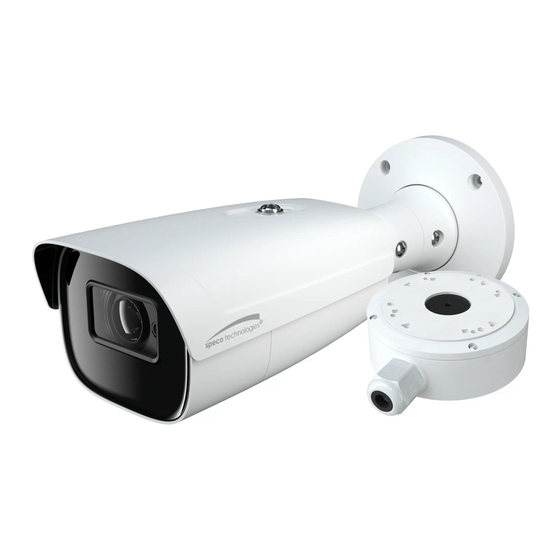

Related Manuals for Speco O8T9M


Summarization of Contents
Important Safeguards and Warnings
1. Electrical Safety
Safety guidelines for electrical installation and operation.
2. Environmental Guidelines
Guidelines for environmental conditions during installation and operation.
3. Operation and Daily Maintenance
Procedures for operating and maintaining the camera.
Warning and Regulatory Information
Statement and FCC Compliance
General statement, FCC compliance statements, and conditions.
1 Introduction to the 8MP IP Camera
Welcome, Features, and Applications
Welcome message, key features, and common applications of the camera.
2 Web Access and Login
Accessing Camera via IP Scanner
Steps to discover and access the camera using the IP Scanner tool.
3 Live View Interface
Understanding Live View Icons
Description of icons displayed on the live view interface for control and status.
Face Capture View Configuration
Setting Up Face Capture
How to configure and view face capture features in the live interface.
4 Camera Configuration: System
4.1.1 System Information
Details on camera's system, model, software versions, and MAC address.
4.1.2 Date and Time Settings
How to set the camera's date, time, time zone, and DST.
4.1.3 Local Recording Setup
Configuring Local Recording Paths
Setting storage paths for PC-based recording of pictures and videos.
4.1.4 Storage Management
SD Card Management and Formatting
Managing SD card for storage, including formatting and ejection procedures.
Schedule Recording Settings
Setting Weekly and Holiday Schedules
Configuring recording schedules for weekdays and special holidays.
4.2 Video Configuration: Image
4.2.1 Image Configuration Basics
Adjusting fundamental image settings like brightness, contrast, hue.
Image Parameter Tuning
Brightness, Contrast, and Hue Adjustments
Fine-tuning brightness, contrast, and hue for optimal image quality.
Saturation, Sharpness, and Noise Reduction
Adjusting saturation, sharpness, and noise reduction for image clarity.
Advanced Image Features: BLC, HLC, IR
Details on BLC, HLC, HFR, Antiflicker, and Smart IR functions.
Image Parameter Scheduling
Timing Image Schedules
Setting up timed changes for image parameters based on the time of day.
4.2.2 Video and Audio Configuration
Configuring Video Stream Settings
Setting resolution, frame rate, and bitrate for video streams.
Audio Configuration Settings
Audio Encoding and Type Selection
Setting audio encoding standards and input types (MIC).
4.2.3 OSD Configuration
Timestamp and Device Name Overlay
Configuring timestamp, device name, and custom OSD content overlay.
OSD Picture Overlay Setup
Uploading Custom Overlap Pictures
Setting up picture overlays for OSD content via upload.
4.2.4 Video Masking
Setting Up Video Mask Zones
Configuring masked areas to obscure specific parts of the video feed.
Clearing Video Mask Areas
Deleting Masked Regions
How to clear or delete previously configured video mask areas.
4.2.5 ROI Configuration
Defining Regions of Interest (ROI)
Setting up regions of interest for higher bitrate and improved image quality.
4.2.6 Zoom and Focus Control
Motorized Lens Zoom/Focus
Controlling zoom and focus for models equipped with motorized lenses.
Zoom/Focus Control Panel Details
Understanding Zoom and Focus Buttons
Explanation of the zoom and focus control buttons on the interface.
4.3 Event Setup: Motion Detection
Configuring Motion Detection Alarms
Setting up motion detection alarms and defining trigger options.
Motion Detection Area and Sensitivity
Setting Motion Detection Parameters
Adjusting motion detection sensitivity and defining specific detection areas.
4.3.2 Other Alarm Types
SD Card Full and Error Alarms
Configuring alarms for SD card full status and write errors.
IP Conflict and Cable Disconnection Alarms
Configuring IP Conflict and Disconnection Alerts
Setting up alarms for IP address conflicts and network cable disconnections.
4.3.3 Alarm Input (Sensor)
Configuring Sensor Input Alarms
Setting up alarms triggered by external sensor inputs (Alarm In).
4.3.4 Alarm Output
Configuring Alarm Output Modes
Setting up alarm output operations like linkage, manual, or schedule.
Alarm Output Timing Schedule
Setting Scheduled Alarm Output
Defining timed schedules for alarm output activation.
4.3.5 Alarm Server Connection
Connecting to an Alarm Server
Configuring the camera to send alarm events to a designated alarm server.
4.4 Analytics Configuration: Overview
Installation Recommendations for Analytics
Recommendations for camera installation to ensure accurate analytics.
4.4.1 Exception Detection Setup
Configuring Exception Detection Alarms
Setting alarms for scene changes, video blur, or video obscuring.
4.4.2 Line Crossing Detection
Setting Up Line Crossing Alarms
Configuring alarms when a target crosses a predefined virtual line.
Line Crossing Target Selection
Human, Vehicle, and Bicycle Targets
Selecting target types (human, motor vehicle, non-motor vehicle) for line crossing detection.
4.4.3 Intrusion Detection Setup
Defining Intrusion Detection Areas
Setting up specific areas within the video feed to trigger intrusion alarms.
Intrusion Area Configuration
Setting Intrusion Alarm Areas
Defining specific zones within the video to trigger intrusion detection.
4.4.4 Face Detection Setup
Enabling and Configuring Face Detection
Configuring the camera to detect faces and trigger alarms.
Face Detection Area and Snapshot Settings
Configuring Face Detection Parameters
Setting detection area, snapshot interval, and quantity for face detection.
4.4.5 Region Entrance Detection
Setting Region Entrance Alarms
Configuring alarms when targets enter predefined areas.
Region Entrance Target Selection
Selecting Targets for Region Entrance
Choosing target types (human, vehicle) for region entrance detection.
4.4.6 Region Exiting Detection
Setting Region Exiting Alarms
Configuring alarms when targets exit predefined areas.
Region Exiting Area Configuration
Defining Region Exiting Areas
Setting up specific zones within the video to trigger region exiting detection.
4.4.7 Target Counting Setup
Enabling and Configuring Target Counting
Configuring target counting for people/vehicles crossing a defined line.
Target Counting Area and Statistics
Setting Counting Lines and Display
Defining counting lines, directions, and displaying traffic statistics.
4.5 Network Configuration: TCP/IP
Configuring TCP/IP Settings
Setting IP address, subnet mask, and gateway for network connection.
PPPoE and IP Change Notification
Configuring PPPoE and IP Change Alerts
Setting up PPPoE connection and IP change notification via email/FTP.
4.5.2 Port Configuration
Configuring Network Ports
Setting various network ports like HTTP, RTSP, and data ports.
Server Configuration and ONVIF
VMS Connection and ONVIF Setup
Connecting to VMS and configuring ONVIF/RTSP protocol for third-party integration.
4.5.5 DDNS Setup
Configuring Dynamic DNS (DDNS)
Setting up DDNS for internet access when using DHCP connection.
4.5.6 SNMP Monitoring
Configuring SNMP for Status
Setting up SNMP for camera status, parameters, and alarm information.
4.5.7 802.1x Network Security
Securing Network with 802.1x
Enabling 802.1x for network protection and user authentication.
4.5.8 RTSP Media Streaming
Configuring RTSP for Streaming
Setting up RTSP for streaming media in players like VLC.
4.5.9 RTMP Live Streaming
Configuring RTMP for Live View
Setting up RTMP for live video broadcasting on platforms like YouTube.
4.5.10 UPnP Configuration
Enabling UPnP for LAN Access
Enabling UPnP for quick and easy camera access on the local network.
4.5.11 Email Alert Setup
Configuring Email Notifications
Setting up email alerts for alarms or IP address changes.
4.5.12 FTP Upload Configuration
Configuring FTP for Event Uploads
Setting up FTP to upload captured event pictures to a server.
4.5.13 HTTPS Security
Enabling HTTPS for Secure Access
Enabling HTTPS to secure website access and protect user privacy.
4.5.14 QoS Network Settings
Configuring Quality of Service (QoS)
Setting up QoS for managing network traffic and prioritizing data streams.
4.6 Security Configuration: User Management
4.6.1 User Administration
Managing user accounts, including adding, modifying, and deleting users.
User Account and IP List Management
Online Users and Block/Allow Lists
Viewing active users and managing IP address block/allow lists.
4.6.4 Security Management
Locking After Illegal Logins
Enabling account lockout after multiple failed login attempts.
Password Security Policy
Setting Password Levels and Expiration
Configuring password strength levels and setting expiration times.
4.7 Maintenance Configuration: Backup
4.7.1 Backup and Restore Settings
Backing up and restoring camera configuration settings.
Reboot and Firmware Upgrade
Rebooting and Upgrading the Device
Procedures for rebooting the camera and updating its firmware.
4.7.4 Operation Log
Querying and Exporting Operation Logs
Viewing and exporting the camera's detailed operation logs.
5 Search Functionality
5.1 Image Search and Retrieval
Searching for and retrieving images saved on the PC or SD card.
SD Card Image Search
Searching Images on SD Card
Locating and viewing images stored directly on the SD card.
5.2 Video Search Options
5.2.1 Local Video Search and Playback
Searching and playing back videos recorded locally on the PC.
Local Video Playback Controls
Understanding Video Playback Icons
Explanation of icons used for controlling local video playback.
5.2.2 SD Card Video Search
Searching and Playing SD Card Videos
Locating and playing back video recordings from the SD card.
SD Card Video Search and Download
Selecting Streams and Downloading Clips
Choosing video/audio streams and downloading video clips to the PC.
Video Clip Downloading
Setting Video Download Directory
Configuring the storage directory for downloaded video files.
Appendix 1: Troubleshooting
IP Scanner Device Detection Issues
Resolving problems where the IP Scanner fails to detect devices.
Internet Explorer ActiveX Control Issues
Troubleshooting ActiveX control download problems in Internet Explorer.
Audio Functionality Issues
Diagnosing and resolving problems related to audio input or function.
Federal Communications Commission (FCC) Statements
FCC Compliance and Responsible Party
FCC compliance statements and information about the responsible party.
Need help?
Do you have a question about the O8T9M and is the answer not in the manual?
Questions and answers