Advertisement
Table of Contents
Advertisement
Table of Contents

Related Manuals for EKSA E900 BT


Summary of Contents for EKSA E900 BT
- Page 1 E900 Wireless Gaming Headset User Manual...
- Page 2 Language Guide English Français 日本語 Deutsch Português...
-
Page 3: Package Contents
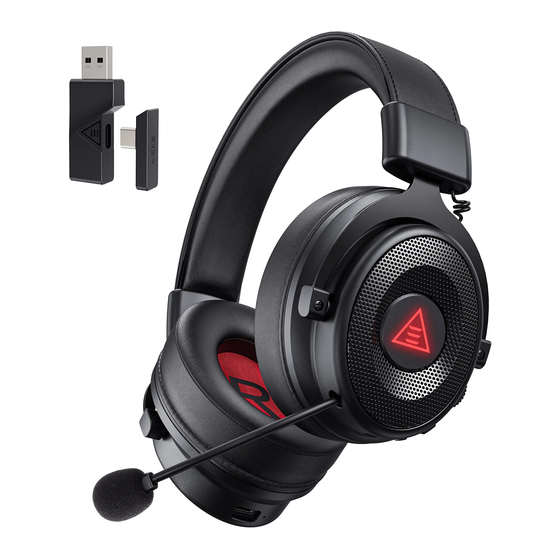
Package Contents 1* EKSA E900 BT Wireless Headset 1* Type-C to USB Adaptor 1* Type-C Transmitter 1* Microphone Foam Cover 1* Type-C Charging Cable 1* 3.5mm Audio Cable 1* Carry Pouch 1* User Manual 1* Card Specification Product Name: E900 BT Bluetooth Version: 5.3... -
Page 4: Product Overview
Product Overview Power Button Volume Knob Microphone Mute Button LED Status Indicator LED Backlight Type-C Charging Port 3.5mm Audio Port Retractable Microphone Type-C to USB Adaptor Type-C Transmitter 3.5mm Audio Cable Type-C Charging Cable Microphone Foam Cover Carrying Pouch... -
Page 5: Power On/Off
Operation Guide Power On/Off (1) Long press the “Power button” for about 2 seconds in the off state. If the blue light is on for 1 second, the headset will be turned on. (2) Long press the “Power button” for about 2 seconds in the on state. If the red light is on for 1 second, the headset will be turned off. - Page 6 (4) Turn on Bluetooth of the device, search for Bluetooth headset, and then select “EKSA E900 BT” for pairing connection. After the connection is successful, the headset will prompt “Connected”, the blue light will keep on, and the device will display that the Bluetooth headset is connected.
- Page 7 (3) After successful connection, the blue light of the headset and the blue light of the adapter should remain steady on. Note: When connecting a computer with Bluetooth to the E900 BT, you can connect through a USB adapter or Bluetooth. Select the audio driver named EKSA E900 BT for Bluetooth connection, and select the audio driver named EKSA E900 BT 2.4G for USB adapter.
- Page 8 2.4GHz Transmitter Settings on Your Computer Follow the steps below to ensure your EKSA E900 BT 2.4G is the default audio device. Windows®: [Control Panel] [Hardware and Sound] [Sound] [Playback] [EKSA E900 BT 2.4G (Set as Default Device)] Microphone Settings:...
- Page 9 Bluetooth Connection Switch 2.4GHz Transmitter Connection Note: Bluetooth and 2.4G connection cannot be used on the same device. (1) Bluetooth connection mode is enabled by default after turn-on. (2) In Bluetooth connection mode, Click the power button to switch to USB adapter connection mode.
- Page 10 Operation Guide (1) Slide the volume plus knob to + direction, increase the volume (2) Slide the volume plus knob to - direction, decrease the volume (1) Click the microphone mute button to mute the microphone. The voice prompt is "MIC Off". (2) Click the microphone mute button again to unmute the microphone.
Need help?
Do you have a question about the E900 BT and is the answer not in the manual?
Questions and answers