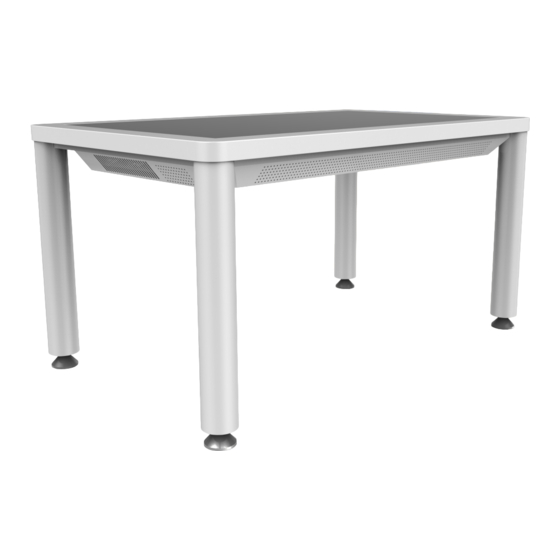

Related Manuals for PROMULTIS PM-TL43A/PCAP


Summary of Contents for PROMULTIS PM-TL43A/PCAP
- Page 1 Interactive Touch Screen INSTRUCTION MANUAL Before connecting, operating or adjusting this product, please read the manual completely. Please keep this manual for future reference.
-
Page 2: Table Of Contents
CONTENTS Important Safety Precautions Identification of Controls Remote Control Connections Basic Operations Operating the navigation bar Android menu settings User menu List Connecting to the internet Annotation Eshare USB multi media player Troubleshooting Specifications... -
Page 3: Important Safety Precautions
IMPORTANT SAFETY PRECAUTIONS 8. Overloading---Do not overload wall outlets, extension CAUTION cords, or convenience receptacles on other equipment RISK OF ELECTRIC SHOCK as this can result in a risk of fire or electric shock. DO NOT OPEN! NOTE: Pay attention to children's safety. Keep power socket, plug away from children to avoid shock. - Page 4 IMPORTANT SAFETY PRECAUTIONS 14.Careful move---When a trolley is used, be cautious About Location/Environment when moving the trolley/device combination to avoid Do not use in hot and cold rooms (locations) injury from the device tipping over. Sudden stops, ● When the unit is used in rooms (locations) with low excessive force and uneven floor surfaces can cause the temperature, the picture may leave trails or appear product to fall from the trolley.
-
Page 5: Identification Of Controls
IDENTIFICATION OF CONTROLS Remote Sensor 9 10 1112 13 14 Press the button to show the Navigationt Bar. Press to switch the screen on or off. When the screen is turned on, press the button to show the Navigationt Bar. Press the button for about 2 seconds and the screen will go into stand-by mode. -
Page 6: Remote Control
REMOTE CONTROL Switch the screen power on or off Return to previous menu or exit the on-screen menu To confirm or enter a sub-menu or toggle between options during menu operation. Use Arrow buttons to navigate in on-screen menu Display desktop (Home page) on the screen Display or exit the setting menu screen Display or exit input source menu Volume down... -
Page 7: Connections
CONNECTIONS Power Connection Plug to the AC power cord into a power outlet. (AC 100-240V 50/60Hz) Notes: ● This product should be operated only from the type of power source indicated on the marking label. ● Always unplug the AC cord from power outlet when you won’t use the touch-table for a long period of time. Cautions Before Connecting ●... -
Page 8: Basic Operations
BASIC OPERATIONS Turning the screen on or off 1. Plug the power cord into an AC power outlet. 2. Switch the Power Switch on the screen on. 3. Now the screen is in standby mode. Wait a moment until the power indicator lights up, then press button to turn on the screen. -
Page 9: Operating The Navigation Bar
OPERATING THE NAVIGATION BAR Slide up from the bottom of the screen center by two fingers or long press on the screen by five fingers to call the Navigation Bar. Favorite application Return Annotation tool Andriod menu Home page Display menu Volume bar (Android Interface) Application history... -
Page 10: Android Menu Settings
ANDROID MENU SETTINGS Network Setting Show all apps Daydream Display System Storage Android system information Default input method Android language Automatic search for Bluetooth devices Date and time Note: To manually set date and time, you should toggle “Automatic date & time” to OFF. Security and Restrictions... -
Page 11: User Menu List
USER MENU LIST Adjusting Picture mode Picture Mode Select picture mode. Contrast Adjust the contrast. Brightness Adjust the brightness. Adjust the image hue. (Only for NTSC system) Sharpness Adjust the sharpness. Saturation Adjust the color saturation. Backlight Set up the overall brilliance of the screen. Energy Save Mode The backlight brightness is decreased. - Page 12 USER MENU LIST Adjusting Setting menu Source Auto Switch Select On to automatically recognition source. Color Range Select color range. (Only for HDMI mode) HDMI EDID Ver. Select HDMI EDID Ver. Movie Mode Turn on or off the movie mode. Menu Timeout Select OSD menu display time.
-
Page 13: Connecting To The Internet
CONNECTING TO THE INTERNET WIRED Plug the LAN-cable into the LAN-port on the front of the screen, to connect to the internet. WIRELESS Turn on or off the built-in WiFi Turn the Wi-Fi on. Select te connection you want to connect with. Fill in your password. -
Page 14: Annotation
ANNOTATION Press and drag to any place of the screen. Pen: Click to choose a color of the pen. Eraser: Click to choose a size of the eraser. Screenshot: Click to capture the current screen. Eraser all: Click to eraser all the annotation on the screen. Undo: Click to cancel the last operation. -
Page 15: Eshare
EShare Key features of EShare: ● Mirror the screen of Android, iPhone, iPad, MacBook, Chrome or Windows device to the screen wirelessly. Touch feedback is supported while screen mirroring ( Only for MacBook and Windows). ● Mirror the screen to multiple mobile devices and touch on the mobile device screen to control the screen, just like you are touching on your screen. -
Page 16: Usb Multi Media Player
USB Multi Media Player Notes: ● Never remove the USB storage device or turn off the screen while using the USB storage device. ● It is recommended that you back-up your USB device data. ● If you want to pull out the USB device, please exit USB mode first. For instructions on using your USB device, refer to the user’s manual of your USB device. - Page 17 USB Multi Media Player Playing Photo With the photo viewer you can view compatible photos (in JPG, BMP and PNG format). Also you can zoom, rotate photo, etc. previous photo show information rotate clockwise play/pause rotate anti-clockwise next photo zoom in zoom out Playing Music With the USB music player you can play compatible music (in MP3 and AAC format).
- Page 18 USB Multi Media Player Playing Movie With the USB movie player you can play compatible movies (in AVI, MPG, MPEG, DAT, MP4, TS, RM/RMVB and MKV/MOV format). select sound mode previous movie select aspect ratio fast reverse select picture mode play/pause adjust the volume fast forward...
-
Page 19: Troubleshooting
TROUBLESHOOTING If, after reading these operating instructions, you have additional questions related to the use of your screen, please call the services center in your local area. Before calling service, please check the symptoms and follow suggested solutions. Remote Control Problem Possible Solutions ●... -
Page 20: Specifications
SPECIFICATIONS Model No. PM-TL43A/PCAP Visible screen size 43inches(diagonal) Power Source AC 100-240V, 50/60Hz Current 0.8 A Power Consumption Standby condition * ≤ 0.5 W Number of pixels 1920×1080 (Display panel ) Dimensions 1064.6×652.8×92.9 (W×H×D) (Unit: mm) Weight 46 kg Net Operating temperature: 5°C - 35°C,...
Need help?
Do you have a question about the PM-TL43A/PCAP and is the answer not in the manual?
Questions and answers