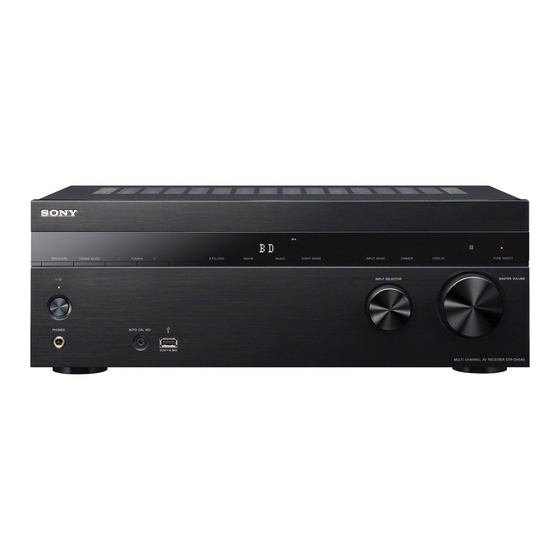
Sony STR-DH540 Operating Instructions Manual
Multi channel av receiver
Hide thumbs
Also See for STR-DH540:
- Service manual (90 pages) ,
- Quick setup manual (2 pages) ,
- Limited warranty (1 page)
Table of Contents
Advertisement
Advertisement
Table of Contents

Related Manuals for Sony STR-DH540


Summary of Contents for Sony STR-DH540
- Page 1 4-448-425-12(1) Multi Channel AV Receiver Operating Instructions STR-DH540...
-
Page 2: Important Safety Instructions
Record these numbers in the space provided below. Refer to them To reduce the risk of fire, do not cover the whenever you call upon your Sony dealer ventilation opening of the appliance with regarding this product. - Page 3 9) Do not defeat the safety purpose of the The following FCC polarized or grounding-type plug. A statement applies only to polarized plug has two blades with one the version of this model wider than the other. A grounding type manufactured for sale in the plug has two blades and a third grounding U.S.A.
- Page 4 CAUTION product is disposed of correctly, you will help prevent potential negative consequences for You are cautioned that any changes or the environment and human health, which modifications not expressly approved in this could otherwise be caused by inappropriate manual could void your authority to operate waste handling of this product.
-
Page 5: About This Manual
• The instructions in this manual describe the This product has been manufactured by or on operation of the receiver with the supplied behalf of Sony Corporation, 1-7-1 Konan remote control. You can also use the buttons Minato-ku Tokyo, 108-0075 Japan. Inquiries... - Page 6 Microsoft subsidiary. MPEG Layer-3 audio coding technology and patents licensed from Fraunhofer IIS and Thomson. “x.v.Color (x.v.Colour)” and “x.v.Color (x.v.Colour)” logo are trademarks of Sony Corporation. “BRAVIA” is a trademark of Sony Corporation. “PlayStation” is a registered trademark of Sony Computer Entertainment Inc.
-
Page 7: Table Of Contents
Table of Contents Enjoying Sound Effects About This Manual ....... 5 Supplied accessories ..... 9 Selecting the sound field .....42 Description and location of Using the Night Mode function ...45 parts ........10 Selecting the calibration type ..45 Getting started ......17 Adjusting the equalizer ....45 Using the Pure Direct function ..46 Connections... - Page 8 Using the Remote Control Reassigning the input button ..66 Resetting the input buttons ..67 Additional Information Precautions ........68 Troubleshooting ......69 Specifications ......76 Index ..........78...
-
Page 9: Supplied Accessories
Inserting batteries into Supplied accessories the remote control • Operating Instructions (this manual) Insert two R6 (size-AA) batteries • Quick Setup Guide (1) (supplied) in the remote control. Observe • Remote control (RM-AAU168) (1) the correct polarity when installing • R6 (size AA) batteries (2) batteries. -
Page 10: Description And Location Of Parts
Description and location of parts Front panel A ?/1 (on/standby) (page 28, 40, 46, E A.F.D./2CH, MOVIE, MUSIC (page 42) B ?/1 (on/standby) indicator F Display panel (page 11) G NIGHT MODE (page 45) Lights up as follows: Green: The receiver is turned on. H INPUT MODE (page 51) Amber: The receiver is in standby I DIMMER... -
Page 11: Indicators On The Display Panel
Indicators on the display panel A Input indicator E SP Lights up to indicate the current input. Lights up when the speaker system is turned on. HDMI F Tuning indicator The receiver recognizes the equipment connected via an HDMI IN jack. Lights up when the receiver tunes to a stereo broadcast. - Page 12 Note These indicators may not light up depending on the speaker pattern setting. L USB Lights up when iPod/iPhone or USB device is detected. * When playing a Dolby Digital or DTS format disc, make sure that you have completed the digital connections and that INPUT MODE is not set to “Analog”...
-
Page 13: Rear Panel
Rear panel A DIGITAL INPUT/OUTPUT section E VIDEO INPUT/OUTPUT section (page 21, 25) HDMI IN/OUT* jacks (page 21, 24) VIDEO IN/OUT* Yellow OPTICAL IN jacks (page 21, jacks * You must connect the HDMI TV OUT or COAXIAL IN jack (page 26) MONITOR OUT jack to your TV to watch the selected input image (page 21). -
Page 14: Remote Control
C Input buttons this receiver and other equipment. The Selects the equipment you want to use. remote control is assigned to operate Sony When you press any of the input audio/video equipment. You can reassign buttons during standby mode, the the input button to match the equipment receiver turns on. - Page 15 S PREVIEW (HDMI) Stores a station during tuner operation. Selects the “Preview for HDMI” K SOUND FIELD +/– function. Turns on a live picture-in-picture Selects a sound field (page 42). preview of HDMI inputs connected to L PURE DIRECT (page 46) this receiver.
- Page 16 • The above explanation is intended to serve as examples. • Depending on the model of your connected equipment, some functions explained in this section may not work with the supplied remote control. To control other Sony equipment Name Blu-ray Disc CD player player player...
-
Page 17: Getting Started
To output multi channel digital audio, check the HDMI jacks. digital audio output setting on the connected equipment. For a Sony Blu-ray Disc player, check that “Audio (HDMI)”, “BD Audio MIX Setting”, “Dolby Digital/DTS”, “Dolby Digital”, and “DTS” are set to “Auto”, “Off”, “Bitstream”, “Dolby Digital”, and “DTS”... -
Page 18: Digital Audio Formats Supported By The Receiver
Digital audio formats supported by the receiver Digital audio formats that this receiver can decode depend on digital audio output jacks of the equipment connected. This receiver supports the following audio formats. Connection between the playback Audio format Maximum number equipment and the receiver [Display] of channels... -
Page 19: Connections
Connections 1: Installing the speakers This receiver allows you to use up to a 5.2 Tips channel system (5 speakers and 2 • The angle A should be the same. subwoofers). To fully enjoy theater-like multi channel surround sound requires five speakers (two front speakers, a center speaker, and two surround speakers) and a subwoofer. -
Page 20: 2: Connecting The Speakers
2: Connecting the speakers Before connecting cords, be sure to disconnect the AC power cord (mains lead). Surround speaker Center speaker Right Left Right Left Subwoofer * Front speaker A Monaural audio cord (not supplied) Note B Speaker cord (not supplied) You can turn on or off the speaker system with the SPEAKERS button (page 10). -
Page 21: 3: Connecting The Tv
Video signals signals Recommended connection A Optical digital cord (not supplied) Alternative connection B Audio cord (not supplied) C HDMI cable (not supplied) Sony recommends that you use an HDMI-authorized cable or Sony HDMI cable. D Video cord (not supplied) -
Page 22: 4A: Connecting The Video Equipment
INPUT MODE (page 51). video and audio signals in digital format. ** If your TV is not compatible with the ARC By connecting Sony “BRAVIA” Sync- function, connect A. compatible equipment using HDMI cables, Be sure to turn off the TV’s volume or operations can be simplified. - Page 23 • You can view HDMI BD, DVD, GAME If you want to connect and SAT/CATV input on picture-in- several digital equipment, picture preview. but cannot find an unused input Notes on HDMI connections See “Using other audio input jacks (Audio •...
- Page 24 If your equipment does not have an HDMI jack, see page 25. Blu-ray Disc Satellite tuner, DVD player PlayStation 3 player Cable TV tuner Audio/video Audio/video Audio/video Audio/video signals signals signals signals A HDMI cable (not supplied) Sony recommends that you use an HDMI-authorized cable or Sony HDMI cable.
- Page 25 Connecting equipment with jacks other than HDMI jacks Satellite tuner, Cable TV tuner VCR, DVD recorder, Video game Audio signals Video signals Audio signals Video signals A Optical digital cord (not supplied) Recommended connection B Audio cord (not supplied) Alternative connection C Video cord (not supplied) Note Be sure to change the default setting of the...
-
Page 26: 4B: Connecting The Audio Equipment
Connecting an iPod, 4b: Connecting the iPhone, USB device audio equipment Connecting a Super Audio CD player, CD player Before connecting cords, be sure to disconnect the AC power cord (mains lead). Super Audio CD player, CD player Audio signals iPod, iPhone, USB device A USB cable (not supplied) -
Page 27: 5: Connecting The Antennas (Aerials)
5: Connecting the 6: Connecting the AC antennas (aerials) power cord (mains lead) Before connecting the antennas (aerials), Connect the AC power cord (mains lead) to be sure to disconnect the AC power cord a wall outlet. (mains lead). AC power cord (mains lead) AM loop antenna (aerial) (supplied) FM wire antenna (aerial) -
Page 28: Preparing The Receiver
Notes on Speaker Settings (Auto Preparing the Receiver Calibration) Turning on the receiver This receiver is equipped with DCAC (Digital Cinema Auto Calibration) function which allows you to perform automatic calibration as follows: • Check the connection between each speaker and the receiver. •... - Page 29 Notes Note • The speakers emit very loud sound during the Depending on the characteristics of the calibration and the volume cannot be adjusted. subwoofer you are using, the setup distance value Provide consideration to your neighborhood and may be different from the actual position. to the children in presence.
-
Page 30: Guide To On-Screen Display (Osd) Operation
Guide to on-screen display (OSD) operation You can display the menu of the receiver on the TV screen and select the function you want to use on the TV screen by pressing V/v/B/b and on the remote Press V/v repeatedly to select a control. -
Page 31: Basic Operations
FM/AM radio of the built-in receiver (page 39). Input Sound Effects Enables you to enjoy sound buttons development provided by various Sony proprietary technologies or functions (page 42). Settings Adjusts the settings of the receiver (page 53). V/v/B/b, HOME SOUND +/–... - Page 32 Press +/– to adjust the volume. You can also use MASTER VOLUME on the receiver. Press SOUND FIELD +/– to enjoy the surround sound. You can also use A.F.D./2CH, MOVIE or MUSIC on the receiver. For details, see page 42. Tips •...
-
Page 33: Playing An Ipod/Iphone
3G Notes • Sony cannot accept responsibility in the event that data recorded to iPod/iPhone is lost or damaged when using an iPod/iPhone connected to this receiver. • This product has been designed specifically to work with iPod/iPhone and has been certified to meet... - Page 34 Selecting the iPod/ Operating the iPod/ iPhone control mode iPhone using “System OSD” mode You can select the iPod/iPhone control mode using the OSD menu or iPhone Make sure that “System OSD” is CTRL on the remote control. selected in step 4 in “Selecting the You can use the OSD menu to browse iPod/iPhone control mode”...
- Page 35 To operate the iPod/iPhone Notes on iPod/iPhone using the remote control • The iPod/iPhone is charged when connected to the receiver while the receiver is turned on. • You cannot transfer songs onto the iPod/ iPhone from this receiver. • Do not remove the iPod/iPhone during operation.
-
Page 36: Playing A Usb Device
Compatible USB 4GLX / 8GLX / 16GLX devices Notes You can use the following Sony USB • The receiver is unable to read data in NTFS devices on this receiver. format. • The receiver is unable to read data other than... - Page 37 To operate the USB device Operating the USB using the remote control device V/v/B/b, HOME SHUFFLE REPEAT Press HOME. +/– The home menu is displayed on the TV screen. Select “Listen”, then press When the USB device is connected, “USB” appears on the TV screen. Select “USB”, then press You can operate the USB device using the remote control of the receiver.
-
Page 38: Usb Message List
Notes on the USB device USB message list • Do not remove the USB device during Message and explanation operation. To avoid data corruption or damage to the USB device, turn the Reading receiver off when connecting or The receiver is recognizing and reading information of the USB device. -
Page 39: Tuner Operations
FM/AM screen You can select and operate each item Tuner Operations on the screen by pressing V/v/B/b and Listening to FM/AM radio You can listen to FM and AM broadcasts through the built-in tuner. Before operation, be sure you have connected the FM and AM antennas (aerials) to the receiver (page 27). - Page 40 Tuning to a station Changing the AM tuning directly (Direct Tuning) scale You can enter the frequency of a station (USA and Canada models only) directly by using the numeric buttons. You can change the AM tuning scale to either 9 kHz or 10 kHz using the buttons on Press D.TUNING.
-
Page 41: Presetting Fm/Am Radio Stations (Preset Memory)
Naming preset stations Presetting FM/AM radio (Name Input) stations Select “FM” or “AM” from the (Preset Memory) menu, then press Select “Select Preset”, then press You can store up to 30 FM and 30 AM stations as your favorite stations. Select the preset number which you want to name, press , then... -
Page 42: Enjoying Sound Effects
Simply select a station on the FM band. Enjoying Sound Effects When you tune to a station that provides RDS services, the Program Service name* appears on the TV screen and the display Selecting the sound panel. field * If an RDS broadcast is not received, a Program Service name will not appear. -
Page 43: Movie Mode
HD-D.C.S. HD Digital Cinema Sound (HD-D.C.S.) is x Neo:6 Cinema (Neo:6 CIN) Sony’s new innovative home theater Performs DTS Neo:6 Cinema mode technology using the latest acoustic and decoding. A source recorded in 2 channel digital signal processing technologies. It is format is decoded into 5 channels. -
Page 44: Music Mode
Music mode When headphones are connected You can take advantage of surround sound simply by selecting one of the receiver’s You can only select this sound field if the pre-programmed sound fields. They bring headphones are connected to the receiver. the exciting and powerful sound of concert halls into your home. -
Page 45: Using The Night Mode Function
• The sound fields for music and movie do Tips not work in the following cases. • You can also set the Night Mode function on – DTS-HD Master Audio, DTS-HD High and off by using NIGHT MODE on the receiver Resolution Audio or Dolby TrueHD (page 10). -
Page 46: Using The Pure Direct Function
Notes Resetting sound fields • This function does not work when “Analog Direct” is being used. to the default settings • Frequencies for Bass and Treble are fixed. • Depending on the audio format, the receiver may play back signals at a lower sampling Be sure to use the buttons on the receiver to frequency than the original sampling frequency perform this operation. -
Page 47: Bravia" Sync Features
Control for HDMI function. setting the Control for HDMI function on By connecting Sony equipment that is your TV (page 47). compatible with the “BRAVIA” Sync with • If your TV is not compatible with the an HDMI cable (not supplied), operation is “Control for HDMI-Easy Setting”... -
Page 48: One-Touch Play
If your TV is not compatible Notes with the “Control for HDMI- • When you unplug the HDMI cable or change the Easy Setting” function connection, perform the steps given in “If your TV is compatible with the “Control for HDMI- Easy Setting”... -
Page 49: System Audio Control
• When “Control for HDMI” is set to “On”, the “HDMI Audio Out” settings in the HDMI You can also select a connected equipment, such Settings menu will set automatically based on as Blu-ray Disc/DVD player from the TV menu. the System Audio Control settings (page 60). -
Page 50: Scene Select
Scene Select Remote Easy Control The optimum picture quality and sound You can use the TV remote control to field are selected automatically according operate the menu of the receiver. to the scene selected on your TV. For details on the operation, refer to the Select the receiver (AV AMP) operating instructions of the TV. -
Page 51: Other Operations
Notes • Based on the input, “------” appears on the Other Operations display panel, and other modes cannot be selected. • When “Analog Direct” is being used, audio Switching between input is set to “Analog”. You cannot select other modes. digital and analog audio (INPUT MODE) Using other audio input... -
Page 52: Reverting Back To The Factory Default Settings
Input name GAME SAT/ VIDEO SA-CD/ CATV Assignable OPT1 audio input OPT2 jacks COAX None * Default setting Notes • When you assign the digital audio input, the INPUT MODE setting may change automatically. • One reassignment is allowed for each input. Reverting back to the factory default settings You can clear all memorized settings and... -
Page 53: Adjusting Settings
Select the menu item you want, then press Adjusting Settings Example: When you select “Speaker Settings”. Using the Settings menu You can adjust various settings for speakers, surround effects, etc. using the Settings menu. V/v/B/b, Select the parameter you want, RETURN then press HOME... -
Page 54: Settings Menu List
Settings menu list Settings Easy Setup (page 55) Auto Calibration Speaker Settings (page 55) Calibration Type Full Flat Engineer Front Ref. Speaker Pattern Manual Setup Level Distance Size Crossover Freq. Test Tone Distance Unit feet meter Audio Settings Night Mode (page 58) Equalizer Sound Field... -
Page 55: Easy Setup
Save the measurement result. Easy Setup Select “Save&Exit” in step 2. Note Re-runs the Easy Setup to make the basic If you reposition your speaker, we recommend that you perform Auto Calibration again to enjoy settings. Follow the on-screen instructions the surround sound. -
Page 56: Manual Setup
Auto • Full Flat: Makes the measurement of Calibration again. frequency from each speaker flat. • Engineer: Sets to “the Sony listening Error Code 32 room standard” frequency characteristics. Error Code 33 • Front Ref.: Adjusts the characteristics of... - Page 57 • Small: If the sound is distorted, or you Note feel a lack of surround effects when When one of the sound fields for music is using multi channel surround sound, selected, no sound is output from the subwoofer if select “Small”...
-
Page 58: Audio Settings Menu
x Crossover Freq. (Speaker Audio Settings menu crossover frequency) Lets you set the bass crossover frequency of speakers that the speaker size has been You can adjust settings for the audio to suit set to “Small” in the Speaker Settings your preference. -
Page 59: Hdmi Settings Menu
x Auto Volume x D.Range Comp. (Dynamic This receiver can adjust the volume Range Compression) automatically depending on the input Lets you compress the dynamic range of signal or content from the connected the soundtrack. This may be useful when equipment. -
Page 60: Input Settings Menu
In this case, select receiver outputs HDMI signals from the “AMP”. receiver’s HDMI TV OUT jack. Sony recommends this setting if you use a x Subwoofer Level “BRAVIA” Sync compatible Sony TV. -
Page 61: System Settings Menu
x Input Edit x Auto Standby Lets you set the following items for each Lets you set the receiver switch to standby input. mode automatically when you do not • Watch: Displays an input to the Watch operate the receiver or when there is no menu. - Page 62 To return to the previous display Press B or RETURN O. To exit the menu Press AMP MENU. Note Some parameters and settings may appear dimmed on the display panel. This means that they are either unavailable or fixed and unchangeable.
-
Page 63: Overview Of The Menus
Overview of the menus The following options are available in each menu. For details on navigating through menus, see page 61. Menu Parameters Settings [Display] [Display] Auto Calibration Auto Calibration start settings [A.CAL START] [<AUTO CAL>] Auto Calibration type FULL FLAT, ENGINEER, [CAL TYPE] FRONT REF, OFF Level settings... - Page 64 Menu Parameters Settings [Display] [Display] Surround left speaker distance SL 1.00 m to SL 10.00 m [SL DIST.] (SL 3’3” to SL 32’9”) (0.01 m (1 inch) interval) Surround right speaker distance SR 1.00 m to SR 10.00 m [SR DIST.] (SR 3’3”...
- Page 65 Menu Parameters Settings [Display] [Display] Audio settings Night mode NIGHT ON, NIGHT OFF [<AUDIO>] [NIGHT MODE] Synchronizes audio with video SYNC ON, SYNC OFF output [A/V SYNC] Advanced auto volume A. VOL ON, A. VOL OFF [AUTO VOL] Digital broadcast language MAIN/SUB, MAIN, SUB selection [DUAL MONO]...
-
Page 66: Using The Remote Control
To view the information on the display panel Using the Remote Control The display panel provides various information of the receiver status such as Reassigning the input sound field. 1 Select the input for which you want to button check the information. 2 Press AMP, then press DISPLAY You can change the default settings of the repeatedly. -
Page 67: Resetting The Input Buttons
Disc recorder. default settings. Sony DVD recorders are operated with a DVD1 or DVD3 setting. For details, refer to the operating instructions supplied with the DVD recorders. Sony VCRs are operated with a VTR 3 setting which corresponds to VHS. -
Page 68: Additional Information
Although the receiver heats up during concerning your receiver, please consult operation, this is not a malfunction. If you your nearest Sony dealer. continuously use this receiver at a large volume, the cabinet temperature of the top, side and bottom rises considerably. To avoid burning yourself, do not touch the cabinet. -
Page 69: Troubleshooting
• Depending on the TV or video remedy the problem. Should any problem equipment, 4K images may not be persists, consult your nearest Sony dealer. displayed. Check the video capability Note that if service personnel changes and setting of your TV and video some parts during repair, these parts may device. - Page 70 • The plugs and jacks are dirty. Wipe Sound them with a cloth slightly moistened with alcohol. There is no sound, no matter which There is no sound, or only a very low- equipment is selected, or only a very level sound is heard from specific low-level sound is heard.
- Page 71 • The image resolution of the playback There is no sound from a specific equipment may need to be at certain equipment. settings before you can enjoy Multi • Check that the equipment is connected Channel Linear PCM. Refer to the correctly to the audio input jacks for operating instructions of the playback that equipment.
- Page 72 – Depending on the connected A test tone is not output from the equipment and TV, you may need to speakers. set up the equipment and TV. Refer • The speaker cords may not be to the operating instructions connected securely. Check to see if supplied with each equipment and they are connected securely and cannot be disconnected by pulling on them...
-
Page 73: Usb Device
iPod/iPhone Outdoor FM antenna (aerial) The sound is distorted. 2 – • Press on the remote control Receiver repeatedly. • Set the “EQ” setting of the iPod/ iPhone to “Off” or “Flat”. Radio stations cannot be tuned in. There is no sound from the iPod/ iPhone. - Page 74 – File or folder names are not “Reading” is displayed for an extended displayed on this receiver. time, or it takes a long time before – Playback is not possible. playback starts. – The sound skips. • The reading process can take a long –...
-
Page 75: Error Messages
If “Off”, the “BRAVIA” Sync does not any problem persists, consult your nearest work properly, even if the equipment Sony dealer. is connected to the HDMI IN jack. PROTECTOR • The types and the number of... -
Page 76: Specifications
Clearing the memory Specifications Reference sections AUDIO POWER To clear SPECIFICATIONS All memorized settings page 52 Customized sound fields page 46 POWER OUTPUT AND TOTAL HARMONIC DISTORTION: (USA model only) With 6 ohm loads, both channels driven, from 20 – 20,000 Hz; rated 90 watts per channel minimum RMS power, with no more than 0.09% total harmonic distortion from 250 milliwatts to rated output. - Page 77 Digital (Coaxial) USB section Impedance: 75 ohms Supported format* S/N: 100 dB (A, 20 kHz LPF) MP3 (MPEG 1 Audio Layer-3): Digital (Optical) 32 kbps – 320 kbps, VBR S/N: 100 dB (A, 20 kHz LPF) WMA: Output (Analog) 48 kbps – 192 kbps SUBWOOFER AAC: Voltage: 2 V/1 kilohm...
-
Page 78: Index
Index Numerics USB device 26 video equipment 22 2 channel 42 Control for HDMI 59, 65 5.2 channel 19 Crossover frequency 58, 64 A.F.D./2CH mode 42 DCAC (Digital Cinema Auto A/V Sync. 58, 65 Calibration) 28 AM 39 Direct Tuning 40 Audio Input Assign 51 Display panel 11 Audio Settings 58, 65... - Page 79 Input 31 Remote control 14 INPUT MODE 51 Remote Easy Control 50 Input Settings 60 Resetting 52 iPod/iPhone 33 Satellite tuner 24, 25 Language 61 Scene Select 50 Level Settings 63 Settings menu 53 Sleep Timer 15 Sound field 42 Speaker Pattern 56, 63 Manual Setup 56 Speaker Settings 55, 63...
- Page 80 4-448-425-12(1) ©2013 Sony Corporation Printed in Malaysia...
Need help?
Do you have a question about the STR-DH540 and is the answer not in the manual?
Questions and answers
does this sony play vhr tapes?
No, the Sony STR-DH540 is an AV receiver and does not have the capability to play VHS tapes.
This answer is automatically generated