Advertisement
Quick Links
Advertisement

Related Manuals for HOMCLOUD Speed 4S


Summary of Contents for HOMCLOUD Speed 4S
- Page 1 EASY - ORIGINAL - SMART QUICK GUIDE...
-
Page 2: What's In The Box
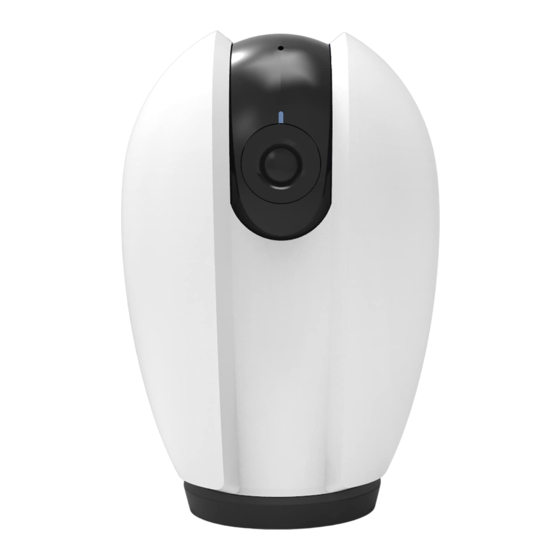
What's in the box Consult the checklist below for all components. Power adapter Speed 4S USB cable Bracket Screws Adhesive tape Manual... - Page 3 Microphone Status light SD card slot RESET Speaker Reset Power Description Power DC5V±10% Status light Red light solids on: the camera network is abnormal Blinking red light: awaiting WiFi connecting Blue light solids on: camera running correctly Blinking blue light: currently connecting Captures sounds for your video Microphone SD card slot...
- Page 4 安装 Install 1 Use the included mounting bracket to fix the camera to a clean surface. 2 Or, stick the camera to an inclined surface with the adhesive tape we provided. Peel off the sticker apply to the circle...
- Page 5 Download and Registration Homcloud is available for both iOS and Android OS a. Download Homcloud App from Store or Google Play or scan QR code below. b. Enter the register/login interface and register with your country area code and phone number/email address.
- Page 6 Homcloud App. 2.Make sure you have completed all steps of the installation part. 3.On the Homcloud homepage tap "add device" or the icon "+". After that tap "Smart Webcam" on the Wi-Fi smart device list. 4.Hold the camera 15 to 20cm in front of the mobile phone for the camera to scan the QR code.When the camera comes out with a...
- Page 7 5. When connecting,you should make sure your router,mobile,and camera are as close as possible.When camera added successffully,click " " you could also DIY the camera's name.
-
Page 8: Specifications
Settings In "Smart Camera" interface,click " ",you can set the camera common functions. Specifications -Homcloud code: TY-WCS4S -Waterproof: IP23 -Model No: Speed 4S -Working Temp: -20℃~50℃ -Power: DC5V±10% -View Angle: 100° -Resolution: 2Megapixel -Dimension: 59x64x99mm -IR Distance: 10m -WiFi Standard: 2.4GHz 802.11b/g/n... - Page 9 Never miss a moment, even in complete darkness, with powerful night-vision technology. Google & Alexa Control If you want to link Homcloud App to Google Home or Amazon Alexa App you need to select "Smart Life" App between the list of Google Home or Alexa partner.
- Page 10 Google Home Control Note : You will need to have set up an google account prior to linking your Homcloud device. 1. Select "Menu" and then "Home Control". 2. In the "Home Control" screen, select the + icon in the bottom right.
- Page 11 1. Tap "Home Control" in the side menu on the Google Home app's home page, then tap "+" 2. Find "Smart Life" in the list. In the new window, select your Homcloud account's region, type your Homcloud account and password, then tap "Link Now". After you assign rooms for devices, your devices will be listed in the Home Control page.
- Page 12 Alexa Control Note : You will need to have set up an Alexa account prior to linking your Homcloud device. 1. Select "Menu" and then "Skill". 2. Search for the app and enable it. 3. Log into your Homcloud account with your email address or mobile number.
- Page 13 Q: In the network process, the process bar is always not 100%, add failure? A: This camera only supports 2.4GHz WiFi router, please make sure you are using a 2.4GHz WiFi router.And confirm the WiFi password again. Q: Repeated additions are failures? A: After adding a failure, it is recommended to restart the device or power off, and then try to add again.
Need help?
Do you have a question about the Speed 4S and is the answer not in the manual?
Questions and answers