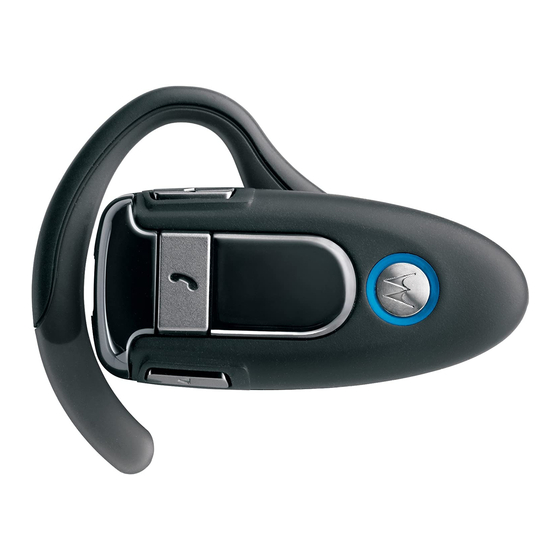
Motorola H500 Start Here Manual
Bluetooth handsfree headset
Hide thumbs
Also See for H500:
- User manual (63 pages) ,
- Features and functions manual (2 pages) ,
- Manual (2 pages)

Related Manuals for Motorola H500


Summary of Contents for Motorola H500
- Page 1 Start Here > > > H500 Bluetooth® Handsfree Headset Get Connected in 4 Quick Steps 1 - CHARGE 2 - START BLUETOOTH FEATURE 3 - PAIR 4 - TEST AND USE...
-
Page 2: Headset Overview
BEFORE YOU Before using this product, read the Important Safety and Legal Information pamphlet and follow its instructions. Take a moment before you get started to familiarize yourself with your new H500 Handsfree Headset. Earhook Microphone BEGIN Volume Buttons Call Button... -
Page 3: Charge Headset's Battery
CHARGE Your Headset's Battery Charge your headset's battery for 2 hours: Plug the Motorola charger into the end of the headset. The blue indicator light turns on when the battery is charging. It may take up to 1 minute for the light to turn on. When the headset's battery is fully charged (about 2 hours), the blue indicator light turns off. -
Page 4: Start Bluetooth Feature
Scroll to On. Press Select to turn on the Bluetooth feature. Bluetooth feature remains on until you turn it off. Note: These steps are for most Motorola phones. For other phones, see your phone's user's guide. Feature On Your Phone Menu >... -
Page 5: Troubleshooting
TROUBLESHOOTING My phone does not find my headset. Make sure the blue light on your headset is steadily lit when your phone is searching for devices (see step 3). My headset worked before but now it's not working. Make sure your phone is on and the Bluetooth feature is turned on in your phone (see step 2). - Page 6 1-888-390-6456 (TTY/TDD United States for hearing impaired) Guide Number: 6809494A56-C MOTOROLA and the Stylized M Logo are registered in the US Patent & Trademark Office. The use of wireless devices and their accessories may be prohibited or restricted in certain areas.
-
Page 7: Pairing
If the indicator light is flashing or does not remain steadily lit, turn off the headset and repeat step 1. Note: To turn off headset, see "Turning On and Off" on the reverse side of this guide. PAIR Your Headset... -
Page 8: Pair The Phone
0000. When your headset is successfully paired with your phone, the blue indicator light changes from steadily lit to flashing. Note: These steps are for most Motorola phones. For other phones, see your phone's user's guide. PAIR Your Phone Menu >... -
Page 9: Test And Use
If your phone and headset are successfully paired, you will hear ringing on the headset. After you have successfully paired your phone and headset, you do not need to repeat these initial setup steps each time you use the headset. -
Page 10: Using Your H500
USING YOUR H500 See Features and Functions Guide on the reverse side of this guide for information on using your H500. - Page 11 Features and Functions Guide H500 Bluetooth® Handsfree Headset IMPORTANT: Be sure to first follow the Quick Start Guide on the reverse side of this guide to complete initial setup of your H500.
-
Page 12: Turning Headset On/Off
Call button until the indicator light flashes. Then, release the button. Note: Headset may take up to 4 to 5 seconds to turn on. To turn your headset off, press and hold the Call button until the indicator light flashes rapidly and then turns off. -
Page 13: Wearing The Headset
WEARING THE Open the earhook. Loop the earhook over your ear. Press the headset to your ear. HEADSET... -
Page 14: Changing For Use On Other Ear
CHANGING FOR USE ON OTHER EAR You can wear your H500 headset on your left or right ear. The headset comes ready for the right ear. To change the headset for the left ear: Open the earhook 90 degrees from the headset. -
Page 15: Changing Volume Button Orientation
CHANGING VOLUME BUTTON ORIENTATION If you change your headset to wear on the other ear, you can also change the orientation of the volume buttons. Turn the headset power off. Press the Call button and the volume button you want to assign as the "volume up"... -
Page 16: European Union Directives
Approval Number. You can view your product’s Declaration of Conformity (DoC) to Directive 1999/5/EC (to R&TTE Directive) at www.motorola.com/rtte. To find your DoC, enter the product Approval Number from your product’s label in the “Search” bar on the web site. -
Page 17: Making Calls
Receive a call Reject a call Redial last call Answer a second incoming call Note: Your H500 supports both Handsfree and Headset Profiles. Accessing call functions depends upon which profile your phone supports. See your phone's user's guide for more information. Action... - Page 18 MAKING CALLS Function Toggle between two active calls Join a 3-way call Put an active call on hold or resume a call on hold Disable or enable the indicator light Mute or unmute a call Note: Some features are phone/network dependent. CONTINUED Action Press and hold...
-
Page 19: Indicator Lights
Headset Indicator On (steady) 10 rapid flashes Slow pulse Quick flash Note: After 5 minutes of inactivity, the light stops flashing to conserve power, but the headset remains in standby mode. Headset Status Charging Charging complete Headset Status Power off... -
Page 20: Audio Tones
AUDIO TONES The audio tones provide information about your headset status. Audio Tone Single high tone when pressing volume button Five rapid high tones repeated every 60 sec. No audio indications; deteriorating quality Ring tone Single high tone Single low tone...
Need help?
Do you have a question about the H500 and is the answer not in the manual?
Questions and answers
New out of the box H500 light is dim for tyhe first 5 seconds then gets bright and remains bright for about 20 seconds and then shuts off
New out of the box H500 light is dim for tyhe first 5 seconds then gets bright and remains bright for about 20 seconds and then shuts off. The unit will not start/turn on.
The Motorola H500 light behavior—dim for 5 seconds, bright for 20 seconds, then shutting off—could be related to its standby mode and power conservation features. According to the manual, after 5 minutes of inactivity, the light stops flashing to conserve power, but the headset remains in standby mode. The dim and bright light sequence may indicate the headset transitioning through power states before entering standby or turning off.
This answer is automatically generated
Can this headset be used to listen to music or just to answer the phone.