Sign In
Upload
Download
Table of Contents
Contents
Add to my manuals
Delete from my manuals
Share
URL of this page:
HTML Link:
Bookmark this page
Add
Manual will be automatically added to "My Manuals"
Print this page
×
Bookmark added
×
Added to my manuals
Manuals
Brands
Kenwood Manuals
Remote Control
RC-R0607
Instruction manual
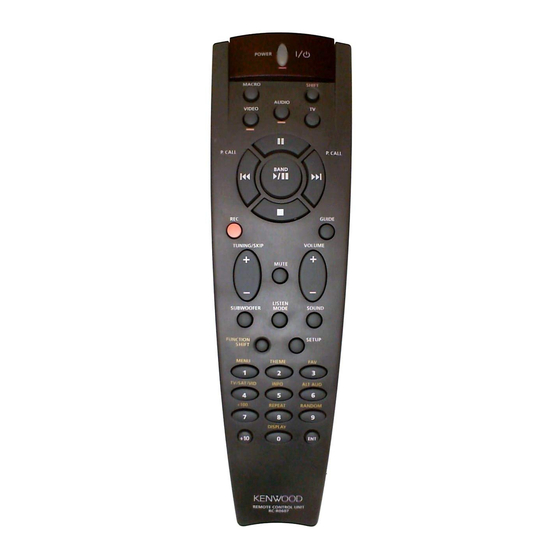
Kenwood RC-R0607 Instruction Manual
Kenwood rc-r0607: user guide
Hide thumbs
1
2
3
4
5
6
7
8
9
10
11
12
13
14
15
16
Table Of Contents
17
page
of
17
Go
/
17
Contents
Table of Contents
Bookmarks
Table of Contents
Contents
Product View and Features
Register the Setup Codes for Your Audio and Video Components
Automatic Input Naming
Getting the most from Your Remote Control
Low Battery Warning
Registering Setup Codes for Other Components
Operating Other Components
Changing (Confirming) the Operation Mode
Preparing for Automatic Operations (Macro Play)
Executing an Automatic Operation
Setup Code Correlation
Deleting a Setup Mode
Checking a Setup Mode
Setup Code Chart
TV Setup Codes
Satellite Setup Codes
LD Player Setup Codes
DSS and DVD Setup Codes
Cable Setup Codes
CD Player Setup Codes
DAT Deck Setup Codes
Cassette Deck Setup Codes
MD Setup Codes
Misc. Audio Setup Codes
In Case of Difficulty
Remote Control Unit
Remote Operation of Other Components
Tuner Operation
CD Player Operations
MD Recorder Operations
TV Operations
VCR Operations
LD Player Operations
Satellite Tuner Operations
DSS Receiver Operations
Cable Tuner Operations
DVD Player Operations
Advertisement
Quick Links
1
Register the Setup Codes for Your Audio and Video Components
2
Automatic Input Naming
3
Setup Code Correlation
4
Setup Code Chart
5
Tuner Operation
Download this manual
Table of
Contents
Previous
Page
Next
Page
1
2
3
4
5
Advertisement
Table of Contents
Need help?
Do you have a question about the RC-R0607 and is the answer not in the manual?
Ask a question
Questions and answers
Related Manuals for Kenwood RC-R0607
Remote Control Kenwood RC100MR - Marine CD Receiver Remote Control Unit User Manual
Marine remote control (2 pages)
Remote Control Kenwood RC-R0905 Instruction Manual
Kenwood universal remote control instruction manual (27 pages)
Remote Control KENWOOD RC-R0905 Instruction Manual
Universal remote control (27 pages)
Remote Control Kenwood RC-R0816 Operation Manual
Kenwood rc-r0816: operation guide (2 pages)
Remote Control Kenwood RC-R0609 Instruction Manual
Kenwood rc-r0609: user guide (9 pages)
Remote Control Kenwood RC-R0907 Code List
Setup codes charts (9 pages)
Remote Control KENWOOD RC-R0906 Instruction Manual
Universal remote control (18 pages)
Remote Control Kenwood RC-R0906 Instruction Manual
Kenwood rc-r0906: user guide (18 pages)
Remote Control KENWOOD RC-R0508 Instruction Manual
(16 pages)
Remote Control KENWOOD RC-R0801 Instruction Manual
(17 pages)
Remote Control KENWOOD RC-R0801 Instruction Manual
Universal remote control (17 pages)
Remote Control Kenwood Preset Remote Control Quick Start Manual
Kenwood preset remote control quick start guide (14 pages)
Remote Control Kenwood Sovereign LCD Remote Control User Manual
Lcd remote control with pointless rf technology (17 pages)
Remote Control KENWOOD KRF-V6030 Quick Start Manual
Preset remote control (8 pages)
Remote Control KENWOOD Remote control Instruction Manual
Remote control (14 pages)
Remote Control KENWOOD Remote control Instruction Manual
Remote control (17 pages)
Related Products for Kenwood RC-R0607
Kenwood RC-R0905
Kenwood RC-R0907
Kenwood RC-R0906
KENWOOD RC-R0508
KENWOOD RC-R0801
Kenwood RC-R0810
Kenwood RC-R0913
KENWOOD Remote control
Kenwood RC-R0507
Kenwood RC-R0505
Kenwood RC-R0504
Kenwood RC-Z1
Kenwood RC-DV500
Kenwood RC410
Kenwood RC-17G
Kenwood RC-S0800
Table of Contents
Save PDF
Print
Rename the bookmark
Delete bookmark?
Delete from my manuals?
Login
Sign In
OR
Sign in with Facebook
Sign in with Google
Upload manual
Upload from disk
Upload from URL


Need help?
Do you have a question about the RC-R0607 and is the answer not in the manual?
Questions and answers