Table of Contents
Advertisement
Available languages
Available languages
Advertisement
Chapters
Table of Contents

Related Manuals for Pioneer DEH-S4250BT


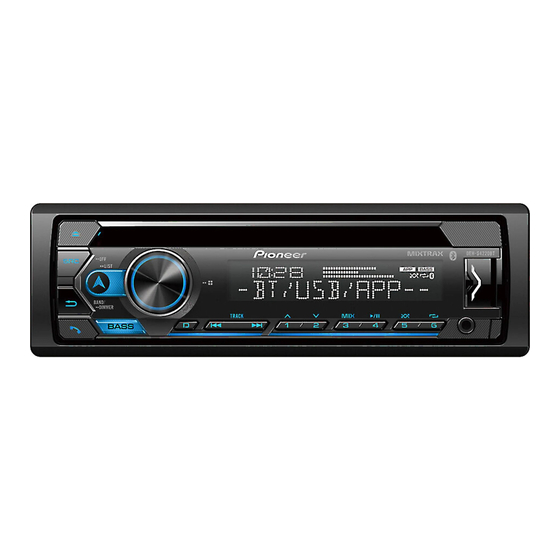
Summary of Contents for Pioneer DEH-S4250BT
- Page 1 CD RDS/Bluetooth RECEIVER RECEPTOR DE CD CON RDS/Bluetooth CD PLAYER COM RDS/Bluetooth DEH-S4250BT CD RDS RECEIVER RECEPTOR DE CD CON RDS CD PLAYER COM RDS DEH-X5000BT Operation Manual Manual de operación Manual de Operações...
-
Page 2: Table Of Contents
Getting Started ..................3 Radio ......................9 CD/USB/iPhone®/AUX................10 Bluetooth ....................13 Spotify® ....................17 Using Pioneer Smart Sync/APP............19 Using the Karaoke Function ............... 22 Audio Adjustments ................23 Settings ....................24 FUNCTION settings ................24 AUDIO settings ..................26 SYSTEM settings .................. -
Page 3: Getting Started
SRC (source)/OFF (eject) Disc loading slot DISP (display)/DISP OFF BAND/ Display window (navigation)/LIST Detach button AUX input jack (3.5 mm stereo jack) DEH-S4250BT (navigation)/LIST USB port M.C. (multi-control) dial (eject) Disc loading slot SRC (source)/OFF DISP (display)/DISP OFF Detach button... - Page 4 Remote Control VOLUME +/– MUTE SRC (source) DISP (display) Frequently used operations The available buttons vary depending on the unit. Operation Purpose Head Unit Remote Control Turn on the power* Press SRC/OFF to turn on Press SRC to turn on the the power.
- Page 5 Appears when a Bluetooth connection is made (page 13). Appears when a Pioneer Smart Sync connection is made (page 19). Detaching the front panel Detach the front panel to prevent theft. Remove any cables and devices attached to the front panel and turn off the unit before detaching it.
- Page 6 • Always store the detached front panel in a protective case or bag. Resetting the microprocessor The microprocessor must be reset in the following situations: – Before using this unit for the first time after installation – If the unit fails to operate properly –...
- Page 7 death. Keep new and used batteries away from children. If the battery compartment does not close securely, stop using the product and keep it away from children. If you think batteries might have been swallowed or placed inside any part of the body, seek immediate medical attention.
- Page 8 To return to the first item of the setup menu, turn the M.C. dial to select [QUIT :NO], then press to confirm. Press the M.C. dial to confirm the settings. NOTE These settings can be made at any time from the SYSTEM settings (page 28) and INITIAL settings (page 8).
-
Page 9: Radio
Menu Item Description SP-P/O MODE Select when there is a full-range speaker connected to the rear speaker output leads and there is a subwoofer connected to the [REAR/SUB.W] RCA output. [SUB.W/SUB.W] Select when there is a passive subwoofer connected directly to the rear speaker output leads and there is a subwoofer connected to the RCA output. -
Page 10: Cd/Usb/Iphone®/Aux
Turn the M.C. dial to select [BSM], then press to confirm. To seek a station manually After selecting the band, press to select a station. Press and hold then release to seek an available station. Scanning stops when the unit receives a station. To cancel seek tuning, press NOTE [SEEK] needs to be set to [MAN] in the FUNCTION settings (page 25). - Page 11 Playing back Disconnect headphones from the device before connecting it to the unit. Insert a disc into the disc loading slot with the label side up. To eject a disc, stop playback first then press USB devices (including Android™)/iPhone Open the USB port cover. Plug in the USB device/iPhone using an appropriate cable.
- Page 12 NOTE If [AUX] is set to [OFF] in the SYSTEM settings, [AUX IN] cannot be selected as a source (page 29). Operations You can make adjustments in the FUNCTION settings (page 24) (except for AUX IN/CD/ USB source). Note that the following operations do not work for an AUX device. To operate an AUX device, use the device itself.
-
Page 13: Bluetooth
NOTES • iPhone needs to be connected with Pioneer Smart Sync via USB for using this function (page 19). • Depending on the file/song, sound effects may not be available. • Turn the MIXTRAX function off if the illumination effects it produces interfere with driving. - Page 14 Bluetooth telephone First, make a Bluetooth connection with the Bluetooth telephone (page 13). Up to two Bluetooth telephones can be connected simultaneously. Important • Leaving the unit on standby to connect to your phone via Bluetooth while the engine is not running can drain the vehicle’s battery.
- Page 15 For details on the voice recognition features, refer to the manual supplied with your device. When a Pioneer Smart Sync connection is made (page 19), you can also use the voice recognition function from Pioneer Smart Sync installed on your iPhone/Android device by pressing and holding .
- Page 16 Menu Item Description A.ANSR* Select [ON] to answer an incoming call automatically. [ON], [OFF] PB INVT Invert the order of names in the phone book (name view). DEVICELIST Display the list of paired Bluetooth devices. “*” appears on the device name when the Bluetooth connection is established. When no device is selected in the device list, this function is not available.
-
Page 17: Spotify
Spotify® (Not available when [USB MTP] is set to [ON] in the SYSTEM settings (page 29).) Spotify is a music streaming distribution service not affiliated with Pioneer. More information is available at http://www.spotify.com. The Spotify application is available for compatible smartphones, please visit https:// support.spotify.com/ for the latest compatibility information. - Page 18 Listening to Spotify Update the firmware of the Spotify application to the latest version before use. Connect this unit with the mobile device. • iPhone via USB (page 11) • iPhone/Android device via Bluetooth (page 13) Press SRC/OFF to select [SPOTIFY]. Press and hold 1/ to display [APP CONTROL].
-
Page 19: Using Pioneer Smart Sync/App
For details on what operations are available on the application, see the application’s help section. NOTE The APP source is not available when a Pioneer Smart Sync connection is not made or [USB MTP] is set to [ON] in the SYSTEM settings (page 29). WARNING Do not attempt to operate the application while driving. - Page 20 7.1.2 and also supports AOA (Android Open Accessory) 2.0. However, the compatibility depends on the smartphone. You can download Pioneer Smart Sync on Google Play. NOTE Some Android devices connected via AOA 2.0 may not work properly or emit sounds due to their own software design, regardless of the OS version.
- Page 21 • The 31 Band EQ setting is converted into 13 bands when a music source from this product is engaged. It is recommended to enter the search term "Pioneer Smart Sync" in the search field to search for the application.
-
Page 22: Using The Karaoke Function
• When you connect a mobile device other than an iPhone/Android device, it may not operate correctly depending on your mobile device. • If Pioneer Smart Sync has not been installed on your iPhone/Android device yet, a message that prompts you to install the application will appear on your iPhone/Android device (except for the Android device connected via Bluetooth). -
Page 23: Audio Adjustments
Turn the M.C. dial to select [MICROPHONE]. Press the M.C. dial to select [ON]. When the karaoke mode is activated, the volume on the unit is muted. Adjust the microphone volume on the [MIC VOL] setting. To adjust the microphone volume Press the M.C. -
Page 24: Settings
Press the M.C. dial to display the main menu. Turn the M.C. dial to select [AUDIO], then press to confirm. Turn the M.C. dial to select [CROSSOVER], then press to confirm. Turn the M.C. dial to select the speaker unit (filter) to be adjusted, then press to confirm. - Page 25 Menu Item Description Store the six strongest stations on the number buttons (1/ to 6/ ) automatically. REGIONAL [ON], [OFF] Limit the reception to the specific regional programs when AF (alternative frequencies search) is selected. (Available only when FM band is selected.) LOCAL FM: [OFF], [LV1], [LV2], [LV3], [LV4] Restrict the tuning station according to the...
-
Page 26: Audio Settings
PLAY Start playback. STOP Stop playback. AUDIO settings NOTE [CHK APP SETTG.] may be displayed when the setting is performed from Pioneer Smart Sync. Menu Item Description EQ SETTING [SUPER BASS], [POWERFUL], Select or customize the equalizer curve. [DYNAMIC], [NATURAL], [VOCAL], •... - Page 27 [CROSSOVER], [SPEAKER LEVEL], [EQ SETTING], [POSITION], [TIME ALGNMNT], [D.BASS], [SUBWOOFER]. • The settings that can be saved differ when a Pioneer Smart Sync connection is made. LOAD SETTINGS Load the sound settings, when you have already performed [SAVE SETTINGS].
-
Page 28: System Settings
CLOCK SET [12H], [24H] Set the clock (page 7). • This setting is not available when a Pioneer Smart Sync connection is made. SCROLL SET [ONCE], [LOOP], [OFF] Select the way to scroll the text in the display window. - Page 29 Menu Item Description BEEP TONE [ON], [OFF] A beep can be heard when any button is pushed. Select [OFF] to disable this function. INFO DISPLAY [SOURCE/SPEANA], [CLOCK/ Display the item on the sub information display. SPEANA], [SRC/LIVE FX], [CLOCK/ • When [SOURCE/SPEANA] or [CLOCK/SPEANA] is LIVE FX], [SOURCE], [SPEANA], selected, display the antenna instead of the [OFF]...
- Page 30 PIONEER Service Station. *2 Please use a commercially available wiring harness for each car model when [PRESET] mode is engaged, and use a commercially available adapter when in [PIONEER]. Information on the connections for each device The available sources differ depending on the setting value.
-
Page 31: Illumination Settings
Select the brightness for the keys/display of the unit from [1] to [10]. The available setting ranges differ depending on [DIM SETTING]. BRIGHTNESS (Only for DEH-S4250BT) [1] to [10] Change the display brightness. The available setting ranges differ depending on [DIM SETTING]. -
Page 32: Mixtrax Settings
[PHONE COLOR] – you are on a phone call – the message received on the device is being read when a Pioneer Smart Sync connection is made – a CD is inserted/ejected – the front panel is attached. -
Page 33: Microphone Settings
Menu Item Description MIX PATTERN (Only for DEH-S4250BT) [SOUND LEVEL] Change the MIXTRAX special effects according to the audio level. The mix pattern changes according to the sound level. [LOW PASS] The mix pattern changes according to the bass level. -
Page 34: Additional Information
ON again. If the message remains, – Select the repeat play range again. contact your dealer or an authorized Pioneer Service Station for assistance. A subfolder is not played back. → Subfolders cannot be played when NO XXXX (NO TITLE, for example) [FLD] (folder repeat) is selected. - Page 35 – Replace the USB device. FORMAT READ → Sometimes there is a delay between the N/A USB start of playback and when you start to → The connected USB device is not hear any sound. supported by this unit. – Wait until the message disappears and –...
- Page 36 ACC or ON. Handling guidelines CONNECT APP Discs and player → Pioneer Smart Sync connection is not • Use only discs that feature either of the made. following two logos. – Make a connection with Pioneer Smart Sync (page 19).
- Page 37 CAUTION the equipment. • Pioneer cannot guarantee compatibility USB storage device with all USB mass storage devices, and assumes no responsibility for any loss of • Connections via USB hubs are not data on media players, smartphones, or supported.
- Page 38 Stereo Bit Rate 16 kbps to 320 kbps, WMA files File extension .wma Apple Lossless Not compatible AAC file bought from Not compatible Bit rate 48 kbps to 320 kbps (CBR), 48 kbps to 384 the iTunes Store (.m4p kbps (VBR) file extension) Sampling frequency 32 kHz, 44.1 kHz, 48...
- Page 39 • Users of iPhone with the Lightning® registered trademarks owned by Bluetooth SIG, Connector should use the Lightning to Inc. and any use of such marks by PIONEER USB Cable (supplied with iPhone). CORPORATION is under license. Other • Refer to the iPhone manuals for trademarks and trade names are those of their respective owners.
- Page 40 Google LLC. promote products derived from this software without specific prior written MIXTRAX permission. MIXTRAX is a trademark of the PIONEER CORPORATION. THIS SOFTWARE IS PROVIDED BY THE COPYRIGHT HOLDERS AND Spotify® CONTRIBUTORS “AS IS” AND ANY EXPRESS...
- Page 41 Gain: ±12 dB (2 dB step) http://www.apache.org/licenses/LICENSE- High pass filter: Frequency: 25 Hz/31.5 Hz/40 Hz/50 Hz/63 Hz/80 Hz/100 Hz/125 Hz/160 Unless required by applicable law or Hz/200 Hz/250 Hz agreed to in writing, software distributed Slope: –6 dB/oct, –12 dB/oct, –18 dB/ under the License is distributed on an "AS oct, –24 dB/oct, OFF IS"...
- Page 42 WMA decoding format: Ver. 7, 8, 9, 9.1, 9.2 NOTE (2 ch audio) Specifications and the design are subject AAC decoding format: MPEG-4 AAC (iTunes to modifications without notice. encoded only) (Ver. 10.6 and earlier) FLAC decoding format: v1.2.1 (Free Lossless Audio Codec) WAV signal format: Linear PCM (Non- compressed)
- Page 43 Introducción ..................... 3 Radio ......................9 CD/USB/iPhone®/AUX................11 Bluetooth ....................13 Spotify® ....................18 Uso de Pioneer Smart Sync/APP............20 Cómo usar la función de karaoke............23 Ajustes de audio ................... 25 Ajustes ....................25 Ajustes de FUNCTION................26 Ajustes de AUDIO .................. 27 Ajustes de SYSTEM................
-
Page 44: Introducción
Ranura de carga de discos DISP (visualizar)/DISP OFF BAND/ Pantalla (navegación)/LIST Botón de desconexión Toma de entrada AUX (toma estéreo de 3,5 mm) DEH-S4250BT (navegación)/LIST Puerto USB Dial M.C. (multicontrol) (expulsar) Ranura de carga de discos SRC (fuente)/OFF DISP (visualizar)/DISP OFF Botón de desconexión... - Page 45 Control remoto VOLUME +/– MUTE SRC (fuente) DISP (visualizar) Operaciones frecuentes Los botones disponibles varían según la unidad. Método Objetivo Unidad principal Control remoto Encender la unidad* Presione SRC/OFF para Presione SRC para encender encender la unidad. la unidad. Mantenga presionado SRC/ Mantenga presionado SRC OFF para apagar la unidad.
- Page 46 Aparece cuando está definida la repetición de reproducción (excepto cuando seleccionó BT AUDIO como origen). Aparece cuando se establece una conexión Bluetooth (página 13). Aparece cuando se establece una conexión Pioneer Smart Sync (página 20). Extracción del panel frontal Extraiga el panel frontal para evitar robos. Quite los cables y dispositivos conectados al panel frontal y apague la unidad antes de extraerlo.
- Page 47 Extracción Colocación Importante • Evite que el panel frontal sufra golpes excesivos. • Mantenga el panel frontal alejado de la luz solar directa y las altas temperaturas. • Almacene siempre el panel frontal desconectado en un estuche o bolso de protección. Restablecer el microprocesador Se debe reiniciar el microprocesador en las siguientes situaciones: –...
- Page 48 Cómo sustituir la batería Inserte la batería CR2025 (3 V) con los polos de más (+) y menos (-) en la orientación correcta. ADVERTENCIA • No ingiera la batería; hay peligro de una quemadura química. (El control remoto proporcionado) Este producto contiene una pila de botón. Si la pila de botón es tragada, puede causar severas quemaduras internas en solo dos horas y puede llevar a la muerte.
- Page 49 Elemento del menú Descripción LANGUAGE Seleccione el idioma en el que aparecerá la información de texto de un archivo de audio comprimido. [ENG](Inglés), [ESP](Español) CLOCK SET Ajuste el reloj. 1 Gire el dial M.C. para ajustar la hora y presione para confirmar. El indicador se mueve al ajuste de minutos automáticamente.
-
Page 50: Radio
Gire el dial M.C. para seleccionar una opción y presione para confirmar. Elemento del menú Descripción FM STEP Seleccione el incremento de sintonización de FM entre 100 kHz o 50 kHz. [100], [50] AM STEP Seleccione el incremento de sintonización de AM entre 10 kHz o 9 kHz. - Page 51 SUGERENCIA Los botones también se pueden usar para seleccionar una estación predefinida cuando [SEEK] está definido en [PCH] en los ajustes de FUNCTION (página 27). Memoria de mejores estaciones (BSM) Las seis estaciones con mejor recepción se almacenan en los botones de números (de 1/ a 6/ Después de seleccionar la banda, presione el dial M.C.
-
Page 52: Cd/Usb/Iphone®/Aux
NOTAS • Para cancelar la búsqueda, presione el dial M.C.. • El programa de algunas estaciones puede ser diferente del que indica el PTY transmitido. • Si ninguna estación transmite el tipo de programa que busca, aparece [NOT FOUND] durante dos segundos aproximadamente, y el sintonizador vuelve a la estación original. - Page 53 NOTA Si utiliza una conexión AOA, debe definir [APP CONTROL] en [WIRED] (página 32) y [USB MTP] en [OFF] (página 32) en los ajustes de SYSTEM. Conexión MTP Un dispositivo instalado con Android OS 4.0 o la mayoría de las versiones posteriores puede conectarse a la unidad a través de MTP mediante el cable que se suministra con el dispositivo.
-
Page 54: Bluetooth
Para obtener información sobre los ajustes de MIXTRAX, consulte la página 34. NOTAS • iPhone necesita conectarse con Pioneer Smart Sync a través de una conexión USB para usar esta función (página 20). • Según el archivo/canción, es posible que los efectos sonoros no estén disponibles. - Page 55 SUGERENCIA En los pasos a continuación, la siguiente conexión a la unidad se realizará automáticamente si el dispositivo Bluetooth se conectó anteriormente. Active la función Bluetooth del dispositivo. Si selecciona una conexión Bluetooth desde el dispositivo, avance hasta el paso 4. Presione para mostrar el ajuste [ADD DEVICE].
- Page 56 Gire el dial M.C. para seleccionar [RECENTS] o [PHONE BOOK] y presione para confirmar. Si selecciona [PHONE BOOK], avance al paso 4. Gire el dial M.C. para seleccionar [MISSED], [DIALLED] o [RECEIVED] y presione para confirmar. Gire el dial M.C. para seleccionar un nombre o número telefónico y presione para confirmar.
- Page 57 Para obtener información sobre las características del reconocimiento de voz, consulte el manual que se entrega con el dispositivo. SUGERENCIA Cuando se realiza una conexión Pioneer Smart Sync (página 20), también puede usar la función de reconocimiento de voz de Pioneer Smart Sync instalada en el iPhone/dispositivo Android al mantener presionado .
- Page 58 Elemento del menú Descripción DEVICELIST Muestra la lista de dispositivos Bluetooth emparejados. Aparece “*” en el nombre del dispositivo cuando se establece la conexión Bluetooth. Cuando no hay ningún dispositivo seleccionado en la lista, esta función no está disponible. DEL DEVICE Elimine la información del dispositivo.
-
Page 59: Spotify
(No está disponible cuando [USB MTP] está establecido en [ON] en los ajustes de SYSTEM (página 32)). Spotify es un servicio de distribución de música no afiliado a Pioneer. Puede obtener más información en http://www.spotify.com. La aplicación Spotify está disponible para teléfonos compatibles, ingrese a https:// support.spotify.com/ para consultar la información más reciente de compatibilidad. - Page 60 Escuchar Spotify Actualice el firmware de la aplicación Spotify a la versión más reciente antes de usarla. Conecte la unidad al dispositivo móvil. • iPhone mediante USB (página 11) • Dispositivo iPhone/Android mediante Bluetooth (página 13) Presione SRC/OFF para seleccionar [SPOTIFY]. Mantenga presionado 1/ para mostrar [APP CONTROL].
-
Page 61: Uso De Pioneer Smart Sync/App
Para obtener más detalles sobre las funciones disponibles de la aplicación, consulte la ayuda de la aplicación. NOTA El origen APP no está disponible si no se ha realizado la conexión de Pioneer Smart Sync, o bien [USB MTP] está establecido en [ON] en los ajustes de SYSTEM (página 32). ADVERTENCIA No intente operar la aplicación mientras conduce. - Page 62 Android 5.0 o posterior hasta 7.1.2, y también admite AOA (Android Open Accessory) 2.0. Sin embargo, la compatibilidad depende del teléfono. Puede descargar la Pioneer Smart Sync en Google Play. NOTA Algunos dispositivos Android conectados a través de AOA 2.0 podrían no funcionar correctamente o emitir sonidos debido a su propio diseño de software, sin importar la versión del sistema operativo.
- Page 63 • La configuración de 31 bandas de EQ se convierte a 13 bandas cuando se usa una fuente de música de este producto. SUGERENCIA Se recomienda ingresar el término de búsqueda “Pioneer Smart Sync”en el campo de búsqueda para buscar la aplicación. Realizar una conexión con Pioneer Smart Sync Presione el dial M.C.
-
Page 64: Cómo Usar La Función De Karaoke
• Al conectar un dispositivo móvil distinto a un iPhone/dispositivo Android, es posible que no funcione correctamente según su dispositivo móvil. • Si todavía no ha instalado Pioneer Smart Sync en su iPhone/dispositivo Android, aparecerá un mensaje que le pedirá que instale la aplicación en su iPhone/dispositivo Android (excepto el dispositivo Android conectado por Bluetooth). - Page 65 PRECAUCIÓN Puede ser sumamente peligroso que el cable del micrófono se enrosque en la columna de dirección o la palanca de cambios, ya que esto puede provocar un accidente. Asegúrese de instalar el micrófono de modo que no obstruya la conducción. NOTAS •...
-
Page 66: Ajustes De Audio
Ajustes de audio También puede realizar varias modificaciones en los ajustes de AUDIO (página 27). Ajustar el valor de frecuencia de corte y el valor de la pendiente Puede ajustar el valor de frecuencia de corte y el valor de la pendiente de cada altavoz. Se pueden ajustar los siguientes altavoces. -
Page 67: Ajustes De Function
Gire el dial M.C. para seleccionar una de las categorías siguientes y presione para confirmar. • Ajustes de FUNCTION (página 26) • Ajustes de AUDIO (página 27) • Ajustes de SYSTEM (página 30) • Ajustes de ILLUMINATION (página 33) • Ajustes de MIXTRAX (página 34) •... -
Page 68: Ajustes De Audio
Conecte un dispositivo Bluetooth de la lista. PLAY Comienza la reproducción. STOP Detiene la reproducción. Ajustes de AUDIO NOTA [CHK APP SETTG.] puede aparecer cuando el ajuste se establece desde Pioneer Smart Sync. - 27 - - 27 -... - Page 69 [CUSTOM1]. disponible en la unidad ha sido ajustada desde Pioneer Smart Sync. Selecciona una banda y un nivel de ecualización para una mayor personalización. Banda de ecualizador: de [50HZ] a [12.5kHZ]...
- Page 70 [CROSSOVER], [SPEAKER LEVEL], [EQ SETTING], [POSITION], [TIME ALGNMNT], [D.BASS], [SUBWOOFER]. • El ajuste que puede guardarse difiere cuando se establece una conexión Pioneer Smart Sync. LOAD SETTINGS Carga los ajustes de sonido cuando ya haya realizado [SAVE SETTINGS]. - 29 -...
-
Page 71: Ajustes De System
Seleccione el idioma en el que aparecerá la información de texto de un archivo de audio comprimido. CLOCK SET [12H], [24H] Ajuste el reloj (página 8). • Este ajuste no está disponible cuando se hace una conexión Pioneer Smart Sync. - 30 -... - Page 72 Elemento del menú Descripción SCROLL SET [ONCE], [LOOP], [OFF] Seleccione la forma en la que desea desplazar el texto en la pantalla. BEEP TONE [ON], [OFF] Se puede oír un sonido cuando se presiona cualquier botón. Seleccione [OFF] para desactivar esta función. INFO DISPLAY [SOURCE/SPEANA], [CLOCK/ Muestra el elemento en la pantalla de...
- Page 73 Los orígenes disponibles difieren según el valor de los ajustes. Ajuste [APP CONTROL] de acuerdo con la tabla para el origen que desee usar. Para obtener información sobre la conexión Pioneer Smart Sync, consulte página 20. Cuando NO se realiza la conexión Pioneer Smart Sync...
-
Page 74: Ajustes De Illumination
Valor de ajuste Dispositivo Orígenes disponibles [BLUETOOTH] iPhone iPhone, SPOTIFY Android SPOTIFY Cuando se realiza la conexión Pioneer Smart Sync Valor de ajuste Dispositivo Orígenes disponibles [WIRED] iPhone APP, SPOTIFY Android [BLUETOOTH] iPhone APP, SPOTIFY Android APP, SPOTIFY Ajustes de ILLUMINATION Elemento del menú... -
Page 75: Ajustes De Mixtrax
– hay una llamada entrante cuando [FLASHING] está seleccionado en [PHONE COLOR] – está haciendo una llamada telefónica – el mensaje recibido en el dispositivo se lee cuando se estableció una conexión Pioneer Smart Sync – se inserta/expulsa un CD – el panel frontal está colocado. - Page 76 [RANDOM3] El patrón intermitente cambia al azar según el modo de paso bajo. MIX PATTERN (solo para DEH-S4250BT) [SOUND LEVEL] Cambia los efectos especiales MIXTRAX según el nivel de audio. El patrón de mezcla cambia según el nivel de sonido.
-
Page 77: Ajustes De Microphone
Ajustes de MICROPHONE Elemento del menú Descripción MICROPHONE [ON], [OFF] Se define en [ON] cuando se usa la función de karaoke. MIC VOL Ajuste el volumen del micrófono. VOCAL [ON], [OFF] Establezca en [OFF] al reducir el nivel de las voces en una canción. -
Page 78: Información Adicional
– Seleccione otro rango de repetición concesionario o a un centro de de reproducción. servicio Pioneer autorizado. El sonido es intermitente. NO XXXX (NO TITLE, por ejemplo) → Utiliza un dispositivo, como un teléfono → No hay información de texto celular, que puede causar interferencia incorporada. - Page 79 – Gire la llave de encendido a la posición – Transfiera los archivos de audio al OFF y nuevamente a ON, y vuelva al dispositivo USB y conéctelo. → El dispositivo USB conectado tiene reproductor de CD. activada la seguridad. ERROR-15 –...
- Page 80 → El dispositivo USB no se formateó correctamente. – Formatee el dispositivo USB con CONNECT APP FAT12, FAT16 o FAT32. → No se establece la conexión de Pioneer Smart Sync. ERROR-16 – Realizar una conexión con Pioneer → La versión de firmware del iPhone es Smart Sync (página 20).
- Page 81 – Presione BAND/ para volver a • Cuando use discos con etiquetas establecer una conexión. imprimibles, compruebe las instrucciones y advertencias de los discos. Según los CHECK APP discos, es posible que no sea posible su → Se produjo un error desconocido introducción y expulsión.
- Page 82 • Los formatos de archivo WAV no se carpeta. pueden conectar mediante MTP. PRECAUCIÓN Extensión de archivos .wav • Pioneer no puede garantizar la Bits de cuantificación 8 y 16 (LPCM) compatibilidad con todos los dispositivos Frecuencia de De 16 kHz a 48 kHz...
- Page 83 • Es posible que los archivos FLAC no Archivos Hasta 15 000 puedan reproducirse, según el reproducibles codificador. Reproducción de No compatible archivos protegidos Extensión de archivos .flac, .fla por derechos de autor Frecuencia de 8/11,025/12/16/22,05/ Dispositivo USB Solo se puede muestreo 24/32/44,1/48/96 kHz particionado...
- Page 84 PRECAUCIÓN Apple e iTunes son marcas comerciales de Pioneer no acepta responsabilidad por la Apple Inc., registradas en los EE.UU. y en pérdida de datos en el iPhone, incluso si los otros países. datos se pierden mientras se usa la unidad.
- Page 85 Sistema de conexión a tierra: tipo negativo comerciales de Google LLC. Consumo máximo de corriente: 10,0 A MIXTRAX Dimensiones (An. × Al. × Prof.): MIXTRAX es una marca comercial de PIONEER CORPORATION. Bastidor: 178 mm × 50 mm × 165 mm - 44 -...
- Page 86 Cara anterior: 188 mm × 58 mm × Alineación temporal: 17 mm de 0 cm a 350 cm (2,5 cm/incremento) Reproductor de CD Bastidor: 178 mm × 50 mm × 165 mm Cara anterior: 170 mm × 46 mm × Sistema: sistema de audio de disco 17 mm compacto...
- Page 87 Sensibilidad utilizable: 11 dBf (1,0 μV/75 Ω, monoaural, señal/ruido: 30 dB) Relación señal/ruido: 65 dB (red IEC-A) Sintonizador AM Rango de frecuencia: de 531 kHz a 1 602 kHz (9 kHz) de 530 kHz a 1 640 kHz (10 kHz) Sensibilidad utilizable: 25 μV (señal/ruido: 20 dB) Relación señal/ruido: 60 dB (red IEC-A)
- Page 88 Primeiros passos..................3 Rádio ......................9 CD/USB/iPhone®/AUX................10 Bluetooth ....................13 Spotify® ....................18 Usar o Pioneer Smart Sync/APP............20 Usando a função Karaoke ..............23 Ajustes de áudio ................... 24 Configurações ..................25 Configurações FUNCTION ..............26 Configurações de AUDIO ..............27 Configurações SYSTEM ................
-
Page 89: Primeiros Passos
Abertura de carregamento de disco DISP (visualização)/DISP OFF BAND/ Janela de visualização (navegação)/LIST Botão de separar Tomada de entrada AUX (tomada estéreo de 3,5 mm) DEH-S4250BT (navegação)/LIST Porta USB (ejetar) Abertura de carregamento de disco Seletor M.C. (multicontrole) SRC (fonte)/OFF DISP (visualização)/DISP OFF... - Page 90 Controle Remoto VOLUME +/– MUTE SRC (fonte) DISP (visualização) Operações mais usadas Os botões disponíveis variam dependendo da unidade. Operação Propósito Unidade Principal Controle Remoto Ligue o aparelho* Pressione SRC/OFF para Pressione SRC para ligar a ligar a energia. energia. Pressione e segure SRC/OFF Pressione e segure SRC para para desligar a energia.
- Page 91 BT AUDIO está selecionado como fonte). Aparece quando uma conexão Bluetooth é feita (página 13). Aparece quando uma conexão Pioneer Smart Sync é efetuada (página 20). Retirando o painel frontal Retire o painel frontal para impedir roubos. Remova todos os cabos e dispositivos acoplados ao painel frontal e desligue o aparelho antes de retirá-lo.
- Page 92 Importante • Evite sujeitar o painel frontal a choques excessivos. • Mantenha o painel frontal distante da luz solar direta e temperaturas elevadas. • Guarde sempre o painel frontal removido em uma caixa ou bolsa de proteção. Redefinindo o microprocessador O microprocessador deve ser redefinido nas seguintes situações: –...
- Page 93 ADVERTÊNCIA • Não ingira a bateria, perigo de queimadura por produto químico (O controle remoto fornecido com) Este produto contém bateria de célula do tipo moeda/botão. Se a bateria de célula do tipo moeda/botão for engolida, ela poderá provocar severa queimadura interna em apenas duas horas e poderá...
- Page 94 Item do Menu Descrição FM STEP Selecione o passo de sintonia FM de 100 kHz ou 50 kHz. [100], [50] AM STEP Selecione o passo de sintonia AM de 10 kHz ou 9 kHz. [10], [9] [QUIT :YES] aparece. Para retornar ao primeiro item do menu de configuração, gire o seletor M.C. para selecionar [QUIT :NO], e então pressione para confirmar.
-
Page 95: Rádio
Item do Menu Descrição SP-P/O MODE Selecione quando há um alto-falante tipo full range conectado à saída de ligações do alto-falante traseiro e há um subwoofer [REAR/SUB.W] conectado à saída RCA. [SUB.W/SUB.W] Selecione quando há um subwoofer passivo ligado diretamente à... -
Page 96: Cd/Usb/Iphone®/Aux
Gire o seletor M.C. para selecionar [FUNCTION], e então pressione para confirmar. Gire o seletor M.C. para selecionar [BSM], e então pressione para confirmar. Para procurar uma estação manualmente Depois de selecionar a faixa, pressione para selecionar uma estação. Pressione e segure e então solte para procurar uma estação disponível. - Page 97 Reproduzindo Desligue os fones de ouvido do dispositivo antes de conectá-los ao aparelho. Insira um disco na abertura de carregamento de disco com a etiqueta virada para cima. Para ejetar um disco, primeiro interrompa a reprodução e depois pressione Dispositivos USB (incluindo Android™)/iPhone Abra a tampa da porta USB.
- Page 98 Insira o mini plugue estéreo na tomada de entrada AUX. Pressione SRC/OFF para selecionar [AUX IN] como a fonte. NOTA Se [AUX] estiver configurado como [OFF] nas configurações SYSTEM, [AUX IN] não pode ser selecionado como fonte (página 31). Operações Você...
-
Page 99: Bluetooth
Para detalhes sobre as configurações MIXTRAX, consulte página 34. NOTAS • O iPhone precisa estar conectado com Pioneer Smart Sync através de USB para usar esta função (página 20). • Dependendo do arquivo/música, efeitos sonoros podem não estar disponíveis. - Page 100 Gire o seletor M.C. para selecionar um dispositivo da lista de dispositivos, e então pressione para confirmar. Pressione e segure o seletor M.C. para mudar as informações do dispositivo apresentado entre o endereço do dispositivo Bluetooth e o nome do dispositivo. Se você...
- Page 101 DICA Quando dois telefones estão conectados à unidade via Bluetooth e há uma chamada enquanto um telefone está sendo usado, uma mensagem aparecerá no visor. Para atender àquela nova chamada, você precisa terminar a chamada existente. Operações básicas Propósito Operação Terminar uma chamada Pressione Rejeitar uma chamada...
- Page 102 DICA Quando uma conexão Pioneer Smart Sync é efetuada (página 20), também pode usar a função de reconhecimento de voz a partir de Pioneer Smart Sync instalado em seu dispositivo iPhone/Android, pressionando e segurando . Para obter detalhes sobre os recursos do reconhecimento de voz, veja a seção de ajuda do aplicativo.
- Page 103 Áudio Bluetooth Importante • Dependendo do reprodutor de áudio Bluetooth conectado a esta unidade, as operações disponíveis serão limitadas aos dois níveis a seguir: – A2DP (Advanced Audio Distribution Profile) só pode reproduzir músicas no seu reprodutor de áudio. – AVRCP (Audio/Video Remote Control Profile) pode executar funções como reprodução, pausa, seleção de músicas, etc.
-
Page 104: Spotify
(Não está disponível quando [USB MTP] estiver definido para [ON] nas configurações de SYSTEM (página 31).) Spotify é um serviço de distribuição de streaming de música sem vínculo com a Pioneer. Mais informações estão disponíveis em http://www.spotify.com. O aplicativo Spotify está disponível para smartphones compatíveis; visite https:// support.spotify.com/ para ver as informações mais recentes sobre compatibilidade. - Page 105 Gire o seletor M.C. para selecionar uma das opções abaixo. • Selecione [WIRED] para conexão USB. • Selecione [BLUETOOTH] para conexão Bluetooth. Pressione SRC/OFF para selecionar [SPOTIFY]. Inicie o aplicativo Spotify no dispositivo móvel e inicie a reprodução. NOTA Ao conectar um dispositivo móvel que não seja um dispositivo iPhone/Android, ele pode não operar corretamente dependendo do seu dispositivo móvel.
-
Page 106: Usar O Pioneer Smart Sync/App
Para mais detalhes sobre as operações disponíveis no aplicativo, consulte a ajuda do aplicativo. NOTA A fonte APP não está disponível quando uma conexão Pioneer Smart Sync não está efetuada ou [USB MTP] está definida para [ON] nas configurações de SYSTEM (página 31). ADVERTÊNCIA Não tente operar o aplicativo enquanto estiver dirigindo. - Page 107 – Controlar seu dispositivo Bluetooth conectado Ampliando as funções da unidade através do uso do aplicativo As seguintes funções, que estão indisponíveis na unidade sozinha, estão disponíveis através de uma conexão com o Pioneer Smart Sync. Item de menu (exemplo) Descrição Usar um aplicativo de navegação...
- Page 108 • A definição EQ de 31 bandas é convertida para 13 bandas quando a fonte de música deste produto é ativada. DICA Recomenda-se inserir um termo de pesquisa “Pioneer Smart Sync” no campo de pesquisa para pesquisar o aplicativo. Fazendo uma conexão com o Pioneer Smart Sync Pressione o seletor M.C.
-
Page 109: Usando A Função Karaoke
• Ao conectar um dispositivo móvel que não seja um dispositivo iPhone/Android, ele pode não operar corretamente dependendo do seu dispositivo móvel. • Se o Pioneer Smart Sync ainda não estiver instalado em seu dispositivo iPhone/Android, será exibida uma mensagem solicitando que você instale o aplicativo que aparecerá em seu iPhone/Android dispositivo (excepto para o dispositivo Android conectado através de Bluetooth). -
Page 110: Ajustes De Áudio
Quando o modo de karaoke está ativado, o volume na unidade é silenciado. Ajuste o volume do microfone na configuração [MIC VOL]. Para ajustar o volume do microfone Pressione o seletor M.C. para exibir o menu principal. Gire o seletor M.C. para selecionar [MICROPHONE] e, depois, pressione para confirmar. -
Page 111: Configurações
NOTA [SUBWOOFER] pode ser selecionado apenas quando [ON] está selecionado em [SUBWOOFER] (página 28). Pressione o seletor M.C. para exibir o menu principal. Gire o seletor M.C. para selecionar [AUDIO] e, em seguida, pressione para confirmar. Gire o seletor M.C. para selecionar [CROSSOVER] e, em seguida, pressione para confirmar. -
Page 112: Configurações Function
Configurações FUNCTION Os itens do menu variam de acordo com a fonte. Item do Menu Descrição Guarde as seis estações mais fortes nas teclas numéricas (1/ a 6/ ) automaticamente. REGIONAL [ON], [OFF] Limite a recepção aos programas regionais específicos, quando AF (busca por frequências alternativas) está... -
Page 113: Configurações De Audio
Iniciar a reprodução. STOP Parar a reprodução. Configurações de AUDIO NOTA [CHK APP SETTG.] pode ser exibido quando a definição é efetuada a partir de Pioneer Smart Sync. Item do Menu Descrição EQ SETTING [SUPER BASS], [POWERFUL], Selecione ou personalize a curva do equalizador. - Page 114 Item do Menu Descrição FADER*1 Ajuste o balanço dos alto-falantes dianteiro e traseiro. BALANCE Ajuste o balanço dos alto-falantes esquerdo e direito. SUBWOOFER [ON], [OFF] Defina como [ON] ao usar uma alto-falante subwoofer. SUBWOOFER*2 [NOR], [REV] Selecione a fase do subwoofer. SPEAKER LEVEL Tipos de alto-falante: [FRONT L], Selecione uma unidade de alto-falante (filtro) e...
- Page 115 [CROSSOVER], [SPEAKER LEVEL], [EQ SETTING], [POSITION], [TIME ALGNMNT], [D.BASS], [SUBWOOFER]. • As definições que podem ser salvas diferem quando uma conexão Pioneer Smart Sync é efetuada. LOAD SETTINGS Carregue as configurações sonoras, se já tiver executado [SAVE SETTINGS].
-
Page 116: Configurações System
áudio comprimido. CLOCK SET [12H], [24H] Configure o relógio (página 7). • Esta configuração não está disponível quando uma conexão Pioneer Smart Sync é feita. SCROLL SET [ONCE], [LOOP], [OFF] Selecione o modo para rolar o texto na janela de exibição. - Page 117 Item do Menu Descrição INFO DISPLAY [SOURCE/SPEANA], [CLOCK/ Visualizar o item no visor de subinformação. SPEANA], [SRC/LIVE FX], [CLOCK/ • Quando [SOURCE/SPEANA] ou [CLOCK/ LIVE FX], [SOURCE], [SPEANA], SPEANA] é selecionado, a antena é exibida no [OFF] lugar do analisador de espectro (“speana”) na fonte de rádio.
- Page 118 Estação de Serviço PIONEER autorizada. *2 Use um chicote elétrico comercialmente disponível para cada modelo de carro quando o modo [PRESET] for acionado e use um adaptador comercialmente disponível quando [PIONEER] for selecionado. Informações sobre as conexões de cada dispositivo As fontes disponíveis diferem dependendo do valor configurado.
-
Page 119: Configurações Illumination
Valor Dispositivo Fontes disponíveis configurado [BLUETOOTH] iPhone APP, SPOTIFY Android APP, SPOTIFY Configurações ILLUMINATION Item do Menu Descrição COLOR (Somente para DEH-X5000BT) [KEY COLOR], [DISP COLOR], Selecione a cor para as teclas/visor da unidade [BOTH COLOR] entre 12 cores predefinidas, [SCAN] ou [CUSTOM]*. -
Page 120: Configurações De Mixtrax
é selecionado em [PHONE COLOR] – você está no meio de uma chamada – a mensagem recebida no dispositivo está sendo lida quando uma conexão Pioneer Smart Sync é efetuada – um CD é inserido/ejetado – o painel frontal está instalado. - Page 121 [RANDOM3] O padrão do sinal luminoso muda aleatoriamente de acordo com o modo de baixa frequência. MIX PATTERN (Somente para DEH-S4250BT) [SOUND LEVEL] Altere os efeitos especiais MIXTRAX de acordo com o nível de áudio. O padrão de mix muda de acordo com o nível de som.
-
Page 122: Configurações De Microphone
Configurações de MICROPHONE Item do Menu Descrição MICROPHONE [ON], [OFF] Definir para [ON] quando usar a função de karaoke. MIC VOL Ajuste o volume do microfone. VOCAL [ON], [OFF] Defina para [OFF] quando reduzir o nível das vozes em uma música. - 36 -... -
Page 123: Informações Adicionais
[FLD] (repetição mensagem permanecer, entre em de pasta) está selecionado. contato com o revendedor ou um – Selecione outro intervalo de representante autorizado Pioneer para reprodução em repetição. obter assistência. O som é intermitente. NO XXXX (NO TITLE, por exemplo) →... - Page 124 → O dispositivo USB conectado tem a – Coloque a chave de ignição na posição OFF e novamente em ON; segurança habilitada. depois, volte para o leitor de CD. – Siga as instruções do dispositivo USB para desativar a segurança. ERROR-15 →...
- Page 125 ERROR-23 → O dispositivo USB não foi formatado corretamente. CONNECT APP – Formate o dispositivo USB com FAT12, → A conexão Pioneer Smart Sync não é FAT16 ou FAT32. efetuada. – Efetue uma conexão com Pioneer ERROR-16 Smart Sync (página 20).
- Page 126 verifique as instruções e as advertências CHECK APP dos discos. Dependendo dos discos, a → Ocorreu um erro desconhecido inserção e ejeção pode não ser possível. (incluindo erro de comunicação). O uso desses discos pode resultar em – Siga as instruções que aparecem na danos a este equipamento.
- Page 127 USB com várias hierarquias de mp3 PRO pastas. Arquivos WAV CUIDADO • Formatos de arquivo WAV não podem ser • A Pioneer não pode garantir a conectados via MTP. compatibilidade com todos os dispositivos de armazenamento em Extensão de arquivo .wav massa USB, e não assume...
- Page 128 Hierarquia de pastas Até oito níveis (Uma CUIDADO reproduzíveis hierarquia prática contém menos de A Pioneer não se responsabilizará pela dois níveis.) perda dos dados no iPhone, mesmo que os Pastas reproduzíveis Até 1 500 dados sejam perdidos quando esta unidade é...
- Page 129 QUAISQUER GARANTIAS EXPRESSAS OU Bluetooth SIG, Inc. e qualquer uso dessas marcas IMPLICADAS, INCLUINDO, MAS NÃO SE pela PIONEER CORPORATION é feito sob licença. LIMITANDO A, AS GARANTIAS IMPLICADAS Outras marcas comerciais e marcas registradas DE MERCADO E ADEQUAÇÃO PARA UM pertencem a seus respectivos proprietários.
- Page 130 MIXTRAX Consumo máximo de corrente: 10,0 A MIXTRAX é uma marca comercial da Dimensões (L × A × P): PIONEER CORPORATION. Chassis: 178 mm × 50 mm × 165 mm Spotify® Nariz: 188 mm × 58 mm × 17 mm SPOTIFY e o logotipo Spotify são marcas...
- Page 131 Áudio Formato de decodificação WMA: Ver. 7, 8, 9, 9.1, 9.2 (2 canais de áudio) Potência de saída máxima: Formato de decodificação AAC: MPEG-4 • 50 W × 4 canais/4 Ω (para sem AAC (somente codificado iTunes) subwoofer) (Versão 10.6 e anteriores) •...
- Page 132 BLE (Bluetooth de Baixa energia) Versão: 4.0 certificado BLE (Bluetooth de Baixa energia) Potência de saída: máximo de +3 dBm Faixa(s) de frequência: 2 400 MHz a 2 483,5 Perfis Bluetooth: GAP (Generic Access Profile) SDAP (Service Discovery Application Profile) HFP (Hands Free Profile) 1.6 PBAP (Phone Book Access Profile) A2DP (Advanced Audio Distribution...
- Page 133 © 2019 PIONEER CORPORATION. All rights reserved. <OPM_DEHX5000BTCS_3L_A> CS...
Need help?
Do you have a question about the DEH-S4250BT and is the answer not in the manual?
Questions and answers