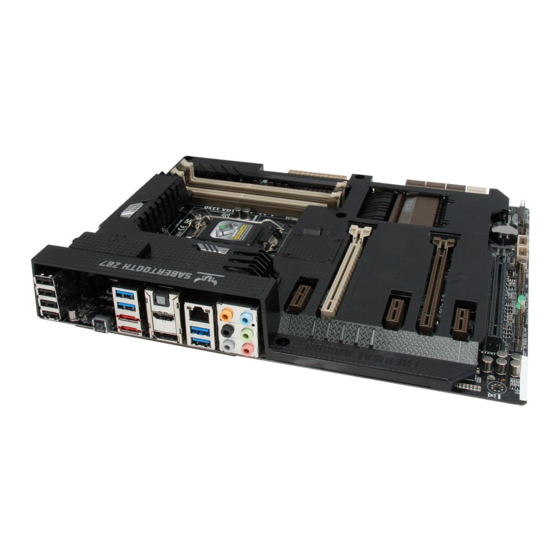
Table of Contents
Advertisement
Quick Links
Advertisement
Table of Contents

Related Manuals for Asus SABERTOOTH Z87


Summary of Contents for Asus SABERTOOTH Z87
- Page 1 SABERTOOTH...
- Page 2 Product warranty or service will not be extended if: (1) the product is repaired, modified or altered, unless such repair, modification of alteration is authorized in writing by ASUS; or (2) the serial number of the product is defaced or missing.
-
Page 3: Table Of Contents
Contents Safety information ...................... vi About this guide ......................vii SABERTOOTH Z87 specifications summary ............ix Package contents ..................... xiii Installation tools and components ................. xiv Chapter 1: Product Introduction Special features..................1-1 1.1.1 Product highlights................ 1-1 1.1.2 “Ultimate COOL” Thermal Solutions ........... 1-2 1.1.3... - Page 4 3.6.9 Network Stack ................3-38 Monitor menu ................... 3-39 Boot menu ....................3-43 Tools menu ....................3-49 3.9.1 ASUS EZ Flash 2 Utility ............3-49 3.9.2 ASUS O.C. Profile ..............3-49 3.9.3 ASUS SPD Information ............. 3-50 3.10 Exit menu ....................3-51 3.11...
- Page 5 5.1.3 Setting the RAID item in BIOS ............ 5-2 5.1.4 Intel Rapid Storage Technology Option ROM utility ....5-3 ® Installing the RAID driver during Windows OS installation ....5-7 ® Appendices Notices ........................A-1 ASUS contact information ..................A-5...
-
Page 6: Safety Information
Safety information Electrical safety • To prevent electrical shock hazard, disconnect the power cable from the electrical outlet before relocating the system. • When adding or removing devices to or from the system, ensure that the power cables for the devices are unplugged before the signal cables are connected. If possible, disconnect all power cables from the existing system before you add a device. -
Page 7: About This Guide
Refer to the following sources for additional information and for product and software updates. ASUS websites The ASUS website provides updated information on ASUS hardware and software products. Refer to the ASUS contact information. Optional documentation Your product package may include optional documentation, such as warranty flyers, that may have been added by your dealer. -
Page 8: Conventions Used In This Guide
Conventions used in this guide To ensure that you perform certain tasks properly, take note of the following symbols used throughout this manual. DANGER/WARNING: Information to prevent injury to yourself when trying to complete a task. CAUTION: Information to prevent damage to the components when trying to complete a task IMPORTANT: Instructions that you MUST follow to complete a task. -
Page 9: Sabertooth Z87 Specifications Summary
SABERTOOTH Z87 specifications summary LGA1150 socket for the 4th Generation Intel Core™ i7/Intel ® ® Core™i5/Intel Core™ i3, Pentium and Celeron processors ® ® ® Supports 22nm CPU Supports Intel Turbo Boost Technology 2.0* ® * The Intel Turbo Boost Technology 2.0 support depends on the CPU ®... - Page 10 - Supports jack-detection, multi-streaming and front panel jack- retasking - Optical S/PDIF out ports at rear I/O Intel Z87 Express Chipset - supports ASUS USB 3.0 ® Boost - 6 x USB 3.0 ports (2 ports at mid-board, 4 ports at rear panel)
- Page 11 - USB 3.0 Boost featuring speedy USB 3.0 transmission - USB BIOS Flashback - USB Charger+ - Network iControl - ASUS UEFI BIOS EZ Mode featuring friendly graphics user interface - AI Suite 3 - Remote GO! - ASUS Q-Connector...
- Page 12 BIOS features 64 Mb Flash ROM, UEFI AMI BIOS, PnP, DMI 2.7, WfM 2.0, SM BIOS 2.7, ACPI 5.0, Multi-language BIOS, ASUS EZ Flash 2, ASUS CrashFree BIOS 3, My Favorites, Quick Note, Last Modified Log, F12 PrintScreen function, F3 Shortcut functions, and ASUS DRAM...
-
Page 13: Package Contents
Support DVD motherboard certification and warranty card 4 x Serial ATA 6.0 Gb/s cables 1 x ASUS SLI™ bridge connector 1 x ASUS Q-Shield 2 x short fan screws 1 x 2-in-1 ASUS Q-Connector kit 2 x 35mm Assistant fans... -
Page 14: Installation Tools And Components
Installation tools and components 1 bag of screws Philips (cross) screwdriver PC chassis Power supply unit Intel LGA1150 CPU Intel LGA1150 compatible CPU Fan ® ® DIMM SATA hard disk drive SATA optical disc drive (optional) Graphics card (optional) The tools and components in the table above are not included in the motherboard package. -
Page 15: Chapter 1: Product Introduction
3D graphics, multimedia and Internet applications. Quad-GPU SLI and Quad GPU CrossFireX™ Support This motherboard features the most powerful Intel Z87 platform that optimizes PCIe ® allocation in multi-GPU SLI and CrossFireX™ solution, giving you a brand-new gaming enjoyment. ASUS SABERTOOTH Z87... -
Page 16: Ultimate Cool" Thermal Solutions
Z87 Express Chipset natively supports the next-generation Serial ATA (SATA) ® interface, delivering up to 6.0 Gb/s data transfer. ASUS provides extra SATA 6.0 Gb/s ports with enhanced scalability, faster data retrieval, and double the bandwidth of current bus systems. -
Page 17: Tuf Engine" Power Design
1.1.3 “TUF Engine” Power Design Digital Power Control ASUS DIGI+ Power Control features the revolutionary and innovative digital VRM, DRAM, and CPU Voltage controllers. These controllers offers ultra-precise memory and voltage tuning for optimal system efficiency, stability and performance. TUF Components (Choke, Cap. & MOSFET; certified by military-standard) The motherboard’s TUF components features military-standard robust TUF chokes, titanium... -
Page 18: Asus Ez Diy
EMI (Electronic Magnetic Interference). ASUS Q-connector ASUS Q-Connector is a unique adapter that allows you to easily connect or disconnect the chassis front panel cables to one module, eliminating the hassle of plugging one cable at a time and making the connection quick and accurate. -
Page 19: Asus Exclusive Features
ASUS Exclusive Features Remote GO! ASUS Remote GO! leads the way to a more enjoyable home entertainment. With ASUS Remote GO!, you can wirelessly stream media files to DLNA devices, remotely control and access your computer using your smart device and easily transfer files between your computer and smart device. -
Page 20: Other Special Features
The motherboard is European Union’s Energy-related Products (ErP) ready, and ErP requires products to meet certain energy efficiency requirement in regards to energy consumptions. This is in line with ASUS vision of creating environment-friendly and energy-efficient products through product design and innovation to reduce carbon footprint of the product and thus mitigate environmental impacts. -
Page 21: Motherboard Overview
Before you install or remove any component, ensure that the ATX power supply is switched off or the power cord is detached from the power supply. Failure to do so may cause severe damage to the motherboard, peripherals, or components. ASUS SABERTOOTH Z87... -
Page 22: Motherboard Layout
1.2.2 Motherboard layout Refer to 1.2.9 Internal connectors and 2.3.1 Rear I/O connection for more information about rear panel connectors and internal connectors. Chapter 1: Product introduction... -
Page 23: Layout Contents
1-29 14. TPM connector (20-1 pin TPM) 1-34 15. Standby Power LED 1-25 16. Clear RTC RAM (3-pin CLRTC) 1-24 17. Digital audio connector (4-1 pin SPDIF_OUT) 1-28 18. Front panel audio connector (10-1 pin AAFP) 1-31 ASUS SABERTOOTH Z87... -
Page 24: Central Processing Unit (Cpu)
Contact your retailer immediately if the PnP cap is missing, or if you see any damage to the PnP cap/socket contacts/motherboard components. ASUS will shoulder the cost of repair only if the damage is shipment/ transit-related. -
Page 25: System Memory
The motherboard comes with four Double Data Rate 3 (DDR3) Dual Inline Memory Modules (DIMM) slots. A DDR3 module is notched differently from a DDR or DDR2 module. DO NOT install a DDR or DDR2 memory module to the DDR3 slot. Recommended memory configurations ASUS SABERTOOTH Z87 1-11... -
Page 26: Memory Configurations
Memory configurations You may install 2GB, 4GB and 8GB unbuffered and non-ECC DDR3 DIMMs into the DIMM sockets. • You may install varying memory sizes in Channel A and Channel B. The system maps the total size of the lower-sized channel for the dual-channel configuration. Any excess memory from the higher-sized channel is then mapped for single-channel operation. - Page 27 SABERTOOTH Z87 Motherboard Qualified Vendors Lists (QVL) DDR3 2666 MHz capability Vendors Part No. Size SS/DS Chip Chip Timing Voltage DIMM socket Brand support (Optional) G.SKILL F3-2666CL10Q-16GBZHD(XMP) 16GB (4x4GB) 9-11-9-27 1.65 • • GEIL GOC332GB2666C11QC(XMP) 32GB (4x8GB) 9-9-9-24 1.65 •...
- Page 28 DDR3 2200 MHz capability Vendors Part No. Size SS/DS Chip Chip Timing Voltage DIMM socket Brand support (Optional) G.SKILL F3-17600CL7D-4GBFLS(XMP) 4G (2x2GB) 7-10-10-28 1.65 • • GEIL GET34GB2200C9DC(XMP) 4GB (2x2GB) 9-10-9-28 1.65 • • GEIL GET38GB2200C9ADC(XMP) 8GB (2x4GB) 9-11-9-28 1.65 •...
- Page 29 • Apacer 78.C1GET.9K10C Apacer AM5D6008BQQSCK 11-11-11-31 • • Apacer AHU04GFA60C9Q1D(XMP) 9-9-9-27 1.65 • • Apacer AHU04GFA60C9Q3R(XMP) 11-11-11-28 • • Apacer AHU08GFA60CBT3R(XMP) 9-9-9-24 • • Asint SLA302G08-EGG1C(XMP) Asint 302G08-GG1C 9-9-9-27 • • (continued on the next page) ASUS SABERTOOTH Z87 1-15...
- Page 30 DDR3 1600 MHz capability Vendors Part No. Size Chip Brand Chip NO. Timing Voltage DIMM socket support (Optional) Asint SLA302G08-EGJ1C(XMP) Asint 302G08-GJ1C 9-9-9-27 • • Asint SLA302G08-EGN1C ASint 302G08-GN1C - • • Asint SLB304G08-EGN1B ASint 304G08-GN1B • • Asint SLZ302G08-EGN1C ASint 302G08-GN1C - •...
- Page 31 • CORSAIR CMV8GX3M2A1333C9 8GB (2x4GB) 9-9-9-24 • • CORSAIR CMX8GX3M1A1333C9 (Ver2.2) 9-9-9-24 • CORSAIR CMX8GX3M1A1333C9 (Ver3.23) 9-9-9-24 • CORSAIR CMX8GX3M2A1333C9(XMP) 8GB (2x4GB) 9-9-9-24 • • CORSAIR TW3X4G1333C9A 4GB (2x2GB) 9-9-9-24 • (continued on the next page) ASUS SABERTOOTH Z87 1-17...
- Page 32 DDR3 1333 MHz capability Vendors Part No. Size SS/DS Chip Brand Chip NO. Timing Voltage DIMM socket support (Optional) EK Memory EKM324L28BP8-I13 4GB (2x2GB) • • G.SKILL F3-10600CL9D-4GBNT 4GB (2x2GB) G.SKILL D3 128M8CE9 2GB 9-9-9-24 • • G.SKILL F3-10666CL9D-8GBRL 8GB (2x4GB) 9-9-9-24 •...
- Page 33 • Hyper DIMM support is subject to the physical characteristics of individual CPUs. Load the X.M.P. or D.O.C.P. settings in the BIOS for the hyper DIMM support. • Visit the ASUS website for the latest QVL. ASUS SABERTOOTH Z87 1-19...
-
Page 34: Expansion Slots
1.2.5 Expansion slots Unplug the power cord before adding or removing expansion cards. Failure to do so may cause you physical injury and damage motherboard components. Slot No. Slot Description PCIe 2.0 x1_1 slot PCIe 3.0/2.0 x16_1 slot PCIe 2.0 x1_2 slot PCIe 3.0/2.0 x16_2 slot PCIe 2.0 x1_3 slot PCIe 2.0 x16_3 slot... - Page 35 – ASM1061 SATA – – shared – – – – – Controller (rear I/O) ASM1061 SATA – – shared – – – – – Controller (mid-board) HD Audio – – – – – – shared – ASUS SABERTOOTH Z87 1-21...
-
Page 36: Onboard Buttons
BIOS has been restored to its default settings. • We recommend that you download and update to the latest BIOS version from the ASUS website at www.asus.com after using the MemOK! function. Chapter 1: Product introduction 1-22... - Page 37 Turn off your system using the power-on button to allow your system to go through POST (without entering the BIOS) when you reboot your system. Refer to section 3.8 Boot Menu for details about setting the DirectKey default • function. ASUS SABERTOOTH Z87 1-23...
-
Page 38: Clear Rtc Ram
1.2.7 Jumpers Clear RTC RAM (3-pin CLRTC) This jumper allows you to clear the Real Time Clock (RTC) RAM in CMOS. You can clear the CMOS memory of date, time, and system setup parameters by erasing the CMOS RTC RAM data. The onboard button cell battery powers the RAM data in CMOS, which include system setup information such as system passwords. -
Page 39: Onboard Leds
ON, in sleep mode, or in soft-off mode. This is a reminder that you should shut down the system and unplug the power cable before removing or plugging in any motherboard component. The illustration below shows the location of the onboard LED. ASUS SABERTOOTH Z87 1-25... -
Page 40: Internal Connectors
1.2.9 Internal connectors Intel Z87 Serial ATA 6.0 Gb/s connectors (7-pin SATA6G_1-6 [brown]) ® These connectors connect to Serial ATA 6.0 Gb/s hard disk drives via Serial ATA 6.0 Gb/s signal cables. If you installed Serial ATA hard disk drives, you can create a RAID 0, 1, 5, and 10 configuration with the Intel Rapid Storage Technology through the onboard Intel ®... - Page 41 The USB 3.0 module is purchased separately. • These connectors are based on xHCI specification. We recommend you to install the related driver to fully use the USB 3.0 ports under Windows 7 or later Windows ® ® ASUS SABERTOOTH Z87 1-27...
- Page 42 Digital audio connector (4-1 pin SPDIF_OUT) This connector is for an additional Sony/Philips Digital Interface (S/PDIF) port. Connect the S/PDIF Out module cable to this connector, then install the module to a slot opening at the back of the system chassis. The S/PDIF module is purchased separately.
-
Page 43: Usb 2.0 Connectors
DO NOT connect a 1394 cable to the USB connectors. Doing so will damage the motherboard! You can connect the front panel USB cable to the ASUS Q-Connector (USB, dark brown) first, and then install the Q-Connector (USB) to the USB connector onboard if your chassis supports front panel USB ports. - Page 44 CPU, optional, chassis, and assistant fan connectors (4-pin CPU_FAN; 4-pin CPU_OPT; 4-pin CHA_FAN1-4; 3-pin ASST_FAN1-2) Connect the fan cables to the fan connectors on the motherboard, ensuring that the black wire of each cable matches the ground pin of the connector. •...
- Page 45 These connectors are for the thermistor cables that monitor the temperature of the devices and the critical components inside the motherboard. Connect the thermistor cable and place the sensor on the device or the motherboard’s component to detect its temperature. ASUS SABERTOOTH Z87 1-31...
- Page 46 1000W power or above to ensure the system stability. • If you are uncertain about the minimum power supply requirement for your system, refer to the Recommended Power Supply Wattage Calculator at http://support.asus. com/PowerSupplyCalculator/PSCalculator.aspx?SLanguage=en-us for details. Chapter 1: Product introduction...
-
Page 47: System Panel Connector
Pressing the power switch for more than four seconds while the system is ON turns the system OFF. • Reset button (2-pin RESET) This 2-pin connector is for the chassis-mounted reset button for system reboot without turning off the system power. ASUS SABERTOOTH Z87 1-33... - Page 48 TPM connector (20-1 pin TPM) This connector supports a Trusted Platform Module (TPM) system, which securely store keys, digital certificates, passwords and data. A TPM system also helps enhance the network security, protects digital identities, and ensures platform integrity. DirectKey connector (2-pin DRCT) This connector is for the chassis-mounted button that supports the DirectKey function.
-
Page 49: Chapter 2: Basic Installation
The diagrams in this section are for reference only. The motherboard layout may vary with models, but the installation steps are the same for all models. Install the ASUS Q-Shield to the chassis rear I/O panel. Place the motherboard into the chassis, ensuring that its rear I/O ports are aligned to the chassis’... - Page 50 Place nine screws into the holes indicated by circles to secure the motherboard to the chassis. DO NOT overtighten the screws! Doing so can damage the motherboard. Chapter 2: Basic installation...
-
Page 51: Cpu Installation
2.1.2 CPU installation Ensure that you install the correct CPU designed for LGA1150 socket only. DO NOT install a CPU designed for LGA155 and LGA1156 socket on the LGA1150 socket. ASUS SABERTOOTH Z87... -
Page 52: Cpu Heatsink And Fan Assembly Installation
2.1.3 CPU heatsink and fan assembly installation Apply the Thermal Interface Material to the CPU heatsink and CPU before you install the heatsink and fan, if necessary. To install the CPU heatsink and fan assembly Chapter 2: Basic installation... - Page 53 To uninstall the CPU heatsink and fan assembly ASUS SABERTOOTH Z87...
-
Page 54: Dimm Installation
2.1.4 DIMM installation To remove a DIMM Chapter 2: Basic installation... -
Page 55: Atx Power Connection
2.1.5 ATX Power connection ASUS SABERTOOTH Z87... -
Page 56: Sata Device Connection
2.1.6 SATA device connection Chapter 2: Basic installation... -
Page 57: Front I/O Connector
2.1.7 Front I/O Connector To install ASUS Q-Connector To install USB 2.0 connector To install front panel audio connector AAFP USB 2.0 To install USB 3.0 Connector USB 3.0 ASUS SABERTOOTH Z87... -
Page 58: Expansion Card Installation
2.1.8 Expansion Card installation To install PCIe x16 cards To install PCIe x1 cards Chapter 2: Basic installation 2-10... -
Page 59: Bios Update Utility
• Updating BIOS may have risks. If the BIOS program is damaged during the process and results to the system’s failure to boot up, please contact your local ASUS Service Center. ASUS SABERTOOTH Z87... -
Page 60: Motherboard Rear And Audio Connections
USB 3.0 ports 5-6 DisplayPort Optical S/PDIF Out port HDMI port LAN (RJ-45) port* USB 3.0 ports 1-2, support ASUS USB 3.0 Boost. Bottom port supports USB BIOS Flashback and USB Charger+ USB BIOS Flashback button Audio I/O ports** * and **: Refer to the tables on the next page for LAN port LEDs, and audio port definitions. - Page 61 Front Speaker Out Front Speaker Out Pink Mic In Mic In Mic In Mic In Orange – – Center/Subwoofer Center/Subwoofer Black – Rear Speaker Out Rear Speaker Out Rear Speaker Out Gray – – – Side Speaker Out ASUS SABERTOOTH Z87 2-13...
-
Page 62: Audio I/O Connections
2.3.2 Audio I/O connections Audio I/O ports Connect to Headphone and Mic Connect to Stereo Speakers Connect to 2.1 channel Speakers Chapter 2: Basic installation 2-14... - Page 63 Connect to 4.1 channel Speakers Connect to 5.1 channel Speakers ASUS SABERTOOTH Z87 2-15...
-
Page 64: Starting Up For The First Time
Connect to 7.1 channel Speakers Starting up for the first time After making all the connections, replace the system case cover. Ensure that all switches are off. Connect the power cord to the power connector at the back of the system chassis. Connect the power cord to a power outlet that is equipped with a surge protector. -
Page 65: Turning Off The Computer
While the system is ON, press the power button for less than four seconds to put the system on sleep mode or soft-off mode, depending on the BIOS setting. Press the power switch for more than four seconds to let the system enter the soft-off mode regardless of the BIOS setting. ASUS SABERTOOTH Z87 2-17... - Page 66 Chapter 2: Basic installation 2-18...
-
Page 67: Chapter 3: Bios Setup
BIOS setup Knowing BIOS The new ASUS UEFI BIOS is a Unified Extensible Interface that complies with UEFI architecture, offering a user-friendly interface that goes beyond the traditional keyboard- only BIOS controls to enable a more flexible and convenient mouse input. You can easily navigate the new UEFI BIOS with the same smoothness as your operating system. -
Page 68: Bios Setup Program
BIOS setup program Use the BIOS Setup to update the BIOS or configure its parameters. The BIOS screen include navigation keys and brief onscreen help to guide you in using the BIOS Setup program. Entering BIOS at startup To enter BIOS Setup at startup, press <Delete> during the Power-On Self Test (POST). If you do not press <Delete>, POST continues with its routines. -
Page 69: Ez Mode
• The boot device options vary depending on the devices you installed to the system. • The Boot Menu (F8) button is available only when the boot device is installed to the system. ASUS SABERTOOTH Z87... -
Page 70: Advanced Mode
3.2.2 Advanced Mode The Advanced Mode provides advanced options for experienced end-users to configure the BIOS settings. The figure below shows an example of the Advanced Mode. Refer to the following sections for the detailed configurations. To access the Advanced Mode, click Exit, then select Advanced Mode or press F7 hotkey. Menu bar General help Back button... -
Page 71: Menu Items
This button allows you to enter notes of the activities that you have done in BIOS. • The Quick Note function does not support the following keyboard functions: delete, cut, copy and paste. • You can only use the alphanumeric characters to enter your notes. ASUS SABERTOOTH Z87... -
Page 72: My Favorites
Last Modified button This button shows the items that you last modified and saved in BIOS Setup. My Favorites MyFavorites is your personal space where you can easily save and access your favorite BIOS items. Adding items to My Favorites To add frequently-used BIOS items to My Favorites: Use the arrow keys to select an item that you want to add. -
Page 73: Main Menu
RAM to clear the BIOS password. See section 1.2.7 Jumpers for information on how to erase the RTC RAM via the Clear CMOS jumper. The Administrator or User Password items on top of the screen show the default [Not • Installed]. After you set a password, these items show [Installed]. ASUS SABERTOOTH Z87... -
Page 74: Administrator Password
Administrator Password If you have set an administrator password, we recommend that you enter the administrator password for accessing the system. Otherwise, you might be able to see or change only selected fields in the BIOS setup program. To set an administrator password: Select the Administrator Password item and press <Enter>. -
Page 75: Ai Tweaker Menu
Be cautious when changing the settings of the Ai Tweaker menu items. Incorrect field values can cause the system to malfunction. The configuration options for this section vary depending on the CPU and DIMM model you installed on the motherboard. Scroll down to display other BIOS items. ASUS SABERTOOTH Z87... - Page 76 The following item appears only when you set the Ai Overclocking Tuner to [X.M.P.]. eXtreme Memory Profile Allows you to select the X.M.P. mode supported by your memory module. Configuration options: [Profile #1] [Profile #2] ASUS MultiCore Enhancement [Enabled] Default set to [Enabled] for maximum performance under XMP/Manual/ [Enabled] User-defined memory frequency mode.
- Page 77 [Manual] Allows you to set a value for an optimal CPU Grapics Ratio. Use the <+> or <-> keys to adjust the CPU graphics ratio. The minimum value depends on the installed CPU. ASUS SABERTOOTH Z87 3-11...
-
Page 78: Dram Timing Control
OC Tuner [As Is] OC Tuner automatically overclocks the frequency and voltage of CPU and DRAM for enhancing the system performance and accelerates the iGPU performance to the extreme according to the integrated graphics loading. Configuration options: [As Is] [Ratio Only] [BCLK First] EPU Power Saving Mode [Disabled] Allows you to enable or disable the EPU power saving function. - Page 79 Configuration options: [Auto] [1] - [15] DRAM IO-L (CHA_R1D0 [Auto] Configuration options: [Auto] [1] - [15] DRAM IO-L (CHA_R1D1 [Auto] Configuration options: [Auto] [1] - [15] DRAM IO-L (CHB_R0D0 [Auto] Configuration options: [Auto] [1] - [15] ASUS SABERTOOTH Z87 3-13...
- Page 80 DRAM IO-L (CHB_R0D1) [Auto] Configuration options: [Auto] [1] - [15] DRAM IO-L (CHB_R1D0 [Auto] Configuration options: [Auto] [1] - [15] DRAM IO-L (CHB_R1D1 [Auto] Configuration options: [Auto] [1] - [15] Third Timings tRDRD [Auto] Configuration options: [Auto] [1] – [7] tRDRD_dr [Auto] Configuration options: [Auto] [1] –...
- Page 81 Configuration options: [Enable Both DIMMS] [Disable DIMM0] [Disable DIMM1] [Disable Both DIMMS] Scrambler Setting [Optimized ...] Allows you to set the optimized scrambler setting for stability. Configuration options: [Optimized (ASUS] [Default (MRC)] DIGI+ Power Control CPU Load-Line Calibration [Auto] Load-line is defined by Intel VRM specification and affects CPU power voltage.
- Page 82 The following items appear only when you set the CPU Voltage Frequency to [Auto]. VRM Spread Spectrum [Disabled] Enable the VRM Spread Spectrum to enhance system stability. Configuration options: [Disabled] [Enabled] Active Frequency Mode [Disabled] Set this item to [Enabled] to help enhance the power saving condition while switching frequencies.
-
Page 83: Cpu Power Management
DRAM Power Phase Control [Auto] [Auto] Allows you to set the Auto mode. [Optimized] Allows you to set the ASUS optimized phase tuning profile. [Extreme] Allows you to set the full phase mode. CPU Power Management The subitems in this menu allow you to set the CPU ratio and their features. - Page 84 Turbo Mode Parameters Long Duration Package Power Limit [Auto] Allows you to limit the Turbo Ratio’s time duration that exceeds the TDP (Thermal Design Power) for maximum performance. Use the <+> or <-> keys to adjust the value. The values range from 1W t0 4096W. Package Power Time Window [Auto] Also known as Power Limit 1, and allows you to maintain the time window for Turbo Ratio over TDP (Thermal Design Power).
- Page 85 Power Saving Level 3 Threshold [Auto] Lower value provides sufficient overclocking tolerance to enlarge the overclocking potential. Higher value provides better power-saving condition.Use <+> or <-> key to adjust the value. The values range from 0A to 30A at 1Amp increment. ASUS SABERTOOTH Z87 3-19...
- Page 86 Extreme OV [Disabled] Disable this item to help protect the CPU from being burned by Over Voltage. When you enable this item, you can choose a high level voltage to overclock, but will not guarantee the CPU life. Configuration options: [Enabled] [Disabled] CPU Core Voltage [Auto] Allows you to configure the voltage amount for the processor’s cores.
- Page 87 This item sums up the voltages of the CPU Graphics Voltage offset and Additional Turbo Mode CPU Graphics Voltage options. CPU System Agent Voltage Offset Mode Sign [+] To offset the voltage by a positive value. [–] To offset the voltage by a negative value. ASUS SABERTOOTH Z87 3-21...
- Page 88 CPU System Agent Voltage Offset [Auto] Allows you to configure the amount of voltage fed to the system agent of the processor including its PCIe controller and power control unit. Increase the voltage when increasing DRAM frequency. You can use the <+> or <-> keys to adjust the value. The values range from 0.001V to 0.999V with a 0.001V interval.
- Page 89 BCLK DN is equal to the falling edge of the BCLK DP. You can use the <+> or <-> keys to adjust the value. The values range from 0.1V to 1.9V with a 0.00625V interval. ASUS SABERTOOTH Z87 3-23...
- Page 90 Clock Crossing Reset Voltage [Auto] Allows you to increase the value of the clock crossing reset voltage when the rising edge of the BCLK DN is equal to the falling edge of the BCLK DP. You can use the <+> or <-> keys to adjust the value.
-
Page 91: Advanced Menu
The Advanced menu items allow you to change the settings for the CPU and other system devices. Be cautious when changing the settings of the Advanced menu items. Incorrect field values can cause the system to malfunction. ASUS SABERTOOTH Z87 3-25... -
Page 92: Cpu Configuration
3.6.1 CPU Configuration The items in this menu show the CPU-related information that the BIOS automatically detects. The items in this menu may vary based on the CPU installed. Intel Adaptive Thermal Monitor [Enabled] [Enabled] Enables the overheated CPU to throttle its clock speed to cool down. [Disabled] Disables the CPU thermal monitor function. - Page 93 Allows your processor to reduce power when the system is in idle mode. Configuration options: [Enabled] [Disabled] CPU C3 Report [Enabled] Allows you to disable or enable the CPU C3 report to the operating system. Configuration options: [Enabled] [Disabled] ASUS SABERTOOTH Z87 3-27...
-
Page 94: Pch Configuration
CPU C6 Report [Enabled] Allows you to disable or enable the CPU C6 report to the operating system. Configuration options: [Enabled] [Disabled] C6 Latency [Short] Allows you to set the duration of C6 latency for C6 state. Configuration options: [Short] [Long] CPU C7 Report [CPU C7s] Allows you to disable or enable the CPU C7 report to the operating system. -
Page 95: Intel Smart Connect Technology
Allows you to enable or disable the hybrid hard disk support. Configuration options: [Enabled] [Disabled] Intel Smart Connect Technology ISCT Support [Disabled] Allow you to enable or disable the Intel Smart Connect Technology. ® Configuration options: [Enabled] [Disabled] ASUS SABERTOOTH Z87 3-29... -
Page 96: Sata Configuration
3.6.3 SATA Configuration While entering Setup, the BIOS automatically detects the presence of SATA devices. The SATA Port items show Not Present if no SATA device is installed to the corresponding SATA port. Scroll down to display the other BIOS items. SATA Mode Selection [AHCI] Allows you to set the SATA configuration. -
Page 97: System Agent Configuration
Allows you to select the amount of system memory allocated to DVMT 5.0 by the iGPU. Configuration options: [Auto] [32M] [64M] [96M] [128M] [160M] [192M] [224M] [256M] [288M] [320M] [352M] [384M] [416M] [448M] [480M] [512M] [1024M] ASUS SABERTOOTH Z87 3-31... -
Page 98: Dmi Configuration
Render Standby [Auto] Allows you to enable the Intel Graphics Render Standby support to reduce ® iGPU power use when the system is idle. Configuration options: [Auto] [Disabled] [Enabled] iGPU Multi-Monitor [Disabled] Allows you to enable both integrated and discrete graphics for multi-monitor output. The iGPU shared system memory size will be fixed at 64MB. -
Page 99: Usb Configuration
Enables the support for operating systems without an EHCI hand-off feature. [Disabled] Disables the EHCI Hand-off support. USB Single Port Control Allows you to enable or disable the individual USB port. Refer to section 1.2.2 Motherboard layout for the location of the USB ports. ASUS SABERTOOTH Z87 3-33... -
Page 100: Platform Misc Configuration
3.6.6 Platform Misc Configuration The items in this menu allow you to configure the platform-related features. PCI Express Native Power Management [Disabled] Allows you to enhance the power saving feature of PCI Express and perform ASPM operations in the operating system. Configuration options: [Disabled] [Enabled] The following item appears only when you set the PCI Express Native Power Management to [Enabled]. -
Page 101: Onboard Devices Configuration
Sets the front panel audio connector (AAFP) mode to high definition audio. [AC97] Sets the front panel audio connector (AAFP) mode to legacy AC’97 SPDIF Out Type [SPDIF] [SPDIF] Sets to an SPDIF audio output. [HDMI] Sets to an HDMI audio output. ASUS SABERTOOTH Z87 3-35... - Page 102 ASM1061 Storage Controller (ES6_E12) [Enabled] Allows you to enable or disable the ASM1061 Storage Controller. Configuration options: [Disabled] [Enabled] Hot-plug [Enabled] Allows you to enable or disable the hot plug support. Configuration options: [Disabled] [Enabled] ASM1061 Storage Controller (SATA6G_E12) [Enabled] Allows you to enable or disable the ASM1061 Storage Controller.
-
Page 103: Apm
/Realtek LAN device or other installed PCIE LAN devices.. ® Power On By RTC [Disabled] [Disabled] Disables RTC to generate a wake event. When set to [Enabled], the items RTC Alarm Date (Days) and Hour/ [Enabled] Minute/Second will become user-configurable with set values. ASUS SABERTOOTH Z87 3-37... -
Page 104: Network Stack
3.6.9 Network Stack Network Stack [Disable] This item allows user to disable or enable the UEFI network stack. Configuration options: [Disable] [Enable] The following item appears only when you set the Network Stack to [Enabled]. Ipv4/Ipv6 PXE Support [Enabled] Allows you to enable or disable the Ipv4/Ipv6 PXE boot option. Configuration options: [Disabled] [Enabled] Chapter 3: BIOS setup 3-38... -
Page 105: Monitor Menu
CPU core 0-3 Voltage, 3.3V Voltage, 5V Voltage, 12V Voltage The onboard hardware monitor automatically detects the voltage output through the onboard voltage regulators. Select [Ignore] if you do not want to detect this item. ASUS SABERTOOTH Z87 3-39... - Page 106 CPU Q-Fan Control [Auto] Allows you to set the CPU Q-Fan operating mode. [Advance Detects the type of CPU fan installed and automatically switches the Mode] mode control. When a 3-pin CPU fan is installed, select this mode for the DC mode Q-Fan control.
- Page 107 This item appears only when you enable the ASST Q-Fan Control feature and allows you to disable or set the assistant fan warning speed. Configuration options: [Ignore] [200 RPM] [300 RPM] [400 RPM] [500 RPM] [600 RPM] ASUS SABERTOOTH Z87 3-41...
- Page 108 ASST Fan 1/2 Profile [Standard] This item appears only when you enable the Assistant Q-Fan Control feature. It allows you to set the appropriate performance level of the assistant fan. [Standard] Set to make the assistant fan adjust automatically depending on the chassis temperature.
-
Page 109: Boot Menu
Next Boot after AC Power Loss [Normal Boot] [Normal Boot] Returns to normal boot on the next boot after an AC power loss. [Fast Boot] Accelerates the boot speed on the next boot after an AC power loss. ASUS SABERTOOTH Z87 3-43... - Page 110 HW Fast Boot [Disabled] Allows the system to enable or disable the HW Fast Boot. Configuration options: [Disabled] [Enabled] DirectKey Enable [Go to BIOS...] [Disabled] Disables the DirectKey button. The system will only power on or off when you press the DirectKey button. [Go to BIOS Allows the system to power on and go to the BIOS Setup directly when Setup]...
- Page 111 [Legacy OpROM first] [UEFI driver first] [Ignore] Boot from PCIe/PCI Expansion Devices [Legacy OpROM first] Allows you to select the type of PCIe/PCI expansion devices that you want to launch. Configuration options: [Legacy OpROM first] [UEFI driver first] ASUS SABERTOOTH Z87 3-45...
-
Page 112: Secure Boot
Secure Boot Allows you to configure the Windows Secure Boot settings and manage its keys to protect ® the system from unauthorized access and malwares during POST. OS Type [Windows UEFI mode] [Windows UEFI Allows you to select your installed operating system. Execute Mode] the Microsoft Secure Boot check. - Page 113 Delete the dbx Allows you to delete the dbx file from your system. Load dbx from File Allows you to load the downloaded dbx from a USB storage device. Configuration options: [Yes] [No] ASUS SABERTOOTH Z87 3-47...
-
Page 114: Boot Option Priorities
Press <F5> when ASUS Logo appears. Press <F8> after POST. • To select the boot device during system startup, press <F8> when ASUS Logo appears. Boot Override These items displays the available devices. The number of device items that appears on the screen depends on the number of devices installed in the system. -
Page 115: Tools Menu
3.9.1 ASUS EZ Flash 2 Utility Allows you to run ASUS EZ Flash 2. When you press <Enter>, a confirmation message appears. Use the left/right arrow key to select between [Yes] or [No], then press <Enter> to confirm your choice. -
Page 116: Asus Spd Information
• We recommend that you update the BIOS file only coming from the same memory/ CPU configuration and BIOS version. 3.9.3 ASUS SPD Information Allows you to view the DRAM SPD information. Chapter 3: BIOS setup 3-50... -
Page 117: Exit Menu
This option allows you to enter the EZ Mode screen. Launch EFI Shell from filesystem device This option allows you to attempt to launch the EFI Shell application (shellx64.efi) from one of the available filesystem devices. ASUS SABERTOOTH Z87 3-51... -
Page 118: Updating Bios
Inappropriate BIOS updating may result in the system’s failure to boot. Carefully follow the instructions of this chapter to update your BIOS if necessary. Visit the ASUS website at www.asus.com to download the latest BIOS file for this motherboard. The following utilities allow you to manage and update the motherboard BIOS setup program. -
Page 119: Asus Ez Flash 2
3.11.1 ASUS EZ Flash 2 ASUS EZ Flash 2 allows you to update the BIOS without having to use a bootable floppy disk or an OS-based utility. Before you start using this utility, download the latest BIOS from the ASUS website at www.asus.com. -
Page 120: Asus Crashfree Bios 3
The BIOS file in the motherboard support DVD may be older than the BIOS file published on the ASUS official website. If you want to use the newer BIOS file, download the file at http://support.asus.com and save it to a USB flash drive. -
Page 121: Asus Bios Updater
3.11.3 ASUS BIOS Updater The ASUS BIOS Updater allows you to update the BIOS in DOS environment. This utility also allows you to copy the current BIOS file that you can use as a backup when the BIOS fails or gets corrupted during the updating process. - Page 122 At the FreeDOS prompt, type bupdater /pc /g and press <Enter>. D:\>bupdater /pc /g The BIOS Updater screen appears as below. ASUSTek BIOS Updater for DOS V1.30 [2013/02/22] FLASH TYPE: MX1C 25L1065A Current ROM Update ROM BOARD: SABERTOOTH Z87 BOARD: UNKNOWN VER: 0204 UNKNOWN VER: DATE: 01/01/2012...
- Page 123 Select the Load Optimized Defaults item under the Exit BIOS menu. See Chaper 3 of your motherboard user manual for details. • Ensure to connect all SATA hard disk drives after updating the BIOS file if you have disconnected them. ASUS SABERTOOTH Z87 3-57...
- Page 124 Chapter 3: BIOS setup 3-58...
-
Page 125: Chapter 4: Software Support
In the AutoPlay dialog box, click Run ASSETUP.EXE. If the AutoPlay dialog box does not appear, browse the contents of the support DVD and double-click or tap \\bin\ASSETUP.EXE to launch the ASUS motherboard support DVD main menu. ASUS SABERTOOTH Z87... - Page 126 RAID/AHCI driver disk. Click the Contact The Utilities tab to display the menu shows the ASUS contact applications and information. other software that the motherboard supports. Click an icon...
-
Page 127: Obtaining The Software Manuals
Reader from the Utilities tab before opening the files. Acrobat ® To read about your motherboard’s utility guide: Click Manual tab > ASUS Motherboard Utility Guide. From the Manual folder, open the folder of the software manual that you wish to read. -
Page 128: Software Information
4.3.1 AI Suite 3 AI Suite 3 is an all-in-one interface that integrates several ASUS utilities and allows you to launch and operate these utilities simultaneously. Installing AI Suite 3 Ensure that you have an Administrator account before installing AI Suite 3 in Windows 7 or ®... - Page 129 Launching AI Suite 3 Windows 7 OS ® From the Desktop, click Start > All Programs > ASUS > AI Suite 3 > AI Suite 3. You can also launch AI Suite 3 in Windows 7 by clicking on the Notification area.
- Page 130 Thermal Radar 2 Flashback USB 3.0 Boost Remote GO! System USB Charger+ EZ Update Information Refer to the software manual in the support DVD or visit the ASUS website at www.asus.com for detailed software configuration. Chapter 4: Software support...
-
Page 131: Thermal Radar 2
CPU and VGA zones in real time. With this utility, you can also assess your CPU’s temperature level during system load. CPU Zone VGA Zone Click or tap to assess the CPU’s temperature level during system load ASUS SABERTOOTH Z87... -
Page 132: Fan Control
Fan Control The Fan Control utility provides an easy-to-use preset fan profiles that automatically tweaks the fan speed. It also allows you to customize the speed of each fan and save it as a fan profile. Click or tap a screen to select the fan type that you want to customize... - Page 133 The RPM mode allows you to set the fan speed when the temperature is below 75ºC. Drag the slider up or down to adjust the fan speed Click or tap to go back to main screen Click or tap to switch between CPU, chassis, and assistant fan screens ASUS SABERTOOTH Z87...
- Page 134 DIGI+ Power Control DIGI+ Power Control utility allows you to adjust the CPU and DRAM power settings for an optimum system efficiency, overall system stability and performance. Adjusting the CPU power Click or tap to switch Click or tap to Click or tap to Click or tap to undo go back to main...
- Page 135 Allows you to adjust the DRAM switching frequency for system stability or to increase OC range. DRAM Power Phase Control Select Extreme for full phase mode to increase system performance or select Optimized for ASUS optimized phase tuning profile to increase DRAM power efficiency. ASUS SABERTOOTH Z87 4-11...
-
Page 136: Remote Go
4.3.3 Remote GO! Remote GO! is an ASUS-exclusive Wi-Fi utility that allows you to wirelessly stream your media files to DLNA devices, control your computer using your smart device, transfer files to your smart device, and provides access to your files stored in your cloud storage. - Page 137 • Ensure that the ASUS AI Suite 3 utility is active when using the Remote GO! functions. Using Wi-Fi GO! & NFC Remote Wi-Fi GO! & NFC Remote allows you to remotely control your computer using your smart device.
- Page 138 Remote GO! functions Cloud GO!: Allows you to remotely control and sync your files across multiple cloud services such as ASUS WebStorage, GoogleDrive™, and DropBox ® Remote Desktop: Allows you to remotely control your desktop in real time using your smart device.
-
Page 139: Using Remote Desktop
Using Cloud GO! From the Remote GO! screen, click or tal Cloud GO! Tick I Agree then click or tal Enter to access your cloud storage accounts. Log into your Asus WebStorage, Google Drive™ or Dropbox cloud account then click ®... - Page 140 Using DLNA Media Hub To stream media files to a DLNA display, enable the remote control functions in your Windows Media Player. To do this, launch Windows Media Player, click Stream then tick Allow remote control of my Player and Automatically allow devices to play my media. Using DLNA Media Hub on the computer From the Remote GO! screen on your Desktop, click or tap DLNA Media Hub then click or tap Enter.
- Page 141 When transferring files from your computer to your iOS device, you can only receive files in PNG, BMP, JPG, GIF, and TIFF formats. To receive files on your iOS devices, go to Settings > Privacy > Photos then turn the • Wi-Fi GO! & NFC Remote on. ASUS SABERTOOTH Z87 4-17...
-
Page 142: Usb 3.0 Boost
USB device data transfer rate • Refer to the software manual in the support DVD or visit the ASUS website at www.asus.com for detailed software configuration. • Use the USB 3.0 devices for high performance. The data transfer speed varies with USB devices. -
Page 143: Ez Update
Click or tap to search and select a boot logo update the BIOS select the BIOS file EZ Update requires an Internet connection either through a network or an ISP (Internet Service Provider) to download the latest BIOS. ASUS SABERTOOTH Z87 4-19... -
Page 144: Network Icontrol
4.3.6 Network iControl Network iControl is a one-stop setup network control center that allows you to manage your network bandwidth and set the bandwidth priority for your running programs. Launching Network iControl To launch Network iControl, click or tap the on the top edge of the AI Suite 3 main menu, then select Network iControl. - Page 145 Click or tap a schedule of to set the your network program as programs to High, Normal, avoid network or Low priority congestions Select a program from this list and click add to your network profile ASUS SABERTOOTH Z87 4-21...
-
Page 146: Usb Bios Flashback Wizard
4.3.7 USB BIOS Flashback Wizard USB BIOS Flashback Wizard allows you to check and save the latest BIOS version to a USB storage device. Use this utility to quickly check for the latest available BIOS and set the BIOS download schedule. USB BIOS Flashback Wizard screen Set a schedule for Current BIOS... - Page 147 Wait for the system to check the latest BIOS version. After the utility detects a new BIOS, click from the Save to: field, select the USB flash drive, then click Download. After the download is complete, click OK. ASUS SABERTOOTH Z87 4-23...
-
Page 148: Usb Charger
2.3.1 Rear I/O connection of your user manual for more details. • The USB Charger+ does not support USB hubs, USB extension cables, and generic USB cables. • The USB Charger+ may not recognize some ASUS devices due to a special design. Chapter 4: Software support 4-24... -
Page 149: System Information
System Information. Viewing the motherboard information From the System Information screen, click MB tab to view the motherboard’s information. Viewing the CPU information From the System Information screen, click CPU tab to view the processor’s information. ASUS SABERTOOTH Z87 4-25... -
Page 150: Audio Configurations
Viewing the SPD information From the System Information screen, click SPD tab to view the memory’s information. 4.3.10 Audio configurations The Realtek audio CODEC provides 8-channel audio capability to deliver the ultimate audio ® experience on your computer. The software provides Jack-Sensing function, S/PDIF Out support, and interrupt capability. - Page 151 Configuration option tabs (vary with the audio devices connected) settings Set default device button Control settings panel Analog and digital connector status This version of Realtek HD Audio Manager supports Intel 8 Series motherboards and other ® selected models. ASUS SABERTOOTH Z87 4-27...
- Page 152 Chapter 4: Software support 4-28...
-
Page 153: Chapter 5: Raid Support
With the RAID 10 configuration you get all the benefits of both RAID 0 and RAID 1 configurations. Use four new hard disk drives or use an existing drive and three new drives for this setup. ASUS SABERTOOTH Z87... -
Page 154: Installing Serial Ata Hard Disks
5.1.2 Installing Serial ATA hard disks The motherboard supports Serial ATA hard disk drives. For optimal performance, install identical drives of the same model and capacity when creating a disk array. To install the SATA hard disks for a RAID configuration: Install the SATA hard disks into the drive bays. -
Page 155: Intel ® Rapid Storage Technology Option Rom Utility
The RAID BIOS setup screens shown in this section are for reference only and may not exactly match the items on your screen. The utility supports maximum four hard disk drives for RAID configuration. ASUS SABERTOOTH Z87... - Page 156 Creating a RAID set To create a RAID set: From the utility main menu, select 1. Create RAID Volume and press <Enter>. The following screen appears: Intel(R) Rapid Storage Technology - Option ROM - v10.5.1.1070 Copyright(C) 2003-10 Intel Corporation. All Rights Reserved. [ CREATE VOLUME MENU ] Name: Volume0...
- Page 157 WARNING: ALL DATA ON SELECTED DISKS WILL BE LOST. Are you sure you want to create this volume? (Y/N): Press <Y> to create the RAID volume and return to the main menu, or <N> to go back to the CREATE VOLUME menu. ASUS SABERTOOTH Z87...
- Page 158 Deleting a RAID set Be cautious when deleting a RAID set. You will lose all data on the hard disk drives when you delete a RAID set. To delete a RAID set: From the utility main menu, select 2. Delete RAID Volume and press <Enter>. The following screen appears: [ DELETE VOLUME MENU ] Name...
-
Page 159: Installing The Raid Driver During Windows ® Os Installation
Before loading the RAID driver from a USB flash drive, you have to use another computer to copy the RAID driver from the support DVD to the USB flash drive. To set up a Windows UEFI operating system under RAID mode, ensure to load the UEFI ® driver for your optical drive. ASUS SABERTOOTH Z87... - Page 160 Chapter 5: RAID configurations...
-
Page 161: Appendices
The use of shielded cables for connection of the monitor to the graphics card is required to assure compliance with FCC regulations. Changes or modifications to this unit not expressly approved by the party responsible for compliance could void the user’s authority to operate this equipment. ASUS SABERTOOTH Z87... -
Page 162: Canadian Department Of Communications Statement
IC: Canadian Compliance Statement Complies with the Canadian ICES-003 Class B specifications. This device complies with RSS 210 of Industry Canada. This Class B device meets all the requirements of the Canadian interference-causing equipment regulations. This device complies with Industry Canada license exempt RSS standard(s). Operation is subject to the following two conditions: (1) this device may not cause interference, and (2) this device must accept any interference, including interference that may cause undesired operation of the device. -
Page 163: Rf Equipment Notices
ASUS Recycling/Takeback Services ASUS recycling and takeback programs come from our commitment to the highest standards for protecting our environment. We believe in providing solutions for you to be able to responsibly recycle our products, batteries, other components as well as the packaging materials. - Page 164 Bluetooth Industry Canada Statement This Class B device meets all requirements of the Canadian interference-causing equipment regulations. Cet appareil numérique de la Class B respecte toutes les exigences du Règlement sur le matériel brouilleur du Canada. NCC: Taiwan Wireless Statement Japan RF Equipment Statement KC (RF Equipment) Appendices...
-
Page 165: Asus Contact Information
+1-812-282-3777 +1-510-608-4555 Web site usa.asus.com Technical Support Telephone +1-812-282-2787 Support fax +1-812-284-0883 Online support support.asus.com ASUS COMPUTER GmbH (Germany and Austria) Address Harkort Str. 21-23, D-40880 Ratingen, Germany +49-2102-959911 Web site www.asus.de Online contact www.asus.de/sales Technical Support Telephone +49-1805-010923* Support Fax... - Page 166 Appendices...
Need help?
Do you have a question about the SABERTOOTH Z87 and is the answer not in the manual?
Questions and answers