Table of Contents
Advertisement
Quick Links
MTU-5C Quick
Start Guide
2.
MTU-5C (components)
3.
Creating a Configuration File
4.
Configuration Creator
5.
Electric Channel Settings
6.
Magnetic Channel Settings
7.
Remote Control - Configuration file
8.
Using Remote Control Client
9.
Saving a Configuration File
10.
MTU-5C Connections
11.
SD Card - Recording Data
12.
Stopping a recording
13.
Importing and Evaluating Data
14.
Evaluate
15.
View Recording Details
16.
Process Data
1
Advertisement
Table of Contents

Related Manuals for Phoenix Geophysics MTU-5C


Summary of Contents for Phoenix Geophysics MTU-5C
- Page 1 MTU-5C (components) MTU-5C Quick Creating a Configuration File Configuration Creator Electric Channel Settings Start Guide Magnetic Channel Settings Remote Control - Configuration file Using Remote Control Client Saving a Configuration File MTU-5C Connections SD Card - Recording Data Stopping a recording...
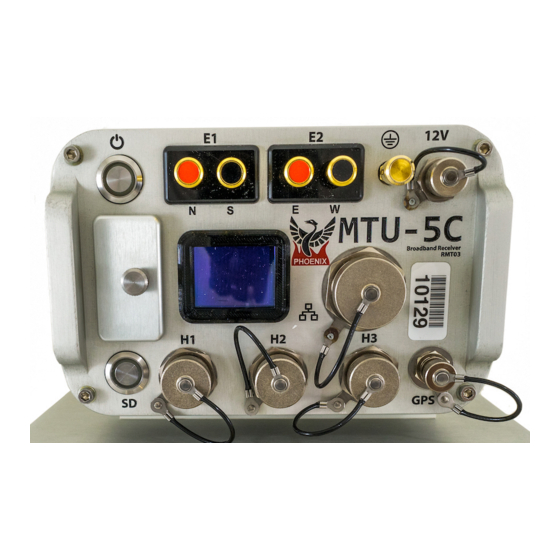
- Page 2 Components Power/Record button and indicator Display E1 (Ex) electrode connectors E2 (Ey) electrode connectors Ground electrode connector 12VDC power input LAN connector GPS antenna connector H1 (Hx) magnetic sensor connector H2 (Hy) magnetic sensor connector H3 (Hz) magnetic sensor connector SD card button and indicator 10 SD card slot and cover...
-
Page 3: Creating A Configuration File
Creating a Configuration File Open EMpower and click the Prepare button Complete the required information Select the Receiver Type Recording 2.1. MT - Configuration Creator Calibration 3.1. Sensor Calibration 3.2. Receiver Calibration No additional configuration needed System tests 4.1. White Noise 4.2. - Page 4 Configuration Creator Check that the Receiver type is MTU-5C Select the Schedule 2.1. Manual or Automatic Start 2.2. Or for a specific schedule use, Single Shot, Daily or Weekly and click Add Schedule to define the time and date Live tool...
- Page 5 Electric Channel Settings Select the Electric channel Enable or Disable the channel(s) ○ Disable the channel(s) If you do not plan to use them during the recording (This will save space on the SD card) Complete the information in the Electric channel settings Channel settings can be configured by using...
- Page 6 Magnetic Channel Settings Select the Magnetic channel Enable or Disable the channel(s) ○ Disable the channel(s) if you do not plan to use them during the recording ( This will save space on the SD card) Fill in the required information on the Magnetic channel settings Channel settings can be configured by using the right-click menu or by using the Magnetic channel settings section...
-
Page 7: Remote Control
Remote Control Select Channel NET or click the Live Tool channel Define the Mode ○ Auto (DHCP) ○ Static Enable Remote Control Server ○ Server URL or IP ○ User Name ○ Password... - Page 8 Using Remote Control Client Use Remote Control Client from Tools menu Provide a valid hostname, username and password Then click on Connect button to establish a connection Choose Receiver Type Enter the instrument ID Configure Electric and Magnetic channels as needed Click on the Send Configuration button Note :...
-
Page 9: Saving A Configuration File
Saving a Configuration File Insert the SD Card ○ The computer must be equipped with an SD card slot or use a USB card reader Click the File menu ○ Save or Ctrl+S ○ Select the SD card ○ EMpower will automatically create the file “config.json”... - Page 10 MTU-5C Connections Start by connecting: Ground electrode Electrodes to channel E1(Ex) (N+, S-) and channel E2(Ey) (E+, W-) Magnetic sensors to channels H1(Hx), H2(Hy) and H3(Hz) GPS antenna 12V DC Power Source Network connector In the field, it is often most efficient to connect the...
- Page 11 SD Card - Recording Data Recording Press the power button briefly and release Insert the SD card Starting Acquiring GPS Ready To turn on the receiver, press the Power button briefly 2.1. Wait until both LEDs are solid blue Automatic Start 2.2.
-
Page 12: Stopping A Recording
Stopping a recording Press the Power button briefly and release Press the Power button briefly and release to stop Recording Saving Ready recording ○ Wait until both LEDs are steady blue Turn off the receiver, pressing the Power button for a few seconds the LEDs will flash red Keep pressing the power button 3 sec and ○... - Page 13 Importing and Evaluating Data Click the Evaluate button Select View data Select the SD card ○ The recording creates two folders, log and recdata Open the recdata folder and select the recording file and click Choose Recording Start Time (GPS timezone) Recording Receiver Date...
- Page 14 Evaluate Review and Process the recorded information Review the Electrode Resistance values and make the necessary corrections ○ Electrode Distance (m) to GND ○ E-Azimuth ○ External Filter Ensure that the magnetic sensors were This section can also be used to input detected and make the necessary corrections additional field information if desired ○...
-
Page 15: Process Data
Process Data Click the Process button ○ Verify that the channels and references selected are the desired ones Define the time period by entering a start and end date/time Enable the electric power grid filter that corresponds to the frequency carried by the power lines in the survey region (50Hz, 60Hz or None) Click the Process button... - Page 16 View Recording Details Review that the following levels are within valid limits for quality control: Battery Voltage Internal Temperature Number of Satellites Saturated Frames ○ If saturation is not close to ~0%, review the channel configuration , the channel gain (see pages 4 - 6) might be too high and/or there is artificial noise on your site...
Need help?
Do you have a question about the MTU-5C and is the answer not in the manual?
Questions and answers