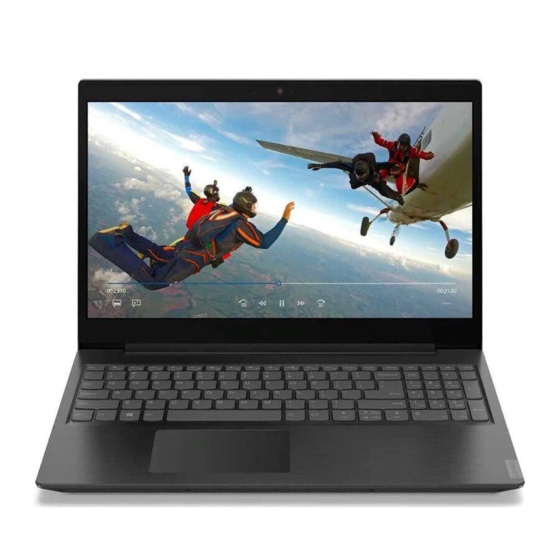
Lenovo IdeaPad L340 Series User Manual
Hide thumbs
Also See for IdeaPad L340 Series:
- Setup manual (8 pages) ,
- User manual (72 pages) ,
- Hardware maintenance manual (57 pages)
Table of Contents
Advertisement
Advertisement
Table of Contents

Related Manuals for Lenovo IdeaPad L340 Series


Summary of Contents for Lenovo IdeaPad L340 Series
- Page 1 Lenovo IdeaPad L340 Series User Guide...
- Page 2 • Setup Guide First Edition (December 2018) © Copyright Lenovo 2018. LIMITED AND RESTRICTED RIGHTS NOTICE: If data or software is delivered pursuant to a General Services Administration “GSA” contract, use, reproduction, or disclosure is subject to restrictions set forth in Contract No. GS-...
-
Page 3: Table Of Contents
Chapter 3. Explore your computer . . 21 Call Lenovo ....Manage power .... - Page 4 Lenovo IdeaPad L340 Series User Guide...
-
Page 5: About This Documentation
• Depending on the version of operating systems, some user interface instructions might not be applicable to your computer. • Documentation content is subject to change without notice. Lenovo makes constant improvements on the documentation of your computer, including this User Guide. To get the latest documentation, go to https:// support.lenovo.com... - Page 6 Lenovo IdeaPad L340 Series User Guide...
-
Page 7: Chapter 1. Meet Your Computer
If the indicator is on, the camera is in use. 3. Camera indicator Send and receive radio waves for the wireless LAN/Bluetooth module. 4. Wireless LAN/Bluetooth antennas Note: The antennas are not visible from outside of the computer. © Copyright Lenovo 2018... - Page 8 5. Microphones Capture or record sound and voice. Displays text, graphics, and videos. Select models support multi-touch function. 6. Screen Lenovo IdeaPad L340 Series User Guide...
-
Page 9: Top
Dissipate internal heat. 1. Ventilation slots 2. Touchpad Perform finger touch and all the functions of a traditional mouse. Chapter 1 Meet your computer... -
Page 10: Bottom
Bottom The ventilation slots and internal fan enable air to circulate in the computer to 1. Ventilation slots ensure proper cooling, especially the cooling of the microprocessor. 2. Speakers Produce sound. Lenovo IdeaPad L340 Series User Guide... -
Page 11: Left
Left 1. ac power connector Connects to the ac power adapter. 2. Battery/Charging status Indicates the ac power and battery power status of the computer. indicator White: connected to ac power (battery power 91%–100%) Amber: connected to ac power (battery power 1%–90%) Off: not connected to ac power 3. - Page 12 Indicates whether the computer is on, off or on sleep mode. * USB-C is designed with 5V/1.5A power specifications. Ensure that the power specification of the device connected to this port is within these power limits. Lenovo IdeaPad L340 Series User Guide...
-
Page 13: Right
Right Allows to perform read/write data operation in a CD/DVD. 1. CD/DVD drive Lock your computer to a desk, table, or other fixtures through a compatible 2. Mini security-lock slot security cable lock. Chapter 1 Meet your computer... -
Page 14: Features And Specifications
– 15IWL models: 1920 x 1080 pixels FHD, 1366 x 768 pixels HD – 17IWL models: 1920 x 1080 pixels FHD, 1600 x 900 pixels HD+ • Function keys Keyboard • Numeric keypad • Six-row keyboard Lenovo IdeaPad L340 Series User Guide... -
Page 15: Statement On Usb Transfer Rate
• ac power connector • Audio connector • Ethernet connector Connectors and slots • Two USB 3.0 connectors • HDMI connector • USB-C connector • Password Security features • Security-lock slot • Bluetooth Wireless features • Wireless LAN • Camera with shutter •... - Page 16 Lenovo IdeaPad L340 Series User Guide...
-
Page 17: Chapter 2. Get Started With Your Computer
With a Microsoft account, you can: • Enjoy one-time signing in if you are using other Microsoft services, such as OneDrive, Skype, and Outlook. com. • Sync personalized settings across other Windows-based devices. © Copyright Lenovo 2018... -
Page 18: Windows User Interface
Display the latest notifications from apps and provide quick access to some 10. Action center features. Open the Start menu • Click the Start button. • Press the Windows logo key on the keyboard. Lenovo IdeaPad L340 Series User Guide... -
Page 19: Windows Label
Access Control Panel • Open the Start menu and click Windows System ➙ Control Panel. • Use Windows search. Launch an app • Open the Start menu and select the app you want to launch. • Use Windows search. Windows label Your computer might have a Windows 10 Genuine Microsoft label affixed to its cover depending on the following factors: •... -
Page 20: Use Lenovo Vantage
Access Lenovo Vantage Open the Start menu and click Lenovo Vantage. You also can type Lenovo Vantage in the search box. To download the latest version of Lenovo Vantage, go to Microsoft Store and search by the app name. -
Page 21: Hotkeys
Hotkeys Some keys on the keyboard are printed with icons. These keys are called hotkeys and can be pressed alone or in combination with the Fn key to access certain Windows functions or settings quickly. The functions of hotkeys are symbolized by the icons printed on them. Hotkey Function Mute/Unmute the sound. -
Page 22: Use The Multi-Touch Screen
• Swipe in from the top edge to the bottom edge (when your computer is in the tablet mode) Close the current app. Tips • Turn off the computer before cleaning the multi-touch screen. Lenovo IdeaPad L340 Series User Guide... -
Page 23: Use Multimedia
To configure the camera settings: 1. Open the Start menu and then click Lenovo Vantage ➙ Hardware Settings ➙ Audio/Visual. 2. Locate the Camera section and then follow the on-screen instructions. - Page 24 You can change the settings for both the computer display and the external display. For example, you can define which one is the main display and which one is the secondary display. You can also change the resolution and orientation. Lenovo IdeaPad L340 Series User Guide...
- Page 25 Note: If you set a higher resolution for the computer display than the external display, only part of the screen can be displayed on the external display. Chapter 2 Get started with your computer...
- Page 26 Lenovo IdeaPad L340 Series User Guide...
-
Page 27: Chapter 3. Explore Your Computer
95%. Check the battery temperature 1. Open Lenovo Vantage. See “Use Lenovo Vantage” on page 14. 2. Click Hardware Settings ➙ Power. 3. Locate the Power Status section and then click Show Details to view the battery temperature. -
Page 28: Set The Power Plan
When the Airplane mode is enabled, all wireless features are disabled. To enable or disable the Airplane mode: 1. Open the Start menu. 2. Click Settings ➙ Network & Internet ➙ Airplane mode. 3. Turn on or turn off the Airplane mode switch. Lenovo IdeaPad L340 Series User Guide... -
Page 29: Chapter 4. Secure Your Computer And Information
Note: You are responsible for evaluating, selecting, and implementing the locking device and security feature. Lenovo makes no comments, judgments, or warranties about the function, quality, or performance of the locking device and security feature. Cable locks for your product are available from Lenovo at https:// www.lenovoquickpick.com/... -
Page 30: Set Administrator Password
Attention: If you forget the administrator password, a Lenovo authorized servicer cannot reset your password. You must take your computer to a Lenovo authorized servicer or a marketing representative to have the system board replaced. Proof of purchase is required and a fee will be charged for parts and service. -
Page 31: Enable Power-On Password
Attention: Be extremely careful when setting a hard disk password. If you forget the hard disk password, a Lenovo authorized servicer cannot reset your password or recover data from the hard disk. You must take your computer to a Lenovo authorized servicer or a marketing representative to have the hard disk drive replaced. -
Page 32: Use Firewalls And Antivirus Programs
A full version of antivirus program is provided with a free 30-day subscription. After 30 days, you must renew the license to continue receiving the antivirus program updates. For more information, see the help system of the program. Lenovo IdeaPad L340 Series User Guide... -
Page 33: Chapter 5. Configure Advanced Settings
Step 1. Turn on or restart the computer. Step 2. When the Lenovo logo appears on the screen, press F2 repeatedly. Note: For computers with Hotkey mode enabled, press Fn + F2. Navigate in the BIOS interface You can navigate in the BIOS interface by pressing the following keys: Displays the General Help screen. -
Page 34: Set The System Date And Time
Enabled. Select Exit ➙ Exit saving changes. Step 3. Note: If Lenovo Vantage (software) is pre-installed on your computer, you can also enable/disable always-on in it. Update UEFI BIOS When you install a new program, device driver, or hardware component, you might need to update UEFI/ BIOS. -
Page 35: Reset Your Computer
Restore system files and settings to an earlier point 1. Go to Control Panel and view by Large icons or Small icons. 2. Click Recovery ➙ Open System Restore. Then, follow the on-screen instructions. Restore your files from a backup Note: If you use the File History tool to restore your files from a backup, ensure that you backed up your data earlier with the tool. - Page 36 Lenovo Customer Support Center and purchase one from Lenovo. For a list of the Lenovo Support phone numbers for your country or region, go to: https://pcsupport.lenovo.com/supportphonelist Create a recovery USB drive Attention: The creation process deletes anything stored on the USB drive. To avoid data loss, make a backup copy of all the data that you want to keep.
-
Page 37: Chapter 6. Help And Support
3. Wait until you are certain that all the liquid is dry before turning on your computer. • From Lenovo Vantage. See “Use Lenovo Vantage” on page 14. Where can I get the latest device drivers and UEFI/BIOS? •... -
Page 38: Self-Help Resources
Use Lenovo Vantage to: • Download and install the latest drivers and firmware. • Configure hardware settings. • Open the Start menu and click Lenovo Vantage. • Diagnose computer hardware problems. • Use Windows search. • Check the computer warranty status. -
Page 39: Call Lenovo
Call Lenovo If you have tried to correct the problem yourself and still need help, you can call Lenovo Customer Support Center. Before you contact Lenovo Prepare the following before you contact Lenovo: 1. Record the problem symptoms and details: •... -
Page 40: Purchase Additional Services
• Lenovo hardware repair - If the problem is determined to be caused by Lenovo hardware under warranty, trained service personnel are available to provide the applicable level of service. -
Page 41: Appendix A. Important Safety Information
• Avoid keeping your hands, your lap, or any other part of your body in contact with a hot section of the computer for any extended time. • Periodically take hands from using the keyboard by lifting your hands from the palm rest. © Copyright Lenovo 2018... - Page 42 Before moving a computer equipped with a hard disk drive, do one of the following: • Turn it off. • Put it in sleep mode. • Put it in hibernation mode. This helps to prevent damage to the computer, and possible loss of data. Lenovo IdeaPad L340 Series User Guide...
- Page 43 Customer Support Center for further guidance. For a list of Service and Support phone numbers, see the following Web site: https://pcsupport.lenovo.com/supportphonelist Frequently inspect your computer and its components for damage or wear or signs of danger. If you have any question about the condition of a component, do not use the product. Contact the Customer Support Center or the product manufacturer for instructions on how to inspect the product and have it repaired, if necessary.
- Page 44 Note: If you notice these conditions with a product (such as an extension cord) that is not manufactured for or by Lenovo, stop using that product until you can contact the product manufacturer for further instructions, or until you get a suitable replacement.
- Page 45 When replacing CRUs, be cautious of sharp edges or corners that might cause injury. If you suffer an injury, seek medical care immediately. Power cords and power adapters DANGER Use only the power cords and power adapters supplied by the product manufacturer. The power cords shall be safety approved.
- Page 46 1394 cables while the computer power is on; otherwise, you might damage your computer. To avoid possible damage to attached devices, wait at least five seconds after the computer is shut down to disconnect external devices. Lenovo IdeaPad L340 Series User Guide...
- Page 47 Batteries supplied by Lenovo for use with your product have been tested for compatibility and should only be replaced with approved parts. A battery other than the one specified by Lenovo, or a disassembled or modified battery is not covered by the warranty.
- Page 48 If the coin-cell battery is not a CRU, do not attempt to replace the coin-cell battery. Replacement of the battery must be done by a Lenovo-authorized repair facility or technician. The Lenovo-authorized repair facilities or technicians recycle Lenovo batteries according to local laws and regulations.
- Page 49 Heat and product ventilation DANGER Computers, ac power adapters, and many accessories can generate heat when turned on and when batteries are charging. Notebook computers can generate a significant amount of heat due to their compact size. Always follow these basic precautions: •...
- Page 50 The power cord may be reconnected to the wall outlet or receptacle only after all other electrical cables have been connected to the computer. DANGER During electrical storms, do not perform any replacement and do not connect the telephone cable to or disconnect it from the telephone outlet on the wall. Lenovo IdeaPad L340 Series User Guide...
- Page 51 2 can be dangerous due to excessive sound pressure levels. If your Lenovo computer came with headphones or earphones in the package, as a set, the combination of the headphones or earphones and the computer already complies with the specifications of EN 50332-1. If different headphones or earphones are used, ensure that they comply with EN 50332-1 (Clause 6.5...
- Page 52 When this is not possible, place the static-protective packaging on a smooth, level surface and place the part on it. • Do not place the part on the computer cover or other metal surface. Lenovo IdeaPad L340 Series User Guide...
- Page 53 • When picking up your open computer, hold it by the bottom. Do not pick up or hold your computer by the display. • Only an authorized Lenovo repair technician should disassemble and repair your computer. • Do not modify or tape the latches to keep the display open or closed.
- Page 54 Wipe or dust the stain gently with a soft, dry cloth. If the stain remains, moisten a soft, lint-free cloth with water or eyeglass cleaner, but do not apply liquids directly to your computer screen. Ensure that the computer screen is dry before closing it. Lenovo IdeaPad L340 Series User Guide...
-
Page 55: Appendix B. Accessibility And Ergonomic Information
This chapter provides information about accessibility and ergonomics. Accessibility information Lenovo is committed to providing users who have hearing, vision, and mobility limitations with greater access to information and technology. This section provides information about the ways these users can get the most out of their computer experience. - Page 56 You can make the items on your screen easier to read by changing the item size. • To change the item size temporarily, use the Magnifier tool in Ease of Access Center. • To change the item size permanently: Lenovo IdeaPad L340 Series User Guide...
- Page 57 Your computer provides industry-standard connectors that enable you to connect assistive devices. Documentation in accessible formats Lenovo provides electronic documentation in accessible formats, such as properly tagged PDF files or HyperText Markup Language (HTML) files. Lenovo electronic documentation is developed to ensure that visually impaired users can read the documentation through a screen reader.
- Page 58 Any concentrated and sustained visual activity can be tiring. If you have questions on eye fatigue or visual discomfort, consult a vision-care specialist for advice. Lenovo IdeaPad L340 Series User Guide...
-
Page 59: Appendix C. Compliance Information
Lenovo cannot accept responsibility for any failure to satisfy the protection requirements resulting from a non-recommended modification of the product, including the installation of option cards from other manufacturers. This product has been tested and found to comply with the limits for Class B equipment according to European Standards harmonized in the Directives in compliance. - Page 60 Lenovo encourages owners of information technology (IT) equipment to responsibly recycle their equipment when it is no longer needed. Lenovo offers a variety of programs and services to assist equipment owners in recycling their IT products. For information about recycling Lenovo products, go to: https://www.lenovo.com/recycling...
- Page 61 Collecting and recycling a disused Lenovo computer or monitor If you are a company employee and need to dispose of a Lenovo computer or monitor that is the property of the company, you must do so in accordance with the Law for Promotion of Effective Utilization of Resources.
- Page 62 Lenovo sales, service, or marketing, and follow that person's instructions. You also can refer to the instructions at: https://www.lenovo.com/jp/ja/environment/recycle/battery/ If you use a Lenovo notebook computer at home and need to dispose of a battery, you must comply with local ordinances and regulations. You also can refer to the instructions at: https://www.lenovo.com/jp/ja/environment/recycle/battery/ Recycling information for Brazil Declarações de Reciclagem no Brasil...
- Page 63 If the battery needs to be replaced, contact your place of purchase or contact Lenovo for service. If you need to dispose of a lithium battery, insulate it with vinyl tape, contact your place of purchase or a waste-disposal operator, and follow their instructions.
- Page 64 For more information about Lenovo worldwide compliance on RoHS, go to: https://www.lenovo.com/rohs-communication Turkish RoHS The Lenovo product meets the requirements of the Republic of Turkey Directive on the Restriction of the Use of Certain Hazardous Substances in Waste Electrical and Electronic Equipment (WEEE). Ukraine RoHS India RoHS RoHS compliant as per E-Waste (Management) Rules.
- Page 65 Appendix C. Compliance information...
- Page 66 Federal Communications Commission (FCC) Supplier’s Declaration of Conformity The following information refers to Lenovo IdeaPad L340–15IWL, Lenovo IdeaPad L340–15IWLTouch, and Lenovo IdeaPad L340–17IWL, machine type(s): 81LG, 81LH, and 81M0. This equipment has been tested and found to comply with the limits for a Class B digital device, pursuant to Part 15 of the FCC Rules.
- Page 67 • Connect the equipment into an outlet on a circuit different from that to which the receiver is connected. • Consult an authorized dealer or service representative for help. Lenovo is not responsible for any radio or television interference caused by using other than recommended cables and connectors or by unauthorized changes or modifications to this equipment. Unauthorized changes or modifications could void the user’s authority to operate the equipment.
- Page 68 Klasse B. Dieses Gerät ist berechtigt, in Übereinstimmung mit dem Deutschen EMVG das EG-Konformitätszeichen - CE - zu führen. Verantwortlich für die Konformitätserklärung nach Paragraf 5 des EMVG ist die Lenovo (Deutschland) GmbH, Meitnerstr. 9, D-70563 Stuttgart. Japan VCCI Class B compliance statement...
- Page 69 Lenovo encourages you to make efficient use of energy an integral part of your day-to-day operations. To help in this endeavor, Lenovo has preset a default power plan. To change the power plan, see “Set the power plan” on page 22.
- Page 70 Lenovo IdeaPad L340 Series User Guide...
-
Page 71: Appendix D. Notices And Trademarks
Lenovo representative for information on the products and services currently available in your area. Any reference to a Lenovo product, program, or service is not intended to state or imply that only that Lenovo product, program, or service may be used. Any functionally equivalent product, program, or service that does not infringe any Lenovo intellectual property right may be used instead. - Page 72 Actual results may vary. Users of this document should verify the applicable data for their specific environment. This document is copyrighted by Lenovo and is not covered by any open source license, including any Linux agreement(s) which may accompany software included with this product. Lenovo may update this document at any time without notice.
Need help?
Do you have a question about the IdeaPad L340 Series and is the answer not in the manual?
Questions and answers