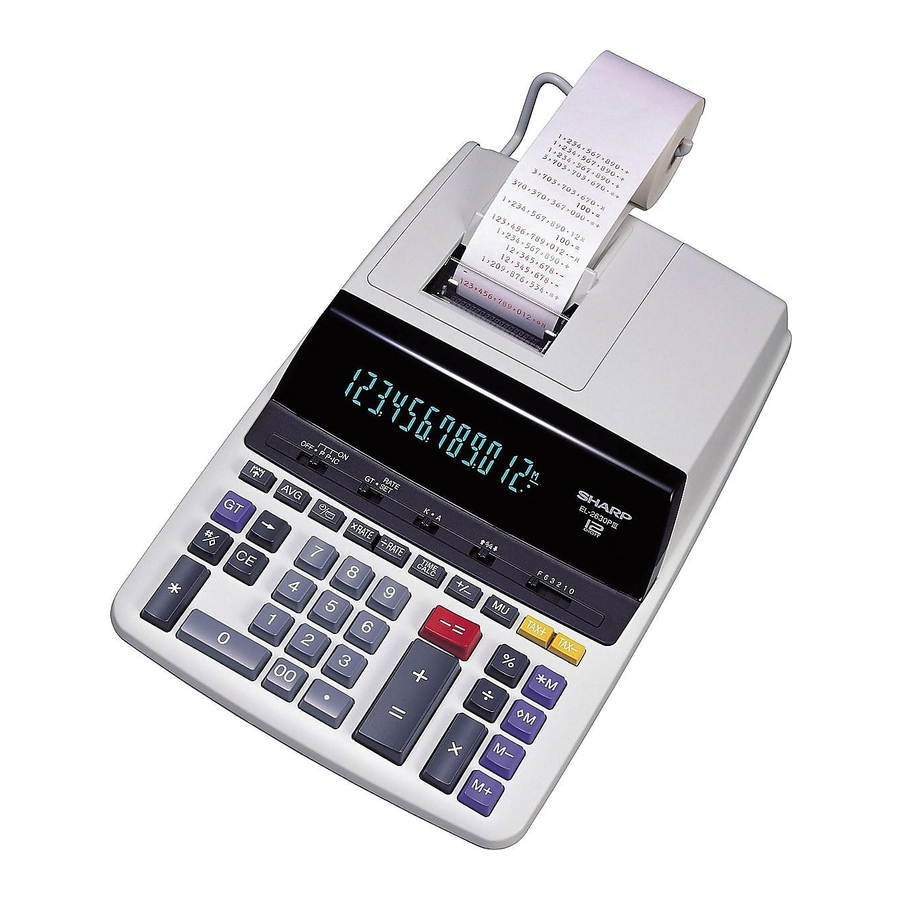
Sharp el-2630piii Operation Manual
Electronic printing calculator
Hide thumbs
Also See for el-2630piii:
- Operation manual (2 pages) ,
- Operation manual (2 pages) ,
- Operation manuals (2 pages)

Related Manuals for Sharp el-2630piii


Summary of Contents for Sharp el-2630piii
- Page 1 ELECTRONIC PRINTING CALCULATOR OPERATION MANUAL CONTROLS AND OPERATIONS……………………………………5 CALCULATION EXAMPLES………………………………………..24 P a g e...
- Page 2 WARNING – FCC Regulations state that any unauthorized changes or modifications to this equipment not expressly approved by the manufacturer could void the user’s authority to operate this equipment. Note: This equipment has been tested and found to comply with the limits for a Class B digital device, pursuant to Part 15 of the FCC Rules.
-
Page 3: Table Of Contents
Table of Contents Operational Notes ............................5 Using the Calculator for the First Time ......................6 Removing the Insulation Sheet and Resetting ..................6 Adjusting the Date and Time ........................7 Operating Controls ............................8 Power Switch/ Print/ Item Count Mode Selector ..................8 Decimal Selector ............................ - Page 4 Resetting the Unit ............................23 Calculation Examples ..........................24 General Instructions ..........................24 Printing Date/Time ..........................24 Addition and Subtraction with Add Mode ....................25 Mixed Calculations ..........................25 Constant Calculations..........................26 Percent ..............................27 Correction of Errors..........................28 Add-on and Discount ..........................29 Markup and Margin ..........................
-
Page 5: Operational Notes
Raindrops, water spray, juice, coffee, steam, perspiration, etc. will also cause malfunction. 4. If service should be required, use only a SHARP servicing dealer, a SHARP approved service facility or SHARP repair service. -
Page 6: Using The Calculator For The First Time
First, pull out the insulation sheet for the memory protection battery (installed for retaining the date/time, conversion rate, and tax/discount rate information). Reset the calculator to initialize the unit's state, then adjust the date and time. Removing the insulation sheet, and resetting 1. -
Page 7: Adjusting The Date And Time
Adjusting date and time Example: When the date is September 15, 2004, and the time is 3:38 p.m. (See “GRAND TOTAL / RATESETTING MODE SELECTOR”) * When the adjustment is complete, the clock starts at 3:38:00 p.m. P a g e... -
Page 8: Operating Controls
“OFF”: Power off. “ ”: Power ON. Set to the non-print mode. “P”: Power ON. Set to the print mode. “P•IC”: Power ON. Set to the print and item count mode. 1. The counter will count the number of times that the has been pressed in addition. -
Page 9: Decimal Selector
The count is printed when the memory is recalled. Pressing of the key clears the counter. Note: The counter has a maximum capacity of 3 digits (up to ±999). If the count exceeds the maximum, the counter will recount from zero. -
Page 10: Rounding Selector
mode is activated, the decimal point is automatically positioned according to the decimal selector setting. Use of will automatically override the Add mode and decimally correct answers will be printed at the preset decimal position. “ ”: An answer is rounded up. “5/4”: An answer is rounded off. -
Page 11: Set Time
When is pressed, the number entered is evaluated and displayed as “date” if the value is within the following range; “Error” is displayed otherwise, and the previously set date is restored. Month: 1 - 12; day: 1 - 31; Year: 2000 - 2099 (in 4 digits) or 00 –... -
Page 12: Overview Of Keys
A maximum of 4 digits can be stored (decimal point is not counted as a digit). Note: Be sure to set this selector to the “ ” position after storing an each rate. For the conversion rate and the tax / discount rate, a single value can be stored for each. - Page 13 Second: 0 to 99 (An entry above 60 is rounded up to one minute. If a value of more than 3 digits is entered, only the least significant two digits take effect.) 13 | P a g e...
-
Page 14: Non-Add/Subtotal Key
Non-add – When this key is pressed right after an entry of a number in the Print mode, the entry is printed on the left-hand side with the symbol “#”. This key is used to print out numbers not subjects to calculation such as code, date, etc. -
Page 15: Average Key
(When the time is 10:30 a.m.) #6 • 25 - - - - - - - - - - - “P” (When the time is 6:25 p.m.) When the Date / Clock printing is complete, the Calculation mode is restored. Used to calculate the average. -
Page 16: Ink Ribbon Replacement
Remove the paper roll from the calculator. (Tear the paper and remove it from the print mechanism by using Turn the power off before replacing ribbon. Remove the printer cover. (Fig. 1) Remove the old ribbon by pulling it up. Insert the new ribbon. -
Page 17: Paper Roll Replacement
Never insert paper roll if torn. Doing so will cause paper to jam. Always cut leading edge with scissors first. Insert the leading edge of the paper roll into the opening. (Fig. 1) Turn the power on and feed the paper by pressing (Fig. -
Page 18: Errors
There are several situations which will cause an overflow or an error condition. When this occurs, “E” will be displayed. The contents of the memory at the time of the error are retained. If an ‘‘0_E’’ is displayed at the time of the error, must be used to clear the calculator. -
Page 19: Battery Replacement
Time for battery replacement Life of the memory protection battery is approximately 2,500 hours at 25°C (77°F) with the power plug not connected to the socket. * When the memory protection battery is weak, the date/time setting is initialized (1/ 1/2005, 12:00:00 a.m.). Verify the date/time setting in the date/clock display mode when connecting the power plug to the socket. -
Page 20: After Battery Replacement
After battery replacement Connect the power supply plug to an outlet and turn the power switch “ON”. Check that “0.” is displayed. If “0.” is not displayed, remove the battery, reinstall it, and check the display again. Reconfigure date, time, conversion rate, and tax/discount rate. -
Page 21: Specifications
Operating capacity: 12 digits Power supply: Operating: AC: 120V, 60Hz Memory backup: 3V ... (DC) (Lithium battery CR2032 1) Memory Protection Battery lifespan: About 2,500 hours (While at 25°C (77°F), and the power plug is not connected to the socket.) CLOCK SECTION Accuracy: Within ±60 seconds per month average (at 25°C (77°F)) - Page 22 1 lithium battery (installed), 1 battery replacement date label (attached on the unit's back body), 1 paper roll, 1 ink ribbon (installed), and operation manual WARNING THE VOLTAGE USED MUST BE THE SAME AS SPECIFIED ON THIS CALCULATOR. USING THIS CALCULATOR WITH A HIGHER VOLTAGE THAN THAT WHICH IS SPECIFIED IS DANGEROUS AND MAY RESULT IN A FIRE OR OTHER TYPE OF ACCIDENT CAUSING DAMAGE.
-
Page 23: Resetting The Unit
Use only a ballpoint pen to press the RESET switch. Do not use anything breakable or anything with a sharp tip, such as a needle. After pressing the RESET switch, connect the power supply plug to an outlet. -
Page 24: Calculation Examples
1. Set the decimal selector as specified in each example. The rounding selector should be in the “5/4” position unless otherwise specified. 2. The constant/add mode selector and grand total/rate setting mode selector should be in the “•” position (off) unless otherwise specified. -
Page 25: Addition And Subtraction With Add Mode
ADDITION AND SUBTRACTION WITH ADD MODE 12.45 + 16.24 + 19.35 – 5.21 = Operation Display Print 12.45 12•45 + 28.69 16•24 + 48.04 19•35 + 42.83 5•21 + 42.83 42•83 was not used in the entries. MIXED CALCULATION (240 + 180 + 180 – 75) 8 = Operation Display Print... -
Page 26: Constant Calculations
CONSTANT 62.35 11.11 = 62.35 22.22 = Operation Display Print 62.35 62•35 X 11•11 =K 692.71 692•71 22•22 =K 1,385.42 1,385•42 11.11 ÷ 77.77 = 22.22 ÷ 77.77 = Operation Display Print 11.11 11•11 77•77 =K 0.143 0•143 22•22 =K 0.286 0•286 26 |... -
Page 27: Percent
PERCENT 100 25% = Operation Display Print 100. 100• X 25• 25•00 25.00 (123 ÷ 1368) 100 = Operation Display Print 123. 123• 1,368• 8•99 8.99 27 | P a g e... -
Page 28: Correction Of Errors
CORRECTION OF ERRORS 123 + 556 →123 + 456 Operation Display Print 123. 123• + 579. 456• + 579• 579. 1234567 →1234578 Operation Display Print • 1234567 1,234,567. 123,456. 12,345. 1,234,578 28 | P a g e... -
Page 29: Add-On And Discount
ADD-ON AND DISCOUNT A 5% add-on to 100. Operation Display Print 100. 100• X 5• 5•00 Increase 105•00 New Amount 105.00 A 10% discount on 100. Operation Display Print 100. 100• X - 10• 10•00 90•00 90.00 29 | P a g e... -
Page 30: Markup And Margin
MARKUP AND MARGIN Markup and Profit Margin are both ways of calculating percent profit. – Profit margin is percent profit vs. selling price. – Markup is percent profit vs. cost. – Cost is the cost. – Sell is the selling price. –... - Page 31 Operation Display Print 200. 200• Cost 20• M Mrgn 250•00 Sell 50•00 GP GP 50.00 31 | P a g e...
-
Page 32: Percent Change
PERCENT CHANGE Calculate the dollar difference (a) and the percent change (b) between two yearly sales figures $1,500 in one year and $1,300 in the previous year. Operation Display Print 1,500.00 1,500•00 + 200.00 1,300•00 - 200•00 15•38 C (b) 15.38 32 | P a g e... -
Page 33: Item Count Calculation
ITEM COUNT CALCULATION Bill No. Number of Bills Amount $100.55 $200.00 $200.00 $400.55 $500.65 Total Operation Display Print 100.55 100•55 + 300.55 200•00 + 500.55 200•00 + 901.10 400•55 + 1,401.75 500•65 + 1,401.75 1,401•75 33 | P a g e... -
Page 34: Grand Total
GRAND TOTAL 100 + 200 + 300 = +) 500 – 600 + 700 = Operation Display Print 100. 100• + 300. 200• + 600. 300• + 600• 500• + 600• - 700• + 600• 1,200• 1,200. 34 | P a g e... -
Page 35: Memory
MEMORY Operation Display Print 46• X 78• = 3588. 125• 125. 5• = 72• X 8• = 576. 3037. 3037• M 3037 *: Press to clear the memory before starting a memory calculation. 35 | P a g e... -
Page 36: Tax Rate Calculations
TAX RATE CALCULATIONS EXAMPLE 1: Set a 5% tax rate. Calculate the tax on $800 and calculate the total including tax. Operation Display Print 5•000 % 5.000 800• 40• TX 840• 840. 36 | P a g e... - Page 37 Tax Rate Cont’d EXAMPLE 2: Perform two calculations using $840 and $525, both of which already include tax. Calculate the tax on the total and the total without tax. (Tax rate: Operation Display Print 840. 840• + 1,365. 525• + 1,365•...
-
Page 38: Averaging
AVERAGING Sales Monday $123.15 Tuesday $118.00 Wednesday $131.58 Thursday $125.02 Friday $158.25 Total Sales $656.00 for 5 days Then Average Sales = $131.20 Operation Display Print 123.15 123•15 + 214.15 118•00 + 372.73 131•58 + 497.75 125•02 + 656.00 158•25 + 656•00 131•20 AG 131.20... -
Page 39: Conversion Calculator
CONVERSION CALCULATION EXAMPLES EXAMPLE 1: Set the conversion rate ($1 = ¥123.45). Operation Display Print 123•450 = 123.450 EXAMPLE 2: Convert $120 to yen ($1 = ¥123.45). Operation Display Print 120• 14,814• TC 14,814. EXAMPLE 3: Set the conversion rate (1 meter = 39.3701 inches). Operation Display Print... - Page 40 EXAMPLE 4: Convert 472.4412 inches to meters (1 meter = 39.3701 inches). Operation Display Print 472•4412 12• TE 40 | P a g e...
-
Page 41: Time Calculations
TIME CALCULATIONS EXAMPLE 1: 4 hours 15 minutes 20 seconds +3 hours 50 minutes 18 seconds = Operation Display Print 4_00_-- 4_15_00 4_15_20 4•15•20 3_00_-- 3_50_00 8_05_38 3•50•18 + 8•05•38 8_05_38 41 | P a g e... - Page 42 Time Calculations Cont’d EXAMPLE 2: Calculate the payroll amount at an hourly rate of $15 for the total number of hours worked for 7 hours 45 minutes per day for five days. Operation Display Print 7_00_-- 7_45_00 7•45•00 X 5• = 38•75 38.75 38.75...
- Page 43 Because time calculation results are rounded down to 13 decimal places after sexagesimal-to-decimal conversion, calculation errors may be introduced. Time calculations are displayed in sexagesimal with the fraction part of a second being rounded off. The sexagesimal arithmetic specifications of this printer calculator are as follows: Addition (Subtraction is similar to addition.) (Sexagesimal) + (Sexagesimal) = (Sexagesimal)
-
Page 44: Warranty
Sharp. The warranties described herein shall be the sole and exclusive warranties granted by Sharp and shall be the sole and exclusive remedy available to the purchaser. Correction of defects, in the 44 |... - Page 45 Sharp to the purchaser with respect to the Product, and shall constitute full satisfaction of all claims, whether based on contract, negligence, strict liability or otherwise. In no event shall...
- Page 46 TO OBTAIN SUPPLY, ACCESSORY OR PRODUCT INFORMATION, CALL 1-844-578-1637. FOR YOUR RECORDS..For your assistance in reporting this electronic calculator in case of loss or theft, please record below the model number and serial number which are located on the bottom of the unit. Please retain this information.
Need help?
Do you have a question about the el-2630piii and is the answer not in the manual?
Questions and answers
on the sharp EL-2630Piii, when I type 1234 and the decimal selector is set to 2, the number reads as $1,234.00. How to I get it to show $12.34
To change the decimal setting on the Sharp EL-2630PIII to display $12.34 instead of $1,234.00, you need to adjust the decimal point selector on the calculator. Set the decimal selector switch to "2", which formats numbers to show two digits after the decimal point (e.g., 12.34).
This answer is automatically generated
I stated in my question that i have the decimal selector at "2" and no decimal point is added.
I want to enter 100.00 times 25 % equals 75.00
To calculate 100.00 minus 25% (which equals 75.00) on the Sharp EL-2630PIII:
1. Enter: 100
2. Press: ×
3. Enter: –25
4. Press: =
This performs a 25% discount on 100.00, giving the result 75.00.
This answer is automatically generated
I want to enter 5699 and have it show as 56.99.
To enter 5699 and display it as 56.99 on the Sharp EL-2630PIII, set the decimal point selector to 2. Then, enter 5699. The calculator will automatically format it as 56.99.
This answer is automatically generated
I want to type 4599 and the decimal gets put at 45.99?
To type "4599" without the decimal automatically changing to "45.99" on a Sharp EL-2630PIII, adjust the decimal selector setting. Set the decimal selector to "F" (floating) or "0" (no decimal places) to prevent automatic decimal placement.
This answer is automatically generated
Can I order ribbon for my calculator from you?
I want to get a printed manual of Sharp Electronic Calculator EL-2630 P III How can I get a printed manual sent to my home?
The printer stopped printing! The paper won't move at all. Do I need a new ribbon?
A Sharp EL-2630PIII printer could stop printing and the paper may not move due to a paper jam, especially if the paper roll was inserted with a torn edge or pulled backward. The paper could also get stuck behind internal parts like the black ball, or there may be slack in the ribbon or paper path obstruction.
This answer is automatically generated