Table of Contents
Advertisement
Quick Links
Advertisement
Table of Contents

Related Manuals for Kingtop KT-M1A


Summary of Contents for Kingtop KT-M1A
- Page 1 User guide Mobile Hotspots KT-M1A Manual Version: V1.0...
- Page 2 Copyrights © 2023 Kingtop Corp. All rights reserved. The information contained in this document is subject to change without notice and should not be construed as a commitment by Kingtop Corp. Patents and Licenses For a complete list of all Kingtop Corp. patents, visit https://www.kingtoptec.com...
-
Page 3: Table Of Contents
Contents Ⅰ. Get to know your 5G MiFi KT-M1A .................- 1 - Menu button ........................- 1 - Power button ......................... - 1 - USB Type-C Port ......................- 1 - Ⅱ. Prepare your 5G MiFi KT-M1A .................- 2 - Install the SIM Card ..................... - 2 - Remove the SIM Card .................... -
Page 4: Ⅰ. Get To Know Your 5G Mifi Kt-M1A
Ⅰ. Get to know your 5G MiFi KT-M1A Menu Button There are four functionalities supported by the menu button as following. 1.1 Log in to the Setting Web page. 1.2 Scan the QR code to connect to WiFi. 1.3 Display SSID and Key 1.4 Display Calendar... -
Page 5: Ⅱ. Prepare Your 5G Mifi Kt-M1A
Ⅱ. Prepare your 5G MiFi KT-M1A Install the SIM Card Step1. Power off the 5G Mobile hotspots, unplug the battery. Step2. Insert the SIM card into card slot in the correct position. Step3. Plug in the battery. Insert the SIM card into the slot. -
Page 6: Ⅲ. Access The Internet
Smart phones, tablet computers, game consoles and other Wi-Fi devices can be connected with the 5G Mobile hotspots Wi-Fi connection for Internet access. Computers & laptops may be connected to the 5G Mobile hotspots KT-M1A via Type-C cable for Internet Access. -
Page 7: Ⅳ. Information Of Lcd
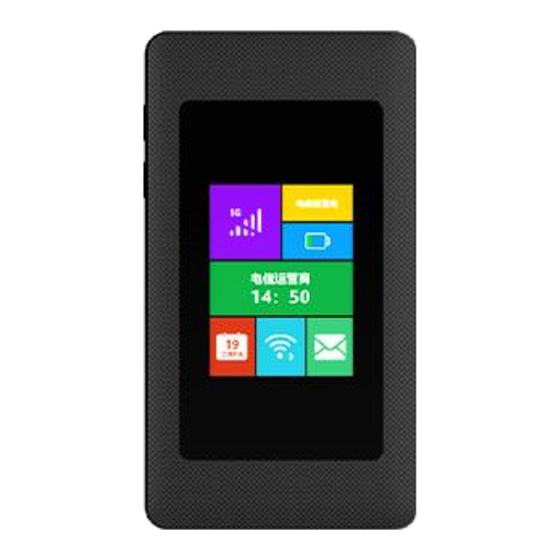
Ⅳ. Information of LCD Icon Description Signal status icon Network mode icon Battery capacity icon, if battery capacity is lower than 20%, this icon is red Wi-Fi Clients Number, if The current hostpot is off. This icon display red ×, The switch screen can be turned on again Calendar 5G or 2.4G Press and hold the “power”... -
Page 8: Ⅴ. Manage Your 5G Mifi Kt-M1A
Ⅴ. Manage your 5G MiFi KT-M1A Logging into the Device Management Website 1. Make sure your device is connected to the 5G Mobile hotspots via Wi-Fi or USB Type-C cable. 2. Open the browser, and enter http://192.168.43.1 in the address bar. -
Page 9: Restore Factory Settings
Reboot selection, and then reboot it. 2. Restore factory settings. If the connection between your 5G Mobile hotspots KT-M1A and a PC/Laptop through a USB cable cannot be established automatically, please try to uninstall the driver software and reinstall If the connection between your 5G Mobile hotspots and a client device through Wi-Fi cannot be established, please try the operations as following.
Need help?
Do you have a question about the KT-M1A and is the answer not in the manual?
Questions and answers