Table of Contents
Advertisement
Quick Links
Advertisement
Table of Contents

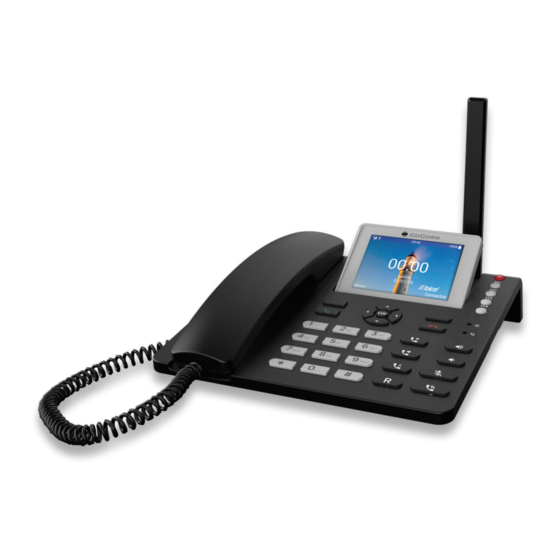
Summary of Contents for CoComm CC555
- Page 1 CC555 Manual The operation of this equipment is subject to the following two conditions: (1) this equipment or device may not causes harmful interference and (2) this equipment or device must accept any interference, including any that may cause unde-...
- Page 3 CC555 User manual...
-
Page 5: Table Of Contents
Index Introduction ..................Sales package contents ..............Precautions for use ................Overview ..................Installation ..................Keyboard ..................Numeric keypad ................Display ..................System icons ................. Widget ................... Applications menu ................. Settings diagram ................Calling ................... Messages ..................Contacts ..................Bluetooth connection .............. -
Page 6: Introduction
Introduction Thank you for choosing the Co-Comm CC555 smartphone. This phone is designed for use with GSM 850/1900 MHz, UMTS 850/1900 MHz and LTE 4, 5, 7, 66 and 28 networks. For operation requires a valid SIM card from your network operator. -
Page 7: Sales Package Contents
FECHA DE COMPRA ACQUISITION DATE CLIENTE CUSTOMER NOMBRE NAME PQRS WXYZ DOMICILIO ADDRESS TELÉFONO TELEPHONE User Manual Guarantee card Co-Comm CC555 wireless phone External antenna Li-Po rechargeable Security screw, key battery and QC PASS sticker USB data cable AC/DC power adapter... -
Page 8: Precautions For Use
Precautions for use Operating Environment Your phone Co-Comm CC555 is a RF transmitter, so please turn off your terminal or disable the radio functions in the following situations: ● When you are on an airplane. ● When you are in the vicinity of flammable atmospheres and is indicated by the entity responsible for risk management. - Page 9 Precautions for use Pacemakers Pacemaker manufacturers warn that the distance between the phone and the pacemaker of the heart must be at least 6 inches (15.3 cm), otherwise the phone can interfere with pacemakers. People with pacemakers should consider the following: ●...
- Page 10 Precautions for use Care and maintenance Your phone is a product of superior design and should be treated with care. The following tips will allow you to enjoy this product for a longer period of time: ● Keep the phone away from children and pets. They could damage the phone accidentally or choke on small parts.
- Page 11 Precautions for use Battery use ● Never use any charger or battery if damaged. Use the battery correctly. ● Do not short-circuit the battery, as this may damage the battery or cause a fire. ● Do not subject the battery to high temperatures or fire as it may explode. ●...
-
Page 12: Overview
Overview PQRS WXYZ 10. [ ] Asterisk key LCD screen Turn on / off 11. [ ] Pad key M1...M4 Handset / receiver 12. [ Speed dial keys M1 to M8 — Menu left soft key 13. [ / Volume keys —... - Page 13 Overview Charging indicator Microphone for ambient noise suppression Hands-free indicator DC 5V power connector Micro-USB data port for software update Wall mounting holes Jack connector for earphones / Rechargeable battery handsfree compartment RJ9 connector on the handset SIM card compartment Microphone for handsfree function Micro-SD card compartment Antenna connector...
-
Page 14: Installation
Installation Follow the steps below to install the SIM card and the different accessories of your wireless phone Co-Comm CC555: Disconnect the power adapter and remove the cover of the battery compartment on the bottom of the device to install the SIM card and the micro-SD memory card. - Page 15 Installation Insert the battery into the compartment, making sure that the electrodes of the connector on the terminal match the slots in the top of the battery as shown in the figure. Replace the lid of the battery compartment, making sure it is securely locked in place.
- Page 16 Installation Connect the external antenna to the corresponding port, as shown in the following figure and adjust it by screwing it until it is firmly connected. Connect the curly cord to the handset and telephone base. Connect one end of the cord to the connector on the left side of the telephone base.
- Page 17 Installation Connect the other end of the curly cord into the handset jack, as shown in the illustration. Connect the cable from the power supply to the connector on the back of the phone and then plug the power supply into a household AC power outlet. The battery level will be displayed on the screen showing the status of the charging process.
- Page 18 Installation Battery Charge When the battery level is low, the phone will issue a warning tone and a low battery message. Connect the power adapter into the device to start charging. Battery level is indicated on the screen during the charging process, and once it is fully charged, the battery icon will appear full.
-
Page 19: Keyboard
Keyboard Function Turn On / Off When the terminal is off, press for 3 seconds to turn the phone. When the terminal is on, press for 5 seconds to turn off the phone. Up / Down Move the cursor up / down when you access the on-screen menu or submenus. - Page 20 Keyboard Function Asterisk key Insert asterisk character. Pad key Insert pad character. Change the text input method. Memory Programmable keys to store up to four telephone numbers. keys Hold button During an active call, press to hold the current call. During two active calls, press to switch from Call 1 to Call 2.
- Page 21 Keyboard Function Mute button Press during an active call to mute the microphone of your phone. Hands-free In standby, press to make a call in hands-free mode, without button lifting the handset. During an active call, press to enable or disable the hands-free mode on the phone.
-
Page 22: Numeric Keypad
Numeric keypad Check the table below when using the alphanumeric keypad. When introducing some form of text on your phone, you can switch between entering numbers (123), lower case (abc) or uppercase (ABC) by pressing the # key. Lowercase (abc) Uppercase (ABC) . -
Page 23: Display
Display Keep pressing the key for more than 3 seconds to turn on the unit. The first time a SIM card is installed, the phone will request to enter the PIN code. Then, the following user interface will be displayed on the screen. 4G coverage indicator Network operator System notifiacations;... -
Page 24: System Icons
System icons The following illustration explain the meaning of some of the system icons that can be displayed on your phone: Signal level Notificactions Data network connection Status information No signal No SIM card Mute Low battery Call Charging battery Call end Microphone off Call transfer... -
Page 25: Widget
Widget The main user interface we talked before will be changed when there will be notifications or some application are running. On this occasion the following user interface will be displayed on the screen. Notificaction bar: missed calls Status information bar and new SMS The applications are being Amount of each notification... - Page 26 Widget ● Call missed: press button to access Call Log application. ● New SMS: press button to access Messaging application. ● FM Radio: press button to access FM Radio application. ● USB connected: press button to access ‘Use USB to’ popup options menu. ●...
-
Page 27: Applications Menu
Applications menu Once you turn on the device and complete the setup process, the main menu will be displayed on the screen. Press the left soft key to access the applications menu and the next user interface will be displayed. Alarm Messaging Calculator... - Page 28 Applications menu From the application menu you can also customize the main menu. Press the left selection key to display the available options: ● Wallpapers: choose the wallpaper of the main menu among the available backgrounds. ● Soft key: select the application associated with the right soft key in the main menu. Under the application menu, use the arrow keys to select one of the icons, and press...
- Page 29 Applications menu Contacts Select the icon on the applications menu, and press button to access the phonebook of the phone. You can also access your favorite contacts pressing the right soft key on the main menu interface (by default). FM radio Select the icon on the applications menu, and press button to access the...
- Page 30 Bluetooth. PC Suite There is a PC application available for your Co-Comm CC555 that allows you to manage your calls, messages, contacts, etc. easily from your personal computer.
- Page 31 Applications menu NETWORK Mobile network Data usage Hostpot & Tethering Airplane mode CONNECTED DEVICES Bluetooth APP & NOTIFICATIONS BATTERY DISPLAY Brightness level Wallpaper Sleep Font size Advanced Display size...
-
Page 32: Settings Diagram
Settings diagram SOUND Volume Do not disturb preferences Phone ringtones Advanced Default notifications sound Default alarm spond Other sounds STORAGE SECURITY Screen lock Show passwords Managed device info SIM card lock SYSTEM Language & Input Date & Time Reset options About phone... -
Page 33: Calling
Calling There are several ways to perform callings with your terminal Co-Comm CC555: Calling using the alphanumeric keypad In standby mode, pick up the handset, enter the phone number using the alphanumeric keypad and press button to call. To end the call, press the button or hang up the handset. - Page 34 Calling Calling from call log In standby mode press button or press the left soft key to access the applications menu, and then select the icon to display the call log. Use the arrow keys to display on the screen the list of outgoing, incoming or missed calls.
- Page 35 Calling Three way calling During an incoming call, pick up the handset or press button to answer the call. Press button to pause the active call and start a second call to another phone number or contact in the phonebook. When the second call is active, press button, or press Options...
- Page 36 Calling Note: Please ensure that the contacts have been installed in the memory keys before using the speed dial keys. The key is reserved for voicemail function. Calling the voicemail In standby mode, press and hold the button to call the voicemail. The call will start automatically.
-
Page 37: Messages
Messages The Co-Comm CC555 terminal supports SMS text messaging and MMS multimedia messages. This section explains how to send and receive messages and other features associated. Create and send messages Go to the applications menu, select the icon and press button to access the phone’s messaging application. - Page 38 Messages Delete messages Go to the applications menu, select the icon and press button to access the phone’s messaging application. Select one of the messages from the list and press button to display. Press Options and then press button over Select message from the popup menu.
- Page 39 Messages Edit quick text: this option allows you to edit and add quick texts which can ● be inserted in your messages. SMS service center: messaging server network operator, this field should ● not be modified. SMS storage location: It allows you to choose between the SIM card or ●...
- Page 40 Messages ● Notifications: press to access message notifications settings: Message notifications: press to activate or deactivate message notifications. ● Mute: use this option to temporarily mute message notifications. ● Sound: choose the alert message tone. ● Popup notification: displays pop-up notifications for Push messages. Push ●...
-
Page 41: Contacts
Contacts This section explains how to create and manage your phonebook. Creating a new contact In standby mode, use the alphanumeric keypad to enter the number of the new contact. Press Options and select Add to contacts from the popup menu. Select the destination in which the contact will be saved (SIM card, phone, etc.). - Page 42 Contacts Import/Export contacts Go to the applications menu, select the icon and press button to access the phonebook. Press Options and select Import/Export from the popup menu. Choose the source from which you want to copy contacts (SIM card, phone, internal memory, etc.).
-
Page 43: Bluetooth � Connection
Bluetooth connection ® The Bluetooth� function allows you to pair your terminal with other Bluetooth devices, allowing different functions: ● Connect Bluetooth accessories, such as Bluetooth paired headphones to answer calls received in the terminal. ● Exchange contacts and video, audio and photo files with other Bluetooth paired devices. -
Page 44: Troubleshooting
Troubleshooting The phone can not be turned on ● Be sure to hold down the button for more than 5 seconds. ● Make sure the battery is properly connected to your phone. ● Remove the battery, reinstall it and restart your phone. ●... - Page 45 Troubleshooting Network failure ● It is possible that the phone is located in an area of weak signal, move to a place with a stronger signal. It is out of the network service coverage ● The SIM card is not valid, contact your network provider. You have entered a number but the phone is not calling ●...
- Page 46 Troubleshooting Your correspondent can not hear you ● Increase the handset volume. ● Check that the handset cable is securely connected to the phone. The battery duration in standby mode is too short ● The battery standby duration is related to network configuration. You may be in a weak signal area.
-
Page 47: Regulations
The SAR limit of USA (FCC) is 1.6 W/kg averaged over one gram of tissue. Device types: CC555 (FCC ID: 2AUR3-CC555) has also been tested against this SAR limit. The highest SAR value reported under this standard during product certification for use on the body is 1.312 W/kg. - Page 48 Regulations • Consult the dealer or an experienced radio/TV technician for help. The information on this device is registered on the FCC website and can be consulted by entering on that website the FCC ID found on the back of the device. Bluetooth�...
- Page 49 Copyright © CO-COMM Servicios Telecomunicaciones S.L. 2020 All rights reserved...
Need help?
Do you have a question about the CC555 and is the answer not in the manual?
Questions and answers