Table of Contents
Advertisement
Quick Links
Advertisement
Table of Contents
Troubleshooting

Summary of Contents for DewertOkin SIRIUSi-XHS
- Page 1 SIRIUSi-XHS® TECHNICAL REFERENCE MANUAL SIRIUSi-XHS® V21-2...
-
Page 2: Table Of Contents
SIRIUSi-XHS® TECHNICAL REFERENCE MANUAL Table of contents 1. About this document 1.1. Legend 1.2. Online versions 1.2.1. Online SIRIUSi-XHS® technical reference manual 1.2.2. DewesoftX® User Manual 2. Getting started 2.1. Software installation 2.2. Connecting SIRIUSi-XHS® 2.2.1. Connection over 3.0. USB 2.2.1.1. - Page 3 SIRIUSi-XHS® TECHNICAL REFERENCE MANUAL 3.5.5. Ethernet Connector 3.5.6. USB connector 4. Module overview 4.1. SIRIUSi-XHS® dimensions 4.2. HV: Specifications 4.2.2. HV- Banana Connector 4.2.2. HV: Voltage 4.3. LV: Specifications 4.3.1. LV: DSUB connector 4.3.1.1. LV: Voltage 4.3.1.2. LV: Current 4.3.2. LV: BNC connector 4.4.
-
Page 4: About This Document
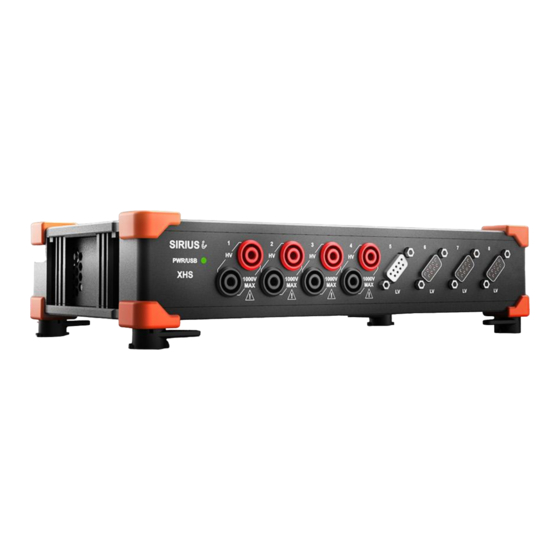
1. About this document This is the Technical Reference Manual for SIRIUSi-XHS® device, version V21-2. SIRIUSi-XHS® is a high performance, high speed line of SIRIUS® real time data acquisition hardware used for the most demanded power measurements, specially designed for E-mobility applications. Each system also includes a professional license for our award-winning DewesoftX®... -
Page 5: Online Versions
1.2.1. Online SIRIUSi-XHS® technical reference manual The most recent version of this manual can be downloaded from our homepage: https://download.dewesoft.com/list/manuals-brochures/hardware-manuals In the Hardware Manuals section click the download link for the SIRIUSi-XHS® technical reference manual. 1.2.2. DewesoftX® User Manual The DewesoftX®... -
Page 6: Getting Started
TECHNICAL REFERENCE MANUAL 2. Getting started This chapter will help you to install the software, connect your SIRIUSi-XHS® device to the PC via Ethernet or via USB, and will show you how to configure DewesoftX® software. To follow these steps, you need the following items: your brand new SIRIUSi-XHS®... -
Page 7: Connecting Siriusi-Xhs
SIRIUSi-XHS® TECHNICAL REFERENCE MANUAL 2.2. Connecting SIRIUSi-XHS® In this chapter, you can see the basic instructions for connecting SIRIUSi-XHS® devices over 3.0 USB and RJ-45 ethernet connection. Advanced connections are described in the following chapters. Important The XHS device is not supported on the Windows 7. -
Page 8: Sample Rate Limitation When Connected With Ethernet
2.2.2.2. Ethernet configuration on the PC As SIRIUSi-XHS® is a network device with static IP, you need to adjust the Network Card settings when connecting it via Ethernet. The ethernet port on your SBOX, data logger or PC should be configured in a way to match the IP address of the SIRIUSi-XHS®... -
Page 9: Troubleshooting
If DewesoftX® doesn’t detect your devices you should try pinging them via command prompt. In command prompt write: ping IP replace IP with IP that is set on your device. The result should be something like this: Image 5: ping IP in Command Prompt SIRIUSi-XHS® - V21-2 9/52... -
Page 10: Dewesoftx® Settings For Siriusi-Xhs
SIRIUSi-XHS® TECHNICAL REFERENCE MANUAL 2.2.3. DewesoftX® settings for SIRIUSi-XHS® The connected device will show up in the DewesoftX® settings. Click on the Options button at the top right, and then on the Settings item in the pop-up to open the DewesoftX® settings dialogue. - Page 11 Image 7: the device shown in Device list When you connect the SIRIUSi-XHS® device over Ethernet the device is treated as a RT device and therefore needs to be configured in that way. Adding a new XHS device is done by clicking the plus button in the device screen.
- Page 12 From the 2020.2 Release candidate version the RT-device option is no longer experimental. In older software versions the Support of RT-devices is still an Experimental feature and it needs to be enabled under advanced -> Experimental settings. SIRIUSi-XHS® - V21-2 12/52...
- Page 13 SIRIUSi-XHS® TECHNICAL REFERENCE MANUAL After that you will see a new SIRIUSi-XHS® or Dewesoft RT connection in the device tree. Image 9: RT device Connection If the text by the device is disconnected, you should click on the device (Dewesoft RT Connection) , set the correct IP and refresh.
- Page 14 SIRIUSi-XHS® TECHNICAL REFERENCE MANUAL Image 10: Setting IP If everything is set correctly both devices should be detected as SiriusXHS devices. SIRIUSi-XHS® - V21-2 14/52...
- Page 15 When you have only one device you can select the Dewesoft DAQ devices and Automatic/Standalone mode. Image 12: Setting synchronization When you have multiple XHS devices you can use External (Clock provider) as PTP (Precision Time Protocol) and Dewesoft DAQ Devices (Clock slave) as PTP. SIRIUSi-XHS® - V21-2 15/52...
-
Page 16: Channel Setup Siriusi-Xhs
(or multiple channels) in the setup grid, the corresponding connectors in the image will be highlighted. The sampling rate will be set for all connected SIRIUSi-XHS® units: of course only up to the max. sampling rate of the individual units. -
Page 17: Simple Measurement
SIRIUSi-XHS® TECHNICAL REFERENCE MANUAL 2.3. Simple Measurement This chapter describes measurement basics, how to configure SIRIUSi-XHS® and gives some details on the measurement setup. 2.3.1. Help - Manual Note that this document is just a quick start guide. For detailed information about Dewesoft consult the ❶... -
Page 18: Sample Rate
(FFT analysis), a 2.5 times faster sampling would be sufficient (125 S/s for the 50 Hz sine-wave). The higher the sampling rate, the better the time resolution. But also the file size will increase. Image 17: Sample rate SIRIUSi-XHS® - V21-2 18/52... -
Page 19: Measurement Mode
Analyse mode. 2.3.5. Analyse Mode When you have just stopped a measurement, DewesoftX® will automatically open the last recorded data file in Review mode, so that you can start the analysis right away. SIRIUSi-XHS® - V21-2 19/52... -
Page 20: Advanced Configuration
Note, that the Dewesoft launcher has already done the hardware setup for you – you can check this in ❶ ❷ the Settings dialogue. Click the Option button – and then click the Settings menu item SIRIUSi-XHS® - V21-2 20/52... -
Page 21: Firmware Upgrade
If the firmware package isn’t selected, select it by pressing the button and find the folder with ● the firmware file in it. Select the device you want to upgrade and start the firmware upgrade by pressing the ● “Upgrade” button. SIRIUSi-XHS® - V21-2 21/52... -
Page 22: Licensing
SIRIUSi-XHS® TECHNICAL REFERENCE MANUAL 2.6. Licensing SIRIUSi-XHS® or any other Dewesoft device already comes with an embedded Dewesoft license. You ❶ can check the license details with all the available options in the Licensing tab by pressing the three ❻... -
Page 23: Troubleshooting
SIRIUSi-XHS® TECHNICAL REFERENCE MANUAL 2.7. Troubleshooting If your SIRIUSi-XHS® device is not found by DewesoftX® : If you did not restart Windows after the software installation, restart now ● Make sure that you have started DewesoftX® version Release Candidate 2020.2, Development ●... -
Page 24: System Overview
Modern interfaces and protocols allow open and flexible connectivity. Voltage High Voltage Current IEPE Charge LVDT Thermocouple DSI compatible TEDS Compatible Vibrations Sound Sound pressure USB 3.0 Ethernet XCP/CCP OPC UA IP50 -10°C to 50°C Shock rating 50g SIRIUSi-XHS® - V21-2 24/52... -
Page 25: Main Features
field measurements. SOFTWARE INCLUDED WITH FREE LIFETIME UPGRADES: The easy-to-use but rich in ● functionality, award-winning DEWESoft X3 software is included. All upgrades to the software are free forever with no hidden licensing costs. SIRIUSi-XHS® - V21-2 25/52... -
Page 26: Hybrid Adc Technology
OPC UA: is the industry standard. Actually, it is more than a standard, it is a perfect framework where the device can be described and set up in any system, including SCADA, MES, ERP, mobile devices and others. SIRIUSi-XHS® - V21-2 26/52... -
Page 27: Data Acquisition Software Included For Free
Ethernet (RJ45) USB USB 3.0 (Type C) CAN CAN 2.0 (DSUB9) Sync Input/Ouput Level (Input/Output) TTL compatible Max. Output Current ±24 mA (±50 mA for 1 sec) Max. Sync-cable length 100 m (Master/Slave), 200 m (IRIG) SIRIUSi-XHS® - V21-2 27/52... -
Page 28: Single Slice
SIRIUSi-XHS® TECHNICAL REFERENCE MANUAL 3.3. Single slice A single SIRIUSi-XHS® slice can have up to 8 measurement modules, currently HV, LV and ACC modules are supported. Image 43: SIRIUSi-XHS® 8xACC 3.4. Single slice: Rear side The SIRIUSi-XHS® chassis has following connectors at the rear side: Image 44: SIRIUSi-XHS®... -
Page 29: Connectors
Power out connector: pin-out (2-pin LEMO female) Power Out connector (on the device): EXG.1B.302.CLL Mating connector (for the cable): FGG.1B.302.CLAD52Z The Power Out power plug can be used to daisy-chain several devices together. Daisy chain cable: L1B2m-L1B2f SIRIUSi-XHS® - V21-2 29/52... -
Page 30: Sync Connector
TECHNICAL REFERENCE MANUAL 3.5.2. SYNC connector The sync connectors are required when you want to use multiple SIRIUSi-XHS®® USB slices for the same measurement. The signal that is transferred over this cable makes sure that the measurement data of the different slices are perfectly synchronized to each other. -
Page 31: Gnd Connector
It is mandatory to connect a ground cable to the GND connector when you are working with high voltages: e.g. when you are working with the HV modules. Important CAN transmit is currently not supported, therefore all the plugins that require CAN transmit do not work property (e.g. OBD2, XCP) SIRIUSi-XHS® - V21-2 31/52... -
Page 32: Ethernet Connector
SIRIUSi-XHS® TECHNICAL REFERENCE MANUAL 3.5.5. Ethernet Connector Connector used on the device is a standard ethernet connector (RJ45). Standard ethernet cable with standard connector can be used to connect SIRIUSi-XHS® with a PC. Name Description Tx A+ Transmitting pair A+... -
Page 33: Module Overview
SIRIUSi-XHS® TECHNICAL REFERENCE MANUAL 4. Module overview Currently HV, LV and ACC amplifierts are supported on the SIRIUSi-XHS® device. XHS-HV XHS-LV XHS-ACC Connectors BANANA DB9, BNC Channels per slice Data rate / channel 15 MS/s Resolution 16-bit (24-bit @ 1 MS/s) -
Page 34: Siriusi-Xhs® Dimensions
SIRIUSi-XHS® TECHNICAL REFERENCE MANUAL 4.1. SIRIUSi-XHS® dimensions Image 52: Dimensions SIRIUSi-XHS® - V21-2 34/52... -
Page 35: Hv: Specifications
Typical 1.5 mV/K + 1 ppm of range/K, max 3 mV/K + 2 ppm of range/K Gain Linearity < 0.01 % Input Coupling Input Impedance 10 MΩ || 1 pF Protection class CAT III 600 V; CAT II 1000 V Additional Specifications Input connector Banana Rev: 1612519200 SIRIUSi-XHS® - V21-2 35/52... -
Page 36: Hv- Banana Connector
4.2.2. HV- Banana Connector SIRIUSi-XHS®-8xHV HV connector: pin-out (Banana plug) Warning It is mandatory to connect a ground cable to the GND connector of the SIRIUS® when you are working with high voltages. 4.2.2. HV: Voltage SIRIUSi-XHS® - V21-2 36/52... -
Page 37: Specifications
±10 ppm/K ±150 μV/K Stability 10% to 90% load (bipolar) < 0.01 % Current limit 200 mA (2 Watt max. per Channel, 12 Watt max. per Slice) Additional Specifications Input connector DSUB 9, BNC (others on request) SIRIUSi-XHS® - V21-2 37/52... -
Page 38: Dsub Connector
1) In- must be within ±10V referred to GND(iso); for Ranges ≥ 10 V the DC value of In- is not rejected 4.3.1. LV: DSUB connector SIRIUSi-XHS®-8xLV LV connector: pin-out (DSUB-9 female) 4.3.1.1. LV: Voltage Single ended Differential SIRIUSi-XHS® - V21-2 38/52... -
Page 39: Current
SIRIUSi-XHS® TECHNICAL REFERENCE MANUAL 4.3.1.2. LV: Current 4.3.2. LV: BNC connector SIRIUSi-XHS®-8xLV-BNC LV-BNC connector: pin-out (BNC) SIRIUSi-XHS® - V21-2 39/52... -
Page 40: Acc: Specifications
1 MΩ Overvoltage Protection 50 V continuous; 200 V peak (10 msec) IEPE mode Excitation 2 mA, 4 mA, 8 mA, 12 mA, 16 mA, 20 mA Compliance voltage 24 V Output Impedance > 10 kΩ SIRIUSi-XHS® - V21-2 40/52... -
Page 41: Acc: Bnc Connector
Sensor detection Shortcut: < 4 V; Open: > 19 V Additional Specifications Input connector BNC TEDS support IEPE mode only Rev: 1615795200 4.4.1. ACC: BNC connector SIRIUSi-XHS®-8xACC ACC connector: pin-out (BNC) 4.4.1.1. ACC: Voltage, IEPE Voltage IEPE SIRIUSi-XHS® - V21-2 41/52... -
Page 42: Real-Time Controller - Xcp Slave Settings
TECHNICAL REFERENCE MANUAL 5. Real-time controller - XCP slave settings With the SIRIUSi-XHS® device, data can be run in parallel over the XCP protocol, when the device is connected in Run-time mode over Ethernet. Follow the instructions written in chapter 2.2.3. -
Page 43: Xcp Output Settings ❷
When 100kHz SR is chosen, the time unit is 10us and the Time Cycle is 1. When we increase the SR to 200kHz, the Time unit is 1us and the Time Cycle is therefore 5. When a Time cycle is not a rounded number, the XCP module will give you a warning. SIRIUSi-XHS® - V21-2 43/52... -
Page 44: Xcp Outputs (Channels) ❹
(you can set them to USED under Analog in). Image 56: Generated AI channels If the channels will be changed to UNUSED under the Analog Input module, the XCP slave will recognize those channels and will mark them in red. SIRIUSi-XHS® - V21-2 44/52... -
Page 45: Generating A2L File ❺
RT-mode right away the device is reconnected back to power supply. For this option to work properly, the device needs to be in the RT mode when unplugged from the power supply. Image 58: Restart acquisition on device startup SIRIUSi-XHS® - V21-2 45/52... -
Page 46: Troubleshooting
In any case that the device got stuck in channel setup and the user can not proceed to measure mode , you can clear all the configuration from the device with the “clear static configuration” button that can be found in Device settings. Clear static configuration button SIRIUSi-XHS® - V21-2 46/52... -
Page 47: Safety Instructions
7.1.3. General safety and hazard warnings for all Dewesoft systems Safety of the operator and the unit depend on following these rules. Use this system under the terms of the specifications only to avoid any possible danger. ● SIRIUSi-XHS® - V21-2 47/52... - Page 48 Warranty void if damages caused by disregarding this manual. For consequential damages, NO ● liability will be assumed! Warranty void if damage to property or persons caused by improper use or disregarding the ● safety instructions. SIRIUSi-XHS® - V21-2 48/52...
- Page 49 This product has left the factory in safety-related flawless and in proper condition. In order to ● maintain this condition and guarantee safety use, the user has to consider the security advice and warnings in this manual. SIRIUSi-XHS® - V21-2 49/52...
-
Page 50: Notice
For information regarding service and repairs please contact your local distributor first or Dewesoft directly on https://dewesoft.com/support/rma-service. 8.5. Restricted Rights Use Slovenian law for duplication or disclosure. Dewesoft d.o.o. Gabrsko 11a, 1420 Trbovlje, Slovenia / Europe. SIRIUSi-XHS® - V21-2 50/52... -
Page 51: Printing History
When used in text representing the company, product or technology name, the ® sign is not used. The Dewesoft triangle logo is a registered trademark but the ® sign is not used in the visual representation of the triangle logo. SIRIUSi-XHS® - V21-2 51/52... -
Page 52: Documentation Version
SIRIUSi-XHS® TECHNICAL REFERENCE MANUAL 8.9. Documentation version Doc-Version Date Notes [dd.mm.yyyy] V21-2 4.4.2021 License on the device, additional V20-1 18.1.2021 Added XCP opton, Few small fixes V20-1 13.05.2020 Initial version SIRIUSi-XHS® - V21-2 52/52...
Need help?
Do you have a question about the SIRIUSi-XHS and is the answer not in the manual?
Questions and answers