Table of Contents
Advertisement
Advertisement
Table of Contents

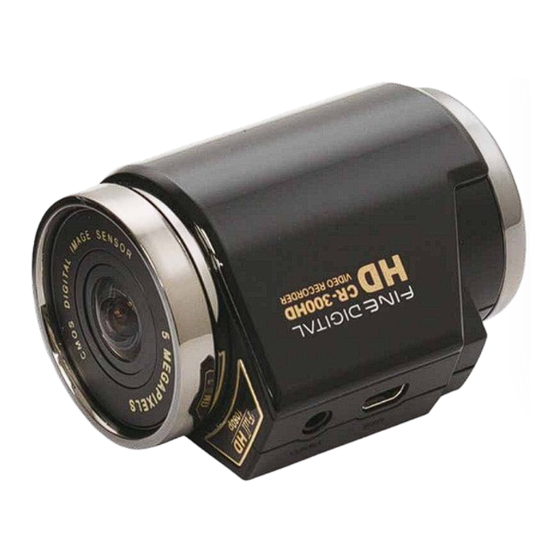
Summary of Contents for Fine Digital CR-300HD
- Page 1 Vehicle HD Video Recorder CR-300HD User Manual...
- Page 2 Thank you for choosing the Finevu Car black box. Before using the product, please read this manual carefully. Finedigital has an on-going policy of upgrading its products and it may be possible that information in this document is not up-to-date. Please visit the Finevu website (www.finevu.com) for current updates and the latest information.
-
Page 3: Table Of Contents
Contents Memory management .......21 Warnings............ 4 Memory map .........22 Safety and Caution ............5 Settings Precautions Connecting the black box to PC ..23 Notes ............5 Setup program ........24 Features ............. 6 Advanced settings .......25 Components ..........7 Components Recording and Recording ..........26 Accessories .......... -
Page 4: Warnings
Safety and Precautions WARNING Breaching the following precautions may result in serious personal injury or even death. • Plug the USB and video cables in properly. Failure to do so Power may result in fire or product failure. • Do not use a damaged or modified power cable. Doing so may cause explosion or fire, and may result in personal injury or damage to the vehicle. -
Page 5: Caution
Do not disassemble or modify this product arbitrarily. Doing • Fine Digital Inc. is not liable for any data loss or damage to so may cause breakage of the product or data loss. Consult the product due to a car accident or product failure which the A/S center for inspection and repair of the product. -
Page 6: Features
Features Clear video quality • The built-in battery supplies power to the RTC (Real Time Clock): You can set the system time with the setup program • 16:9 widescreen and full HD video recording after connecting the black box to the PC. •... -
Page 7: Components
Components and names Components 2 pieces of double-sided tape Mount for the installation of the mount CR-300HD 5 clips for arranging cables Video output cable (3 m) Cigarette jack cord (4 m) USB SD card reader (optional) micro SD card adapter USB cable (1.2 m) -
Page 8: Accessories
Components and names Components and names Accessories Video output cable External USB USB SD card reader Power adapter Polarizing filter (4- pole to RCA) battery pack Note All accessories are available from the store where you purchased the product. -
Page 9: Names
CR-300HD User Manual Names Speaker Function buttons Alerts you to the operating : Takes pictures status of the product with alarms : Short press: access emergency and voice. recording, Long press: access Playback mode : Voice recording ON/OFF Mount connection area... -
Page 10: Finding An Installation Location
Installation Inserting Micro SD card Finding an installation location • It is recommended to install the product on the front windshield, to the left or right of the rearview mirror. • You can also install it on the dashboard. Note Insert the Micro SD card with the golden contact area facing upwards. -
Page 11: Installation
CR-300HD User Manual Installation Attach the black box to the Install the mounting bracket mount in the vehicle using the double-sided tape Plug in the cigarette jack cord (DC 12 V) Connect the video output cable for adjusting the angle... -
Page 12: Recording Videos And Taking Pictures
Using the product Recording videos and taking pictures Basic operation Note indicates that the LED is blinking. color LED Buttons Mode Description Booting White White Green Green Booting is completed within 30 seconds of power-up. Recording while driving LED Buttons Mode Description Normal... - Page 13 CR-300HD User Manual Recording while driving LED Buttons Mode Description • button in Normal Recording mode, the mode If you press the Emergency changes to Emergency Recording mode. Green Green recording • You can record video for max. 1 minute, and the recorded video will be saved in the camcorder folder on the memory card.
- Page 14 Using the product Recording while parking LED Buttons Mode Description • If you press and hold down the button in Normal Recording mode or if there is no movement of the vehicle for 10 minutes, the mode Parking Green Green automatically changes to the Parking mode.
- Page 15 CR-300HD User Manual Recording with built-in battery LED Buttons Mode Description • If you press and hold down the button for 2 seconds, booting will Booting White White Green Green be completed within 30 seconds. • If you press the button in Standby mode, the mode changes to Emergency Recording mode.
-
Page 16: Product
Using the product Recording with external USB power (external battery) LED Buttons Mode Description Booting • White White Green Green Booting is completed within 30 seconds of power-up. • If the external power is supplied to the black box through the USB Normal port, booting will be complete and then the black box will switch to Green... -
Page 17: Viewing Videos And Pictures
CR-300HD User Manual Viewing videos and pictures Viewing on PC (connecting the black box) When you click “Open folder to view files using Windows Connect the black box to the PC with the USB cable. Explorer”, the folders containing videos and pictures will appear. - Page 18 Using the product Viewing on PC (memory card) Remove the Micro SD card from the black box and place it When you click “Open folder to view files using Windows in the micro SD adapter. Use the memory card reader for Explorer”, the folders containing videos and pictures will connection with a PC.
- Page 19 CR-300HD User Manual Viewing on navigation device All video files are played in order from the latest files to the Connect the video output cable from the black box to the oldest ones, regardless of the shooting modes. navigation device.
- Page 20 Using the product Playback screen You can play the recorded video on the navigation device as below. Previous file Repeat the current file If you press the button If you press the button quickly while playing a quickly, the current video will recorded video, the previous replay from the beginning.
-
Page 21: Settings
Settings Before configuring the settings, find out about the video range of each recording mode and the number of files to be saved in the memory. Memory management The start and end recording times differ for each recording mode, depending on the resolution of the video. Mode Storage time for each recording mode Folder name... -
Page 22: Memory Map
Settings Memory map The maximum recording time and number of files for each recording mode are as follows: Shock/Motion Normal Emergency Taking Memory size Category detection Remarks recording recording pictures recording Max. size 7.8 GB 6.0 GB 0.6 GB 0.1 GB 16GB Max. -
Page 23: Connecting The Black Box To Pc
CR-300HD User Manual Connecting the black box to a PC Connect the black box to the PC with the USB cable. When you click "Open folder to view files using Windows Explorer", a folder with the executable file will be displayed as shown in the figure. -
Page 24: Setup Program
Settings Setup program Information display Displays the model name and the firmware version. Recording Mode Allows you to set a recording mode. Shock sensitivity Adjust the shock sensitivity in Driving Into Parking Mode and Parking modes. Set the method for accessing Parking mode to Manual or Auto (auto accessing 10 minutes after parking). -
Page 25: Advanced Settings
CR-300HD User Manual Advanced settings Video resolution Set the video resolution (Ultra HD/ HD/ Normal). Recording frames Set the recording frames per second. Parking/Motion detection recording frame Set the frames per second for video in Parking/Motion Detection Recording Auto conversion to black and white mode. -
Page 26: Recording And Alarms
Recording and alarms Recording LED Buttons Status Operation Voice • When voice recording is OFF, press the button. Green Green Blue Blue Recording ON An alarm will sound and voice recording will start. Voice • When voice recording is ON, press the button. -
Page 27: Status Alarms
CR-300HD User Manual Status alarms Status Alarm Status Alarm Booting sound & “Ding-Dong~ Video recording Playback mode for “Ding-Dong~ Switching to Video Start recording starts. ” recorded video playback mode. ” Emergency “Cha-Re-Rook“ (sound of projector) Enable MIC Mute “Ding~“... -
Page 28: Management
Management Firmware upgrade Download the latest firmware from the website. Unzip the downloaded firmware and copy it to the root directory of the memory card. Remove the Micro SD card from the black box and place it in the micro SD adapter. Use the memory card reader for connection with a PC. -
Page 29: Cleaning And Storage
CR-300HD User Manual Cleaning and storage Cleaning Storage • • If there is a foreign object on the lens, wipe it down with If you are not using the black box, remove it from your a soft cloth. vehicle and keep it indoors. -
Page 30: Troubleshooting
Troubleshooting The black box does not turn on. Booting is complete, but there is no sound. • Check if the power (cigarette jack cord) is connected. (You • On the Setup Program screen, check if the alarm volume is can record video for max. 4 minutes with a fully charged set to its lowest. - Page 31 The black box is connected to the USB port of a navigation manufacturer to manufacturer. Some Micro SD cards may device, but it is not working. not be compatible with Fine Digital's black box. • Recording is unavailable with power through the USB port of a navigation device.
-
Page 32: Specifications
Specifications Item Specifications Remarks Model Name Fine Digital CR-300HD Color/ Dimensions/ Weight Black/ 39x64x50mm/ 88g Memory capacity Micro SD 16GB/ 32GB Class 6 or later recommended Normal recording Records video in 3 minute intervals. Records video 5 seconds before and 35 seconds after impact Shock recording (40 seconds in total). - Page 33 Limited Warranty This product is guaranteed against manufacturing defects for one (1) year (six (6) months for battery and accessories) from the original date of purchase. Finedigital’s sole obligation in the event of such defects during this period is to repair or replace the defective part or product with a comparable part or product at Finedigital’s sole discretion.
- Page 36 www.FineVu.com...
Need help?
Do you have a question about the CR-300HD and is the answer not in the manual?
Questions and answers
Где скачать прошивку