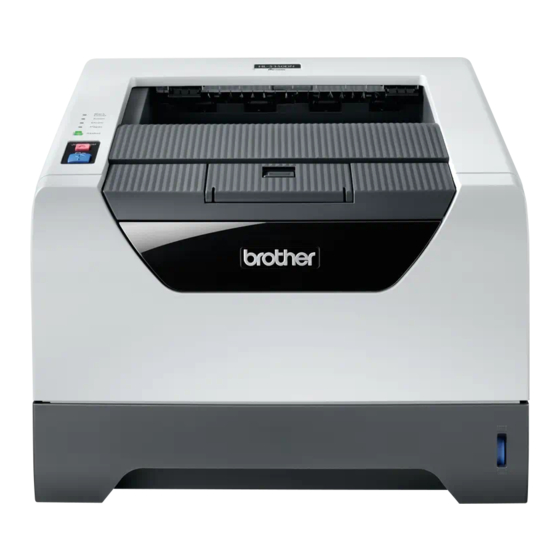
Brother HL-5350DN Quick Setup Manual
Brother hl-5350dn: quick start
Hide thumbs
Also See for HL-5350DN:
- Technical reference manual (517 pages) ,
- Service manual (319 pages) ,
- Network user's manual (203 pages)
Table of Contents
Advertisement
Quick Setup Guide
Start Here
Before you can use the printer, read this Quick Setup Guide for the correct setup and installation.
To view the Quick Setup Guide in other languages, please visit http://solutions.brother.com/.
IMPORTANT
DO NOT connect the interface cable yet.
1
Unpack the printer and check the components
1
1
2
3
4
5
CD-ROM
(including User's Guide and
Network User's Guide)
WARNING
Plastic bags are used in the packaging of your printer. To avoid danger of suffocation, please keep
these bags away from babies and children.
Note
• Save all packing materials and the box in case for any reason you must ship your printer.
• The interface cable is not a standard accessory. Buy the appropriate interface cable for the interface you
want to use (USB, Parallel or Network).
USB cable
• Please make sure you use a USB 2.0 interface (Type A/B) cable that is no longer than 6 feet (2.0 meters).
• When you use a USB cable, make sure you connect it to the USB port of your computer and not to a USB port on a
keyboard or non-powered USB hub.
Parallel cable
DO NOT use a parallel interface cable that is longer than 6 feet (2.0 meters).Use a shielded interface cable that is IEEE
1284-compliant.
Network cable (For HL-5350DN)
Use a straight-through Category5 (or greater) twisted-pair cable for 10BASE-T or 100BASE-TX Fast Ethernet Network.
8
7
6
9
Quick Setup Guide
HL-5340D/HL-5350DN
Front Cover Release Button
a
Control Panel
b
Face-down Output Tray
c
Support Flap 1 (Support Flap 1)
Front Cover
d
Paper Tray
e
Power Switch
f
Face-down Output Tray
g
Support Flap 2 (Support Flap 2)
Face-down Output Tray
h
Multi-purpose Tray (MP Tray)
i
Drum Unit and Toner
Cartridge Assembly
(EU only)
AC Power Cord
ENG Version 0
1
Advertisement
Table of Contents

Related Manuals for Brother HL-5350DN


Summary of Contents for Brother HL-5350DN
- Page 1 Note • Save all packing materials and the box in case for any reason you must ship your printer. • The interface cable is not a standard accessory. Buy the appropriate interface cable for the interface you want to use (USB, Parallel or Network).
- Page 2 Note Keep a minimum gap around the printer as shown in the illustration. 100mm (4 in.) Symbols used in this guide WARNING CAUTION IMPORTANT specify procedures you must follow or avoid to prevent possible damage IMPORTANT Note User's Guide Network User's Guide 100mm(4 in.)
-
Page 3: Install The Drum Unit And Toner Cartridge Assembly
Gently shake it from side to side several times to distribute the toner evenly inside the assembly. Put the drum unit and toner cartridge assembly into the printer until it clicks into place. Close the front cover of the printer. -
Page 4: Load Paper In The Paper Tray
Load paper in the paper tray Pull the paper tray completely out of the printer. While pressing the blue paper-guide release lever a, slide the paper guides to fit the paper size you are loading in the tray. Make sure that the guides are firmly in the slots. -
Page 5: Print A Test Page
Press Go. The printer prints a test page. Check that the test page has printed correctly. Note This function will not be available after the first print job you send from your computer. Now go to Go to the next page to install the printer driver. - Page 7 Choose your connection type For USB interface cable ® Windows , go to page 8 ® Macintosh , go to page 11 For Parallel interface cable ® Windows , go to page 13 For Wired Network ® Windows , go to page 15 ®...
-
Page 8: For Usb Interface Cable Users
The opening screen will appear automatically. Choose your printer model and the language. Note If the Brother screen does not appear automatically, go to My Computer (Computer), double-click the CD-ROM icon, and then double-click start.exe. Click Install Printer Driver on the menu screen. - Page 9 • For Windows Vista , when the User Account Control screen appears, click Continue. • If you want to install the PS driver (Brother’s BR-Script Driver), choose Custom setup and then follow the on-screen instructions. When the Select Components screen appears,...
- Page 10 Note • If you want to register your product on-line, check On-Line Registration. • If you do not want to set your printer as Default printer, uncheck Set as Default Printer. • If you want to disable the Status Monitor, uncheck Enable Status Monitor.
-
Page 11: For Usb Interface Cable Users
Then, restart your Macintosh Note Please see the User’s Guide on the CD-ROM to install the PS driver (Brother’s BR-Script Driver). The Brother software will search for the Brother printer. During this time the following screen will appear. ® Macintosh... - Page 12 Choose the printer you wish to connect, and then click OK. When this screen appears, click OK The installation is now Finish complete. ® Macintosh...
-
Page 13: For Parallel Interface Cable Users
The opening screen will appear automatically. Choose your printer model and the language. Note If the Brother screen does not appear automatically, go to My Computer (Computer), double-click the CD-ROM icon, and then double-click start.exe. Click Install Printer Driver on the Menu screen. - Page 14 • For Windows Vista , when the User Account Control screen appears, click Continue. • If you want to install the PS driver (Brother’s BR-Script Driver), choose Custom setup and then follow the on-screen instructions. When the Select Components screen appears,...
-
Page 15: For Peer-To-Peer Network Printer Users
Wired Network For Wired Network Interface Cable Users (HL-5350DN only) For Peer-to-Peer network printer users TCP/IP TCP/IP Router Network printer Note ® If you are using Windows Firewall or a firewall function of anti-spyware or antivirus applications, temporarily disable them. Once you are sure that you can print, configure the software settings following the instructions again. - Page 16 • For Windows Vista , when the User Account Control screen appears, click Continue. • If you want to install the PS driver (Brother’s BR-Script Driver), choose Custom setup and then follow the on-screen instructions. When the Select Components screen appears,...
- Page 17 Note • If you want to register your product on-line, check On-Line Registration. • If you do not want to set your printer as Default printer, uncheck Set as Default Printer. • If you want to disable the Status Monitor, uncheck Enable Status Monitor.
-
Page 18: For Shared Network Printer Users
Click Network cable users. Note • For Windows Vista Control screen appears, click Continue. • If you want to install the PS driver (Brother’s BR-Script Driver), choose Custom setup and then follow the on-screen instructions. When the Select Components screen appears,... - Page 19 Note • If you want to register your product on-line, check On-Line Registration. • If you do not want to set your printer as Default printer, uncheck Set as Default Printer. • If you want to disable the Status Monitor, uncheck Enable Status Monitor.
-
Page 20: For Wired Network Interface Cable Users
Wired Network For Wired Network Interface Cable Users (HL-5350DN only) Connect the printer to your Macintosh install the driver Connect the network interface cable to the LAN connector marked with a connect it to a free port on your hub. - Page 21 Choose the printer you wish to connect, and then click OK. Note • If there is more than one of the same printer model connected on your network, the MAC Address (Ethernet Address) will be displayed after the model name.You can also confirm your IP Address by scrolling to the right.
-
Page 22: Bradmin Light Utility
BRAdmin Light utility (For Windows The BRAdmin Light is a utility for initial setup of Brother network connected devices. It can also search for Brother products on your network, view the status and configure basic network settings, such as IP Address. -
Page 23: Bradmin Light Utility (For Mac Os ® X Users)
BRAdmin Light utility (For Mac OS The BRAdmin Light is a utility for initial setup of Brother network connected devices. It can also search for Brother products on your network, view the status and configure basic network settings, such as IP Address from a ®... -
Page 24: Web Based Management (Web Browser)
For Network Users (HL-5350DN only) Web Based Management (web browser) The Brother print server is equipped with a web server that allows you to monitor its status or change some of its configuration settings, using HTTP (Hyper Text Transfer Protocol). -
Page 25: Other Information
DO NOT use flammable substances, any type of spray or any organic solvent/liquids containing alcohol or ammonia to clean the inside or outside of the printer. Doing this may cause a fire or electrical shock. Refer to Chapter 6 of the User's Guide for how to clean the printer. - Page 26 AC power outlet, or unplug the cords during a lightning storm. After you have just used the printer, some internal parts of the printer will be extremely hot. When you open the front or back cover (back output tray) of the printer, DO NOT touch the shaded parts shown in the illustration.
- Page 27 A shielded interface cable should be used in order to ensure compliance with the limits for a Class B digital device. Changes or modifications not expressly approved by Brother Industries, Ltd. could void the user's authority to operate the equipment. Industry Canada Compliance Statement (For Canada only) This Class B digital apparatus complies with Canadian ICES-003.
- Page 28 ENERGY STAR guidelines for energy efficiency. Laser Safety (110 to 120 volt model only) This printer is certified as a Class 1 laser product as defined in IEC 60825-1+A2: 2001 specifications under the U.S. Department of Health and Human Services (DHHS) Radiation Performance Standard according to the Radiation Control for Health and Safety Act of 1968.
- Page 29 DO NOT connect it to a DC power source. If you are not sure, contact a qualified electrician. Disconnect device You must install this printer near a power outlet that is easily accessible. In case of an emergency, you must disconnect the power cord from the power outlet to shut off the power completely.
-
Page 30: Shipment Of The Printer
When shipping the printer, the DRUM UNIT and TONER CARTRIDGE assembly must be removed from the printer and put in a plastic bag. Failure to remove the unit and put it in a plastic bag before shipping may cause severe damage to the printer and may VOID THE WARRANTY. -
Page 31: Supplied Cd-Rom
On-Line Registration Register your product on-line. Supplies Information Visit our website for original/genuine Brother supplies at http://www.brother.com/original/. Note For visually impaired users, we have prepared an HTML file on the supplied CD-ROM: readme.html. This file can be read by Screen Reader ‘text-to-speech’... -
Page 32: Control Panel
For the details of the control panel, see chapter 4 of the User's Guide on the CD-ROM. Back Cover LED The Back Cover LED indicates when errors occur in the back of the printer. Toner LED The Toner LED indicates when the toner is low or requires replacement. -
Page 33: Printer Led Indications
Dimmed Green Printer LED Replace toner Toner low Back Cover Toner Yellow Drum Paper Status Green Chapter6 User's Guide Printer LED Front cover open Fuser cover open Duplex disabled Back Cover Yellow Toner Drum Paper Status Chapter7 Chapter7 User's Guide The LED will blink in a pattern of ON for 1 second and then OFF for 1 second. -
Page 34: Options And Consumables
Consumables When the time comes to replace consumable items, an error will be indicated by the LED’s on the control panel. For more information about the consumables for your printer, visit us at http://www.brother.com/original/ or contact your local Brother reseller. - Page 35 The contents of this manual and the specifications of this product are subject to change without notice. Brother reserves the right to make changes without notice in the specifications and materials contained herein and shall not be responsible for any damages (including consequential) caused by reliance on the materials presented, including but not limited to typographical and other errors relating to the publication.