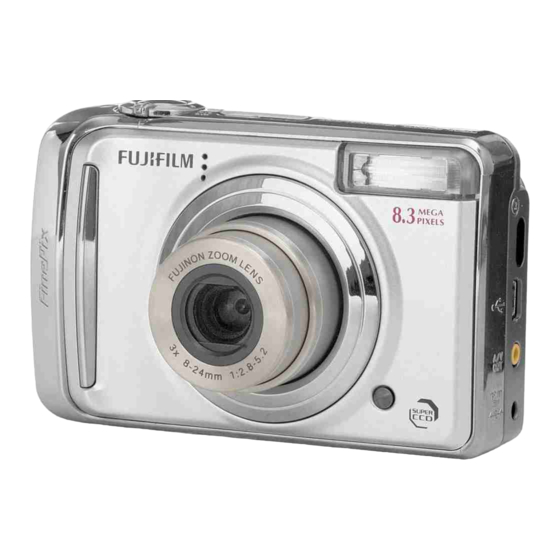
FujiFilm FinePix A800 Owner's Manual
Fujifilm digital camera finepix a610/finepix a800 owner's manual
Hide thumbs
Also See for FinePix A800:
- Specifications (2 pages) ,
- Owner's manual (164 pages) ,
- Quick start manual (2 pages)
Table of Contents
Advertisement
OWNER'S MANUAL
This manual will show you how to use
your FUJIFILM DIGITAL CAMERA
FinePix A610/FinePix A800 correctly.
Please follow the instructions carefully.
Getting Ready
Using the Camera
Advanced Features
• Photography
• Playback
• Movie
Camera Connection
Installation
Appendices
Troubleshooting
BL00593-201(1)
Settings
Software
Advertisement
Table of Contents

Related Manuals for FujiFilm FinePix A800


Summary of Contents for FujiFilm FinePix A800
- Page 1 OWNER’S MANUAL This manual will show you how to use your FUJIFILM DIGITAL CAMERA FinePix A610/FinePix A800 correctly. Please follow the instructions carefully. Getting Ready Using the Camera Advanced Features • Photography • Playback • Movie Settings Camera Connection Software...
-
Page 2: Warning
Notes on the Grant: To comply with Part 15 of the FCC Rules, this product must be used with a Fujifilm-specified ferrite-core A/V cable, USB cable, and DC supply cord. For customers in Canada CAUTION This Class B digital apparatus complies with Canadian ICES-003. -
Page 3: Important
4. Ownership. All copyrights and other proprietary rights to Software and Documentation are owned and retained by FUJIFILM or the third party suppliers as indicated on or in Software or Documentation. Nothing contained herein shall be construed, expressly or implicitly, as transferring or granting any right, license, or title to you other than those explicitly granted under this Agreement. -
Page 4: Ec Declaration Of Conformity
FUJIFILM Europe GmbH Address: Heesenstrasse 31 40549 Dusseldorf, Germany declare that the product Product Name: FUJIFILM DIGITAL CAMERA FinePix A610/FinePix A800 Manufacturer’s Name: FUJIFILM Corporation Manufacturer’s Address: MIDTOWN WEST, 7-3, AKASAKA 9-CHOME, MINATO-KU, TOKYO 107-0052, JAPAN conforms to the following Standards:... -
Page 5: Disposal Of Electric And Electronic Equipment In Private Households
Disposal of Electric and Electronic Equipment in Private Households Disposal of used Electrical & Electronic Equipment (Applicable in the European Union and other European countries with separate collection systems) This symbol on the product, or in the manual and in the warranty, and/or on its packaging indicates that this product shall not be treated as household waste. -
Page 6: Table Of Contents
About this Manual ... 10 Accessories Included ... 12 Camera Parts and Features (FinePix A610) ... 13 Camera Parts and Features (FinePix A800) ... 14 Example of LCD Monitor Text Display ... 15 Getting Ready Loading the Batteries ... 16 Loading the Memory Card... - Page 7 FUJIFILM Digital Camera Worldwide Network... 149 Safety Notes... 158 Usable Memory Cards You can use the xD-Picture Card and the SD Memory Card with the FinePix A610 and FinePix A800. In this Owner’s Manual, these cards are expressed as “Memory Card”.
-
Page 8: Preface
• FUJIFILM Corporation cannot accept liability for any incidental losses (such as the costs of photography or the loss of income from photography) incurred as a result of faults with this product. - Page 9 European countries and China. Z Exif Print (Exif ver. 2.2) Exif Print Format is a newly revised digital camera file format that contains a variety of shooting information for optimal printing. See “Using Your Camera Correctly” (➝p.116) for more...
-
Page 10: About This Manual
Z Usable Memory Cards You can use the xD-Picture Card and the SD Memory Card with the FinePix A610 and FinePix A800. In this Owner’s Manual, these cards are expressed as “Memory Card”. Z About illustration Illustrations in the Owner’s Manual show the FinePix A800 for either the FinePix A610 or FinePix A800. - Page 11 Z About each model’s functions This Owner’s Manual shows the description of 2 models: FinePix A610 and FinePix A800. Some functions are available only on one model. The main differences between the 2 models are shown in the table below.
-
Page 12: Accessories Included
Note that accessories may vary depending on model. • AA-size Alkaline Batteries (LR6) (2) • Strap (1) • Video cable (1) (FinePix A610 only) • A/V cable (1) (FinePix A800 only) Including plug to pin-plug ×2 • USB cable (mini-B) (1) • CD-ROM (1) Software for FinePix KA •... -
Page 13: Camera Parts And Features (Finepix A610)
Camera Parts and Features (FinePix A610) • Refer to the pages in parentheses for information on using the camera parts or features. A Shutter button B Zoom switch (p.28, 35) C Lens (Lens cover) D POWER button E Flash (p.52) F ;... -
Page 14: Camera Parts And Features (Finepix A800)
Camera Parts and Features (FinePix A800) • Refer to the pages in parentheses for information on using the camera parts or features. A Shutter button B Zoom switch (p.28, 35) C Microphone D Lens (Lens cover) E POWER button F Flash (p.52) G ;... -
Page 15: Example Of Lcd Monitor Text Display
*FinePix A800 Z Photography mode Z Playback mode FinePix A610/FinePix A800 has internal memory that can store images without Memory Card. Y appears on the LCD monitor when the internal memory is active. A ( Self-timer (p.54) B e Macro (close-up) (p.51) C C Flash (p.52) -
Page 16: Loading The Batteries
Loading the Batteries Batteries are required to operate the digital camera. At first, load the batteries in the camera. Z Compatible batteries AA-size alkaline batteries (2) or AA-size Ni-MH rechargeable batteries (2) (sold separately) CAUTION • Never use the following types of... - Page 17 Load the batteries correctly as indicated by the polarity icons. CAUTION Match the polarity icons (+ and ,) of the batteries to those on the inside of the battery cover. Close the battery cover.
-
Page 18: Checking The Battery Charge
Loading the Batteries Checking the battery charge Turn the camera on and check the battery level indicator on the LCD monitor. A There is ample battery charge. (Not displayed) B There is insufficient charge left in the batteries. The batteries will soon run out. Have a new set of batteries ready. -
Page 19: Loading The Memory Card
Memory Card (sold separately). You can use the xD- Picture Card and the SD Memory Card with the FinePix A610 and FinePix A800. In this Owner’s Manual, these cards are expressed as “Memory Card”. SD Memory Cards Use of the SD Memory Cards listed below is recommended. - Page 20 Loading the Memory Card CAUTION Be sure to unlock the protection of the SD Memory Card before inserting it. If it is locked, recording/deleting images, as well as formatting are not available. To unlock the protection, slide the switch back, and the SD Memory Card will work normally.
- Page 21 • Operation of this camera is only guaranteed when it is used with FUJIFILM xD-Picture Card and operation- checked SD Memory Card (➝p.19). • See p.122 for information on the xD-Picture Card, SD Memory Card and the internal memory.
-
Page 22: Turning On And Off
Turning On and Off Turning the camera on in Photography mode Press POWER down fully to turn the camera on. Press POWER again to turn the camera off. MEMO Changes between Photography mode and Playback mode Press w during shooting to change to Playback mode. Press the shutter button down halfway to return to Photography mode. -
Page 23: Setting The Language, Date, And Time
Setting the language, date, and time When using the camera for the first time after purchasing, the language, date, and time are cleared. Set the language, date, and time. screen appears when turning the camera on. START MENU START MENU / LANG. -
Page 24: Auto Power Off Function
Turning On and Off Change the date format. DATE / TIME NOT SET DATE / TIME NOT SET DD . MM . YY DD . MM . YY MM / MM / DD / DD / YY YY 2 / 24 / 2007 2 / 24 / 2007 YY . -
Page 25: Correcting The Date And Time
AUTO AUTO QUALITY QUALITY SET-UP SET-UP * FinePix A800 A Press MENU/OK to open the menu. B Press n or o to select C Press q. Display the DATE/TIME screen. A Press p or q to select B Press o to move to menu item. -
Page 26: Selecting The Language
TIME DIFFERENCE TIME DIFFERENCE VIDEO SYSTEM VIDEO SYSTEM NTSC NTSC * FinePix A800 A Press p or q to select (Select on the FinePix A610). B Press o to move to menu item. C Press n or o to select D Press q. -
Page 27: Taking Pictures (Auto Mode)
A Press POWER down fully to turn the camera on. B Set the Mode dial to q (FinePix A800 only). CAUTION Step B is only for FinePix A800. Since there is no mode dial on FinePix A610, ignore step B when using that model. - Page 28 • Optical zoom focal length (35 mm camera equivalent) Approx. 39 mm to 117 mm • Max. zoom scale 3× (FinePix A800) • Focal range Approx. 50 cm (1.6 ft.) to infinity • Optical zoom focal length (35 mm camera [ tele zoom...
- Page 29 Focus on the main subject in the AF frame and press the shutter button down halfway. AF frame AF frame becomes smaller Halfway and camera pressed focuses on the subject. CHECK • Focus on the subject Double beep is heard Indicator lamp lit green •...
- Page 30 Taking Pictures (AUTO Mode) Flash When pressing the shutter button down halfway, b appears on the LCD monitor before the flash fires. F4.2 F4.2 F4.2 F4.2 Change the flash mode when you want to take pictures without flash. See p.52 for information on flash. CAUTION •...
-
Page 31: Taking Pictures With The Focus And Exposure Locked
Taking pictures with the focus and exposure locked In the above composition, the subjects (two people in this case) are not in the AF frame. Pressing the shutter button halfway at this point will result in the subjects being out of focus. - Page 32 • Use AF/AE lock in all Photography modes to guarantee excellent results. • On FinePix A610/FinePix A800, pressing the shutter button down halfway locks the focus and exposure settings (AF and AE lock). Subjects not suitable for autofocus FinePix A610/FinePix A800 uses a high-precision autofocusing mechanism.
-
Page 33: Adjusting The Shot Composition
Adjusting the shot composition Select the LCD monitor display. Press DISP/BACK to change the LCD monitor display. Text displayed No text displayed Framing guideline displayed Best framing Position the main subject at the intersection of two lines in this frame or align one of the horizontal lines with the horizon. -
Page 34: Viewing The Images
CAUTION Still images viewable on FinePix A610/FinePix A800 This camera will display still images recorded on FinePix A610/FinePix A800 or still images (excluding some uncompressed images) recorded on any FUJIFILM digital camera that supports xD-Picture Cards or SD Memory Cards. Clear playback or playback zooming may not be possible for still images shot on cameras other than FinePix A610/FinePix A800. -
Page 35: Playback Zoom
Single-frame playback 100 - 0001 100 - 0001 100 - 0001 100 - 0001 ISO 100 ISO 100 ISO 100 ISO 100 2 / 24 / 2007 2 / 24 / 2007 2 / 24 / 2007 2 / 24 / 2007 10:00 AM 10:00 AM 10:00 AM... - Page 36 5 (2848 × 2136 pixels) % (3024 × 2016 pixels) 3 (2048 × 1536 pixels) 2 (1600 × 1200 pixels) Z Zoom scales (FinePix A800) Quality mode i (3296 × 2472 pixels) % (3504 × 2336 pixels) 4 (2304 × 1728 pixels) 2 (1600 ×...
-
Page 37: Sorting By Date
Sorting by date In sorting by date mode, you can view all images taken on the same day. 2007 2007 2 / 22 22 2 / 23 23 2 / 24 24 1 / 12 12 A Press n, o, p, or q to move the cursor (colored frame) to the selecting frame. -
Page 38: Erasing The Images/Movies
Erasing the Images/Movies Use this mode to erase unnecessary images or movies to have ample free space on the Memory Card or internal memory. Your camera calls images “frames”. Using the erase button ( Pressing (n) erases images easily. ERASE OK? ERASE OK? CANCEL CANCEL... - Page 39 PLAYBACK MENU PLAYBACK MENU ERASE ERASE BACK BACK SLIDE SHOW SLIDE SHOW FRAME FRAME ALL FRAMES ALL FRAMES PRINT ORDER (DPOF ) PRINT ORDER (DPOF ) PROTECT PROTECT COPY COPY D Press n or o to select FRAME or ALL FRAMES.
- Page 40 Erasing the Images/Movies Erasing the Images/Movies Erasing all frames (ALL FRAMES) ERASE ALL OK? ERASE ALL OK? IT MAY TAKE A WHILE IT MAY TAKE A WHILE CANCEL CANCEL Press MENU/OK to erase all the frames (files). MEMO Press DISP/BACK to cancel erasing of all the frames (files).
-
Page 41: Using The Photography Functions - Procedure Of Setting
AUTO AUTO QUALITY QUALITY SET - UP SET - UP <FinePix A800> Set the photography mode using the mode dial. See p.44 for information on setting shooting mode. This is the easiest mode for taking AUTO pictures (➝p.46). Select the best Shooting mode for the scene being shot (➝p.46-47). - Page 42 (only s) (➝p.63). COMPENSATION Use to adjust the color tone (only s) WHITE BALANCE (➝p.64). SHOOTING MENU SHOOTING MENU SCENE POSITION SCENE POSITION AUTO AUTO QUALITY QUALITY EXP. COMPENSATION EXP. COMPENSATION WHITE BALANCE WHITE BALANCE AUTO AUTO * FinePix A800...
-
Page 43: Setting The Shooting Mode (Finepix A610)
Setting the Shooting Mode (FinePix A610) You can select the most suitable setting according to the subject by selecting one of the Shooting modes. See p.41 for information on available shooting mode. PORTRAIT PORTRAIT LANDSCAPE ANDSCAPE SPORT SPORT NIGHT NIGHT Clear scenic shots Clear scenic shots CANCEL... -
Page 44: Setting The Shooting Mode (Finepix A800)
Setting the Shooting Mode (FinePix A800) You can select the most suitable setting according to the subject by selecting one of the Shooting modes. Turn the mode dial and select the shooting mode. Photography functions: * q AUTO(➝p.46) BABY MODE (➝p.46) PICTURE STABILIZATION (➝p.46) - Page 45 MANUAL MANUAL LANDSCAPE LANDSCAPE SPORT SPORT NIGHT NIGHT Clear scenic shots Clear scenic shots CANCEL CANCEL B Press MENU/OK to open the menu. C Press n or o to select SCENE POSITION. D Press q. E Press n or o to select the setting. F Press MENU/OK to confirm the setting.
-
Page 46: Shooting Mode
This is caused by the light of the flash reflecting off the inside of the eye. DIGITAL ZOOM (FinePix A800 only) Using this mode allows you to enlarge your subject automatically 3x and to shoot an enlarged image quickly. - Page 47 m PORTRAIT Use this mode for photography to get beautiful skin tones and soft overall tone. , LANDSCAPE Use this mode for shooting scenery in daylight and provides crisp, clear shots of scenery such as buildings and mountains. CHECK Flash cannot be used in the Landscape mode.
- Page 48 Shooting Mode NATURAL LIGHT (FinePix A800 only) This mode produces beautiful images that retain the natural ambience when shots are taken in low-light conditions. This mode is also ideal for shooting indoor or situations where the flash cannot be used.
- Page 49 SUNSET Use this mode to shoot sunset, making the colors more vivid. UNDERWATER Use this mode for shooting with a waterproof case. It is effective for taking more vivid shots of ocean blue. Setting the mode (➝p.43, 44) FLOWER Use this mode to take clear close-up shots when zooming up a flower.
- Page 50 Shooting Mode MUSEUM Use this mode for taking pictures in places such as museum where the use of flash and making an operation sound and a shutter sound are restricted. Flash mode is forcibly set to Suppressed flash and operation sound, shutter sound and the self-timer lamp are off.
-
Page 51: Macro (Close-Up)
e Macro (Close-up) Use this mode to take close-up shots. Available Photography modes: s, AUTO, (➝p.46, 48, 49, 50) Press e (p) to select Macro mode. Press e (p) again to cancel Macro mode. e appears on the LCD AUTO AUTO monitor indicating that you can take close-up shots. -
Page 52: Setting The Flash (Intelligent Flash)
Use this mode to minimize red-eye (eyes appear in red in the finished photo). On the FinePix A800, you can set this mode as a shooting mode (p.46). MEMO Red-eye effect When using the flash to take a picture of people in low- light conditions, eyes may sometimes appear red in the picture. - Page 53 Wide-angle: Approx. 60 cm to 3.5 m (2.0 ft. to 11.5 ft.) Telephoto: Approx. 60 cm to 1.9 m (2.0 ft. to 6.2 ft.) <FinePix A800> Wide-angle: Approx. 50 cm to 3.8 m (1.6 ft. to 12.5 ft.) Telephoto: Approx. 60 cm to 2.0 m (2.0 ft. to 6.6 ft.) If you take pictures outside of the effective flash range, the image may appear dark even if the flash is used.
-
Page 54: Self-Timer
* Self-Timer The self-timer is used in situations where the photographer is included in the shot. When photographer is away from the camera, use a tripod to prevent camera fall. Available Photography modes: All (➝p.46 – 50) Setting self-timer The self-timer setting changes each time you press * (o). - Page 55 Take pictures in selected time. A picture is taken after the self-timer lamp changes from lit to blinking (only blinks with the 2-second self- timer). A countdown appears on the LCD monitor indicating the time remaining until the picture is taken. Using the 2-second self-timer This is useful when you worry about camera shake even if attaching the camera on a tripod.
-
Page 56: Increasing Monitor Brightness
j Increasing Monitor Brightness Use this function to increase the brightness of the LCD monitor temporarily when you have difficulty seeing the monitor in low-light conditions or in daylight. Increasing the LCD monitor brightness Press j (n) to display the LCD monitor brightly. Press j (n) again to return to normal LCD monitor brightness. -
Page 57: Using Shooting Menu
QUALITY QUALITY EXP. COMPENSATION EXP. COMPENSATION WHITE BALANCE WHITE BALANCE AUTO AUTO * FinePix A800 A Press MENU/OK to open the SHOOTING MENU. B Press n or o to select the menu. SHOOTING MENU SHOOTING MENU SCENE POSITION SCENE POSITION... - Page 58 Using SHOOTING MENU Z List of SHOOTING MENU options (FinePix A610) Menu Use this setting to provide the best photography menu setting for the scene SHOOTING MODE being shot. (➝p.43) Specifies required sensitivity setting of the ambient light around the subject. ISO (➝p.60) The larger value of the sensitivity, the higher sensitivity is obtained.
- Page 59 Z List of SHOOTING MENU options (FinePix A800) Menu This setting can be used when the Mode dial is set to ?. SCENE POSITION Use this setting to provide the best photography menu setting for the scene (➝p.44) being shot.
-
Page 60: Shooting Menu
The higher sensitivity settings will allow you to take pictures in darker locations. CHECK Settings <FinePix A610> AUTO/400/200/100 <FinePix A800> AUTO/800/400/200/100 Selecting AUTO as the sensitivity setting, the camera selects the best sensitivity setting for the subject’s brightness. 12 12... -
Page 61: Changing The Quality Setting ( Quality)
Changing the quality setting QUALITY) Use this menu to specify the image size (number of recorded pixels). Select the quality setting for the scene being shot. Z Quality settings in Photography mode (FinePix A610) Quality mode Sample uses 5 F (2848 × 2136) Printing at up to 10R (25.4 ×... - Page 62 SHOOTING MENU Area shot and quality setting Area shot excluding % AUTO AUTO Normal shooting provides an aspect ratio of 4:3 and % shooting provides an aspect ratio of 3:2 (same aspect ratio as 35 mm film and post card). MEMO •...
-
Page 63: Adjusting Exposure Compensation ( Exp. Compensation)
Adjusting exposure compensation EXP. COMPENSATION) Available Photography mode: s (➝p.50) Use this menu for shots to get the correct brightness (exposure), such as shots with extremely high contrast between the subject and the background. EXP. COMPENSATION EXP. COMPENSATION positive (+) compensation negative (–) compensation CHECK •... -
Page 64: Adjusting Color Balance ( White Balance)
SHOOTING MENU Adjusting color balance WHITE BALANCE) Available Photography mode: s (➝p.50) Adjust the color balance based on white to suit the color of the ambient light around the subject. WHITE BALANCE WHITE BALANCE AUTO: Automatic adjustment 6 : Shooting outdoors in good weather 7: Shooting in shade 9 : Shooting under Daylight fluorescent lamps 0 : Shooting under Warm White fluorescent lamps... - Page 65 Memo...
-
Page 66: Using Playback Menu
Using PLAYBACK MENU Use this menu to play back photographed images. Setting the PLAYBACK MENU A Press w to set the camera to Playback mode (➝p.34). PLAYBACK MENU PLAYBACK MENU ERASE ERASE SLIDE SHOW SLIDE SHOW PRINT ORDER (DPOF ) PRINT ORDER (DPOF ) PROTECT PROTECT... -
Page 67: Playback Menu
PLAYBACK MENU Setting automatic playback SLIDE SHOW) Use this mode to play back photographed images continuously. You can select playback interval and type of image transition. PLAYBACK MENU PLAYBACK MENU ERASE ERASE NORMAL NORMAL NORMAL NORMAL SLIDE SHOW SLIDE SHOW WIPE WIPE PRINT ORDER (DPOF ) - Page 68 PLAYBACK MENU WITH DATE / WITHOUT DATE Selecting WITH DATEE, E appears on the LCD monitor and the date will be imprinted on your prints. PRINT ORDER ( DPOF DPOF ) PRINT ORDER DPOF DPOF : 00009 00009 Total number of prints Setting for that frame SHEETS SHEETS...
-
Page 69: Reset All
DPOF-compatible printer (depending on the printer specifications, the date may not be printed in some cases). • Images photographed with a camera other than FinePix A610/FinePix A800 may not be specified DPOF settings. Setting the menu (➝p.66) RESET ALL To cancel all DPOF settings:... - Page 70 This section gives a detailed description of how to order your prints with FinePix A610/FinePix A800. Some printers do not support date and time imprinting or specification of the number of prints.
-
Page 71: Protecting The Images ( Protect)
Protecting the images PROTECT) Use this mode to prevent frames (files) from being accidentally erased. Your camera calls images “frames”. FRAME SET / RESET To protect or unprotect only the selected frame (file): PROTECT OK? PROTECT OK? UNPROTECT OK? UNPROTECT OK? CANCEL CANCEL Unprotected... -
Page 72: Copying The Images ( Copy)
PLAYBACK MENU MEMO To stop the procedure midway CANCEL CANCEL If the images are very large, protecting or unprotecting all the frames (files) may take some time. If you want to take a picture or record a movie during the procedure, press DISP/BACK. - Page 73 Copying one frame at a time (FRAME) COPY COPY INTERNAL MEMORY INTERNAL MEMORY CARD CARD FRAME FRAME CARD CARD INTERNAL MEMORY INTERNAL MEMORY ALL FRAMES ALL FRAMES CANCEL CANCEL A Press n or o to select FRAME. B Press MENU/OK. Setting the menu (➝p.66) COPY OK? COPY OK?
- Page 74 PLAYBACK MENU Copying all frames (ALL FRAMES) COPY COPY INTERNAL MEMORY INTERNAL MEMORY CARD CARD INTERNAL MEMORY INTERNAL MEMORY CANCEL CANCEL A Press n or o to select ALL FRAMES. B Press MENU/OK. CARD CARD FRAME FRAME COPY COPY ALL FRAMES ALL FRAMES Setting the menu (➝p.66) COPY ALL OK?
-
Page 75: Rotating The Images ( Image Rotate)
An image can be rotated only when playing back using FinePix A610/FinePix A800. You may not be able to rotate images that were shot with a camera other than FinePix A610/FinePix A800. A Press p or q to select the rotating frame (file). -
Page 76: Trimming The Images ( Trimming) (Finepix A800 Only)
PLAYBACK MENU Trimming the images TRIMMING) (FinePix A800 only) Use this mode to trim the required part of the photographed image. Select the menu. A Press w to set the camera to Playback mode (➝p.34). B Press p or q to select the trimming frame (file). - Page 77 • When % quality setting is selected, the image is trimmed to normal size (4:3 aspect ratio). CAUTION • trimming is not available on the FinePix A610. • You may not be able to trim images that were shot with a camera other than FinePix A800.
-
Page 78: Recording Movies
B Press n or o to select MODE. C Press q. D Press n or o to select r MOVIE. E Press MENU/OK to confirm the setting. Set the camera to r Movie mode (FinePix A800) Set the Mode dial to r. CHECK STANDBY STANDBY SHOOTING... -
Page 79: Record Movies
Approx. 39 mm to 117 mm (35 mm camera equivalent) Max. zoom scale: 3× • Focal range Approx. 60 cm (2.0 ft.) to infinity (FinePix A800) • Optical zoom focal length Approx. 36 mm to 108 mm (35 mm camera equivalent) Max. zoom scale: 3×... - Page 80 (if the batteries run out or the AC power adapter is disconnected). • A movie file taken by FinePix A610/FinePix A800 may not be playable on other cameras. • When using FinePix A800, sound is recorded concurrently with the images.
-
Page 81: Playing Back Movies
w Playing Back Movies 100 - 0002 100 - 0002 100 - 0002 100 - 0002 2 / 24 / 2007 2 / 24 / 2007 2 / 24 / 2007 2 / 24 / 2007 11:00 AM 11:00 AM 10:00 AM 10:00 AM PLAY... - Page 82 Memory Card or internal memory to the PC’s hard disk and then play back the saved file. • When using FinePix A800, make sure not to cover the speaker. The sound is difficult to hear. Setting the camera to w Playback mode (➝p.34)
-
Page 83: Set-Up
TIME DIFFERENCE VIDEO SYSTEM VIDEO SYSTEM NTSC NTSC * FinePix A800 A Press p or q to select the page. B Press o to move to menu item. Change the setting. SET-UP. A Press n or o to select the menu. -
Page 84: Set-Up Menu Option
SET-UP SET-UP SET-UP menu option CAUTION Note that the SET-UP menu will vary depending on the camera model. The table below shows the SET-UP menu of the FinePix A800. Note that the SET-UP menu on the FinePix A610 is displayed only on page q, Setting IMAGE DISP. - Page 85 Setting Display FORMAT – AUTO POWER 5MIN/2MIN/OFF TIME DIFFERENCE VIDEO SYSTEM NTSC/PAL DISCHARGE – RESET – How to use the SET-UP menu (➝p.83) Factory default Explanation Initializes a Memory Card or internal memory. – Select this menu to erase all the frames (files). Specifies the language used for LCD monitor ENGLISH display.
- Page 86 SET-UP SET-UP FRAME NO. Use this function to specify whether frame numbers are assigned consecutively from previous numbers or begin again. <CONT.> Formatted Memory Card or internal memory used for both A and B. CONT. : Pictures are stored beginning from the highest file number stored on the last Memory Card or internal memory used.
-
Page 87: Digital Zoom
• Digital zoom focal length (%) Approx. 120 mm to 741 mm Max. zoom scale: approx. 6.2× 35 mm camera equivalents Z FinePix A800 • Optical zoom focal length Approx. 36 mm to 108 mm • Digital zoom focal length Approx. -
Page 88: Lcd Power Save
Pressing any button wakes the camera up. CAUTION The LCD power save function is disabled during Playback mode and Movie mode. How to use the SET-UP menu (➝p.83) PLAYBACK VOLUME (FinePix A800 only) Use this function to adjust volume while playing back movie. VOLUME... -
Page 89: Lcd Brightness
LCD BRIGHTNESS Use this function to adjust the LCD monitor brightness. LCD BRIGHTNESS LCD BRIGHTNESS CANCEL CANCEL A Press n or o to adjust the LCD monitor brightness. The indicator moves to the + to display the LCD monitor brightly or to the – to darken the LCD monitor. -
Page 90: Auto Power Off
AUTO POWER OFF TIME DIFFERENCE TIME DIFFERENCE VIDEO SYSTEM IDEO SYSTEM * FinePix A800 Press n or o to change between N HOME and I LOCAL. To set the time difference, select I LOCAL. N HOME: Your home time zone... - Page 91 LOCAL LOCAL AUTO POWER OFF AUTO POWER OFF TIME DIFFERENCE TIME DIFFERENCE VIDEO SYSTEM VIDEO SYSTEM * FinePix A800 Press q. Set time difference. TIME DIFFERENCE TIME DIFFERENCE 2 / 24 / 2007 2 / 24 / 2007 10:00 AM...
- Page 92 Memo...
-
Page 93: Connecting To A Tv (Finepix A610)
Connecting to a TV (FinePix A610) When connecting to a TV, images can be displayed on wider screen. Using slide show function (➝p.67) together, you can have fun with folks. Plug the Video cable (included) into the VIDEO OUT (Video output) socket of the camera. -
Page 94: Connecting To A Tv (Finepix A800)
PLAYBACK VOLUME, the TV volume cannot be changed. Refer to the instructions provided with your TV for more information on audio/video input for your TV. • Use the AC-3VX (sold separately) when FinePix A800 is connected to a TV for long periods. -
Page 95: Connecting Camera Directly To Printer - Pictbridge Function
USB cable (mini-B) MEMO Use the AC-3VX (sold separately) when FinePix A610/ FinePix A800 is connected to a printer. Connect the camera to a printer and turn the printer on. Press w for about 1 second to turn the camera on. - Page 96 Connecting Camera Directly to Printer — PictBridge Function Specifying images for printing (PRINT WITH DATE / PRINT WITHOUT DATE) PICTBRIDGE PICTBRIDGE TOTAL : 00002 TOTAL : 00002 SHEETS SHEETS 02 02 FRAME FRAME A Press p or q to display the frame (file) for specifying PRINT setting.
-
Page 97: Print Dpof
(files) continuously. CHECK To select uPRINT DPOF, the DPOF settings must be specified on FinePix A610/FinePix A800 beforehand (➝p.67). CAUTION Even when WITH DATEE is specified in the DPOF settings (➝p.67), the date is not inserted on printers that do not support date printing. - Page 98 • Use internal memory or a Memory Card that was formatted on FinePix A610/FinePix A800. • Movies cannot be printed. • Images photographed with a camera other than FinePix A610/FinePix A800 may not be printed.
- Page 99 Memo...
-
Page 100: Installation On A Windows Pc
Installation on a Windows PC Pre-installation checklist Z Hardware and software requirements To run this software, you must have the hardware and software described below. Check your system before you begin the installation. Operating System Hard disk space Display Internet connection Models with one of the above operating systems pre-installed. - Page 101 Z Recommended system Operating System Hard disk space Display Internet connection MEMO • Connect the camera directly to the PC using the USB cable (mini-B). The software may not operate correctly when you use an extension cable or connect the camera via a USB hub. •...
- Page 102 Installation on a Windows PC Do not connect the camera to your PC until the software installation is completed. Install FinePixViewer as instructed in the Quick start guide. Launching the installer manually A Double-click the “My Computer” icon. Windows XP users should click “My Computer” in the “Start” menu.
-
Page 103: Installation On A Mac Os X
Installation on a Mac OS X Pre-installation checklist Z Hardware and software requirements To run this software, you must have the hardware and software described below. Check your system before you begin the installation. Compatible Mac Operating System Hard disk space Display Internet connection PowerPC, Intel processor loaded... - Page 104 Installation on a Mac OS X Turn your Macintosh on and start up Mac OS X. Do not launch any other applications. When the bundled CD-ROM is loaded into the CD-ROM drive, the “FinePix” icon appears. Double-click the “FinePix” icon to open the “FinePix”...
- Page 105 Launch “Image Capture” from the “Applications” folder. Change the Image Capture settings. Select “Preferences...” from the “Image Capture” menu. Select “Other...” from “When a camera is connected, open”. Select “FPVBridge” from “FinePixViewer” folder in the “Applications” folder and click the [Open] button. Select “Quit Image Capture”...
-
Page 106: Connecting To A Pc
• Do not format the Memory Card in the camera on the • Use the Memory Card with images taken by a FUJIFILM Digital camera. • When connecting to a PC, if the Memory Card contains large image or movie files, connection or transmission may take time or images may not be stored. - Page 107 CAUTION • FinePix A610/FinePix A800 is compatible with PTP (Picture Transfer Protocol)/MTP (Media Transfer Protocol). A PTP/MTP-compatible camera is a camera which can recognize the PC and printer automatically when connected. • Always use the FUJIFILM AC Power Adapter AC-3VX (sold separately).
- Page 108 Connecting to a PC Windows 2000 Professional CAUTION The Windows CD-ROM may also be required during installation. In this event, change CD-ROMs as directed by the on-screen instructions. FinePixViewer S automatically starts up and the Load Photos window appears. Follow the instructions provided on screen to save the images.
- Page 109 Disconnecting the camera Windows 98 SE / Me Once the image has been saved, the window below appears (Save Image Wizard window). To disconnect the camera, click the [Remove] button. Windows 2000 Professional / XP / Vista Once the image has been saved, the window below appears.
-
Page 110: Using Finepixviewer
Connecting to a PC A Press POWER to turn the camera off. B Unplug the USB cable (mini-B) from the camera. Using FinePixViewer Mastering FinePixViewer For all information on FinePixViewer functions, refer to “How to Use FinePixViewer” in the Help menu for details. •... -
Page 111: Uninstalling The Software
Uninstalling the software Only perform this operation when you no longer require the installed software or when the software was not installed correctly. Windows A Check that the camera is not connected to the PC. B Quit all currently running applications. C Open the “My Computer”... - Page 112 Connecting to a PC E When the message appears, click the [OK] button. Check your selection carefully since the process cannot be canceled once you click the [OK] button. F Automatic uninstallation begins. When uninstallation ends, click the [OK] button. Macintosh Quit FinePixViewer.
-
Page 113: System Expansion Option
System Expansion Option By using FinePix A610/FinePix A800 together with other optional FUJIFILM products, your system can be expanded to fill a wide range of uses. Accessory availability may vary by country. Please check with your local Fujifilm representative to confirm product availability. -
Page 114: Accessories Guide
Accessories Guide Visit the FUJIFILM web site for the latest information on camera accessories. http://www.fujifilm.com/products/digital/index.html Accessory availability may vary by country. Please check with your local Fujifilm representative to confirm product availability. • xD-Picture Card Use the following xD-Picture Cards: 16MB/32MB/64MB/128MB/256MB/512MB/1GB/2GB There are two types of xD-Picture Card: standard type and Type M (containing “M”... - Page 115 Loading an xD-Picture Card into this adapter allows you to use the card as a CompactFlash card (Type • Waterproof Case WP-FXA800 This waterproof case protects your FinePix A610/FinePix A800 from water damage yet allows you to make camera adjustments and use the flash.
-
Page 116: Using Your Camera Correctly
LCD monitor, and then gently wipe the camera with a soft, dry cloth. If any soil remains, apply a small amount of lens cleaning liquid to a piece of FUJIFILM lens cleaning paper and wipe gently. • Do not scratch hard objects against the lens or LCD monitor. -
Page 117: Power Supply And Batteries
Power Supply and Batteries Applicable Batteries • In the camera, use AA-size alkaline or Ni-MH (nickel- metal hydride) rechargeable batteries. Do not use AA-size manganese, nickel-cadmium (Ni- Cd) or lithium batteries in your FinePix A610/FinePix A800 because the heat created by the batteries could damage the camera or cause it not to work. - Page 118 Power Supply and Batteries Using the AA-size Ni-MH batteries correctly • As a power source in digital cameras, AA-size Ni-MH batteries (referred to hereafter as Ni-MH batteries) are superior to alkaline batteries in several ways, such as allowing more shots to be taken with the camera. However, care must be taken with the way Ni-MH batteries are used if their original performance is to be maintained.
-
Page 119: Discharging Rechargeable Batteries
• Plug the connection cord plug securely into the DC input terminal of the FUJIFILM Digital camera. • Turn off the FUJIFILM Digital camera before disconnecting the cord from the FUJIFILM Digital camera’s DC input terminal. To disconnect, pull out the plug gently. - Page 120 A Press w for about 1 second to turn the camera on. B Press MENU/OK to open the menu. C Press n or o to select D Press q to open the SET-UP menu. * FinePix A800 SET-UP. SET - UP SET - UP DISCHARGE...
- Page 121 DISCHARGE DISCHARGE DISCHARGE OK? DISCHARGE OK? IT MAY TAKE A WHILE IT MAY TAKE A WHILE FOR DISCHARGING FOR DISCHARGING CANCEL CANCEL I Press p or q to select OK. J The screen changes and discharging begins. When the battery level indicator blinks red and discharging ends, the camera turns off.
-
Page 122: Notes On The Xd-Picture Card™, The Sd Memory Card And The Internal Memory
There are two types of xD-Picture Card: standard type and Type M (containing “M” in the model number, such as DPC-M2GB). FinePix A610/FinePix A800 is compatible with Type M. • Type H While Type H and M share the same compatibility. - Page 123 Memo...
-
Page 124: Warning Displays
• Turn the camera on again, taking care not to touch the lens. • Turn the camera off and on again. If the message still appears, contact your FUJIFILM dealer. Insert a Memory Card. • Format the Memory Card or internal memory on the camera (➝p.89). - Page 125 It may be necessary to format the Memory Card (➝p.89). If the message still appears, replace the Memory Card. • Contact your FUJIFILM dealer. • Insert a compatible Memory Card that is operation- checked at FUJIFILM Corporation (➝p.19).
- Page 126 (FinePix A800 only) • An attempt was made to trim an image shot using CAN NOT TRIM a camera other than FinePix A800. (FinePix A800 only) • The image is damaged. Prints were specified for 1000 or more frames in the DPOF frame settings.
- Page 127 CAN NOT ROTATE An attempt was made to rotate a movie or an image shot using a camera other than FinePix A610/ r CAN NOT ROTATE FinePix A800. The camera is not connected to a PC or printer. COMMUNICATION ERROR Displayed for PictBridge.
- Page 128 Memo...
-
Page 129: Troubleshooting
Troubleshooting Z Getting ready Matters Problems The batteries have run out. Nothing happens The batteries are loaded backward. when pressing The battery cover is not closed securely. POWER. The camera and AC power adapter are not connected correctly. Camera is used in extremely cold conditions. - Page 130 Troubleshooting Z Shooting Matters Problems No photograph is taken when pressing the shutter button. Basic operations The LCD monitor darkens after taking a picture. Camera has difficulty in Focusing focusing on the subject. Cannot set the Macro camera to Macro (close-up) mode.
- Page 131 Matters Problems The shutter button was pressed while the flash was charging. The Shooting mode is set to Cannot use the flash. The batteries have run out. The flash is set to C SUPPRESSED FLASH mode. Flash The flash settings The Shooting mode is set to AUTO, are restricted and cannot be...
- Page 132 Troubleshooting Z Shooting Matters Problems Photographed Recording images images or movies are not recorded. Z Playing back Matters Problems The camera does Playing back not emit any movie sound. Erasing FRAME does not erase the frame. Erasing Erasing ALL FRAMES does not erase all the frames.
- Page 133 Z Connecting Matters Problems The camera is not connected to the TV correctly. The included video cable or A/V cable was There is no image connected during movie playback. or sound on the Connecting to TV “TV” is selected as the TV input. The video output setting is incorrect.
- Page 134 Load new or fully charged batteries. Briefly remove the batteries or disconnect the AC power adapter. Then reload the batteries or reconnect the AC power adapter and try again. If you think the camera is faulty, contact your FUJIFILM dealer. Page 16, 17, 18, 119...
-
Page 135: Specifications (Finepix A610)
6.3 million pixels 1/2.5-inch Super CCD HR Storage media Internal memory (approx. 10 MB)/xD-Picture Card (16/32/64/128/256/512 MB/1 GB/2 GB) /SD Memory Card (FUJIFILM recommendation (➝p.19)) File format Still image: DCF-compliant Movie: AVI format, Motion JPEG Number of recorded pixels Still image: 2848 × 2136 pixels/3024 × 2016 pixels/2048 × 1536 pixels/ 1600 ×... - Page 136 Specifications (FinePix A610) System Sensitivity AUTO/Equivalent to ISO 100/200/400 (Standard output sensitivity) Photometry TTL 256-zones metering Exposure control Program AE Scene position Exposure compensation –2 EV to +2 EV in 1/3 EV-step increments (s) Shutter speed 4 sec. to 1/1500 sec. (depend on Exposure mode) Focus Mode: Single-AF AF system: TTL contrast-type...
- Page 137 System White balance Automatic scene recognition/Preset (Fine, Shade, Fluorescent (Daylight), Fluorescent (Warm White), Fluorescent (Cool White), Incandescent) Self-timer Approx. 2 sec./10 sec. Flash type Auto flash Effective range: ( Flash mode Auto, Red-eye Reduction, Forced Flash, Suppressed Flash, Slow Synchro, Red-eye Reduction + Slow Synchro LCD monitor 2.5 inches, Aspect ratio: 4:3;...
- Page 138 Specifications (FinePix A610) Power Supply and Others Power supply Use one of the following: • 2×AA-size alkaline batteries • 2×AA-size Ni-MH (Nickel-Metal Hydride) batteries (sold separately) • AC power adapter AC-3VX (sold separately) Guide to the number of available frames for battery operation According to the CIPA (Camera &...
- Page 139 Z Standard number of available frames/recording time per xD-Picture Card , SD Memory Card and internal memory The number of available frames, recording time or file size varies slightly depending on the subjects photographed. Note also that the divergence between standard number of frames and the actual number of frames is greater for Memory Cards with higher capacities.
-
Page 140: Specifications (Finepix A800)
Effective pixels 8.3 million pixels 1/1.6-inch Super CCD HR Storage media Internal memory (approx. 10 MB)/xD-Picture Card (16/32/64/128/256/512 MB/1 GB/2 GB) /SD Memory Card (FUJIFILM recommendation (➝p.19)) File format Still image: DCF-compliant Movie: AVI format, Motion JPEG Audio: Monaural sound Number of recorded pixels Still image: 3296 ×... - Page 141 System Sensitivity AUTO/Equivalent to ISO 100/200/400/800 (Standard output sensitivity) Photometry TTL 256-zones metering Exposure control Program AE Scene position (BABY MODE)/m (PORTRAIT)/, (LANDSCAPE)/. (SPORT)// (NIGHT)/ (NATURAL LIGHT)/ (UNDERWATER)/ Exposure compensation –2 EV to +2 EV in 1/3 EV-step increments (s) Shutter speed 4 sec.
- Page 142 Specifications (FinePix A800) System White balance Automatic scene recognition/Preset (Fine, Shade, Fluorescent (Daylight), Fluorescent (Warm White), Fluorescent (Cool White), Incandescent) Self-timer Approx. 2 sec./10 sec. Flash type Auto flash Effective range: ( Flash mode Auto, Red-eye Reduction, Forced Flash, Suppressed Flash, Slow Synchro, Red-eye Reduction + Slow Synchro LCD monitor 2.5 inches, Aspect ratio: 4:3;...
- Page 143 Power Supply and Others Power supply Use one of the following: • 2×AA-size alkaline batteries • 2×AA-size Ni-MH (Nickel-Metal Hydride) batteries (sold separately) • AC power adapter AC-3VX (sold separately) Guide to the number of available frames for battery operation Alkaline batteries Ni-MH batteries 2500 mAh According to the CIPA (Camera &...
- Page 144 Specifications (FinePix A800) Z Standard number of available frames/recording time per xD-Picture Card , SD Memory Card and internal memory The number of available frames, recording time or file size varies slightly depending on the subjects photographed. Note also that the divergence between standard number of frames and the actual number of frames is greater for Memory Cards with higher capacities.
- Page 145 (frame erase) image files. In such a case, erase all frames or format the xD-Picture Card before use. Back up important frames (files) onto your PC or another media. These specifications are subject to change without notice. FUJIFILM shall not be held liable for damages resulting from errors in this Owner’s Manual.
- Page 146 Memo...
- Page 147 Memo...
-
Page 148: Explanation Of Terms
CCD. The number is larger for bright subjects and smaller for dark subjects. As the brightness of the subject changes, a digital camera maintains the amount of light hitting the CCD at a constant level by adjusting the aperture and shutter speed. -
Page 149: Fujifilm Digital Camera Worldwide Network
TEL +591 33 44 1129 FAX +591 33 45 2919 gciagral@bibosi.scz.entelnet.bo Av. Vereador José Diniz, 3400 - Campo Belo, Sào Paulo/SP TEL 0800-12-8600 FAX +55 11 5091-4150 camarasdigitais@fujifilm.com.br Av. El Conquistador del Monte 5024, Huechuraba, Santiago, Chile TEL 02-4431500 FAX 02-4431596 ceciliacalvo@reifschneider.cl Calle 44 N.°... - Page 150 TEL +595 21 444256 FAX +595 21 444651 jmarbulo@fujifilm.com.py Pablo Bermudez 111 Apartado 3794 - Esq. Arequipa - Lima 11 TEL +51 14 33 5563 FAX +51 14 33 7177 jalvarado@fujifilm.com.pe Cuareim 1439, montevideo, Uruguay TEL +598-2-9002004 FAX +598-2-9008430 fotocam@adinet.com.uy Maldonado 1787 Montevideo- Uruguay TEL (05982) 419 4542 FAX (05982) 412 0046 kiel@fujifilm.com.uy...
- Page 151 TEL 35722314719 FAX 35722515562 dorosn@logosnet.cy.net U nakladoveho nadrazi 2/1949, 130 00 Praha 3 TEL 00420 234 703 411 FAX 00420 234 703 489 fricman@fujifilm.cz Milesovska 1, 130 00 Praha 3, Czech republic TEL 00420 222 721 525 FAX 00420 222 720 122 awh@awh.cz Stubbeled 2, 2950 Vedbæk Denmark...
- Page 152 TEL +7-095-797-3434 FAX +7-095-797-3434 Pribylinska 2, 831 04 Bratislava, Slovakia TEL 00421 2 44 888 077 FAX 00421 2 44 889 300 fujifilm@fujifilm.sk FIS Tatracentrum, Hodzovo nam. 4 - Tatracentrum, 811 06 Bratislava, Slovakia TEL 00421 2 54 647 347 fis.tatracentrum@stonline.sk Aragón 180, 08011 Barcelona (España)
- Page 153 Emam Distribution Co. Ltd. Technical support Sveavägen 167 104 35 Stockholm TEL 46 8 506 141 70 FAX 46 8 506 142 09 kamera@fujifilm.se Sveavägen 167 104 35 Stockholm TEL 46 8 506 513 54 FAX 46 8 506513 54 kameraverkstaden@fujifilm.se Niederhaslistrasse 12, 8157 Dietlikon, Switzerland TEL +41 44 855 5154 FAX +41 44 855 5329 RepairCenter@fujifilm.ch...
- Page 154 P.O.Box 41669-00100, Fuji Plaza, Chiromo Road, Nairobi, Kenya. TEL (254-20)4446265-8 FAX (254-20)4448515 / 7 info@fujifilm.co.ke Locked Bag 5100, Brookvale, NSW, 2100 TEL 1800 226 355 FAX +61 (2) 9466 2854 digital@fujifilm.com.au 70-72 Cumming Street,Suva,Fiji TEL (679)3304133 FAX (679)3302777 kapadia@connect.com.fj 58, rue Higginson - B.P.661 - 98845 TEL (00 687) 25-46-35 FAX (00 687) 28-66-70 phocidis@phocidis.nc...
- Page 155 TEL 632-7436601~06 FAX 632-7324661 digital@yklcolor.com 24 Sto. Domingo St., Quezon City 1100, Philippines TEL 632-7436601~06 FAX 632-7324661 tech_services@yklcolor.com 10 New Industrial Road Fujifilm Building Singapore 536201 TEL 65-6380 5557 FAX 65-6281 3594 service@fujifilm.com.sg 30-1, Mukjeung-dong, Jung-gu, Seoul, Korea TEL +82-2-3282-7363 FAX +82-2-2269-7435 photo@fujifilm.co.kr #301, 3F, Jeonjaland, 16-9, Hangangro3-ga, Yongsan-gu, Seoul, Korea TEL +82-2-701-1472 FAX +82-2-718-1331 1bowl@hanmail.net...
- Page 156 Memo...
- Page 157 Memo...
-
Page 158: Safety Notes
• Contact your FUJIFILM dealer. Do not allow water or foreign objects to enter the camera. If water or foreign objects get inside the... - Page 159 Do not use the charger to charge batteries other than those specified here. The charger is designed for Fujifilm HR-AA Ni-MH batteries. Using the charger to charge conventional batteries or other types of rechargeable batteries can cause the battery to leak fluid, overheat or burst.
- Page 160 Safety Notes WARNING When discarding or storing batteries, cover the battery terminals with insulation tape. Contact with other metallic objects or batteries could cause the batteries to ignite or burst. Keep Memory Cards out of the reach of small children. Because Memory Cards are small, they can be swallowed by children.
- Page 161 Build-up of dust in your camera can cause a fire or electric shock. • Contact your FUJIFILM dealer to request internal cleaning every 2 years. • Please note this is not a free of charge service.
- Page 162 Memo...
- Page 163 Memo...
- Page 164 MIDTOWN WEST, 7-3, AKASAKA 9-CHOME, MINATO-KU, TOKYO 107-0052, JAPAN http://www.fujifilm.com/products/digital/ Printed in China FPT/Y-608112-PY...